


win11toast
Toast notifications for Windows 10 and 11 based on WinRT
Installation
pip install win11toast
Usage
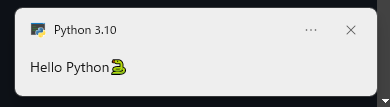
from win11toast import toast

toast('Hello Python🐍')
https://docs.microsoft.com/en-us/uwp/schemas/tiles/toastschema/element-text
Body
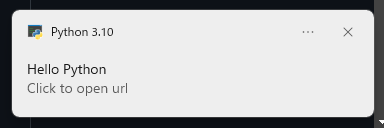
from win11toast import toast

toast('Hello Python', 'Click to open url', on_click='https://www.python.org')
Wrap text
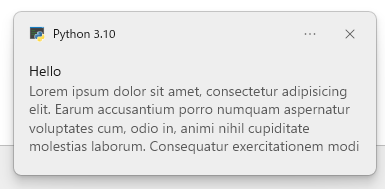
from win11toast import toast

toast('Hello', 'Lorem ipsum dolor sit amet, consectetur adipisicing elit. Earum accusantium porro numquam aspernatur voluptates cum, odio in, animi nihil cupiditate molestias laborum. Consequatur exercitationem modi vitae. In voluptates quia obcaecati!')
Run Python script on Click
from win11toast import toast

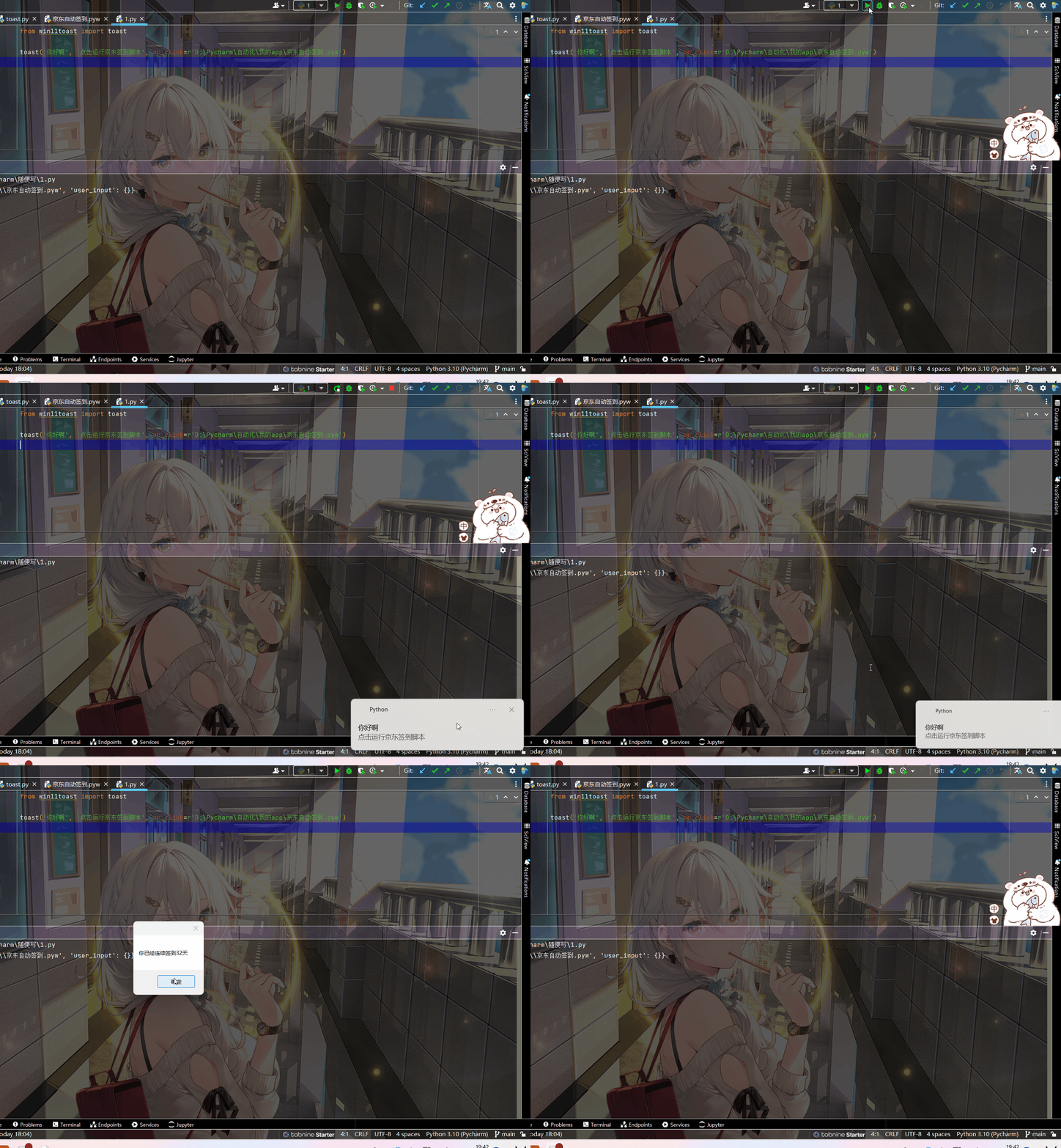
toast('Hello Pythonista', 'Click to run python script', on_click=r'C:\Users\Admin\Downloads\handler.pyw')
# {'arguments': 'C:\\Users\\Admin\\Downloads\\handler.pyw', 'user_input': {}}
Since the current directory when executing the script is C:\Windows\system32, use os.chdir() accordingly.
e.g. handler.pyw
On Windows, you can run a Python script in the background using the pythonw.exe executable, which will run your program with no visible process or way to interact with it.
https://stackoverflow.com/questions/9705982/pythonw-exe-or-python-exe
Callback
from win11toast import toast

toast('Hello Python', 'Click to open url', on_click=lambda args: print('clicked!', args))
# clicked! {'arguments': 'http:', 'user_input': {}}
Icon
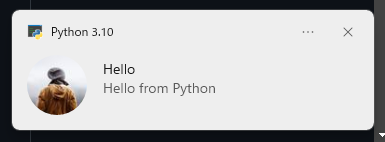
from win11toast import toast

toast('Hello', 'Hello from Python', icon='https://unsplash.it/64?image=669')
Square
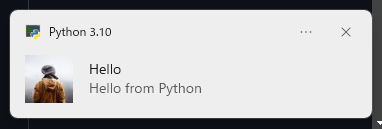
from win11toast import toast

icon = {
    'src': 'https://unsplash.it/64?image=669',
    'placement': 'appLogoOverride'
}

toast('Hello', 'Hello from Python', icon=icon)
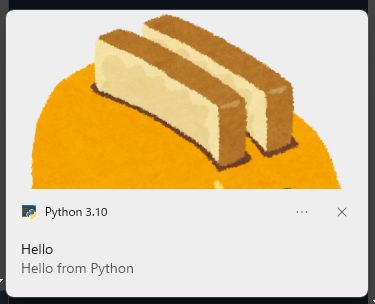
Image
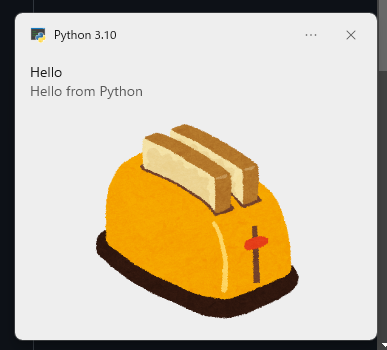
from win11toast import toast

toast('Hello', 'Hello from Python', image='https://4.bp.blogspot.com/-u-uyq3FEqeY/UkJLl773BHI/AAAAAAAAYPQ/7bY05EeF1oI/s800/cooking_toaster.png')
https://docs.microsoft.com/en-us/uwp/schemas/tiles/toastschema/element-image
Hero
from win11toast import toast

image = {
    'src': 'https://4.bp.blogspot.com/-u-uyq3FEqeY/UkJLl773BHI/AAAAAAAAYPQ/7bY05EeF1oI/s800/cooking_toaster.png',
    'placement': 'hero'
}

toast('Hello', 'Hello from Python', image=image)
Progress
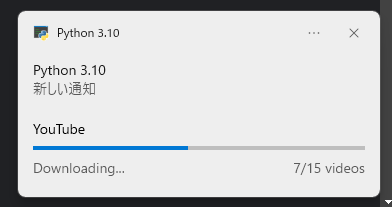
from time import sleep
from win11toast import notify, update_progress

notify(progress={
    'title': 'YouTube',
    'status': 'Downloading...',
    'value': '0',
    'valueStringOverride': '0/15 videos'
})

for i in range(1, 15+1):
    sleep(1)
    update_progress({'value': i/15, 'valueStringOverride': f'{i}/15 videos'})

update_progress({'status': 'Completed!'})
Attributes https://docs.microsoft.com/en-ca/uwp/schemas/tiles/toastschema/element-progress
Audio
from win11toast import toast

toast('Hello', 'Hello from Python', audio='ms-winsoundevent:Notification.Looping.Alarm')
Available audio https://docs.microsoft.com/en-us/uwp/schemas/tiles/toastschema/element-audio
From URL
from win11toast import toast

toast('Hello', 'Hello from Python', audio='https://nyanpass.com/nyanpass.mp3')
From file
from win11toast import toast

toast('Hello', 'Hello from Python', audio=r"C:\Users\Admin\Downloads\nyanpass.mp3")
I don't know how to add custom audio please help.
Loop
from win11toast import toast

toast('Hello', 'Hello from Python', audio={'loop': 'true'})
from win11toast import toast

toast('Hello', 'Hello from Python', audio={'src': 'ms-winsoundevent:Notification.Looping.Alarm', 'loop': 'true'})
Silent🤫
from win11toast import toast

toast('Hello Python🐍', audio={'silent': 'true'})
Speak🗣
from win11toast import toast

toast('Hello Python🐍', dialogue='Hello world')
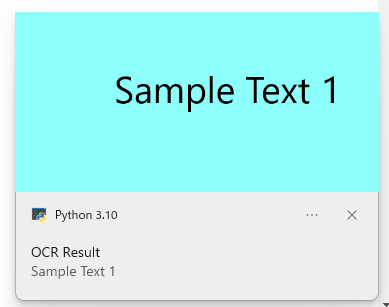
OCR👀
from win11toast import toast

toast(ocr='https://i.imgur.com/oYojrJW.png')
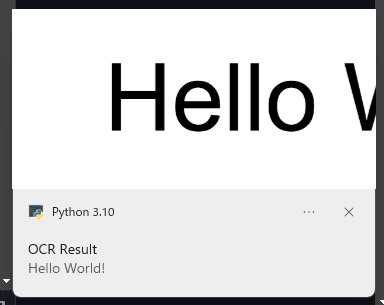
from win11toast import toast

toast(ocr={'lang': 'ja', 'ocr': r'C:\Users\Admin\Downloads\hello.png'})
Long duration
from win11toast import toast

toast('Hello Python🐍', duration='long')
displayed for 25 seconds https://docs.microsoft.com/en-us/uwp/schemas/tiles/toastschema/element-toast
No timeout
from win11toast import toast

toast('Hello Python🐍', scenario='incomingCall')
The scenario your toast is used for, like an alarm, reminder, incomingCall or urgent.
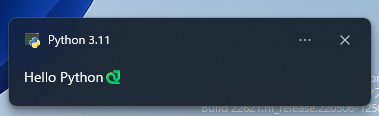
Button
from win11toast import toast

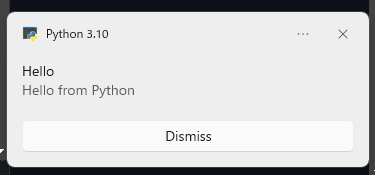
toast('Hello', 'Hello from Python', button='Dismiss')
# {'arguments': 'http:Dismiss', 'user_input': {}}
from win11toast import toast

toast('Hello', 'Hello from Python', button={'activationType': 'protocol', 'arguments': 'https://google.com', 'content': 'Open Google'})
# {'arguments': 'https://google.com', 'user_input': {}}

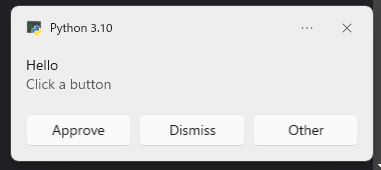
from win11toast import toast

toast('Hello', 'Click a button', buttons=['Approve', 'Dismiss', 'Other'])
https://docs.microsoft.com/en-us/uwp/schemas/tiles/toastschema/element-action
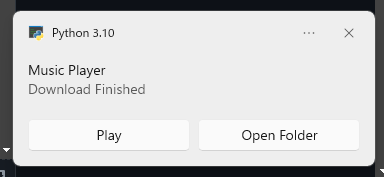
Play music or Open Explorer
from win11toast import toast

buttons = [
    {'activationType': 'protocol', 'arguments': 'C:\Windows\Media\Alarm01.wav', 'content': 'Play'},
    {'activationType': 'protocol', 'arguments': 'file:///C:/Windows/Media', 'content': 'Open Folder'}
]

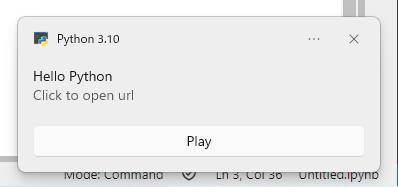
toast('Music Player', 'Download Finished', buttons=buttons)
Input
from win11toast import toast

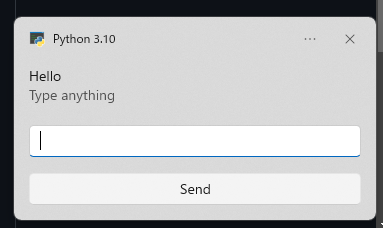
toast('Hello', 'Type anything', input='reply', button='Send')
# {'arguments': 'http:Send', 'user_input': {'reply': 'Hi there'}}
from win11toast import toast

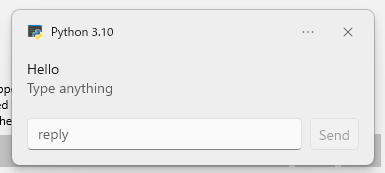
toast('Hello', 'Type anything', input='reply', button={'activationType': 'protocol', 'arguments': 'http:', 'content': 'Send', 'hint-inputId': 'reply'})
# {'arguments': 'http:', 'user_input': {'reply': 'Hi there'}}
https://docs.microsoft.com/en-us/uwp/schemas/tiles/toastschema/element-input
Selection
from win11toast import toast

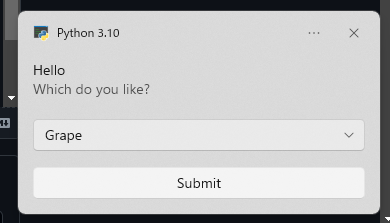
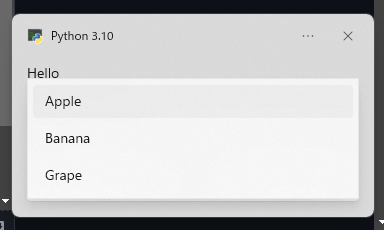
toast('Hello', 'Which do you like?', selection=['Apple', 'Banana', 'Grape'], button='Submit')
# {'arguments': 'dismiss', 'user_input': {'selection': 'Grape'}}
No arguments
from win11toast import toast

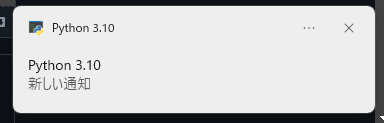
toast()
Non blocking
from win11toast import notify

notify('Hello Python', 'Click to open url', on_click='https://www.python.org')
Async
from win11toast import toast_async

async def main():
    await toast_async('Hello Python', 'Click to open url', on_click='https://www.python.org')
Jupyter
from win11toast import notify

notify('Hello Python', 'Click to open url', on_click='https://www.python.org')

from win11toast import toast_async

await toast_async('Hello Python', 'Click to open url', on_click='https://www.python.org')

import urllib.request
from pathlib import Path
src = str(Path(urllib.request.urlretrieve("https://i.imgur.com/p9dRdtP.jpg")[0]).absolute())

from win11toast import toast_async
await toast_async('にゃんぱすー', audio='https://nyanpass.com/nyanpass.mp3', image={'src': src, 'placement':'hero'})
from win11toast import toast_async

await toast_async('Hello Python🐍', dialogue='にゃんぱすー')
Debug
from win11toast import toast
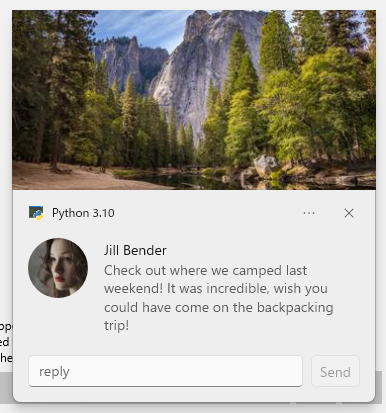
xml = """
<toast launch="action=openThread&threadId=92187">
<visual>
<binding template="ToastGeneric">
<text hint-maxLines="1">Jill Bender</text>
<text>Check out where we camped last weekend! It was incredible, wish you could have come on the backpacking trip!</text>
<image placement="appLogoOverride" hint-crop="circle" src="https://unsplash.it/64?image=1027"/>
<image placement="hero" src="https://unsplash.it/360/180?image=1043"/>
</binding>
</visual>
<actions>
<input id="textBox" type="text" placeHolderContent="reply"/>
<action
content="Send"
imageUri="Assets/Icons/send.png"
hint-inputId="textBox"
activationType="background"
arguments="action=reply&threadId=92187"/>
</actions>
</toast>"""
toast(xml=xml)

Acknowledgements
1 maintainer

Metadata
1 maintainer
Release files for win11toast 0.36.3
For a detailed explanation of source distributions (sdists) and built distributions (wheels), please see the package formats documentation.
Source distribution (sdist)
| File | Size | Uploaded | Provenance | |
|---|---|---|---|---|
| win11toast-0.36.3.tar.gz | 10.4 kB | Without provenance | Details |
Built distribution (wheel)
| File | Interpreter | ABI | Platform | Reset |
|---|---|---|---|---|
| win11toast-0.36.3-py3-none-any.whl | Python 3 | none | any | Details |
Total release size: 20.5 kB
Release files / win11toast-0.36.3.tar.gz
| Download URL | win11toast-0.36.3.tar.gz |
|---|---|
| Size | 10.4 kB |
| Tags | Source |
|
SHA-256 checksum How to use checksums |
6a9acb89165d56ca23b993cd95fcb3dbeb090f1711cbb631f539e92174fd390d
|
|
BLAKE2b-256 checksum How to use checksums |
f5947f995f872b6d6ba2cb677edb056028c455ae022d5caad54511559f2b9931
|
| Upload date | |
|
Uploaded using Trusted Publishing? What is trusted publishing? |
No |
| Uploaded via |
twine/6.1.0 CPython/3.13.7
|
Release files / win11toast-0.36.3-py3-none-any.whl
| Download URL | win11toast-0.36.3-py3-none-any.whl |
|---|---|
| Size | 10.1 kB |
| Tags | Python 3 |
|
SHA-256 checksum How to use checksums |
25bba8a906358520558313181b021c7b4fe31cfdf849e15c39b41f97dbdc839d
|
|
BLAKE2b-256 checksum How to use checksums |
11b6f5ba3f762b7c32ab0149160b9f4bed59bb6aef406d3e7cf5b1b44d90384d
|
| Upload date | |
|
Uploaded using Trusted Publishing? What is trusted publishing? |
No |
| Uploaded via |
twine/6.1.0 CPython/3.13.7
|
Security for win11toast 0.36.3
Provenance
Provenance describes where a file came from. On PyPI, provenance is shared via attestations, which provide a verifiable record of the build or publishing details. View details, limitations and caveats.
No provenance found
None of the files in this release were uploaded with provenance metadata.
A note on package security
PyPI is a repository for distributing packages, not a service for auditing them. While third-party security researchers and our staff do their best to detect and remove malicious packages, PyPI cannot guarantee the quality, security or suitability of any given package.
To learn more about protecting yourself from malicious actors, visit our package security documentation.














