
Create flame graphs to visualize file storage space.

Project description
WinFlame


A command-line utility for generating flame graphs from file trees on Windows.
These can be useful for simultaneously identifying which files and folders are taking up the most storage on your system. For privacy reasons I do not have any example graphs of a full drive scan on this page, but that is a good use for this program.
Showcase
In this example, the red-orange blocks are directories, the orange blocks are files, and the yellow blocks are alternate data streams. The width of the blocks is proportional to their size on disk.
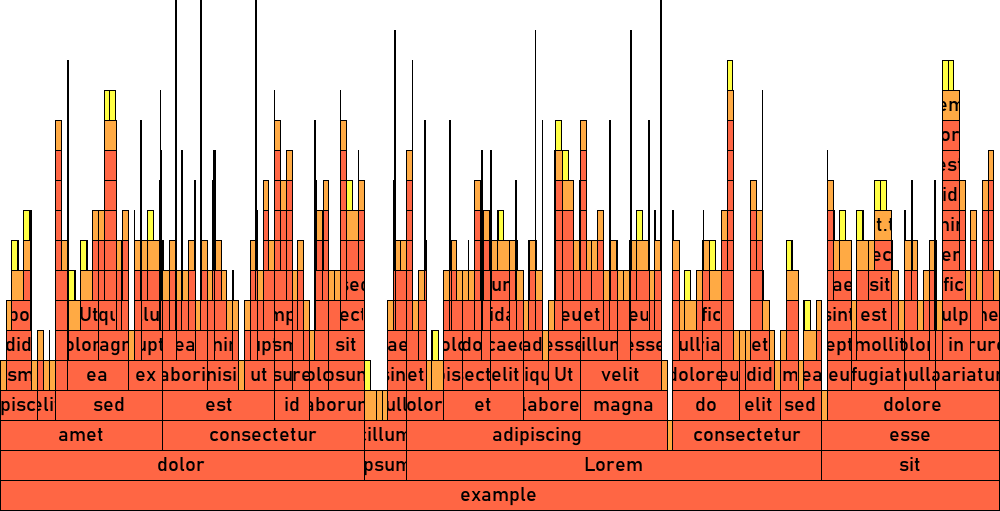
This example was generated with the command winflame -b example -FPw 1000 -H 30 -G 20 -m 16 -B #0000 -0 #f64f -1 #fa4f -2 #ff4f,
after generating the example folder using a script.
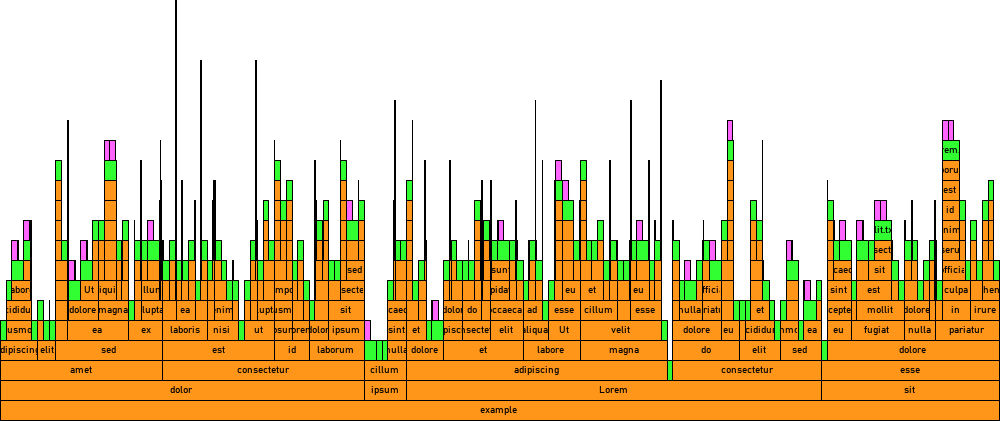
However, if you don't care about customization, a command as
simple as winflame -b example -PFw 1000 would do:
Requirements
Environment
- Windows
- Python 3.10+
Dependencies
You don't need to worry about installing these if you're following the installation instructions below.
Installation
Installing with pip
Simply run the command pip install winflame.
Building from source
- Clone the repository or extract a source distribution.
- Install
flitif you don't already have it:pip install flit - Run
flit installin the source directory. Alternatively, to build without installing, runflit build.
Command-Line Usage
Upon installation, the winflame command will become available on your system:
> winflame --version
winflame 1.0.3 running on Windows-11 with CPython 3.13.2
To view the usage reference, run winflame --help:
> winflame --help
usage: winflame [-b ROOT | -i TREE_IN | -r] [-N] [-f FLAME_OUT | -F | -p] [-e TREE_OUT | -E] [-c] [-I] [-V]
                [-R FLAME_ROOT] [-m MAX_FLAME_DEPTH] [-L] [-w WIDTH] [-H LAYER_HEIGHT] [-l {none,files,special,all}]
                [-W MIN_LABEL_WIDTH] [-P] [-g FONT_FILE] [-G FONT_SIZE] [-S {none,unaccounted,unaccounted-free,all}]
                [-B BG_COLOR] [-a BORDER_COLOR] [-T LABEL_COLOR] [-0 DIR_COLOR] [-1 FILE_COLOR] [-2 ADS_COLOR]
                [-3 FREE_COLOR] [-4 UNACCOUNTED_COLOR] [-5 EXTRA_COUNTED_COLOR] [-h | -v | -q | -C | -d] [-s] [-n]

Create flame graphs to visualize file storage space.

Input options:
  Use one of these options to choose how to obtain a file tree.

  -b, --build-from, -t, --target ROOT
                        A file or directory to build the file tree from, called the "root" of the file tree.
  -i, --tree-in TREE_IN
                        A tree file to load that was created with -e. These files cannot be shared, as allowing this
                        would allow arbitrary code execution via a deserialization attack. To prevent this, files
                        loaded with this option are first checked against known hashes to verify that they were made
                        on this device.
  -r, --reuse-tree      Reuse the last file tree that was cached with -c.

Input configuration options:
  Extra configuration for the input options.

  -N, --no-progress-report
                        Hide the progress report display when using -b.

Output options:
  Use these options to choose what to do with the file tree. You may use multiple at once.

  -f, -o, --flame-out FLAME_OUT
                        Create a flame graph and write it to this file; supports all image formats that Pillow
                        supports with RGBA.
  -F, -O, --flame-out-default
                        Create a flame graph and write it to the program's output folder under a default name.
  -p, --preview-flame   Create a flame graph and open it in the default image program without saving it.
  -e, --tree-out TREE_OUT
                        Write the file tree to this file; can be loaded later with -i.
  -E, --tree-out-default
                        Write the file tree to the program's output folder under a default name.
  -c, --cache-tree      Cache the file tree to be used again later with -r; overwrites the existing cached tree if
                        there is one.
  -I, --info            Print basic info about the file tree.

Output configuration options:
  Extra configuration for the output options.

  -V, --open-flame      Open the flame graph in the default image program once it is completed when using -f or -F
                        (implied when using -p).

Flame graph options:
  Configuration for the flame graph when using -f, -F, or -p. All color options are hex color codes supporting RGB
  and RGBA with the '#' prefix being optional.

  -R, --flame-root FLAME_ROOT
                        Build the flame graph from a different node of the file tree than the root. If provided, this
                        should be a path relative to the file tree's root that does not traverse any symlinks or
                        junctions. If you don't know the file tree's root, you can check with -I. In the special case
                        where the file tree root is a file and you want to make the flame root one of its alternate
                        data streams (for some reason), just the stream suffix should be used (e.g. ':ads' or
                        ':ads:$DATA').
  -m, --max-flame-depth MAX_FLAME_DEPTH
                        Limit the number of layers above the flame root to draw.
  -L, --logical-size    Use files' logical size instead of their physical size for proportions.
  -w, --width WIDTH     Width of the graph in pixels. (Default: 1920)
  -H, --layer-height LAYER_HEIGHT
                        Height of each graph layer in pixels. (Default: 20)
  -l, --labels {none,files,special,all}
                        Visibility of labels. (Default: 'all')

                        Allowed values:
                            'none': All labels are hidden.
                            'files': Labels on file tree nodes are shown.
                            'special': Labels on special segments are shown. See help on -S for more info.
                            'all': All labels are shown.

  -W, --min-label-width MIN_LABEL_WIDTH
                        Minimum width of a rectangle in pixels for a label to be drawn on it. (Default: 15)
  -P, --hide-full-root-path
                        Show only the filename part of the flame root's path on its label. Has no effect on drive
                        roots.
  -g, --font-file FONT_FILE
                        Font file to use for labels. Accepts TTF, OTF, PCF, BDF, and PIL font files. If omitted, a
                        default font is used.
  -G, --font-size FONT_SIZE
                        Font size to use for labels in pixels. This only has an effect if a TTF or OTF font file is
                        used. If omitted, 60% of the value of -H is used, with a cap of 10.
  -S, --special {none,unaccounted,unaccounted-free,all}
                        Visibility of special segments. (Default: 'all')

                        Allowed values:
                            'none': All special segments are hidden.
                            'unaccounted': The Unaccounted special segment is shown if available.
                            'unaccounted-free': The Unaccounted and Free special segments are shown if available.
                            'all': All special segments are shown if available.

                        Special segments:
                            Special segments are extra rectangles that get drawn on the flame graph at the bottom
                            layer to display information about the drive, and they are only available if the root of
                            the graph is a drive root. Additionally, special segments are always hidden if -L is
                            supplied because they have no logical size equivalents.

                            Free: Represents the amount of free (unused) space on the drive. Extra-counted space is
                            subtracted from this.
                            Unaccounted*: Represents the amount of used space on the drive that the program could not
                            identify the source of.
                            Extra-counted*: Represents the amount of unused space on the drive that the program
                            actually over-counted as used by files.

                            *This special segment is not available unless the file tree was built with administrator
                            privileges due to Windows API limitations.

  -B, --bg-color, --background-color BG_COLOR
                        Color of the graph's background. (Default: #ffff)
  -a, --border-color BORDER_COLOR
                        Color of rectangle outlines. (Default: #000f)
  -T, --label-color, --text-color LABEL_COLOR
                        Color of rectangle labels. (Default: #000f)
  -0, --dir-color, --directory-color DIR_COLOR
                        Color of directories. (Run winflame -C to see default)
  -1, --file-color, --regular-file-color FILE_COLOR
                        Color of regular files. (Run winflame -C to see default)
  -2, --ads-color, --alternate-data-stream-color ADS_COLOR
                        Color of alternate data streams. (Run winflame -C to see default)
  -3, --free-color FREE_COLOR
                        Color of the Free special segment. See help on -S for more info. (Run winflame -C to see
                        default)
  -4, --unaccounted-color UNACCOUNTED_COLOR
                        Color of the Unaccounted special segment. See help on -S for more info. (Run winflame -C to
                        see default)
  -5, --extra-counted-color EXTRA_COUNTED_COLOR
                        Color of the Extra-counted special segment. See help on -S for more info. (Run winflame -C to
                        see default)

Miscellaneous options:
  -h, --help, /?        Print this help text and exit.
  -v, --version         Print program version information and exit.
  -q, --paths           Print the program's data directory paths and exit.
  -C, --colors          Print the flame graph / progress report default color key and exit.
  -d, --delete-cache, --clear-cache
                        Delete the file tree cached with -c (if there is one) and exit.
  -s, --silent          Suppress all output except errors and warnings.
  -n, --no-warnings     Suppress all warnings including yes/no prompts, which will assume the answer "yes".
Module Usage
WinFlame provides access to its interfaces via the winflame import package. While the module is not the primary purpose of this project, all of its interfaces have informative docstrings.
When using Python's built-in help function, use help(winflame.winflame) rather than just help(winflame) for documentation on the core module (which is what supplies the majority of the interfaces of winflame).
Example usage:
>>> import winflame
>>> root_node = winflame.FileNode('C:\\Users\\soup\\Videos', should_report_progress=False)
>>> root_node
<FileNode: Root directory 'C:\\Users\\soup\\Videos'>
>>> root_node.is_drive_root
False
>>> root_node.create_flame_graph().save('videos_storage_distribution.png')
>>> status = winflame.cli.cli(['--delete-cache'])
There is no cached file tree.
>>> status
0
Project details


Download files
Download the file for your platform. If you're not sure which to choose, learn more about installing packages.
Source Distribution
Built Distribution
Filter files by name, interpreter, ABI, and platform.
If you're not sure about the file name format, learn more about wheel file names.
Copy a direct link to the current filters
File details
Details for the file winflame-1.0.7.tar.gz.
File metadata
- Download URL: winflame-1.0.7.tar.gz
- Upload date:
- Size: 99.8 kB
- Tags: Source
- Uploaded using Trusted Publishing? No
- Uploaded via: python-requests/2.33.0
File hashes
| Algorithm | Hash digest | |
|---|---|---|
| SHA256 |
4f8e5ff41e1d827d10938de0ca7edaa51bdcc7a60b7e72f1b67bb7ca91778665
|
|
| MD5 |
1837aa64842bd1f48d689a65552687bc
|
|
| BLAKE2b-256 |
8ae2875bae932af62d8bb9a285cf5a55b0f7f942be5a8d311580fdcecfb790eb
|
File details
Details for the file winflame-1.0.7-py3-none-any.whl.
File metadata
- Download URL: winflame-1.0.7-py3-none-any.whl
- Upload date:
- Size: 47.8 kB
- Tags: Python 3
- Uploaded using Trusted Publishing? No
- Uploaded via: python-requests/2.33.0
File hashes
| Algorithm | Hash digest | |
|---|---|---|
| SHA256 |
d2badb63b40f50896efcf147d3eaf9b7a9360b2aa6adc91a33ce1ea887dd5953
|
|
| MD5 |
cee4fb87ba1e19b576c01e2369b423db
|
|
| BLAKE2b-256 |
16c341dba487e06915072a4eefdff18c6bfe1e96184ba9342651cbcdc4fe270d
|






