
wk-terminal


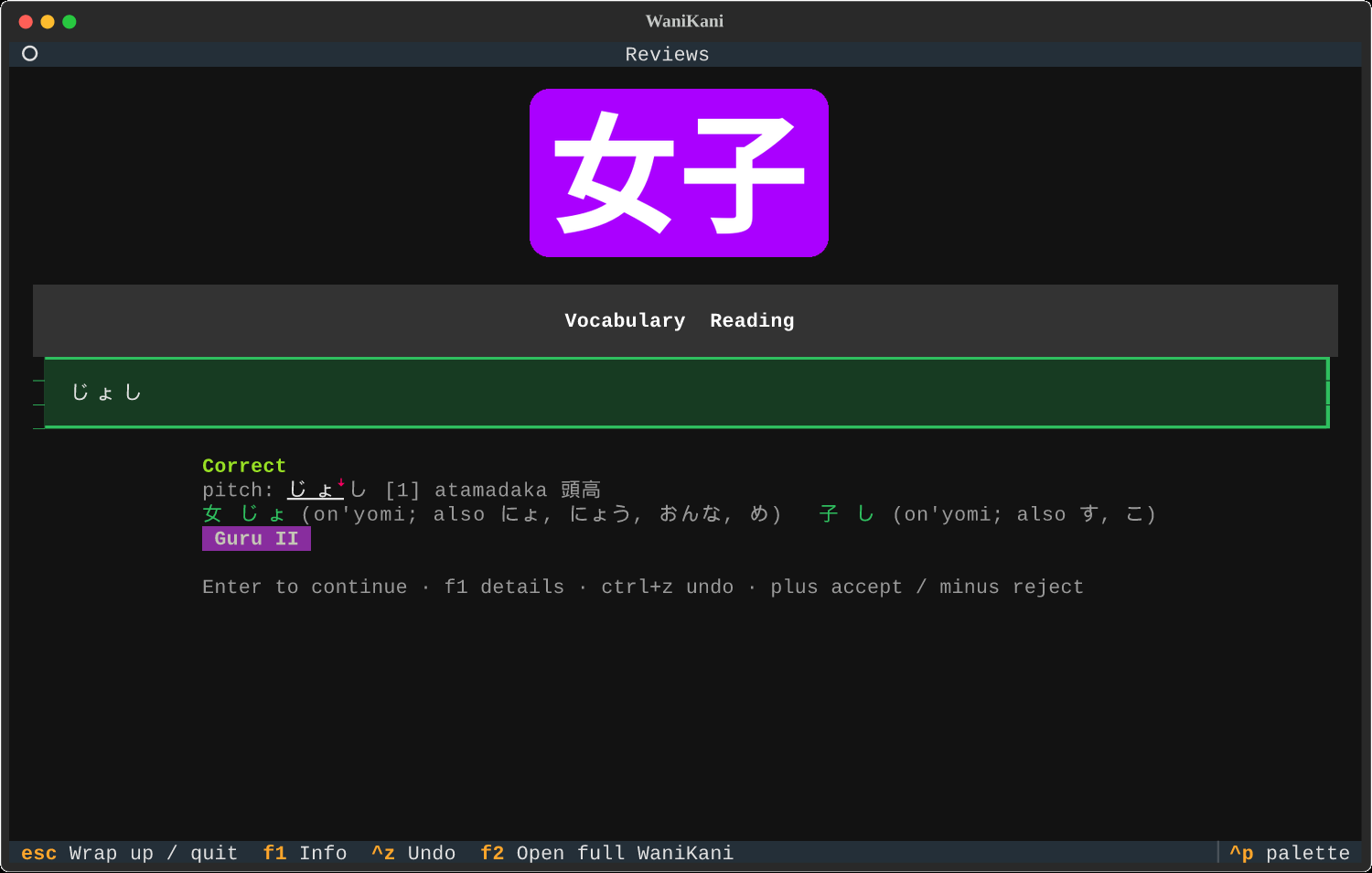
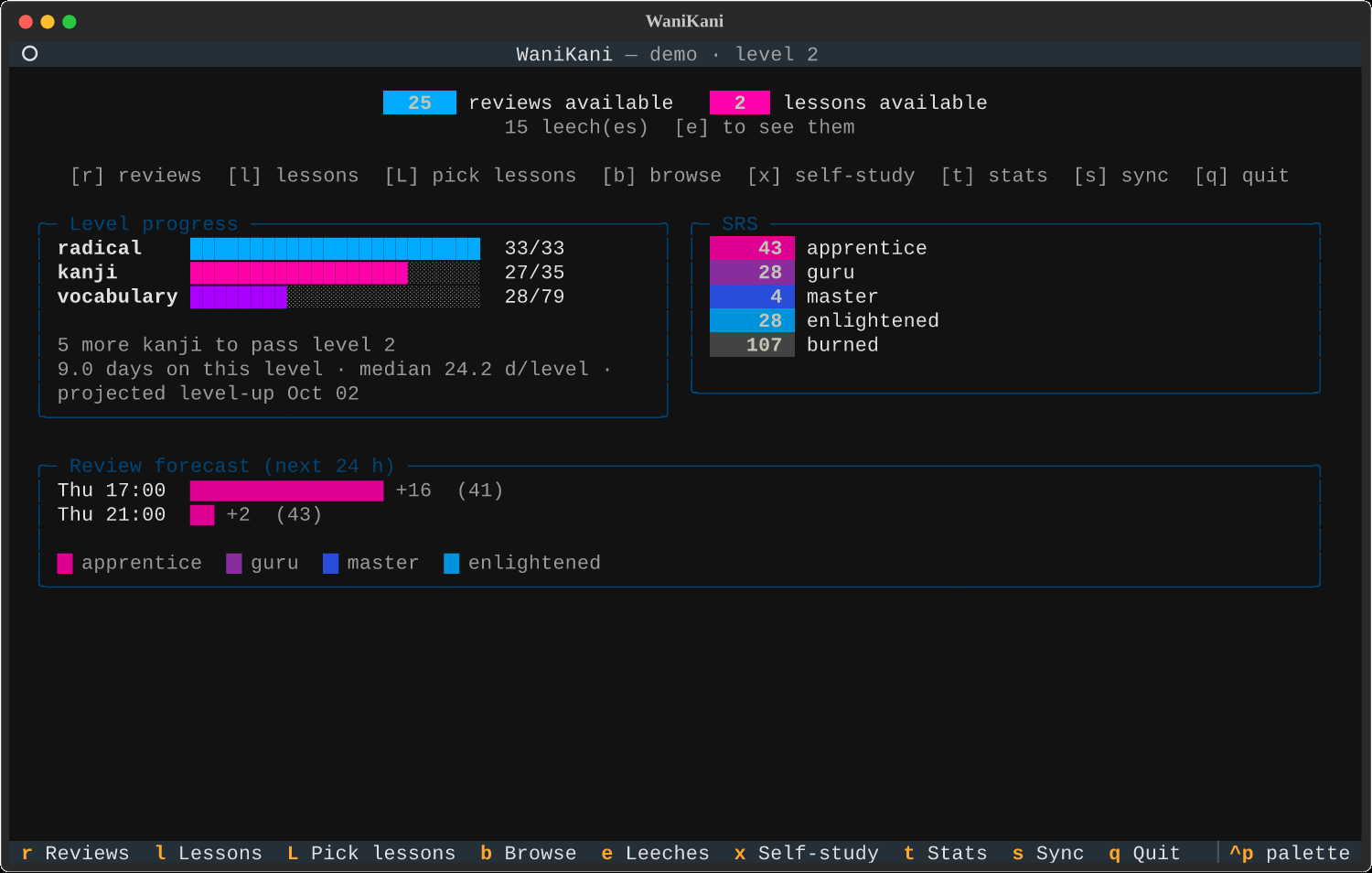
WaniKani in your terminal: dashboard, item browser, reviews and lessons, with kanji and radical images drawn through the kitty graphics protocol (ghostty, kitty, WezTerm…), plus a background daemon that nudges you with desktop notifications and opens a small review window.
 |
 |
 |
 |
Unofficial; uses the official WaniKani API with your own token.
Setup
-
Create a personal access token at https://www.wanikani.com/settings/personal_access_tokens with
assignments:start,reviews:create,study_materials:createandstudy_materials:updateenabled. -
Store it where the app can find it (never paste it into chat logs):
mkdir -p ~/.config/wanikani
printf '%s\n' 'YOUR-TOKEN-HERE' > ~/.config/wanikani/token
chmod 600 ~/.config/wanikani/token
WANIKANI_API_TOKENin the environment also works. -
Install the
wkcommand:uv tool install wk-terminal # from PyPI (pipx install wk-terminal works too) uv tool install git+https://github.com/ferjjp/wk-terminal.git # or straight from GitHub
From a clone,
uv tool install --editable .picks up edits live.
The first start downloads every subject (~10 requests) into
~/.local/share/wanikani-tui/cache.sqlite3. Later starts sync incrementally in the
background.
Commands
wk                    # the full interface (syncs in the background)
wk --no-sync          # offline: browse the cache, reviews are queued until you are back online
wk --full-sync        # re-download everything
wk sync               # sync only, print counts; also sends queued submissions
wk due                # "12 reviews, 3 lessons"      (--format tmux|short|json, --sync)
wk pop                # one review (or one lesson) in a small window, then exit
wk daemon             # background sync + desktop notifications (foreground)
wk daemon install     # run it as a systemd user service, started with your session
wk daemon status | uninstall
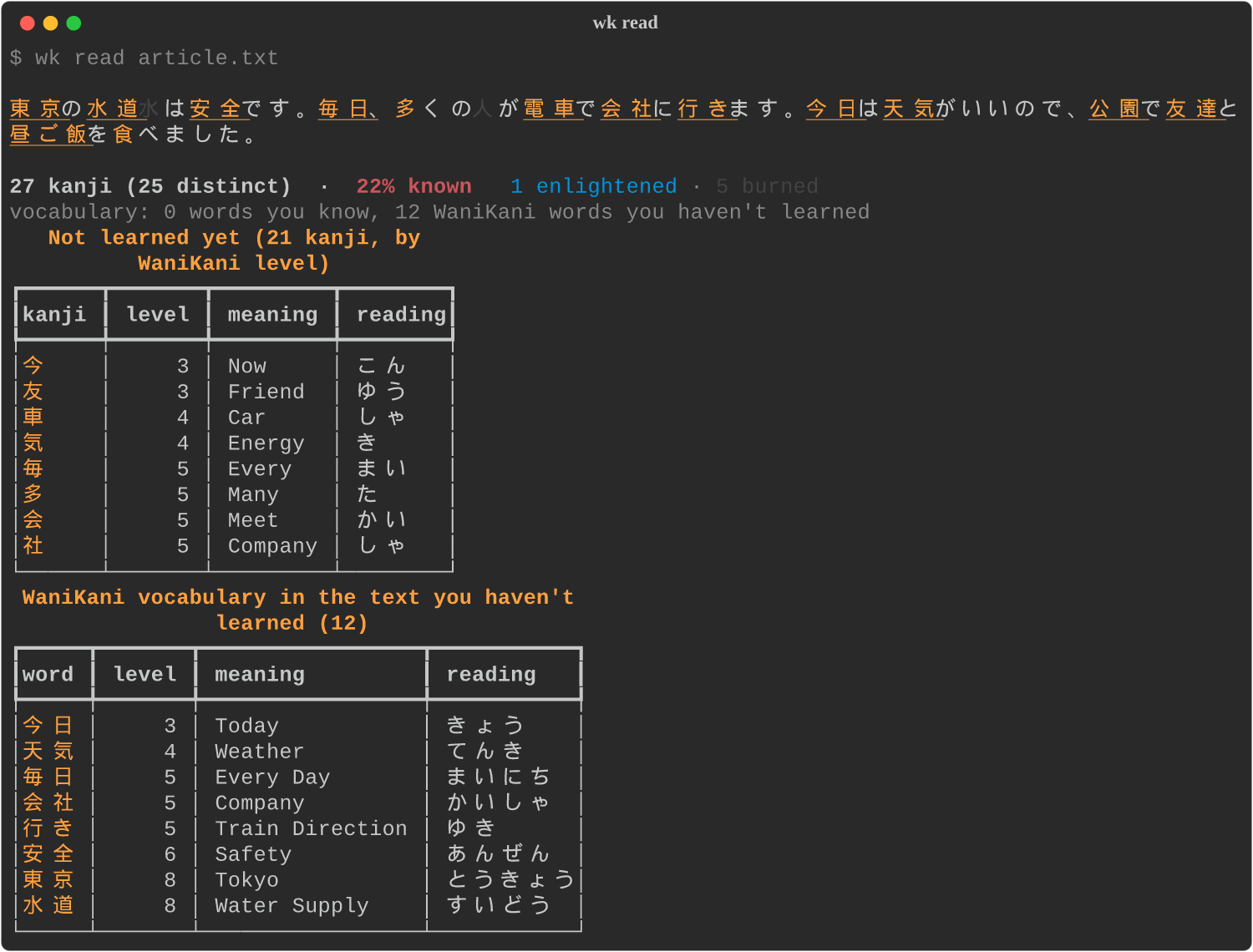
wk read article.txt   # experimental: colour a plain-text Japanese file (or stdin) by what you know, list unknown kanji/words
wk today              # "today 32/50 reviews · streak 4 · 80 due · 5 lessons" for scripts and status lines
wk export stats       # CSV: per-item accuracy + leech score (also: sessions, items, reviews; -o file.csv)
wk config             # write ~/.config/wanikani/config.toml with all defaults
wk keys               # every action with its current key; rebind under [keys] in the config
wk doctor             # what image protocol the terminal negotiates
wk --images tgp       # force kitty graphics (auto | tgp | sixel | halfcell | unicode | none)
Keys
Every key below can be changed under [keys] in the config file.
Dashboard
| Key | Action |
|---|---|
r |
Start reviews |
l |
Start lessons (next batch) |
L |
Pick which lessons to take |
b |
Browse items by level |
e |
Your leeches |
x |
Self-study: drill a set (current level, leeches, recent mistakes…) without touching the SRS |
t |
Stats |
s |
Sync now |
q / Esc |
Quit |
Browse
| Key | Action |
|---|---|
↑ ↓ |
Move through the list |
Tab |
Switch between the level column and the list |
Enter |
Open the item |
/ |
Search characters, meaning or slug |
t |
Cycle type: all, radicals, kanji, vocabulary |
f |
Cycle filter: all, due in 24 h, leeches, apprentice … burned |
x |
Self-study quiz over whatever the list shows |
Esc |
Back |
Item
| Key | Action |
|---|---|
a |
Play audio (vocabulary) |
s |
Stroke order (kanji) |
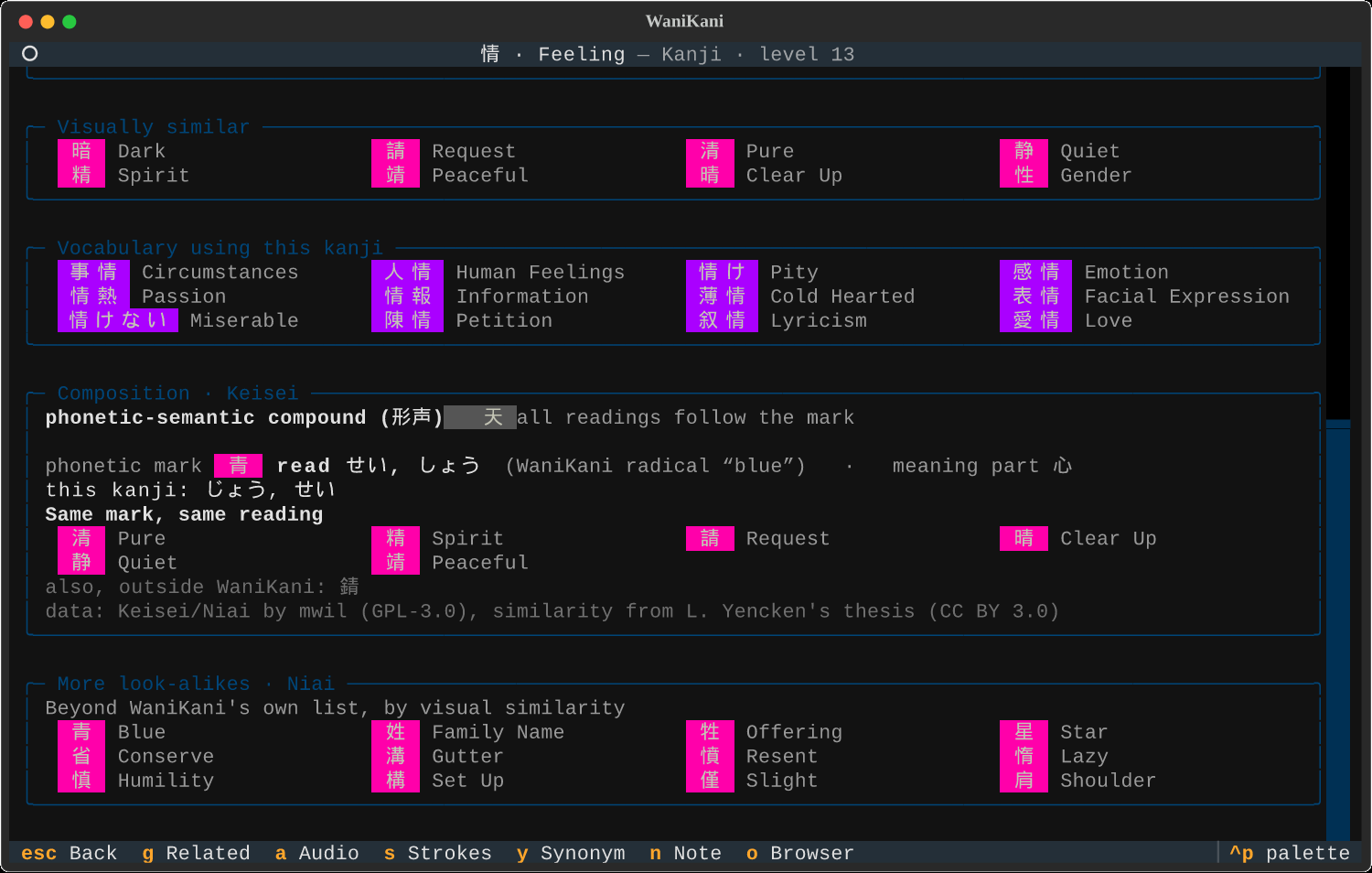
| Kanji also show their composition (Keisei: phonetic mark, expected reading, quality 天上中下) and extra look-alikes (Niai) | |
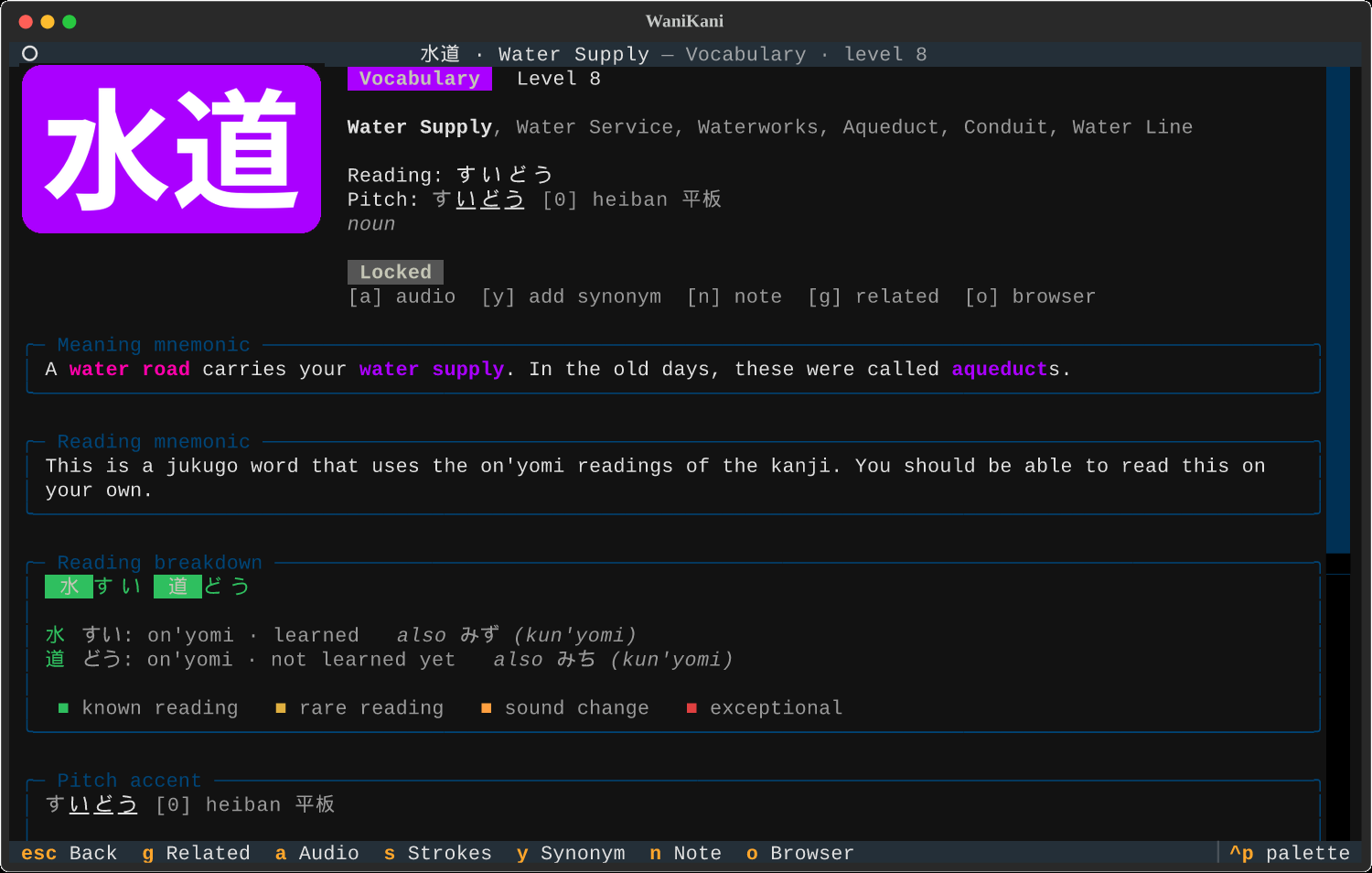
| Vocabulary shows its pitch accent and a reading breakdown: which reading each kanji contributes, coloured by whether it is a reading you know, a sound change (rendaku, sokuon) or an exception | |
y |
Add a meaning synonym to your account |
n |
Edit your note |
g |
Jump to a related item from a list |
Tab / Enter |
Move between related-item chips and open one |
o |
Open on wanikani.com |
j k |
Scroll (vim keys, on by default) |
Esc |
Back |
Reviews
Type the answer and press Enter. Readings convert romaji to kana as you type:
nn or n' gives ん, so 女 is onnna and 単位 is tanni.
| Key | Action |
|---|---|
Enter |
Check the answer, then continue |
+ / - |
Override the verdict: accept a rejected answer, or reject an accepted one (Double-Check) |
F3 |
Anki mode for this session: Space reveals the answer, 1 knew it, 2 didn't (anki = true in the config makes it the default) |
Ctrl+Z |
Undo the last answer (until you continue) |
F1 |
Item details, after you answered |
Esc |
Wrap up: finish the items already started, then quit. Press again to quit now |
F2 |
In the popup window: open the full app in place |
On a miss, the feedback names the item you probably confused it with (an item whose meaning or reading matches what you typed), shows the mnemonic, and for vocabulary the pitch accent. A submission that fails to reach WaniKani is queued and sent on the next sync.
Lessons
| Key | Action |
|---|---|
→ ← (or l h) |
Next / previous item |
Enter |
On the last item: start the quiz |
a |
Play audio |
s |
Stroke order |
Esc |
Leave lessons (nothing is recorded until the quiz) |
Within a batch, radicals come before the kanji that use them and kanji before their vocabulary; the footer says what each item builds on.
Lesson picker
| Key | Action |
|---|---|
Space |
Select or deselect |
a |
Select all / none |
t |
Cycle type filter |
Enter |
Start with the selection (or the highlighted item) |
Config
wk config writes ~/.config/wanikani/config.toml with every option and its default:
lightning mode, review order (random, level, back_to_back), mnemonic on a miss,
audio autoplay, lesson batch size, image height, theme (any Textual theme, e.g.
textual-light, tokyo-night), colour-blind SRS palette, vim keys, compact layout,
and the daemon's cadence, quiet hours, popup behaviour and terminal command.
Daemon
wk daemon syncs every 10 minutes and, when reviews are due, sends a desktop
notification showing the next item. Clicking it opens a small terminal window with that
one review; when you finish, press Enter for one more, Esc to close, or F2 for
the full app. Notifications come at most every 30 minutes and never during quiet hours
(23:00 to 08:00). The item is chosen to be the one you most need: leeches, low SRS
stages, long-overdue and weak items first, skipping anything answered in the last hour.
wk daemon --once        # try one cycle in the foreground
wk daemon install       # start it with your session (systemd user service / launchd agent)
wk daemon status
Reminders wait until you are actually at the keyboard (only_when_active) and stay quiet in
do-not-disturb; the notification's Later button snoozes for an hour. Idle time comes from
GNOME's idle monitor, KDE's screensaver interface, macOS IOKit, or xprintidle on X11; where
none answers (sway, Hyprland…) the daemon just keeps the plain schedule. Do-not-disturb is read
on GNOME only.
With [goal] reviews_per_day set, the dashboard shows today's progress and your streak, and
the daemon sends one extra nudge in the evening (evening_nudge = "20:00") if the goal is unmet.
Cadence, quiet hours, popup behaviour and the terminal command live under [daemon]
in the config file; the daemon picks up changes without a restart.
macOS
Untested so far. The macOS paths were written without a Mac at hand; the platform selection is unit-tested but nothing has run on real macOS yet. Reports welcome.
Everything should work the same with ghostty, kitty or WezTerm (all three support the kitty graphics protocol). Differences, all detected automatically:
- Notifications use
terminal-notifierwhen installed (brew install terminal-notifier); a click then opens the popup. Without it, plainosascriptnotifications are shown and clicks do nothing. - The popup opens in ghostty, kitty or WezTerm if found, otherwise in Terminal.app
(no images there).
terminal = "..."in the config overrides the choice. wk daemon installwrites a launchd agent in~/Library/LaunchAgents/instead of a systemd unit; logs go to~/.local/state/wanikani-tui/.- Audio plays through
afplay; the CJK font comes from the system Hiragino faces.
wk doctor prints which backends were picked.
tmux
Images reach the real terminal only with passthrough enabled:
set -g allow-passthrough on
Inside tmux the terminal's capability answers come from tmux itself, so wk assumes
kitty graphics when it can tell it is running under ghostty, kitty or WezTerm.
Elsewhere, or if images come out wrong, start with wk --images tgp.
For a due counter in the tmux status line:
set -g status-right '#(wk due --format tmux) %H:%M'
Reading real text (experimental)
Plain-text files or stdin only for now: no PDF, EPUB or HTML, and vocabulary matching is a simple longest-match without any grammar awareness, so treat the word lists as a rough guide.
wk read FILE (or cat FILE | wk read) prints the text with every kanji coloured by your SRS
stage (apprentice to burned), orange for WaniKani kanji you have not learned yet, red for kanji
outside WaniKani, and WaniKani vocabulary underlined. Below it: a coverage percentage, the
unlearned kanji sorted by WaniKani level with meaning and reading, and the WaniKani words in
the text you have not learned. --summary skips the text, --no-vocab skips word matching.
Handy for deciding whether an article or a page is readable yet.
Community data
Kanji pages show two sections built on datasets from the WaniKani userscript community,
fetched from GitHub on first use and cached under ~/.local/share/wanikani-tui/ext/:
-
Keisei (形声): whether the kanji is a phonetic-semantic compound, which part is the phonetic mark, what reading it predicts, a 天/上/中/下 quality mark, and the other kanji sharing the mark, plus look-alikes that are read differently.
-
Niai (似合い): visually similar kanji beyond WaniKani's own list, merged from a manual list, Keisei families and a stroke-similarity model the way the Niai userscript does.
-
Pitch accent for vocabulary, from the Kanjium accents table (CC BY-SA 4.0, itself built on EDRDG data): high morae underlined, ꜜ at the downstep, and the pattern name (heiban, atamadaka, nakadaka, odaka). Shown on the item page and after a correct reading in reviews.
Keisei and Niai come from mwil/wanikani-userscripts
(GPL-3.0); the similarity data derives from Lars Yencken's PhD datasets (CC BY 3.0). Set
community_data = false or pitch_accent = false under [ui] to skip them.
katakana_onyomi = true shows on'yomi in katakana, the dictionary convention.
Fonts
Kanji images are drawn with a system Japanese font (Noto Sans CJK on Linux, Hiragino on
macOS). The font is not bundled: it is 16 MB per weight, and your terminal needs its own
Japanese font anyway to show kana and kanji in text. wk doctor reports which font was
found and prints the install command for your system, e.g. sudo apt install fonts-noto-cjk
or brew install --cask font-noto-sans-cjk-jp. WK_FONT=/path/to/font.ttc overrides it.
Development
uv run pytest                        # answer checking, SRS math, queue, core/retry queue, real-cache shapes
uv run python tests/drive.py out/    # drive the main screens headlessly, saves PNG screenshots
uv run python tests/drive2.py out/   # stats, picker, filters, synonyms, strokes, undo, popup
uv run python tests/pty_capture.py "r,a,enter" out.bin   # kitty-graphics traffic vs painted cells
uv run python scripts/make_screenshots.py docs/          # README screenshots from a temp copy of your cache
Licence and credits
MIT licence, see LICENSE. This is an unofficial client; WaniKani and its content belong to
Tofugu LLC and are used through the official API under your own account. Stroke-order
diagrams come from KanjiVG by Ulrich Apel (CC BY-SA 3.0),
fetched on demand and cached locally. Pitch accent data from Kanjium (CC BY-SA 4.0). Kana conversion by
wanakana-python; terminal images by
textual-image.
1 maintainer

Metadata
1 maintainer
Release files for wk-terminal 0.1.0
For a detailed explanation of source distributions (sdists) and built distributions (wheels), please see the package formats documentation.
Source distribution (sdist)
| File | Size | Uploaded | |
|---|---|---|---|
| wk_terminal-0.1.0.tar.gz | 77.8 kB | Details |
Built distribution (wheel)
| File | Interpreter | ABI | Platform | Reset |
|---|---|---|---|---|
| wk_terminal-0.1.0-py3-none-any.whl | Python 3 | none | any | Details |
Total release size: 166.5 kB
Release files / wk_terminal-0.1.0.tar.gz
| Download URL | wk_terminal-0.1.0.tar.gz |
|---|---|
| Size | 77.8 kB |
| Tags | Source |
|
SHA-256 checksum How to use checksums |
eee813e80e7480e7acf34d6e134d0c3456ac2086a53d85dedf8b04747f576326
|
|
BLAKE2b-256 checksum How to use checksums |
d599bac67b10b7b6ab160899766e03f58c61e07c2f8da8e4aec693d52b1fbd92
|
| Upload date | |
|
Uploaded using Trusted Publishing? What is trusted publishing? |
No |
| Uploaded via |
uv/0.11.8 {"installer":{"name":"uv","version":"0.11.8","subcommand":["publish"]},"python":null,"implementation":{"name":null,"version":null},"distro":{"name":"Ubuntu","version":"26.04","id":"resolute","libc":null},"system":{"name":null,"release":null},"cpu":null,"openssl_version":null,"setuptools_version":null,"rustc_version":null,"ci":null}
|
Release files / wk_terminal-0.1.0-py3-none-any.whl
| Download URL | wk_terminal-0.1.0-py3-none-any.whl |
|---|---|
| Size | 88.7 kB |
| Tags | Python 3 |
|
SHA-256 checksum How to use checksums |
620ee3de9071fe8c6efdfaedd05f8c143c15bfdd411ecb48a575afef193d081b
|
|
BLAKE2b-256 checksum How to use checksums |
09fadde85f42688e8585e554acd6a1a8d0c1708a73834227d7301cec669326f9
|
| Upload date | |
|
Uploaded using Trusted Publishing? What is trusted publishing? |
No |
| Uploaded via |
uv/0.11.8 {"installer":{"name":"uv","version":"0.11.8","subcommand":["publish"]},"python":null,"implementation":{"name":null,"version":null},"distro":{"name":"Ubuntu","version":"26.04","id":"resolute","libc":null},"system":{"name":null,"release":null},"cpu":null,"openssl_version":null,"setuptools_version":null,"rustc_version":null,"ci":null}
|














