

workcrew
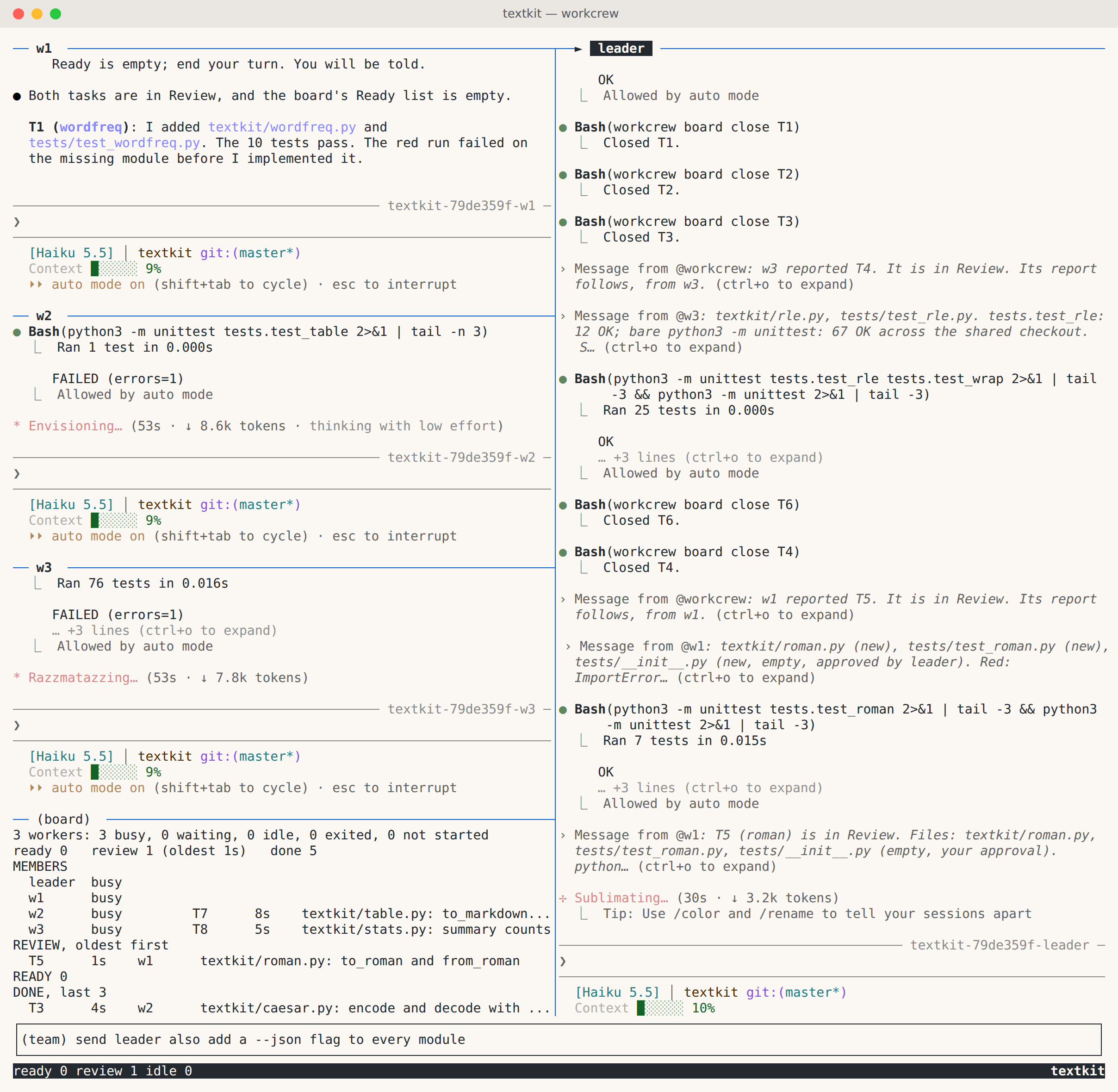
Run a team of Claude Code sessions in tmux: a leader splits your goal into tasks on a board, and workers take them.
For developers who use Claude Code and want more than one session on the same project. Each member is your own Claude Code with your login: your user settings, CLAUDE.md, output style, hooks and permissions apply to every member, as to any session you start. Nothing is wrapped or proxied.
Install
uv tool install workcrew # or: pipx install workcrew
Needs tmux 3.2a or newer, Claude Code 2.1.225 or newer, Python 3.11 or newer, and Linux or macOS. workcrew currently supports Claude Code; other harnesses are coming soon. Uninstalling leaves each team's state and the members' transcripts where they are.
To upgrade, stop each team with workcrew -r NAME exit, reinstall with --force (uv tool install --force workcrew), and bring each back with workcrew -r NAME. Members call workcrew from their hooks, and during the install it is missing for a few seconds.
Start in 60 seconds
cd ~/src/myrepo
workcrew                          # a team named myrepo starts here: a leader and 3 workers; you are attached
- Give the leader a goal. Click the leader's pane (on the right) and type, as you would in
claude. For example:Make the test suite pass. Split the work into tasks for the workers. - Watch. Workers take tasks and report them. Press
C-]and typeboardto see who holds what; any key closes it. To keep the board on screen, pressC-b :and typesplit-window workcrew board --loop(C-b C-b :inside your own tmux). A member waiting for your answer is markedWAITINGon its border once Claude Code reports it, six seconds after a permission prompt appears, and your terminal's bell rings once: click its pane to answer. - Add a worker. Press
C-], typeadd. The leader is told. - Message everyone. Press
C-], typesend all rebase on main before you report. The rest of the line is the message. - Leave and come back. Press
C-b d(C-b C-b dinside your own tmux) to leave: the team keeps working. To stop it, pressC-]and typeexit; a pane of your own, such as the board, stays open and keeps you attached: pressqin the board, orC-b d. Either way,workcrew -r myrepofrom any folder brings you back to the same sessions with their history. - A second team in the same folder. In a shell outside the team, in
~/src/myrepo, runworkcrew --name docs --workers 2. A team nameddocsstarts there besidemyrepo, with its own leader, workers and board, and you are attached to it.
In a folder Claude Code has not trusted yet, only the leader starts. Answer the trust question in its pane, and the workers start.
What to know
- A team has a name. The first team in a folder is named after the folder, such as
myrepo; start another there withworkcrew --name docs. No two teams on your machine share a name, and a name cannot be a command word. Teams in one folder share its files, as any sessions opened there do. A team's state is kept outside the folder, in~/.local/state/workcrew/, or$XDG_STATE_HOME/workcrew/when that is set. - The leader plans; workers do. The leader puts tasks on the board, or gives one straight to a worker, and reviews what workers report. Each worker holds at most one task.
- The board belongs to the team. Members change it; you only look at it. To change the work, tell the leader.
- Arrange the panes as you like. Every member is in one window, however small its pane. workcrew lays its grid out when a team first starts, once more at the first attach to fit your terminal, and on
layout left|right|middle. What you resize, swap or move with tmux is kept while the team runs, and comes back as you left it at the next start with the same members. A member you break out stays in its own window, also across a restart, untillayout. - The borders name the panes. Each member's name is on its border;
(you)and(board)mark your own panes. The pane that takes your keys has ► before its name, and its name reversed. - Inside a team you never name it; outside you always do.
- Inside: press
C-]and type the command, such asboard. The wordworkcrewmay be left out there or kept, as inworkcrew add, so a line the tool prints can be typed as it is. It acts on the team you are in. Esc closes the prompt. - Outside, in any shell, in any folder: type
workcrew -r NAMEand the command, such asworkcrew -r myrepo board. With a command after the name, it acts on that team, running or stopped, and never starts a new team. - Members type the whole line in their own shell, such as
workcrew board. It acts on their own team, and they cannot name another. The key isC-](Ctrl+]), with no terminal setting, on a Mac too. Inside the team it takes Claude Code's own Ctrl+] (open artifact). Where]needs AltGr, use the outside form from any shell.
- Inside: press
- One account, N + 1 sessions. The leader and every worker share your Claude account's limits.
- Members start with the shell's environment. They see the environment of the shell that started the team's server, less the variables a Claude Code session sets for its own children, and each has its own
TMPDIR, under~/.cache/workcrew/($XDG_CACHE_HOME/workcrew/when that is set), whichexit --forgetremoves. A variable changed later reaches them once that server starts again:workcrew -r NAME exitwith none of your own panes left open in the team, thenworkcrew -r NAME. - Attach from a shell with a UTF-8 locale. Attached from a shell under
LC_ALL=C, tmux shows every non-ASCII character in the panes as_. - Claude Code's own flags go after
--.workcrew -- --permission-mode autogives every member that mode, where your account allows it. - More than one screen. From a second terminal, or from another computer logged in to this one,
workcrew -r NAMEattaches another screen to the same team.C-b d(C-b C-b dinside your own tmux) leaves one screen and keeps the team running;exitstops the team for every screen. - Nothing is lost on exit.
exit, a crash,kill -9or a reboot:workcrew -r NAMEresumes every member's own session.
Commands
Three lines start, bring back or list teams. Type them in a shell outside any team:
workcrew [--workers N] [--no-cap] [-- CLAUDE FLAGS]       start this folder's team, or bring it back (default 3 workers)
workcrew --name NAME [--workers N] [--no-cap] [-- …]      start another team in this folder, named NAME, and attach
workcrew -r NAME [-- CLAUDE FLAGS]                        bring back the team NAME from any folder, and attach; without a terminal, it does all but attach and exits 0
workcrew -r                                               pick a team to open; without a terminal, list them: name, folder and key
-r never starts a new team. In a folder that holds several teams, the bare workcrew starts nothing: it lists them, with the line to bring each back.
Every other command acts on one team. Where you are decides how you say which:
| Where you are | What you type | Example |
|---|---|---|
| Inside a team | C-], then the command; it acts on this team |
board |
| Anywhere else, in any shell | workcrew -r NAME, then the command |
workcrew -r myrepo board |
- Outside a team, a command without
-r NAMEis refused. The refusal names the teams in that folder and gives the line to type. - Inside a team you can still reach another one:
C-], then-r docsand any command, such as-r docs board. A name you give always wins over the team you are in.-r docsalone, to attach, is typed in a shell outside any team.
board [--loop [SEC]]       the board: who holds what, what waits for review, what is ready
add [N]                    add N workers (default 1)
remove MEMBER…             remove workers; a task one was doing goes back to Ready
send all|workers|TO MESSAGE…   write to members: leader, a worker's name, a pattern (w*), workers (every worker, not the leader) or all
layout left|right|middle   lay the default grid out again, the leader on the left, the right, or between the workers
rename NEW                 rename the team (one word); its old name no longer reaches it
rename MEMBER NEW          rename a worker (two words)
exit [--forget]            stop every member, on every screen; workcrew -r NAME brings the same sessions back. --forget also sets the team's state aside, removes the members' TMPDIRs and frees its name
resume [MEMBER…]           start members that exited, or just those named
resume MEMBER… -- FLAGS    set those members' --model and --effort, and restart them; -- alone clears them
link …                     messages with another person's team
Each of these is typed as shown inside a team, or after workcrew -r NAME outside: workcrew -r myrepo add 2. Run workcrew --help for the list, and board --help or link --help for those two. Exit codes: 0 done, 1 refused or failed, 2 wrong usage or a state workcrew will not touch.
Claude Code flags go after --; everything after it is the line's tail. The tail is stored and given to every member at every start; a new tail applies to members started from now. From a shell outside any team (not at C-]), workcrew -r NAME -- FLAGS stores the new tail, replacing the old one, and attaches; members already running get it at their next start (workcrew -r NAME exit, then workcrew -r NAME).
One member can have its own model and effort: resume w1 -- --model sonnet --effort high restarts w1 in the same session, with its task, and keeps them at every later start, over the team's flags, even ones set later; resume w1 -- clears them. You or the leader set a worker's; only you set the leader's. An effort set in CLAUDE_CODE_EFFORT_LEVEL wins over --effort, because Claude Code reads it first, so --effort is refused while the team's environment sets it.
workcrew -- --model opus --effort high        # this folder's team: every member on opus
workcrew -r docs -- --model opus              # the team docs, from any folder
workcrew refuses flags it manages itself (--resume, --session-id, --name, --continue, --worktree) and flags that make no sense for a team member (-p, --bare, --restricted …). It also refuses a prompt as the first word after --. A prompt placed after other flags is not caught: it would be sent to every member at every start. Give goals in the leader's pane instead.
What members are told
Each member starts with a short note. The leader's note covers the board, how to add workers, and a few working principles. A worker's note says: take a task, do it, report it, and end your turn when nothing is Ready. It also says that the leader directs its work, that work is not taken or handed out by message, and that git branches are the leader's.
workcrew tells members what they need to act on.
- The leader hears when a task is reported; when a worker leaves, exits, or comes back holding a task; when a worker holding a task stops a second time, or stops while a background command of its own runs; when a worker holding no task, with tasks in Ready, has its turn fail or stops a second time; and when you add a worker to a running team. At a start it hears what is on the board, if anything is there or a member is down.
- Idle workers with no task hear of Ready's tasks, one worker for each task. When one of those exits, is removed or is given another task, the next is told.
- A worker hears when it is given a task, when its task is sent back, its new name when it is renamed, and, at every start while it holds a task, that task's text.
Your send is typed into the member's pane, so it is your own voice and a slash command works (send w1 /compact). /model and /effort typed this way also change your own saved Claude Code default; to change the team's model, use flags after --. A member with a draft, an open prompt or a pane too small to read is skipped and named. A slash command that opens a picker leaves it open in each pane it was sent to, and send names those panes. One gap: send looks at the pane and then presses Enter, so a permission prompt that a busy member opens in the few milliseconds between the two takes that Enter as its answer; send to a busy member only what you would let it approve. A member's send to another member is a teammate's note: Claude Code shows it as a message from another session, and it cannot answer a permission prompt.
Linking two teams
Inside your team, at C-]:
link add bob github:bob-gh git@host:shared/relay.git bob-1a2b3c4d   # trust Bob's SSH keys for his team bob-1a2b3c4d
link send bob Which format does fmt_duration print?                 # to Bob's leader; bob/w2 for a worker
link                                                                # your team's key and address, and the log's path
From a shell, put workcrew -r NAME before each: workcrew -r myrepo link. Bob runs link in his team and sends you his team's key, bob-1a2b3c4d; link add prints his keys' fingerprints for you to compare with him. Bob does the same with your keys and your team's key. A team forgotten with exit --forget and started again has a new key, so each linked team adds it again. Messages are signed with your SSH key and carried by a git repository you both can push to. Each member's Claude Code asks you before it runs workcrew link send. The receiving member gets a one-line notice and reads the message with workcrew link read, marked as data from another team. A refused message reaches nobody and shows only in the log. Anyone who can push to a relay can make polling it slower without limit, and can stop delivery through it: choose a relay whose writers you trust. Anyone who can read the relay can read the messages: they are signed, not encrypted.
Inside your own tmux
Run workcrew from inside tmux and the team opens in a new window of your session. It runs on its own private tmux server, so it never changes your server or your ~/.tmux.conf. Use C-b C-b for the team's tmux keys and C-b l to go back to your window. For Shift+Enter, copying (from tmux 3.4) and notifications to work in the nested team, add these lines to your own ~/.tmux.conf (workcrew never edits it). escape-time 10 is there because tmux before 3.5 holds a lone Esc for half a second before passing it on.
set -s escape-time 10
set -s extended-keys on
set -g focus-events on
set -gq allow-passthrough on    # tmux 3.3 or newer; -q keeps older ones quiet
On tmux 3.4 or newer, also add set -s set-clipboard on. Below 3.4, a copy in the team stays in tmux's paste buffers and does not reach your system clipboard, since tmux there can crash when it sets the clipboard.
Security
Every member runs as you, with your full rights. A member in a permissive mode can do anything you can, including stopping the team. The leader and worker roles prevent mistakes, not attacks. A member's workcrew link send asks you however the member wraps it (sh -c, env, timeout), but not when it is written into a script that is then run, or built as a string at run time. Any program running as you can message members; Claude Code marks such messages as coming from another session; they cannot approve a prompt or widen a member's permissions. workcrew keeps its state in a private directory, never reads team settings from your project, sends no keys to a member at its start, and never answers Claude Code's trust or permission prompts on purpose (the one gap is under send above). Use a team on an untrusted repository only with the care you would take running claude there.
What workcrew does not do
- It does not give workers separate copies of the repository. Workers share the folder. The leader should split work so that tasks touch different files.
- It types into a pane only your own
send, and only into an empty input box; it sends no keys at a member's start and never answers a prompt on purpose. Notices and members' messages go through Claude Code's own inbox. - It does not run on Windows.
- It does not move a team between machines. A team's state stays on the machine that made it.
1 maintainer

Metadata
1 maintainer
Release files for workcrew 0.1.0
For a detailed explanation of source distributions (sdists) and built distributions (wheels), please see the package formats documentation.
Source distribution (sdist)
| File | Size | Uploaded | Provenance | Actions |
|---|---|---|---|---|
| workcrew-0.1.0.tar.gz | 1.1 MB | With provenance | Details for workcrew-0.1.0.tar.gz |
Built distribution (wheel)
| File | Interpreter | ABI | Platform | Actions Reset |
|---|---|---|---|---|
| workcrew-0.1.0-py3-none-any.whl | Python 3 | none | any | Details for workcrew-0.1.0-py3-none-any.whl |
Total release size: 1.2 MB
Release files / workcrew-0.1.0.tar.gz
| Download URL | workcrew-0.1.0.tar.gz |
|---|---|
| Size | 1.1 MB |
| Tags | Source |
|
SHA-256 checksum How to use checksums |
36575fe762970c58512fcddca0fab8f9aadf44ca8a37f868ecb176d3e52273e2
|
|
BLAKE2b-256 checksum How to use checksums |
72bcf7bd6d805ea196aab89a8a2374d4afd22c5c0f434830f9167876d49df6c9
|
| Upload date | |
|
Uploaded using Trusted Publishing? What is trusted publishing? |
Yes |
| Uploaded via |
twine/7.0.0 CPython/3.13.16
|
Provenance
Provenance describes where a file came from. On PyPI, provenance is shared via attestations, which provide a verifiable record of the build or publishing details. View details, limitations and caveats.


PyPI Publish Attestation
PyPI verified that this artifact, at this checksum, originated from the publisher listed below.
Signed by GitHub Actions, verified by PyPI on Nov 27, 2026.
Transparency logRelease files / workcrew-0.1.0-py3-none-any.whl
| Download URL | workcrew-0.1.0-py3-none-any.whl |
|---|---|
| Size | 116.7 kB |
| Tags | Python 3 |
|
SHA-256 checksum How to use checksums |
65c3535701d627f1d3c38f98281324b68cab6ce3cf53ae4bf606fd2790079522
|
|
BLAKE2b-256 checksum How to use checksums |
9382bd3a6671f73ffafbfa84cb82d8b83de49e107c2abca795b0d17c2f3d1338
|
| Upload date | |
|
Uploaded using Trusted Publishing? What is trusted publishing? |
Yes |
| Uploaded via |
twine/7.0.0 CPython/3.13.16
|
Provenance
Provenance describes where a file came from. On PyPI, provenance is shared via attestations, which provide a verifiable record of the build or publishing details. View details, limitations and caveats.
PyPI Publish Attestation
PyPI verified that this artifact, at this checksum, originated from the publisher listed below.
Signed by GitHub Actions, verified by PyPI on Nov 27, 2026.
Transparency logSecurity for workcrew 0.1.0
Provenance
Provenance describes where a file came from. On PyPI, provenance is shared via attestations, which provide a verifiable record of the build or publishing details. View details, limitations and caveats.
Full provenance
Both files in this release have been uploaded with provenance metadata.
Attestation for workcrew-0.1.0.tar.gz
PyPI Publish Attestation
PyPI verified that this artifact, at this checksum, originated from the publisher listed below.
Signed by GitHub Actions, verified by PyPI on Nov 27, 2026.
Transparency logA note on package security
PyPI is a repository for distributing packages, not a service for auditing them. While third-party security researchers and our staff do their best to detect and remove malicious packages, PyPI cannot guarantee the quality, security or suitability of any given package.
To learn more about protecting yourself from malicious actors, visit our package security documentation.













