
workmap
Manage your coding agents across projects, in Terminal.
macOS · Terminal.app · Python 3.9+, no dependencies to run
Two commands.
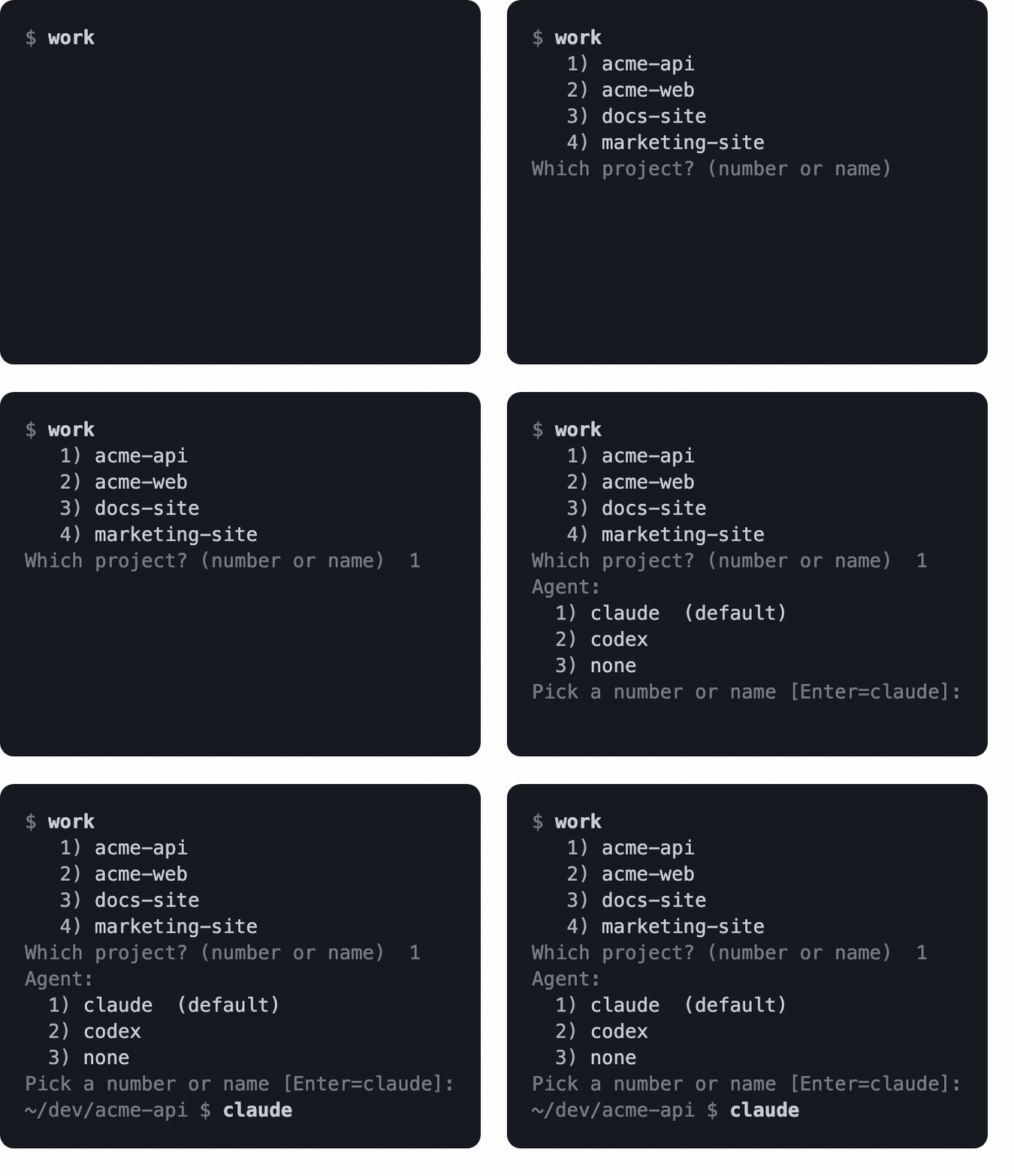
work starts a session
Pick a project from the list, or name one: work myproject. Either way it
puts you in that directory, colours and titles the tab, and launches the agent
you pick.
workmap shows you everything you have open
Grouped by project, with what each one is using in RAM.
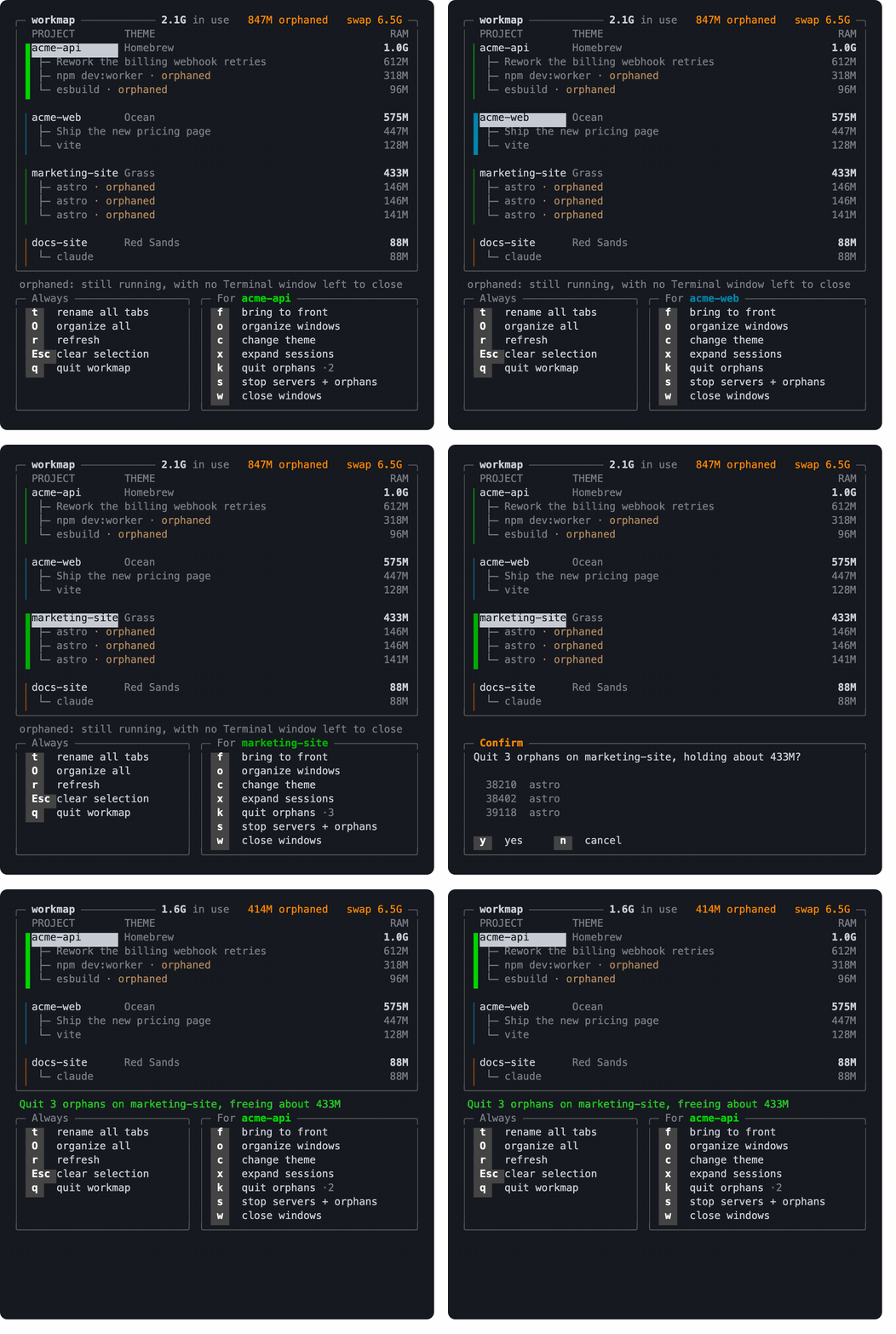
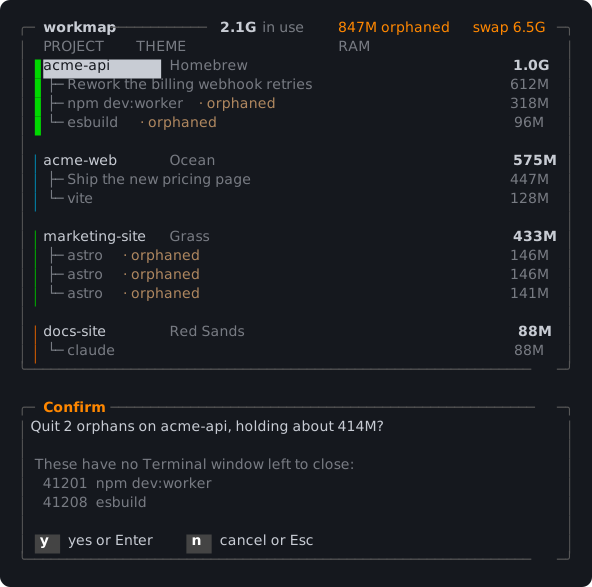
Rows marked orphaned are dev servers and agents still running with no
Terminal window left to close. k quits them, and names them before it does,
five at a time; workmap kill -n lists them all without quitting anything:
It doesn't own your sessions. No tmux, no wrapper, no new way to open a terminal. It reads the windows you already have.
Install
git clone https://github.com/athledev-labs/workmap.git
cd workmap
./install.sh
That is the whole thing, and it works on a Mac with nothing installed on it beyond what Apple ships.
If the last line says permission denied, run sh install.sh instead. That
happens when the files arrived as a downloaded ZIP rather than a clone, which
drops the flag that marks a script runnable.
If you already have uv or pipx, either does it in one line without a
clone:
uv tool install workmap
pipx install workmap
Those two are offered rather than led with, because neither uv nor pipx is
on a Mac until you put it there, and installing a package manager in order to
install a package manager's package is a worse first step than cloning.
workmap is on PyPI, so pip install workmap works as well, inside a
virtualenv you have made and activated yourself. install.sh, uv and pipx
are offered ahead of it because each one makes that virtualenv for you and
puts the command where your shell will find it, which is the part that is easy
to get wrong.
You need a Mac with the Xcode command line tools, which is what gives you
git and python3, and a working connection to pypi.org for the length of
the install. workmap itself downloads nothing and depends on nothing, but pip
fetches the package it builds the wheel with, so an offline machine cannot
install it. Nothing else is needed and no version of anything has to be
matched.
install.sh uses uv or pipx when either is on PATH, and otherwise a
private virtualenv under ~/.local/share/workmap/venv. To try a prefix
without touching the real install:
WORKMAP_PREFIX=/tmp/workmap-prefix ./install.sh
/tmp/workmap-prefix/bin/workmap --version
Then:
workmap setup
It asks where your projects are, shows which agents you actually have
installed, and offers to add one line to your shell. Nothing is written
without asking, and it's safe to re-run. workmap demo runs that same first
run against a fake machine in a temp directory if you'd rather look first.
If ~/.local/bin isn't on your PATH yet, python3 -m workmap runs the same
thing until you've added it.
The first launch asks for Automation permission, because reading your windows means talking to Terminal. Decline it and workmap says so rather than showing you an empty desk.
The first time it names a window, it also turns "custom title" on for each of
Terminal's built-in profiles, and turns off the two bits Terminal adds around
it, "window size" and "shell path". Otherwise the name workmap gives a window
is either not shown at all or lost between the shell path and 80x24. It's
the one thing workmap changes outside its own files, it happens once per run,
and any of it goes back in Terminal > Settings > Profiles > Window. workmap
says so on screen the first time it does it, so you do not have to have read
this paragraph to find out.
Use
workmap                 # the map above
workmap list            # the same thing as text
workmap kill -n         # name what it would quit, without quitting it
workmap kill            # quit them
workmap log             # the last 20 things workmap quit
workmap log 100         # more of them
workmap --help has the rest, with your own project names in the examples.
Every signal is written to ~/.local/state/workmap/kills.jsonl before it's
sent and the outcome after, so a kill that surprises you can be read back. The
file is trimmed to the newest 5000 records once it passes 4 MB, so it is a
long memory rather than a permanent one.
work
work                       # pick a project, then an agent
work <project>             # that project, ask which agent
work <project> claude      # no questions
work <project> "npm test"  # anything unrecognised is run literally
Only your own shell can change its own directory, so work is a shell
function workmap prints and your shell evaluates, the same arrangement
zoxide init and direnv hook use. workmap setup offers to add it:
eval "$(workmap shell-init zsh)" # ~/.zshrc, or bash in ~/.bashrc
Already have a work command? workmap setup notices and calls its one wm
instead, leaving yours alone. --name proj picks any other name yourself.
Configure
A project is the first directory under a root, so a root is the
directory that contains your projects. If your work is in
~/dev/Company/api and ~/dev/Company/web, the root is ~/dev/Company;
pointing at ~/dev would name every project "Company". It's the one setting
worth getting right, and workmap setup asks about it.
To edit directly, ~/.config/workmap/projects.json:
{
  "roots": ["~/dev/Company", "~/oss"],
  "profiles": { "api": "Ocean", "web": "Grass" },
  "agents": { "claude": "claude --dangerously-skip-permissions" },
  "default_agent": "claude"
}
profiles gives a project a Terminal colour so its windows are recognisable
at a glance; c in the map changes it, and anything you haven't picked gets a
colour derived from its name. Set an agent to "" to take it off the list.
WORKMAP_ROOTS="$HOME/dev/Company:$HOME/oss" overrides the file.
Known limits
- macOS only, and not by accident. Three separate dependencies: the
AppleScript that reads Terminal, the memory figures (
top -l 1for phys_footprint,vm_stat,sysctl vm.swapusage), and the.appbundle rule that stops the sweep force-quitting a running application. Only the first is behind a seam. Elsewhere, workmap says so and exits rather than reporting an empty desk. - Terminal.app only, within macOS. Drivers are pluggable and the contract has a conformance suite, but one driver exists, so the seam is untested.
- Some background processes are not classified,
node .../bin/daemon.mjsamong them. Naming them from their path is what once had workmap SIGKILLing a running app's helpers in a loop, so it's deliberately left alone. The cost is a missed orphan. - A process whose executable is inside a
.appbundle is assumed to belong to a running application and is never swept, unless it's an interpreter (every macOS Python lives inside aPython.app). wcan't close a window whose foreground process has already exited, the ones showing[Process completed]; Terminal ignores the request without reporting an error. workmap counts what actually closed and tells you the difference rather than claiming them.o,Oandorganizecan't move a window macOS is tiling. Dragging a window to the edge of the screen puts it in a tile group, and after that Terminal accepts the request to move it and discards it, again without an error. Measured on a real desk: the window reported the same position before and after. workmap counts what actually moved and names tiling as the reason, rather than reporting a layout that did not happen. Drag the window out of its tile, or turn tiling off in System Settings, under Desktop and Dock.- Of the eight agents offered, only claude, codex and cursor-agent have been
confirmed to exist under those names.
shutil.whichgates all of them. - A pane inside
tmuxorscreenis a live session the emulator cannot see. workmap asks tmux which panes it has and leaves those alone, attached or not, so a session you can stilltmux attachto is never on the kill list. Anything it cannot ask keeps everything under it:screenalways, because the version macOS ships cannot answer, and tmux when the query fails. Either way the desk says so instead of looking like a quiet machine. sasks a separate tool calleddevstackto bring a project's servers down before quitting its orphans. workmap does not ship it and does not need it: without it,squits the orphans and says so.- Verified against one machine: ~1000 processes, one roots layout, one user.
Contributing
ARCHITECTURE.md has the layering, the rules worth knowing
before changing anything, the contract a second terminal driver has to meet,
and how to run the tests. The pictures above are composed from real frames by
tools/render_svg.py and tools/render_gif.py, so none of them can show a
layout the tool does not have. A test regenerates the still and fails if it has
drifted; the animations go through Chrome and ffmpeg, whose output is not
byte-stable, so those are re-run by hand.
Licence
MIT
1 maintainer

Download files
Download the file for your platform. If you're not sure which to choose, learn more about installing packages.
Source Distribution
Built Distribution
Filter files by name, interpreter, ABI, and platform.
If you're not sure about the file name format, learn more about wheel file names.
Copy a direct link to the current filters
File details
Details for the file workmap-0.1.1.tar.gz.
File metadata
- Download URL: workmap-0.1.1.tar.gz
- Upload date:
- Size: 582.8 kB
- Tags: Source
- Uploaded using Trusted Publishing? Yes
- Uploaded via: twine/7.0.0 CPython/3.13.14
File hashes
| Algorithm | Hash digest | |
|---|---|---|
| SHA256 |
3431a972f6fd2bd022575c536dd8195ce702c1155840c48fe5dfd7a22a189102
|
|
| MD5 |
4760d41e039d3bbdb86a82d491d0bb5d
|
|
| BLAKE2b-256 |
8f8f416312813eb2d4739161862cc65182ef056a8c3e8770e29459bb2b8dad93
|
Provenance
The following attestation bundles were made for workmap-0.1.1.tar.gz:
Publisher:
release.yml on athledev-labs/workmap
-
Statement:
-
Statement type:
https://in-toto.io/Statement/v1 -
Predicate type:
https://docs.pypi.org/attestations/publish/v1 -
Subject name:
workmap-0.1.1.tar.gz -
Subject digest:
3431a972f6fd2bd022575c536dd8195ce702c1155840c48fe5dfd7a22a189102 - Sigstore transparency entry: 2312536876
- Sigstore integration time:
-
Permalink:
athledev-labs/workmap@9a53ec37adc1c04fd52b6dff042e058793511444 -
Branch / Tag:
refs/tags/v0.1.1 - Owner: https://github.com/athledev-labs
-
Access:
public
-
Token Issuer:
https://token.actions.githubusercontent.com -
Runner Environment:
github-hosted -
Publication workflow:
release.yml@9a53ec37adc1c04fd52b6dff042e058793511444 -
Trigger Event:
release
-
Statement type:
File details
Details for the file workmap-0.1.1-py3-none-any.whl.
File metadata
- Download URL: workmap-0.1.1-py3-none-any.whl
- Upload date:
- Size: 111.2 kB
- Tags: Python 3
- Uploaded using Trusted Publishing? Yes
- Uploaded via: twine/7.0.0 CPython/3.13.14
File hashes
| Algorithm | Hash digest | |
|---|---|---|
| SHA256 |
002ea47678278e70c26789f7f0161fb407cca0065a599da49eb2b8cd91ceb8c2
|
|
| MD5 |
77e5544b1bcb3197e0b4668208fcca83
|
|
| BLAKE2b-256 |
612eda1fc7efac8779c62929113cef6f8f8b0e0700fae56e54c0427e3b8bb566
|
Provenance
The following attestation bundles were made for workmap-0.1.1-py3-none-any.whl:
Publisher:
release.yml on athledev-labs/workmap
-
Statement:
-
Statement type:
https://in-toto.io/Statement/v1 -
Predicate type:
https://docs.pypi.org/attestations/publish/v1 -
Subject name:
workmap-0.1.1-py3-none-any.whl -
Subject digest:
002ea47678278e70c26789f7f0161fb407cca0065a599da49eb2b8cd91ceb8c2 - Sigstore transparency entry: 2312537013
- Sigstore integration time:
-
Permalink:
athledev-labs/workmap@9a53ec37adc1c04fd52b6dff042e058793511444 -
Branch / Tag:
refs/tags/v0.1.1 - Owner: https://github.com/athledev-labs
-
Access:
public
-
Token Issuer:
https://token.actions.githubusercontent.com -
Runner Environment:
github-hosted -
Publication workflow:
release.yml@9a53ec37adc1c04fd52b6dff042e058793511444 -
Trigger Event:
release
-
Statement type:







