
Utilities to visualize and explore output from the NOAA Office of Water Prediction's (OWP) Water Resources Evaluation Service (WRES).


Project description
WRES Explorer
Utilities to visualize and explore output from the NOAA Office of Water Prediction's (OWP) Water Resources Evaluation Service (WRES).
Installation
In accordance with the python community, we support and advise the usage of virtual
environments in any workflow using python. In the following installation guide, we
use python's built-in venv module to create a virtual environment in which the
tool will be installed. Note this is just personal preference, any python virtual
environment manager should work just fine (conda, pipenv, etc. ).
# Create and activate python environment, requires python >= 3.10
$ python3 -m venv venv
$ source venv/bin/activate
$ python3 -m pip install --upgrade pip wheel

# Install wres.explorer
$ python3 -m pip install wres.explorer
Usage
Usage: wres-explorer [OPTIONS]

  Visualize and explore output from WRES CSV2 formatted files.

  Run "wres-explorer" from the command-line, ctrl+c to stop the server.:

Options:
  --help  Show this message and exit.
Application Interface
The application features a tabbing interface. The "File Selector" tab is active by default.
File Selector
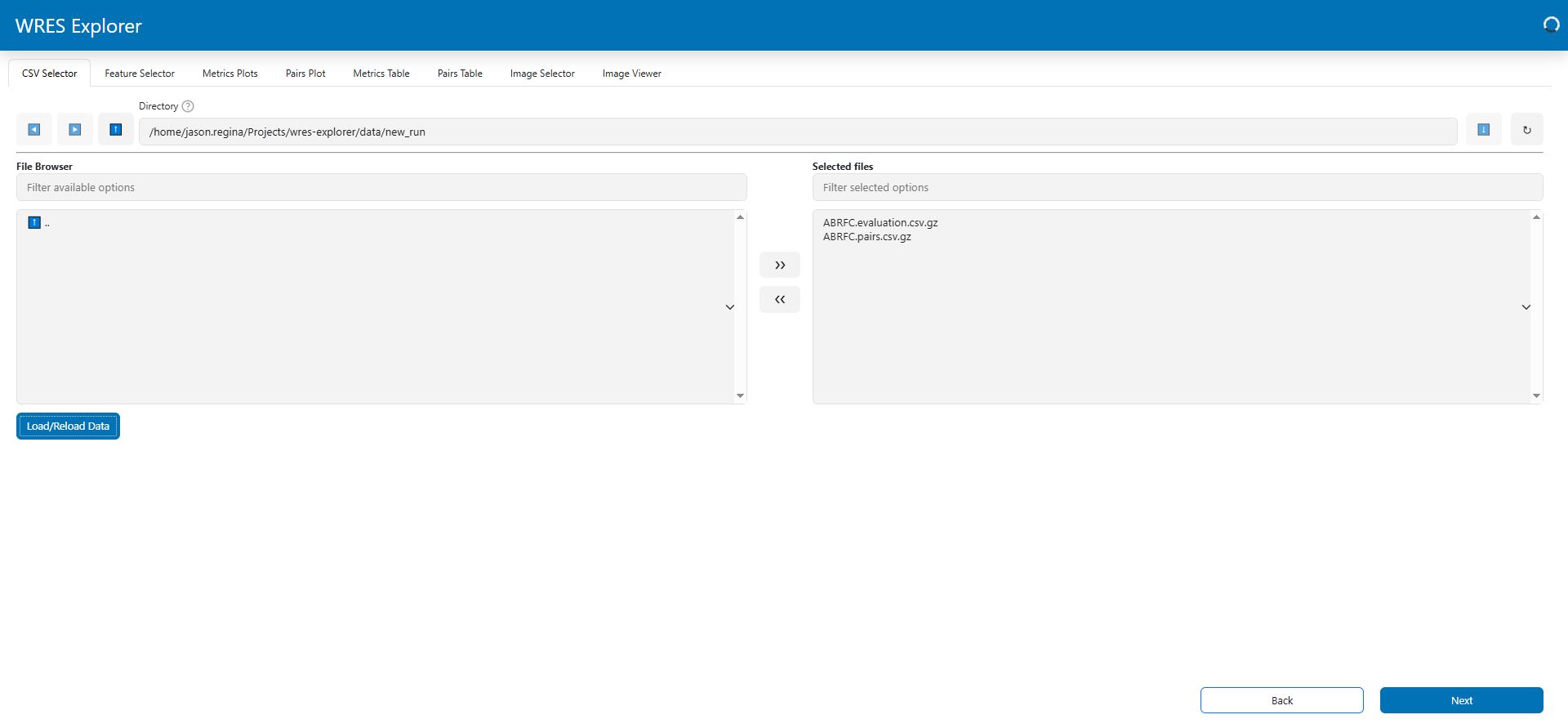
The file browser starts in the directory where the application was launched. Use the arrows (>> or <<) to move the files you want to visualize from the "File Browser" to the "Selected files".
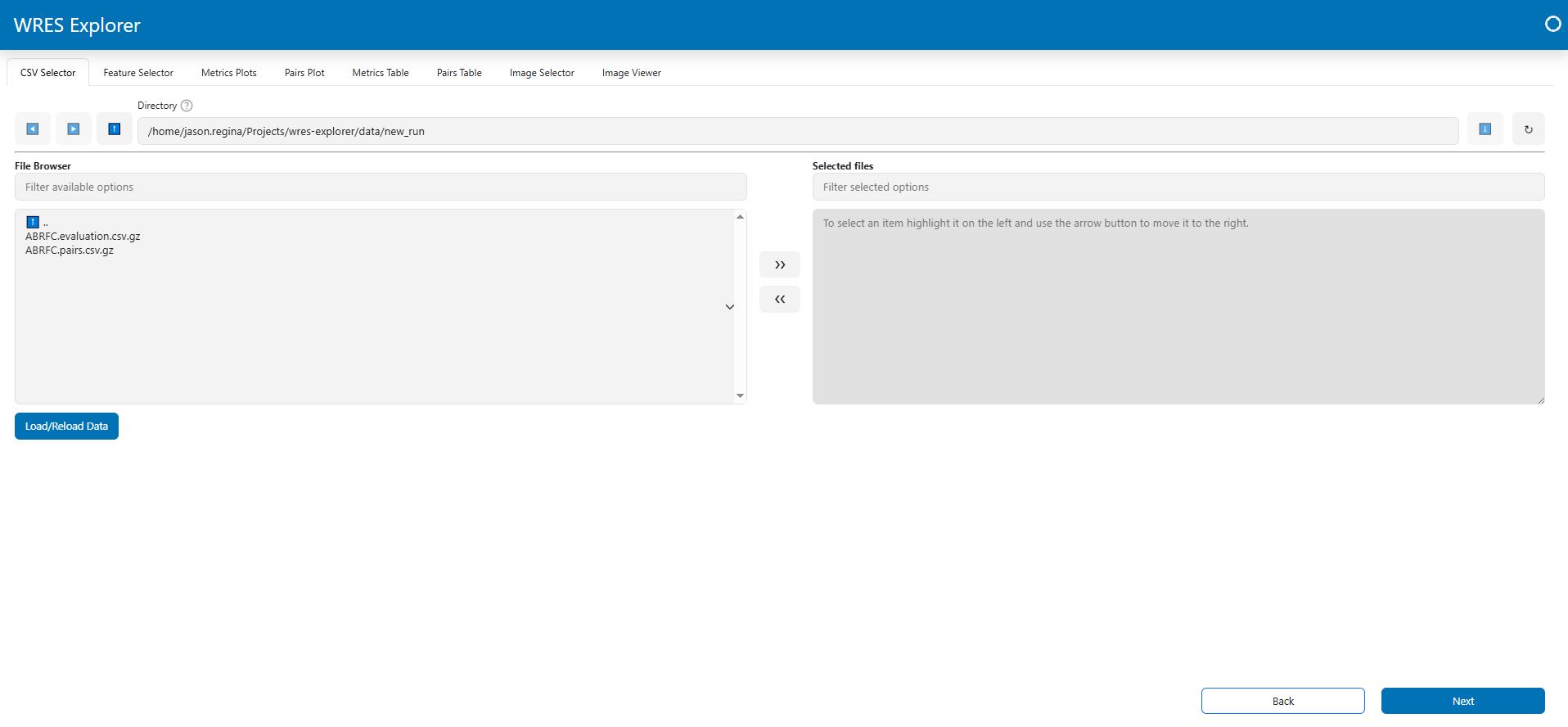
The example below has selected the files ABRFC.evaluation.csv.gz and ABRFC.pairs.csv.gz. After selecting one or more files, click the "Load/Reload Data" button to read the files.
Feature Selector
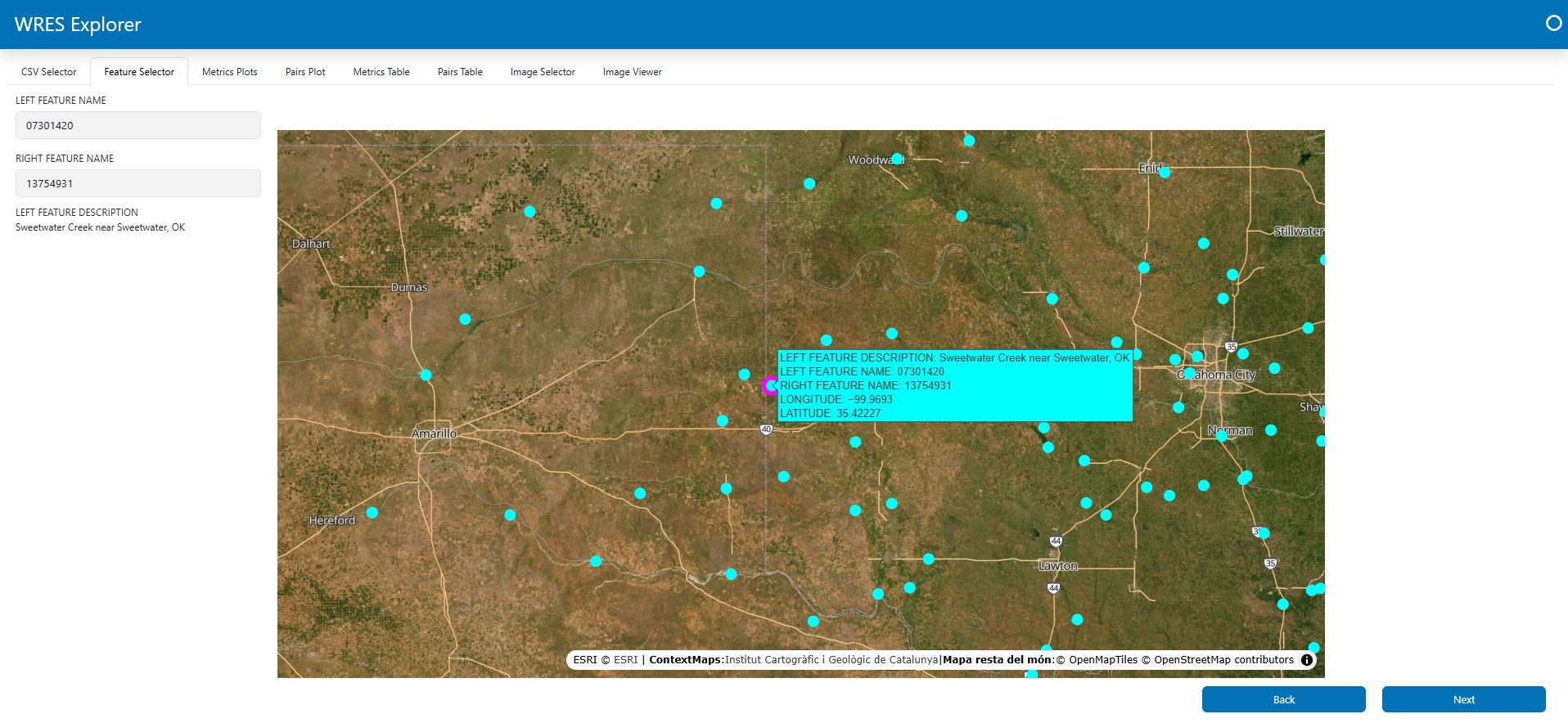
To inspect the metrics at a specific feature (site), you need to select a feature from the selection boxes or by clicking on the map. The available options are determined by the features found in the files you selected earlier. Note the selected site in magenta.
Metrics Plots
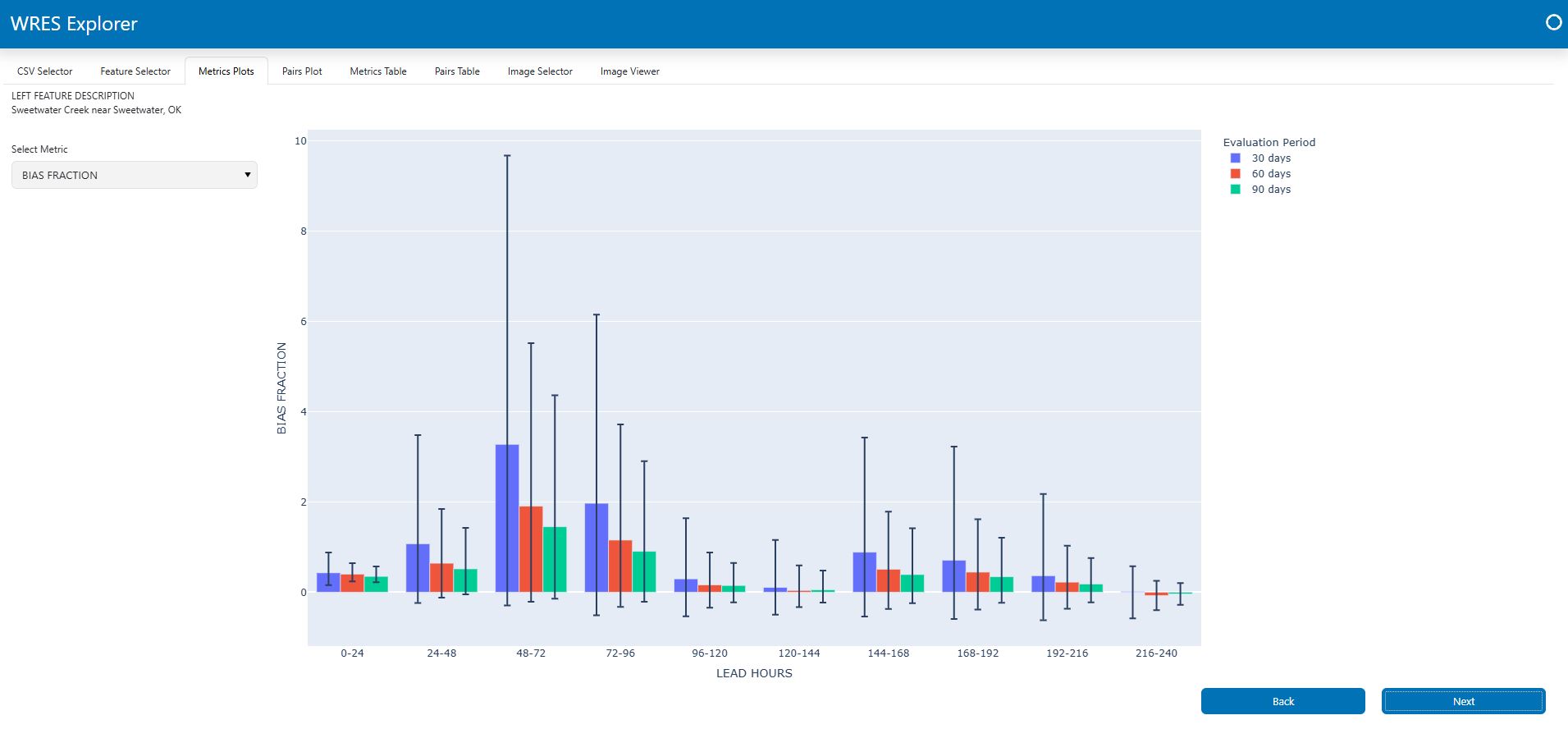
After a site is selected, the "Metrics Plots" tab will be populated with plots showing the metrics found at this feature. Use the dropdown menu ("Select Metric") to view different metrics.
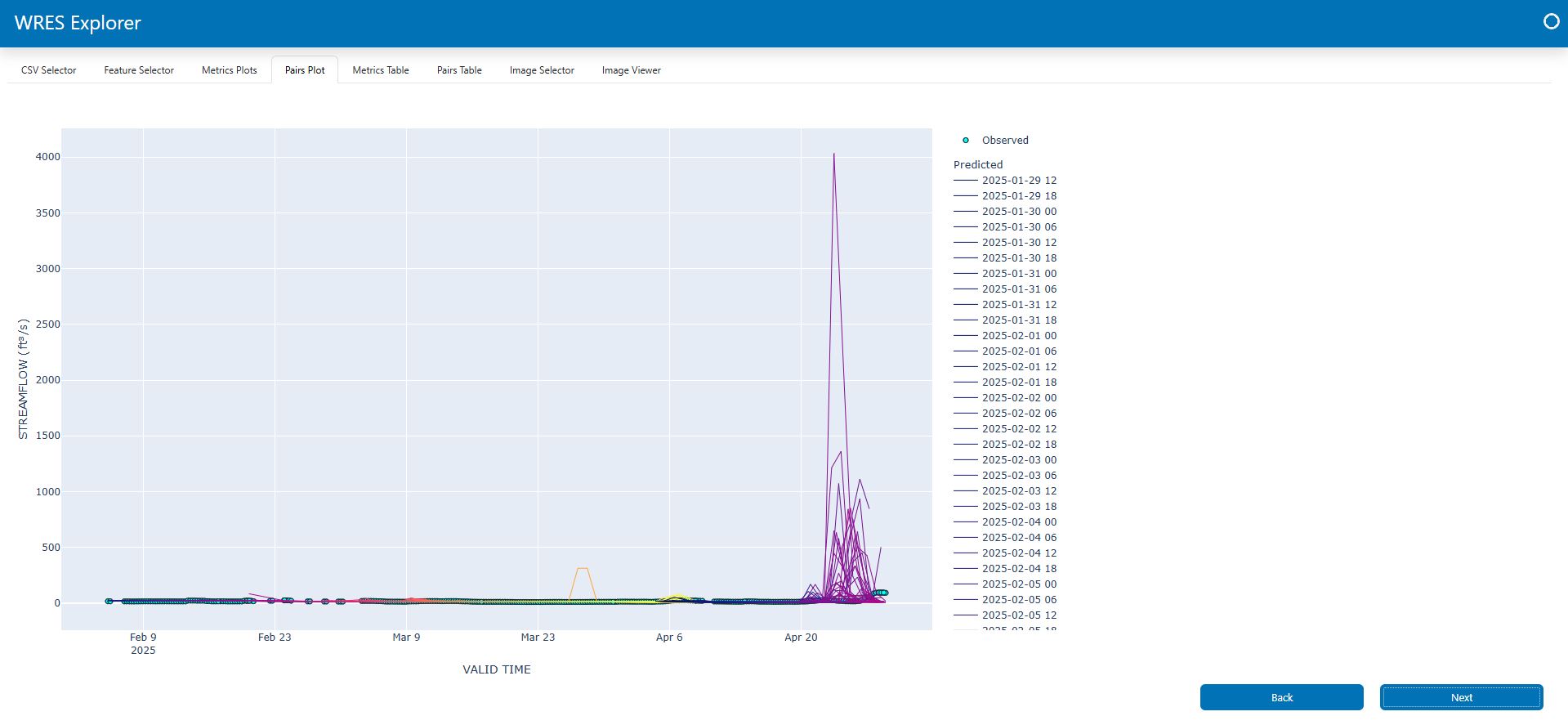
Pairs Plots
After a site is selected, the "Pairs Plots" tab will be populated with plots showing the pairs (time series) for the selected feature.
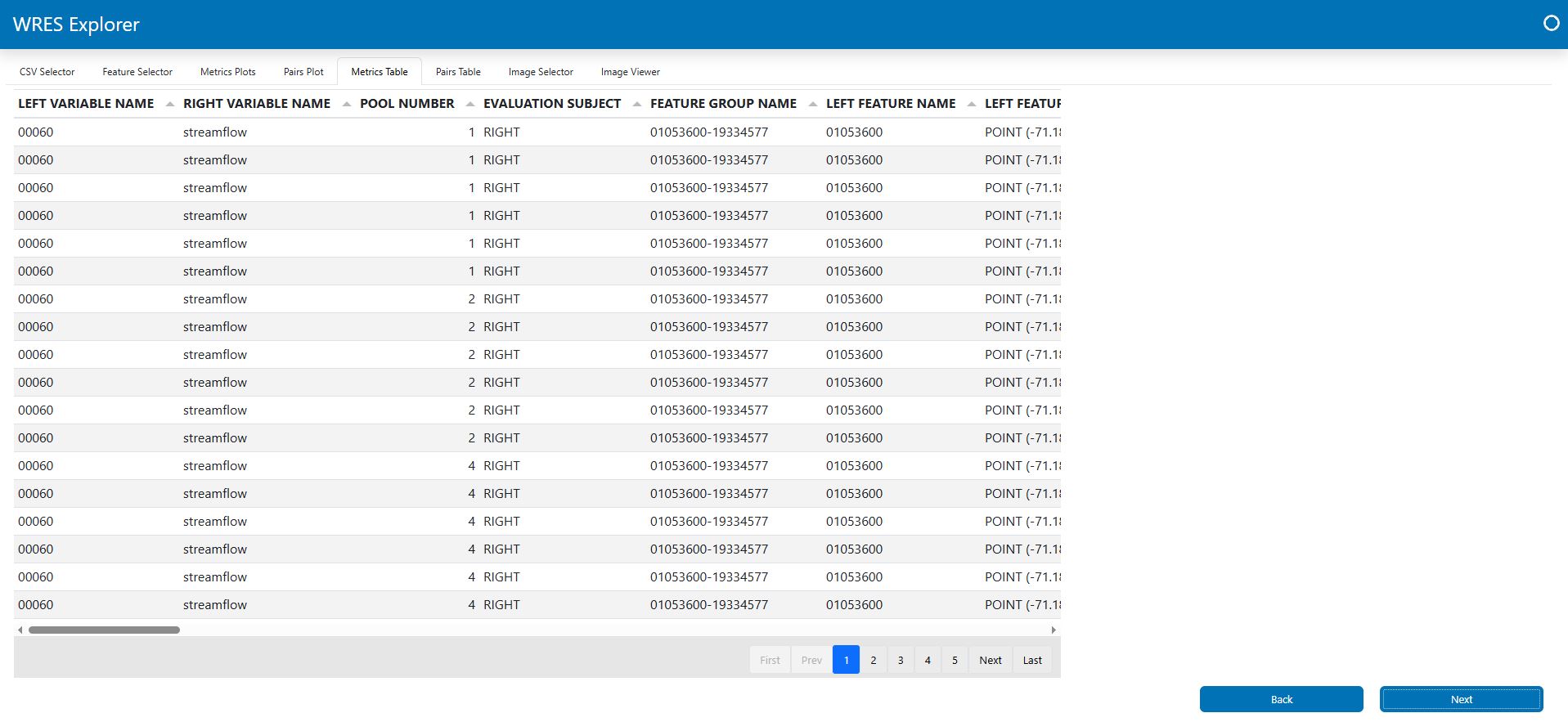
Metrics Table
Once data are loaded, you will be able to explore the metrics file(s) contents through a paging tabular interface shown below. Selecting a site will filter this table to the selected feature.
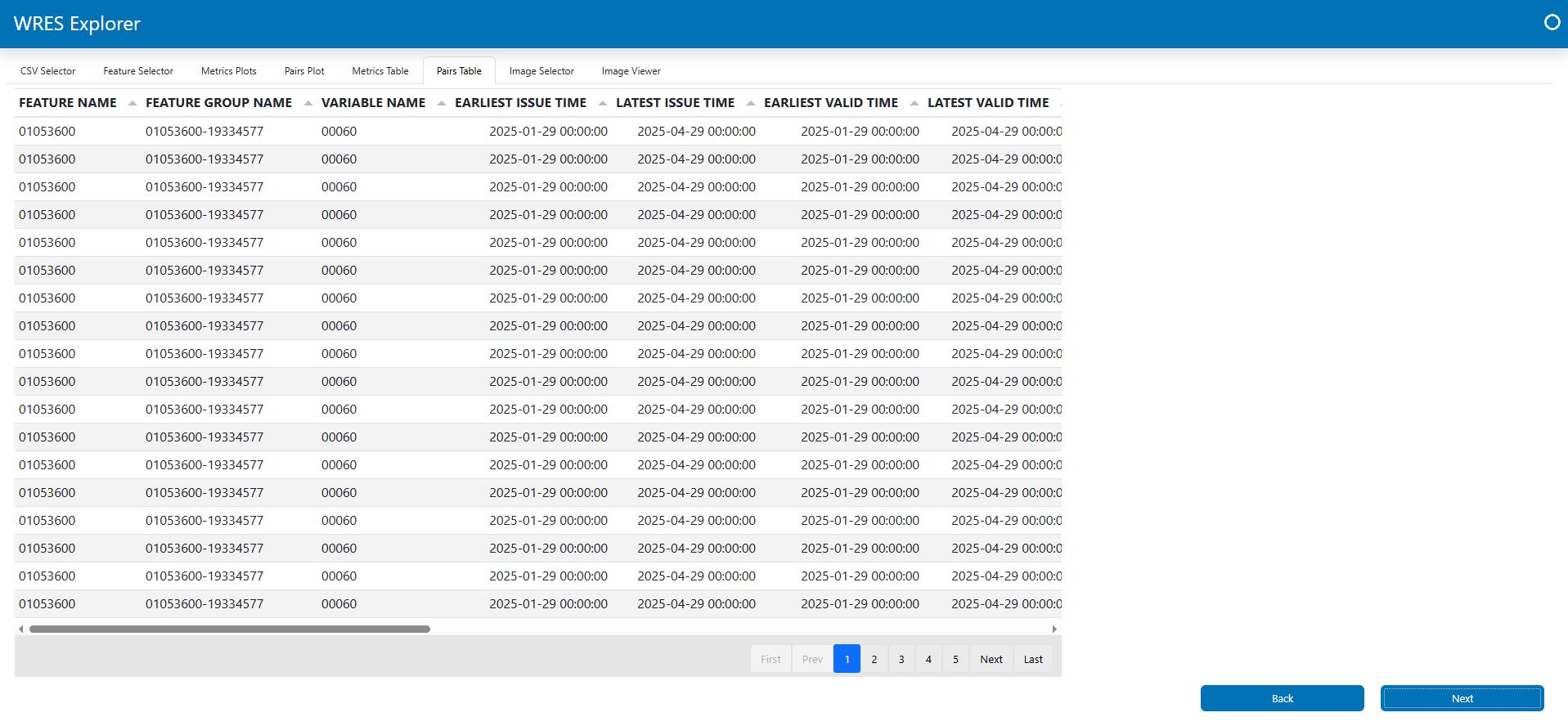
Pairs Table
You can also explore the pairs file(s) contents through a paging tabular interface. As with the Metrics Table, selecting a site will filter this table to the selected feature.


Download files
Download the file for your platform. If you're not sure which to choose, learn more about installing packages.
Source Distribution
Built Distribution
Filter files by name, interpreter, ABI, and platform.
If you're not sure about the file name format, learn more about wheel file names.
Copy a direct link to the current filters
File details
Details for the file wres_explorer-0.4.1.tar.gz.
File metadata
- Download URL: wres_explorer-0.4.1.tar.gz
- Upload date:
- Size: 15.7 kB
- Tags: Source
- Uploaded using Trusted Publishing? No
- Uploaded via: twine/6.1.0 CPython/3.12.2
File hashes
| Algorithm | Hash digest | |
|---|---|---|
| SHA256 |
46a05208ef09c4b003774a26df2b84ae3f8338495f84a1599acd9982621e5235
|
|
| MD5 |
b2c27f1a9219c4d8b708fdf557162d2f
|
|
| BLAKE2b-256 |
dc7f0cf5d052e36e4871cb2911e55ae497c0eb4441a1de7ef6f198d22d02c4d3
|
File details
Details for the file wres_explorer-0.4.1-py3-none-any.whl.
File metadata
- Download URL: wres_explorer-0.4.1-py3-none-any.whl
- Upload date:
- Size: 17.1 kB
- Tags: Python 3
- Uploaded using Trusted Publishing? No
- Uploaded via: twine/6.1.0 CPython/3.12.2
File hashes
| Algorithm | Hash digest | |
|---|---|---|
| SHA256 |
af2526ff229d49805c915ea3430a1becff14e38f651b24bdbd7091b106e5670b
|
|
| MD5 |
d3934437f5fff96402fa1b9ef37365cd
|
|
| BLAKE2b-256 |
71f7a89a5bf333e4924f80ed49f6bacd185fa83fab5247d770a5f681b5d0d3e3
|






