
xc
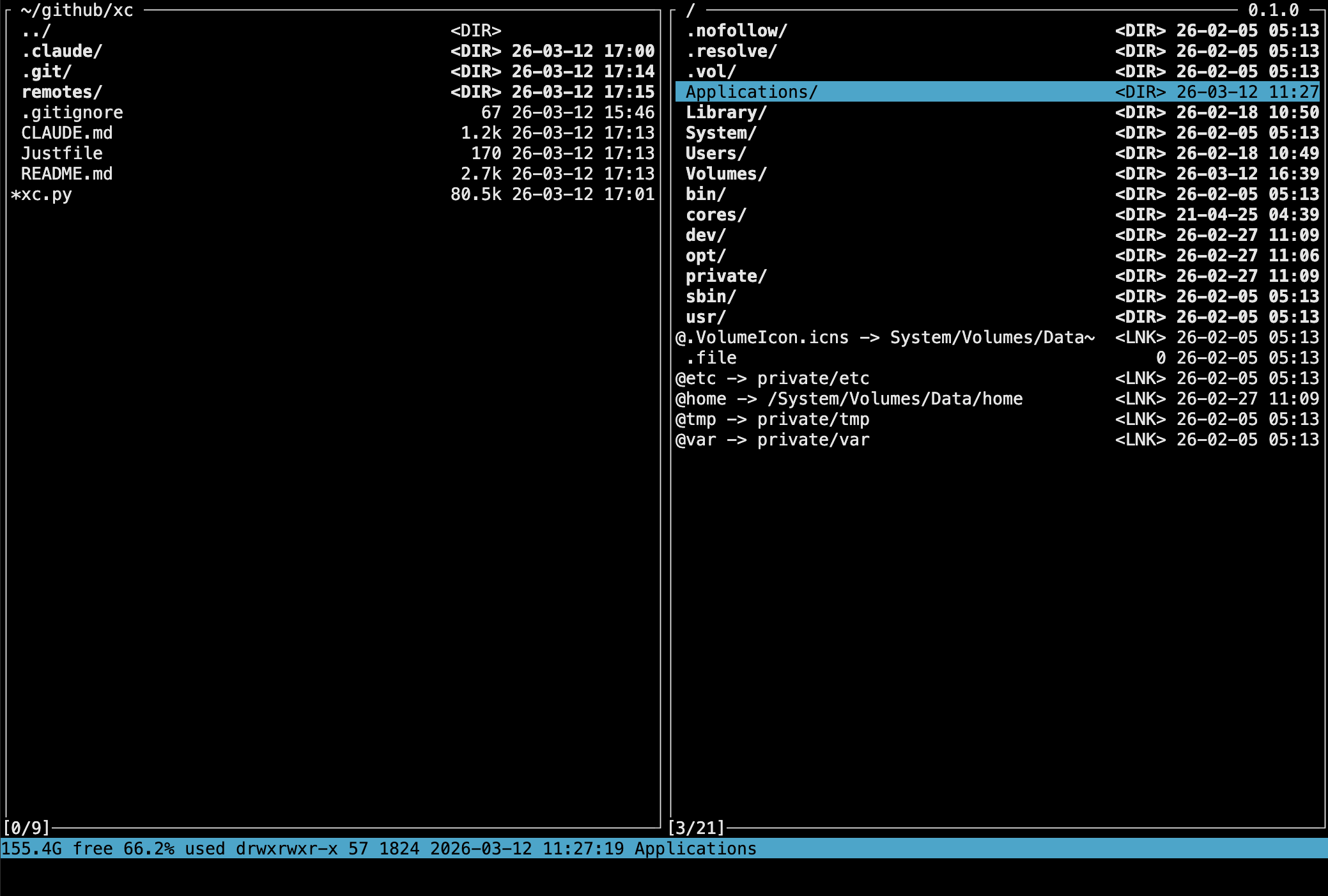
A two-panel console file manager inspired by Midnight Commander, written in Python.
Intro
The Python version of xc is a single self-contained script (xc.py) that runs via uv. This means:
- Zero setup -- no virtualenv, no
pip install, norequirements.txt. Just runuvx xcfm. - Inline dependencies -- the script header declares its own dependencies (
boto3,google-cloud-storage,oci,google-api-python-client), and uv resolves and caches them automatically on the first run. - Reproducible -- uv pins the Python version (
>=3.11) and handles isolation, so the script works the same way on any machine. - Single file to deploy -- copy
xc.pyto a server, a dotfiles repo, or a USB stick. There is nothing else to carry.
Installing uv
# macOS / Linux
curl -LsSf https://astral.sh/uv/install.sh | sh

# Homebrew
brew install uv

# Windows
powershell -ExecutionPolicy ByPass -c "irm https://astral.sh/uv/install.ps1 | iex"
After installing, run the file manager with:
uvx xcfm
Or download the script and make it executable as "xc":
curl -fsSL https://raw.githubusercontent.com/begoon/xc/main/install.sh | sh
Or download the script directly:
curl -LO https://raw.githubusercontent.com/begoon/xc/main/xc.py
chmod +x xc.py
uv run xc.py
Or directly from a cloned repo:
uv run xc.py
The script has a shebang line, so you can rename it, make it executable, and put it on your PATH:
cp xc.py ~/.local/bin/xc
chmod +x ~/.local/bin/xc
xc
Command line
xc [folder1 [folder2]]
| Argument | Meaning |
|---|---|
folder1 |
Directory to open in the active panel |
folder2 |
Directory to open in the other (inactive) panel |
-u |
Self-update from GitHub and exit |
With no arguments, xc restores both panel directories and remembers which panel was active. Use xc . or xc folder1 to override just the active panel. With xc f1 f2, the active panel opens f1 and the other panel opens f2. Paths may be relative and may use ~.
Development
The pyproject.toml in the repository is only used for local development tooling (e.g. black formatter settings). It is not needed to run xc -- xc.py is fully self-contained with its own inline dependency declarations.
Self-update
To update xc to the latest version from GitHub:
xc -u
This fetches the latest xc.py from the repository, compares versions, and replaces the current binary if a newer version is available. The previous version is saved as xc.prev next to the executable.
User manual
Dual-panel concept
xc shows two file panels side by side. One panel is active (highlighted border), the other is inactive. You navigate files in the active panel and use the inactive panel as a target for file operations like copy and move. Press Tab to switch the active panel. Press h / l to activate the left / right panel directly.
On first launch, the active panel opens in the current working directory and the other panel opens in your home directory. These defaults also apply when a panel’s saved directory is missing.
Navigation
| Key | Action |
|---|---|
Up / Ctrl-P |
Move cursor up |
Down / j |
Move cursor down |
Enter |
Enter directory or open VFS |
Backspace |
Go to parent directory (or exit VFS) |
Left / Right |
Page up / page down |
PgUp / PgDn |
Page up / page down |
Home / ^ |
Jump to first file |
End / G |
Jump to last file |
Ctrl-D / Ctrl-U |
Half-page down / up |
Ctrl-L |
Reload current directory |
Tab |
Switch active panel |
= |
Open active directory in other panel |
h / l |
Activate left / right panel |
q |
Quit |
File operations (x)
Press x to open the command menu:
| Key | Action |
|---|---|
c |
Copy -- copy file or tagged files from active to inactive panel |
m |
Move -- move (rename) file or tagged files |
d |
Delete -- delete file or tagged files |
k |
Mkdir -- create a new directory |
t |
Touch -- create an empty file |
p |
Chmod -- change file permissions |
r |
Rename -- rename the selected file |
g |
Chdir -- type a path to navigate to |
Copy and move operations use the inactive panel's current path as the default destination. A prompt lets you edit the destination before confirming.
Local copies preserve permission bits (including executable and read-only modes), access/modification times, ownership, symlinks, and supported native metadata. On macOS this includes ACLs, extended attributes/resource forks, and file flags; on Linux it includes extended attributes and POSIX ACLs exposed through them. Directory attributes are restored after copying their contents. Overwriting a file uses the source's attributes. A permission or metadata error is reported and prevents a move from deleting its source.
Local moves use a filesystem rename when possible, preserving the original inode and its attributes. Cross-filesystem moves and directory merges use the metadata-preserving copy path, then delete only fully copied sources.
TAR and Unix ZIP extraction preserves stored modes, modification times, and symbolic links, for both individual and tagged entries. Archive ownership, ACLs, and extended attributes are not restored. Plain compressed files inherit the compressed file's permissions; gzip uses its stored timestamp when present.
SSH transfers preserve modes, access/modification times, and symlinks, and
require python3 on the remote host. Remote editing also preserves executable
permissions in the temporary copy and uploads mode changes. SSH does not transfer
native ownership, ACLs, or extended attributes between hosts. Cloud object/Drive
backends transfer contents but cannot restore POSIX attributes; xc reports this
limitation. Moves to non-local backends retain the local source to avoid losing
metadata. Transfer a TAR archive when these attributes need to travel together.
Copying creates new files: hard-link relationships and creation/change times are not preserved by the copy path. Native moves preserve hard-link relationships.
Overwrite confirmation
If a copy, move, or rename target already exists, a confirmation dialog appears showing the size and modification time of both the new and the existing file (directories are shown as <DIR>):
| Button | Action |
|---|---|
Overwrite |
Replace the existing file |
Skip |
Leave the existing file and continue with the remaining ones |
All |
Overwrite this and all further conflicts without asking |
Cancel |
Stop the remaining operation (Esc does the same) |
Buttons respond to their first letter (o, s, a, c), Tab/arrow keys, and Enter. Rename shows only Overwrite / Cancel.
On move, a source file is deleted only after it has been fully copied -- skipped, cancelled, or failed files always keep their originals. Existence checks work on remote VFS too (the target directory listing is fetched once per operation).
Tagging and group operations
Press Space on a file to tag it (marked with +). Tagged files are used as the source for copy, move, delete, and chmod. If nothing is tagged, the operation applies to the file under the cursor.
| Key | Action |
|---|---|
Space |
Toggle tag on current file and move down |
+ |
Tag all files in current directory |
_ |
Untag all |
i |
Calculate sizes of tagged (or selected) directories |
Bookmarks (b)
Press b to open the bookmark menu for quick jumps to common directories (home, desktop, downloads, etc.).
Remotes (r)
Press r to open the remote menu. This scans ~/.xc/remotes/ for VFS config files (.s3, .gcs, .oci, .gdrive, .dropbox, .ssh) and presents them as a selector. Choosing a remote opens it on the active panel, just like pressing Enter on a VFS config file.
This lets you keep all your remote connections in one place and access them from any directory without navigating to where the config files live.
Example setup:
~/.xc/remotes/
  production.s3
  analytics.gcs
  storage.oci
  shared-drive.gdrive
  webserver.ssh
Editor (e) and view (v)
Press e to open a file in an editor, or v to view it. These menus launch external commands with the current file path substituted via macros (see below). On remote VFS (SSH, S3, GCS, OCI, GDrive), the file is automatically downloaded to a temp location, opened locally, and uploaded back if modified.
Running shell commands
There are two command-line modes:
| Key | Mode | Behavior |
|---|---|---|
; |
Direct | Run a command interactively in the terminal |
: |
Piped | Run a command; output is piped through less |
Both modes support macro expansion. The command runs in the active panel's current directory. If the command exits with a non-zero code, the error is shown in the bottom line.
Alternate screen and command output
xc runs on the terminal's alternate screen -- the panels never mix with your shell's scroll buffer. When you run a shell command (; or :), xc temporarily switches back to the main screen so the command's output is preserved in the normal scroll buffer.
To review previous command output without running anything:
| Key | Action |
|---|---|
Esc Esc |
Switch to main screen |
Ctrl-O |
Switch to main screen |
Esc or Ctrl-O |
Return to panels (main screen) |
Once on the main screen you can scroll through your terminal's history as usual. Press Esc or Ctrl-O to return to the file panels.
Search (/)
Press / to start an incremental search. Type characters to filter -- the cursor jumps to the first matching file. Press Enter to accept or Esc to cancel.
Search (s / S)
Press s to search by file name pattern, or S to search file contents (grep).
s-- File search. Asearchprompt appears. Enter a glob pattern (e.g.*.py) to find matching files recursively.S-- Grep search. A two-step prompt:- File pattern --
searchprompt appears. Enter a glob pattern to filter by filename (default*.*). - Search string --
search *.py grep forprompt appears. Enter the text to find in file contents.
- File pattern --
The file pattern uses Unix shell-style wildcards (matched against the filename only, not the path):
| Pattern | Meaning | Example |
|---|---|---|
* |
Matches everything | *.py -- all Python |
? |
Matches any single character | ?.txt -- a.txt |
[seq] |
Matches any character in seq | [abc].py |
[!seq] |
Matches any character not in seq | [!.]cfg |
Patterns do not support ** (recursive globs) or path separators -- they match the base filename only.
Search is implemented in pure Python -- no external tools required. Binary files are automatically skipped. Hidden directories (starting with .) are excluded. A spinner shows progress during search; press ESC to cancel.
Results are displayed as a virtual filesystem tree (GREP) on the current panel. Navigate the results normally -- directories expand, .. exits back to the real filesystem.
Search works only on local filesystems.
Processes (p)
Press p to open a modal showing all running processes with PID, user, full command line (middle-truncated with ... to fit), and any listening TCP/UDP ports.
The layout is:
- Filter input at the top — space-separated words. All words must appear in the command line, ports, pid, or user. A word prefixed with
-excludes matches containing that word. - Process list with the filtered results.
- Full command line of the selected process, below the list.
- Environment variables of the selected process at the bottom (read from
/proc/<pid>/environon Linux, orps ewwon macOS).
| Key | Action |
|---|---|
Tab |
Cycle focus: filter → list → env |
Up / Down |
Navigate one entry up / down |
PgUp / PgDn / Left / Right |
Navigate one page up / down |
Home / End |
Jump to first / last entry |
letters / Backspace |
Edit the filter |
k (list focus) / Ctrl-K |
Send SIGKILL (kill -9) with y/N confirmation |
Ctrl-R |
Refresh the process list |
Esc |
Close the modal |
Listening ports are gathered via lsof -iTCP -sTCP:LISTEN -iUDP. On machines where lsof is restricted or not installed, the ports column will simply be empty.
PATH viewer (o)
Press o to open a modal listing every directory in $PATH with the number of executable files it contains. Missing directories are flagged as missing (dimmed and coloured as errors).
Press Enter on an existing entry to open a second modal showing a scrollable list of the executables in that directory.
| Key | Action |
|---|---|
Up / Down |
Navigate one entry up / down |
PgUp / PgDn / Left / Right |
Navigate one page up / down |
Home / End |
Jump to first / last entry |
Enter |
Show executables in selected path |
Ctrl-R |
Rescan $PATH |
Esc |
Close (inner modal first) |
Environment variables (k)
Press k to open a modal listing every variable from the current process environment, sorted by key. Each row is KEY=value; long values are middle-truncated with ... in the list. The full value of the selected variable is displayed below the list.
| Key | Action |
|---|---|
Up / Down |
Navigate one entry up / down |
PgUp / PgDn / Left / Right |
Navigate one page up / down |
Home / End |
Jump to first / last entry |
Ctrl-R |
Refresh the env list |
Esc |
Close the modal |
Command history (Esc h)
In command-line mode (; or :), press Esc then h to open a history selector showing previously executed commands. Use Up / Down to browse, Enter to accept, Esc to cancel. History is persisted across sessions (up to 100 entries).
Customizing menus
xc is a single Python script. Menus and keymaps are defined at the bottom of the file as plain data -- just edit them to add your own editors, bookmarks, or commands:
app.add_menu("editor", [
    MenuItem("v", "vi", lambda: app.action_run("vi %F")),
    MenuItem("c", "code", lambda: app.action_run("code %F")),
])
There is no config file on purpose. The script is the config.
Virtual filesystems
Entering certain files opens them as virtual directories:
| Extension | VFS | Description |
|---|---|---|
.tar, .tar.gz, .tgz, .tar.bz2 |
TAR | Browse tar archives |
.zip |
ZIP | Browse zip archives |
.docx, .xlsx, .pptx, .odt, .ods, .odp |
ZIP | Browse Office documents as zip archives |
.gz, .bz2, .xz, .lzma |
- | View compressed single files |
.s3 |
S3 | Browse Amazon S3 buckets |
.gcs |
GCS | Browse Google Cloud Storage buckets |
.oci |
OCI | Browse Oracle Cloud Object Storage |
.gdrive |
GDrive | Browse Google Drive folders |
.dropbox |
Dropbox | Browse Dropbox via its API |
.ssh |
SSH | Browse remote servers over SSH |
Office documents (.docx, .xlsx, .pptx and OpenDocument .odt, .ods, .odp) are ZIP containers: Enter opens them like a zip archive to browse their XML, media and other parts (only if the file really is a ZIP; encrypted Office files are not). Archives (tar, zip, Office, .gz/.bz2/.xz) inside a remote such as Google Drive, Dropbox or SSH can be entered too: xc downloads a temporary copy, which is deleted when you leave the archive or exit xc.
VFS config files (.s3, .gcs, .oci, .gdrive, .dropbox, .ssh) are simple key=value text files. The path header shows the VFS type, e.g. ~/servers/prod.ssh (SSH).
S3 example (production.s3):
type=s3
bucket=my-data-bucket
AWS_PROFILE=production
AWS_REGION=eu-west-1
AWS_PROFILE selects a named profile from ~/.aws/credentials. You can also specify AWS_ACCESS_KEY_ID and AWS_SECRET_ACCESS_KEY inline, but using a profile is recommended. If all credentials are omitted, the default AWS credential chain is used.
GCS example (analytics.gcs):
type=gcs
bucket=my-analytics-bucket
key=service-account.json
The key path can be relative (resolved from the active panel's current directory), absolute, or use ~, $HOME, or $(HOME) to refer to the home directory. If omitted, application default credentials are used.
OCI example (storage.oci):
type=oci
bucket=my-bucket
OCI_BUCKET_NAMESPACE=mynamespace
OCI_USER=ocid1.user.oc1..aaa...
OCI_FINGERPRINT=aa:bb:cc:...
OCI_TENANCY=ocid1.tenancy.oc1..aaa...
OCI_REGION=uk-london-1
OCI_KEY_FILE=my-key.pem
OCI_KEY_FILE is a path to a PEM private key file. Alternatively, use OCI_KEY_BASE64 to embed the key inline as base64. If neither is provided, the default OCI config (~/.oci/config) is used.
Google Drive example (me.gdrive), logging in as yourself:
type=gdrive
client_id=1234567890-abc.apps.googleusercontent.com
client_secret=GOCSPX-...
folder=1Z_NJ0-LAPzaO7eursL92DWPmFKQT3lpK
With client_id (and no key), xc logs in through the browser with OAuth2 (PKCE, loopback redirect to http://127.0.0.1:<random port>). Create the client in the Google Cloud Console: enable the Google Drive API, configure the OAuth consent screen, and create an OAuth client ID of type Desktop app. Google requires the client secret for desktop apps but does not treat it as confidential. client_secret may be a 1Password reference (op://vault/item/field), resolved with op read when a login is needed; any other value is used as is. The login is a short-lived access token (about 1 hour, no refresh token) kept in memory only, exactly like Dropbox below: the panel header shows the time left, the token is revoked when xc exits, and logout gdrive:<account> in the r remotes menu revokes it explicitly. account defaults to the config file name without the extension.
Without folder, the top level mirrors the Drive sidebar with three virtual folders: My Drive, Shared with me and Shared drives. Shared with me is a flat list of individual files and folders that other people own and shared with you directly. Shared drives has one folder per Google Workspace shared drive you are a member of; those files belong to the organisation, and each drive is a full tree you can write to according to your role. The top level, Shared with me and Shared drives themselves are read-only; inside any real folder you can copy, upload and create folders as usual. folder=root starts directly in My Drive, and folder=<ID> (the ID from the folder URL) starts in that folder.
Items with the same name in one folder are shown as report.pdf, report (2).pdf, ... (oldest first). Shortcuts are followed, so a shortcut to a folder can be entered. Google Docs, Sheets, Slides and Drawings are not real files: they are exported when copied or viewed, and the panel shows them with the extension of the export format (e.g. Plan.docx). Their size shows as 0 because Google does not report it, Google limits exports to 10 MB, and they cannot be overwritten by an upload. Forms, Sites and other Google types without an export format are listed without an extension and cannot be copied.
The export format is set per .gdrive file with a preset:
export= |
Docs | Sheets | Slides | Drawings |
|---|---|---|---|---|
office (default) |
.docx |
.xlsx |
.pptx |
.png |
pdf |
.pdf |
.pdf |
.pdf |
.pdf |
open |
.odt |
.ods |
.odp |
.svg |
text |
.md |
.csv |
.txt |
.svg |
and optional per-type overrides:
export=office
export.sheets=csv
export.slides=pdf
| Key | Formats |
|---|---|
export.docs |
docx, odt, pdf, rtf, txt, md, html, epub |
export.sheets |
xlsx, ods, pdf, csv, tsv |
export.slides |
pptx, odp, pdf, txt, png, jpg, svg |
export.drawings |
png, jpg, svg, pdf |
An unknown preset or unsupported format is reported when the remote is opened. CSV/TSV export only the first sheet of a spreadsheet, and PNG/JPG/SVG only the first slide of a presentation. Several .gdrive files with the same account share one login, so you can keep e.g. me.gdrive (Office) and me-pdf.gdrive (export=pdf) side by side.
With neither key nor client_id, Google application default credentials are used (e.g. after gcloud auth application-default login).
With a service account instead (shared.gdrive):
type=gdrive
folder=1Z_NJ0-LAPzaO7eursL92DWPmFKQT3lpK
key=service-account.json
The key path points to a service account JSON credentials file (relative paths are resolved from the config file's directory). The service account only sees what was shared with its email address; without folder, those items appear under Shared with me, and shared drives it is a member of under Shared drives. Shared drives and folders shared from other accounts are supported.
Dropbox example (me.dropbox):
type=dropbox
app_key=<your Dropbox app key>
root=/Work
account=me
app_key is the key of a Dropbox app you register in the App Console (Scoped access, Full Dropbox, scopes files.metadata.read/write and files.content.read/write, with "Allow public clients (PKCE)" enabled); the app secret is not needed. Other keys are optional. root is the Dropbox folder shown as the top level (default: the whole Dropbox). When you open the remote, xc opens a browser at the Dropbox authorization page and asks for the code it shows (OAuth2 with PKCE, no app secret involved). xc gets a short-lived access token only (about 4 hours, no refresh token) and keeps it in memory: nothing is written to disk, and the login is gone when xc exits or the token expires, after which opening the remote asks you to log in again. account (default: the config file name without the extension) names the login, so several config files can share one. The panel header shows the time left, e.g. me.dropbox/Work (Dropbox 3h42m). When xc exits, live Dropbox tokens are revoked. To log out explicitly, pick logout dropbox:<account> in the r remotes menu: it revokes the token at Dropbox, forgets it, and moves any panel showing that remote back to the local directory it was opened from. team=1 shows the team space of a Dropbox Business account.
SSH example (prod.ssh):
kind=ssh
host=prod-server
user=deploy
identity=~/.ssh/id_ed25519
port=22
Only host is required. All other fields are optional -- SSH will pick them up from ~/.ssh/config. The host value can be an SSH config alias. The identity path supports ~, $HOME, and $(HOME) prefixes.
Remote file editing
The %F macro works transparently on remote VFS (SSH, S3, GCS, OCI, GDrive). When you run a command like vi %F on a remote file, xc automatically:
- Downloads the file to a local temp location
- Runs the command against the local copy
- If the command exits successfully and the file was modified, uploads it back
This means editors, viewers, and any shell command work on remote files the same way as local ones.
Macros
Editor, view, and shell command modes (; and :) all support macro expansion. Macros are prefixed with % and let you refer to the current file, directory, or tagged selection in your commands.
| Macro | Description |
|---|---|
%f |
Current file name |
%F |
Current file full path |
%x |
Current file name without extension |
%X |
Current file full path without extension |
%d |
Current directory name |
%D |
Current directory full path |
%m |
Tagged file names (space-separated, shell-quoted) |
%M |
Tagged file full paths (space-separated, shell-quoted) |
%& |
Run command in the background (no terminal output) |
Quoting
All macros are automatically shell-quoted. To disable quoting, prefix the macro letter with ~:
| Macro | Description |
|---|---|
%~f |
File name, unquoted |
%~F |
File path, unquoted |
%~m |
Tagged file names, unquoted |
%~M |
Tagged file paths, unquoted |
Examples
vi %F          →  vi '/home/user/hello world.txt'
less %F        →  less '/home/user/notes.md'
tar czf %x.tar.gz %~f  →  tar czf 'mydir.tar.gz' mydir
echo %m        →  echo 'file1.txt' 'file2.txt'
cp %M /tmp %&  →  cp '/home/user/a.txt' '/home/user/b.txt' /tmp  (background)
1 maintainer

Metadata
1 maintainer
Release files for xcfm 0.2.42
For a detailed explanation of source distributions (sdists) and built distributions (wheels), please see the package formats documentation.
Source distribution (sdist)
| File | Size | Uploaded | Provenance | Actions |
|---|---|---|---|---|
| xcfm-0.2.42.tar.gz | 75.8 kB | Without provenance | Details for xcfm-0.2.42.tar.gz |
Built distribution (wheel)
| File | Interpreter | ABI | Platform | Actions Reset |
|---|---|---|---|---|
| xcfm-0.2.42-py3-none-any.whl | Python 3 | none | any | Details for xcfm-0.2.42-py3-none-any.whl |
Total release size: 138.0 kB
Release files / xcfm-0.2.42.tar.gz
| Download URL | xcfm-0.2.42.tar.gz |
|---|---|
| Size | 75.8 kB |
| Tags | Source |
|
SHA-256 checksum How to use checksums |
1f74644c8ed5cb43bd06c609c4e2dda3c4ccd21960a803da04c2754aca4f92dd
|
|
BLAKE2b-256 checksum How to use checksums |
6b905b432ea7b1e65ffb181dc63710494116466c5b3b3aa480a5976946473f87
|
| Upload date | |
|
Uploaded using Trusted Publishing? What is trusted publishing? |
No |
| Uploaded via |
uv/0.11.21 {"installer":{"name":"uv","version":"0.11.21","subcommand":["publish"]},"python":null,"implementation":{"name":null,"version":null},"distro":{"name":"macOS","version":null,"id":null,"libc":null},"system":{"name":null,"release":null},"cpu":null,"openssl_version":null,"setuptools_version":null,"rustc_version":null,"ci":null}
|
Release files / xcfm-0.2.42-py3-none-any.whl
| Download URL | xcfm-0.2.42-py3-none-any.whl |
|---|---|
| Size | 62.2 kB |
| Tags | Python 3 |
|
SHA-256 checksum How to use checksums |
d4ee82e36febf3d64230dab8eb0ee7466c0f458fd1d36a6deb8f9fd10e9565d6
|
|
BLAKE2b-256 checksum How to use checksums |
6fb9ce37652703f8b4e30f01e21e832ca422fd890d6f2606bbff22f660a72ade
|
| Upload date | |
|
Uploaded using Trusted Publishing? What is trusted publishing? |
No |
| Uploaded via |
uv/0.11.21 {"installer":{"name":"uv","version":"0.11.21","subcommand":["publish"]},"python":null,"implementation":{"name":null,"version":null},"distro":{"name":"macOS","version":null,"id":null,"libc":null},"system":{"name":null,"release":null},"cpu":null,"openssl_version":null,"setuptools_version":null,"rustc_version":null,"ci":null}
|
Security for xcfm 0.2.42
Provenance
Provenance describes where a file came from. On PyPI, provenance is shared via attestations, which provide a verifiable record of the build or publishing details. View details, limitations and caveats.
No provenance found
None of the files in this release were uploaded with provenance metadata.
A note on package security
PyPI is a repository for distributing packages, not a service for auditing them. While third-party security researchers and our staff do their best to detect and remove malicious packages, PyPI cannot guarantee the quality, security or suitability of any given package.
To learn more about protecting yourself from malicious actors, visit our package security documentation.














