
XlsxPress



XlsxPress opens .csv, .tsv, .txt and .parquet files in Excel without changing their values. When you open a text file in Excel directly, Excel turns gene names such as MARCH1 into dates, removes the leading zeros of IDs such as 007, and reads IDs such as 2310009E13 as numbers. XlsxPress first converts the file into an Excel workbook (.xlsx) that keeps these values as text, and then opens the workbook in Excel.
You can use XlsxPress from the context menu of File Explorer on Windows, or from the command line on Windows, macOS and Linux.
Install
We recommend uv because it installs XlsxPress in a separate environment and downloads a suitable Python version if necessary. You do not need administrator rights.
-
Open PowerShell and install uv:
powershell -ExecutionPolicy ByPass -c "irm https://astral.sh/uv/install.ps1 | iex"
-
Close PowerShell and open it again, so that it finds the
uvcommand. -
Install XlsxPress:
uv tool install xlsxpress
-
Add the XlsxPress entries to the context menu of File Explorer:
xlsxpress context-menu register
If PowerShell does not find the xlsxpress command in step 4, run uv tool update-shell, and then open PowerShell again. For macOS and Linux, the uv documentation shows how to install uv. The context menu is only available on Windows, so skip step 4 on these systems.
If you prefer pip, you need Python 3.12 or later:
pip install xlsxpress
The context menu entries run XlsxPress from the Python environment in which you registered them. If you delete or move this environment, the entries stop working, so we recommend uv for the context menu.
Open files from File Explorer
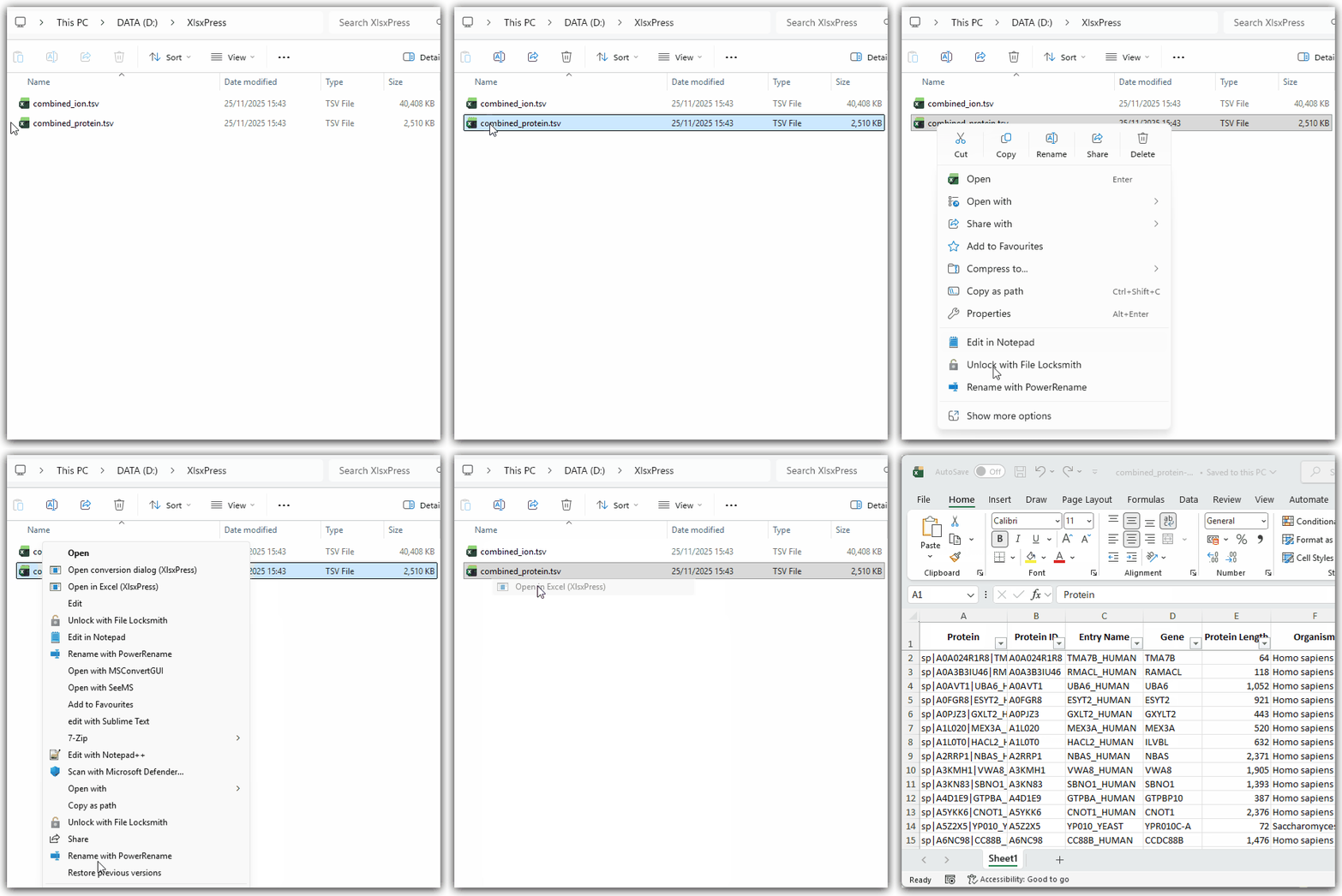
Right-click a .csv, .tsv, .txt or .parquet file and select one of these entries:
- Open in Excel (XlsxPress) converts the file with your default options and opens the workbook in Excel.
- Open conversion dialog (XlsxPress) shows a dialog in which you select the options for this conversion.
If a conversion takes longer than a moment, a small window shows its progress. Large files can take a few minutes. To cancel the conversion, close this window.
On Windows 11, the entries are in the classic context menu. Right-click the file and select Show more options to see them.
By default, Open in Excel (XlsxPress) converts all rows, formats the header row, and saves the workbook in the temp folder. To change these defaults, use the conversion dialog.
Use the conversion dialog
Under Options, the dialog shows these checkboxes:
- Format header row makes the header row bold, wraps long column names, keeps the header row visible while you scroll, and adds filter buttons.
- Open in Excel after conversion opens the workbook when the conversion is complete. Open in Excel (XlsxPress) ignores this option and always opens the workbook.
- Convert only the first [N] rows converts only the first rows of the file. Enter the number of rows in the field. Use this option to look at large files quickly.
Under Save workbook, choose where XlsxPress saves the workbook: Temp folder or Next to original. Workbooks in the temp folder are deleted after some time (see Where XlsxPress saves workbooks). XlsxPress never overwrites an existing file.
Click Convert to start the conversion. When the conversion is complete, the dialog shows where XlsxPress saved the workbook, and Show in folder opens that folder in File Explorer. Warnings and errors appear in the same place. After a conversion, Convert becomes Close. The dialog closes by itself if it opened the workbook in Excel and has no warnings to show.
To save the current options as your defaults, click Save as default. These defaults apply to the dialog and to Open in Excel (XlsxPress). Click Reset to set the options back to the built-in defaults; XlsxPress saves them only when you click Save as default. About explains these buttons and shows where the temp folder and the settings file are.
Use the command line
The open command converts a file into the temp folder and opens the workbook in Excel:
xlsxpress open data.tsv
The convert command saves the workbook next to the original file:
xlsxpress convert data.tsv
Both commands accept these options:
| Option | Effect |
|---|---|
--nrows N, -n N |
Convert only the first N rows. |
--plain |
Do not format the header row. |
--temp |
Save the workbook in the temp folder (convert only). |
--open |
Open the workbook in Excel (convert only). |
Run xlsxpress --help or xlsxpress convert --help to see all commands and options. The command line uses the cleanup settings of the settings file, but it does not use the defaults of the conversion dialog.
Where XlsxPress saves workbooks
XlsxPress never overwrites a file. When you convert data.tsv next to the original file, the workbook is data.xlsx. If data.xlsx already exists, XlsxPress adds a number, for example data-02.xlsx.
In the temp folder, the name also contains the date and time, for example data_2026-11-06_142530.xlsx. Excel cannot open two workbooks with the same name at the same time, so the time stamp lets you open several versions of a file. On Windows, the temp folder is %LOCALAPPDATA%\xlsxpress\Cache\temp.
XlsxPress keeps your default options and the cleanup limits in a settings file. To see where this file is, run xlsxpress context-menu status or click About in the conversion dialog. You can change the limits max_age_days and max_files in the [cleanup] section of this file.
How XlsxPress converts values
XlsxPress reads every column of a text file as text first. A column becomes a number column only if every value in it is a plain number, because only then can Excel show the same value. Otherwise the whole column stays text.
| In the file | In Excel |
|---|---|
12, -3.5, .5, 1.5e-3, 1e+05 |
Number, if every value in the column is a number |
007, +5, 1,5, 2310009E13, MARCH1, 2024-01-02, TRUE |
Text, exactly as in the file |
=1+1 |
Text, not a formula |
NA, NaN, N/A, #N/A, null |
Empty cell in a number column; text in a text column |
inf, -Infinity |
Text inf or -inf, because Excel has no infinity |
Parquet files store the type of each column, so XlsxPress uses these types. Dates and datetimes become Excel dates, which you can sort and calculate with. Booleans become TRUE and FALSE, and nested values such as lists become text.
XlsxPress expects text files in UTF-8, or in UTF-16 or UTF-32 with a byte order mark. If a file is not valid UTF-8, XlsxPress reads it as Windows-1252 and shows a warning, so check that special characters such as umlauts are correct. In .tsv files the separator is a tab, while for .csv and .txt files XlsxPress detects the separator (tab, comma or semicolon) from the first lines.
Limitations
- Long numbers: Excel stores only 15 significant digits. A longer integer, such as a 16-digit ID, ends in zeros in Excel.
- Extreme numbers: In text files, numbers beyond the range of a double become
inf(1e+400) or0(1e-400) without a warning. - Excel size limits: A worksheet holds at most 1,048,575 data rows and 16,384 columns. XlsxPress stops with an error for a larger table, so use the preview option to convert only the first rows. Excel also limits a cell to 32,767 characters, so XlsxPress shortens longer text and shows a warning.
- Dates in Parquet files: Excel stores times only to the millisecond. Dates before 1 March 1900 become text in ISO 8601 format, because Excel shows these dates incorrectly. Datetimes with a time zone also become text, such as
2024-01-02T10:00:00+01:00, because Excel has no time zones. - Decimal commas: Values such as
1,5stay text, because1,234means 1.234 in German and 1234 in English. - Comment lines: A text file must start with its header row. Comment or metadata lines above the header cause an error.
- Context menu: The context menu and the conversion dialog are only available on Windows.
Update and uninstall
To update XlsxPress, run:
uv tool upgrade xlsxpress
The context menu entries continue to work after the update. If they stop working, run xlsxpress context-menu status to find the problem, and xlsxpress context-menu register to fix it.
To uninstall XlsxPress, remove the context menu entries first, because the xlsxpress command is not available after the uninstall:
-
Remove the context menu entries:
xlsxpress context-menu unregister
-
Uninstall XlsxPress:
uv tool uninstall xlsxpress
-
Optional: delete the folders
%LOCALAPPDATA%\xlsxpress(temp folder) and%LOCALAPPDATA%\perutzms\xlsxpress(settings and log file).
Remove the context menu entries manually
If you uninstalled XlsxPress before you removed the context menu entries, run these commands in PowerShell:
foreach ($extension in ".csv", ".tsv", ".txt", ".parquet") {
    foreach ($entry in "XlsxPress.Open", "XlsxPress.Dialog") {
        Remove-Item -Recurse -ErrorAction SilentlyContinue "HKCU:\Software\Classes\SystemFileAssociations\$extension\shell\$entry"
    }
}
Develop XlsxPress
To set up a development environment, clone the repository and install all dependencies with uv:
git clone https://github.com/maxperutzlabs-ms/xlsxpress.git
cd xlsxpress
uv sync
Run the tests and the code checks with these commands:
uv run pytest
uv run ruff check .
uv run ruff format --check .
uv run pyrefly check
The design decisions are in docs/design.md.
Feedback
To report a problem or to suggest a feature, open an issue in the issue tracker.
License
XlsxPress is licensed under the MIT License.
1 maintainer

Metadata
1 maintainer
Release files for xlsxpress 0.4.0
For a detailed explanation of source distributions (sdists) and built distributions (wheels), please see the package formats documentation.
Source distribution (sdist)
| File | Size | Uploaded | Provenance | Actions |
|---|---|---|---|---|
| xlsxpress-0.4.0.tar.gz | 47.3 kB | With provenance | Details for xlsxpress-0.4.0.tar.gz |
Built distribution (wheel)
| File | Interpreter | ABI | Platform | Actions Reset |
|---|---|---|---|---|
| xlsxpress-0.4.0-py3-none-any.whl | Python 3 | none | any | Details for xlsxpress-0.4.0-py3-none-any.whl |
Total release size: 104.6 kB
Release files / xlsxpress-0.4.0.tar.gz
| Download URL | xlsxpress-0.4.0.tar.gz |
|---|---|
| Size | 47.3 kB |
| Tags | Source |
|
SHA-256 checksum How to use checksums |
72b95b7011b46727d674b8b6510b02ebc538543972029ecff804491025c958b5
|
|
BLAKE2b-256 checksum How to use checksums |
e468845f34186739d6dea2bc869a0ea36acac69b1e489935cf18bbea486b2e4b
|
| Upload date | |
|
Uploaded using Trusted Publishing? What is trusted publishing? |
Yes |
| Uploaded via |
twine/7.0.0 CPython/3.13.16
|
Provenance
Provenance describes where a file came from. On PyPI, provenance is shared via attestations, which provide a verifiable record of the build or publishing details. View details, limitations and caveats.


PyPI Publish Attestation
PyPI verified that this artifact, at this checksum, originated from the publisher listed below.
Signed by GitHub Actions, verified by PyPI on Nov 10, 2026.
Transparency logRelease files / xlsxpress-0.4.0-py3-none-any.whl
| Download URL | xlsxpress-0.4.0-py3-none-any.whl |
|---|---|
| Size | 57.2 kB |
| Tags | Python 3 |
|
SHA-256 checksum How to use checksums |
493590756791a6cc472661c50d56cd2cafb99adc24dd6594017e52ca87d8fafd
|
|
BLAKE2b-256 checksum How to use checksums |
a814794ce62720aba484c7899c7f21e7a46451039f07e8a32e224d492448fbdf
|
| Upload date | |
|
Uploaded using Trusted Publishing? What is trusted publishing? |
Yes |
| Uploaded via |
twine/7.0.0 CPython/3.13.16
|
Provenance
Provenance describes where a file came from. On PyPI, provenance is shared via attestations, which provide a verifiable record of the build or publishing details. View details, limitations and caveats.
PyPI Publish Attestation
PyPI verified that this artifact, at this checksum, originated from the publisher listed below.
Signed by GitHub Actions, verified by PyPI on Nov 10, 2026.
Transparency logSecurity for xlsxpress 0.4.0
Provenance
Provenance describes where a file came from. On PyPI, provenance is shared via attestations, which provide a verifiable record of the build or publishing details. View details, limitations and caveats.
Full provenance
Both files in this release have been uploaded with provenance metadata.
Attestation for xlsxpress-0.4.0.tar.gz
PyPI Publish Attestation
PyPI verified that this artifact, at this checksum, originated from the publisher listed below.
Signed by GitHub Actions, verified by PyPI on Nov 10, 2026.
Transparency logA note on package security
PyPI is a repository for distributing packages, not a service for auditing them. While third-party security researchers and our staff do their best to detect and remove malicious packages, PyPI cannot guarantee the quality, security or suitability of any given package.
To learn more about protecting yourself from malicious actors, visit our package security documentation.














