
xltree
エクセルのワークシートの境界線を使って、ツリー構造図を描画します
例1:ディレクトリー・パス
Output:
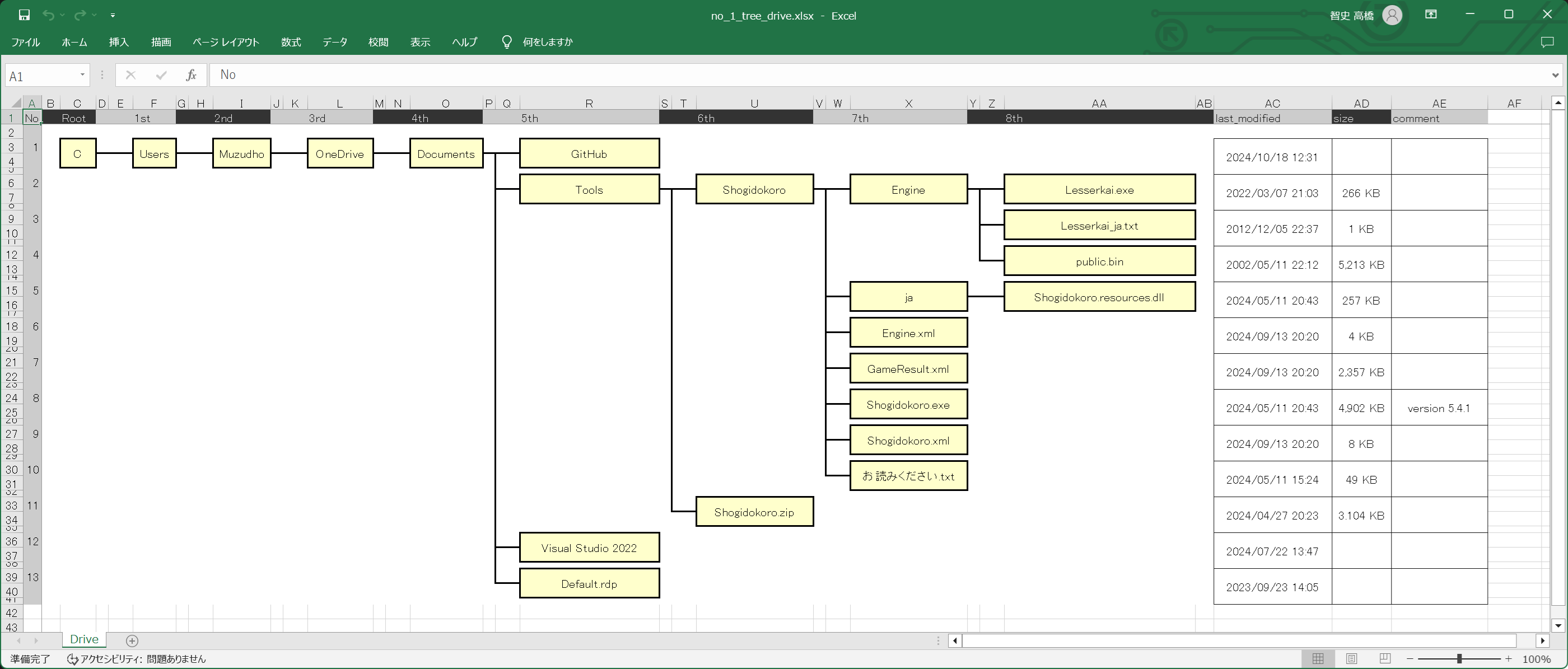
👆 わたしのWindows PCのCドライブの例です
(xltree>=0.0.10 から) ツリー部分より右側の列、つまり上図でいうと last_modified 列以降も出力します
(xltree>=0.3.1 から) セル結合するかしないか選べます
Input case like a table:
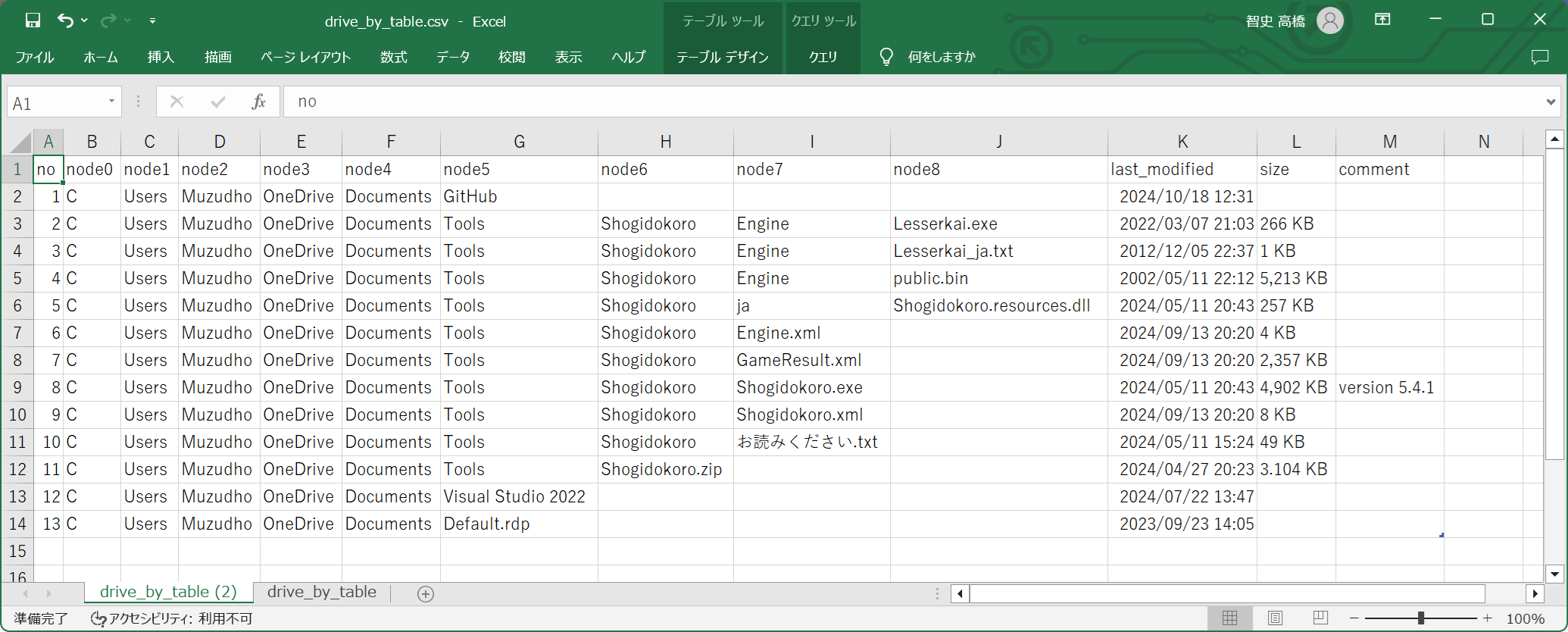
no,node0,node1,node2,node3,node4,node5,node6,node7,node8,last_modified,size,comment
1,C,Users,Muzudho,OneDrive,Documents,GitHub,,,,2024/10/18 12:31,,
2,C,Users,Muzudho,OneDrive,Documents,Tools,Shogidokoro,Engine,Lesserkai.exe,2022/03/07 21:03,266 KB,
3,C,Users,Muzudho,OneDrive,Documents,Tools,Shogidokoro,Engine,Lesserkai_ja.txt,2012/12/05 22:37,1 KB,
4,C,Users,Muzudho,OneDrive,Documents,Tools,Shogidokoro,Engine,public.bin,2002/05/11 22:12,"5,213 KB",
5,C,Users,Muzudho,OneDrive,Documents,Tools,Shogidokoro,ja,Shogidokoro.resources.dll,2024/05/11 20:43,257 KB,
6,C,Users,Muzudho,OneDrive,Documents,Tools,Shogidokoro,Engine.xml,,2024/09/13 20:20,4 KB,
7,C,Users,Muzudho,OneDrive,Documents,Tools,Shogidokoro,GameResult.xml,,2024/09/13 20:20,"2,357 KB",
8,C,Users,Muzudho,OneDrive,Documents,Tools,Shogidokoro,Shogidokoro.exe,,2024/05/11 20:43,"4,902 KB",version 5.4.1
9,C,Users,Muzudho,OneDrive,Documents,Tools,Shogidokoro,Shogidokoro.xml,,2024/09/13 20:20,8 KB,
10,C,Users,Muzudho,OneDrive,Documents,Tools,Shogidokoro,お読みください.txt,,2024/05/11 15:24,49 KB,
11,C,Users,Muzudho,OneDrive,Documents,Tools,Shogidokoro.zip,,,2024/04/27 20:23,3.104 KB,
12,C,Users,Muzudho,OneDrive,Documents,Visual Studio 2022,,,,2024/07/22 13:47,,
13,C,Users,Muzudho,OneDrive,Documents,Default.rdp,,,,2023/09/23 14:05,,
👆 さきほどの Output の図は、上図の CSV ファイルを読込ませると描いてくれます。
node 列は 0 から始まる連番で増やすことができます。常識的な長さにしてください
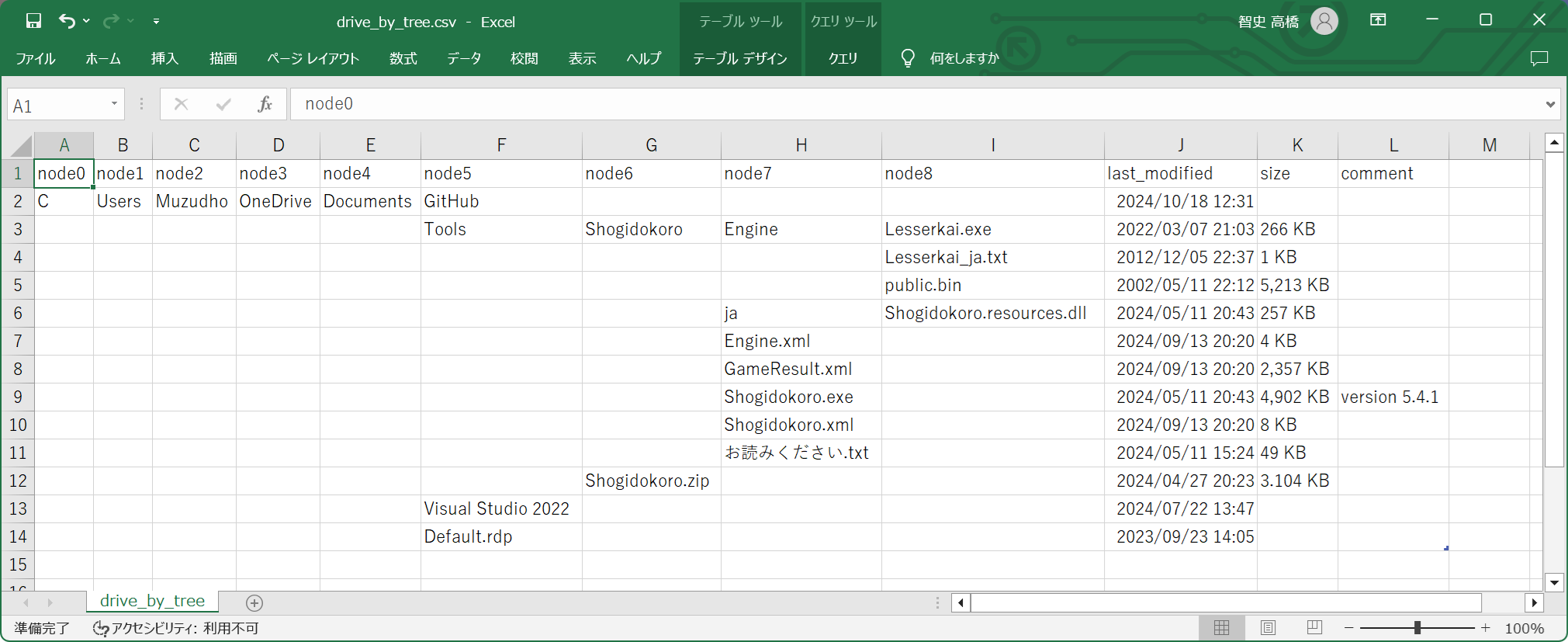
Input case like a tree:
node0,node1,node2,node3,node4,node5,node6,node7,node8,last_modified,size,comment
C,Users,Muzudho,OneDrive,Documents,GitHub,,,,2024/10/18 12:31,,
,,,,,Tools,Shogidokoro,Engine,Lesserkai.exe,2022/03/07 21:03,266 KB,
,,,,,,,,Lesserkai_ja.txt,2012/12/05 22:37,1 KB,
,,,,,,,,public.bin,2002/05/11 22:12,"5,213 KB",
,,,,,,,ja,Shogidokoro.resources.dll,2024/05/11 20:43,257 KB,
,,,,,,,Engine.xml,,2024/09/13 20:20,4 KB,
,,,,,,,GameResult.xml,,2024/09/13 20:20,"2,357 KB",
,,,,,,,Shogidokoro.exe,,2024/05/11 20:43,"4,902 KB",version 5.4.1
,,,,,,,Shogidokoro.xml,,2024/09/13 20:20,8 KB,
,,,,,,,お読みください.txt,,2024/05/11 15:24,49 KB,
,,,,,,Shogidokoro.zip,,,2024/04/27 20:23,3.104 KB,
,,,,,Visual Studio 2022,,,,2024/07/22 13:47,,
,,,,,Default.rdp,,,,2023/09/23 14:05,,
👆 さきほどの CSV と同じワークブック(.xlsx)を出力できる CSV です。
(xltree>=0.0.10 から) no 列は省くことができます。また、中間ノードが空欄になっている箇所は、前行と同じとみなします
Script:
import xltree as tr


# 出力先ワークブックを指定し、ワークブックハンドル取得
with tr.prepare_workbook(target='./examples/temp/example_o1o0_tree_drive.xlsx', mode='w') as b:

    # 読取元CSVを指定し、ワークシートハンドル取得
    with b.prepare_worksheet(target='Drive', based_on='./examples/data/drive_by_table.csv') as s:

        # ワークシートへ木構造図を描画
        s.render_tree()

    # 何かワークシートを1つ作成したあとで、最初から入っている 'Sheet' を削除
    b.remove_worksheet(target='Sheet')

    # 保存
    b.save_workbook()
👆 上記はスクリプトの記述例です
(xltree==0.4.0 から) WorkbookControl は廃止し、prepare_workbook, prepare_worksheet を使うように変更しました
👇 (xltree==0.5.0 から)前述の Input case like a table で示した CSV ファイルを出力するためのオブジェクト・モデルもあります
import datetime
import pandas as pd
from xltree as tr


# 森作成
# ------
#
#   複数の根を持つことができます
#
forest = tr.planting()
# 根を追加するなら tree_root()、辺と中間節を追加するなら grow()、 葉を明示するなら leaf() を使ってください
documents = forest.tree_root(edge_text=None, node_text='C').grow(edge_text=None, node_text='Users').grow(None, 'Muzudho').grow(None, 'OneDrive').grow(None, 'Documents')
if True: # インデントしたいだけ
    documents.leaf(edge_text=None, node_text='GitHub', remainder_columns={'last_modified':'2024/10/18 12:31'})
    tools = documents.grow(None, 'Tools')
    if True:
        shogidokoro = tools.grow(None, 'Shogidokoro')
        if True:
            engine = shogidokoro.grow(None, 'Engine')
            if True:
                engine.leaf(None, 'Lesserkai.exe', {'last_modified':'2022/03/07 21:03', 'size':'266 KB'})
                engine.leaf(None, 'Lesserkai_ja.txt', {'last_modified':'2012/12/05 22:37', 'size':'1 KB'})
                engine.leaf(None, 'public.bin', {'last_modified':'2002/05/11 22:12', 'size':'5,213 KB'})
            shogidokoro.grow(None, 'ja').leaf(None, 'Shogidokoro.resources.dll', {'last_modified':'2024/05/11 20:43', 'size':'257 KB'})
            shogidokoro.leaf(None, 'Engine.xml', {'last_modified':'2024/09/13 20:20', 'size':'4 KB'})
            shogidokoro.leaf(None, 'GameResult.xml', {'last_modified':'2024/09/13 20:20', 'size':'2,357 KB'})
            shogidokoro.leaf(None, 'Shogidokoro.exe', {'last_modified':'2024/05/11 20:43', 'size':'4,902 KB', 'comment':'version 5.4.1'})
            shogidokoro.leaf(None, 'Shogidokoro.xml', {'last_modified':'2024/09/13 20:20', 'size':'8 KB'})
            shogidokoro.leaf(None, 'お読みください.txt', {'last_modified':'2024/05/11 15:24', 'size':'49 KB'})
        tools.leaf(None, 'Shogidokoro.zip', {'last_modified':'2024/04/27 20:23', 'size':'3.104 KB'})
    documents.leaf(None, 'Visual Studio 2022', {'last_modified':'2024/07/22 13:47'})
    documents.leaf(None, 'Default.rdp', {'last_modified':'2023/09/23 14:05'})

# 任意。余り列の出力順を指定する
forest.order_of_remainder_columns = ['last_modified', 'size', 'comment']

# 任意。葉要素に番号を振っていく。葉に連番を振る機能があって、 TreeEntry#leaf_th プロパティで取り出せます
#forest.renumbering()


# 森をCSV形式でファイルへ保存
# ---------------------------
forest.to_csv(csv_file_path='./tests/diff_dump/actual/example_o1o1o0_tree_model_table.txt')
👆 (xltree==0.6.0 から) forest.remainder_column_name_list プロパティは forest.order_of_remainder_columns に名称変更
例2:しりとり
Output:
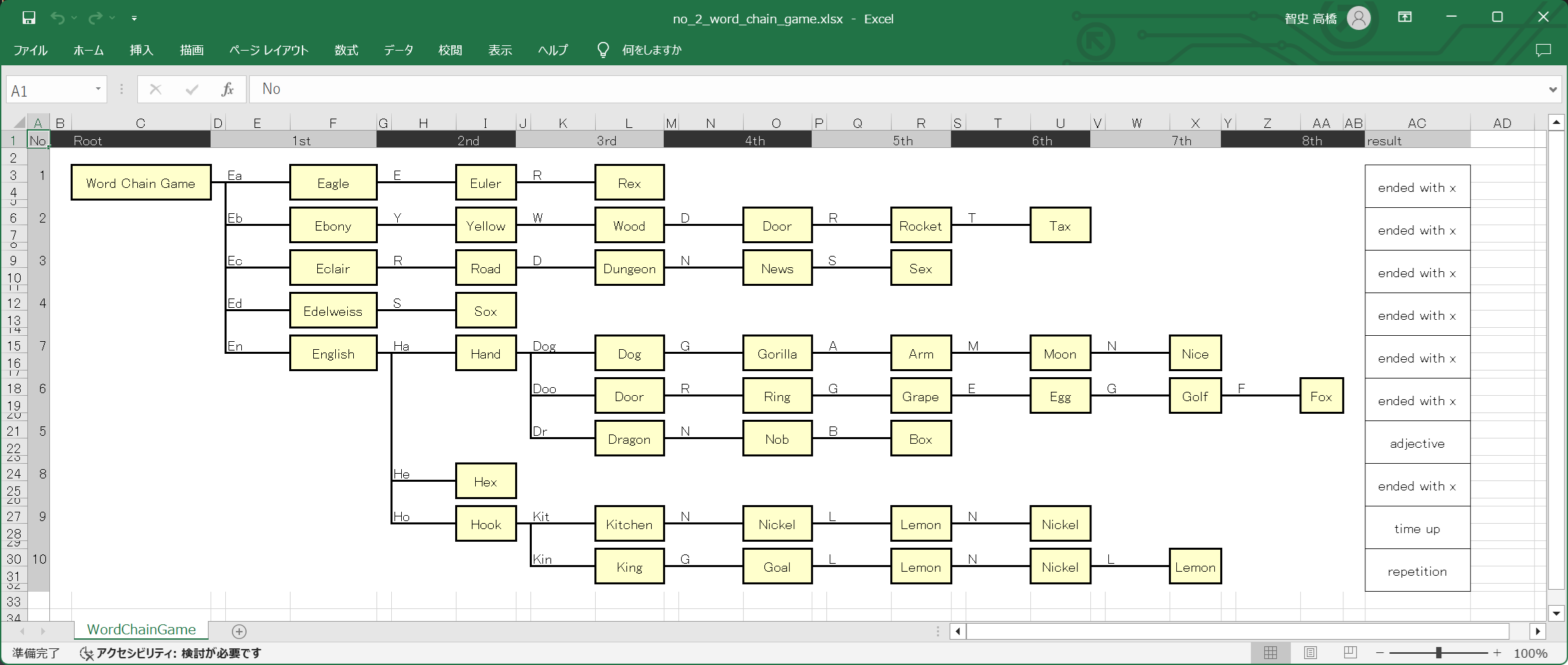
👆 しりとりというゲームの記録です。図(Diagram)の辺(Edge)にテキストを書くのはオプションです
Input:
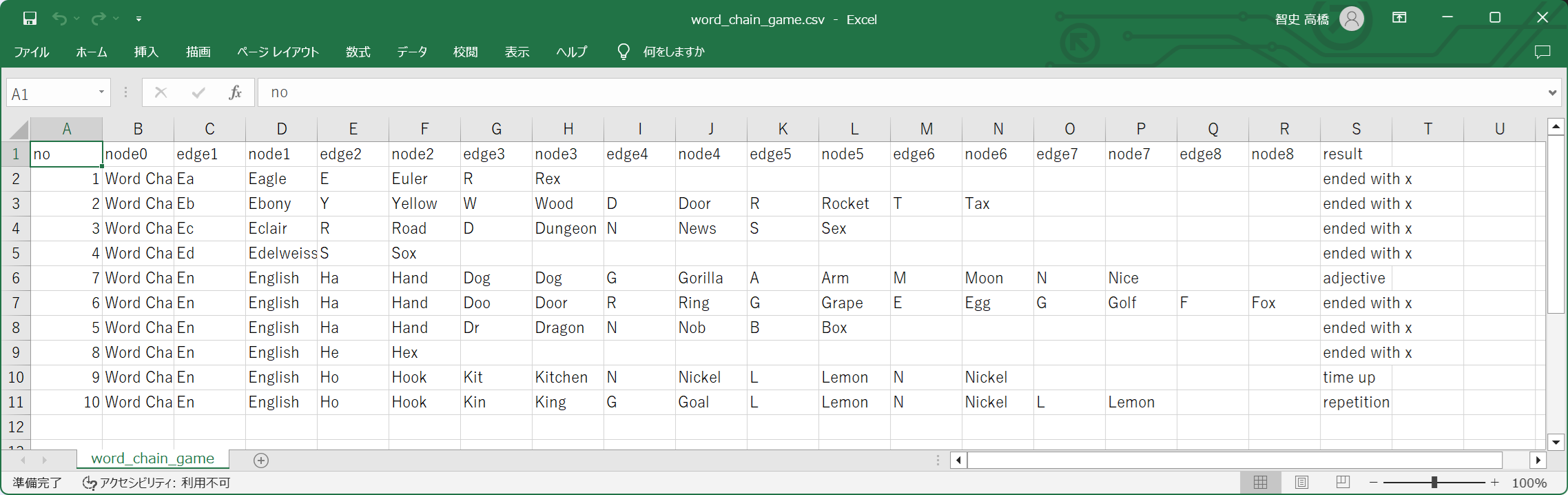
no,node0,edge1,node1,edge2,node2,edge3,node3,edge4,node4,edge5,node5,edge6,node6,edge7,node7,edge8,node8,result
1,Word Chain Game,Ea,Eagle,E,Euler,R,Rex,,,,,,,,,,,ended with x
2,Word Chain Game,Eb,Ebony,Y,Yellow,W,Wood,D,Door,R,Rocket,T,Tax,,,,,ended with x
3,Word Chain Game,Ec,Eclair,R,Road,D,Dungeon,N,News,S,Sex,,,,,,,ended with x
4,Word Chain Game,Ed,Edelweiss,S,Sox,,,,,,,,,,,,,ended with x
7,Word Chain Game,En,English,Ha,Hand,Dog,Dog,G,Gorilla,A,Arm,M,Moon,N,Nice,,,adjective
6,Word Chain Game,En,English,Ha,Hand,Doo,Door,R,Ring,G,Grape,E,Egg,G,Golf,F,Fox,ended with x
5,Word Chain Game,En,English,Ha,Hand,Dr,Dragon,N,Nob,B,Box,,,,,,,ended with x
8,Word Chain Game,En,English,He,Hex,,,,,,,,,,,,,ended with x
9,Word Chain Game,En,English,Ho,Hook,Kit,Kitchen,N,Nickel,L,Lemon,N,Nickel,,,,,time up
10,Word Chain Game,En,English,Ho,Hook,Kin,King,G,Goal,L,Lemon,N,Nickel,L,Lemon,,,repetition
👆 edge 列は 1 から始まる連番で増やすことができます。 node 列より深い番号を付けても無視されます
Script:
import xltree as tr


# 出力先ワークブックを指定し、ワークブックハンドル取得
with tr.prepare_workbook(target='./examples/temp/example_o2o0_word_chain_game.xlsx', mode='w') as b:

    # 読取元CSVを指定し、ワークシートハンドル取得
    with b.prepare_worksheet(target='WordChainGame', based_on='./examples/data/word_chain_game.csv') as s:

        # ワークシートへ木構造図を描画
        s.render_tree()

    # 何かワークシートを1つ作成したあとで、最初から入っている 'Sheet' を削除
    b.remove_worksheet(target='Sheet')

    # 保存
    b.save_workbook()
例3:偏ったコインを投げて表と裏が出る確率
Output:
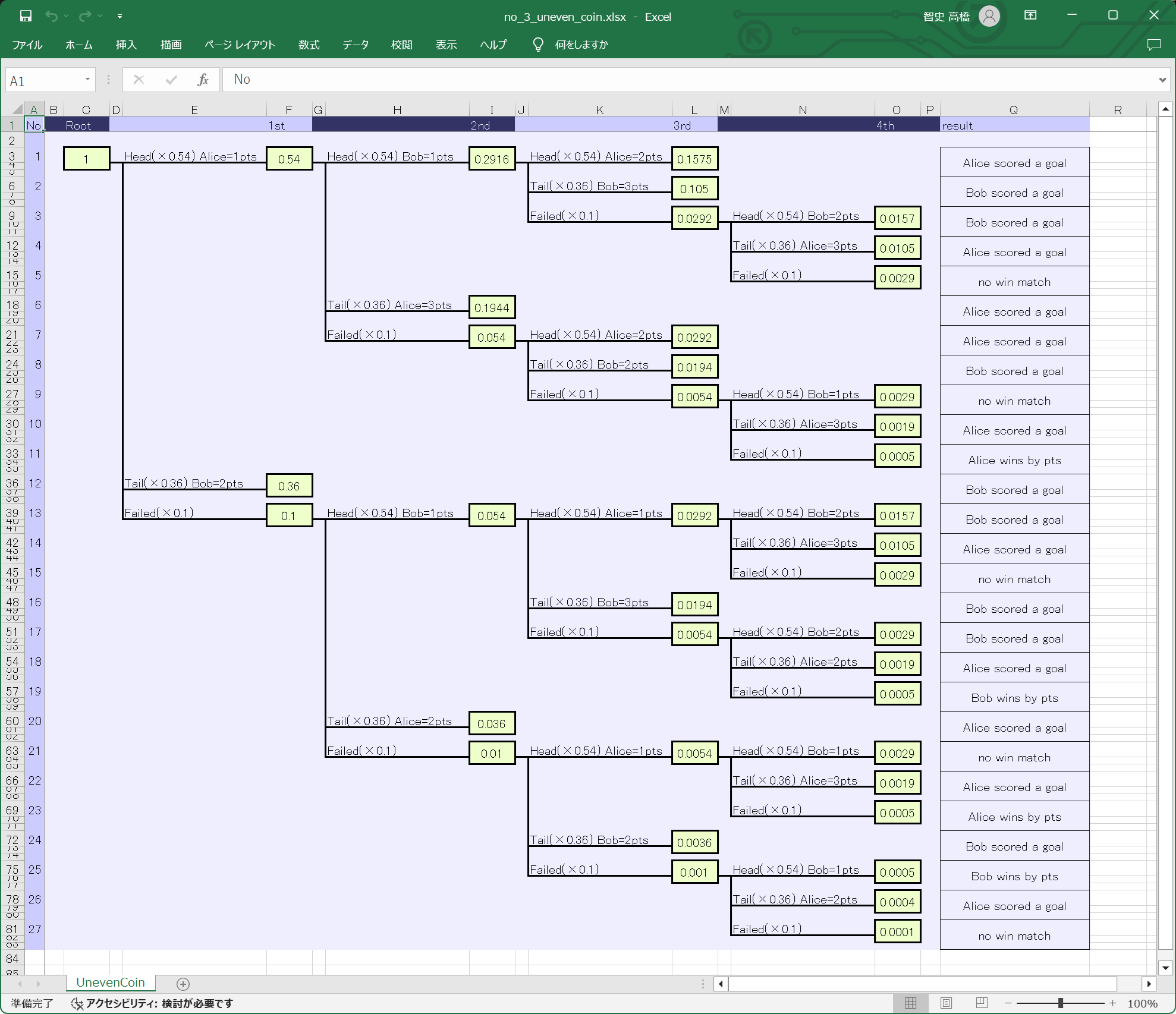
👆 スタイルも少しだけ設定できます
Input:
省略します
Script:
import xltree as tr


# 各種設定
settings = {
    # 列の幅
    #'column_width_of_no':                       4,      # A列の幅。no列
    #'column_width_of_root_side_padding':        3,      # B列の幅。ツリー構造図の根側パディング
    #'column_width_of_leaf_side_padding':        3,      # ツリー構造図の葉側パディング
    'column_width_of_node':                     7,      # 例:C, F, I ...列の幅。ノードの箱の幅
    #'column_width_of_parent_side_edge':         2,      # 例:D, G, J ...列の幅。エッジの水平線のうち、親ノードの方
    'column_width_of_child_side_edge':         22,      # 例:E, H, K ...列の幅。エッジの水平線のうち、子ノードの方

    # 行の高さ
    'row_height_of_header':                    13,      # 第1行。ヘッダー
    'row_height_of_lower_side_padding':        13,      # 第2行。ツリー構造図の軸の番号が小さい側パティング
    'row_height_of_upper_side_of_node':        13,      # ノードの上側のセルの高さ
    'row_height_of_lower_side_of_node':         6,      # ノードの下側のセルの高さ
    'row_height_of_node_spacing':               6,      # ノード間の高さ

    # 背景色関連
    'bgcolor_of_tree':                   'EEEEFF',      # ツリー構造図の背景
    'bgcolor_of_header_1':               'CCCCFF',      # ヘッダーの背景色その1
    'bgcolor_of_header_2':               '333366',      # ヘッダーの背景色その2
    'bgcolor_of_node':                   'EEFFCC',      # 背景色

    # 文字色関連
    'fgcolor_of_header_1':               '111122',      # ヘッダーの文字色その1
    'fgcolor_of_header_2':               'EEEEFF',      # ヘッダーの文字色その2

    # 文字寄せ関連
    'horizontal_alignment_of_node':        'left',      # 文字の水平方向の寄せ。規定値 None。'left', 'fill', 'centerContinuous', 'center', 'right', 'general', 'justify', 'distributed' のいずれか。指定しないなら None
    'vertical_alignment_of_node':            None,      # 文字の垂直方向の寄せ。規定値 None。'bottom', 'center', 'top', 'justify', 'distributed' のいずれか。指定しないなら None

    # その他の操作
    'do_not_merge_cells':                   False,      # セル結合しないなら真
}

# 出力先ワークブックを指定し、ワークブックハンドル取得
with tr.prepare_workbook(target='./examples/temp/example_o3o0_uneven_coin.xlsx', mode='w', settings=settings) as b:

    # 読取元CSVを指定し、ワークシートハンドル取得
    with b.prepare_worksheet(target='UnevenCoin', based_on='./examples/data/uneven_coin.csv') as s:

        # ワークシートへ木構造図を描画
        s.render_tree()

    # 何かワークシートを1つ作成したあとで、最初から入っている 'Sheet' を削除
    b.remove_worksheet(target='Sheet')

    # 保存
    b.save_workbook()
👆 Settings オブジェクトを使ってください。
(xltree>=0.1.0 から) settings は Dictionary 型になりました
(xltree>=0.2.0 から) column_width_of_row_header_separator は column_width_of_root_side_padding に名称変更しました
(xltree>=0.3.0 から) row_height_of_column_header_separator は row_height_of_lower_side_padding に名称変更しました
例4:ツリー構造モデルの作成
(tree==0.4.2 から) ツリー構造のモデルを取得できます
👇 以下はターミナル表示
Output:
📁 C
└── 📁 Users
    └── 📁 Muzudho
        └── 📁 OneDrive
            └── 📁 Documents
                └── 📄 (1) GitHub
                └── 📁 Tools
                    └── 📁 Shogidokoro
                        └── 📁 Engine
                            └── 📄 (2) Lesserkai.exe
                            └── 📄 (3) Lesserkai_ja.txt
                            └── 📄 (4) public.bin
                        └── 📁 ja
                            └── 📄 (5) Shogidokoro.resources.dll
                        └── 📄 (6) Engine.xml
                        └── 📄 (7) GameResult.xml
                        └── 📄 (8) Shogidokoro.exe
                        └── 📄 (9) Shogidokoro.xml
                        └── 📄 (10) お読みください.txt
                    └── 📄 (11) Shogidokoro.zip
                └── 📄 (12) Visual Studio 2022
                └── 📄 (13) Default.rdp
Script:
import xltree as tr


# 出力先ワークブックを指定し、ワークブックハンドル取得
with tr.prepare_workbook(target='./examples/temp/example_o1o0_tree_drive.xlsx', mode='w') as b:

    # 読取元CSVを指定し、ワークシートハンドル取得
    with b.prepare_worksheet(target='Drive', based_on='./examples/data/drive_by_table.csv') as s:

        def print_child(indent, node):
            """再帰的に子ノードを表示"""
            succ_indent = indent + '    '
            for child_entry in node.child_entries.values():
                # エッジテキスト
                if child_entry.edge_text is not None:
                    et = f"─{child_entry.edge_text}─"
                else:
                    et = '──'

                # 葉ノード
                if not child_entry.has_children():
                    print(f"{indent}└{et} 📄 ({child_entry.leaf_th}) {child_entry.node_text}")

                # 中間ノード
                else:
                    print(f"{indent}└{et} 📁 {child_entry.node_text}")
                    print_child(indent=succ_indent, node=child_entry) # 再帰

        # 木構造のターミナル表示
        for root_entry in s.forest.multiple_root_entry.values():
            print(f"📁 {root_entry.node_text}")
            print_child(indent='', node=root_entry)
👆 以上がこのライブラリに付属しているツリー構造の操作のインターフェースです。他に便利なツリー構造のライブラリーがあれば、そちらへ内容を移し替えてください
(xltree==0.5.0 から) child_nodes を child_entries へ名称変更。 node.text は entry.node_text へ名称変更。 s.multiple_root_entry は s.forest.multiple_root_entry へ変更
1 maintainer

Metadata
1 maintainer
Release files for xltree 0.7.0
For a detailed explanation of source distributions (sdists) and built distributions (wheels), please see the package formats documentation.
Source distribution (sdist)
| File | Size | Uploaded | Provenance | |
|---|---|---|---|---|
| xltree-0.7.0.tar.gz | 33.4 kB | Without provenance | Details |
Built distribution (wheel)
| File | Interpreter | ABI | Platform | Reset |
|---|---|---|---|---|
| xltree-0.7.0-py2.py3-none-any.whl | Python 3, Python 2 | none | any | Details |
Total release size: 71.8 kB
Release files / xltree-0.7.0.tar.gz
| Download URL | xltree-0.7.0.tar.gz |
|---|---|
| Size | 33.4 kB |
| Tags | Source |
|
SHA-256 checksum How to use checksums |
8c6842998278bff0e5f2c4b4c86fc75e922a75e49dbb0c3eb30acc5eab01d1b6
|
|
BLAKE2b-256 checksum How to use checksums |
881ef0b8b89fd86dcc205a14d4db2e7f4aa90a8c03185c60a1348abc647bc2c4
|
| Upload date | |
|
Uploaded using Trusted Publishing? What is trusted publishing? |
No |
| Uploaded via |
twine/5.1.1 CPython/3.12.3
|
Release files / xltree-0.7.0-py2.py3-none-any.whl
| Download URL | xltree-0.7.0-py2.py3-none-any.whl |
|---|---|
| Size | 38.5 kB |
| Tags | Python 2 Python 3 |
|
SHA-256 checksum How to use checksums |
737a5afb04da4a6cc21d802a3c7f32e23c120ca5409f7bc567cb394eed30eb5f
|
|
BLAKE2b-256 checksum How to use checksums |
1fabc91d67c5b26f9f727c90e4c96286116978ff4402728b94d91cd7bd89d4d5
|
| Upload date | |
|
Uploaded using Trusted Publishing? What is trusted publishing? |
No |
| Uploaded via |
twine/5.1.1 CPython/3.12.3
|
Security for xltree 0.7.0
Provenance
Provenance describes where a file came from. On PyPI, provenance is shared via attestations, which provide a verifiable record of the build or publishing details. View details, limitations and caveats.
No provenance found
None of the files in this release were uploaded with provenance metadata.
A note on package security
PyPI is a repository for distributing packages, not a service for auditing them. While third-party security researchers and our staff do their best to detect and remove malicious packages, PyPI cannot guarantee the quality, security or suitability of any given package.














