
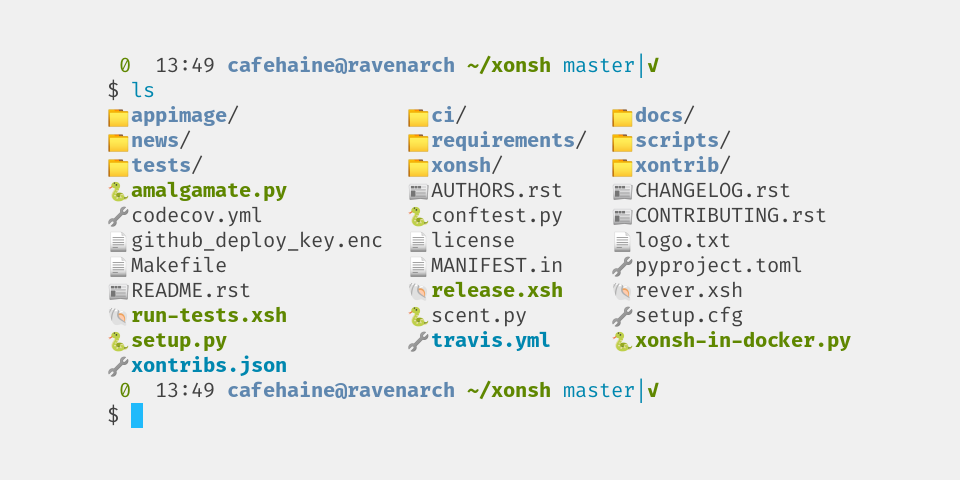
xontrib-xlsd is the next gen ls command for xonsh shell, inspired by lsd.
Contents
How to install xontrib-xlsd
Release version
Install the xontrib
xpip install xontrib-xlsd
And load it in your .xonshrc:
xontrib load xlsd
From git (might be unstable)
xpip install git+https://github.com/cafehaine/xontrib-xlsd
And load it in your .xonshrc:
xontrib load xlsd
Features
- Emojis
- Colors
- A
tree-like display when called recursively - Customizable
- Written in python so it doesn't need to run a separate binary
Customizing
Icons
Registering an icon
In xlsd, icons are registered using a name. The name is then used by the different rules to get an icon for an PathEntry.
You can view the built-in icons in xlsd/icons.py.
Here is how to add an icon (for example a rainbow). Put this in your .xonshrc
import xlsd.icons

xlsd.icons.LS_ICONS.add('rainbow', "🌈")
Icon sources can now use your fancy icon.
You can also override built-in icons this way.
Extension based icon source
The extension based rules are the fastest to run, and thus are the prefered way of setting icons.
For example, to use your previously defined rainbow icon as the icon for .txt files, you can add the following snippet in your .xonshrc:
import xlsd.icons

xlsd.icons.EXTENSION_ICONS.insert(0, ({'txt'}, 'rainbow'))
Libmagic based icon source
IMPORTANT NOTE: This source seems to only work on Arch Linux systems at the moment.
The libmagic (used by the file command on *nix) based rules are slower, but allow getting an icon when no extension matched.
For example, here we're going to use the xonsh icon for all folders. Add the following snippet in your .xonshrc:
import xlsd.icons

xlsd.icons.MIMETYPE_ICONS.insert(0, ("inode/directory", 'xonsh'))
Note that this won't work unless you set the icon source order with libmagic as the first source, since the extension source already defines an icon for directory entries.
Creating a custom icon source and changing the order
The following snipped registers a new icon source (that simply returns the xonsh icon for everything), and makes it the first checked source. Put this in your .xonshrc.
@xlsd_register_icon_source('my_source')
def my_icon_source(direntry):
    return 'xonsh'

$XLSD_ICON_SOURCES = ['my_source', 'extension', 'libmagic']
File order
Setting the file order
In your .xonshrc, define a $XLSD_SORT_METHOD environment variable with one of the following values:
"directories_first": The default: alphabetical order, with directories first"alphabetical": Simple alphabetical order"as_is": The default order of your OS.
Creating your own sort function
You can create a simple alphabetical (case sensitive) sort function with the snippet:
import xlsd

@xlsd.xlsd_register_sort_method('alpha_case_sensitive')
def my_sort_method(entries):
    entries.sort(key=lambda e: e.name)
    return entries
-l mode columns
Changing the columns/the order
In your .xonshrc, define a $XLSD_LIST_COLUMNS environment variable and set it's value to your desires.
The default value (similar to coreutil's ls) is the following:
$XLSD_LIST_COLUMNS = ['mode', 'hardlinks', 'uid', 'gid', 'size', 'mtime', 'name']
All the built-in columns are used in this config.
Writing your own column
A column is a function taking for only argument an PathEntry and that outputs a string.
A simple filename column could be registered like this:
@xlsd_register_column('filename', ColumnAlignment.LEFT)
def _xlsd_column_filename(direntry):
    return direntry.name
Colors
There are multiple colors/text effects that you can change in xlsd.
The full list of used colors is available in xlsd/__init__.py.
Here is a small example: we're going to make the size unit in -l mode appear red.
import xlsd

xlsd.COLORS['size_unit'] = '{INTENSE_RED}'
You can use any valid xonsh color.
For a quick list of colors/text effects, check out the xonsh tutorial on colors.
Item Name
By default, xlsd prints the item name with {icon} {name} format. You can update the $XLSD_NAME_FORMAT environment variable to change the format of the item. For example $XLSD_NAME_FORMAT={icon}{name} will remove the single space between icon & name.
1 maintainer

Metadata
1 maintainer
Release files for xontrib-xlsd 0.1.7
For a detailed explanation of source distributions (sdists) and built distributions (wheels), please see the package formats documentation.
Source distribution (sdist)
| File | Size | Uploaded | |
|---|---|---|---|
| xontrib-xlsd-0.1.7.tar.gz | 26.9 kB | Details |
Built distribution (wheel)
| File | Interpreter | ABI | Platform | Reset |
|---|---|---|---|---|
| xontrib_xlsd-0.1.7-py3-none-any.whl | Python 3 | none | any | Details |
Total release size: 52.7 kB
Release files / xontrib-xlsd-0.1.7.tar.gz
| Download URL | xontrib-xlsd-0.1.7.tar.gz |
|---|---|
| Size | 26.9 kB |
| Tags | Source |
|
SHA-256 checksum How to use checksums |
0cc7cc8bab00b084e834bec20355f0ed64f8ec8b8e1ede2b05758a147931a66b
|
|
BLAKE2b-256 checksum How to use checksums |
0cbce4703d93c1faf2b07186deb35bc6f915fdb1310797c68edf71c36d458622
|
| Upload date | |
|
Uploaded using Trusted Publishing? What is trusted publishing? |
No |
| Uploaded via |
twine/4.0.2 CPython/3.11.4
|
Release files / xontrib_xlsd-0.1.7-py3-none-any.whl
| Download URL | xontrib_xlsd-0.1.7-py3-none-any.whl |
|---|---|
| Size | 25.8 kB |
| Tags | Python 3 |
|
SHA-256 checksum How to use checksums |
23901287a7f30769ce700c4d9dc1916f7e16f911bef5617e248c9add6b17c610
|
|
BLAKE2b-256 checksum How to use checksums |
9191969bb6fc4f5f3f90da39c013550345d40e4449dc0184ab4407330e884c54
|
| Upload date | |
|
Uploaded using Trusted Publishing? What is trusted publishing? |
No |
| Uploaded via |
twine/4.0.2 CPython/3.11.4
|














