
xopat
Launch the xOpat whole-slide image viewer and its WSI-Service backend straight from a Jupyter, Google Colab, or JupyterHub notebook — in two lines.
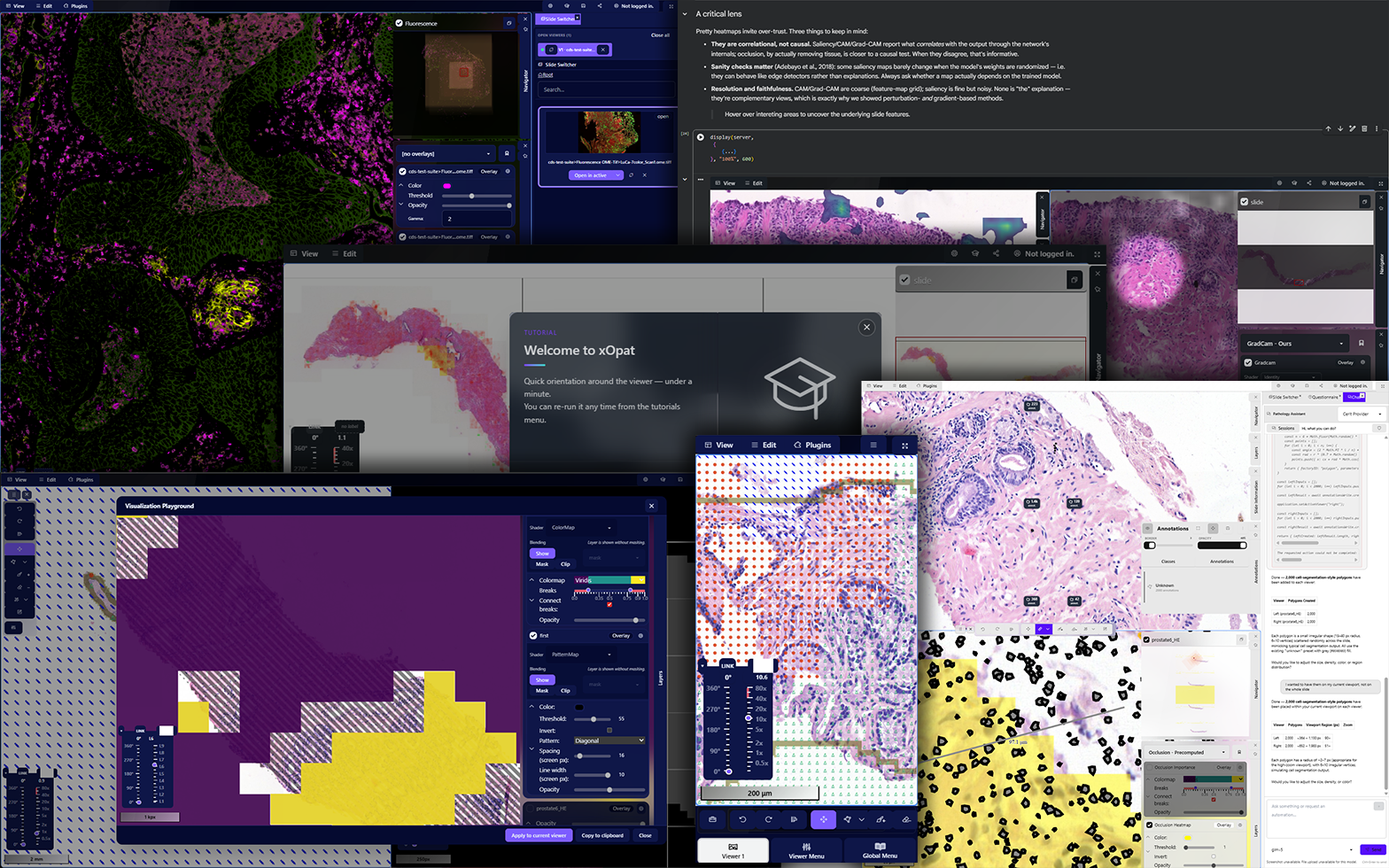



The viewer
xOpat — the eXplainable Open Pathology Analysis Tool — is a browser-based whole-slide imaging framework for digital pathology. Whole-slide images (WSIs) are digitized microscopy slides: gigapixel, multi-gigabyte, pyramid-structured pictures that no ordinary image viewer can open. xOpat streams them tile-by-tile, like an enhanced OpenSeadragon, and adds the layer of interpretation that pathology and AI research actually need on top of the raw pixels.
Crucially, xOpat is not a viewer bolted to one platform — it is a viewing framework. It has no hardwired image backend: you point it at whatever WSI server can read your slides (the RationAI WSI-Service is the reference server this package ships, but any protocol xOpat can resolve works, and you can add a new one with a single file). That keeps you out of the platform lock-in that usually comes with picking a slide viewer.
What the viewer gives you:
- 🔬 Gigapixel WSI streaming — smooth deep-zoom over multi-gigabyte pyramidal slides, only the visible tiles are fetched.
- 🗂️ Raster and vector overlays — Photoshop-style visualization layers (WebGL shaders: heatmaps, colormaps, edges…) and versatile annotations drawn over the same slide, so AI outputs, segmentations, and derived data sit registered on the tissue.
- 🪟 Multiple synchronized viewports — several slides/contexts side by side in a grid, each with its own background and visualization stack.
- 🧩 Plugins & modules — annotations, tutorials, OIDC auth, AI chat assistants, storytelling, ICC profiles, and more — load only what a deployment needs.
- ⚙️ Deep configuration — shape everything from a static
env.jsondown to a per-session URL or POST body (the session config this package sends).
What this package does
This xopat PyPI package is the notebook launcher for that viewer. It exists so you can go from
a folder of slides to a live, interactive viewer inside a notebook cell — with no Docker, no
server to stand up, and no configuration. It downloads self-contained xOpat and WSI-Service
binaries, starts them as local subprocesses, and embeds the running viewer as an iframe:
!pip install xopat

import xopat
from xopat import run_server

server = run_server(data_dir="/path/to/slides")   # downloads binaries on first run, then starts them
xopat.display(server, "slide.tiff")               # embed the interactive viewer on a slide
run_server() auto-detects its host (local Jupyter, Google Colab, or JupyterHub) and wires up
the right proxy and cross-origin setup for each — so the same two lines work whether you are on a
laptop, on Colab, or on a shared hub. Typical uses: inspecting slides next to your analysis code,
overlaying model predictions on the tissue they came from, and sharing a reproducible viewer
session in a notebook others can rerun.
Note — a convenience launcher, not a deployment. This package deliberately hardwires one server setup (WSI-Service + a fixed xOpat config) tuned for notebooks and local/desktop viewing. That is exactly what makes it two lines. To host xOpat for real — connect your own image servers, enable auth, run Node / PHP / server-less — do a proper deployment instead; see the full documentation.
Requirements
- Python ≥ 3.9, running inside a Jupyter-like host (Jupyter, JupyterLab, Google Colab, or
JupyterHub).
IPython.displayis used for embedding and already ships with every such host. - Linux or Windows — the launcher downloads a matching prebuilt binary for your platform.
- No pip dependencies are installed: the package deliberately declares none so it can't disturb a
host's pinned
ipython(this previously broke Colab's runtime).
Binaries are fetched from GitHub Releases on
first use and cached under ~/.xopat (or /content/.xopat on Colab, so they survive a kernel
restart).
Quick start by host
run_server() detects the host automatically. You only need an explicit setup call on JupyterHub.
Local Jupyter
Just works.
import xopat
from xopat import run_server

server = run_server(data_dir="/path/to/slides")
xopat.display(server, "slide.tiff")
...
server.stop()
data_dir may also be relative or use ~ — run_server(data_dir="slides") means <cwd>/slides.
The resolved absolute path is printed on startup, and you get a warning if it does not exist.
Google Colab
Just works. The viewer is served through Colab's serve_kernel_port_as_iframe helper so the
iframe is same-origin with the notebook output — which keeps Safari (ITP) and Firefox (ETP) happy
alongside Chrome.
!pip install xopat
import xopat
from xopat import run_server

server = run_server()                  # defaults to /content on Colab
xopat.display(server, "slide.tiff")
Known limitation — private / incognito windows. Colab's kernel-port proxy needs browser storage that private windows strip, so the iframe 404s even though
run_server()succeeds.display()shows a heads-up when it detects this; open the notebook in a normal window.
JupyterHub
Call setup_jupyterhub(<hub_url>) before run_server(). Without it, the xopat binary boots
its built-in localhost config and every asset URL resolves to http://localhost:9001 —
unreachable through the hub proxy. run_server() raises a clear RuntimeError if you skip it.
import xopat
from xopat import setup_jupyterhub, run_server

setup_jupyterhub("https://hub.example.com")   # MUST come first
server = run_server()
xopat.display(server, "slide.tiff")
Admin requirement:
jupyter-server-proxymust be installed in the single-user server environment (not the notebook kernel) so the/proxy/<port>/...routes exist. An in-notebookpip installis too late; bake it into the user-server image.
Displaying slides
xopat.display() is your window into the viewer from Python. It accepts either a slide id (the
quick path) or a full session config (the powerful path — the same dynamic configuration the
viewer accepts as a URL/POST, letting you script exactly what the viewer opens with).
# 1. A single slide by id — quick look, opened via GET ?slides=<id>
xopat.display(server, "slide.tiff")

# 2. A full viewer session (POSTed into the viewer). `data` is the list of
#    slides; backgrounds and visualization layers reference them by index
#    (dataReference), so one data list feeds many layers.
xopat.display(server, {
    "data": ["slide.tiff", "prediction_heatmap.tiff"],
    "background": [{"dataReference": 0}],                 # the tissue slide underneath
    "visualizations": [{                                  # WebGL overlay stack on top
        "name": "Model output",
        "shaders": {
            "heatmap": {"type": "heatmap", "dataReferences": [1]},
        },
    }],
})

# Sizing: height defaults to 800px, capped at 70% of the window.
# Pass an explicit height to opt out of the cap.
xopat.display(server, "slide.tiff", width="100%", height=1200)
Sessions are how you overlay AI results. A background is the raster slide shown underneath (usually the WSI itself); a visualization is a Photoshop-style stack of WebGL shader layers drawn over it (
heatmap,colormap,edge, …). Point a shader'sdataReferencesat a prediction/heatmap slide indataand it renders registered on the tissue — this is the core "explainable pathology" workflow the viewer is built for. See Viewer Configuration for the full session schema (visualizations, plugins, params, annotations).
Use
xopat.display(...), not a baredisplay(...). Jupyter and Colab auto-injectdisplayfromIPython.displayinto the notebook namespace, which reliably shadowsfrom xopat import displayon Colab. Going through the module avoids the footgun.
Open a viewer page in a new browser tab (the escape hatch when an in-notebook iframe wedges, and
the only surface for non-embeddable pages like dev_setup):
xopat.display_link(server, "dev_setup") # renders a clickable button
API reference
Top-level functions
| Function | Description |
|---|---|
run_server(data_dir=None) |
Download (if needed) and start WSI-Service + xOpat. Auto-detects and configures the host. data_dir defaults to the CWD (or /content on Colab); a relative path is resolved against the CWD and ~ is expanded, and the resolved absolute path is printed on startup (with a warning if it does not exist). Returns a Server. |
display(server, slide, width="100%", height=None) |
Embed a slide (str) or a session (dict) as an iframe in the current cell. |
display_link(server, path, label=None) |
Render a button that opens the viewer at path in a new tab. |
setup_jupyterhub(jupyterhub_host) |
Configure xOpat for JupyterHub. Call before run_server() on a hub. |
setup_colab() |
Configure xOpat for Colab. Called automatically by run_server(); rarely needed directly. |
clear_binary_cache() |
Delete cached binaries so the next run_server() re-downloads them (config files are left intact). |
The Server object
run_server() returns a Server exposing wsi_url, xopat_url, and:
| Method | Description |
|---|---|
stop() |
Stop both the xOpat and WSI-Service subprocesses. |
logs(name=None, n=50, full=False) |
Print captured process output (prefers the persistent per-process log file over the in-memory ring buffer). name is "xopat", "wsi", or None for both. |
log_path(name="wsi") |
Filesystem path of a process's log file (handy for !tail -f / !grep). |
diagnose(slide=None) |
Probe both backends and print each status code + response body — turns a blank 500 iframe into a readable traceback. Pass slide to also probe the real /v3/slides/info request. |
health() |
Snapshot each process: liveness, RSS memory, open FDs, and the open-file limit (memory/FD data needs /proc, i.e. Linux/Colab). |
monitor(seconds=60, interval=2, slide=None, stop_on_error=True) |
Poll the viewer while sampling memory and FD counts, one line per tick — pins down EMFILE-vs-ENOMEM style failures with evidence. |
Troubleshooting
The iframe is blank or shows a 500. Probe the backends from Python — both servers write the failing exception into the response body:
server.diagnose("slide.tiff")     # prints status + body for the viewer and the WSI slide request
server.logs("wsi", n=100)         # tail the WSI-Service log
Suspect a resource leak with several viewers open (climbing memory or file descriptors):
server.monitor(seconds=120, slide="slide.tiff") # then open a few viewers and watch what climbs
A binary looks stale (e.g. a release was re-uploaded under the same tag):
import xopat
xopat.clear_binary_cache()        # next run_server() re-downloads
Links
- Documentation: https://xopat.org
- xOpat viewer: https://github.com/RationAI/xopat
- WSI-Service backend: https://github.com/RationAI/WSI-Service
- This launcher & binaries: https://github.com/RationAI/xopat-deploy
- Demo notebooks:
notebooks/(demo_local_jupyter.ipynb,demo_jupyterhub.ipynb)
License
MIT © RationAI Research Group. See LICENSE.


Release files for xopat 1.0.37
For a detailed explanation of source distributions (sdists) and built distributions (wheels), please see the package formats documentation.
Source distribution (sdist)
| File | Size | Uploaded | |
|---|---|---|---|
| xopat-1.0.37.tar.gz | 35.4 kB | Details |
Built distribution (wheel)
| File | Interpreter | ABI | Platform | Reset |
|---|---|---|---|---|
| xopat-1.0.37-py3-none-any.whl | Python 3 | none | any | Details |
Total release size: 70.0 kB
Release files / xopat-1.0.37.tar.gz
| Download URL | xopat-1.0.37.tar.gz |
|---|---|
| Size | 35.4 kB |
| Tags | Source |
|
SHA-256 checksum How to use checksums |
8691a912d93326105e0d07b7347c1fb0d4754bd081751da4e659dbfd29290d19
|
|
BLAKE2b-256 checksum How to use checksums |
13e59342e0e597b5920371d96086ce38d7168563f0baa6604438dbc2af6dd6c1
|
| Upload date | |
|
Uploaded using Trusted Publishing? What is trusted publishing? |
Yes |
| Uploaded via |
twine/7.0.0 CPython/3.13.14
|
Provenance
Provenance describes where a file came from. On PyPI, provenance is shared via attestations, which provide a verifiable record of the build or publishing details. View details, limitations and caveats.


PyPI Publish Attestation
PyPI verified that this artifact, at this checksum, originated from the publisher listed below.
Signed by GitHub Actions, verified by PyPI on Aug 5, 2026.
Transparency logRelease files / xopat-1.0.37-py3-none-any.whl
| Download URL | xopat-1.0.37-py3-none-any.whl |
|---|---|
| Size | 34.7 kB |
| Tags | Python 3 |
|
SHA-256 checksum How to use checksums |
42c2394e5eaa9ac15cbd223d92a309b91bca38d4dcf2a68226c520f71a248cba
|
|
BLAKE2b-256 checksum How to use checksums |
aaffbf6e4b77580085fc24908a9a9a43188038a42709e6d0c85cdf4efe3d763f
|
| Upload date | |
|
Uploaded using Trusted Publishing? What is trusted publishing? |
Yes |
| Uploaded via |
twine/7.0.0 CPython/3.13.14
|
Provenance
Provenance describes where a file came from. On PyPI, provenance is shared via attestations, which provide a verifiable record of the build or publishing details. View details, limitations and caveats.
PyPI Publish Attestation
PyPI verified that this artifact, at this checksum, originated from the publisher listed below.
Signed by GitHub Actions, verified by PyPI on Aug 5, 2026.
Transparency log













