
ytconv
Turns a YouTube URL into a readable transcript and a folder of frames that are almost all worth looking at.
Built for lectures, but it works on any video - gaming clips, tutorials, references for Claude. Videos without captions work too: a free speech-to-text model runs on your own computer and writes the transcript (details). Videos in other languages work, and can be translated to English. Video files on your computer work too.
It looks at each video and decides by itself how to pick frames: where the
screen holds still for slides, code and diagrams; past a moving presenter for a
whiteboard; the sharpest moments for gameplay
(details). Add --notes for a study page with every
frame next to what was being said (notes page).
Contents: Requirements · Setup ·
Without uv (pip) ·
As a ytconv command · Use ·
Your own video files · Notes page ·
No captions - free speech-to-text ·
Languages and translation ·
The timestamp gap ·
Reading the screen ·
Useful flags · How many frames ·
Repeated slides ·
How it picks frames · How well it works ·
Health check · Claude Code skill ·
Claude Desktop (MCP) · Ears ·
Just ask Claude · Disclaimer
Requirements
The three tools it needs are free. On a Mac, install them with Homebrew:
brew install yt-dlp ffmpeg uv
uv is optional - it only sets up Python for you. To use pip instead, see
Without uv (pip).
Windows and Linux. Install the same three tools from their own sites:
yt-dlp,
ffmpeg and
uv. The code has been checked for Windows
problems (file paths, text encoding, Hindi and other non-English text) but has
never been run on Windows, so expect rough edges. On Windows, keep the URL
in double quotes: & in a URL means something else to cmd and PowerShell.
Why Homebrew's yt-dlp. YouTube now sends a small JavaScript puzzle before
it serves a video. Homebrew's yt-dlp comes with the solver for
that puzzle (yt-dlp-ejs) and a JavaScript runtime to run it (Deno). If you
install yt-dlp another way - pip install yt-dlp, for example - you also need
that solver and one JavaScript runtime (Deno, Node, Bun or QuickJS), or
downloads can fail. To check what yours has:
yt-dlp -v --simulate "https://www.youtube.com/watch?v=VIDEO_ID" 2>&1 | grep -oE "JS runtimes: [^ ]+|yt_dlp_ejs-[0-9.]+"
You want to see both a yt_dlp_ejs-... line and a JS runtimes: ... line
naming a runtime.
Networks. Some networks - many school and work Wi-Fi networks among them - block the servers YouTube streams video from. On those, the video download fails even with everything installed. Untested whether transcripts still work there.
Captions. The transcript comes from the video's own captions when it has them, which is fast. The uploader's own subtitles are used first, then YouTube's automatic ones. A video with no captions at all needs the free speech-to-text add-on - see Any video, even without captions.
Video quality. The tool aims for 1080p. If a download comes back lower, it keeps it as a fallback and tries the other yt-dlp clients, checking first whether each can do better so it doesn't download the same thing five times. Some videos are simply not available in 1080p - in testing, a YouTube Short topped out at 480p. Then it uses the best it found, says so, and upscales the frames, which adds no real detail.
Setup
Once, to create the private Python folder this project runs in:
uv sync
The basic tool installs no Python packages - everything is done by yt-dlp
and ffmpeg. Speech-to-text is an optional add-on, below.
Without uv (pip)
The tool itself is plain Python with nothing to install, so uv is only a
convenience. With pip instead, you need Python 3.10 or newer (check with
python3 --version; get it from python.org
if yours is older) and ffmpeg installed separately (brew install ffmpeg on
a Mac, or ffmpeg.org).
From the project folder, once:
python3 -m venv .venv
source .venv/bin/activate
pip install "yt-dlp[default,deno]"
The first command makes a private Python folder, the second switches it on (on
Windows: .venv\Scripts\activate), and the third installs yt-dlp into it. The
[default,deno] part matters: it also installs the solver for YouTube's
JavaScript puzzle and Deno to run it (see Requirements).
Then, in every command in this README, replace uv run python with python:
python -m ytconv "https://www.youtube.com/watch?v=VIDEO_ID"
In a new terminal window, run source .venv/bin/activate again first - that
is what lets the tool find the yt-dlp you installed.
Install it as a ytconv command
ytconv is not on PyPI yet, so pip install ytconv does not work. You can build
the package yourself and install it into any Python 3.13 (or newer)
environment. Then the command is just ytconv. From the project folder:
uv build
pip install dist/ytconv-0.1.0-py3-none-any.whl
ytconv "https://www.youtube.com/watch?v=VIDEO_ID" --notes
yt-dlp and ffmpeg still need installing separately (see Requirements).
Installed this way, the text reader's helper and the speech-to-text models go
in your user cache folder (~/Library/Caches/ytconv on a Mac,
%LOCALAPPDATA%\ytconv on Windows, ~/.cache/ytconv on Linux); set
YTCONV_CACHE_DIR to put them somewhere else. Tested on a Mac in a fresh
environment on 2026-10-22: a 5½-minute whiteboard lecture took 64 seconds.
Use
uv run python -m ytconv "https://www.youtube.com/watch?v=VIDEO_ID"
(With the pip setup: python -m ytconv "URL", after activating .venv.)
A video file on your computer works too: give its path instead of a URL (details).
Output lands in output/<video_id>/:
| File | What it is |
|---|---|
transcript.txt |
one [MM:SS] text line per cue, deduplicated. The first lines say the language and where it came from |
transcript.en.txt |
with --translate: the same in English (or another language) |
metadata.json |
title, uploader, duration, chapters |
frames/ |
frame_MM-SS.jpg - only frames showing real screen content |
frame-scores.json |
the score for every second, so later stages can search instead of re-scanning |
at.json |
with --at: the frame picked for each moment and the text read off it |
marked/, marked.json |
with --mark: frames with boxes around what is being talked about |
clean/ |
board mode (or --clean-board): frames with the presenter removed from the whiteboard; clean.json says which copies came out clean |
repeats.json |
slides or boards that showed up in more than 2 frames, and which 2 were kept |
notes.html, notes.md |
with --notes: a study page, the transcript by section with the frames beside it |
The video itself is downloaded to a temp directory and deleted afterwards, since
these files are large. --keep-video keeps it, --work-dir DIR chooses where.
Your own video files
Give a file path instead of a URL:
uv run python -m ytconv "lecture.mp4" --notes
For the transcript it uses, in order:
- A subtitle file next to the video with the same name:
lecture.srt,lecture.vtt, or one with a language code such aslecture.en.srt. - Free speech-to-text, if you installed it (below). It says how long that will take before it starts - about a quarter to an eighth of the video's length.
--no-stt skips speech-to-text and keeps just the frames; --stt uses
speech-to-text even when there is a subtitle file. Frames work exactly as for
YouTube videos. --translate does not work on a subtitle file; the
Claude Code skill has Claude translate instead.
Notes page
--notes turns the results into a study page: notes.html (open it in any
browser) and notes.md (for Obsidian or any Markdown app).
- One section per chapter of the video, or one per 5 minutes when it has none, with a list of sections at the top.
- Each section's transcript, with every kept frame placed beside what was being said when it appeared.
- Every timestamp is a link that opens the YouTube video at that second.
- A "Summary" line under each section, left for you - or Claude, with the skill - to fill in.
- On a whiteboard video, the copy with the presenter removed (below) wherever it came out clean, with a link to the original.
The page loads nothing from the internet; the frames sit in the frames/
folder beside it, so keep the two together.
Any video, even without captions - free
It's free, and it runs on your own computer. No account, no API key, nothing
is sent anywhere. When a video has no captions, ytconv downloads just its audio
and transcribes it with Whisper, an
open-source speech-to-text model, using its small size. Install one of
these two engines - both are free:
Option 1 - faster-whisper (Python). From the project folder:
uv sync --extra whisper
or, with the pip setup: pip install faster-whisper. Then add --extra whisper
to your runs: uv run --extra whisper python -m ytconv "URL".
Option 2 - whisper.cpp (a separate program, no Python packages).
- Mac:
brew install whisper-cpp - Windows: download the release zip from
github.com/ggml-org/whisper.cpp/releases
and put the folder containing
whisper-cli.exeon your PATH - Linux: install it from your package manager if it has it, or build it from source
Only the Mac route has been tested. The first run downloads the model once
(about 465 MB, into this project's models/ folder).
It then happens on its own: a video without captions gets a transcript, and the
first lines of transcript.txt say it came from speech-to-text. To use it even
when captions exist, add --stt:
uv run python -m ytconv "URL" --stt
Video files on your computer are transcribed this way automatically when they have no subtitle file (details).
--stt-engine faster-whisper or --stt-engine whisper.cpp picks one if you
installed both. Measured on 5 minutes of an English lecture against the
uploader's own subtitles:
| Engine | Word error rate | Speed on an M4 Mac |
|---|---|---|
| faster-whisper | 5.3% | 4.3x faster than real time |
| whisper.cpp | 5.2% | 7.9x faster than real time |
Languages and translation
The transcript comes out in the language the video is spoken in. YouTube's idea of that language is sometimes wrong, so you can say it yourself:
uv run python -m ytconv "URL" --lang hi
--translate also writes an English copy, transcript.en.txt, and
--translate es (or any language code) writes another language:
uv run python -m ytconv "URL" --lang hi --translate
Where the translation comes from, in order:
- The uploader's own subtitles in that language - the best source, and the one that works most often.
- YouTube's automatic translation. In testing (October 2026) YouTube refused almost every request for these with "too many requests". The tool then says so clearly.
- No captions at all, translating to English: Whisper's translate mode. On 5 minutes of a Hindi lecture, about 80% of the meaning-bearing words of the uploader's English subtitles came back.
When none of those work, the Claude Code skill has
Claude translate transcript.txt itself, keeping every timestamp.
The timestamp gap
A concept is spoken before it is drawn. Extracting a frame at the exact second something is said usually gets the presenter mid-sentence, before the slide changes or the diagram is drawn.
--at gives you the frame for a moment in the transcript:
uv run python -m ytconv "URL" --at 00:52 --at 02:46
[at 00:52] frame at 0:01:00 (+8s); on-screen text matches: array, two, memory, list, ways
It takes the frame 8 seconds after the moment, because that was the best of
four rules tested on 45 moments a person marked by hand
(results). Then it reads the text on that frame and
checks it against what was said. If the words don't match, it says
does NOT match what was said - look a little later, so you (or Claude) know
to look further on. Reading the text needs the text reader described below;
without one, --at still picks the frame.
Reading the screen: --mark and --clean-board
ytconv can read the text on a frame (OCR). On a Mac this uses the text reader built into macOS - nothing to install (it needs Apple's command line tools, which Homebrew already installed). On Windows and Linux it uses tesseract if you install it (free); that route is untested.
--mark saves a copy of each frame in marked/ with a red box around the
lines on screen that the speaker is talking about at that moment. Words said
all through the lecture (its topic) don't count, so the title isn't boxed on
every frame. marked.json lists the matched words and gives each frame
on-slide, no match or no text. It works with Hindi speech over English
slides by using the English transcript. Limits: boxes need the macOS reader
(tesseract gives text without positions); handwritten equations read back as
symbols, so a maths board often shows no match even when the speaker is
talking about it - no match does not prove they're off topic.
--clean-board saves a copy of each frame in clean/ with a presenter who
stands in front of a whiteboard removed. For every pixel it keeps the colour it
has for most of the next 40 seconds: the writing stays put, a person who moves
around disappears. It is on automatically when the tool picks board mode
(--no-clean-board turns that off). The original frames are never changed.
It only works when the presenter moves. One who stands still talking to the
camera stays in the picture as a blurry ghost. So the tool also checks each
copy: if much of the picture never settles during those 40 seconds, the copy
is marked as keeping a ghost in clean/clean.json, and the notes page shows
the original instead. Measured on frames a person labelled both ways:
| Lecture | Originals useful | Clean copies useful | What the tool shows, useful |
|---|---|---|---|
| Whiteboard, teacher walks around | 5 of 11 | 11 of 11 | 11 of 11 |
| Hindi, teacher mostly stands in front | 23 of 24 | 16 of 24 | 22 of 24 |
The ghost check was tuned on these same two lectures, so treat it as a first version. Other limits: a smudge stays where the presenter stood longest; writing added in the next ~20 seconds can appear, sometimes half-written; anything erased in that time vanishes. It adds about 20 seconds to a 12-minute lecture.
uv run python -m ytconv "URL" --mark --clean-board
Useful flags
--no-frames- transcript only, skips the video download entirely--at MM:SS- the frame for a moment in the transcript (repeatable)--mark- copies of the frames with boxes around what is being talked about--clean-board- copies of the frames with the presenter removed from the whiteboard (automatic in board mode)--no-clean-board- board mode: skip those copies--lang hi- the language the video is spoken in, if YouTube has it wrong--translate [LANG]- also write the transcript in English (or LANG)--stt- use speech-to-text even if captions exist--no-stt- for a video file: don't transcribe it, frames only--notes- also write the notes page (notes.html,notes.md)--debug-scores- also writescores.csvto see why each second was kept or dropped--threshold 0.3- loosen frame selection if too little is coming through--max-frames 50- cap on frames kept (default 35, or one per 20 seconds on long videos)--max-same 3- at most 3 frames of one slide or board (default 2;0keeps every repeat)--gameplay- for games, sport and action: keep the sharpest moments instead of the still ones (normally chosen automatically)--every 5- no filtering, one frame every 5 seconds--motion-max 4.5- let more movement through the stillness check (normally chosen automatically: 1.0, or 4.5 for a presenter at a board)--client mweb- force one yt-dlp player client instead of the fallback chain
Choosing how many frames
You decide how many frames to keep. The more frames you give Claude, the more of the video it can actually see - more slides, more steps, more detail to work from. The trade-off: every frame takes up part of Claude's context, so a huge batch leaves less room for everything else.
uv run python -m ytconv "URL" --max-frames 60 --threshold 0.3
--max-frames is a limit, not a target. The default is 35, or one per 20
seconds on videos longer than about 12 minutes (72 for a 24-minute lecture), so
a long lecture is not squeezed into 35 frames. By default the
tool only keeps frames where the screen holds still, and skips repeats of the same slide,
so to get more frames, raise the limit and loosen --threshold (default
0.5, lower keeps more). For fewer, cheaper frames, lower the limit:
--max-frames 10.
At most two frames of one slide
A presenter walking in front of a whiteboard makes every frame look new, even
when the writing behind them has not changed. On the whiteboard test video, one
board came back 7 times (3:17 to 4:09). So the tool now groups frames that show
the same thing and keeps the 2 clearest of each group - the ones where the
presenter blocks the least. repeats.json lists every group and what was kept;
--max-same 3 allows more, --max-same 0 turns it off.
Two frames count as the same when either is true:
- with the presenter removed (the
--clean-boardtrick, on a small copy), the two pictures are nearly identical - both are full of text and the newer one adds fewer than 3 new words
...unless the newer frame adds 10 or more new words: then it is a new slide. Without that rule, different screens of a dark screen recording were grouped together. The check reads the text on screen, so it needs OCR (built in on a Mac, free tesseract elsewhere); without OCR the tool says so and keeps every frame.
Measured on the 300 hand-labelled frames: the default mode went from 58% to 60%
useful frames, and still shows 56% of the useful moments. With --motion-max 4.5
it went from 61% to 64%, and from 62% to 60% of the useful moments: the one
"missed" moment, at 3:25 on the whiteboard, is the same board as the kept 3:49
and 4:09 frames. The whiteboard went from 24 frames to 16, the Hindi lecture from
32 to 28. It added about 10 seconds to a 5-minute video.
How it picks frames
The tool scans one frame per second, looks at how the picture moves, and picks one of three ways to choose frames. It prints what it picked and why:
[frames] mode: board - something is always moving, but the picture stays put (a presenter at a board). Choose yourself with --gameplay or --motion-max N
- default - the picture holds perfectly still at times (slides, a screen recording, tablet drawing). Moving seconds are dropped: in a lecture, movement is almost always the presenter. The exception is a slide with a small moving bubble of the presenter beside it: when the movement covers at most 40% of the picture and the rest is plain light slide background, the frame is kept (a still frame of the same slide still wins).
- board - something is always moving, but the picture stays put (a
presenter at a whiteboard). The same rules, letting more movement through
(
--motion-max 4.5), plus copies with the presenter removed (details). - gameplay - the picture jumps around, or the clip is under 90 seconds (games, sport, Shorts). The moving moments are the point, so it keeps the sharpest ones.
On the test videos it picked default for the slides, screen recording, tablet,
voice-over slides and code videos, board for the whiteboard and both Hindi
board lectures, and gameplay for the gameplay Short. The gameplay choice was
tuned on one 13-second clip, so a long gameplay video may get board mode - add
--gameplay then.
To choose yourself, give one of these; any of them turns the automatic choice off. From smallest change to biggest:
| Flag | What it keeps | Good for |
|---|---|---|
--motion-max 4.5 |
Same rules, but lets more movement through (default 1.0) | Shaky camera, a presenter beside the slides or in front of a whiteboard, Shorts |
--gameplay |
The sharpest second from every 3 seconds, plus any big scene change in between. Ignores stillness | Gaming clips, sport, action |
--every 5 |
One frame every 5 seconds, nothing filtered | When you want everything, repeats included |
uv run python -m ytconv "URL" --gameplay
"Sharpest" means the most edges on screen. Motion blur smears edges away, so
the sharpest second in a window is usually the clearest one. --max-frames
still applies to all three. With --every, if the interval would need more
frames than the limit, it is widened so the frames still cover the whole video,
and the tool says so.
How well it works
Measured on real lectures in different styles - light slides, a dark screen
recording, a whiteboard, tablet drawing, Hindi speech over English writing,
voice-over slides, a code screencast - plus a gameplay Short. A person looked at
360 frames (plus 44 presenter-removed copies) and marked each useful in notes or not, and marked 45 moments
where a visual first appears after it is spoken. Full tables:
tests/RESULTS.md. Re-run them yourself with the scripts in
tests/ (they download the test videos; nothing is stored in the repo but the
labels).
Frame picking, with the tool choosing the mode itself. "Useful" = the share of kept frames a person called useful in notes; "shown" = the share of useful moments (from an even sample) that some kept frame shows.
| Video style | Mode it picked | Useful | Shown |
|---|---|---|---|
| Light slides | default | 89% | 65% |
| Dark screen recording (16 min) | default | 67% | 90% |
| Whiteboard with presenter | board | 38% | 75% |
| Tablet drawing (Khan Academy style) | default | 4 of 5 | 100% |
| Hindi lecture, presenter at a board | board | 86% | too few samples to say |
| Gameplay Short | gameplay | 2 of 5 | 3 of 5 |
| All six | 73% | 76% |
Before 2026-10-22 the tool used the default mode on everything unless told otherwise: 60% useful and 56% shown. On the whiteboard it kept no useful frames, and on the Hindi lecture it kept one. On the light slides, keeping slides that have a presenter bubble beside them raised "shown" from 47% to 65%.
The whiteboard's 38% is for the original frames. With the presenter removed, which board mode now does by itself, 11 of the 11 labelled ones were useful - see Reading the screen.
The bigger frame budget on long videos is a trade-off: on the 16-minute screen
recording, frames show 90% of the useful moments instead of 80%, but 67% of
them are useful instead of 79%. --max-frames 35 gives the old behaviour.
--at - hits within 6 seconds of where a person said the visual appears:
| Rule | 30 moments the rules were designed on | 15 fresh moments | All 45 |
|---|---|---|---|
| The exact second it was said | 3 | 6 | 9 (20%) |
8 seconds later (what --at does) |
20 | 9 | 29 (64%) |
| Old rule: stillest frame in the next 2 minutes | 1 | 3 | 4 (9%) |
| Earliest slide whose text matches the speech | 15 | 5 | 20 (44%) |
Matching slide text sounds smarter but lost: a slide's title usually appears
first and the diagram is built under it seconds later, and short words like
"tree" match the wrong board. So --at uses the delay and only reports the
text.
Speech-to-text and translation - see the tables above.
Known weak spots (measured, not fixed yet):
- A drawing that builds up slowly (tablet videos): the tool keeps the stage it
sees first, and later additions to the same picture can be dropped as
repeats. On the test video, notation added after 4:39 was missed. Add
--every 30for the later stages. (Until 2026-10-21 these videos kept no frames at all; the dark-background check is now relative to the video.) - A presenter who stands still in front of the board: removing them leaves a ghost, so the tool shows the original, where they hide some writing.
- Slides that never hold still and are not a light slide beside a small bubble - dark slides with a bubble, text over moving video, a scrolling page - are still dropped as footage.
- A teacher who writes slowly: the visual can land 12-60 seconds after it is
said, and no
--atrule tested catches that. --mark'son-slide/no matchverdict has not been measured against human labels.
Health check
YouTube changes often, and yt-dlp has to keep up. To check everything still works on your computer:
uv run python tests/healthcheck.py
It runs the real tool on two known videos and compares the results with
answers measured on 2026-10-22: the transcript of a 24-minute lecture, a video
download, and its frames. It takes about 45 seconds and downloads about 9 MB;
--quick checks captions only, in about 5 seconds. Each check prints PASS or
FAIL. If one fails, the usual fix is updating yt-dlp (brew upgrade yt-dlp).
Run it on your own computer: YouTube often blocks cloud servers, so a check
there mostly fails for the wrong reason.
Use it with Claude Code
The repo includes a Claude Code skill, so you
can say "convert this video" or type /youtube-converter instead of running the
commands yourself. The skill tells Claude to fetch the transcript first and
only pull frames when you want the visuals, to transcribe videos without
captions, and to translate when YouTube won't.
To install it, from a terminal:
git clone https://github.com/agrim20805-ship-it/Youtuber-Converter.git
cd Youtuber-Converter
uv sync
(No uv? Do the three pip setup commands here instead.)
mkdir -p ~/.claude/skills
ln -s "$PWD/skills/youtube-converter" ~/.claude/skills/youtube-converter
The last command makes a link from Claude Code's skills folder back to this
repo, rather than a copy, so a later git pull updates the skill too. Keep the
cloned folder where it is - moving it breaks the link. Then start a new Claude
Code session and type /youtube-converter.
Read skills/youtube-converter/SKILL.md before installing. A skill is a set of
instructions Claude follows, including running commands on your computer.
Use it from Claude Desktop or other apps (MCP)
ytconv includes an MCP server, so apps
that support MCP - Claude Desktop, for example - can use it as a tool. It has
three tools: convert_video (a URL or video file, with the main options),
read_transcript (a time span of a finished transcript) and list_frames. It
needs no extra packages.
In Claude Desktop, add this to its config file, with the full path to your cloned folder:
{
  "mcpServers": {
    "ytconv": {
      "command": "uv",
      "args": ["--directory", "/full/path/to/Youtuber-Converter",
               "run", "python", "-m", "ytconv.mcp_server"]
    }
  }
}
If the app cannot find uv, put its full path there instead (which uv
prints it). Results go to a temporary folder unless you name one;
YTCONV_MCP_OUT_BASE changes that default.
Tested by sending it the same messages an MCP app sends: a YouTube transcript and a video-file conversion both worked. Not yet tested inside Claude Desktop itself.
Experimental: ears
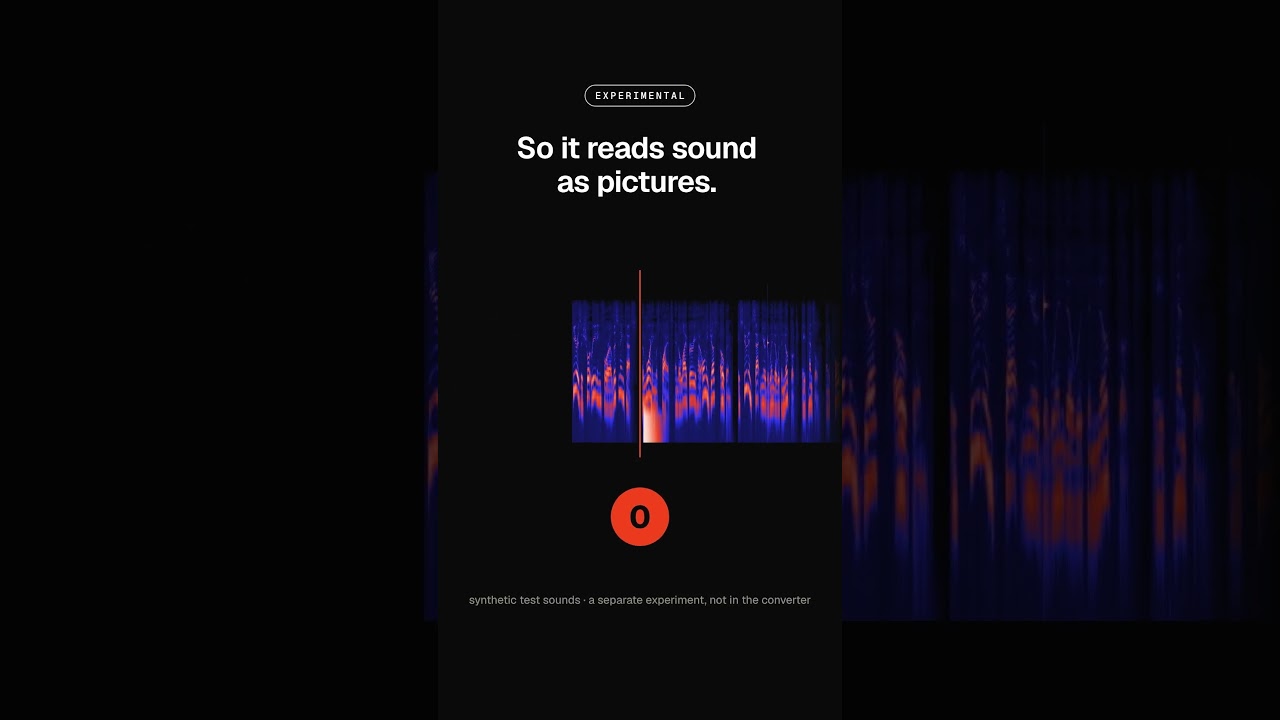
experiments/ears/ lets Claude (or you) "hear" a video by turning its sound
into pictures. ffmpeg draws the audio as a spectrogram: time left to right,
pitch bottom to top, brightness = loudness. A boom shows up as a bright block
at the bottom, a whoosh as a grainy cloud up high, a riser as a climbing line.
Free, and nothing extra to install - only ffmpeg and Python.
It is an experiment, not part of ytconv:
- Works: sound effects over speech or quiet audio - 8 of 8 found and named in a blind test.
- Partly works: music-heavy edits. Drops, breakdowns and endings are found; added sound effects cannot be told apart from the song.
The quick version, from the experiments/ears folder:
yt-dlp --extractor-args "youtube:player_client=web_embedded" -f ba -o audio.webm "URL"
python3 detect.py audio.webm 30
The second command lists moments in the first 30 seconds where a sudden low or high sound appears. To draw the timeline picture and for the other tools, see experiments/ears/README.md.
Or just ask Claude
All the commands above are here for reference. With the Claude Code skill installed, you don't need to type any of them - tell Claude what you want in plain English and it runs the right commands for you. For example:
- "Convert this video: https://www.youtube.com/watch?v=..."
- "Just get me the transcript of this one."
- "Make me a notes page from this lecture."
- "Convert lecture.mp4 on my Desktop."
- "This video has no captions - transcribe it."
- "Convert this Hindi lecture into English."
- "Convert this video into Spanish."
- "What's on screen at 06:29?"
- "Circle what he's talking about on each slide."
- "The teacher keeps standing in front of the board - get me clean frames."
- "Get me more frames - around 60."
- "This is a gaming clip - get me the frames that matter."
- "What sound effects can you hear in this Short?" (experimental)
Disclaimer
- Not affiliated with YouTube or Google. This is an independent project.
- Respect copyright and YouTube's Terms of Service. Downloading videos may be against YouTube's terms. Use this only on videos you have the right to download, for your own study. Don't redistribute what it downloads.
- No warranty. It is provided as-is. YouTube changes often, and downloads can stop working without notice.
- No liability. The author is not liable for any damage or loss that comes from using this software, including: network problems, blocked connections or data charges; YouTube or Google restricting, rate-limiting or banning an account or IP address; hacking, malware, security breaches or unauthorised access to any computer, network or account; misuse of the software by anyone; and any copyright or terms-of-service claim over what is downloaded. You use it entirely at your own risk.
- Speech-to-text models are downloaded from Hugging Face on first use
(Whisper
small, MIT licence). Transcripts and translations can contain mistakes - check anything important against the video. experiments/is experimental. The audio experiments inexperiments/ears/are unfinished research, not part of the tool.- Built with AI assistance. This project, including the Claude Code skill, was made with the help of artificial intelligence. Review the code and instructions yourself, and use your own judgement before relying on it.
1 maintainer

Metadata
1 maintainer
Release files for ytconv 0.1.0
For a detailed explanation of source distributions (sdists) and built distributions (wheels), please see the package formats documentation.
Source distribution (sdist)
| File | Size | Uploaded | Provenance | |
|---|---|---|---|---|
| ytconv-0.1.0.tar.gz | 75.2 kB | Without provenance | Details |
Built distribution (wheel)
| File | Interpreter | ABI | Platform | Reset |
|---|---|---|---|---|
| ytconv-0.1.0-py3-none-any.whl | Python 3 | none | any | Details |
Total release size: 146.7 kB
Release files / ytconv-0.1.0.tar.gz
| Download URL | ytconv-0.1.0.tar.gz |
|---|---|
| Size | 75.2 kB |
| Tags | Source |
|
SHA-256 checksum How to use checksums |
66b841cfacc5dd03b5f6ea70b620ca7db83b2ab7532a98136f8f0a94b551a0d2
|
|
BLAKE2b-256 checksum How to use checksums |
34e5c5b8913dc39045cad807508f4358b056383a359540bba972d58e092499b3
|
| Upload date | |
|
Uploaded using Trusted Publishing? What is trusted publishing? |
No |
| Uploaded via |
uv/0.12.1 {"installer":{"name":"uv","version":"0.12.1","subcommand":["publish"]},"python":null,"implementation":{"name":null,"version":null},"distro":{"name":"macOS","version":null,"id":null,"libc":null},"system":{"name":null,"release":null},"cpu":null,"openssl_version":null,"setuptools_version":null,"rustc_version":null,"ci":null}
|
Release files / ytconv-0.1.0-py3-none-any.whl
| Download URL | ytconv-0.1.0-py3-none-any.whl |
|---|---|
| Size | 71.5 kB |
| Tags | Python 3 |
|
SHA-256 checksum How to use checksums |
f9354c5ef81a5a3e03c7c479402d5e0eeed4225607997359ce35698328d1cc51
|
|
BLAKE2b-256 checksum How to use checksums |
3b579717dd02a72eae5d109785459f9289575367e54b737949c084f0a386d826
|
| Upload date | |
|
Uploaded using Trusted Publishing? What is trusted publishing? |
No |
| Uploaded via |
uv/0.12.1 {"installer":{"name":"uv","version":"0.12.1","subcommand":["publish"]},"python":null,"implementation":{"name":null,"version":null},"distro":{"name":"macOS","version":null,"id":null,"libc":null},"system":{"name":null,"release":null},"cpu":null,"openssl_version":null,"setuptools_version":null,"rustc_version":null,"ci":null}
|
Security for ytconv 0.1.0
Provenance
Provenance describes where a file came from. On PyPI, provenance is shared via attestations, which provide a verifiable record of the build or publishing details. View details, limitations and caveats.
No provenance found
None of the files in this release were uploaded with provenance metadata.
A note on package security
PyPI is a repository for distributing packages, not a service for auditing them. While third-party security researchers and our staff do their best to detect and remove malicious packages, PyPI cannot guarantee the quality, security or suitability of any given package.
To learn more about protecting yourself from malicious actors, visit our package security documentation.














