

Zim Pro
An offline AI knowledge base. Zim Pro turns a folder of ZIM files (offline Wikipedia, Stack Exchange, DevDocs, iFixit and the rest of the Kiwix catalog) into a library you can read, search and question, on your own machine.
- Knowledge that stays with you. The books live on your disk and are read, searched and kept up to date by your own server.
- AI that answers from them. Ask a question and the answer is written from your books, with citations you can open and the pictures and videos from the pages it used.
- Fully offline when you want it. Point it at a local model (Ollama, LM Studio, llama.cpp) and nothing leaves your network: no internet is needed to read, search or ask. Hosted models and web search are there if you choose them, and the internet is otherwise only used to download and update books.
- A knowledge source for your other AI tools. The same library is served over MCP, so Claude and other LLM apps can search and read it.
It replaces kiwix-serve.
Screenshots
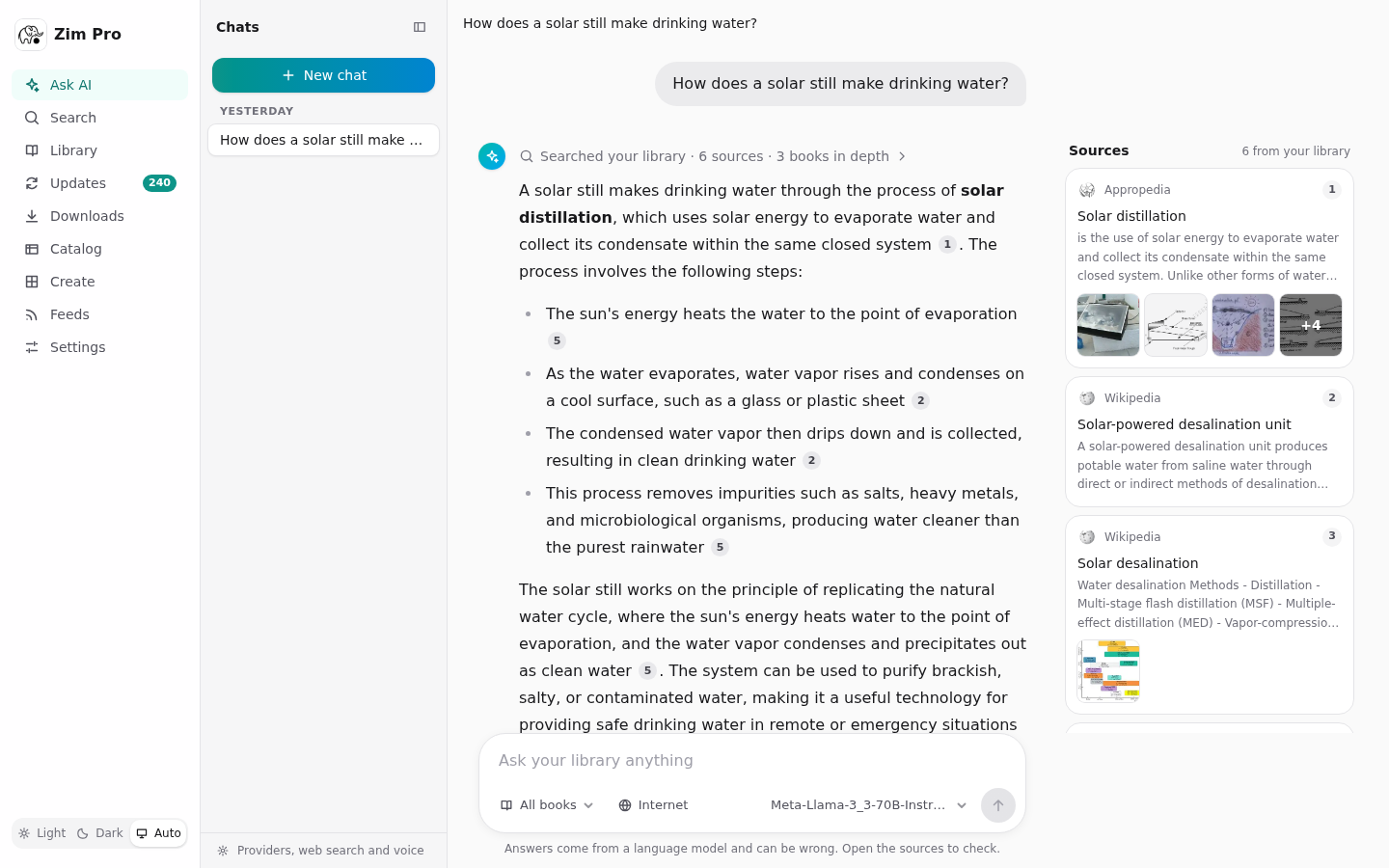
Ask AI: an answer written from your books, with citations and the sources beside it
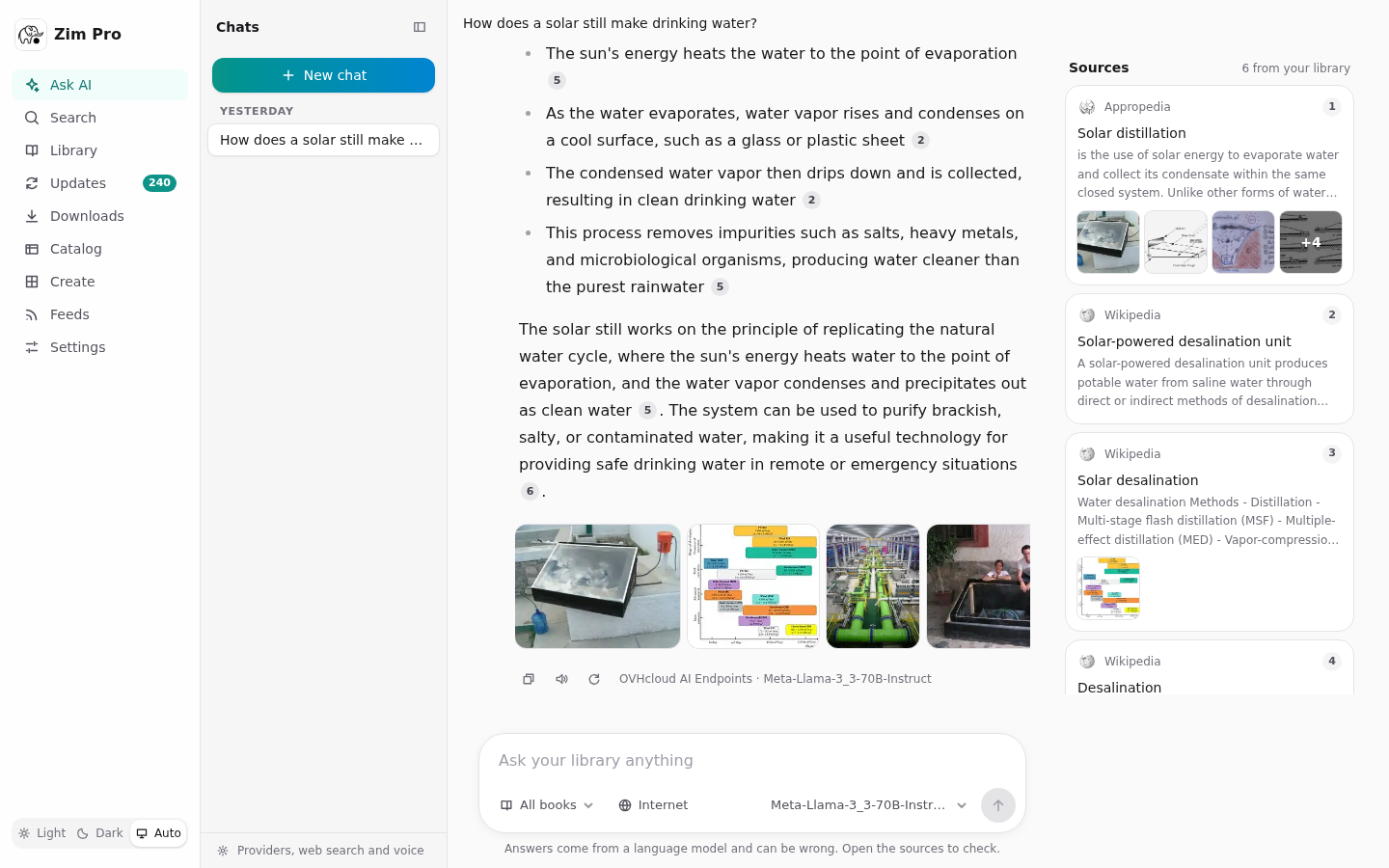 Pictures and videos from the sources, under the answer |
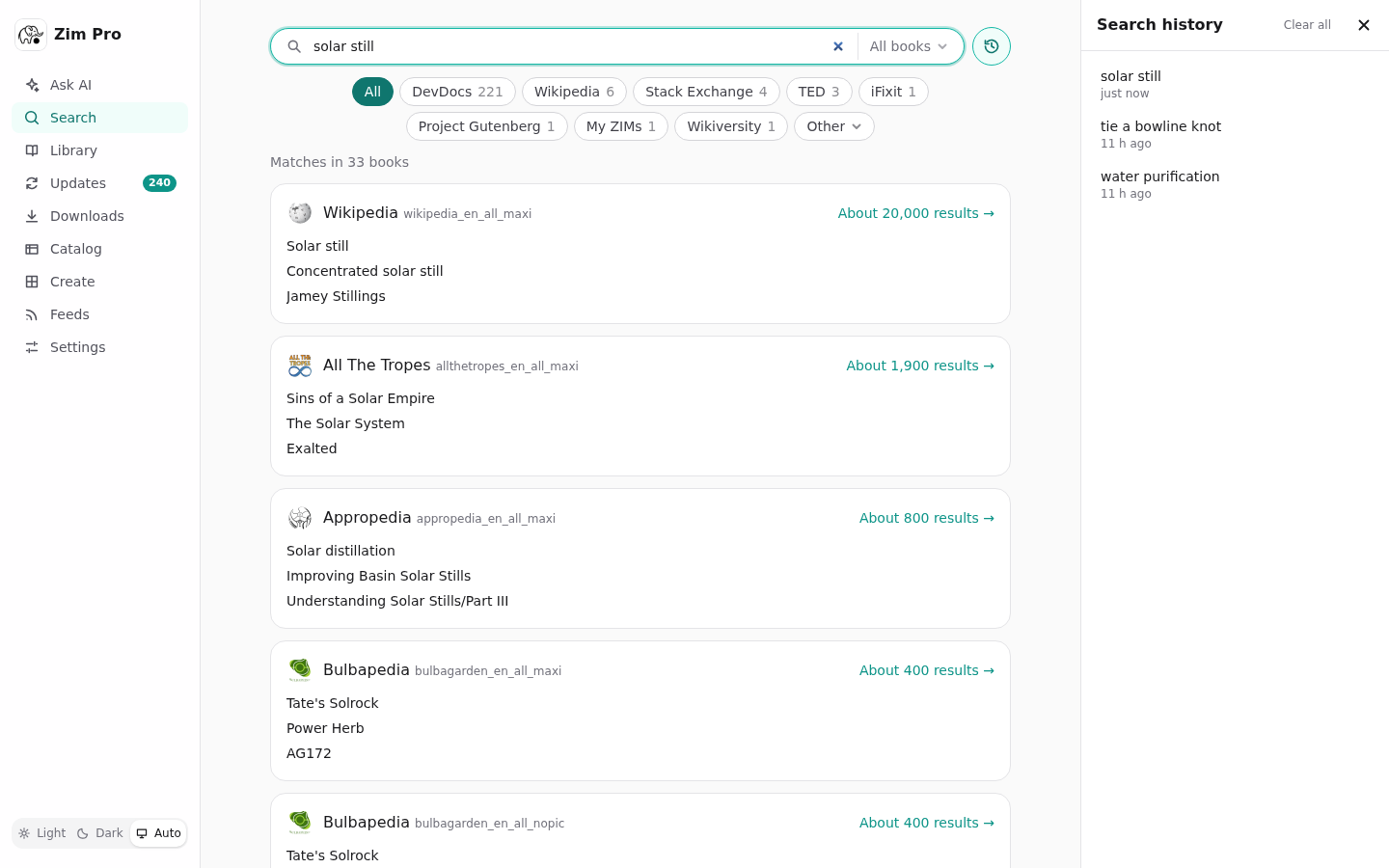 Search across every book, with search history |
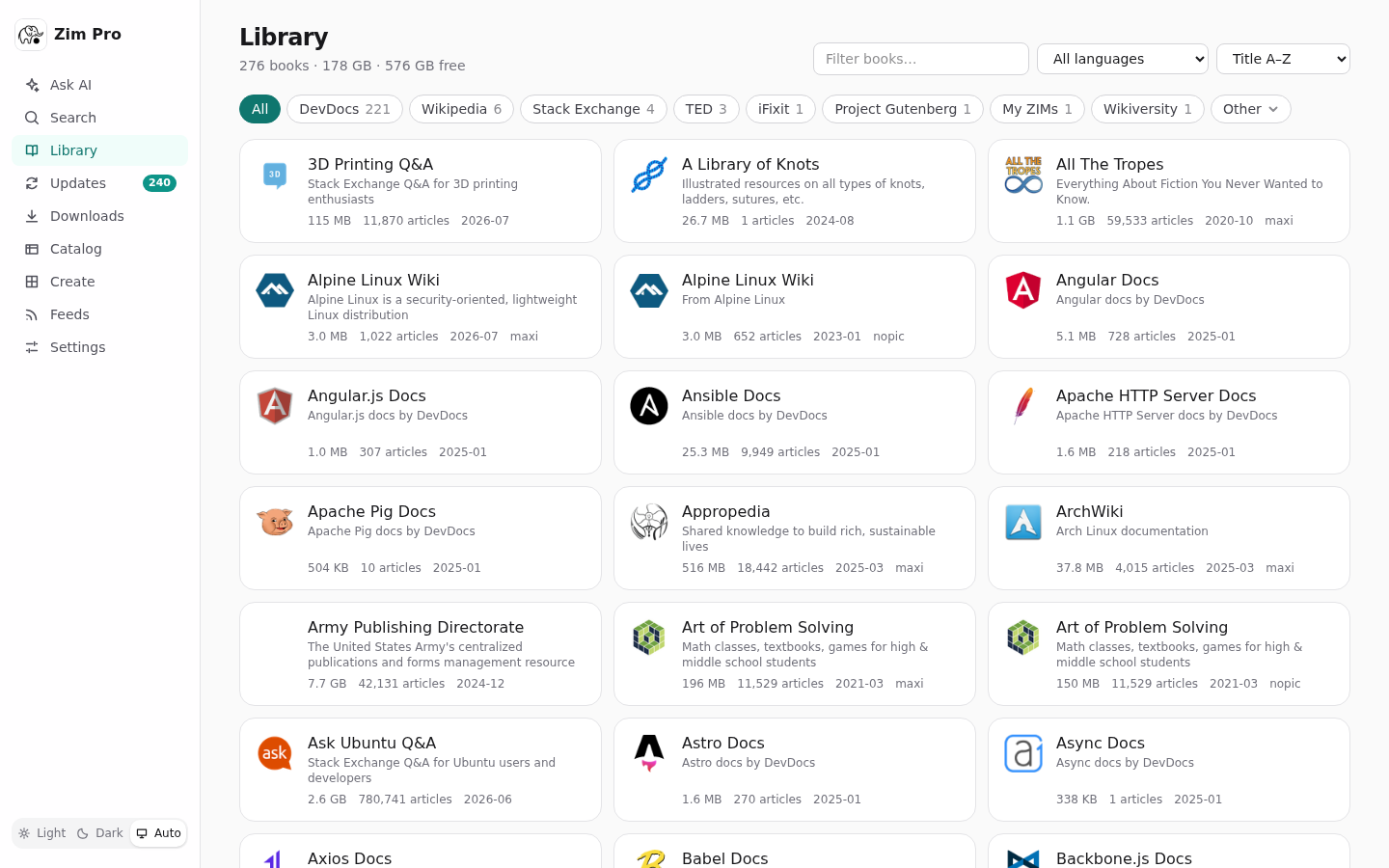 The library |
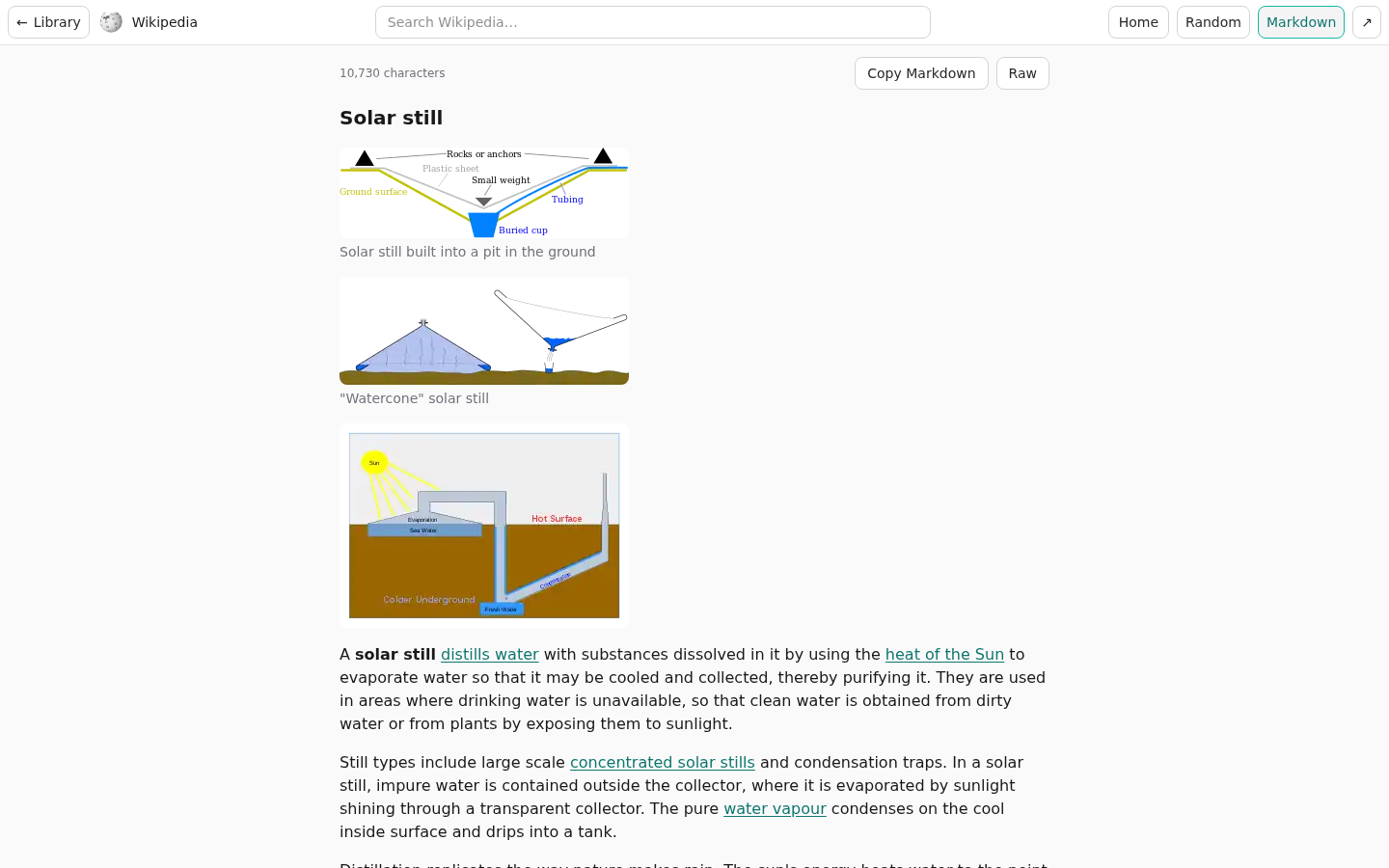 Any article as Markdown, with its pictures |
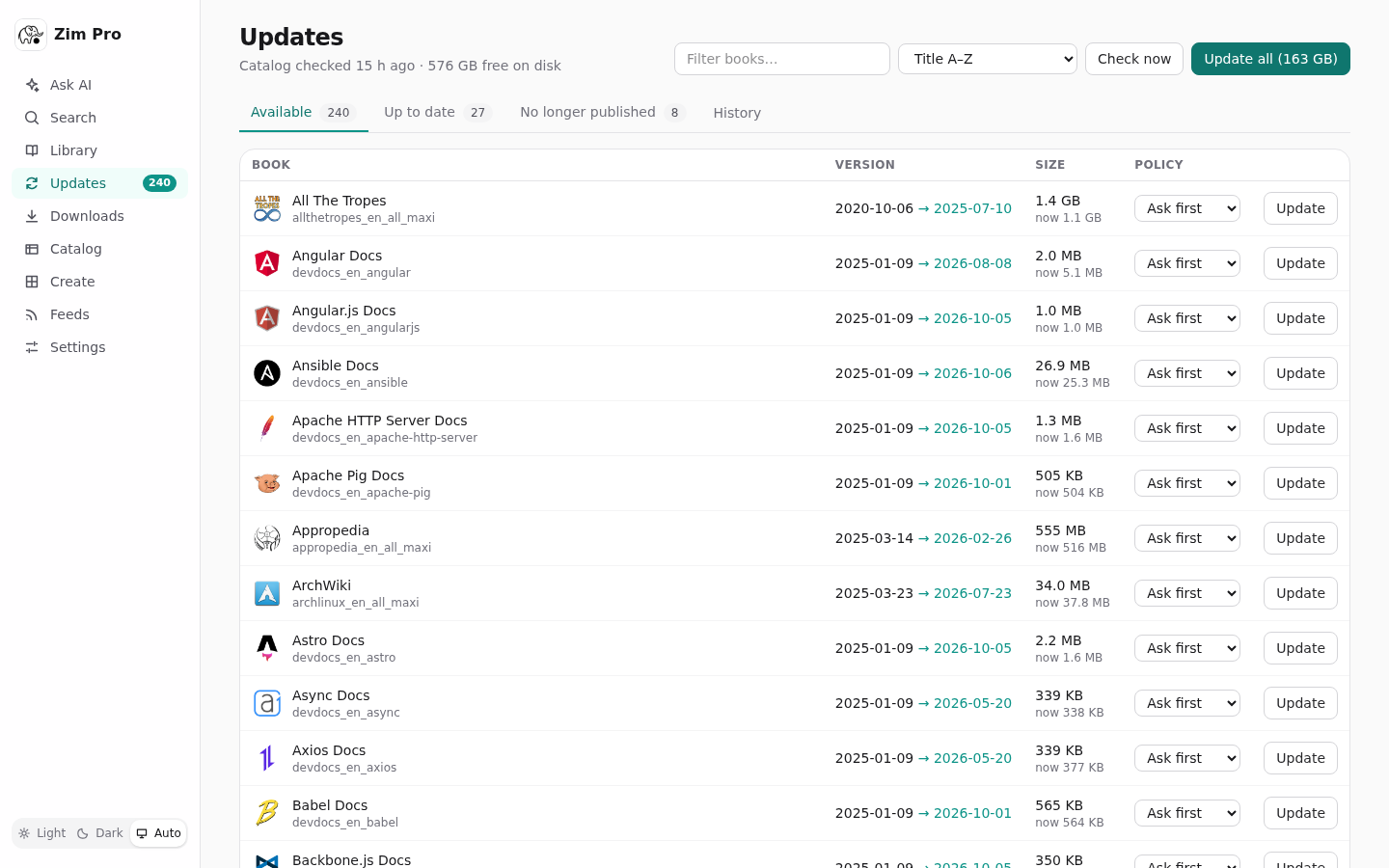 Updates from the Kiwix catalog |
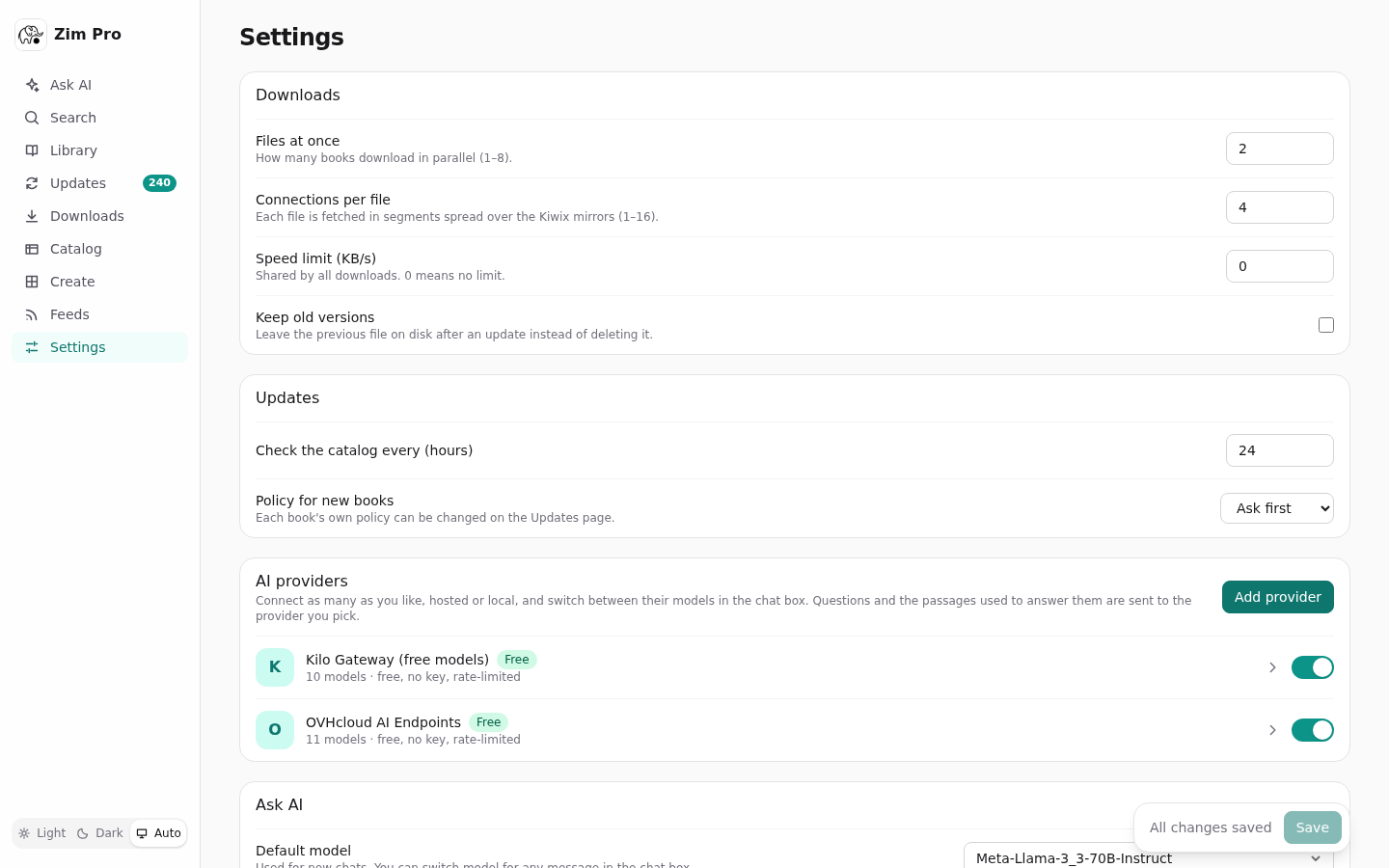 Settings: downloads, updates and AI providers |
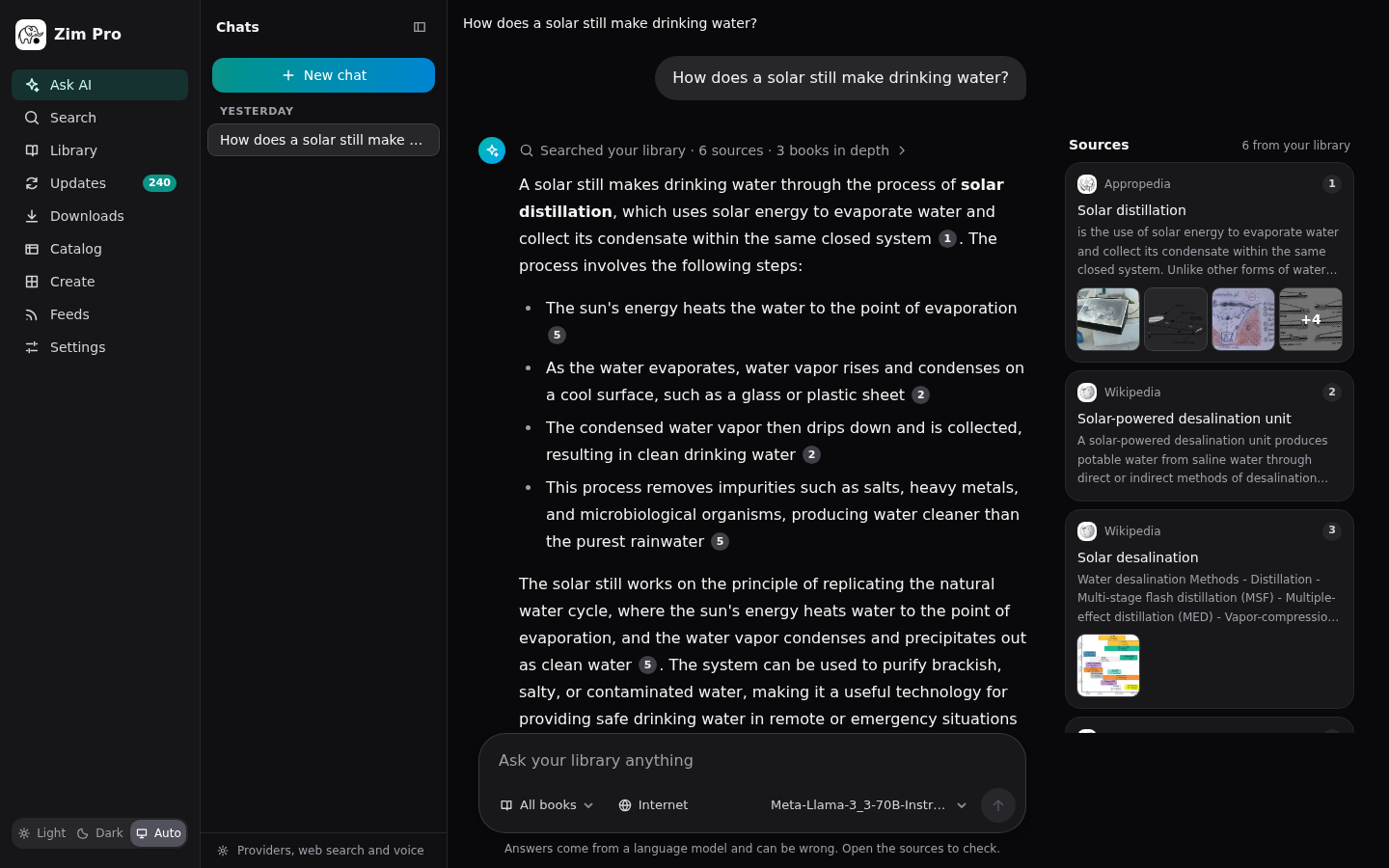 The dark theme |
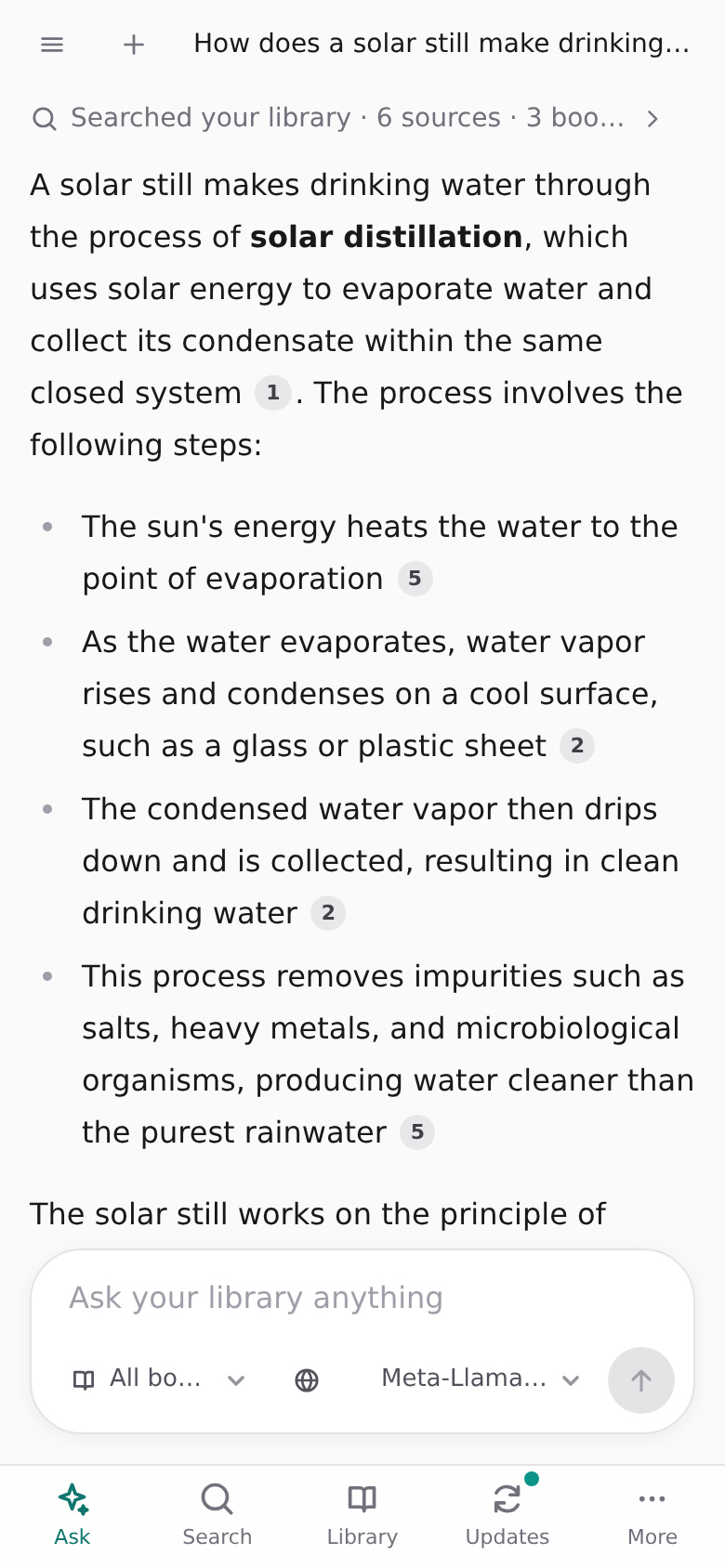 On a phone |
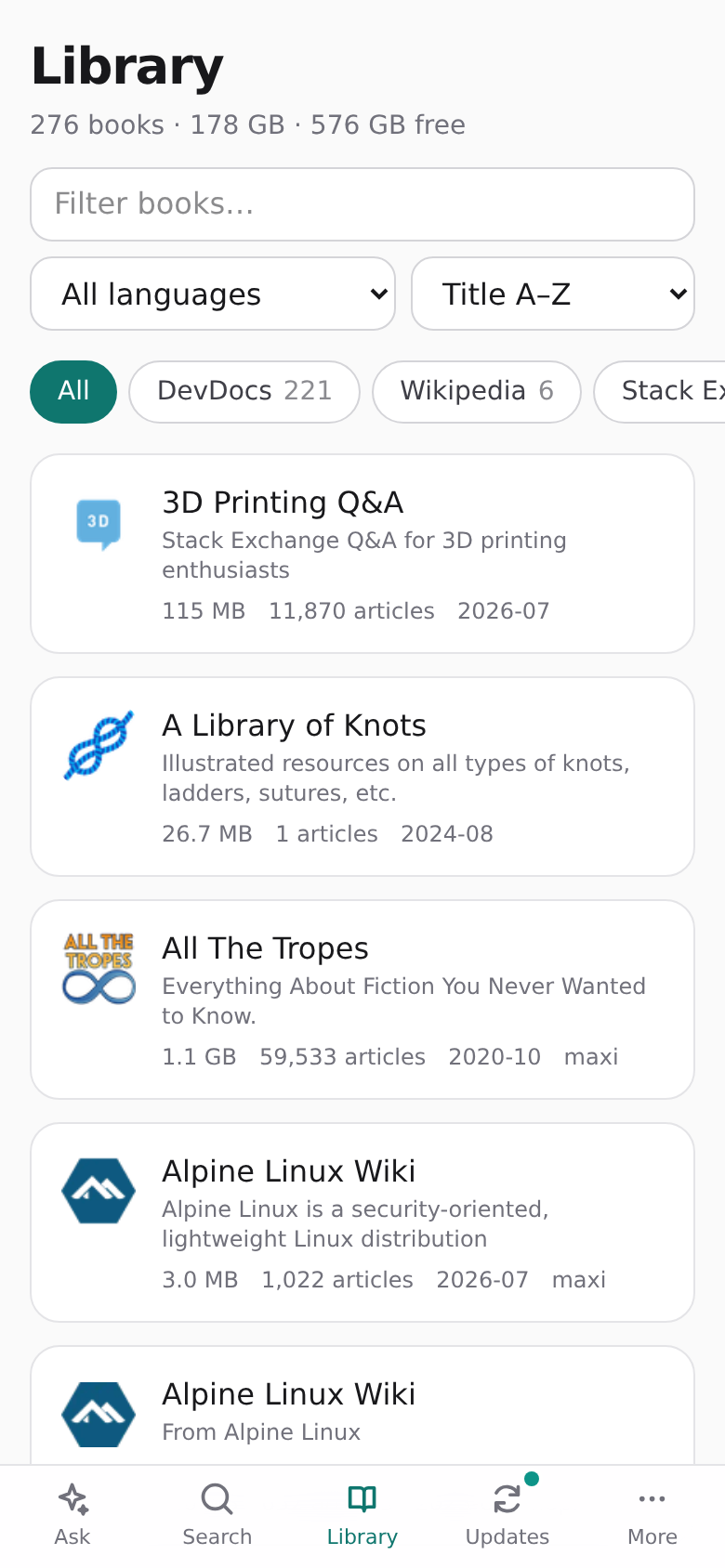 Library on a phone |
The screenshots are in screenshots/. The articles and pictures shown in them
come from Wikipedia and Appropedia, which publish them under Creative Commons licences.
What it does
- Read – a reader for every book, with in-book search and title suggestions. Entries are
served at
/content/<book>/<path>askiwix-servedoes, includingRangefor video. - Search – full text within a book, or across the whole library with results grouped by book, with a history of past searches.
- Ask AI – ask a question and get an answer written from your books, with numbered citations, the source passages beside it, and the pictures and videos from those pages. Works with any OpenAI-compatible chat API, hosted or local, and with two free providers out of the box.
- Markdown –
/markdown/<book>/<path>gives any article as Markdown: its text and pictures, with links leading to the Markdown of other articles. The reader's Markdown button shows it in place, with a copy button; videos and recordings play there too. - Updates – compares each book with the Kiwix catalog and lists newer releases, with a policy per book: automatic, ask first, or pinned.
- Downloads – multi-connection across the Kiwix mirrors, SHA-1 checked per 4 MiB piece and SHA-256 checked at the end. Resumes after a pause, a restart or a crash.
- Catalog – browse the whole Kiwix library and add books.
- Create – make your own ZIMs: from web links (one page, a section or a whole site), and from PDF, EPUB and Kindle books you upload. They are read, searched and cited by Ask AI like any other book.
- Feeds – ZIMs kept up to date from RSS and Atom feeds: several feeds in one ZIM, synced on a schedule, fetching only the articles that are new.
- MCP – the library as tools for Claude and other LLM apps: streamable HTTP at
/mcp, or stdio withzim-pro mcp. - Phone-friendly – installable as a web app, with a layout made for small screens.
Run with Docker
The image is published at ghcr.io/magicstack-llp/zim-pro for amd64 and arm64. It needs two
folders: your ZIM files, mounted at /data, and a folder for its database, mounted at
/state. The container runs as the user you give it, who must be able to write to both
(to /data because that is where downloads and updates go).
docker run
mkdir -p zims state              # create them yourself, or Docker creates them as root
docker run -d --name zim-pro \
  --restart unless-stopped \
  --user "$(id -u):$(id -g)" \
  -p 8083:8080 \
  -v "$PWD/zims:/data" \
  -v "$PWD/state:/state" \
  --add-host host.docker.internal:host-gateway \
  ghcr.io/magicstack-llp/zim-pro:latest
Then open http://localhost:8083. --add-host is only needed for Ask AI to reach a model
server on the same machine (Ollama, LM Studio, llama.cpp).
docker compose
services:
  zim-pro:
    image: ghcr.io/magicstack-llp/zim-pro:latest
    container_name: zim-pro
    restart: unless-stopped
    user: "1000:1000"                # your own uid:gid, from `id -u` and `id -g`
    ports:
      - "8083:8080"
    extra_hosts:
      - "host.docker.internal:host-gateway"
    volumes:
      - ./zims:/data                 # your folder of .zim files
      - ./state:/state
    # environment:
    #   KIWIX_ADMIN_TOKEN: change-me # required for changes and /mcp when set
mkdir -p zims state
docker compose up -d
Everyday commands
| To | docker compose | docker run |
|---|---|---|
| See the logs | docker compose logs -f |
docker logs -f zim-pro |
| Stop | docker compose stop |
docker stop zim-pro |
| Start again | docker compose start |
docker start zim-pro |
| Update to the newest image | docker compose pull && docker compose up -d |
docker pull ghcr.io/magicstack-llp/zim-pro:latest, then docker rm -f zim-pro and the docker run above |
| Remove the container | docker compose down |
docker rm -f zim-pro |
Removing the container loses nothing: the books are in zims and the settings, chats and
download progress are in state. A download in progress when the container stops carries on
from where it was when it starts again.
To stay on one version, use a version tag in place of latest, such as :0.3.0 or :0.3.
Build the image yourself
The compose.yml in this repository builds from source:
mkdir -p state
docker compose up -d --build     # http://localhost:8083
It mounts /mnt/storage/Media/Kiwix/data as the library; change that path to your own
folder of ZIM files.
Run without Docker
Each release has two other ways to run it, with the web app included in both.
Standalone executable for Linux (x86-64 and arm64). One file, no Python needed:
tar -xzf zim-pro-0.3.0-linux-x86_64.tar.gz
cd zim-pro-0.3.0-linux-x86_64
KIWIX_DATA_DIR=/path/to/zims KIWIX_STATE_DIR=./state ./zim-pro   # http://localhost:8080
Python package, for Python 3.13 on Linux or macOS:
pip install zim-pro              # or: uvx zim-pro
KIWIX_DATA_DIR=/path/to/zims KIWIX_STATE_DIR=./state zim-pro   # http://localhost:8080
SHA256SUMS in the release lists the checksum of every file.
Run from source
(cd web && npm ci && npm run build)
KIWIX_DATA_DIR=/path/to/zims KIWIX_STATE_DIR=./state uv run zim-pro
For UI work, run npm run dev in web/ (set KIWIX_BACKEND if the server is not on
127.0.0.1:8080).
Configuration
| Variable | Default | Meaning |
|---|---|---|
KIWIX_DATA_DIR |
/data |
Folder of .zim files (scanned recursively) |
KIWIX_STATE_DIR |
/state |
Where the SQLite database lives |
KIWIX_HOST / KIWIX_PORT |
0.0.0.0 / 8080 |
Listen address |
KIWIX_ADMIN_TOKEN |
unset | If set, changes and /mcp need Authorization: Bearer <token> |
KIWIX_CATALOG_URL |
Kiwix OPDS feed | Catalog to check for updates |
Download limits, the update schedule and policies are set in the web UI under Settings.
The project was first called Kiwix Updater. The KIWIX_* variables and the database file
(kiwix-updater.sqlite3) keep that name so existing installs carry on unchanged, and the
kiwix-updater command still works alongside zim-pro.
Create your own ZIMs
The Create page makes ZIM files that land in your library and work everywhere else in the app, including Ask AI and MCP. Each build runs in the background as a job: queued, then processing (fetching, converting, writing, checking), then finished or failed. A build can be paused while it waits or works and resumed from where it stopped; paused builds have their own tab on the Jobs list and give their place to the next build in the queue.
From links
Add a web address, choose what to save, and press Create ZIM. Each link makes one ZIM; Update fetches it again and replaces the old one. A link can also rebuild itself every so many days.
| Option | Choices |
|---|---|
| What to save | This page, the pages under this address, or the whole site, with limits on pages and depth |
| Include subdomains | With "whole site": also save blog.example.org, docs.example.org and so on for example.org |
| How to capture | Built-in (fast, small, no JavaScript) or Browser (Zimit) for sites that only render in a browser |
| Page content | Clean article (the article without menus, ads and scripts) or Full page (the page and its styles) |
| Pictures | Included, or replaced by their descriptions |
| Video and audio | Included, or left as a link to the original (off by default: they are large) |
| Rate limit | The most requests to the site per second or per minute. 0 is automatic: about 8 a second, or the Crawl-delay in the site's robots.txt |
| Sitemaps | One or more sitemap addresses to read, one per line. Empty: they are looked for (see below) |
| robots.txt | The address of the rules to obey, if they are not at the site's /robots.txt |
| RSS feeds | The site's own RSS or Atom feeds, one per line, with a schedule of their own (see below) |
Many links at once: Import CSV. Only a url column is required; title, scope
(page, path, site), subdomains, engine (builtin, zimit), mode (clean,
full), images, video (yes, no), max_pages, sitemaps (addresses separated by
spaces), robots_url, rate_limit, rate_unit (second, minute), feeds and feed_minutes are optional. The
file is checked first and shows which rows are new, already there, or unreadable, and nothing is added until you confirm. Export
CSV writes the same format back.
url,title,scope,images
https://example.org/guide/,Example guide,path,yes
https://example.org/faq.html,,page,no
The built-in crawler asks a site what it wants before fetching its pages:
robots.txtfirst. It says what may be fetched, and how fast (Crawl-delay), and both are obeyed. Each subdomain has its own.- Sitemaps next. The ones
robots.txtnames are read; if it names none, the usual places are tried (/sitemap.xml,/sitemap_index.xml,/wp-sitemap.xml, a sitemap beside the section you asked for, and others), including sitemap indexes, gzipped and plain-text ones. This finds pages that no other page links to. - One queue, each page once. Pages from sitemaps and pages found by following links go
through the same queue. An address is only ever queued once, however it is spelled: with
or without
www,httporhttps, a#fragment, or tracking parameters. - "Too many requests" is respected. When a site answers HTTP 429 (or 503 with
Retry-After), the crawler waits as long as the site asks, or 5 seconds doubling each time if it does not say, then tries that page again and fetches more slowly from that site for the rest of the build. The job shows that it is waiting. A page is only given up on, and listed as failed, if the site still refuses after six waits. - A cache per link means an update only downloads what changed.
Keeping a site current without crawling it again. A link has two schedules:
- Rebuild the whole site every N days crawls everything again. It is the only way to pick up pages that changed, and it is slow for a big site.
- RSS feeds, checked every so many minutes, hours or days (no more often than every 5 minutes). When the site's feeds list an article that is not in the ZIM yet, only that article and its pictures are fetched; every page saved before is taken from the cache on disk and the ZIM is written again with the new article in it. If the feeds list nothing new, nothing is written. Check RSS on a link does the same on request.
Articles that came in through a feed stay in the ZIM when the whole site is rebuilt, even after they have dropped off the end of the feed. To follow feeds from several sites in one ZIM, without saving a site, use the Feeds page.
What you save and how you use it is your responsibility: check a site's terms before copying it.
From books
Drop a PDF, EPUB, MOBI or AZW3 file on the Uploads tab. It is converted to readable, searchable pages (an EPUB by chapter, a PDF by page) and the original file is kept inside the ZIM, linked from its first page. A ZIM file is checked and added as it is.
- A PDF keeps a picture of each page beside its text unless you turn pictures off, so scanned pages and complex layouts lose nothing. A PDF with no text layer can be read but not searched; there is no OCR.
- Books protected by DRM cannot be converted.
How the ZIMs are made
Pages are fetched several at a time, cleaned and converted on worker threads, and compressed
and indexed on libzim's own threads (Settings → Create sets how many). Before a ZIM enters the
library it is opened again and compared with what was prepared: the page count, every file,
and a sample of pages byte for byte. Each job keeps a list of anything that failed or was
skipped, with the reason. Only real pages are marked as articles and the full-text index is
built from their cleaned text, so search and Ask AI match what a reader sees. The files pass
openZIM's zimcheck.
Browser capture (Zimit)
Zimit records pages in a real browser. It runs as a separate container, so Zim Pro needs access to Docker to start it: mount the Docker socket and let the container's user use it.
    volumes:
      - /var/run/docker.sock:/var/run/docker.sock
    group_add:
      - "999"          # the gid of the docker group on your host: getent group docker
Mounting the Docker socket gives the container control of Docker on the host, which is equivalent to root there. Leave it out unless you need browser capture and trust what runs in the container. Without it, the option is shown as unavailable and everything else works. The first capture downloads the Zimit image (about 1.5 GB).
Sites that block or check visitors: captcha solver and VPN
Two optional helper containers are in compose.yml, commented out. They apply to pages
fetched by the built-in crawler and by Feeds, not to Zimit captures, the catalog or ZIM
downloads. Both are set under Settings → Create.
Captcha solver (FlareSolverr). Some sites answer a plain request with a "checking your browser" page (Cloudflare's "Just a moment…", DDoS-Guard). With a solver set, Zim Pro hands such a page to FlareSolverr, which opens it in a real browser, and then carries on with the clearance it earned, so pictures and later pages are fetched the normal way. Without one, such pages are listed as failed with a note saying why.
- Uncomment the
flaresolverrservice and set Captcha solver tohttp://flaresolverr:8191. - It gets past browser checks. It does not solve picture or checkbox captchas (reCAPTCHA, hCaptcha, Turnstile widgets), and a site can still refuse it.
- It is slow (a browser per page) and uses a few hundred MB of memory.
VPN (Gluetun). Gluetun connects to your VPN provider
and offers an HTTP proxy. Set Proxy to http://gluetun:8888 and every page fetched for
a link or a feed leaves through the VPN, while the web interface and everything else keep
using your own connection.
- Uncomment the
gluetunservice and fill in your provider's details; the Gluetun wiki has them for each provider.HTTPPROXY: "on"must stay. - Using both: a clearance is tied to the address that earned it, so the solver must
leave through the same VPN. Use the second
flaresolverrblock incompose.yml(the one withnetwork_mode: "service:gluetun") in place of the first, and set Captcha solver tohttp://gluetun:8191. - The proxy must be
http://orhttps://; SOCKS is not supported.
Getting past a site's checks does not change what you are allowed to copy: its terms still apply.
Feeds
The Feeds page keeps ZIMs up to date from RSS and Atom feeds. It is separate from the Create page: its own engine, its own queue (so a long crawl never holds up the news), its own schedule and its own settings.
A collection is one or more feed addresses kept as a single ZIM. Its first page lists every article, newest first, by month.
- Add feeds by address, or type a site's address and press Find feeds to see the feeds it advertises. Import OPML brings in the feeds from another reader, one collection per folder; Export OPML writes yours out.
- Only new articles are fetched. Each sync reads the feeds, downloads the articles it has not seen, and writes the ZIM again from what it already keeps on disk. If nothing is new, the ZIM is left alone.
- Schedule per collection: every so many minutes, hours or days (no more often than every 5 minutes), or only when you press Sync now.
- Full article or feed text. By default each article's page is opened and saved,
cleaned like a link on the Create page. If the page cannot be had (gone, paywalled,
blocked by
robots.txt), what the feed itself carries is saved in its place. Turn "Fetch the full article" off to save only the feed's own text. - Articles to keep: the newest N stay in the ZIM and older ones drop out; 0 keeps everything.
- Pictures, video and audio, rate limit as for links.
- Articles lists what a collection holds and what failed, with the reason; Retry failed asks for those again, and Rebuild writes the ZIM again from scratch.
- The Syncs tab is the queue: active, paused, finished and failed, with what each sync found. The last hundred are kept.
Settings → Feeds has the master switch for scheduled syncing, how many syncs run at once, and the defaults for new collections. The proxy and captcha solver under Settings → Create apply to feeds too.
Feed ZIMs appear in the library under "My ZIMs" and are searched and cited by Ask AI like any other book.
Ask AI
Add one or more providers under Settings → AI providers, then pick a default model. Any
server with the OpenAI /chat/completions API works: OpenAI, Google Gemini, Perplexity,
OpenRouter, Groq, Ollama, LM Studio, llama.cpp, vLLM. The model can be switched per message
in the chat box.
Each provider has a switch: turned off, it is kept with its key but not used or offered.
Two providers that need no account or key are added on first start, so Ask AI works straight after installing: OVHcloud AI Endpoints (Llama 3.3 70B, Qwen, Mistral, gpt-oss; about two requests a minute per model) and Kilo Gateway's free models (about 200 requests an hour; Kilo may log free-tier prompts for training). Both are rate-limited per IP address and can be removed under Settings; a removed one is not added back.
For a model server on the Docker host, use http://host.docker.internal:<port>/v1 (Ollama:
11434, LM Studio: 1234), not localhost, and make the server listen on all interfaces
(for Ollama, OLLAMA_HOST=0.0.0.0).
How a question is answered (see src/zim_pro/retrieval.py):
- Plan. The model is shown the list of books and returns several short queries from different angles, extra keywords a good article would contain, and the books most likely to help. If it cannot be asked in time, the question's own words are used.
- Search the relevant books in depth with every query and keyword. These are the model's picks, books named after the subject, and always the main encyclopedia.
- Search every other book lightly with the main queries.
- Rank. Articles found by several searches rise (reciprocal rank fusion); the best 24 are read and scored on how much of the subject one passage covers, and only passages that fit are sent to the model with the question.
Articles reach the model as Markdown (library/article.py), not HTML: navigation, pictures
and their captions, citation markers, reference lists, "See also" and "External links"
sections and licence footers are removed and links are flattened to their text, so the tokens
go on prose. Each passage is sent under the heading of the section it came from.
The pictures, videos and recordings on each source's page are listed with the source and shown as thumbnails under it; they are not sent to the model.
Chats are stored in the database.
Every prompt carries formatting rules, and answers are passed through a repair step before they are shown (unclosed code blocks, leaked reasoning, malformed lists, tables and citations), since small models often get Markdown wrong. Your own standing instructions can be added under Settings → Ask AI.
Web search (off by default) is used when the library has no good match, or for every question while the Internet button in the chat box is on. Either:
- a search service (Tavily, Brave, Serper for Google results, or your own SearXNG), whose results are added to the sources for your chat model, or
- a searching model that looks things up itself: Perplexity Sonar, OpenRouter's web add-on, an OpenAI search model, or Gemini with Google Search.
Read aloud adds a listen button to answers, using the browser's built-in voice or a
provider's speech model (OpenAI, Gemini, Groq, or a local /audio/speech server).
MCP
claude mcp add --transport http zim-pro http://localhost:8083/mcp
Tools: list_books, search, suggest, get_article, get_article_outline,
list_updates, and start_update (off until enabled in Settings).
For a stdio client, run zim-pro mcp with KIWIX_DATA_DIR and KIWIX_STATE_DIR set.
Notes
- Articles are served from the same origin as the admin UI, as with
kiwix-serve. Scripts inside a ZIM could therefore call the API; setKIWIX_ADMIN_TOKENif you load ZIMs you do not trust or expose the port beyond your LAN. - libzim holds Python's GIL, so a slow full-text search briefly delays other requests.
- libzim does not expose relevance scores, so cross-book search groups results by book instead of ranking them together.
Tests
uv run pytest
(cd web && npm test)
Built with
Python 3.13, FastAPI and python-libzim on the server, SQLite for state, and React, Vite and Tailwind for the web app. Zim Pro is an independent project and is not affiliated with Kiwix.
Releasing
Pushing a tag of the form v1.2.3 runs .github/workflows/release.yml:
- Lint and tests. Nothing is published if they fail.
- In parallel: the Docker image for amd64 and for arm64 (each on its own runner, then joined
and published to GHCR as
1.2.3,1.2andlatest), the Python wheel and source archive (then uploaded to PyPI), and the standalone executables. - Last, and only if all of those succeeded, the GitHub release, with the executables, the wheel, the source archive and their checksums attached.
The package version comes from the tag, and the release notes from that version's section of
CHANGELOG.md, so move the entries under "Unreleased" to a new version heading before
tagging.
git tag v0.3.0 && git push origin v0.3.0
Every push to master and every pull request runs .github/workflows/ci.yml: Python lint
(ruff check), formatting check and tests, and the web app's type check, tests and build.
1 maintainer

Metadata
1 maintainer
Release files for zim-pro 0.3.0
For a detailed explanation of source distributions (sdists) and built distributions (wheels), please see the package formats documentation.
Source distribution (sdist)
| File | Size | Uploaded | |
|---|---|---|---|
| zim_pro-0.3.0.tar.gz | 425.9 kB | Details |
Built distribution (wheel)
| File | Interpreter | ABI | Platform | Reset |
|---|---|---|---|---|
| zim_pro-0.3.0-py3-none-any.whl | Python 3 | none | any | Details |
Total release size: 861.0 kB
Release files / zim_pro-0.3.0.tar.gz
| Download URL | zim_pro-0.3.0.tar.gz |
|---|---|
| Size | 425.9 kB |
| Tags | Source |
|
SHA-256 checksum How to use checksums |
a0d75a4afcf2a5769a0e3253767654ec6e6ea7c36d4af6bc175527af6e7b85a4
|
|
BLAKE2b-256 checksum How to use checksums |
05804f79012f83b1e9dc4450ecd214663474ac352d97f966a6e3c9fb90dc05a6
|
| Upload date | |
|
Uploaded using Trusted Publishing? What is trusted publishing? |
Yes |
| Uploaded via |
twine/7.0.0 CPython/3.13.14
|
Provenance
Provenance describes where a file came from. On PyPI, provenance is shared via attestations, which provide a verifiable record of the build or publishing details. View details, limitations and caveats.


PyPI Publish Attestation
PyPI verified that this artifact, at this checksum, originated from the publisher listed below.
Signed by GitHub Actions, verified by PyPI on Oct 13, 2026.
Transparency logRelease files / zim_pro-0.3.0-py3-none-any.whl
| Download URL | zim_pro-0.3.0-py3-none-any.whl |
|---|---|
| Size | 435.1 kB |
| Tags | Python 3 |
|
SHA-256 checksum How to use checksums |
6d04a5f3179eb9605ca19e4c7efafd64b688900f3243bce3aee6ea50a14945d7
|
|
BLAKE2b-256 checksum How to use checksums |
ef3a964d25782b0a7ff3d797b2d41d36dde66aecae6d556d0f70bdda4d996cc2
|
| Upload date | |
|
Uploaded using Trusted Publishing? What is trusted publishing? |
Yes |
| Uploaded via |
twine/7.0.0 CPython/3.13.14
|
Provenance
Provenance describes where a file came from. On PyPI, provenance is shared via attestations, which provide a verifiable record of the build or publishing details. View details, limitations and caveats.
PyPI Publish Attestation
PyPI verified that this artifact, at this checksum, originated from the publisher listed below.
Signed by GitHub Actions, verified by PyPI on Oct 13, 2026.
Transparency log













