

Maketree CLI






Create project structures effortlessly with a single command.
📜 Table of Contents
- Overview
- Why Maketree?
- Features
- Installation
- Quickstart
- Usage
- Compatibility
- FAQ
- Contributing
📖 Overview
Maketree is a powerful CLI tool that generates directories and files based on a predefined structure. Instead of manually creating folders and files, just define your structure and let Maketree handle the rest.
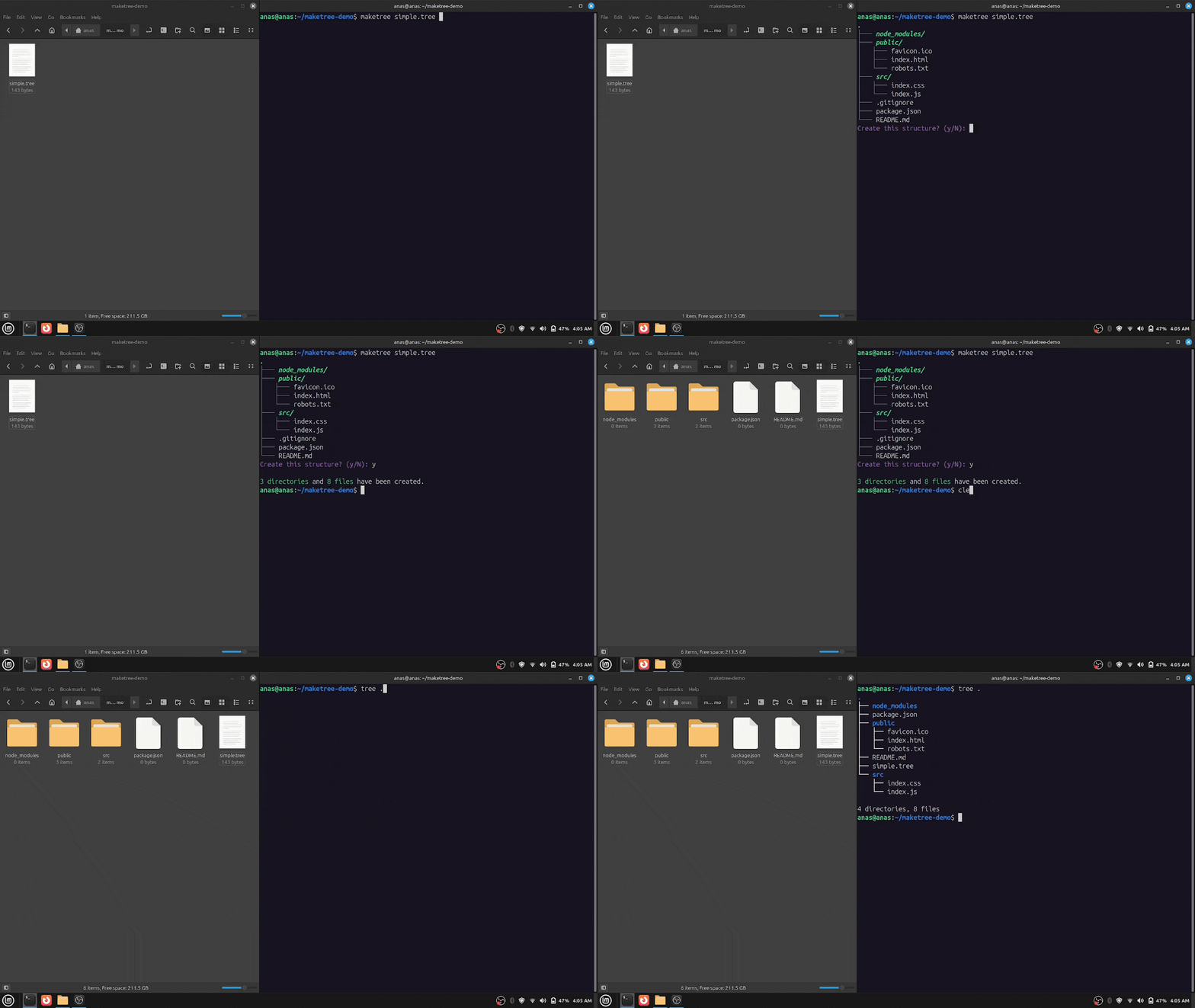
🤔 Why Maketree?
- Saves Time: No more manually creating directories and files.
- Consistency: Maintain a standard project structure across all your projects.
- Easy to Use: Define a structure in plain text and generate it instantly.
🚀 Features:
- Supports nested directory structures
- Automatically creates missing parent directories
- Flexible file handling with warning, skip, and overwrite options
- Preview the directory tree before creation
- Color support
- Simple and easy to write structure syntax
- Lightweight, fast, and has zero dependencies
- Simple and user-friendly CLI
📦 Installation:
Install via **pip**:
Maketree is available on PyPI. (Recommended if you're a python developer and have python already installed on your system)
You can install it using:
pip install maketree
python>=3.8 must be installed on your system.
Install from **Source**:
If you are installing from source, you will need python>=3.8.
git clone https://github.com/Anas-Shakeel/maketree-cli.git
cd maketree-cli
pip install .
Download **Binaries**: _(No Python Required)_
Maketree provides standalone binaries for Linux, macOS, and Windows. (Recommended if you don't want to install Python.)
-
Download the latest release from the Releases page.
-
(Optional) Move the executable to a directory in your system's
PATH(e.g.,/usr/local/binon Linux/macOS ORC:\maketreeon Windows). -
Run
maketreefrom the terminal.maketree -h
⚡ Quickstart:
Define your project structure in a .tree file:
structure.tree
my_project/
    src/
        main.py
        utils.py
    tests/
        test_main.py
    README.md
    .gitignore
Then, run:
maketree structure.tree
This will instantly generate the entire structure in your current directory.
⚙️ Usage
You can maketree from any location in your terminal. (If installed via pip or if moved the executable to a directory recognized by system's PATH)
Display Help
maketree -h
This will show the available commands and options:
usage: maketree [OPTIONS]

Create complex project structures effortlessly.

positional arguments:
  src                   source file (with .tree extension)
  dst                   where to create the tree structure (default: .)

options:
  -h, --help            show this help message and exit
  -cd, --create-dst     create destination folder if it doesn't exist.
  -et, --extract-tree   write directory tree into a .tree file. (takes a PATH)
  -g, --graphical       show source file as graphical tree and exit
  -o, --overwrite       overwrite existing files
  -s, --skip            skip existing files
  -nc, --no-color       don't use colors in output
  -nC, --no-confirm     don't ask for confirmation
  -v, --verbose         enable verbose mode

Maketree 1.2.0
Creating a Directory Structure
Maketree reads .tree file that defines the folder and file structure and then creates the corresponding structure on your filesystem.
Define the Structure
Create a file named myapp.tree:
src/
    style.css
    app.js
    index.html
This will create a src folder with three files: index.html, style.css, and app.js.
Generate the Structure
To generate the structure, Run:
maketree myapp.tree
It will ask for confirmation with a graphical representation of the structure.
.
└─── src/
│   ├─── app.js
│   ├─── index.html
│   └─── style.css
Create this structure? (y/N):
Output:
1 directory and 3 files have been created.
By default, maketree creates the structure in the current directory.
Syntax for Writing a `.tree` File
To ensure correctness, follow these simple points:
- Directories must end with
/ - Indentation must be exactly 4 spaces (other indentations may cause unexpected results)
- File and directory names must be valid according to your OS
- Comments start with
//(inline comments are not supported)
Example:
myapp.tree
// This is a comment, and is ignored by maketree.
node_modules/
public/
    favicon.ico
    index.html
    robots.txt
src/
    index.css
    index.js
.gitignore
package.json
README.md
Now, run:
maketree myapp.tree
Output: (After confirming)
3 directories and 8 files have been created.
Specifying a Destination Folder
You can specify a destination folder instead of creating the structure in the current directory.
maketree myapp.tree myapp/
It will throw an error if myapp/ does not exist.
Error: destination path 'myapp' does not exist.
Use --create-dst or -cd flag, maketree then creates the destination directory if it doesn't exists.
maketree myapp.tree myapp/ --create-dst
Output:
3 directories and 8 files have been created.
Handling Existing Files
If you run maketree again in the same directory without deleting files, you’ll see an error:
maketree myapp.tree myapp
Output:
Error: Found 8 existing files, cannot proceed. (try --skip or --overwrite)
By default, maketree does not overwrite or skip existing files.
Overwrite Existing Files
Use the --overwrite or -o flag to overwrite existing files:
maketree myapp.tree myapp --overwrite
Output:
0 directories and 8 files have been created.
Skip Existing Files
Use the --skip or -s flag to keep existing files but create missing ones:
maketree myapp.tree myapp --skip
Output: (After deleting 3 files)
0 directories and 3 files have been created.
Extracting the Structure
You can also extract an already created project structure using -et or --extract-tree flag following the directory path of structure:
maketree --extract-tree myapp/
Output:
Tree has been extracted into 'myapp_1.tree'
Notice it created myapp_1.tree, because there was a myapp.tree already in the current directory.
Contents of myapp_1.tree file:
myapp/
    .gitignore
    package.json
    README.md
    node_modules/
    public/
        favicon.ico
        index.html
        robots.txt
    src/
        index.css
        index.js
Now this .tree file can be used whenever you want to create a similar project structure.
Preview the Structure
Use --graphical or -g to visualize the myapp.tree file:
maketree myapp.tree -g
Output:
.
├─── node_modules/
├─── public/
│   ├─── favicon.ico
│   ├─── index.html
│   └─── robots.txt
├─── src/
│   ├─── index.css
│   └─── index.js
├─── .gitignore
├─── package.json
└─── README.md
It is also shown before you create a structure for confirmation.
Avoid Confirming:
By default, maketree confirms before creating the structure. But this can sometimes be anoyying. Use --no-confirm or -nC flag to create the structure without confirming. (Notice the C is capital in -nC)
maketree myapp.tree myapp --no-confirm
Avoid Color Output:
By default, maketree uses ANSI escape codes to color the output.
maketree myapp.tree myapp/
If you're seeing something like this:
←[1m←[3m←[92msrc/←[0m
←[90m├───←[0m ←[1m←[3m←[92mnode_modules/←[0m
←[90m├───←[0m ←[1m←[3m←[92mpublic/←[0m
←[90m│   ←[0m←[90m├───←[0m favicon.ico
←[90m│   ←[0m←[90m├───←[0m index.html
←[90m│   ←[0m←[90m└───←[0m robots.txt
←[90m├───←[0m ←[1m←[3m←[92msrc/←[0m
←[90m│   ←[0m←[90m├───←[0m index.css
←[90m│   ←[0m←[90m└───←[0m index.js
←[90m├───←[0m .gitignore
←[90m├───←[0m package.json
←[90m└───←[0m README.md
←[95mCreate this structure? (y/N): ←[0m
Then your terminal doesn't support ANSI escape codes by default. (there are workarounds but they require extra python dependencies).
You will have to disable colors using --no-color or -nc flag.
maketree myapp.tree myapp/ --no-color
This will disable colors and you'll see normal text again.
Summary
| Feature | Command Example |
|---|---|
| Create structure | maketree myapp.tree |
| Set destination | maketree myapp.tree myapp -cd |
| Overwrite files | maketree myapp.tree myapp -o |
| Skip existing | maketree myapp.tree myapp -s |
| Extract structure | maketree -et myapp/ |
| Graphical preview | maketree myapp.tree -g |
| Avoid Confirm | maketree myapp.tree myapp -nC |
| Avoid Colors | maketree myapp.tree myapp -nc |
🖥️ Compatibility
OS Support
Maketree is compatible with the following operating systems:
| OS | Compatibility |
|---|---|
| Linux | ✅ Supported |
| macOS | ✅ Supported |
| Windows | ✅ Supported |
Python Version Support
Maketree works with Python 3.8 and later, ensuring compatibility with the latest Python releases.
| Python Version | Compatibility |
|---|---|
| 3.8 | ✅ Supported |
| 3.9 | ✅ Supported |
| 3.10 | ✅ Supported |
| 3.11 | ✅ Supported |
| 3.12 | ✅ Supported |
| 3.13 | ✅ Supported (Latest) |
❓ FAQ
What is Maketree?
Maketree is a command-line tool that helps developers quickly generate a predefined folder and file structures for your projects. It eliminates the need to manually create directories and files, allowing developers to start coding right away with a well-organized project structure.
Do I have to be a Software Developer to use Maketree?
No, you can be anyone. You can be a lawyer, student, or heck even Yavascript programmer.
Why should I use Maketree?
If you frequently create CLI applications, Maketree saves you time by setting up a standardized project structure instantly. It follows best practices and helps you maintain consistency across different projects.
How do I install Maketree?
You can install Maketree via pip. (for python developers)
pip install maketree
Or download the executable for your OS from Releases page.
How do I use Maketree to generate a project structure?
Simply create a file like anything.tree and define your project structure in it:
anything.tree
src/
    app.js
    index.html
    style.css
then run the following command:
maketree anything.tree
This will create the files and folders you specified in anything.tree file.
What should I do if I find a bug?
If you encounter a bug, please open an issue on GitHub with details about the problem. Be sure to include:
- A description of the issue
- Steps to reproduce
- Expected vs. actual behavior
- Any error messages you received
How do I uninstall Maketree?
To uninstall Maketree (installed via pip), Run:
pip uninstall maketree
🤝 Contributing
Contributions to Maketree are welcome and highly appreciated. However, before you jump right into it, i would like you to review Contribution Guidelines to make sure you have a smooth experience contributing to Maketree.
1 maintainer

Metadata
1 maintainer
Release files for maketree 1.2.0
For a detailed explanation of source distributions (sdists) and built distributions (wheels), please see the package formats documentation.
Source distribution (sdist)
| File | Size | Uploaded | |
|---|---|---|---|
| maketree-1.2.0.tar.gz | 29.1 kB | Details |
Built distribution (wheel)
| File | Interpreter | ABI | Platform | Reset |
|---|---|---|---|---|
| maketree-1.2.0-py3-none-any.whl | Python 3 | none | any | Details |
Total release size: 58.1 kB
Release files / maketree-1.2.0.tar.gz
| Download URL | maketree-1.2.0.tar.gz |
|---|---|
| Size | 29.1 kB |
| Tags | Source |
|
SHA-256 checksum How to use checksums |
91425ba710e796c35862cb1c20f81719a638e5ce23507f8e14be6c2277609444
|
|
BLAKE2b-256 checksum How to use checksums |
283d4c44f600e9df0981b46541f9e805b116d4c8f3e76d1a1663b50280e4d503
|
| Upload date | |
|
Uploaded using Trusted Publishing? What is trusted publishing? |
No |
| Uploaded via |
twine/6.1.0 CPython/3.13.1
|
Release files / maketree-1.2.0-py3-none-any.whl
| Download URL | maketree-1.2.0-py3-none-any.whl |
|---|---|
| Size | 29.0 kB |
| Tags | Python 3 |
|
SHA-256 checksum How to use checksums |
6e56e65f4cb64f37a1a5c48a79d36a344d907609e92cfb37c00cf843edd37f92
|
|
BLAKE2b-256 checksum How to use checksums |
abd24e02d318d6ebe1df517106d84f3cc1181f9621548a5f88bdb37ce87cf063
|
| Upload date | |
|
Uploaded using Trusted Publishing? What is trusted publishing? |
No |
| Uploaded via |
twine/6.1.0 CPython/3.13.1
|














