
A tooltip functionality for Dash.

Project description




Dash Tooltip
A module to add interactive editable tooltips to your Dash applications. Inspired by mplcursors and Matlab's datatip.
Installation
pip install dash-tooltip
Basic Usage
import numpy as np
import plotly.express as px
from dash import Dash, dcc, html
from dash.dependencies import Input, Output
from dash_tooltip import tooltip

# Sample Data
np.random.seed(20)
y1 = np.random.normal(0, 10, 50)
x1 = np.arange(0, 50)
fig1 = px.scatter(x=x1, y=y1)
fig1.update_layout(title_text="Editable Title", title_x=0.5)

app1 = Dash(__name__)

#makes graph items, including tooltips editable
app1.layout = html.Div([
    dcc.Graph(
        id='graph1',
        figure=fig1,
        config={
            'editable': True,
            'edits': {
                'shapePosition': True,
                'annotationPosition': True
            }
        }
    )
])

# Add the tooltip functionality to the app
tooltip(app1)
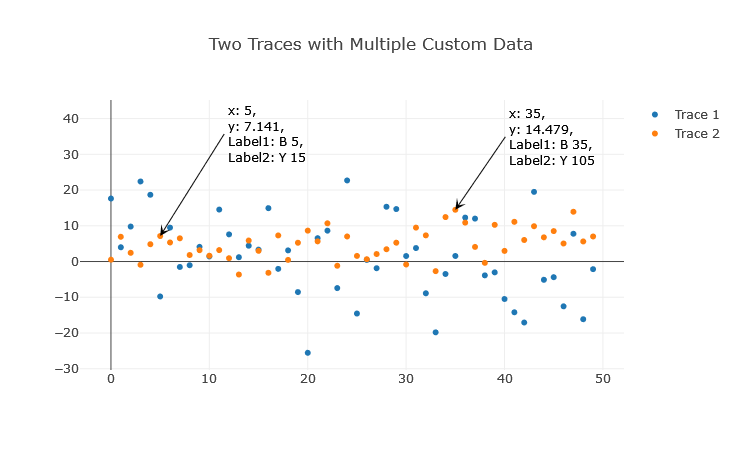
Click on data points to add tooltips.
If dcc.Graph is configured editatble, tolltips:
- can be dragged around
- text can be edited on click
- can be deleted: click, delete text, enter. In some occasions a tooltip arrow may remain due to a Dash bug (clientside_callback not firing). In this cas, click near arrow end (mouse cursor changes to pointer), enter some text and repeat deletion and enter.
Advanced Usage
If you want to customize the tooltips, hover templates, and more:
import pandas as pd
import numpy as np
import plotly.express as px
from dash import Dash, dcc, html
from dash.dependencies import Input, Output
from dash_tooltip import tooltip

# Generate random time series data
date_rng = pd.date_range(start='2020-01-01', end='2020-12-31', freq='H')
ts1 = pd.Series(np.random.randn(len(date_rng)), index=date_rng, name='Time Series 1')
ts2 = pd.Series(np.random.randn(len(date_rng)), index=date_rng, name='Time Series 2')
df = pd.DataFrame({ts1.name: ts1, ts2.name: ts2})

# Define the hover and tooltip template
# name is only compatible with tooltip
template = "name:%{name}<br>META0: %{meta[0]}<br>META1: %{meta[1]}<br>x: %{x}<br>y: %{y:.2f}<br>pointNumber: %{pointNumber}<br>customdata0: %{customdata[0]}<br>customdata1: %{customdata[1]}"

# Create a line plot
fig10 = px.line(df, x=df.index, y=df.columns, title="Time Series Plot")

# Apply metadata and custom data to each trace
for i, trace in enumerate(fig10.data):
    # Applying different metadata to each trace
    trace.meta = [f"META{i}0", f"META{i}1"]

    # Setting customdata for each point in the trace, for use in the hover template
    trace.customdata = np.array([[f"Series {i+1}", f'Point {j+1}'] for j in range(len(df))])

    # Setting the hover template
    trace.hovertemplate = template

app10 = Dash(__name__)

app10.layout = html.Div([
    dcc.Graph(
        id="graph-id",
        figure=fig10,
        config={
            'editable': True,
            'edits': {
                'shapePosition': True,
                'annotationPosition': True
            }
        }
    )
])

tooltip(app10, graph_ids=["graph-id"], template=template, debug=True)
app10.run(port=8082)
Tooltip Templates with Formatting
Tooltips can be formatted using templates similar to Plotly's hovertemplates. The tooltip template allows custom formatting and the inclusion of text and values.
For example, you can use a template like "%{name}<br>%{meta[0]}<br>x: %{x:.2f}<br>y: %{y:.2f}" to display the track name, meta[0] from a list of text data, plus x and y values with two decimal places. Note that name key is not available in the Plotly hover template, but is displayed by default.
Refer to Plotly’s documentation on hover text and formatting for more details on how to construct and customize your tooltip templates.
Custom Styling
custom_style = {
        "font": {"size": 12, "color":"red"},
        "arrowcolor": "red",
        'arrowsize': 5,
        # ... any other customization
    }
tooltip(app10, style=custom_style, graph_ids=["graph-id"], template=template, debug=True)
For more examples, refer to the provided dash_tooltip_demo.py and check out Plotly’s Text and Annotations documentation, which provides a wealth of information on customizing the appearance of annotations.
Refer to the Plotly Annotation Reference for a comprehensive guide on available styling attributes and how to apply them.
Template updating
Tooltip content can be updated to match with selected data in a dynamic Dash app:
GRAPH_ID = "scatter-plot16a"

# Sample DataFrame with DatetimeIndex
date_range = pd.date_range(start="2025-01-01", periods=5)
df = pd.DataFrame(
    {
        "x": [1, 2, 3, 4, 5],
        "y": [2, 4, 6, 8, 10],
        "z": [3, 6, 9, 12, 15],
        "a": [4, 8, 12, 16, 20],
        "b": [5, 10, 15, 20, 25],
    },
    index=date_range,
)

# Initialize the Dash app
app16 = dash.Dash(__name__)

# Define the layout
app16.layout = html.Div(
    [
        html.Label("Select X and Y columns:"),
        dcc.Dropdown(
            id="x-column",
            options=[{"label": col, "value": col} for col in df.columns],
            placeholder="Select X axis data",
        ),
        dcc.Dropdown(
            id="y-column",
            options=[{"label": col, "value": col} for col in df.columns],
            placeholder="Select Y axis data",
        ),
        dcc.Graph(
            id=GRAPH_ID,
            style={"width": "600px", "height": "600px"},
            config={
                "editable": True,
                "edits": {"shapePosition": True, "annotationPosition": True},
            },
        ),
    ]
)

# Create a tooltip instance
tooltip_instance16 = tooltip(app16, graph_ids=[GRAPH_ID])

# Define callback to update the scatter plot
@app16.callback(
    Output(GRAPH_ID, "figure", allow_duplicate=True),
    [Input("x-column", "value"), Input("y-column", "value")],
    prevent_initial_call=True,
)
def update_scatter_plot(x_column, y_column):
    if not x_column or not y_column:
        raise PreventUpdate  # Prevent update if either dropdown is not selected

    non_selected_columns = [
        col for col in df.columns if col not in [x_column, y_column]
    ]
    customdata = df[non_selected_columns].apply(
        lambda row: "<br>".join(
            f"{col}: {val}" for col, val in zip(non_selected_columns, row)
        ),
        axis=1,
    )
    # gives (depending on selected entries):
    # 2022-01-01     x: 1<br>z: 3<br>b: 5
    # 2022-01-02     x: 2<br>z: 6<br>b: 10
    # ...

    # New template, to match selected data entries
    template = (
        "<b>Date</b>: %{customdata}<br>"
        + f"<b>{x_column}: %{{x}}<br>"
        + f"{y_column}: %{{y}}</b><br>"
    )
    # gives (depending on selected entries):
    # <b>Date</b>: %{customdata}<br><b>x: %{x}<br><b>a</b>: %{y}<br>

    # Update template for new tooltips
    tooltip_instance16.update_template(graph_id=GRAPH_ID, template=template)

    trace = go.Scatter(
        x=df[x_column],
        y=df[y_column],
        mode="markers",
        marker=dict(color="blue"),
        customdata=df.index.strftime("%Y-%m-%d %H:%M:%S") + "<br>" + customdata,
        # Include date and time with other data
        hovertemplate=template,
    )
    layout = go.Layout(
        title="Scatter Plot",
        xaxis=dict(title=x_column),
        yaxis=dict(title=y_column),
        hovermode="closest",
        height=800,
        width=800,
    )
    return {"data": [trace], "layout": layout}


# Run the app
if __name__ == "__main__":
    app16.run_server(debug=False, port=8196)
Handling Log Axes
Due to a long-standing bug in Plotly (see Plotly Issue #2580), annotations (fig.add_annotation) may not be placed correctly on log-scaled axes. The dash_tooltip module provides an option to automatically correct the tooltip placement on log-scaled axes via the apply_log_fix argument in the tooltip function. By default, apply_log_fix is set to True to enable the fix.
Debugging
If you encounter any issues or unexpected behaviors, enable the debug mode by setting the debug argument of the tooltip function to True. The log outputs will be written to dash_app.log in the directory where your script or application is located.
License
This project is licensed under the MIT License. See the LICENSE file for details.
Acknowledgements
- Inspired by
mplcursorsand Matlab'sdatatip.
Release history Release notifications | RSS feed


Download files
Download the file for your platform. If you're not sure which to choose, learn more about installing packages.
Source Distribution
Built Distribution
Filter files by name, interpreter, ABI, and platform.
If you're not sure about the file name format, learn more about wheel file names.
Copy a direct link to the current filters
File details
Details for the file dash_tooltip-0.4.1.tar.gz.
File metadata
- Download URL: dash_tooltip-0.4.1.tar.gz
- Upload date:
- Size: 317.7 kB
- Tags: Source
- Uploaded using Trusted Publishing? No
- Uploaded via: twine/6.1.0 CPython/3.13.2
File hashes
| Algorithm | Hash digest | |
|---|---|---|
| SHA256 |
11dc83f37c2dae1ee10152d27974df7c31822dba6d5827ad2fc5090feb371a74
|
|
| MD5 |
41c258c09a09f218d14d6d12673ada0f
|
|
| BLAKE2b-256 |
4cca817ec52d8fa7093c39da0c736912851e7c856cd31b66709bb51d0b9bdf0b
|
File details
Details for the file dash_tooltip-0.4.1-py3-none-any.whl.
File metadata
- Download URL: dash_tooltip-0.4.1-py3-none-any.whl
- Upload date:
- Size: 12.8 kB
- Tags: Python 3
- Uploaded using Trusted Publishing? No
- Uploaded via: twine/6.1.0 CPython/3.13.2
File hashes
| Algorithm | Hash digest | |
|---|---|---|
| SHA256 |
1d79700790a956552c1df1523b89ce04376ab9449d018c61421c45b4004e005b
|
|
| MD5 |
e4cb22b8afbbf0ebacfc7f15a744b1ae
|
|
| BLAKE2b-256 |
3a7f4bb19d85bb0227717c483f73da9fef7ab2ecf8ec1f36b6069214da5294a6
|






