
A cross-platform tool to automatically detect and test hardware video decoders/encoders using FFmpeg.
Verified details
These details have been verified by PyPIProject links
GitHub Statistics
Maintainers

Project description
FFmpeg Hardware Codec Detect Script(HwCodecDetect)




Today's hardware-accelerated video codec landscape is a "field of a hundred schools of thought." To leverage the immense power of GPUs, hardware manufacturers have introduced their own acceleration frameworks and encoding standards, such as NVIDIA's NVEnc/NVDec, Intel's QSV, and AMD's AMF. Additionally, operating systems provide universal APIs like Microsoft's Media Foundation, DXVA2, and D3D12VA, while the open-source community has developed cross-platform standards like VAAPI and Vulkan.
While this diversity drives technological progress, it also presents a challenge for users and developers. Due to historical issues and compatibility quirks, a single piece of hardware might support multiple encoders, but they can differ significantly in performance, supported formats, and resolutions. As a result, when using FFmpeg for hardware acceleration, it's not always clear which encoder is best suited for a specific device.
This project was created to solve this very problem. It's a convenient tool for automatically detecting the hardware video encoder capabilities of your system. Using FFmpeg, it generates single-frame video files at various resolutions (from 240p to 8K) and attempts to process them with different hardware encoders. This allows it to quickly determine which hardware encoders are available on your system and what resolutions they support.
Key Features
Encoders
The script automatically detect and reports on the following major hardware encoders and their supported formats:
| Encoder Name | Supported Video Formats |
|---|---|
| NVEnc | H.264、H.265、AV1 |
| QSV (Quick Sync Video) | H.264、H.265、AV1、MJPEG、MPEG-2、VP9 |
| AMF (Advanced Media Framework) | H.264、H.265、AV1 |
| Media Foundation | H.264、H.265 |
| D3D12VA (Direct3D 12 Video Acceleration) | H.265 |
| VAAPI (Video Acceleration API) | H.264、H.265、AV1、MJPEG、MPEG-2、VP8、VP9 |
| Vulkan | H.264、H.265 |
| Apple VideoToolbox | H.264、H.265 |
Decoders
The script automatically detect and reports on the following major hardware decoders and their supported formats:
| Decoder Name | Supported Video Formats |
|---|---|
| NVDec (CUVID) | H.264、H.265、AV1、MJPEG、MPEG-1、MPEG-2、MPEG-4、VP8、VP9 |
| QSV (Quick Sync Video) | H.264、H.265、AV1、MJPEG、MPEG-2、VP8、VP9 |
| AMF (Advanced Media Framework) | H.264、H.265、AV1 |
| DXVA2 (DirectX Video Acceleration) | H.264、H.265、MJPEG、MPEG-1、MPEG-2、MPEG-4、VP8 |
| D3D11VA (Direct3D 11 Video Acceleration) | H.264、H.265、AV1、MJPEG、MPEG-1、MPEG-2、MPEG-4、VP8、VP9 |
| Vulkan | H.264、H.265、AV1 |
| Apple VideoToolbox | H.264、H.265、MPEG-2、MPEG-4 |
Bit-depth and Chroma Subsampling Detection
In addition to resolution-based testing, the tool now includes comprehensive bit-depth and chroma subsampling detection. This feature tests hardware codec support for different pixel formats, helping you understand the full capabilities of your hardware encoders and decoders.
The detection covers the following pixel formats:
| Bit-depth | Chroma Subsampling | Pixel Format | Description |
|---|---|---|---|
| 8-bit | YUV 4:2:0 | yuv420p | Standard 8-bit 4:2:0 |
| 8-bit | YUV 4:2:2 | yuv422p | 8-bit 4:2:2 |
| 8-bit | YUV 4:4:4 | yuv444p | 8-bit 4:4:4 |
| 10-bit | YUV 4:2:0 | yuv420p10le, p010le | 10-bit 4:2:0 |
| 10-bit | YUV 4:2:2 | yuv422p10le | 10-bit 4:2:2 |
| 10-bit | YUV 4:4:4 | yuv444p10le | 10-bit 4:4:4 |
| 12-bit | YUV 4:2:0 | yuv420p12le | 12-bit 4:2:0 |
| 12-bit | YUV 4:2:2 | yuv422p12le | 12-bit 4:2:2 |
| 12-bit | YUV 4:4:4 | yuv444p12le | 12-bit 4:4:4 |
This feature uses a fixed resolution of 1280x720 for all tests and follows the encode-then-decode workflow. If hardware encoding fails, the tool automatically falls back to software encoding to ensure decoder tests can still be performed.
Note: This feature is enabled by default. You can disable it using the --no-bitdepth-chroma command-line parameter.
How to Use
You can install and use HwCodecDetect in two ways.
Method 1: Install via PyPI (Recommended)
This is the easiest method if you just want to use the tool quickly.
-
Install: Use pip to install hwcodecdetect from the official PyPI repository.
pip install hwcodecdetect
-
Run: After installation, run the hwcodecdetect command directly from your terminal.
hwcodecdetect
Method 2: Download and Run Executable (Standalone)
Use this method if you prefer to run the tool without installing Python dependencies, or if the PyPI installation fails.
-
Download: Go to the project's Releases page and download the executable file corresponding to your operating system (e.g.,
HwCodecDetect-Linux-x64,HwCodecDetect-Windows-x64.exe). -
(Linux/macOS only) Add Execute Permission: If you are on Linux or macOS, you need to grant the downloaded file execute permission.
# Replace 'HwCodecDetect-Linux-x64' with the actual downloaded filename
chmod +x HwCodecDetect-Linux-x64
-
Run: Execute the file directly from your terminal.
# For Linux/macOS
./HwCodecDetect-Linux-x64

# For Windows (e.g., in PowerShell or Command Prompt)
.\HwCodecDetect-Windows-x64.exe
Method 3: Install from Source
Use this method if you have cloned the project source code from GitHub and want to run it locally.
-
Clone the repository: First, clone the project source code to your local machine.
git clone https://github.com/whyb/HwCodecDetect.git ./HwCodecDetect
-
Install dependencies: Navigate into the project's root directory and use pip to install the required dependencies.
cd HwCodecDetect
pip install .
-
Run: After the installation is complete, run the hwcodecdetect command directly.
hwcodecdetect
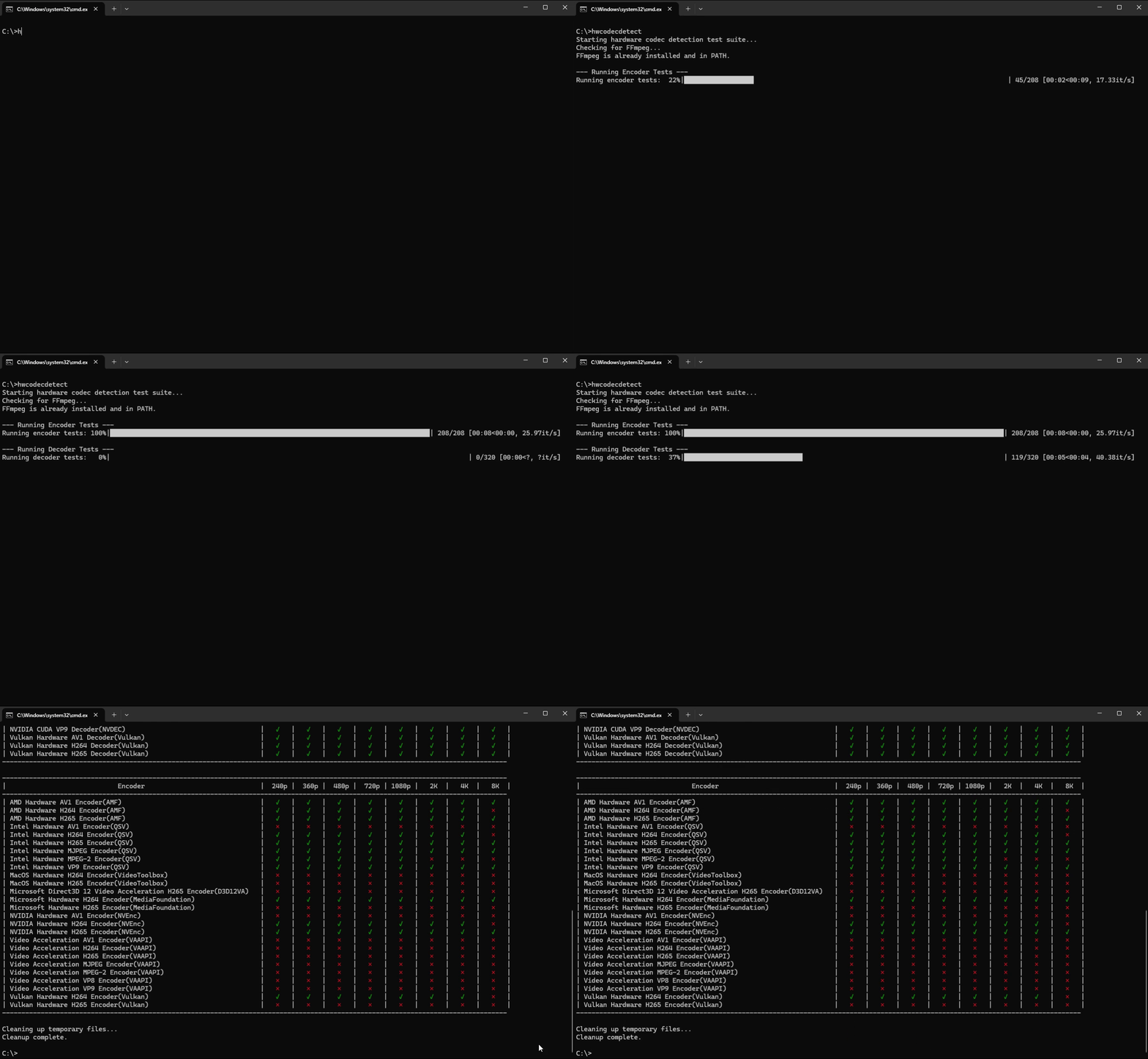
Final effect
Here are some possible results from a local test run:
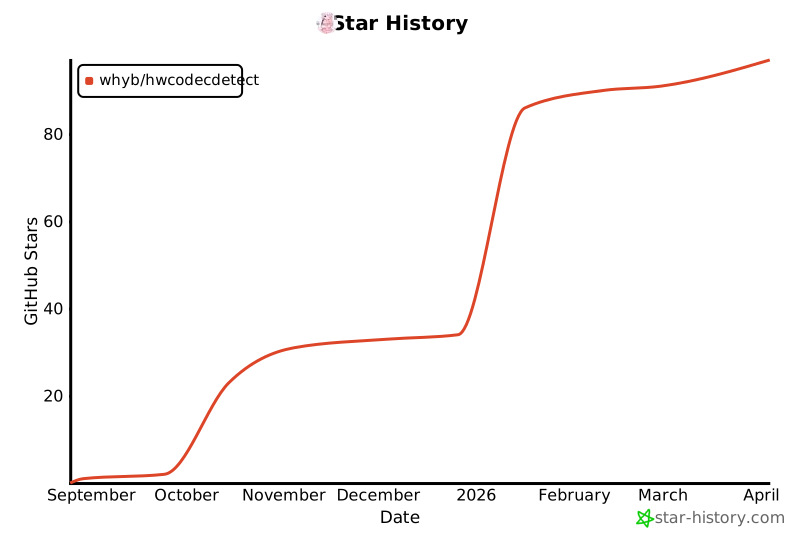
Star History
Project details
Verified details
These details have been verified by PyPIProject links
GitHub Statistics
Maintainers
Release history Release notifications | RSS feed


Download files
Download the file for your platform. If you're not sure which to choose, learn more about installing packages.
Source Distribution
Built Distribution
Filter files by name, interpreter, ABI, and platform.
If you're not sure about the file name format, learn more about wheel file names.
Copy a direct link to the current filters
File details
Details for the file hwcodecdetect-0.2.1.tar.gz.
File metadata
- Download URL: hwcodecdetect-0.2.1.tar.gz
- Upload date:
- Size: 22.2 kB
- Tags: Source
- Uploaded using Trusted Publishing? Yes
- Uploaded via: twine/6.1.0 CPython/3.13.12
File hashes
| Algorithm | Hash digest | |
|---|---|---|
| SHA256 |
0db96c1a112250217747847c7c37884b5d2e9efd6ee0dcbe35e8a97b9431151e
|
|
| MD5 |
9c50c993a15655c71dcb28fb125d836d
|
|
| BLAKE2b-256 |
94bed22b95ad68bbefb9e7552cd1b0c22df1f83a977bb5a4a12d2dc6a2ca4a2c
|
Provenance
The following attestation bundles were made for hwcodecdetect-0.2.1.tar.gz:
Publisher:
pypi-publish.yml on whyb/HwCodecDetect
-
Statement:
-
Statement type:
https://in-toto.io/Statement/v1 -
Predicate type:
https://docs.pypi.org/attestations/publish/v1 -
Subject name:
hwcodecdetect-0.2.1.tar.gz -
Subject digest:
0db96c1a112250217747847c7c37884b5d2e9efd6ee0dcbe35e8a97b9431151e - Sigstore transparency entry: 1270803720
- Sigstore integration time:
-
Permalink:
whyb/HwCodecDetect@edb9d0eaffd1715ee7246cee91fe3275c3082096 -
Branch / Tag:
refs/tags/v0.2.1 - Owner: https://github.com/whyb
-
Access:
public
-
Token Issuer:
https://token.actions.githubusercontent.com -
Runner Environment:
github-hosted -
Publication workflow:
pypi-publish.yml@edb9d0eaffd1715ee7246cee91fe3275c3082096 -
Trigger Event:
release
-
Statement type:
File details
Details for the file hwcodecdetect-0.2.1-py3-none-any.whl.
File metadata
- Download URL: hwcodecdetect-0.2.1-py3-none-any.whl
- Upload date:
- Size: 20.7 kB
- Tags: Python 3
- Uploaded using Trusted Publishing? Yes
- Uploaded via: twine/6.1.0 CPython/3.13.12
File hashes
| Algorithm | Hash digest | |
|---|---|---|
| SHA256 |
6d601542631ebd1423652c1b62b87dca0cc0305ab7c33ffc22c5facbc237d41d
|
|
| MD5 |
2940cd8c6bd6ee27b8cfe813d125153f
|
|
| BLAKE2b-256 |
1ee8e60f7d6e7a0a88b73b85dec25884c7f471bd8bebce6975db0ee28e4cbc9c
|
Provenance
The following attestation bundles were made for hwcodecdetect-0.2.1-py3-none-any.whl:
Publisher:
pypi-publish.yml on whyb/HwCodecDetect
-
Statement:
-
Statement type:
https://in-toto.io/Statement/v1 -
Predicate type:
https://docs.pypi.org/attestations/publish/v1 -
Subject name:
hwcodecdetect-0.2.1-py3-none-any.whl -
Subject digest:
6d601542631ebd1423652c1b62b87dca0cc0305ab7c33ffc22c5facbc237d41d - Sigstore transparency entry: 1270803729
- Sigstore integration time:
-
Permalink:
whyb/HwCodecDetect@edb9d0eaffd1715ee7246cee91fe3275c3082096 -
Branch / Tag:
refs/tags/v0.2.1 - Owner: https://github.com/whyb
-
Access:
public
-
Token Issuer:
https://token.actions.githubusercontent.com -
Runner Environment:
github-hosted -
Publication workflow:
pypi-publish.yml@edb9d0eaffd1715ee7246cee91fe3275c3082096 -
Trigger Event:
release
-
Statement type:






