
Branding & customization plugin for Alliance Auth — custom logos, login backgrounds, favicons, and more.

Project description
AA Customizer
📖 Interactive Documentation — Installation guide, field reference, media strategy
A branding & customization plugin for Alliance Auth.
Gives administrators a simple admin-panel UI to customize their Alliance Auth installation without touching code or replacing static files.
Screenshots
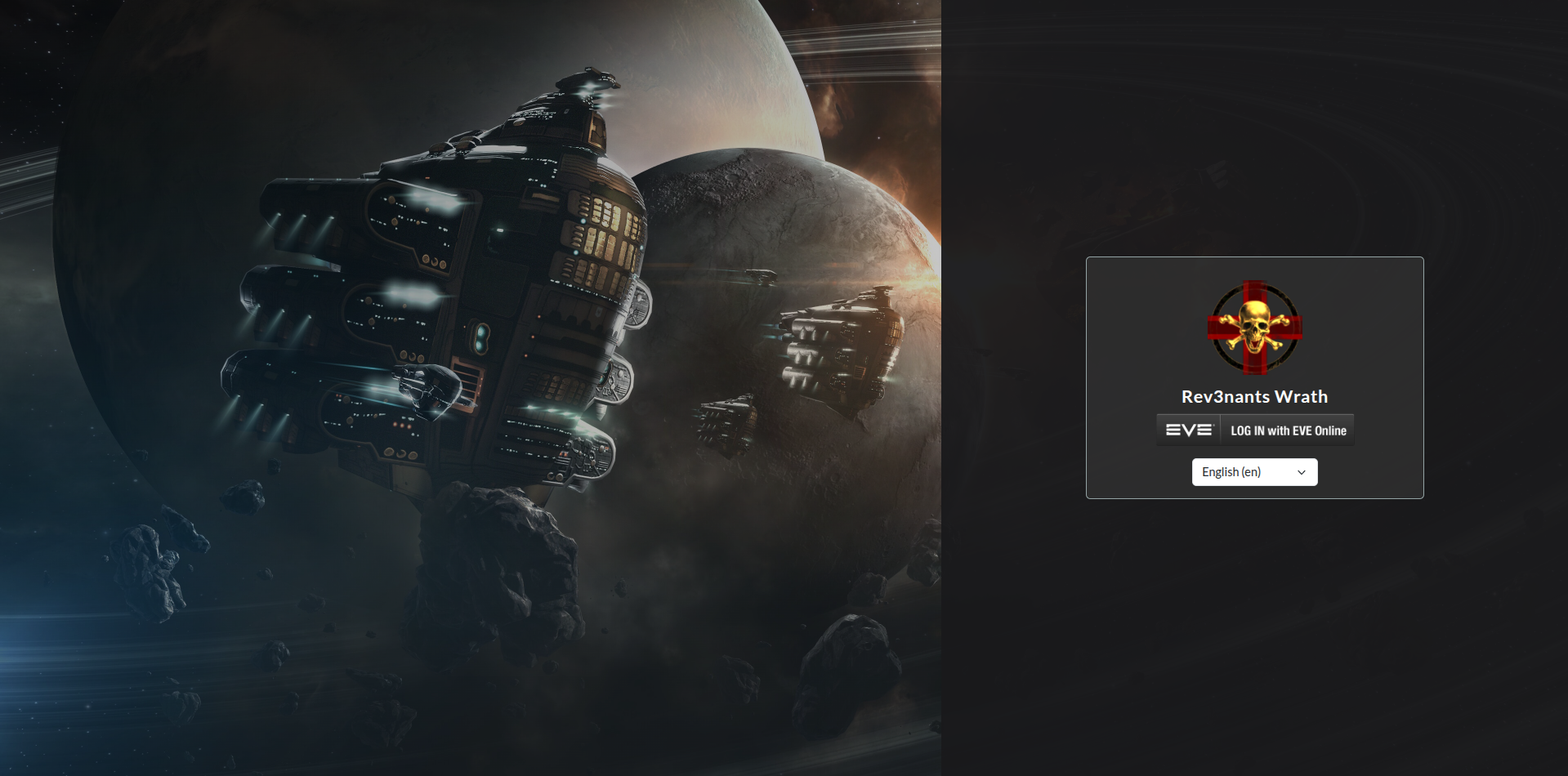
Split Screen layout
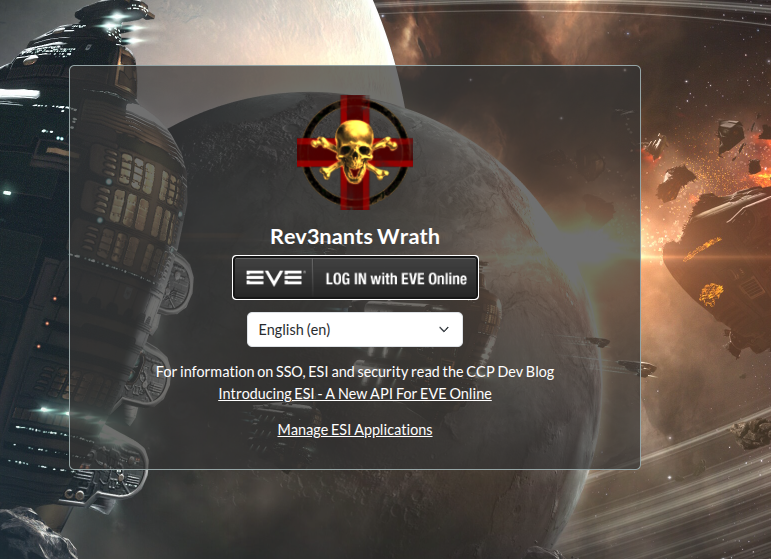
Centered Card layout (default)
Side Bar Icon
Features
| Feature | What it does |
|---|---|
| Custom site name | Overrides SITE_NAME from local.py across the whole site |
| Login background | URL or uploaded image/video; falls back to a CSS color, then the default AA space background. .mp4, .webm, .ogv URLs play as a fullscreen muted video with configurable loop count (forever, once, or N times) |
| Login layout | Centered Card, Split Screen (background left), or Split Screen (login left) |
| Login logo | URL or uploaded image shown at the top of the login card |
| Login title & subtitle | Welcome heading and description text on the login card |
| Login extra HTML | Raw HTML injected below the EVE SSO button (notices, Discord links, etc.) |
| Custom favicon | URL or uploaded image replacing all Alliance Auth browser-tab icons |
| Navbar logo | URL or uploaded image alongside the site name in the top navigation bar |
| Sidebar logo | URL or uploaded image replacing the Alliance Auth logo in the sidebar |
| Custom CSS — URL | External stylesheet linked in every page <head>, loaded after the active theme |
| Custom CSS — inline | CSS text injected via <style> on every page, loaded after the active theme |
Extra <head> HTML |
Raw HTML at the end of <head> on every page (analytics, font imports, meta tags) |
Requirements
- Alliance Auth ≥ 4.0.0 (Bootstrap 5 template set)
django-soloPillow
To prevent confusion on how to get this installed, I figured I would break it down a little more.
After the initial install, mirgate, etc. the app will function without having to do any of the extra folder creations by using image URLs.
The upside is, it will work, the downside is, for any user that is located in a country that is blocking certain websites, like Imgur, the images will not appear. (A UK user in our Corp pointed this out to me.)

So, the work around is either:
-
A: Use a service that can provide global hosting for images. For this, I used Cloudflare's R2 Object storage, linked to the custom domain (your Auth URL), which then created a DNS record for the storage. This in turn will expose anything put into the bucket, so it's recommended to only store what is needed, I.E.: pictures. (Tested this by using Proton VPN)
-
B: Do the setup to allow the images to be hosted directly in Auth:
Installation
Bare Metal install
1 — Install the package
# Activate your Alliance Auth virtualenv first, then:
pip install aa-customizer
2 — Add to INSTALLED_APPS
Open your local.py and add above INSTALLED_APPS =:
INSTALLED_APPS.insert(0, 'aa_customizer')
Django searches each app's
templates/folder inINSTALLED_APPSorder and uses the first match. Placingaa_customizerfirst ensures its template overrides are picked up before the Alliance Auth originals.
3 — Add the context processor
In local.py, add to the settings section to append the existing TEMPLATES list:
TEMPLATES[0]["OPTIONS"]["context_processors"].append(
    "aa_customizer.context_processors.aa_customizer"
)

MEDIA_ROOT = "/path/to/your/media/"
MEDIA_URL  = "/media/"
4 — Run migrations
python manage.py migrate aa_customizer
5 — Collect static files
python manage.py collectstatic
Make sure your web server (nginx, Apache, etc.) is configured to serve files from MEDIA_ROOT at MEDIA_URL.
In your nginx.conf, add inside the server {} block:
# Allow uploads up to 20 MB (nginx default is 1 MB — raise this if you
# get "413 Request Entity Too Large" when uploading background images).
client_max_body_size 20m;
# add after location /static
location /media {
    alias /var/www/myauth/media;
    autoindex off;
}
Adjust
client_max_body_sizeto suit your largest file. A 1920×1080 JPEG is typically 1–5 MB; a short MP4 video background can be 10–20 MB. Set it slightly above your expected maximum.
7 — (Optional) Populate the Media Library
Once media is configured, go to AA Customizer → Media Library in the admin panel to upload images. Give each one a descriptive name (e.g. "Corp logo v2", "Winter background"). You can then pick from your library in Custom Branding without re-uploading — just change the dropdown selection to switch images instantly.
Docker install
The recommended approach for Docker is to use URL fields for all images (point at an external CDN, Imgur, GitHub raw assets, etc.) so you don't need to mount a media volume just to serve a few files.
1 — Install the package inside the container
# Activate your Alliance Auth virtualenv first, then:
pip install aa-customizer
2 — Add to INSTALLED_APPS
Open your local.py and add above INSTALLED_APPS =:
INSTALLED_APPS.insert(0, 'aa_customizer')
Django searches each app's
templates/folder inINSTALLED_APPSorder and uses the first match. Placingaa_customizerfirst ensures its template overrides are picked up before the Alliance Auth originals.
3 — Add the context processor
In local.py, add to the settings section to append the existing TEMPLATES list:
TEMPLATES[0]["OPTIONS"]["context_processors"].append(
    "aa_customizer.context_processors.aa_customizer"
)

MEDIA_ROOT = "/path/to/your/media/"
MEDIA_URL  = "/media/"
b) Add the named volume to docker-compose.yml
The standard AA Docker setup uses a named Docker volume for media. Add it in three places:
- In
x-allianceauth-basevolumes (so gunicorn, beat, and workers all share it):
x-allianceauth-base: &allianceauth-base
  volumes:
    # ... your existing volume mounts ...
    - media-data:/var/www/myauth/media
- In the
nginxservice volumes:
services:
  nginx:
    volumes:
      # ... your existing volume mounts ...
      - media-data:/var/www/myauth/media
- In the top-level
volumes:section:
volumes:
  media-data:
c) Configure nginx
In your nginx.conf, add the following inside the server {} block:
# Allow uploads up to 20 MB (nginx default is 1 MB — raise this if you
# get "413 Request Entity Too Large" when uploading background images).
client_max_body_size 20m;
# add after location /static
location /media {
    alias /var/www/myauth/media;
    autoindex off;
}
Adjust
client_max_body_sizeto suit your largest file. A 1920×1080 JPEG is typically 1–5 MB; a short MP4 video background can be 10–20 MB. Set it slightly above your expected maximum.
d) Bring the stack up
docker compose up -d
e) Fix volume permissions
Docker creates named volumes owned by root. The AA container runs as uid/gid 61000. Run this once after first bringing the stack up:
Confimr the uid/gid
docker compose exec allianceauth_gunicorn ls -la /var/www/myauth/media
#change using
docker compose exec -u root allianceauth_gunicorn chown -R 61000:61000 /var/www/myauth/media
After this, uploads made through /admin/aa_customizer/aacustomizersettings/ will be stored under /var/www/myauth/media/aa_customizer/ and served immediately by nginx.
5 — Build and Restart
docker compose build
docker compose down
docker compose up -d
Usage
- Log in to the Alliance Auth admin panel (
/admin/). - (Optional) Build your image library — find AA Customizer → Media Library and upload your images there, giving each a name. You can upload as many as you like and switch between them without re-uploading.
- Find AA Customizer → Custom Branding in the left-hand sidebar.
- For each image slot, choose how to set it:
- Library — pick from an image you uploaded to the Media Library (recommended when self-hosting media)
- URL — paste an external link (CDN, Imgur, etc.) — always takes priority
- Upload — upload a file directly into the field
- Fill in any other fields you want and click Save.
Changes take effect immediately on the next page load — no server restart needed.
Field reference
Site
| Field | Description |
|---|---|
| Site Name | Overrides SITE_NAME from local.py |
Login Page — Background
| Field | Description |
|---|---|
| Login Background — URL | URL of a background image or video (takes priority over everything). Video files (.mp4, .webm, .ogv) play fullscreen, muted, and auto-paused by the browser when the tab is hidden. Loop behavior is controlled by the Loop Count field below |
| Login Background — Library | Select an image uploaded to the Media Library (takes priority over a direct upload) |
| Login Background — Upload | Upload a background image directly into this field |
| Login Background Color | CSS color fallback when no image is set, or the color shown behind a video while it loads (e.g. #1a1a2e) |
| Background Video — Loop Count | 0 (default) = loop forever. 1 = play once then freeze on the last frame. N = play exactly N times then freeze. Only applies to video backgrounds |
Login Page — Layout
| Field | Description |
|---|---|
| Login Page Layout | Centered Card — login card centered over the full-page background (default). Split Screen — Background Left — background on the left, dark login panel on the right. Split Screen — Login Left — mirrors it. |
| Split Panel — Show Overlay Text | Tick to show text on the background panel; untick to hide it entirely |
| Split Panel — Overlay Text | Text shown on the background panel. Leave blank to auto-display the site name |
| Split Panel — Text Position | Vertical position of the overlay text: Top, Center, or Bottom |
Login Page — Branding
| Field | Description |
|---|---|
| Login Logo — URL | URL of a logo image (takes priority over everything) |
| Login Logo — Library | Select an image from the Media Library (takes priority over a direct upload) |
| Login Logo — Upload | Upload a logo image directly into this field |
| Login Logo Max Width (px) | Maximum display width of the login logo |
| Login Page Title | Custom heading shown above the SSO button |
| Login Page Subtitle | Optional description text below the title |
| Login Page Extra HTML | Raw HTML injected below the EVE SSO button (notices, links, etc.) |
Favicon
| Field | Description |
|---|---|
| Favicon — URL | URL of a favicon image (takes priority over everything) |
| Favicon — Library | Select an image from the Media Library (takes priority over a direct upload) |
| Favicon — Upload | Upload a favicon image directly into this field |
Navigation Bar Logo
| Field | Description |
|---|---|
| Navbar Logo — URL | URL of a navbar logo image (takes priority over everything) |
| Navbar Logo — Library | Select an image from the Media Library (takes priority over a direct upload) |
| Navbar Logo — Upload | Upload a navbar logo image directly into this field |
| Navbar Logo Height (px) | Display height of the navbar logo |
Sidebar Logo
| Field | Description |
|---|---|
| Sidebar Logo — URL | URL of an image to replace the AA logo in the sidebar (takes priority over everything) |
| Sidebar Logo — Library | Select an image from the Media Library (takes priority over a direct upload) |
| Sidebar Logo — Upload | Upload a sidebar logo image directly into this field |
| Sidebar Logo Width (px) | Display width of the sidebar logo |
Custom CSS
| Field | Description |
|---|---|
| Custom CSS — URL | External stylesheet URL linked in every page <head> |
| Custom CSS | Inline CSS injected via <style> on every page |
Extra HTML
| Field | Description |
|---|---|
Extra <head> HTML |
Raw HTML injected at the end of <head> on every page |
Image recommendations
| Field | Recommended size / format |
|---|---|
| Login background (image) | ≥ 1920 × 1080 px, JPEG, PNG, or GIF |
| Login background (video) | 1920 × 1080 px, MP4 (H.264) or WebM (VP9); keep under ~15 MB for fast loads |
| Login logo | ≥ 256 × 256 px, transparent PNG |
| Favicon | ≥ 192 × 192 px, PNG or ICO |
| Navbar logo | Transparent PNG, height ≤ 64 px |
| Sidebar logo | Transparent PNG, width ≤ 256 px |
Security notes
- Raw HTML fields (
Login Page Extra HTML,Extra <head> HTML) are rendered without sanitization and are only editable by Django admin users (staff/superusers). - Custom CSS URL is validated as a URL by Django's field validator; only
http/httpsschemes are accepted. - AA Customizer works alongside Alliance Auth's built-in Custom CSS admin (
/admin/custom_css/customcss/). The customizer's CSS loads after the built-in one, so it takes precedence.
License
MIT
Release history Release notifications | RSS feed


Download files
Download the file for your platform. If you're not sure which to choose, learn more about installing packages.
Source Distribution
Built Distribution
Filter files by name, interpreter, ABI, and platform.
If you're not sure about the file name format, learn more about wheel file names.
Copy a direct link to the current filters
File details
Details for the file aa_customizer-1.1.4.tar.gz.
File metadata
- Download URL: aa_customizer-1.1.4.tar.gz
- Upload date:
- Size: 29.4 kB
- Tags: Source
- Uploaded using Trusted Publishing? No
- Uploaded via: twine/6.1.0 CPython/3.13.7
File hashes
| Algorithm | Hash digest | |
|---|---|---|
| SHA256 |
86134f172bd6b38b9e1c8c191f46c76d3cfdd66d681fce2a479afa18d82eea35
|
|
| MD5 |
1c8f7cd47cceac5ad5888fe4e82f5fb3
|
|
| BLAKE2b-256 |
b24a1464cf4a649bf82b38aba9cc4826ffae76f60f5a392028f15ffe4ac8a008
|
File details
Details for the file aa_customizer-1.1.4-py3-none-any.whl.
File metadata
- Download URL: aa_customizer-1.1.4-py3-none-any.whl
- Upload date:
- Size: 37.4 kB
- Tags: Python 3
- Uploaded using Trusted Publishing? No
- Uploaded via: twine/6.1.0 CPython/3.13.7
File hashes
| Algorithm | Hash digest | |
|---|---|---|
| SHA256 |
a48e4b5a6681050a84dcbb70e74fdd41c2822a30110ee7ad957197ad88f37eff
|
|
| MD5 |
612f031ec0cbf610ff240737e5796aa6
|
|
| BLAKE2b-256 |
61b96c08099bacdabe3b8f76cb086348904e457660e41e4b6adf466fd7c7ac8c
|






