
aGiTrack



aGiTrack stands for agent + git tracking. It's a command-line tool that runs an AI coding agent for you and turns each change the agent makes into a git commit automatically — with a record of what you asked, what the agent did, and how many tokens it used. You get a clean, reviewable git history of the AI's work without committing anything by hand.
You can use Claude (Claude Code), Codex (OpenAI's Codex CLI) or OpenCode as the AI agent — they're interchangeable, and every aGiTrack feature works the same way with any of them. Support for more agents is planned.
Requirements
aGiTrack runs on macOS, Linux, and natively on Windows (PowerShell / Windows Terminal — no WSL required; WSL still works too). It works in the common terminal apps (iTerm2, Apple Terminal, Alacritty, kitty, GNOME Terminal, Konsole, tmux, the VS Code terminal, and Windows Terminal); on a terminal that lacks some advanced features, it still works, just with fewer visual frills. On Windows it drives the agent through a pseudo-console (ConPTY); the sandbox that confines agent writes is macOS/Linux-only, so on Windows the agent runs unconfined (aGiTrack instead warns if the agent edits the base repo outside its worktree).
You need git and at least one AI agent — Claude Code, Codex CLI or OpenCode — installed and on your PATH. The dashboard can also use the GitHub CLI (gh) to show each commit's author by their GitHub username: install it from cli.github.com and run gh auth login. gh is optional — without it, the dashboard still works and just groups authors by email instead.
Install
aGiTrack is a Python package (Python 3.10+), installed with pip or pipx. On Windows you can instead use a standalone MSI that needs no Python at all. Pick your OS below — each section is self-contained. Once installed, aGiTrack keeps itself up to date (see Self-update); the PyPI distribution, the importable package, and the command are all named agitrack.
macOS
- Python 3.10+ — check with
python3 --version; if it's missing,brew install python. - Install aGiTrack (the terminal-UI dependency for status bars and command hints comes with it):
pip3 install agitrack
If pip refuses with an "externally-managed-environment" error (PEP 668 — common with Homebrew's Python), usepipxinstead; it isolates aGiTrack and puts it on your PATH:pipx install agitrack
- Prerequisites — git (required), a backend (Claude Code, Codex or OpenCode), and optionally
gh(lets the dashboard show authors by GitHub username):brew install git curl -fsSL https://claude.ai/install.sh | bash # Claude Code … npm install -g @openai/codex # … or Codex npm install -g opencode-ai # … or OpenCode brew install gh # optional
Windows (native — no WSL)
aGiTrack runs natively on Windows (PowerShell / Windows Terminal — WSL not required). Two ways to install — pick one:
Option A — standalone MSI (no Python needed). Each release ships a self-contained installer that bundles its own Python (built with PyInstaller), so it runs on a machine with no Python or pip at all.
- Download
agitrack-<version>-windows-x64.msifrom the latest release: https://github.com/core-aix/agitrack/releases/latest (under Assets). - Install by double-clicking it.
agitrackis installed toC:\Program Files\aGiTrackand added to your PATH, so you can runagitrackfrom any terminal. - ⚠️ You must bypass the security warning. The MSI is not code-signed yet (we don't have a Windows code-signing certificate), so SmartScreen warns that the publisher is unknown. This is expected — click More info → Run anyway, then accept the UAC prompt. Code-signing is planned so this step goes away in a future release.
- The VS Code extension uses this same MSI automatically when it can't find pipx or pip.
Option B — with Python (pip / pipx).
- Python 3.10+ —
winget install Python.Python.3.12(tick Add to PATH). Check withpy --version. - pip — the Python installer usually includes pip, but it can be missing (e.g. a minimal install, or pip was deselected). Check with
py -m pip --version; if that errors, bootstrap pip:py -m ensurepip --upgrade py -m pip install --upgrade pip
- Install aGiTrack:
pip install agitrack
This pulls inpywinptyautomatically (a prebuilt wheel — no C/Rust compiler needed) to drive the agent through a pseudo-console (ConPTY). Ifagitrackisn't found afterward, your PythonScriptsdir isn't on PATH — install withpipx install agitrack(which puts it on PATH for you) or run it aspy -m agitrack.
Prerequisites (either option) — git (required), a backend (Claude Code, Codex or OpenCode), and optionally gh:
winget install Git.Git
npm install -g @anthropic-ai/claude-code   # Claude Code … (no Node? winget install OpenJS.NodeJS)
npm install -g @openai/codex               # … or Codex
   npm install -g opencode-ai                 # … or OpenCode
winget install GitHub.cli                  # optional
The write-confinement sandbox is macOS/Linux-only. On Windows the agent runs unconfined; instead of blocking writes, aGiTrack watches the base repository and warns you only if the agent actually edits files outside its worktree.
Linux
- Python 3.10+ with pip —
sudo apt install python3 python3-pip(or your distro's package manager). - Install aGiTrack:
pip3 install agitrack
If pip refuses with an "externally-managed-environment" error (PEP 668), usepipxinstead:pipx install agitrack
- Prerequisites — git (required), a backend (Claude Code, Codex or OpenCode), and optionally
gh:sudo apt install git # (or your package manager) curl -fsSL https://claude.ai/install.sh | bash # Claude Code … npm install -g opencode-ai # … or OpenCode sudo apt install gh # optional
Local development
From a checkout (with pip already installed), do an editable install — this puts the agitrack command on your PATH, so you launch it directly as agitrack:
pip install -e .
(If your Python is externally managed, use pipx install -e . instead.)
Prerequisites aGiTrack can install for you
aGiTrack can set up its prerequisites for you. On an interactive launch it offers to install whatever's missing, then makes sure git can commit:
- A backend — first run lists the backends and offers to install any that are missing (official installer on macOS/Linux, npm everywhere, bootstrapping Node via winget on Windows when needed).
- git and
gh— offered via your platform's package manager (winget on Windows, Homebrew on macOS, your distro manager on Linux). - git identity — if
user.name/user.emailaren't set (commits fail without them), it prompts you and saves them. ghsign-in — ifghis installed but not signed in, it offers to rungh auth login.
Anything it installs is added to the current session's PATH, so it works right away. After installing tools by hand, open a new terminal so the updated PATH is picked up; aGiTrack also prints these per-OS hints at startup when something's missing.
VS Code extension
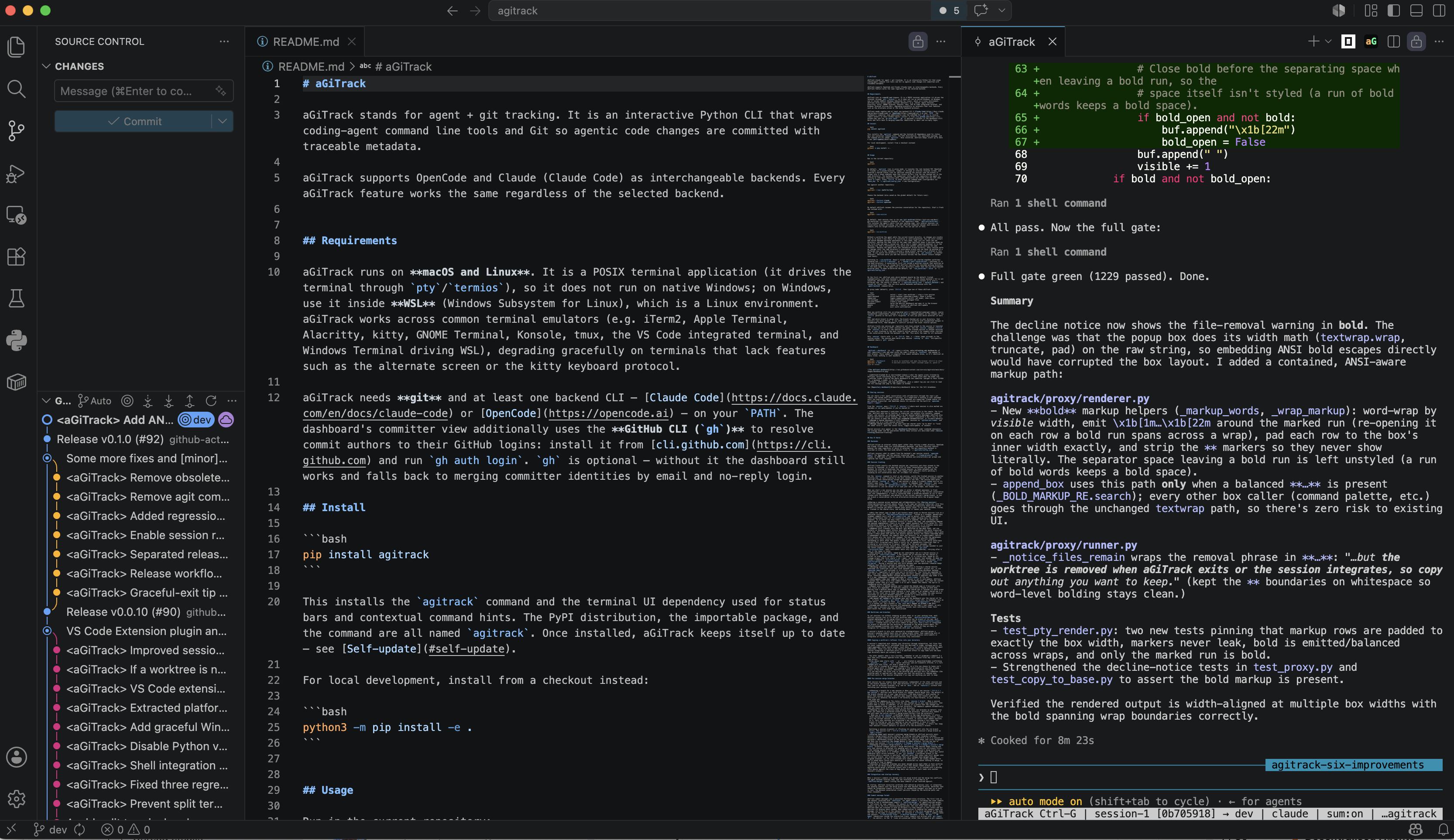
aGiTrack is also available as a VS Code extension. Install it from the Marketplace and launch aGiTrack inside VS Code with one click — the aG button in the editor toolbar (top-right), or the aGiTrack: commands in the Command Palette. It runs the real aGiTrack CLI in an integrated terminal (installing the CLI on first use if it's missing), so you get the complete experience — the agent's native interface, the Ctrl-G menu, sessions, sharing, worktrees, and per-turn auto-commits. See Editor integration for details.
Usage
Run in the current repository:
agitrack
Run with no arguments and aGiTrack asks which mode you want: a menu of every mode, with a line saying what each one is for and the command that goes straight there next time. Move with the arrow keys and press Enter (a number or a mode name works too, and q quits). The first entry, background tracking with automatic commits, is the default, because it asks least of you: you keep using your coding agent exactly as you do now and aGiTrack tracks it from the outside.
Whichever mode you pick, aGiTrack opens that repository's dashboard in your browser as it starts. See Dashboard.
To skip the menu, name the mode on the command line:
| Command | Mode |
|---|---|
agitrack -b |
background tracking, automatic commits (the menu's default) |
agitrack -b -m |
background tracking, commits you make |
agitrack -i |
interactive TUI in an isolated worktree |
agitrack -i --no-worktree |
interactive TUI on your current branch |
agitrack -i -m |
interactive TUI, commits you make |
agitrack -d |
open this repository's dashboard |
agitrack --backtrace |
reconstruct past agent sessions |
agitrack status |
report what aGiTrack is running here (same as -s) |
agitrack stop |
stop whatever aGiTrack is running here, in any mode |
agitrack redact |
remove recorded interaction traces from history (see Removing a recorded conversation) |
status, stop and redact are aGiTrack's only bare-word commands; any other bare word is reported as an unknown command (with the known ones listed) instead of being run. To send a single word to the agent as a prompt, put it after --: agitrack -- refactor.
agitrack stop is the one way to stop. Whatever is holding the repository, it stops it: the background tracker, an interactive session, and this repository's dashboard. You do not have to remember which mode you started.
In interactive mode (-i), aGiTrack launches the AI agent's normal interface (Claude, Codex or OpenCode) and sits quietly between you and it — you use the agent exactly as you would on its own. At the bottom of the screen, aGiTrack adds a status line showing: the current session and the branch its work goes into (in bold when that branch isn't the one you have checked out), which agent is running, whether commit summaries are on, and which repository you're working in. Press Ctrl-G at any time to open aGiTrack's own menu (you can change this key with menu_key in ~/.agitrack/config.json — see Configuration).
Modes at a glance
aGiTrack has two independent choices — how you run it (interactive vs background) and when commits happen (auto vs manual) — that combine into four modes, and the interactive one splits again on whether an isolated worktree is used. Every mode records the same per-turn tracking (interaction trace + token metadata); they differ only in who drives the agent, who triggers the commit, and where the agent's edits land.
| Auto commit (default) | Manual commit (-m / --manual-commits) |
|
|---|---|---|
Background (-b / --background — headless, no TUI; you drive the agent from any UI) |
agitrack -b (the default mode) — aGiTrack tracks the session you drive elsewhere and commits each completed turn itself.No worktree (always). |
agitrack -b -m — aGiTrack tracks the session you drive; you trigger every commit and pending turns fold into it.No worktree (always). |
Interactive (-i / --interactive — aGiTrack runs the agent's TUI) |
agitrack -i — aGiTrack proxies the agent and commits each completed turn for you.Worktree by default (isolated checkout, auto-merged into the target branch); agitrack -i --no-worktree is the same TUI editing your current branch directly. |
agitrack -i -m — aGiTrack proxies the agent; you trigger every commit and pending turns fold into it.No worktree (always) — edits the checked-out branch directly. |
- Interactive vs Background. Background (
-b, and what a bareagitrackoffers first) runs without a TUI so you can drive the agent from any front-end — its own CLI, an IDE extension, a chat window — while aGiTrack watches the transcript and tracks it. See Background mode. Interactive (-i) launches the agent's native interface with aGiTrack in between. - Worktree vs your working tree is a real choice, not a detail, which is why the menu lists the two interactive runs separately. With a worktree the agent works in an isolated checkout and its finished turns are merged back, so several sessions can run at once; without one (
--no-worktree) it edits your current branch directly and you see every change live in your editor, one session at a time. - Auto vs Manual. Auto (the default, both interactive and background) turns each finished agent turn into a commit automatically. Manual (
-m) leaves commits entirely up to you: turns are recorded on a hidden side ref and folded into your commit when you make it. See Manual commits. - Worktree only applies to interactive + auto. That one mode runs in an isolated git worktree and aGiTrack integrates (merges) its commits into the target branch for you. The other modes always run without a worktree (
--no-worktree): manual and background modes are defined to operate on the branch you have checked out, editing your working directory directly. When the agent commits on its own in any no-worktree mode, aprepare-commit-msghook folds the tracking straight into that commit (a "cover" commit is only the fallback). You can also force no-worktree on the interactive+auto default with--no-worktree. - One instance per repo. Whichever mode you pick, only one aGiTrack may run per repository (interactive or background — never two), so they never fight over commits. A second start is refused when an interactive session holds the repo; re-running
agitrack -bwhile a background tracker is running replaces it with a fresh one (like re-runningagitrack -d), so a rerun after an update always picks up the new code. Useagitrack statusto see what is running, andagitrack stopto stop it whatever mode it is (agitrack -b status/-b stopstill act on a background tracker specifically).
Each mode is described in full below (--interactive, --no-worktree, --manual-commits, --background), and every choice is also settable in config (use_worktrees, manual_commits, background) so it becomes your default. Switching a repo between any of these modes between runs is supported — aGiTrack cleans up or ignores the previous mode's state (hooks, side refs, background handshake) on the next launch.
Repository, backend, and session
Run against another repository:
agitrack --repo /path/to/repo
Choose the backend (also saved as the global default for future runs):
agitrack --backend claude
agitrack --backend codex
agitrack --backend opencode
By default aGiTrack resumes the previous conversation for the repository. Start a fresh one instead with:
agitrack --new-session
Worktrees and no-worktree (--no-worktree)
By default, each session runs in its own git worktree — a separate checkout of the repository under .agitrack/worktrees/. This isolates the agent's edits from your working copy, lets several sessions run concurrently without colliding, and lets aGiTrack integrate (merge) each session's commits into its target branch on its own. You can opt out of this:
agitrack --no-worktree
Without a worktree the agent edits the current branch directly, so changes are visible live as it works — but there's no isolation or auto-integration. aGiTrack still commits each turn, and — because it installs a prepare-commit-msg hook in this mode — when the agent makes its own git commit, the interaction trace and token metadata are folded straight into that commit, so you get a single, fully-tracked commit rather than a separate "cover" commit on top (the cover is kept only as a fallback for when the hook can't be installed). You can still start and switch between multiple sessions in this mode; they just all share the one directory, editing the same files at the same time (aGiTrack shows a one-time heads-up the first time you open a second one, and a turn's commit captures whatever is in the working tree then — coordinate as you would with another person editing the same checkout). Because the agent edits the checked-out branch directly, every session works on (merges into) the repo directory's current branch and can never be pointed at a different one — so the "change a session's merge branch" option isn't offered in this mode. If you switch the directory's branch out-of-band (e.g. git checkout in another terminal), aGiTrack warns you and the session follows the new branch (future changes land there).
If you ran sessions the normal way before (each in its own worktree) and then start aGiTrack with --no-worktree, those earlier sessions are still there to resume — pick one from Ctrl-G → sessions (or ↻ Resume a past conversation…) and it picks up in your main repository directory. (Why this needs handling: a session that first ran inside a worktree remembers that worktree folder as where it was working. When you resume it without worktrees, aGiTrack updates that remembered folder to your main directory, so the agent works there instead of trying to use the old worktree folder — which no longer exists.) To make no-worktree the default for every run, set "use_worktrees": false in ~/.agitrack/config.json.
Manual commits (--manual-commits / -m)
agitrack --manual-commits # or: agitrack -m
For a workflow that feels like plain git — you decide when to commit — use manual-commit mode. It always runs without a worktree (it implies --no-worktree): the agent edits the current branch directly, but aGiTrack does not create a commit each turn. Instead every turn is recorded as a hidden "latent" commit on a side ref (refs/agitrack/manual/<session>) that your branch never shows, so your history stays clean while you work.
When you commit — either through Ctrl-G → git-commit or an ordinary git commit on the command line / in your editor — aGiTrack folds all the pending latent turns' interaction traces and metadata into that one commit, alongside your own changes. So you get a single, self-contained commit that carries both your edits and the full agent tracking, whether or not the commit went through aGiTrack's menu (a managed prepare-commit-msg hook does the folding; it's removed when the session ends). The dashboard shows the pending turns live, marked pending, until you commit. Enable it for every run with "manual_commits": true in ~/.agitrack/config.json.
Background mode (--background / -b)
agitrack --background     # auto commits (the default), no TUI
agitrack -b -m            # or manual (user-triggered) commits
agitrack -b status        # is a background tracker running on this repo?
agitrack -b stop          # stop it
agitrack status           # or --status / -s: is aGiTrack running here, and in which mode?
agitrack status (also spelled --status / -s) reports, for the current repo, whether aGiTrack is running and in which mode — interactive vs background, auto vs manual commit, and worktree vs no-worktree — or that it isn't running (plus any available update). It's the quick way to see what's tracking a repo.
Background mode runs aGiTrack without its interactive TUI, so you can drive the coding agent from any UI you like — its native CLI, an IDE extension (e.g. Claude's VS Code extension), a chat window — while aGiTrack watches that session's local transcript and does all the same tracking the TUI would: it records each completed turn, summarizes it, and installs the commit hooks that fold the interaction trace and token metadata into your commits. aGiTrack does not launch or relay the agent here; it tracks whatever session you drive.
Great for GUI users. This is especially useful if you'd rather keep working in a GUI instead of a terminal — the Claude desktop app, an IDE extension, or any other front-end. Start
agitrack -bonce and keep using your preferred interface; aGiTrack tracks the session and commits your AI work in the background, no terminal UI required.
It runs as a detached daemon, exactly like the dashboard (agitrack -d). agitrack -b starts the tracker in the background and returns to your shell immediately — the terminal isn't tied up. Like every aGiTrack daemon it keeps running after you close the terminal, until you stop it explicitly with agitrack -b stop. agitrack -b status reports whether one is running (and any available update). Re-running agitrack -b while a tracker is already running restarts it (the old daemon gets a clean shutdown first) — handy after installing an aGiTrack update, since the fresh daemon runs the new code. The daemon logs its startup and per-turn activity to <repo>/.agitrack/background.log.
Background mode always runs without a worktree (it implies --no-worktree), and supports either commit style:
- Auto (the default, like the interactive TUI): aGiTrack commits each completed agent turn itself. If the agent makes its own commit, a
prepare-commit-msghook folds the tracking directly into that commit (a metadata-only "cover" commit is only the fallback when the hook can't be installed). - Manual (
--manual-commits/-m): exactly like manual mode above — each turn is recorded on a hidden latent ref and folded into your commit by theprepare-commit-msghook.
Only one aGiTrack may run per repository (a foreground TUI or a background daemon — never both, and never two), so they can't fight over commits; a second start is refused. Enable background mode for every run with "background": true in ~/.agitrack/config.json.
Whichever agent you open. A background tracker is not tied to one backend. It watches every coding agent installed on your machine and follows the one you actually drive in this repo: start it while your default is OpenCode, then open Claude Code, and those turns are tracked as Claude's — the commit metadata names the backend that really did the work. Every installed backend's session-start hook is armed too, so any of them can start the tracker again after a reboot, and each gets aGiTrack's commit-guidance note where its CLI has a channel for one. Which backend is followed is decided by whose conversation in this repository was active most recently, so a backend you used here once last month never steals a session running now; a turn in flight is never abandoned mid-way.
Only repo-local AI work is ever tracked. aGiTrack keys the backend session strictly to this repository's directory (Claude by its per-directory transcript store; Codex and OpenCode by each session's recorded working directory), so a session you drive in a different repo is never picked up by this repo's tracker.
Never forget to start it: track (or auto-start) on commit
Because a background tracker is easy to forget after a reboot, aGiTrack installs a persistent pre-commit hook (it survives aGiTrack not running). When you git commit while no tracker is running, the hook — only if the AI actually made changes since your last commit (non-zero tokens) — records the pending turns and folds their interaction trace and metadata into that very commit (which stays your commit, with your message), so AI work is never silently lost, and then auto-starts the background tracker for the turns that follow — in the same auto/manual commit mode as your last run. The command line tells you it started automatically and how to stop it. A purely human commit (no AI work) is left completely untouched: no trailer, no auto-start, no footprint.
Because this hook outlives the background tracker, agitrack -b explains it and asks whether to enable it (default: yes) whenever auto-start is off — the first time you run it in a repo, and again after you've turned it off (e.g. with agitrack --remove-hooks), so you can always re-enable it. Once enabled it stops asking. The choice is remembered per repo (autotrack_hook: auto/off, in the repo's .agitrack/config.json, also under Ctrl-G → settings).
To turn it off at any time, run agitrack --remove-hooks — it removes every aGiTrack-installed git hook (the auto-track pre-commit and the manual-commit prepare-commit-msg/post-commit fold hooks), restores any hooks they chained, and sets autotrack_hook: off so it won't reinstall.
Update reminders while running in the background
A background daemon periodically checks whether a newer aGiTrack is available (it never auto-installs — installing may need pip/pipx/brew/an MSI). When one is found it records it and reminds you where you'll actually see it: in agitrack -b status, in the git commit output (via the pre-commit hook), and as a banner on the dashboard. Turn the checks off with "check_for_updates": false.
Once an update has fully completed (through pip/pipx/brew, the MSI, aGiTrack's own update prompt, or a git pull on a source install), every running daemon — the background tracker, the dashboard, and a backtrace — notices within a minute or two and restarts itself onto the new code, keeping its port so an open dashboard URL stays valid. Half-applied updates never trigger a restart: on a source install the daemons wait for the new commit to have landed, on a pip install for the new version's metadata to be in place. And if a restart attempt fails, the daemon simply keeps running on the current version and retries — it stays visible in agitrack --daemons and still honors agitrack -d stop / --backtrace stop / -b stop throughout. Only an interactive TUI session still needs a quit and relaunch to pick up new code.
First run and the command menu
On the first run, aGiTrack asks which backend should be the default (listed alphabetically, with each backend's install status). If the chosen backend's CLI is not installed, aGiTrack shows install instructions and lets you install it or pick a different one. The choice is saved in ~/.agitrack/config.json (default_backend) and reused for future runs. You can also switch backends mid-session with the agent-backend command below.
In interactive mode (-i), press Ctrl-G to open aGiTrack's menu, then pick a command from the list (or type its name):
sessions                  switch / start (own worktree) / stop a live session
agent-backend             switch backend (claude|codex|opencode); shows a picker
git-unstaged              show intentionally unstaged files
git-commit                commit your changes (folds in pending agent turns in --manual-commits mode)
dashboard                 open this repo on the dashboard (it keeps running after aGiTrack quits, until `agitrack -d stop`)
settings                  view/change all config options (repo-local or global)
update                    check for / install an aGiTrack self-update
exit aGiTrack             quit aGiTrack (with confirmation); Esc just closes the menu
When any worktree still has un-integrated work — committed-but-unmerged commits, or
uncommitted (committable) changes — a merge command appears at the top of the
Ctrl-G palette so the work isn't forgotten. It lets you pick which worktree (if more than
one) and which branch to merge into: the branch checked out in your directory, that
session's own merge branch, or any other branch. A worktree with uncommitted changes is
committed first, then merged; a conflict surfaces the usual resolve options.
aGiTrack tracks one session per repository and stays pinned to the session it launched, so it never drifts to other conversations you open. Use the session command to start a new session, switch the tracked session to another existing one, or sync tracking to the most recently active session (for example after starting a fresh conversation inside the backend's own TUI) — this works the same for all backends. Only session starts with s, so Ctrl-G then s + Enter jumps straight to the picker, which marks each session running or idle; git-specific commands share a git- prefix. See Session tracking below for how sessions are named, forked, and tracked.
Dashboard
agitrack --dashboard (or -d) opens a live, auto-refreshing web dashboard of your repository — who and what wrote the code — served on localhost and opened in your browser. Every number is computed from commit metadata alone, so it's identical on every clone; nothing is sent anywhere. You rarely need to ask for it: starting aGiTrack on a repository in any mode opens its dashboard for you (turn that off with open_dashboard_on_start in config).
One dashboard, one port, every repository. A single server serves all of your projects, switched by URL path: /r/<repo>/ is a repository's tracked view and /b/<repo>/ is its backtrace. Pick another repository from the selector in the page header and the same page you were reading (dashboard, story, or learn) opens for it. So there is one port to remember and one ssh -L line to forward, however many projects you have. The list of repositories it offers is the ones aGiTrack is doing something for: being tracked right now, or armed — nothing running this second, but the auto-start hook will start a tracker on your next commit or agent session (the row says auto-start rather than off). A repository that is neither, and that you have not opened here, is left out rather than cluttering the list forever; it is not forgotten, so working in it again — or agitrack -d inside it — brings it straight back. agitrack stop drops one from the list, and agitrack -d stop stops the whole dashboard.
Filter by anything the commits record. Beside the committer / backend / model / date controls, an advanced panel filters on any field in a commit's aGiTrack metadata — harness version, operating system, session name, context compactions, token counts, whatever a future version adds. Pick a field, an operator (is, contains, between, ≥, ≤) and a value; add as many conditions as you like, then press apply — nothing re-filters while you are still typing. Ranges work on more than numbers: between orders versions and timestamps sensibly too, so 2.1.220 → 2.1.238 and 2026-08-01 → 2026-08-20 both read the way you would expect, and either end can be left blank for an open range. Conditions on different fields all have to match, while several values of the same field match any of them, so you can widen one axis while narrowing another. The whole page — every panel, chart and the commit log — recomputes for the filtered slice, and the filter rides in the URL so it can be shared. It is offered on the backtrace view too.
The header tells you what is happening. A repository selector switches between every project aGiTrack knows, and every row in it carries that project's own tracking state: a lit dot and the mode where a tracker is running, "off" where none is, so one glance answers "which of my projects is actually being tracked?" for all of them at once. It scrolls when the list is long, re-reads the states each time it opens, and its last entry explains how to add a project. Beside it, a status light repeats the state of the repository you are looking at, and a tracked / backtrace toggle switches the view. Switching repository keeps the page you were reading and picks whichever view suits the project you moved to, rather than carrying the current one across.
Two views, kept separate. The toggle applies to the dashboard, the story page and the learn page alike, since all three read differently depending on which history they are telling:
- tracked is what aGiTrack recorded: each commit with the prompts, replies and token counts that produced exactly those lines.
- backtrace is what can be reconstructed from your agent's own transcripts. It is labelled as inferred everywhere it appears, and kept apart from the tracked view on purpose, because a reconstruction is less accurate than a recording and merging the two would quietly drag the recorded history down to the inferred one's accuracy.
aGiTrack picks the view for you the first time and then gets out of the way. A repository with nothing tracked yet but reconstructable sessions opens on the backtrace, because an empty page is the worst possible answer when the history is sitting in the transcripts. The first time that repository has a commit carrying token counts, it switches to the tracked view, once; after that whichever view you last chose stands. The tracked view also tells you when the backtrace holds agent work no commit covers, so nothing goes quietly untracked, and a repository with no agent history at all says so plainly rather than drawing a coverage bar over a void.
Try it without installing: agitrack.core-aix.org/dashboard is this dashboard running on aGiTrack's own repository — a static demo regenerated from the real history on every release. Its storyline and learn page are there too.
agitrack --dashboard        # open this repo on the dashboard (starting it if needed), then return to your shell
agitrack -d status          # where the dashboard is running, and which repositories it serves
agitrack stop               # stop aGiTrack here, which also drops this repo from the dashboard
agitrack -d stop            # stop the dashboard itself, for every repository
agitrack -d text            # one-shot plain-text report instead (pipe it, paste it into an issue)
agitrack -d export          # write a server-free static copy of the dashboard (see --export-dir) for any static web host
Re-running agitrack -d while the dashboard is already up simply opens this repository on it (and adds it to the switcher if it was not there). The dashboard restarts itself after an aGiTrack update, so it is always serving the current build.
On a remote machine. When you run agitrack -d (or --backtrace) in an SSH session, localhost would only be reachable from the remote box — not from where your browser is. So aGiTrack listens on all interfaces instead and prints the remote's own address; open it directly if your firewall allows that port, and if it doesn't, the same message gives you the exact ssh -L command to copy-paste on your own machine plus the http://localhost:… URL it creates. There is only ever one port to forward (8765 by default, or the next free one if something else holds it), however many repositories and whichever view you are looking at. Prefer to keep it off the network? AGITRACK_DASHBOARD_HOST=127.0.0.1 pins it to loopback (the SSH-forwarding instructions are then the only route, and are printed as such); the variable also accepts a specific interface address.
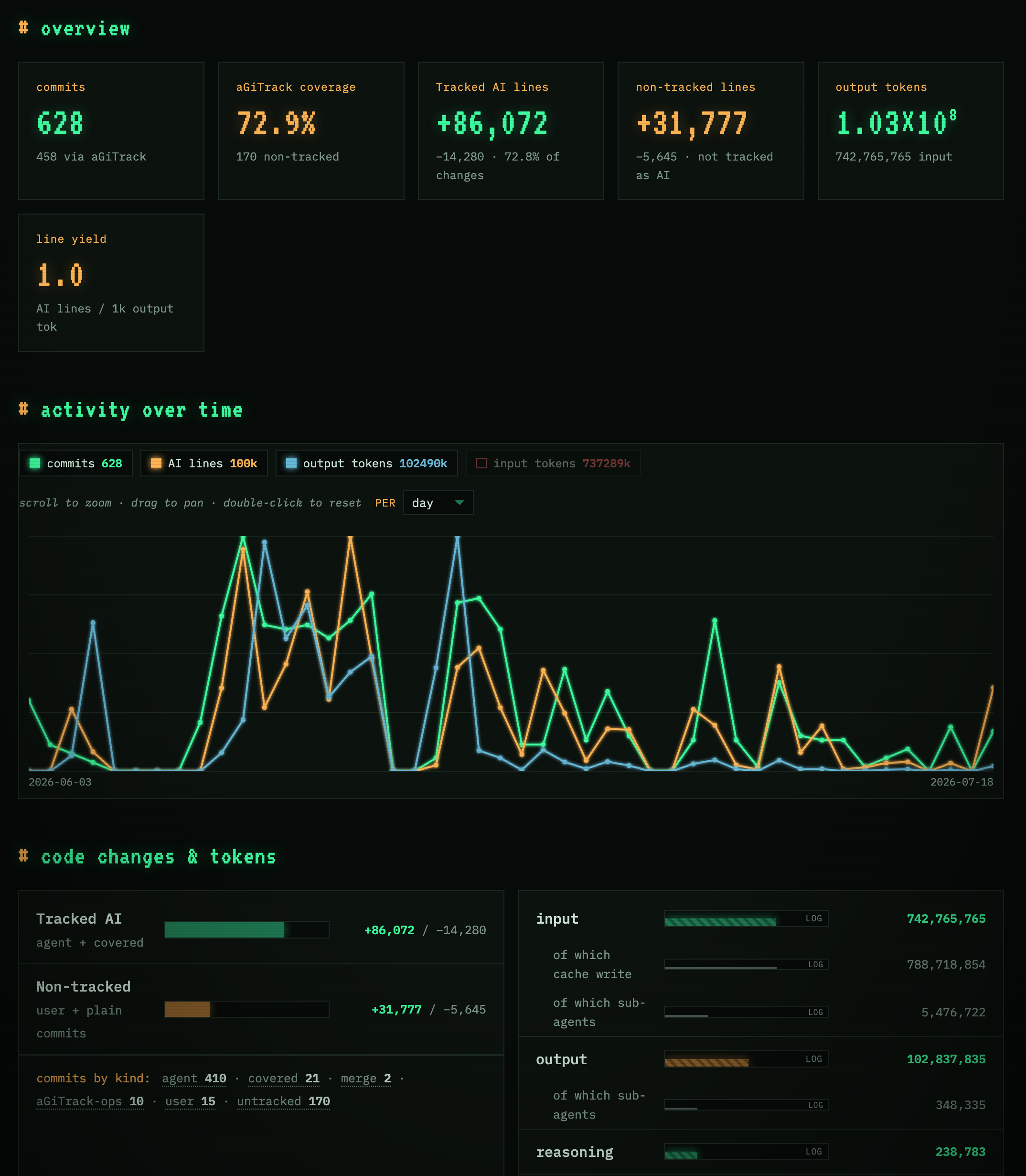
- aGiTrack-tracked AI vs non-tracked lines — what the agents wrote (tracked by aGiTrack) versus everything else; it never claims a human wrote what the model did.
- Filter live — narrow the whole dashboard to one committer (merged to their GitHub ID), a backend, a model, or a time range.
- Agent efficiency — an efficiency insights panel that mines the filtered history for how the agents are being driven (correction loops, rework hotspots, unverified turns, context cost …), shows whether each habit is improving or worsening, and suggests what to change.
- Tokens, efficiency, and loop detection, plus a Log section with two tabs: commits (click any commit to read its full message and show its file diff) and files (a collapsible folder tree — pick a file to see its whole change history and the conversation/tokens behind each change). All diffs are served from your local clone — no GitHub needed.
The dashboard is also the way in to the other two pages: 📖 story, which tells this history at whatever zoom you like, and 🎓 learn, which coaches you from it.
See Repository dashboard below for the full breakdown.
Learn: let the agent coach you from your own sessions
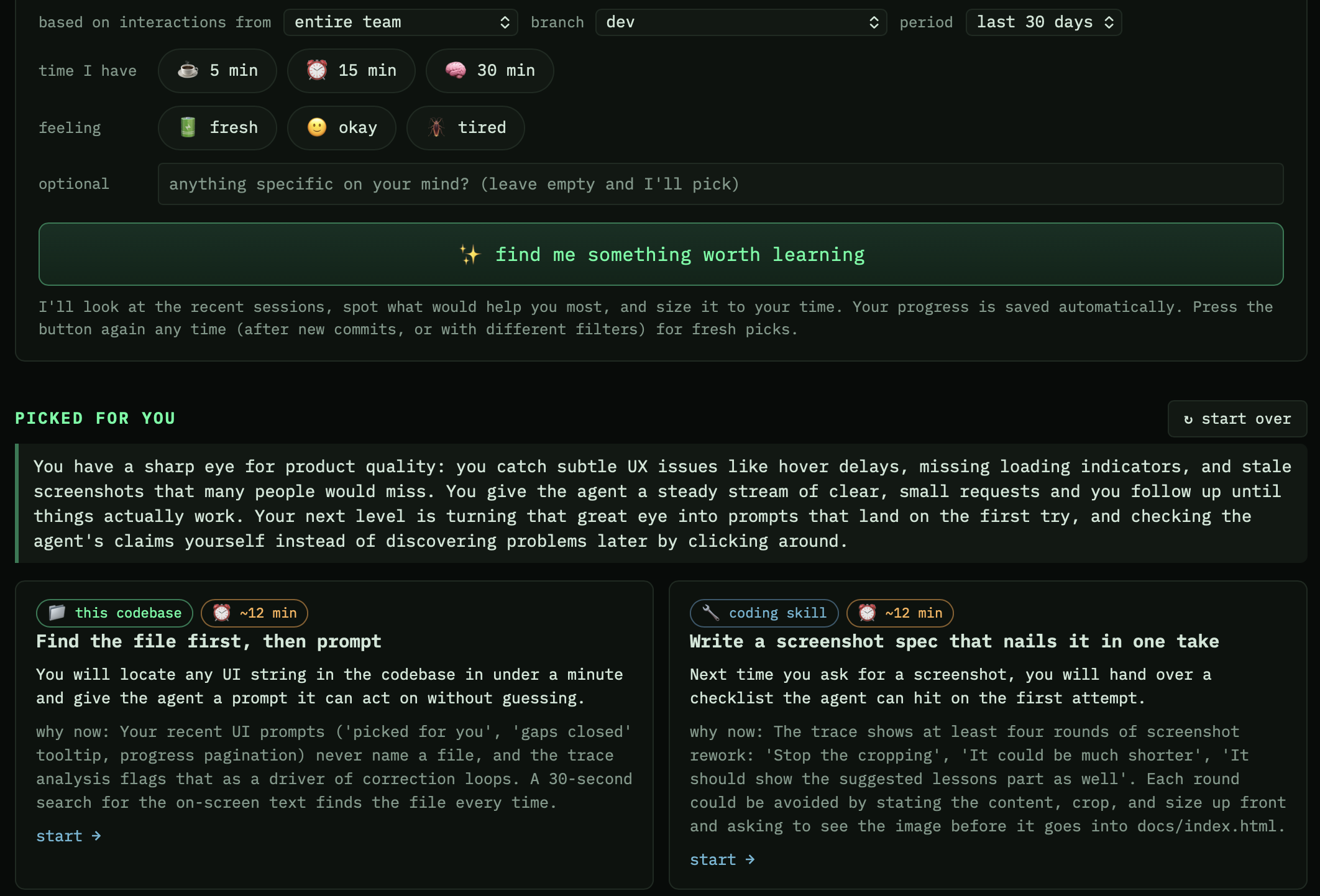
The dashboard's learn page (the big Learn from these traces card in the dashboard's agent-efficiency section, the 🎓 learn link in the header, or http://localhost:8765/learn) turns your interaction traces into a personal coach. Instead of you deciding what to study, the backend agent reads how you actually work with it and proposes small lessons worth your time right now. No effort required beyond two taps.
How a session goes:
- Check in. Tap how much time you have (5 / 15 / 30 min) and how you feel (🔋 fresh / 🙂 okay / 🪫 tired). Optionally pick whose sessions to learn from (your own by default, a teammate's, or the whole team), a branch (the trace lives in commits, so it is branch-dependent; defaults to the current one), and a time period. A free-text field exists but is optional; if you leave it empty the coach picks for you. If the selection holds (almost) no captured trace, the page says so and explains how to get one (
agitrack --backtrace, ideally--backtrace commit, for history written outside aGiTrack; or just run your next session throughagitrack), and offers starter topics (first tracked session, picking a backend, backtrace, agent-driving habits) in the meantime. - Get suggestions. The agent reads a digest of the selected traces (your prompts, correction loops, rework hotspots, the efficiency insights, the repo's shape) plus what you've already learned, then assesses your current level, names the knowledge gaps it can actually evidence, and proposes 3-4 lessons sized to your time and energy. Each suggestion says why now, citing the traces ("you asked the agent to untangle branches four times this month").
- Learn, step by step. Tap a suggestion (a full-screen "writing your lesson" indicator shows while your coach writes) and the page walks you through the lesson one small step at a time: 3-7 bite-size steps with next/back buttons and progress dots, sized to your time budget, in two flavors: coding skills that make you drive agents more effectively (git, testing, debugging, prompt habits) and this-codebase knowledge so you can spot issues and fix simple things yourself. Everything happens inside the page: code worth studying is shown right in the steps, and the final step is a "try this next time" tip. Reaching the end unlocks 1-3 external links (official docs only), a quick-check quiz, and a guided in-page exercise: the material to work with (a snippet, a diff, a scenario) is part of the task, you type your answer, and your aGiTrack coach reviews it. No terminal, no leaving the page. A follow-up chat box answers anything unclear.
- Progress tracks itself. Opening a lesson, finishing it, time on the page (visibility-aware), quiz scores, and exercise attempts are all recorded automatically, with no forms to fill. The next round of suggestions builds on what you've completed instead of repeating it, and gaps close as the lessons addressing them are finished.
Per-user progress, optional git sync. Progress is kept per user (your GitHub ID, falling back to your git user.name) in .agitrack/learning.json, local and git-ignored by default. If you flip on progress sync (in the page's "coach engine & progress sync" panel), your progress log is published to the repo's remote on a history-free ref (refs/agitrack/learning-progress, one entry per user), the same mechanism shared sessions use, so teammates can see each other's learning progress. It also travels with you: on a new machine or a fresh clone where you have no local progress yet, opening the learn page fetches your synced entry, restores it automatically ("welcome back!"), and re-enables sync, so you pick up exactly where you left off. It's off by default and progress stays tracked locally either way. You can learn from a teammate's sessions while your progress stays logged under your own ID.
Choosing the coach engine. By default lessons are generated by the latest session's backend and model for the repo. Change it either on the page (the "coach engine" panel lists every backend and the models each CLI reports) or in config: learning_backend / learning_model in .agitrack/config.json (repo) or ~/.agitrack/config.json (global), repo value winning. A model id that belongs to the other backend's format is ignored so a mismatch can never break the page.
The learn page is also served in backtrace mode, so you can be coached from reconstructed sessions too (in a directory that isn't a git repo, progress stays local and the sync toggle reports itself unavailable). The efficiency insights panel is likewise available in both the live and backtrace dashboards.
Like the summarizer, all coach calls are one-shot bare backend runs from a scratch directory outside your repo: they never touch your coding sessions, and nothing is uploaded anywhere (the agent backend you already use is the only thing called).
Storyline: your repo's history, told as a story
The dashboard's story page (the 📖 story link in the header, the Read it as a story card above the commit log, or http://localhost:8765/story) turns the same commits into something you can actually read: an arc with a title, moments you zoom into one at a time, and under each one the developer's own thinking and the code that came out of it.
It is a walk in, not a wall of text. You start at the whole project, open what interests you, and one ← back button always says where it lands. A which days control (the dashboard's, with the same presets and the same custom from/to range) decides what a telling covers, so you can ask for the story of last week as easily as the story of everything:
- The parts. Your history split into a handful of eras (how many depends on how long and how busy the history is, not a fixed five), each with its span, its size, and a sparkline of the work inside it. Click one to go inside it.
- The moments. A part told across its whole range, newest first: when it happened, what kind of moment it was (turning point, feature, fix, refactor, milestone, experiment), one line of what happened, and its size drawn rather than described (a bar for the lines it moved, a dot per commit, its token cost, all labelled).
- All the way in. The telling, then what you asked for: the actual prompts you typed at the pivotal moments, each with a sentence on what you were working out. Those quotes are never written by the agent; they are read straight out of the
# Interaction Tracein your commits, and a commit the model cannot point to is dropped. Under that, the commits themselves, each opening on its commit message with a button to flip to the file changes.
Press tell me the story and your backend agent does two small readings: one over the whole timeline, which gives you the parts above (always complete, however long the project is), and one over the most recent stretch, which gives you moments you can open. About twenty seconds, with a spinner that names the model spending your tokens and stops the moment you ask it to. A moment is written out the first time you open it, one call over that moment's own material, so you only pay for depth where you actually read. Everything is stored per branch in .agitrack/story.json and costs nothing to reopen. When new commits arrive, add the N new commits continues the story instead of retelling it. Tell it plainly, playfully or epically, pick which days it covers, add an instruction of your own, and pick which backend and model tells it (the same setting the learn page uses); change any of those and the tell it again button lights up, because a story is written with the settings of the moment it was told and nothing changes until you press it. Deep-link straight to a depth (#z3.part-2) or a moment (#ch-...).
The writer is handed each sitting of work with every commit stamped to the minute, oldest first, and is asked for one moment per sitting — so a moment cannot quietly reorder your week, and no commit can be lost to an id the model mistyped.
Before anything is generated (or if no backend is configured) the page still shows the shape of it: every sitting of work, grouped, with the prompt that started it. That part needs no agent at all. The storyline is served in backtrace mode too, where it tells the story of the reconstruction instead of a branch.
Backtrace — show and commit a history you didn't track from day one
Didn't run aGiTrack from the start? --backtrace reconstructs how your past Claude, Codex and OpenCode sessions changed a directory, purely from the transcripts already on your machine — so you can see (and even bake in) the tracked history retroactively, with no prior aGiTrack use and even in a directory that was never a git repo.
agitrack --backtrace                 # open this directory's backtrace view on the dashboard
agitrack --backtrace text            # one-shot plain-text report instead
agitrack --backtrace status          # where the dashboard is running, and what it serves
agitrack --backtrace stop            # stop showing this directory (`agitrack stop` does the same)
agitrack --backtrace commit --backtrace-branch tracked-history   # write the reconstruction into real git commits
-
--backtrace(view). Reads every local session that ran in this directory (or a subdirectory), recovers each turn's file edits from the tool calls — both the editing tools and the shell, so a file written with acatheredoc or patched withsed -icounts the same as one changed withEdit— and shows the same dashboard — tokens, models, lines changed, the full file browser, and the complete user↔agent trace behind each change — clearly labeled with a frozen banner as a historical reconstruction, not live repo status. It is served by the same dashboard as everything else, at/b/<repo>/rather than/r/<repo>/(see Dashboard), so the header's tracked / backtrace toggle moves between the two views of a repository and its repository selector moves between projects, on one port. The reconstruction keeps up with new sessions while it is open. -
--backtrace commit(bake it in). Replays your existing git history onto a new branch (--backtrace-branch <name>), and for each commit whose files an agent turn produced, appends the reconstructed# Interaction Traceand# aGiTrack Metadata(backend, backend version, model, tokens, timings) — so a project built without aGiTrack ends up with a fully tracked history the dashboard understands. Commits with no AI correspondence are kept verbatim; trees, authors and dates are preserved exactly.- It rewrites history (every commit gets a new hash), so it only runs on a new branch, requires a clean working tree (commit or
.gitignoreyour pending files first), and never touches your current branch. Because the new branch is a rewrite it is not a fast-forward of the old one — aGiTrack prints the exact steps to review it and, if you choose, force-replace the old branch. A progress bar shows during the replay.
- It rewrites history (every commit gets a new hash), so it only runs on a new branch, requires a clean working tree (commit or
The reconstruction is best-effort from what the transcripts recorded; review it before relying on it. By default nothing is uploaded — it all runs locally; the one exception is opt-in and described next.
A new project at an old path. Transcripts are keyed by directory, so a directory you deleted and recreated would otherwise hand its replacement the previous occupant's conversations. Sessions whose transcript stopped changing before the directory itself was created are set aside, and the banner says how many. Where the filesystem does not record a creation time (most Linux setups) nothing is filtered, and AGITRACK_BACKTRACE_ALL_SESSIONS=1 brings them back everywhere.
Across machines and teammates
A transcript only exists on the machine that recorded it, so a plain --backtrace shows one laptop's view of a project. Two commands together turn it into the project's view: everyone pushes their sessions to the shared remote, and the reconstruction pulls them all back.
agitrack --share-sessions            # push EVERY local session for this repo to origin, then exit
agitrack --backtrace                 # reconstructs from local sessions AND everything on origin
-
--share-sessions(upload). Does what thesessionmenu's Share this session does, for every conversation recorded in this directory (or a subdirectory), on every backend, in one pass — no TUI, no agent launched. Each is published under your GitHub id using the same storage, redaction and cap as an ordinary share (see Sharing sessions). The same consent applies: transcripts can contain file contents, command output and secrets, the masking is best-effort and not a guarantee, and this uploads all of them at once — so review what's in them first. Run it whenever you want to publish a stretch of work; it is safe to repeat.- Idempotent. A session already shared with identical content is skipped without a network round trip, so re-running costs almost nothing.
- Never rewinds. A session whose shared copy already has more turns than this machine's is refused, not overwritten — an old laptop coming back online can't roll back everyone else's copy. Those are reported as
behind; pass--overwrite-sharedto deliberately replace them. - Sessions keep their aGiTrack name where they have one, otherwise
session-<short-id>.
-
--backtrace(consolidated view). After the local transcripts, the backtrace fetches every session shared tooriginfor this repo and reconstructs those too. Because each arrives under the GitHub id that shared it, turns can finally be attributed to a developer — a transcript records no git author, so before this every reconstructed turn belonged to nobody. The dashboard's by committer breakdown, the file browser and the per-turn traces then cover the whole team, and the banner says how much came from where: "reconstructed 12 agent turn(s) from 3 local session(s) and 9 shared from origin (dana-eng, shiqiangw)".- A fresh clone works: with no local transcripts at all,
--backtracereconstructs the entire shared history of the project. - A session present both locally and on origin is counted once, and the local copy wins — it is the complete one (shared copies may be capped for transport).
- A collaborator's edits are made relative to their checkout root, so their line counts are correct even though their absolute paths mean nothing on your machine.
- Your own sessions are labeled with your GitHub id only when someone else's work is in the view; a single-machine backtrace names nobody and does no identity lookup.
- Fetched transcripts are cached outside your checkout, so they never appear as untracked files. Offline, or with no remote, the local reconstruction still works exactly as before.
- A fresh clone works: with no local transcripts at all,
Learn and the efficiency insights run on the consolidated view too, so "whose sessions to learn from" can genuinely mean a teammate's.
Sharing sessions
You can share a full agent conversation with collaborators through the repo's git remote, and resume each other's sessions. It's opt-in — nothing is ever uploaded until you explicitly share a session. All three backends are supported: Claude and Codex share their per-session transcript files (Claude's .jsonl under ~/.claude/projects/, Codex's rollout under ~/.codex/sessions/), and OpenCode shares its session via the built-in opencode export/import.
From the session menu (Ctrl-G → session) — where each session is also marked ⇪ shared or ⇪ auto-share if you've shared it:
- Share this session — publishes the current conversation to the remote. The first time, aGiTrack asks you to confirm; a transcript can contain file contents, command output, and secrets, so review what's in the session before sharing (aGiTrack also applies best-effort secret masking, but that is not a guarantee — don't rely on it). You can choose to keep the shared copy updated automatically, or re-share manually.
- Resume a shared session — lists teammates' sessions as
<github-id>/<name>and continues one in a fresh session worktree. - Manage shared sessions — see what you've shared (with "up to date" vs "local has newer turns"), push the latest turns, toggle auto-update, or unshare.
To publish everything at once instead of picking sessions one at a time, use agitrack --share-sessions — the same storage and the same consent, applied to every session recorded for the repo. It is what makes a cross-machine, whole-team backtrace possible.
Shared sessions also appear in the dashboard under shared sessions. The storage model and the guarantees behind these actions are described under Session tracking.
How It Works
📊 User Flow Diagram — a complete, graph-rendered map of aGiTrack's interactive logic: which file/commit status triggers which prompt, and where every option (and nested option) leads. Read it to understand exactly how aGiTrack behaves.
Backends
aGiTrack runs a separate coding agent rather than talking to an AI model itself. Claude (Claude Code), Codex (the OpenAI Codex CLI) and OpenCode are interchangeable, and every feature works the same with any of them. Each repository remembers which agent it uses; your overall default is stored in ~/.agitrack/config.json.
To know what to commit, aGiTrack reads the agent's own record of the conversation: the transcript Claude keeps under ~/.claude/projects/, the rollout file Codex appends under ~/.codex/sessions/, and opencode export for OpenCode. (In JSON mode it instead runs the agent once per prompt and captures its final reply.)
Every feature works on every backend, but the agents themselves differ in what they expose. The honest differences:
| Claude Code | Codex | OpenCode | |
|---|---|---|---|
--backend name |
claude |
codex |
opencode |
| Session transcript | one .jsonl per session |
one rollout .jsonl per session |
its own session store |
| aGiTrack picks the session id | yes | no — Codex mints its own | no |
| Session sharing / resume across machines | yes | yes | yes |
| aGiTrack's "don't self-commit" note | yes (--append-system-prompt) |
no — see below | no |
| Reasoning tokens reported separately | no (folded into output) |
yes | yes |
| Sub-agent tokens counted | yes (sidechains) | yes (spawned threads) | yes (task tool) |
| MCP servers / tools, skills, plugins | yes | yes | MCP only |
Two Codex-specific notes worth knowing:
- aGiTrack's commit-guidance note is not delivered on Codex. Claude's CLI can append to its system prompt; the only equivalent Codex offers (
experimental_instructions_file) replaces the agent prompt outright, which would delete Codex's own coding instructions. aGiTrack therefore doesn't send the note on this backend — so a Codex agent may occasionally commit on its own. aGiTrack still commits every turn correctly either way; a self-commit just shows up as an extra commit it didn't author. (OpenCode has the same limitation.) - Codex's own sandbox is turned off while aGiTrack's is on. Codex sandboxes each command with macOS
sandbox-exec, and aGiTrack already wraps the whole agent insandbox-execto confine writes to the session worktree. Seatbelt sandboxes don't nest, so leaving both on made every filesystem probe fail and Codex fell back to asking permission for each command. aGiTrack disables the inner one only when its own confinement is active. Be aware of the trade-off: aGiTrack's profile is stricter inside the repository (the agent can only write its own session worktree), but it is not stricter outside it — Codex's ownworkspace-writesandbox restricts writes across the whole disk, and dropping it gives the agent more out-of-repo write reach than running Codex alone. Under--no-sandbox/--no-confine, Codex keeps its own sandbox. - Codex asks whether it trusts a directory. aGiTrack runs each session in a fresh worktree, which is a new directory every time. If you have already trusted the repository itself, aGiTrack passes that trust through to the worktree so you aren't asked again; if you haven't, Codex asks as normal.
Session tracking
aGiTrack follows exactly one agent conversation per repository — the one it started — and stays with it, so it won't get confused by other conversations you open in the agent. When it starts, it notes where the conversation currently stands, so the commits, token counts, and conversation records it makes only cover what happens from that point on. Resuming an older conversation won't re-commit its earlier history.
Use the session command to start a new session, switch the tracked session to another existing one, or sync tracking to the most recently active session (for example after starting a fresh conversation inside the backend's own TUI). The session menu marks each session running or idle. A new session is given a friendly random word as its default name (e.g. maple, harbor) — easier to remember than session-1 and, since sessions are shared as <github-id(s)>/<name>, far less likely to clash with a collaborator's; you can accept it or type your own at the prompt, and rename later.
When you start a new session you can make it either a blank session (a fresh conversation) or a fork of the current session — a copy of the current conversation that runs independently. A fork is installed under a brand-new backend id (so it never clashes with the original) and defaults to the current session's merge branch, so you can branch a conversation to try an alternative direction while the original keeps going.
Sharing a session across machines and collaborators (the Sharing sessions actions above) builds on the same per-session transcript, with this storage model and these guarantees. Only sessions you explicitly share are tracked here — a session you haven't shared stays purely local: it is never uploaded, listed, or tracked in the shared store, and nothing about it leaves your machine.
- Only the latest copy is kept — git history never grows. Shared sessions live on a dedicated custom ref
refs/agitrack/shared-sessions, stored as a single, parent-less (orphan) commit built withgit commit-treeand no parent. Every update (manual or auto) rewrites that ref to a brand-new orphan commit holding only the current snapshot. So no matter how many times a session is updated, the ref is always one commit deep — it never accumulates history or bloats the repo, and unsharing removes the session completely (there is no older commit anywhere that still holds it). This deliberately avoids a normal commit chain, whose whole point is to retain every past version — exactly what we don't want for a privacy-sensitive transcript. - Updates still transmit only the diff (git deltifies at the pack level, not via history). Skipping commit history does not mean re-uploading the whole transcript each time. Git delta-compresses by content similarity within a packfile, and a push builds a thin pack that deltas new objects against objects the remote already has — independent of whether the commits share any ancestry. So an orphan-commit rewrite still pushes only the turns that changed. The one requirement is that the previous version still exist locally as a delta base at push time, so aGiTrack defers reclaiming it until after the push (rather than deleting it first, which would have forced a full re-upload every share — costly for an append-only transcript that is re-shared or auto-shared as it grows). Right after the push succeeds, the now-unreferenced previous objects are reclaimed, keeping local storage bounded to just the latest snapshot. Concurrent updates are made safe with
git push --force-with-lease(each contributor edits only their own subtree), retrying after a sync if the lease is stale. - One session is one entry, named by its contributor set. A shared session is displayed as
<id1>+<id2>/<name>— the github ids of everyone who has shared it, sorted (so order never matters), before its name. It is stored once, keyed by its lineage origin (the first sharer's id + name), not by whoever last pushed. So when you resume a teammate'salice/fix-parserand share your continuation, it becomesalice+you/fix-parser— the same entry, now co-owned — rather than a secondyou/fix-parser. Moving a session back and forth between your own machines likewise keeps updating that one entry instead of spawning new names. - Resuming continues the same conversation locally. Picking a shared session downloads its transcript into your local backend store (Claude's project dir, Codex's sessions dir, or via
opencode import) and continues it in a fresh worktree — using whichever backend recorded it, regardless of which one you're currently on. Your turns are appended to your local copy; sharing again updates that one entry (above), guarded by newest-wins below. Choosing Keep both instead deliberately forks a separate copy under a new id — a new, independent lineage published as<you>/<name>of its own. - Auto-update rides your commits. When a session is set to auto-update, aGiTrack re-pushes the latest turns at commit time (in the background, only when the content changed) rather than on a busy timer — so it won't hammer the remote. The opt-in is remembered across aGiTrack runs.
- Newest wins — a behind machine can't rewind the shared copy. Transcripts only grow (turns are appended), so aGiTrack compares conversation length on both ends. Sharing from a machine whose copy is behind the shared one is refused (it would erase newer turns), and resuming never replaces a local copy with an older shared one — it tells you the local one is newer and keeps it by default. This keeps the same session consistent as you move between computers, instead of a stale machine (or its auto-update) dragging everyone back to an earlier state.
- No manual git needed. The Resume menu and the dashboard sync the shared ref for you. (A plain
git clone/git fetchdoes not pull custom refs, so teammates rely on those menus; to inspect by hand:git ls-remote origin 'refs/agitrack/*'.) Because it's a custom ref, not a branch or tag, it won't appear on GitHub's web UI. - Scoped and bounded. Sessions are namespaced by the repo's root commit, so only this repo's sessions are ever uploaded or listed; each contributor keeps their most-recent few, with older ones auto-pruned.
Worktrees and branches
So that sessions don't interfere with each other or with the files you're editing, aGiTrack runs each session in its own git worktree — a separate copy of the repository under .agitrack/worktrees/<name>, where the agent does its work. Each turn's commits go onto a temporary, aGiTrack-managed branch (named agitrack/<backend>/<name>/t<turn>); once aGiTrack merges that turn into the session's target branch, it deletes the temporary branch. All of aGiTrack's own branches start with agitrack/, so they're easy to recognize and never clash with your own.
A session's target branch only ever moves forward by merging — aGiTrack merges a session's finished commits into it, rather than committing onto it directly. A single-writer lock means only one aGiTrack process commits or merges at a time, so sessions running side by side stay consistent.
Copying a worktree's leftover files into your directory
A session's committed work reaches your directory through integration, but files that are never committed don't: untracked files you declined to stage, unstaged edits, and git-ignored files (build output, local data, a .env-style local config the agent generated). Those live only in the session's worktree — which is deleted once the session integrates or aGiTrack exits — so aGiTrack offers to copy them into the base repo directory where you actually work.
- The offer appears when a turn finishes, whether or not it produced a commit — a turn that only touches ignored files stages nothing, yet those files may still need to come across.
- Files whose name starts with
_or.are treated as generated/hidden scaffolding (__pycache__,.venv,.env, editor dotfiles) and are never offered; if a turn changed only such files, you aren't asked at all. - Each file is tracked by a content fingerprint, so a file you choose to leave isn't offered again until it changes. If any of the files would overwrite ones that already exist in the base directory, aGiTrack asks up front whether to overwrite them all, keep the base versions (skip just those — the new files still copy), or confirm each one individually.
- If you decline, the files stay in the worktree and aGiTrack tells you where (the worktree path is spelled out) and reminds you that the worktree is removed when aGiTrack exits or the session integrates — so copy out anything you want to keep.
Per-session merge branches
Each session has its own merge destination, independent of the other sessions and of the branch checked out in your repo directory — so you can run concurrent sessions that land on different branches (e.g. one on main, one on feature-x) without ever switching your working directory.
-
Choosing a branch for a new session. When you start a new session (
Ctrl-G → + New session), aGiTrack asks which branch its changes should merge into. The default is the branch checked out in your repo directory ("the base branch"); pick another to point that session elsewhere. aGiTrack does not check that branch out in your directory — it advances the branch's ref directly via fast-forward, so your working tree stays put. -
Status bar emphasis. The status line shows
session → branch. When a session merges into a branch different from the one checked out in your repo directory, that branch name is shown in bold, so it's obvious at a glance that the changes are landing somewhere other than your current directory. The emphasis updates automatically when you check out a different branch in the directory. -
Staying in sync. Sessions keep merging into their own branches by default, even after you check out a different branch in the repo directory. aGiTrack only asks — and only when the active session's merge branch differs from the directory's:
- When you
git checkouta different branch in the repo directory, it offers three choices: do nothing (the default — every session keeps its own branch), switch only the current session to the directory's branch, or switch all idle sessions to it. Only idle sessions are re-pointed — any session running a turn keeps the branch it started on, and is reported so you can re-point it once it's idle. - When you switch sessions and the one you land on diverges, it offers two: keep that session's branch (default) or switch it to the directory's branch.
Switching a session re-points it (flushing its pending work into the old branch first). The session list (
Ctrl-G → session) shows each session's merge branch asname → branch. - When you
-
Startup keeps each session's previous merge branch. aGiTrack persists every session's merge branch across restarts. On startup (and when resuming a dormant session) it would otherwise assume the directory's current branch — so if a session was assigned a different branch in the previous run, aGiTrack keeps that prior assignment and asks you to confirm the change before it takes effect, telling you how to re-point any session (
Ctrl-G → session → ⤳ Change a session's merge branch). -
Changing a session's merge branch.
Ctrl-G → session → ⤳ Change a session's merge branchre-points any session's merge destination. The session keeps running and only that session is affected (its pending work is flushed into its old branch first). -
A running session's branch can't change mid-run. A session's merge branch can only be changed while it is idle — never during an in-flight turn, whose work would otherwise split across branches. If you
git checkouta different branch in the directory while a session is mid-turn, aGiTrack warns that this run still merges into its current branch, and re-asks after that run's changes have merged into the original branch (so the just-finished work lands where it was always headed before you're asked where future work should go). A cancelled run leaves nothing to merge, so the dialog is free to appear. -
Sessions on different branches are never merged across each other. Each worktree records its own merge branch and aGiTrack only ever merges that branch into it; if anything would merge a different branch into a worktree, it is refused with a warning. (This guards against the class of bug where one session's work leaks onto another session's branch.)
Integration and startup recovery
When merging a session's commits hits a conflict, aGiTrack asks the AI agent to resolve it and records the result as an <aGiTrack-merge> commit (which lists the commits it was resolved against).
When it starts, aGiTrack tidies up worktrees left behind by earlier runs: it merges any unfinished commits into their target branch, then removes the worktree. If a worktree can't be merged cleanly (a conflict, or uncommitted changes), aGiTrack keeps it so nothing is lost. The agent's conversation is saved separately and can still be resumed.
Commit message format
aGiTrack commit messages use a consistent Markdown-style structure. The first line is the subject (prefixed with <aGiTrack> for agent commits — including the cover commits placed on top of backend-made commits — <aGiTrack-merge> for agent-resolved merges, or left plain for user commits). The subject is the first sentence of the prompt/summary (up to the first sentence-ending period); the rest flows onto the next line. aGiTrack does not truncate it with an ellipsis — a long subject is left intact and Git shortens its display where needed. When summarization is enabled the summary leads the message: its first line is the subject and the rest is the first paragraph of the body. The rest of the body is organized into # sections — # Prompts (when a summary takes the subject), # Interaction Trace, # aGiTrack Metadata — with ## User / ## Agent subsections inside the interaction trace. Commits are written with git commit -F - (no editor), so the # lines are preserved rather than stripped as git comments. Secrets and terminal escape sequences are masked out of subjects and trace bodies before committing.
Other projects on your machine stay out of it. A coding session rarely stays inside one project — "I ported this from acme-billing", "same bug as in client-portal/src/auth.ts" — and a commit message is published the moment the repository is pushed. Absolute paths were already masked (/Users/you/Code/acme-billing/… becomes [PATH]); on top of that, the name of every other repository aGiTrack knows about is replaced with [OTHER_REPO] in the subject, the summary and the interaction trace, including the trace folded into your own commits in -m mode. Paths into another project go whole, so acme-billing/lib/retry.py does not leave the file name behind. The agent is also told, in the note aGiTrack appends to its system prompt, to keep its final message about this repository.
Two deliberate limits. It is best-effort, not a guarantee: aGiTrack can only recognize names it knows — a project described rather than named, or one it has never been run in, still gets through. And it never redacts an ordinary word: a project called paper, docs or notes shares its name with words the conversation needed, and blanking every occurrence would cost the reader more than the leak ever did — so those names are left alone (a composed name like my-paper or paper2024 is redacted normally). Set redact_other_repos: false in config to turn it off for a project whose sessions legitimately talk about its siblings.
Because the conversation is recorded in commit messages, aGiTrack shows a privacy warning at startup — never enter passwords, API keys, or other sensitive information in the chat — which must be acknowledged to continue (skipped when there is no terminal to acknowledge from).
Summarization
When summarization is enabled (the default), aGiTrack runs a second LLM stream alongside the coding session to preserve design context that would otherwise be lost to session compaction or terse commit subjects:
- Commit summaries — each agent commit gets an LLM-written summary of what changed and why. The summary leads the commit message: its first line becomes the subject and the rest follows as the first paragraph of the body (the prompts that used to head the message move to
# Prompts); it is also stored as a git note in theagitrack/commit-summarynamespace.
The summarizer reads only its instruction prompt plus the interaction trace — the same ## User / ## Agent text the commit carries — and nothing else. To enforce that, aGiTrack runs the summarizer backend as a plain text completion with its agent context stripped (no tools, no project/user memory or MCP servers, and the model's large default system prompt replaced with a one-line directive). Without this, a single Claude summary call loaded ~18,000 input tokens of system prompt and tool schemas it never used; stripped, the same call processes only the few hundred tokens of the instruction and trace, so summary_tokens_* reflects the real cost of the summary itself.
- Session summaries — a rolling narrative of the session (goals, architectural decisions, design evolution) is updated on every commit and attached as a git note in the
agitrack/session-summarynamespace. - Pre-compaction capture — when you run
/compactin the backend, aGiTrack first exports the full session transcript and folds it into the session summary, so compaction does not lose the conversation's context.
Because summaries are git notes, they travel with the repository and can be read independently of commit messages:
git notes --ref agitrack/commit-summary show <commit>
git notes --ref agitrack/session-summary show <commit>
Summarization never blocks the session: commits are created immediately with a prompt-based subject, the summary is computed on a background worker (the status line shows "aGiTrack is summarizing commit ..."), and the commit message is then amended in place. The amend only happens while it is safe — the commit is still the latest, unintegrated, and nothing new is staged; integration waits for the summary up to summary_wait_seconds and then proceeds, in which case the summary is recorded in git notes only. The metadata records the summarization cost next to the session's own usage (summary_model, summary_tokens_input, summary_tokens_output, and summary_tokens_cache_read when the summary prompt was served from cache). summary_tokens_input follows the same convention as the session's own input — fresh input including cache-creation tokens (see the token-accounting note below) — so a cache-served summary reports the real input it processed rather than just the tiny uncached remainder.
The status bar shows whether summarization is active (sum:on / sum:off). Toggle it and choose the summarization model under Ctrl-G → settings (the "Write an AI summary for each commit" and "Model used to write commit summaries" options); in JSON mode the :summarizer [on|off|model|status] command does the same. Both the on/off toggle and the model are saved to the global config (~/.agitrack/config.json), so they persist across restarts (a per-session worktree is transient and removed on exit, so a setting written only there would reset on the next launch).
Commit Behavior
When it launches a coding agent, aGiTrack appends a note to the agent's system prompt (where the backend supports it — Claude's --append-system-prompt) telling it that aGiTrack auto-commits each turn, so the agent should not create git commits on its own unless you explicitly ask it to. This keeps aGiTrack's per-turn commits (and their token/line metadata) authoritative. The note is added only for coding sessions, never for the background summarizer. To turn it off, start aGiTrack with --no-commit-guidance (or set commit_guidance: false in the global config).
- Tracked modifications and deletions are staged with
git add -u. - New untracked files require confirmation before staging.
- Declined untracked files are remembered in repository-local
.agitrack/state.json. - No tracking footprint on a non-AI commit. aGiTrack only ever attributes or covers a commit that actually contains AI-written work. A commit made with no agent turns since the last one (purely your own hand-written code) is left completely untouched — no trailer, no cover, no metadata.
- Agent commits use the
<aGiTrack>tag and include the full interaction trace since the last code-changing commit. - Agent commit metadata includes context token count and generated token usage accumulated since the last code-changing commit.
- Token figures are read directly from the backend's session transcript (each assistant message's reported usage) and broken out by category:
input,output,cache_read,cache_write, and (when the backend reports it)reasoning. Every backend reportsinputas the uncached input (cache reads/writes are tracked separately, never rolled into it), so the categories mean the same thing across backends — note that this takes a conversion on Codex, whose owninput_tokenscounts the cached prefix too, so aGiTrack subtracts it back out rather than counting the cache twice. The one backend difference is generated tokens: Claude folds extended-thinking and tool-call tokens intooutput(no separatereasoning), whereas OpenCode and Codex reportreasoningas its own bucket alongsideoutput(again a conversion on Codex, which nests reasoning inside itsoutput_tokens, so aGiTrack subtracts it out to keep the two buckets non-overlapping). Sub-agent/sidechain turns are counted separately under the matchingsubagent_*categories rather than dropped (all three backends do this — a Codex sub-agent runs as its own thread with its own rollout file, which aGiTrack finds and folds in). Each category is recorded only when the backend reports a non-zero value, so a field a backend never populates (e.g. Claude's separatereasoning) simply has no line. - The generated-token categories don't overlap:
outputcounts only the main agent's generated tokens andsubagent_outputonly the sub-agents' — neither includes the other, so a grand total of generated tokens is just the sum of the matching pairs (e.g.output + subagent_output, andreasoning + subagent_reasoningfor OpenCode and Codex). The input side is different and deliberately does overlap:inputis all fresh input processed since the last commit — the uncached remainder plus the cache-creation tokens — socache_writeis already included ininput(it's shown on its own line only as the "of which was written to the cache" breakdown, not added on top). Counting input this way keeps a first run's input reflecting the full context instead of looking near zero next to the cache.cache_readis the one input figure kept fully separate: those tokens were already counted as input when first written and are merely replayed from the cache, so they are never added intoinput. - The dashboard presents these as a hierarchy (same layout in the text and web views, for every backend): each base category's headline is the main-agent count plus its sub-agent share (
input,output,cache read, and — for OpenCode and Codex —reasoning), with the sub-agent amount and, underinput, the cache-write amount shown as indented "of which" subsets of that headline. Categories with no recorded tokens are omitted, so a backend that doesn't report a field (e.g. no reasoning, or no sub-agent usage) simply shows fewer rows. The summarizer's own usage is listed separately as aGiTrack's overhead. - Note — this differs from the provider's billing model, on purpose. Anthropic bills cache writes, cache reads, and uncached input as three separate line items at different prices (a cache write costs more than base input; a cache read costs far less). aGiTrack instead folds cache-creation into
inputso each turn'sinputanswers one easy-to-reason-about question — how much fresh context did this turn actually process? — rather than mirroring the price sheet. The raw breakdown is never lost:cache_write(of which was newly cached) andcache_read(replayed from cache) are recorded on their own lines, so you can recover the exact per-rate figures and compute cost if you want to. The same convention applies to the summarizer's own cost (summary_tokens_inputfolds in its cache-creation, withsummary_tokens_cache_readreported separately). - The figures should still be treated as a lower bound: any consumption the backend does not record in the transcript (e.g. internal compaction, retried requests, or usage a provider omits) is not captured, so actual tokens consumed may be higher than reported.
- Token figures are read directly from the backend's session transcript (each assistant message's reported usage) and broken out by category:
- Interactive mode baselines the continued backend session on startup so token metadata only includes turns after aGiTrack starts tracking new changes.
- Interactive mode preserves the backend's selected model in commit metadata when it can be read from session data.
- User commits use the user-provided subject and include aGiTrack metadata.
- Commits are created only when staged changes exist.
- If the backend commits on its own (e.g. the agent runs
git commititself, or a hook does), aGiTrack never rewrites those commits — their hashes stay exactly what the agent may already have reported in PR or issue comments. Instead, once the turn finishes, aGiTrack adds a cover commit on top carrying the interaction trace and metadata: a merge-shaped commit in the GitHub PR merge style, whose tree is the backend head's tree and whose parents are the turn's start and the backend's head, sogit log --first-parentreads turn-by-turn while the backend's own commits remain reachable via the second parent. Thecovered_commitsmetadata line records the hashes of the backend-made commits the cover accounts for; when aGiTrack also has uncommitted changes to commit, its own (regular) commit carries that line instead.
Removing a recorded conversation (agitrack redact)
A commit message is where aGiTrack writes a conversation down, and it is published as soon as the branch is pushed. If you typed something into the agent that should never be in history (a password pasted into the wrong window, a message meant for someone else, a customer's details), take it back out:
agitrack redact --commit abc1234                                  # every turn recorded in this commit (repeatable)
agitrack redact --since "2026-10-06 14:00" --until "2026-10-06 15:30"  # every turn that took place in this window
agitrack redact --since 3h                                        # the last three hours
agitrack redact --commit abc1234 --dry-run                        # show what would change, change nothing
- Only commit messages change. The affected commits are rewritten with the same files, author, committer and dates, so your working tree, index and checkout are untouched. Commits after a rewritten one get new ids, as with any history rewrite. Every local branch holding the commit is updated (and a detached HEAD sitting on it), along with the turns aGiTrack has recorded but not yet folded into a commit. A commit that no branch contains any more is named and left alone, since nothing would carry a rewritten copy.
- A turn's trace is replaced by a one-line note. The aGiTrack subject and summary of that turn are replaced too, because they were written from the conversation and often quote your prompt (
--keep-summarykeeps them). Your own commit subjects are never touched. The metadata (tokens, model, times) stays, gaining atrace_removed:line, so the dashboard's numbers do not change. - A window is precise inside a commit. With
--since/--until, a commit that folds several turns (manual-commit mode) keeps the turns outside the window. The window is also remembered, so a turn from it that has not been committed yet never reaches a commit message later. - A running background tracker is restarted for you: it is stopped while history is rewritten and comes back in the same commit mode. An interactive session has to be quit first.
- What it cannot reach: a remote that already has the commits (force-push the rewritten branch, and know that the original text stays in the remote's history, pull requests and other clones until then), tags, and this clone's reflog (add
--purgeto expire it and prune the originals now). The command lists all of these before it asks for confirmation;--yesskips the question.
Repositories inside a repository, and conversations that edit several
A git repository nested inside a tracked one (a submodule, or a separate repository cloned or git init-ed into a subfolder) is tracked separately: run aGiTrack inside it (cd sub && agitrack -b) and its work is committed there, with its own trace, lock and hooks. The parent never stages a nested repository, never counts edits inside one as a change of its own, and does not list a nested repository's agent sessions as its own in the backtrace. A submodule pointer that has moved is still an ordinary change of the parent, for you to commit when you choose.
An agent is not limited to the folder you start it in, so each turn's trace goes to the repositories it actually edited. A conversation started in a parent folder that edits both the parent and a nested repository (or a sibling checkout) shows up in both repositories' commits, each with the files that changed there. A repository's tracker records its own conversations' turns, plus the turns of conversations started elsewhere that edited files inside it. A turn that changed nothing in its own repository is left to the repositories it did change, but only when aGiTrack tracks all of them; otherwise it stays where it started, so no trace is lost. Turns from before a repository started taking part are never claimed. This works the same with Claude, Codex and OpenCode.
Repository dashboard
The Dashboard section above covers how to run it (-d, and -d text for a one-shot plain-text report); this is the full breakdown of what it computes and how each commit is classified — all from the aGiTrack metadata in commit messages, so the numbers are identical on every clone.
- Coverage: how many commits are aGiTrack-tracked (agent commits, backend-made commits covered by an aGiTrack cover commit, agent-resolved merges, user commits, and aGiTrack's own integration merges) versus non-tracked.
- Code changes: lines added/removed split two ways — aGiTrack-tracked AI (agent commits + the backend-made commits an aGiTrack cover commit accounts for + agent-resolved merges) and non-tracked (everything else: user commits, plain commits with no aGiTrack metadata, and squash/PR-merge commits whose message concatenates several metadata blocks and so can't be cleanly attributed). There is deliberately no "human" category — even a user-made commit can contain lines an agent produced off the record, so the only honest claim is whether aGiTrack tracked the lines as AI. Cover commits are merges and contribute no line counts of their own, so a turn's lines are never double-counted.
- aGiTrack-ops: the integration merge commits aGiTrack makes itself (e.g. bringing base into a session branch) are shown as their own class, not lumped into non-tracked. They carry no diff, so they add no lines.
- Squashed commits: when several aGiTrack commits are squashed into one (a squash- or PR-merge concatenates their metadata blocks — git flattens this even across multiple rounds of squashing), the dashboard parses every original back out, so their tokens and per-model/backend usage are still counted instead of lost in the aggregate. In the web commit log such a commit is tagged
⧉ N squashedand expands on click into its original commits, each itself expandable to its full message. - Tokens: totals per category (input, output, reasoning, cache read/write, sub-agents, summarizer) and an efficiency ratio — AI-changed lines per 1k output tokens.
- Breakdowns by backend, by model (a cover commit's bucket includes the lines of the backend-made commits it covers), and by committer. Committer identities are merged to GitHub IDs via the
ghCLI when available (every commit GitHub knows is keyed by its real login); withoutghit falls back to merging by email and no-reply login. Each committer's lines are split into the aGiTrack-tracked AI they drove versus non-tracked. - Possible loops: runs of three or more consecutive turns with near-identical prompts (or the same prompt repeated within one turn's trace), with the output tokens they consumed — a sign the conversation is going in circles.
The web page (styled like the project page) lets you filter live — narrow the whole dashboard to one committer or view the entire team, slice by backend or model, or restrict to a time range (presets or a custom from/to). The server recomputes the metrics for each filter, and the commit log is paginated (fetched a page at a time), so the browser never holds the whole history — memory stays bounded no matter how big the repo is. Each log line shows per-line token metrics; clicking a line opens the full commit message rendered as Markdown and a "show file diff" button that renders that commit's diff inline — computed from your local clone, so the whole dashboard works with no GitHub (a "view on GitHub" link is offered only when a remote is configured). Merge/cover commits show their first-parent diff (the AI work they account for). A squash expands into its original commits (each itself expandable). Agent commits also record when the AI-driven conversation started and ended (agent_started_at / agent_ended_at in the metadata block).
The dashboard is read-only in either form (served or -d text): it never commits, never prompts, and skips the privacy acknowledgment.
Agent efficiency insights
The dashboard's agent efficiency section answers a different question from the rest of the page. The metrics above measure what the agents produced; this one measures how they were driven — and where that wasted your time and tokens. It deliberately ignores volume: changing three lines can be far harder than changing three hundred, so "lines written" says nothing about whether a session went well.
Each category is derived from the aGiTrack metadata already in your commits (per-turn prompts, token counts, session ids, timestamps, durations) plus the per-file change timeline the file browser builds. It is a single in-memory pass over data the dashboard already holds — no extra git calls, no LLM, a few milliseconds on a repo with hundreds of agent turns — so the panel appears with the rest of the page. It is part of the served page in both the live dashboard and --backtrace; the one-shot -d text report prints the raw metrics only.
| Category | What it looks for | What it suggests |
|---|---|---|
| Correction loops | Follow-up prompts that react to the previous turn being wrong ("still fails", "no, …", "you missed …"), counted per session, with the output tokens spent re-doing the work and the longest consecutive chain. | Front-load the first prompt (files, acceptance criteria, how it will be checked) and make the agent verify before reporting done. |
| Unverified code turns | Turns that changed source files but touched no test alongside them — the upstream cause of both the loops and the hotspots. Silent in a repo (or a slice) with no tests, and docs-only turns never count. | Ask for the test in the same turn as the change, not the turn after. |
| Rework hotspots | Files the agent keeps returning to within the hour and churning in place — deletions roughly matching insertions, so the file barely grows despite heavy editing. Both conditions are required: a file edited often but steadily growing is several features being built (fine, not flagged); balanced add/delete is the same lines being redone. | State the full requirement in one prompt (or ask for a plan first), and pin the behaviour with a test so the next turn builds on the last. |
| Long-session context cost | Within sessions of 6+ turns, how much more context each late turn re-reads compared with the early ones, plus how top-heavy the total context reading is. | Start a fresh session per task; push exploration into sub-agents so findings, not searches, enter the main context. |
| Fragmented sessions | The opposite failure: most sessions ending after one or two turns, so the repo context is rebuilt from cold for nearly every request. | Resume the previous session for related follow-ups; keep fresh sessions for genuinely new tasks. |
| Overloaded turns | Turns that change more than 8 files at once: several tasks bundled into one prompt, so the commit can't be reviewed or reverted as one decision. | One prompt per behaviour change; call out genuinely repo-wide sweeps explicitly. |
| Long feedback loops | Turns running over 30 minutes that you could have steered. Nothing can be corrected mid-turn, so a long run that lands wrong is wasted whole. Turns spent waiting on a background task (a build, a test run, a sub-agent) are excluded — that wait is expected, not a problem. (Implausible spans — a resumed conversation stamps its whole length on one commit — are also discarded, not reported.) | Ask for a plan or a first slice before a long autonomous run; delegate long sweeps to sub-agents that report back. |
| Heavy no-change turns | Turns that burn 10k+ output tokens without touching a single file — fine occasionally, a pattern when it isn't. | Run exploration through sub-agents or a separate session; ask for the short answer first, detail on demand. |
| Repeated asks | The same request typed from scratch three or more times across sessions. | Capture it as a skill, a CLAUDE.md instruction, or a script — one short command instead of re-explaining it. |
Every finding carries the numbers behind it (counts, percentages, token totals, the files or prompts involved) rather than a bare verdict, and is ranked high → medium → info, with only the worst few expanded and the rest folded away.
It follows the filter, so you can see yourself improve. Insights are computed from exactly the commits the rest of the dashboard is showing. Narrow the time range (or a backend/model/committer) and the panel re-asks the question for that slice alone — which is the point: judged against your whole history forever, the bad old turns never leave the denominator and an improvement can never show up. Set the range to last week to see how last week actually went.
Each card also carries its own trend. Every category reduces to a single number where lower is better; aGiTrack recomputes it on the earlier and later half of whatever range you're viewing and shows the movement as a chip — ↓ 34% vs earlier half (improving), ↑ 22% vs earlier half (worsening), or → steady inside a ±20% noise band. A habit that was a problem early in the range and has since dropped below its threshold is promoted to a green "improved" card instead of quietly disappearing, so a win is visible rather than merely being the absence of a warning.
The two halves are named explicitly, right under the section heading: "Each trend compares the earlier half of this range, 2026-06-05 → 2026-06-19 (191 turns), with the later half, 2026-06-19 → 2026-07-10 (192 turns)" — and every chip repeats both periods, with the metric measured over each, in its tooltip. The split is by turn count, so the halves hold equal sample sizes rather than equal calendar spans; a burst of work makes the earlier half shorter in days, which is exactly why the dates are spelled out instead of left as a vague "earlier". Trends need at least 8 turns on each side; a shorter range still reports findings, just no direction.
When it stays quiet. Insights are only shown once there is enough history to judge: fewer than 12 token-bearing agent turns in the current view and the whole section hides itself, so a new repo (or an over-narrow filter) sees nothing rather than advice drawn from three commits. Beyond that gate each category has its own evidence floor — a correction loop needs at least 5 corrective turns and at least 12% of all follow-ups; unverified turns need a repo that actually has tests — and a category that isn't triggered simply doesn't appear. A repo with healthy habits can legitimately show no insights at all. Because the categories are evidence-gated and the window is yours to choose, which cards you see changes as the slice changes and as your habits do.
Self-update
aGiTrack keeps itself current. On startup, and then about every five minutes while you work, it checks whether a newer aGiTrack is available:
- Source-linked install (the editable
pip install -e .from a git checkout): it compares three commit hashes — the one the running process loaded, the checkout's localHEAD, and the remote target's tip — and offers an update whenever either the local disk or the remote carries newer code. The remote target is the current branch's upstream, or, when the branch tracks nothing (aGiTrack runs on session worktree branches),origin's default branch. When you pickupdatefrom the menu it runs a fresh check on the spot, so a teammate's push or a just-pulled local update is reflected immediately rather than waiting for the next periodic check. - Package install (a wheel from a package index): it compares the installed version with the latest published one.
- Windows MSI install (the standalone installer above): it checks the GitHub releases for a newer
agitrack-<version>-windows-x64.msi, downloads it, and re-runs the installer. Because the MSI replaces the runningagitrack.exe, the install happens through an elevated helper after aGiTrack exits — you'll see a UAC prompt (and, since the MSI is unsigned, possibly a SmartScreen warning to Run anyway); accept it and aGiTrack reinstalls and relaunches itself with your original options. Decline the prompt and you simply stay on the current version, with a reminder to update manually.
If an update exists, aGiTrack prompts you at startup and shows a notice during a session (run the update command from the Ctrl-G menu to act on it). When you accept, aGiTrack waits until every session has finished and all commits are integrated, installs the update, then restarts itself automatically. It never interrupts a merge: while any session is resolving a merge/conflict, the notice is held back and an accepted update is deferred until the merge is done. A source update merges the upstream branch into the checkout — a clean checkout fast-forwards and a diverged one (your own commits, or aGiTrack's session integrations) gets a normal merge — so it pulls in new code without discarding local work; if the checkout has uncommitted changes it's skipped with a message, and if the merge hits a genuine conflict aGiTrack aborts it (leaving the source clean) and tells you automatic update isn't possible until you resolve it. When only the running process is behind the on-disk code, no download happens — aGiTrack just restarts to load it. Choose "Stop checking for updates" — or set "check_for_updates": false in ~/.agitrack/config.json — to turn the checks off; tune the cadence with timings.update_check_seconds. To stop aGiTrack installing anything for itself while still letting it report that an update exists, set "self_update": false; AGITRACK_NO_SELF_UPDATE=1 does the same from the environment, which is the form that reaches every child process whatever config directory it uses — the right switch for CI, containers and centrally-managed installs, where a source install quietly merging its own checkout mid-job is the last thing you want.
Advanced Usage
Debugging / diagnostic logs
Show aGiTrack diagnostic messages:
agitrack --verbose
When something in the terminal misbehaves — stray escape codes, input not registering, a hang on a menu or session switch — aGiTrack can write detailed diagnostic logs. Two opt-in environment switches turn them on (off by default; they work the same on macOS, Linux, and Windows):
DEBUG_PROXY— a human-readable event log: keystrokes/commands as they're parsed, backend spawn/switch/restart, session lifecycle, and an idle heartbeat. (--verboseturns this on too.)DEBUG_RAW— a byte-exact capture of everything read from the keyboard and written to the terminal, for replaying an interactive glitch precisely. It also enablesDEBUG_PROXY.
# macOS / Linux (bash/zsh) — one run:
DEBUG_RAW=1 agitrack
# Windows (PowerShell) — set it in the same terminal that launches aGiTrack:
$env:DEBUG_RAW = "1"; agitrack
The logs are written to your target repo's .agitrack/ folder, one pair per run: proxy-debug-<timestamp>.log and proxy-raw-<timestamp>.log. When reporting a problem, attach the newest pair. (The switches are also accepted as AGITRACK_DEBUG_RAW / AGITRACK_DEBUG_PROXY. Full details for contributors are in AGENTS.md → "Diagnostics & Debugging".)
Reviewing changes before merge (--delay-merge)
Review each turn before it merges, instead of integrating automatically:
agitrack --delay-merge
By default aGiTrack merges a turn's committed changes into the base branch as soon as the turn finishes. With --delay-merge it holds the merge: after the agent commits, the changes stay in the session's working directory (a git worktree when worktrees are enabled — its path is shown in the notice, since you may not know the worktree's location otherwise) so you can review them and make any further edits. When you're ready, open the session menu and choose "Merge reviewed changes into <base>" to integrate. Nothing is merged until you confirm (on exit, any still-unmerged work stays on its branch and is offered again next time). This is off by default.
JSON prompt-loop (--json)
Use the structured JSON prompt-loop (mainly for testing and programmatic drivers — normal interactive use doesn't need it):
agitrack --json
The JSON prompt-loop invokes the backend non-interactively for each prompt (opencode run --format json, codex exec --json, or claude -p --output-format json) so aGiTrack can capture the final response and create traceable commits. (--mode json is a deprecated alias for --json.)
In JSON mode, plain text is sent to the active agent backend:
> fix the parser bug
JSON mode aGiTrack commands use : so backend-native / input is not intercepted:
:help                      show commands
:status                    show git status
:user-commit               create a user commit
:stage                     review and stage untracked files
:unstaged                  show intentionally unstaged files
:agent-backend <backend>   switch backend (claude|codex|opencode)
:exit                      exit
In JSON mode, aGiTrack shows a bottom status bar with the active backend, target repo, model, and unstaged-new-file count. Typing : shows aGiTrack command completions. Typing / shows common backend command completions, and slash commands are forwarded to the backend rather than handled by aGiTrack.
Scripted runs and the demo
--prompt runs JSON mode fully scripted: each prompt is sent to the backend in order (lines starting with : are aGiTrack commands), every turn that changes files becomes a commit, and aGiTrack exits when the prompts are done.
agitrack --repo path/to/repo --backend claude \
  --prompt "add input validation to parse()" \
  --prompt ":status" \
  --permission-mode acceptEdits
Scripted runs never block on a question: the privacy warning is printed without waiting for acknowledgment, and new untracked files are staged automatically (with a notice) instead of being reviewed interactively. The same non-interactive defaults apply when prompts are piped to agitrack --json on stdin. Note that headless Claude needs permission to edit files — forward --permission-mode acceptEdits (or your preferred permission flags) through aGiTrack as shown above; OpenCode's run mode edits by default, and aGiTrack launches codex exec with -s workspace-write.
For a programmatic driver, agitrack --json --json-events emits one machine-readable JSON line per turn event (response, commit, no_changes, error) alongside the plain output, so another process can render the conversation and see which commit each turn produced. For a driver that also needs to answer aGiTrack's interactive questions, agitrack --json --ui-bridge runs a long-lived bidirectional JSON-RPC session over stdin/stdout: the driver sends {"type":"prompt"|"command"|"answer"|"exit", …} lines and aGiTrack streams back the same turn events plus ask events (kind: select/multiselect/input/confirm) for the driver to render and reply to.
scripts/demo.sh is a self-contained showcase of scripted mode: it creates a fresh repository in a temporary directory, has the agent write a small program and its tests through aGiTrack, and leaves the repository behind so you can inspect the <aGiTrack> commit history or continue interactively.
scripts/demo.sh                      # drive the demo with claude
scripts/demo.sh --backend codex      # ... or with codex
scripts/demo.sh --backend opencode   # ... or with opencode
scripts/demo.sh --model haiku --dir /tmp/agitrack-demo
Editor integration
The VSCode extension — on the Marketplace, source in editors/vscode/ — lets you install aGiTrack as a VSCode plugin and launch it inside VSCode with one click — without opening a terminal and typing agitrack yourself. It's a thin launcher: a brand-icon button in the editor toolbar (or the aGiTrack: Command Palette commands) runs the real aGiTrack CLI in a VSCode terminal, so you get the complete experience (the agent's native interface, the Ctrl-G command menu, sessions, sharing, worktrees, per-turn auto-commits — everything interactive mode does). It also installs the aGiTrack CLI on first use if it's missing, works over Remote-SSH / WSL / containers (running where the code lives), and routes the dashboard to your local browser. The TypeScript side isn't built by the Python CI — see its README to build (npm install && npm run compile), run it (F5 → "Run Extension"), package a .vsix (npm run package), or publish to the Marketplace (npm run publish, needs the maintainer's publisher token).
Forwarding arguments to the backend
aGiTrack does not reduce the backend's own functionality: any option it doesn't recognize is forwarded verbatim to the backend CLI (claude / codex / opencode). A bare word is not — that position belongs to aGiTrack's own commands (status, stop), so an unrecognized one is reported as an unknown command rather than silently becoming the agent's prompt.
agitrack --backend opencode --port 12345 # --port 12345 goes to opencode
Use -- to forward an argument that aGiTrack also defines (e.g. --verbose), or to pass a bare prompt:
agitrack -- --verbose "fix the bug" # everything after -- goes to the backend
aGiTrack's own flags (--repo, --verbose, --json, --backend, --new-session, --no-worktree) bind to aGiTrack when they appear before --. Note that aGiTrack manages session selection itself, so forwarding session flags (--resume, --session-id, --session, --continue) may interfere with its session tracking — it warns when you do.
Help follows the same model: agitrack --help (or -h) prints aGiTrack's own options followed by the active backend's help, so one command documents both layers. To run only the backend's help, forward it explicitly: agitrack -- --help.
Launching the backend under a wrapper
If you run the agent through another tool — a sandbox, a version manager, a profiler, your own launcher — give aGiTrack the custom launch command and it replaces the backend executable, so your wrapper sits directly beneath aGiTrack (aGiTrack's own worktree sandbox still goes on top):
agitrack --backend-command "somewrapper claude" # runs `somewrapper claude …` instead of `claude …`
The value is split like a shell command and must ultimately exec the chosen backend; aGiTrack still appends the backend's own flags (session id, resume, system-prompt note) and any ---forwarded arguments after it. To make it permanent, set backend_command in config — either a single string (applies to whichever backend you launch) or an object keyed by backend name when you switch backends and want each wrapped differently:
// ~/.agitrack/config.json (or a repo's .agitrack/config.json)
"backend_command": "somewrapper claude"
// or, per backend:
"backend_command": { "claude": "somewrapper claude", "codex": "somewrapper codex", "opencode": "somewrapper opencode" }
A --backend-command on the command line overrides the config value for that run. The wrapper applies wherever aGiTrack launches the agent — interactive mode, scripted --prompt runs, and the per-turn summarizer.
aGiTrack tracks sessions and transcripts for the selected backend (--backend / the saved default), so the wrapper must ultimately run that same backend. If the launch command clearly names a different known backend than the one selected (e.g. --backend claude with --backend-command "wrap opencode"), aGiTrack warns and asks you to confirm (y) before starting — running a different backend would break session tracking. An opaque wrapper that doesn't name a backend is accepted without prompting.
Configuration
You can edit every option below interactively with the settings command (Ctrl-G → settings): it lists each option with its current value and source, and when you change one it asks whether to save to the repository-local settings (.agitrack/config.json) or the global settings (~/.agitrack/config.json). The menu loops so you can change several at once; ← Back steps back a level and Esc closes the menu. Some options are read only at startup — when you change one of those, aGiTrack saves it and tells you it won't take effect until you restart aGiTrack yourself (it never restarts on its own). You can also edit the JSON files by hand, as described here.
Repository-local configuration can be stored in .agitrack/config.json:
{
  "trace_max_age_hours": 24,
  "summarization_enabled": true,
  "summarization_model": null,
  "learning_backend": null,
  "learning_model": null
}
trace_max_age_hours bounds how far back an agent commit's interaction trace reaches: it keeps every turn since the previous commit that began within this many hours of the newest one (default 24), however many there are, and notes how many older turns it left out. Set it to 0 or null to keep every turn since the previous commit. Turns prompted while aGiTrack was stopped are never included either way. (This replaces the old trace_turn_limit, a count of turns, which is no longer read.)
summarization_enabled (default true) toggles the LLM summarization stream (see Summarization above). summarization_model sets the model the summarizer asks the backend to use; leave it unset (null) to use the backend's default model. Both keys can also be set user-wide in ~/.agitrack/config.json; the repository-local value wins, and the summarizer command writes its changes here.
learning_backend / learning_model (default null) pin which backend and model generate content for the dashboard's learn page. Unset, the page uses the latest session's backend and model. The page's "coach engine" panel writes these repo-local keys for you; set them user-wide in ~/.agitrack/config.json to apply across repos (the repo value wins).
User-wide settings live in ~/.agitrack/config.json (override the directory with AGITRACK_CONFIG_DIR):
{
  "default_backend": "opencode",
  "menu_key": "ctrl-g",
  "sandbox": true,
  "use_worktrees": true,
  "commit_guidance": true,
  "timings": {
    "base_poll_seconds": 3.0
  }
}
default_backend (claude, codex or opencode) is used for repositories that have no backend recorded yet. It is updated whenever you pass --backend or switch backends with agent-backend.
sandbox (default true) confines the agent's writes to its own session worktree (via sandbox-exec on macOS and bubblewrap on Linux), keeping the base repository and sibling worktrees read-only to the agent. The backend agent's own install/update directories stay writable, so the agent (Claude Code, Codex or OpenCode) can still update itself in place while running under aGiTrack. Set it to false to disable confinement (or pass --no-sandbox for a single run); when sandboxing is unavailable, aGiTrack instead warns when the base repository is edited while a session runs.
allowed_edit_paths (default empty) is a list of extra paths the sandbox lets the agent write to, beyond its worktree — for example a shared data directory or a sibling package the agent needs to edit. Specify them in config as a JSON list ("allowed_edit_paths": ["/srv/data", "../shared"]), or for a single run on the command line with --allowed-edit-paths, separating multiple paths with your platform's PATH separator (: on macOS/Linux). A command-line value replaces the config list for that run. On macOS the carve-out covers paths that don't exist yet (the agent can create them); under Linux bubblewrap, a path under the read-only base must already exist to become writable.
use_worktrees (default true) controls whether sessions run in isolated worktrees. Set it to false to run the agent directly on the current branch by default — the same behavior as --no-worktree, which applies it for a single run. See the --no-worktree notes under Usage for the trade-offs.
manual_commits (default false) enables manual-commit mode by default — the same as starting aGiTrack with --manual-commits / -m, which applies it for a single run. Commits stay user-triggered and each agent turn is tracked on a hidden side ref until you commit. Manual-commit mode always runs without a worktree (it implies --no-worktree). See the --manual-commits notes under Usage.
background (default false) runs aGiTrack in background (headless) mode by default — the same as starting aGiTrack with --background / -b, which applies it for a single run. In background mode aGiTrack tracks a session you drive from your own UI (no TUI), and always runs without a worktree (it implies --no-worktree). It uses auto commits by default (like the interactive TUI); set manual_commits: true (or pass -m) for user-triggered commits. Settable in both the global (~/.agitrack/config.json) and per-repo (<repo>/.agitrack/config.json) config files. See the --background notes under Usage.
autotrack_hook (default "auto", per-repository) controls the persistent pre-commit hook. "auto": on a git commit made while aGiTrack isn't running, fold the AI trace into that commit and auto-start the background tracker (in the same commit mode as the last run) for the turns that follow. "off": don't install it — track only while aGiTrack is running. aGiTrack asks the first time you run agitrack -b on a repo; agitrack --remove-hooks sets it to "off". See Background mode.
redact_other_repos (default true) keeps the names of your OTHER projects out of this repository's commit messages: every repository aGiTrack knows about except this one is replaced with [OTHER_REPO] in the subject, the summary and the interaction trace (including the trace folded into your own commits in -m mode). Best-effort, and it never touches an ordinary word — see Commit message format. Set it to false, globally or per repo, for a project whose sessions legitimately talk about its siblings (a tool developed alongside the thing it is used on), where the redaction removes context the reader actually needs.
open_dashboard_on_start (default true) controls whether starting aGiTrack on a repository also opens its dashboard in your browser. It is on by default because a record nobody looks at may as well not exist, and because one dashboard serves every repository, so opening it costs a browser tab rather than another server. It opens once every startup question has been answered, never in the middle of them. Set it to false on a machine where a browser has no business appearing (a shared box, a build agent); scripted and non-interactive runs never open one regardless.
log_file (default unset) is a path to a plain-text event log aGiTrack appends notable events to — an AI change detected, a commit made, an update available — in every mode (interactive and background, with or without -b), so you can tail -f one file and watch what aGiTrack is doing. A relative path is resolved against the repo root. Set it for a single run with --log-file PATH, or persist it here ("log_file": "agitrack-events.log").
The global config file (~/.agitrack/config.json) is written out with every setting at its default the first time aGiTrack runs, so you can open it and see the full list of available options at a glance. Any value you set is preserved; new options are added with their defaults after an upgrade.
commit_guidance (default true) controls whether aGiTrack appends a note to the coding agent's system prompt telling it that aGiTrack auto-commits, so it doesn't create its own git commits. Set it to false to disable that note by default — the same as starting aGiTrack with --no-commit-guidance, which applies it for a single run. Only affects backends that support appending to the system prompt (Claude), and never the summarizer.
agent_background (default "terminal") is the background behind the agent. aGiTrack draws every cell of the screen itself, and by default a cell the agent left at the terminal's default colour is drawn that way too — so the session looks exactly like the terminal profile you chose, and nothing aGiTrack does can change your background mid-session. Set it to "dark" or "light" to override that: aGiTrack then fills the cells the agent doesn't paint (and its own status bar and popups) with that background, and reports that colour to the agent when it asks what background it is drawing on — so an agent that themes itself matches instead of fighting it. Also settable from Ctrl-G → settings; it applies immediately, with no restart.
menu_key sets the key that opens aGiTrack's command menu in interactive mode. The default is ctrl-g; any ctrl-<letter> works except keys the terminal or aGiTrack already uses (ctrl-c exit flow, ctrl-h Backspace, ctrl-i Tab, ctrl-j/ctrl-m Enter). An invalid value falls back to ctrl-g, so a typo can never lock you out of the menu. The status line and aGiTrack's messages show whichever key is configured.
timings tunes aGiTrack's polling and debounce intervals (all in seconds). Specify only the keys you want to change; anything omitted — or set to a non-positive / non-numeric value — keeps its default:
| Key | Default | What it controls |
|---|---|---|
base_poll_seconds |
3.0 |
How often the base branch is re-checked for commits made outside aGiTrack (so worktrees pick them up). |
background_poll_seconds |
2.0 |
How often an idle background session is serviced (committed / integrated). |
file_stable_seconds |
8.0 |
Quiet period after a file change before an auto-commit. |
child_idle_seconds |
4.0 |
No backend output for this long counts as idle. |
parse_cooldown_seconds |
10.0 |
Minimum gap between agent-turn parses. |
base_edit_check_seconds |
3.0 |
How often aGiTrack warns about edits to the base repo when the sandbox is unavailable. |
cwd_check_seconds |
3.0 |
How often aGiTrack checks for the Claude resume-cwd drift bug. |
base_drift_check_seconds |
2.0 |
How often aGiTrack checks whether the base repo was switched to another branch outside aGiTrack. |
summary_wait_seconds |
45.0 |
How long integration waits for a background commit summary before proceeding without it. |
config.json vs state.json
aGiTrack keeps two kinds of JSON under .agitrack/, and they serve different purposes:
-
config.json— your settings. The options documented above, in the repository-local.agitrack/config.jsonand the global~/.agitrack/config.json(repository-local wins). These are yours to set; edit them by hand or throughCtrl-G → settings. aGiTrack only writes here when you change a setting. -
state.json— aGiTrack's working state for a directory. This is not settings — it's the bookkeeping aGiTrack maintains so it can pick up where it left off: which backend conversation to resume (and its model), the aGiTrack session id, recent commit-trace context, and the list of intentionally-unstaged files/folders (declined_untracked_files) — the untracked paths you chose not to commit, which aGiTrack then won't keep re-offering. aGiTrack writes this file automatically as you work, so in general you don't edit it. The base repository's copy is.agitrack/state.json; each session worktree has its own under.agitrack/worktrees/<name>/.agitrack/state.json.The one part you may want to manage is that intentionally-unstaged list. Edit it from the menu with
Ctrl-G → git-unstaged— it shows the current paths and lets you re-stage an entry (so it's offered for commit again), re-stage all, or add an untracked file/folder to keep unstaged. The same list lives underdeclined_untracked_filesin.agitrack/state.json, so you can also edit it there directly (do so while aGiTrack isn't running for that repo, since aGiTrack rewrites the file as it works).
Everything under .agitrack/ (both files, plus the worktrees) is git-ignored, so none of it is ever committed to your repository.
Contributing
Install dependencies and the optional git hooks:
uv sync --group dev
make install-hooks
This installs two hooks:
- commit —
ruff(lint + format) and basic file hygiene, so commits stay fast. - push — the full CI-equivalent gate (
ruff,mypyvs the baseline, tests + coverage), so a push that would break CI fails locally first.
Run the same full gate by hand at any time:
make check # or: ./scripts/check.sh
This is the definition of "done" for a change — it mirrors CI exactly (.github/workflows/ci.yml).
Releases
Every merge to main cuts a release automatically (.github/workflows/release-patch.yml): it bumps the version in pyproject.toml, syncs the VSCode extension to match, publishes to PyPI and the Marketplace, and creates a GitHub Release.
The bump level is taken from the merge commit / squash-PR title:
[major]→ bump major, reset minor and patch to 0 (e.g.0.4.2 → 1.0.0)[minor]→ bump minor, reset patch to 0 (e.g.0.4.2 → 0.5.0)- neither marker → patch bump, the default (e.g.
0.4.2 → 0.4.3)
The markers are case-insensitive and may appear anywhere in the title. So a normal merge releases a patch, and you opt into a larger bump by titling the PR e.g. Add session sharing [minor] — no tags needed.
1 maintainer

Metadata
1 maintainer
Release files for agitrack 0.6.23
For a detailed explanation of source distributions (sdists) and built distributions (wheels), please see the package formats documentation.
Source distribution (sdist)
| File | Size | Uploaded | |
|---|---|---|---|
| agitrack-0.6.23.tar.gz | 2.1 MB | Details |
Built distribution (wheel)
| File | Interpreter | ABI | Platform | Reset |
|---|---|---|---|---|
| agitrack-0.6.23-py3-none-any.whl | Python 3 | none | any | Details |
Total release size: 3.4 MB
Release files / agitrack-0.6.23.tar.gz
| Download URL | agitrack-0.6.23.tar.gz |
|---|---|
| Size | 2.1 MB |
| Tags | Source |
|
SHA-256 checksum How to use checksums |
997ce2a973f0c66cc2318db7973dc90e9c95e58875c6331f2e9020efc94ca879
|
|
BLAKE2b-256 checksum How to use checksums |
5f8bb4735c1286ed3f5d14be66f35a6c9192ea931da80b8ae67ab1d334af0c7d
|
| Upload date | |
|
Uploaded using Trusted Publishing? What is trusted publishing? |
No |
| Uploaded via |
uv/0.12.23 {"installer":{"name":"uv","version":"0.12.23","subcommand":["publish"]},"python":null,"implementation":{"name":null,"version":null},"distro":{"name":"Ubuntu","version":"24.04","id":"noble","libc":null},"system":{"name":null,"release":null},"cpu":null,"openssl_version":null,"setuptools_version":null,"rustc_version":null,"ci":true}
|
Release files / agitrack-0.6.23-py3-none-any.whl
| Download URL | agitrack-0.6.23-py3-none-any.whl |
|---|---|
| Size | 1.3 MB |
| Tags | Python 3 |
|
SHA-256 checksum How to use checksums |
63e286b6f093721c2424ae3f306923060768cf4aafa8f44a390dc4f716634dde
|
|
BLAKE2b-256 checksum How to use checksums |
0218fff39db3338c3d47c56f4b972d26b46a105956179d31d7635c8bdd1d4790
|
| Upload date | |
|
Uploaded using Trusted Publishing? What is trusted publishing? |
No |
| Uploaded via |
uv/0.12.23 {"installer":{"name":"uv","version":"0.12.23","subcommand":["publish"]},"python":null,"implementation":{"name":null,"version":null},"distro":{"name":"Ubuntu","version":"24.04","id":"noble","libc":null},"system":{"name":null,"release":null},"cpu":null,"openssl_version":null,"setuptools_version":null,"rustc_version":null,"ci":true}
|














