
AutoPWN Suite
AutoPWN Suite is a project for scanning vulnerabilities and exploiting systems automatically.






|
Security Badges

 

 
|

Quick start
-
Install Nmap (needed for network scans, not for website-only dashboard scans) and AutoPWN Suite with pipx or uv. It needs Python 3.10 or newer. See Installation for standalone binaries, Docker and other options:
pipx install autopwn-suite -
Scan a host or network that you are authorized to test:
autopwn-suite -t <target ip address> -
Or start the web dashboard, then sign in with the
adminaccount whose random password is printed once in the terminal on first launch:autopwn-suite --web
Use -h for all options. Report problems through support and
vulnerabilities privately through the security policy.
Security expectations
AutoPWN Suite is an operator-controlled scanner that runs with your privileges and stores integration credentials in plaintext JSON. Scan only systems you are authorized to test, do not expose the dashboard to the public internet, keep it behind HTTPS and trusted network controls, and verify releases before use. See the security policy for reporting, response times and deployment guidance.
Achievements and project health
The badges at the top show the status that OpenSSF Best Practices project 15518 reports for the Best Practices levels and the OpenSSF Baseline levels. They are updated by OpenSSF, not by this repository. The roadmap lists planned work and non-goals, and the continuity plan describes maintainer succession.
Features
Project documentation: build from source, dependency management, architecture, interfaces, governance, changelog, release verification, and security policy, support lifecycle, threat model, secret management, and security checks, roadmap, access continuity, accessibility and internationalization.
CLI
- Fully automatic scanning and exploitation
- Detect network IP range without any user input
- Vulnerability detection based on service versions
- Web app vulnerability candidates (Unix/Windows LFI, reflected XSS, error-based SQLI)
- Web response header and cookie configuration advisories
- Web app directory discovery with catch-all page filtering
- Get information about vulnerabilities right from your terminal
- Automatically download exploits related to discovered vulnerabilities
- Noise mode for creating traffic on the network
- Evasion mode for stealthy scanning
- Automatically select scan types based on privilege level
- Easy to read output with rich formatting
- Specify arguments using a config file
- Send scan results via webhook or email
- Works on Windows, macOS and Linux
- Use as a module
- Use as a daemon to periodically scan the network
Web UI
AutoPWN Suite includes a built-in web dashboard for managing scans from your browser.
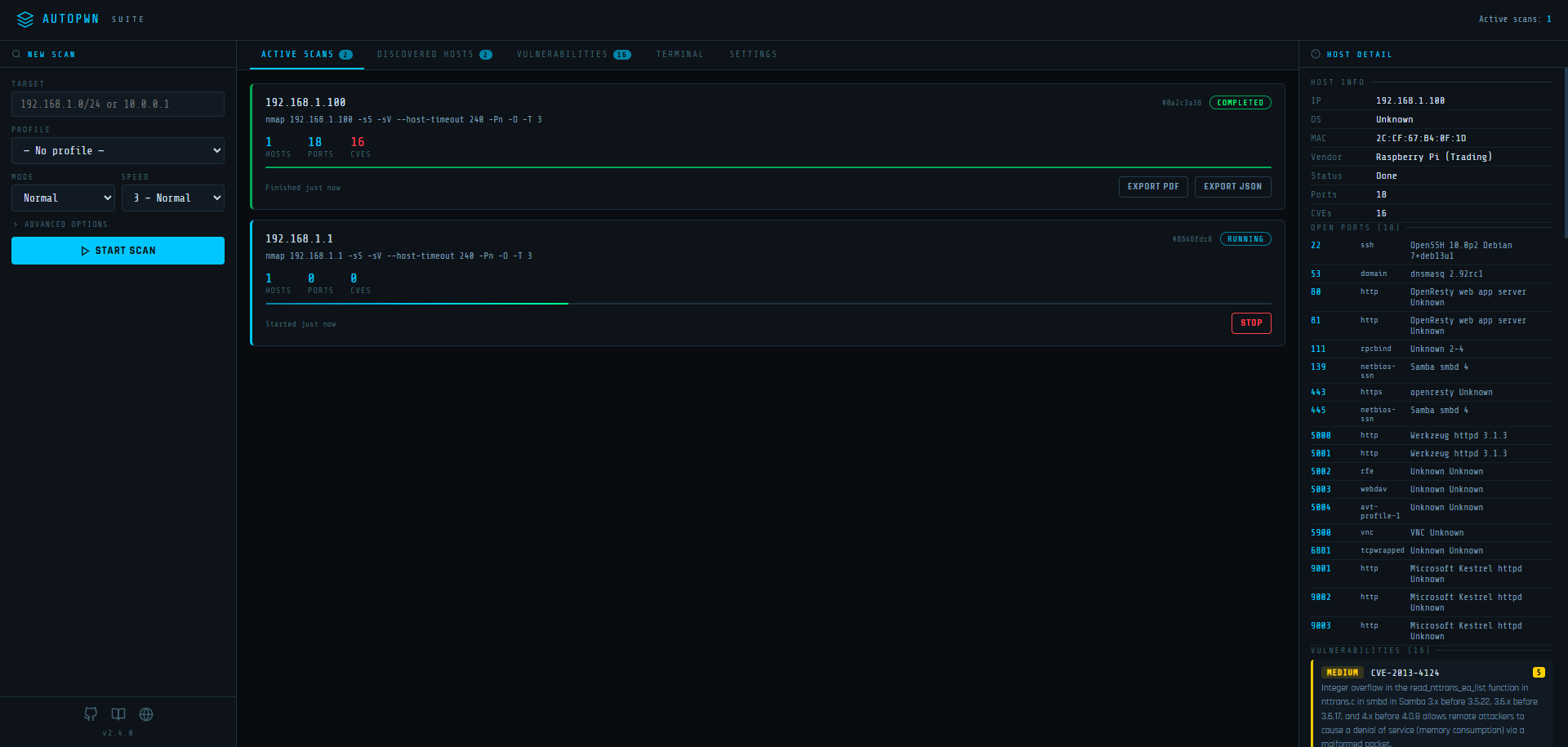
Signing in. The dashboard requires a login. On first launch the server creates an admin
account with a random password and prints both once in the terminal; only a scrypt hash of the
password is stored in web_ui_auth.json (inside AUTOPWN_DATA_DIR, or the per-user data directory by
default). Change the username and password after signing in under Settings → Account. If you
forget the password, run autopwn-suite --web-reset-account on the server to restore admin
with a new random password and sign out all sessions. Remote access requires HTTPS (or set
AUTOPWN_WEB_SECURE_COOKIE=1 behind a TLS-terminating proxy that passes the browser's Host header
through, or sign-in is refused as cross-origin); localhost works over plain HTTP.
- Multiple concurrent scans - Launch and monitor several scans at the same time
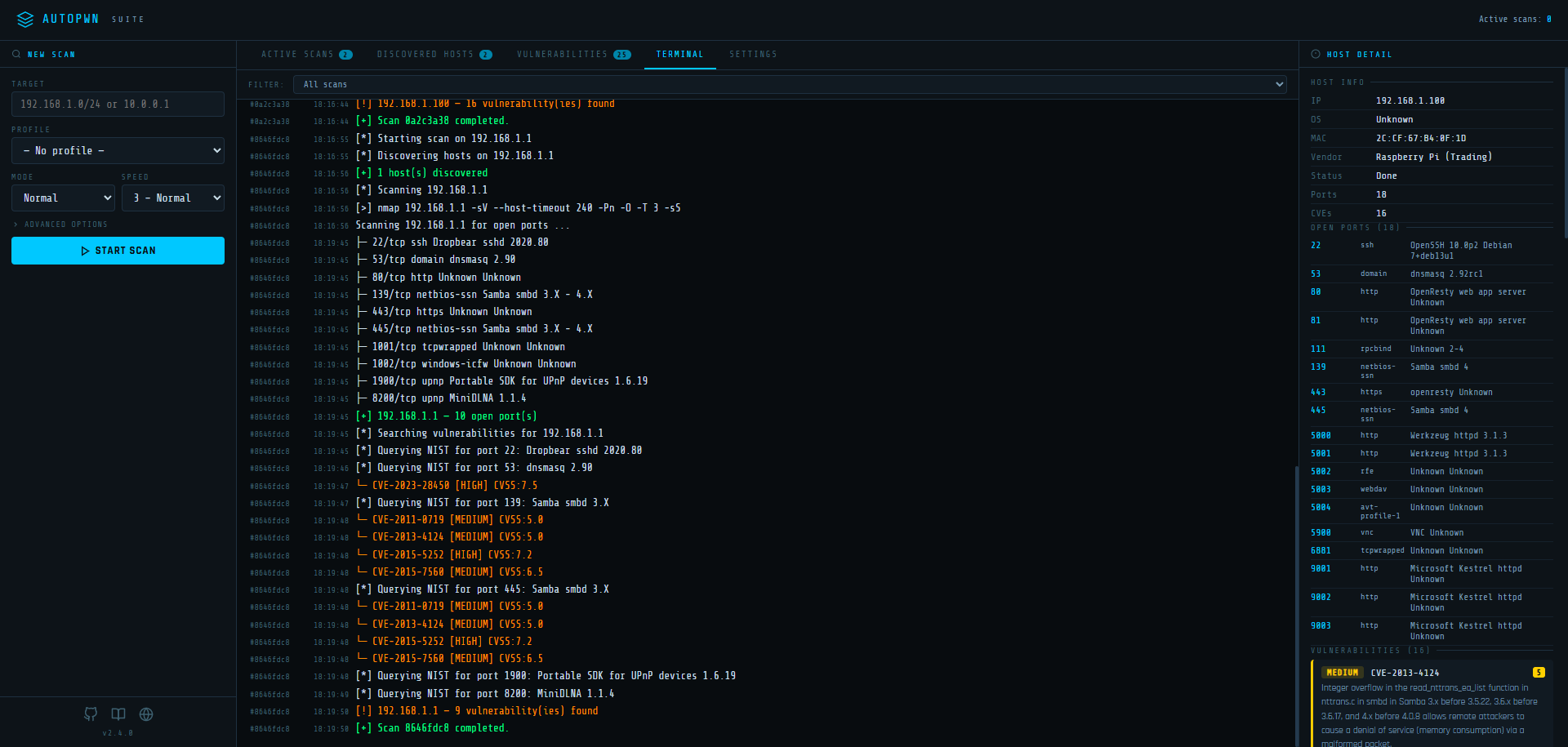
- Live terminal output - Watch nmap commands and results in real time via SSE
- Scan progress - Live Nmap stage percentages, completed CVE lookup counts and target completion counters. The bar follows the current stage; stages without a reported percentage show ongoing activity. Stopped and failed scans retain their last measured progress.
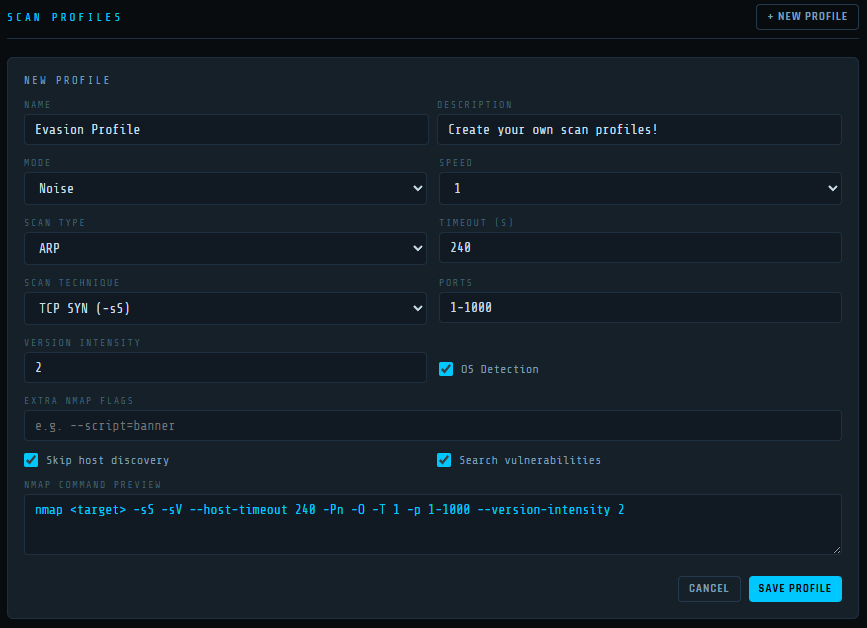
- Scan profiles - Save and reuse scan configurations (technique, speed, timeout, ports, version intensity, OS detection, evasion)
- Web security dashboard - Select application checks, inspect captured evidence and remediation, download PoCs, and explicitly replay recorded checks
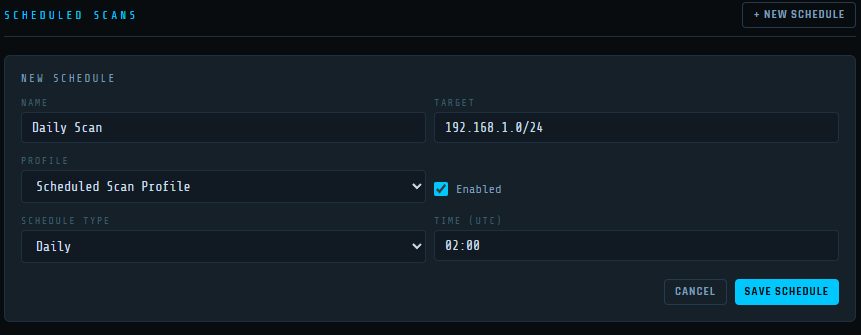
- Scheduled scans - Set up recurring scans on a cron schedule with automatic profile loading
- Scan techniques - Choose between TCP SYN, TCP Connect, UDP, Window, ACK, FIN, Xmas, Null and Maimon scans
- No free-text Nmap options - Since v2.7.0 the dashboard builds the Nmap arguments only from its own controls (scan technique list, ports, version intensity, OS detection, speed, timeout and mode). It has no box for Nmap options, so it cannot be made to run NSE scripts or to read or write files through Nmap, and the API refuses a non-empty
nmap_flags. The ports field takes numbers from 1 to 65535, ranges and comma lists (22,80,1-1000). A profile saved by an earlier release with Nmap options is kept but not used: its scheduled scans are disabled (when they next come due, or when you save the profile again, which removes the options), and you enable the schedule again by hand afterwards. Custom Nmap flags remain available to the trusted command line (--nmap-flags) and the Python API (nmap_args) - Evasion mode - Fragmented packets, spoofed source port and padded data length
- Email notifications - Get notified on scan completion with inline result summaries
- Webhook notifications - Post scan results to any webhook endpoint
- Persistent settings - All settings, profiles and schedules are saved to disk
- Configurable via environment variables - Set host, port and data directory without touching code
How Does It Work?
AutoPWN Suite uses nmap TCP-SYN scan to enumerate the host and detect the version of software running on it. After gathering enough information about the host, AutoPWN Suite automatically generates a list of keywords to search the NIST vulnerability database.
The CLI, Python API and dashboard use the project's autopwn_suite/nmap_backend.py adapter
to run the system Nmap executable directly and parse its
XML output with Python's standard library.
Install Nmap and make sure nmap is on PATH; no Python Nmap wrapper is required.
Host discovery, TCP/UDP services, OS/vendor detection, custom Nmap flags (command line and
Python API only; the dashboard builds its arguments from its own controls) and NSE
results are supported. Dashboard scans retain live progress and cancellation.
The adapter also exposes complete raw XML, CPE identifiers and nested NSE tables
for callers that need more detail, and rejects failed or incomplete XML output.
python -m pytest checks dependency declarations, XML parsing and process cleanup.
With Nmap installed, the suite also scans temporary loopback HTTP/TLS services through
the CLI, Python API and dashboard, and checks IPv6 when available. These live cases
are skipped when the executable is missing; the parser and process tests still run.
Poetry CI installs system Nmap so the live checks run there too.
Web application checks
The CLI's existing web vulnerability prompt runs directory discovery and passive header/cookie checks even on sites with no query inputs. When port results are available it checks each detected TCP HTTP(S) service, including nonstandard ports; otherwise it tries the host's default web ports. The crawler follows same-origin links and discovers GET forms, preserving blank inputs, repeated parameter names and other query values. It skips POST forms, password forms and uploads. The default crawl limits are 250 pages, 1,000 discovered URLs and five levels of links; reaching a limit is reported as limited coverage. A page with more than 100 forms, with more than 2,000 form controls, or with forms that hold more than 200,000 elements in all, is analysed only in part and reported the same way, and a link or form URL longer than 8,192 characters is not followed.
SQLi and LFI checks compare against the original response and repeat promising probes before reporting new database errors or Unix/Windows file signatures. Reflected XSS checks require an unescaped payload in a script element or HTML event handler in an HTML response; JSON, plain text, comments and inactive HTML contexts are excluded. Browser execution and CSP bypass are not verified, so injection findings remain candidates requiring review. Directory hits are observations, with random missing-path controls suppressing soft 404 pages and blanket login redirects. A protected path is not itself a vulnerability.
Configuration checks report advisories for missing/invalid nosniff, HTML CSP and framing
protection, HTTPS hostname HSTS, and cookie Secure/HttpOnly/SameSite flags. Cookie values are
excluded from these advisories. Recommendations follow the
OWASP HTTP Headers Cheat Sheet.
They describe the response observed, not a complete configuration audit.
Additional application checks include:
- Exposed files and directory indexes: signature checks for environment files, Git metadata, PHP source backups, database dumps, server configuration and backup archives. Directory listings require an index heading and multiple child-file links. Sensitive contents are omitted from findings; archives are not extracted. Known diagnostic pages and HTTP error stack traces are reported without printing their settings or trace details.
- CORS: two arbitrary origins and repeated
nullorigins test credential permission. Public wildcard access alone is not reported as a vulnerability. Wildcard-plus-credentials produces a configuration advisory because browsers reject credentialed reads. Actual authenticated data exposure is not verified. - Open redirects: redirect-like query parameters are tested with distinct controlled hosts.
A finding requires repeatable external
Locationdestinations; those destinations are never visited. - Boolean SQLi: two distinct true/false comparisons must agree against a stable original response. Different content types, HTTP errors, SQL errors, unstable pages and truncated bodies are excluded. These remain candidates; no timing probes or database extraction are performed.
- HTTP methods: OPTIONS advertises capabilities; TRACE requires a repeatable request-line and
marker-header echo. These are observations. PUT, DELETE, PATCH and CONNECT are not sent, and
method probes carry no cookies or authorization headers. Automatic
.netrcauthentication is suppressed for the additional diagnostic probes. - Host headers: two controlled values for each of Host and X-Forwarded-Host must influence redirect hosts or generated absolute URLs. Plain text reflection is ignored. These remain candidates, and password reset poisoning or cache poisoning impact is not verified. Requests use unique query markers and request cache-control directives.
- TLS: certificate expiry, future validity, SAN hostname/IP matching and local trust validation
are checked independently. Exact-version handshakes test TLS 1.0 and 1.1 support. A finding requires
successful negotiation; unsupported client capabilities and failed connections are reported as
incomplete checks. Private CA trust failures are advisories. This is not a complete cipher,
revocation or certificate-chain audit. Certificate parsing uses
cryptography.
All HTTP checks share a default budget of 10,000 requests per web endpoint, including discovery, crawling and injection probes. Injection and additional checks sample at most 100 discovered URLs per check family, with at most five parameters per URL. HTTP method checks run on the starting endpoint. TLS handshakes run separately. Reaching these limits is logged as limited coverage. Response bodies are read as prefixes capped at 1 MiB and connections are closed; file contents are not written to disk. Testing guidance follows the OWASP Web Security Testing Guide.
Requests have a default 10-second network-I/O deadline and at most three followed redirects.
The deadline interrupts slow response headers and bodies, including incomplete chunks;
Stop also interrupts active reads. OS DNS resolution is outside this deadline.
Diagnostic HTTP uses private anonymous sessions, ignoring .netrc and environment proxies;
operator credentials and cookies are not attached. Redirects are checked
before following them; injection probes cannot leave the target origin. Initial endpoint
discovery also permits the same hostname's HTTP port 80 to upgrade to HTTPS port 443.
Self-signed HTTPS targets remain supported for application probes; TLS findings report certificate
and trust problems separately.
Offline mode continues to disable web probes.
Module callers can supply a host, host:port, IPv6 address or explicit application URL:
from autopwn_suite.web.webvuln import webvuln

findings = webvuln("https://example.com:8443/app/", log, console)
Each returned finding contains type, url, parameter, severity, confidence, evidence,
an ID, timestamp, detection/impact/remediation context, captured exchanges and a reproduction plan.
A finding replaces a query value with REDACTED when its parameter name looks like a credential (token, session, code, key, sig, otp, pwd, an api, access, private, app, client, consumer, license, encryption, signing, master, service, ssh or developer key, and similar) and drops URL credentials (userinfo and fragment), so that a PoC can still replay the other values; a secret in a parameter with another name, in the URL path, or inside the value of another parameter (a redirect_uri or next URL) is not recognized there. Everything else the web scan writes about a URL (the line that announces a scan, log lines, coverage notes, and the target a dashboard job record, export, notification or the CLI parameter summary shows) replaces every query value, and a query part without =, with REDACTED whatever the parameter is called (?id=REDACTED&x=REDACTED) and drops userinfo and fragments, for any case of the scheme and for a target typed without a scheme. A target is redacted as one string, so a quote, an angle bracket or any kind of space inside it cannot leave a later part visible; a log line ends a URL at the next space, tab or line break. Only a secret in the URL path, in a query part without = inside a word without a scheme, or after a raw space inside a URL that a log line quotes, stays visible (a link in a page is written with %20 when the scan reads it, so this needs a URL that was typed with a space or a redirect that carries one). The scan itself uses the target as typed. Captured exchanges include request roles,
diagnostic headers, status, response-prefix hash/size, latency and truncation state; response bodies
and cookie values are omitted. The CLI prints these results through its existing console/export flow.
Text that a scanned host or a data provider controls (response headers, crawled links, Nmap banners and hostnames, certificate names, NVD, local-database and Exploit-DB descriptions) is printed, saved and returned as a single line: line breaks, escape sequences and other control characters, bidirectional overrides and zero-width characters are removed or replaced by a space, so a hostile target cannot forge a result line or drive your terminal through it (the response headers that a dashboard replay records are kept as received and are shown escaped). A URL keeps such characters as the percent-encoding that the HTTP client sends (a crawled link with an escape sequence is stored as %1B...), so the recorded requests, a replay and the generated PoCs send the request that the scan sent. Nmap script output and the OS fingerprint keep their newlines. The scanned text can still be misleading, so read scan output of an untrusted target with care.
TLS certificate verification
Website checks verify the target's TLS certificate by default. A target with a self-signed, expired or
otherwise untrusted certificate is skipped with a warning that explains why. For systems you trust, such as lab
machines, opt out explicitly with --insecure-tls (or insecure_tls = true in the [AUTOPWN] configuration
section, or Accept untrusted certificates in the dashboard's web controls). Proof-of-concept scripts record
the choice made for the scan that produced them. The TLS check still reports the target's certificate problems.
Credential files
NVD API keys, SMTP passwords and webhook URLs can be kept in their own files instead of command-line arguments,
configuration or the dashboard settings file. Point the matching variable at a one-line, owner-readable file
(Docker and Kubernetes secrets work directly): AUTOPWN_NIST_API_KEY_FILE, AUTOPWN_SMTP_PASSWORD_FILE and
AUTOPWN_WEBHOOK_URL_FILE. Files are re-read when used, so a credential can be replaced without restarting or
editing configuration; values from files are never written to the dashboard settings.
Dashboard controls and verification
Enable Web checks in the scan form. Use Network + selected web checks to check detected HTTP(S) services after Nmap, or Website only to enter an application URL without requiring Nmap or CVE lookup. Expand Select checks to choose among all 13 check groups. The Light preset selects headers/cookies and TLS; All selects every group. Expand Speed, limits & crawl to control web request pacing, the HTTP request budget, timeout, crawl pages/URLs/depth, endpoints per injection/check family, parameters and response size cap. Save the same controls in a profile and use that profile for scheduled scans. Saved profiles retain their explicit limits when defaults change. Adjustable upper bounds are 50,000 requests, 2,000 pages, 10,000 URLs, depth 10 and 1,000 probe endpoints. Larger scans take longer and send more requests; reaching any configured limit still reports incomplete coverage.
Web speed is independent of Nmap speed: 0–5 adds minimum delays of 5 seconds, 2 seconds, 500 ms, 100 ms, 25 ms or no delay between request starts. Minimum request delay can increase that delay; timeout controls both HTTP requests and TLS connections. These settings are saved with profiles and used by scheduled scans.
Use Resume on an incomplete, stopped or failed scan, or Resume scan in its web coverage card. Review the suggested speed and limits, then resume the same job. Completed checks, findings, crawl results, Nmap observations and successful CVE lookups are retained. Unfinished web checks get fresh request, page, endpoint and per-URL parameter budgets for each attempt; completed inputs and directory paths are skipped. Discovery, parameter and response caps that blocked the last attempt are increased in the suggested settings, within the supported bounds. Interrupted inputs and failed checks are retried. Completion means the selected checks finished; unreachable pages, response caps and unavailable local TLS capabilities can still leave coverage partial. Resuming keeps the original target and selected checks. Start a new scan to change either.
The Web Security tab prioritizes severity and supports search and confidence/severity/scan filters. Coverage cards show enabled checks, request counts and incomplete-check reasons. Select a finding for:
- Overview: observed evidence, detection method, potential impact, remediation, limitations, steps and CWE/OWASP references.
- Evidence: baseline/probe/repeat requests, response metadata, available certificate metadata and the complete finding with verification history.
- PoC & Verify: preview, copy or download a standalone Python reproducer, POSIX curl commands or a JSON request plan. XSS and credentialed CORS findings also provide a browser PoC.
Downloading or viewing a PoC does not contact the target. Verify evidence explicitly replays only
the stored same-origin plan, without authentication cookies, redirects or arbitrary supplied code.
When detection followed validated same-origin redirects, its PoCs replay the final recorded URLs
directly; the evidence keeps the intermediate redirect exchanges.
Python verification compares baseline/probe evidence and returns reproduced, not reproduced or
inconclusive, with redacted response metadata. Run a downloaded Python PoC after installing
requests and cryptography; restore any REDACTED query inputs locally first. The dashboard refuses
server replay when local input is required. Browser PoCs require an explicit test click; use a
controlled separate origin and an appropriate browser session to assess CORS or XSS behavior.
Evidence reproduction does not establish database access, browser execution, authenticated data
exposure or other full exploit impact.
The dashboard keeps scan findings and resume checkpoints in memory for the current process. Checkpoints are private and are not included in exports; restarting the dashboard discards them. Export report saves filtered findings with their full evidence and verification history as JSON. Scan JSON exports include web findings/coverage, and scan PDF exports include their evidence/remediation summaries. Export results before restarting the dashboard. Offline mode disables web scans and verification while allowing existing findings and PoCs to be viewed or exported.
Offline vulnerability database
AutoPWN can keep a portable local mirror of the NIST NVD JSON 2.0 feeds.
These are CVE records (descriptions, CVSS scores, affected-product configurations and references),
not exploit programs. The small NIST .meta files describe feed freshness, size and checksums;
downloading only those files is insufficient for vulnerability detection.
On a connected machine, explicitly download the database:
autopwn-suite --update-vuln-db
autopwn-suite --vuln-db-status
The first download covers all yearly feeds from 2002 through the current year, including
older CVEs contained in the 2002 feed. Allow several minutes and several GB of free disk space
for the database, feed processing and a temporary update copy. No NIST API key is required for
feed downloads. Repeat --update-vuln-db whenever you want fresh data. Each update checks every
year's metadata and downloads only changed yearly feeds, so updates also cover long periods
without internet. Checksums and record counts are verified before publishing the new database;
a failed or interrupted update preserves the previous database. Concurrent updates are rejected.
If NVD has not published the current year's feed yet (early January) and no record of that year was
ever indexed, the update skips that feed and says so in its last message. The database does not record
the gap and lacks that year's CVEs until a later update indexes them, so repeat the update after a few days.
An update may need to be retried after active scans finish if the operating system locks the database file.
Run an airgapped scan with an explicit target:
autopwn-suite --offline -t 192.168.1.0/24 -y
autopwn-suite --web --offline
Offline mode uses local CVE lookups, skips internet connectivity checks, exploit downloads, web application probes, automatic Nmap installation and email/webhook delivery, and disables Nmap reverse DNS. Nmap still communicates with the requested scan targets. Use IP addresses and locally installed Nmap scripts; user-supplied hostnames or scripts may have their own network requirements. Install Python dependencies and Nmap before disconnecting, or transfer installation packages from a connected machine. The dashboard uses local assets and system fonts.
The default --vuln-source auto tries online NVD lookups and falls back to a ready local database
if NVD is unavailable, staying local for the rest of that scan. That fallback does not make the scan
offline: its web checks, reports and email/webhook notifications still run, and only an offline mode
you chose skips them. --vuln-source online requires
online lookups. Use --offline (or --vuln-source offline) to avoid trying NVD at all.
Missing or invalid local data fails explicitly rather than reporting a clean vulnerability scan:
when NVD fails and no local database is ready, the scan stops with exit status 1 and a message that
names both failures, and the output recorded so far is still saved. A scan whose host discovery fails
saves its output the same way and ends with that error's text; a failed Nmap port scan ends the scan with
its error text and saves nothing. A saved partial report goes to the usual output file, so it replaces an
earlier report with the same name.
Stored data remains usable without an expiry; its update time is shown in scan logs and dashboard
results. Offline matching uses description keyword prefixes, with all query terms required,
and keeps versions such as 10.1.18 distinct from a query for 1.1. As with online keyword scans,
findings are possible vulnerabilities, not proof of exploitability or exact version applicability.
In the dashboard, Settings → Offline vulnerability database provides manual Download/Update,
progress, CVE count, update time and an Export for airgapped system link. Select the vulnerability
data source in New Scan or save it in a scan profile for scheduled scans. Starting the server
with --offline forces every scan to use local data and blocks downloads and test notifications.
The Offline mode — whole dashboard toggle in Settings saves this preference across restarts
and overrides the source for all new and scheduled scans. It also blocks downloads and notifications.
Turn it off when you want to download updates. Finish or stop active online scans and let any database
update or pending notification finish before turning it on. A server started with --offline keeps offline mode enforced.
On Windows a database that a running scan has open cannot be replaced. A scan that is already running when
the update starts stops it before it downloads anything. A scan that opens the database during the download
blocks the final replace, which is retried for a few seconds, and then the finished download is discarded.
Either way the previous database is kept and the update asks you to close running scans first. Windows
reports a read-only database file the same way, so the update also asks you to make the file writable.
The default file is vulnerabilities.sqlite3 in the per-user data directory (~/.local/share/autopwn-suite,
%LOCALAPPDATA%\autopwn-suite or ~/Library/Application Support/autopwn-suite), or
AUTOPWN_DATA_DIR/vulnerabilities.sqlite3 when that environment variable is set. Copy this single file to the airgapped machine's data
directory, or select its location explicitly:
autopwn-suite --offline --vuln-db /media/transfer/vulnerabilities.sqlite3 -t 192.168.1.10
autopwn-suite --web --offline --vuln-db /media/transfer/vulnerabilities.sqlite3
The database contains public vulnerability data, without scan targets, credentials or exploit files.
It is portable between platforms. Configuration files also support offline, vulnerability_source
and vuln_db in [AUTOPWN]. Python callers can use
AutoScanner().scan("192.168.1.10", offline=True, vuln_db="/path/vulnerabilities.sqlite3").
Checking for updates and self-updating
python autopwn.py --check-update
python autopwn.py --check-update --update-channel commit --update-branch main

python autopwn.py --apply-update
python autopwn.py --apply-update --update-channel commit --update-branch main
--check-update asks GitHub for a newer AutoPWN Suite, prints the result, then exits.
--apply-update goes further and fast-forwards this git checkout to that newer release/commit,
then exits. Neither runs automatically during a scan — both are explicit, one-shot commands.
By default both compare against the repo's latest GitHub release tag (--update-channel release, the default). Pass --update-channel commit to instead target the latest commit on
--update-branch (default main). Use --update-repo OWNER/REPO (or the AUTOPWN_UPDATE_REPO
environment variable) to point at a different fork. The repository must be written OWNER/REPO and the branch
must be a plain git branch name; anything else is refused. An explicit --update-channel is remembered in
update_channel.txt in the data directory. Both need internet access and refuse to run with --offline
(or --vuln-source offline).
--apply-update requires a git checkout of AutoPWN Suite (a pip or pipx install, a standalone binary and a
copy inside another git repository are refused) with a clean
working tree, and only fast-forwards — it refuses and leaves your checkout untouched if the
working tree has uncommitted changes or the local branch has diverged from the target (resolve
that manually, e.g. with git rebase or by committing/stashing first). It does not verify signatures: it
trusts the repository named by --update-repo, so keep the default unless you trust another. Restart
AutoPWN Suite after it reports success so the updated code takes effect. When nothing is newer it changes
nothing and reports Already up to date. It never moves a checkout back: a branch or detached HEAD that is
already ahead of the target stays where it is, and the commit channel reports such a checkout as up to date.
When an update changes pyproject.toml, poetry.lock, requirements.txt or requirements-locked.txt, it
also tells you to install the dependencies again, as From source under Installation describes, before
restarting.
The dashboard offers the same check and update under Settings → AutoPWN Suite updates. With
Check for updates automatically on (the default), it asks GitHub when a dashboard page opens and then at
most every 6 hours, never in offline mode; turn the switch off to check only when you click
Check for updates. When a newer version exists it shows an Update badge on the Settings tab. It
applies the update only when you click Apply update and confirm. Only the channel can be chosen there: the
repository is AUTOPWN_UPDATE_REPO (or the default), and the commit channel always follows main. Applying
needs a git checkout, and it is refused while a scan, web verification or database download is running. While
an update is applied, and afterwards until you restart the dashboard, new scans, resumes and web verifications are
refused and scheduled scans wait for the restart: an interval schedule then runs at once, a daily or weekly one
only within an hour of its time (otherwise at its next time). The dashboard notices any change to its checkout, including
--apply-update or a git pull while it runs, because it compares the commit on disk with the one it
started from. Restart the dashboard, then reload the page.
Interface language
AutoPWN Suite speaks English and Turkish. --lang tr (or --language tr) selects the language of the CLI,
the daemon installer and the reports, and is remembered in language.txt in the data directory. Without
it the language follows the AUTOPWN_LANG environment variable, then the last explicit choice, then your
system locale, then English. The dashboard has a language selector on the sign-in page and in Settings.
The Turkish text is machine-translated and not yet reviewed by a native speaker, and scanned data (CVE
descriptions, banners, exploit titles) is never translated. See the
internationalization notes.
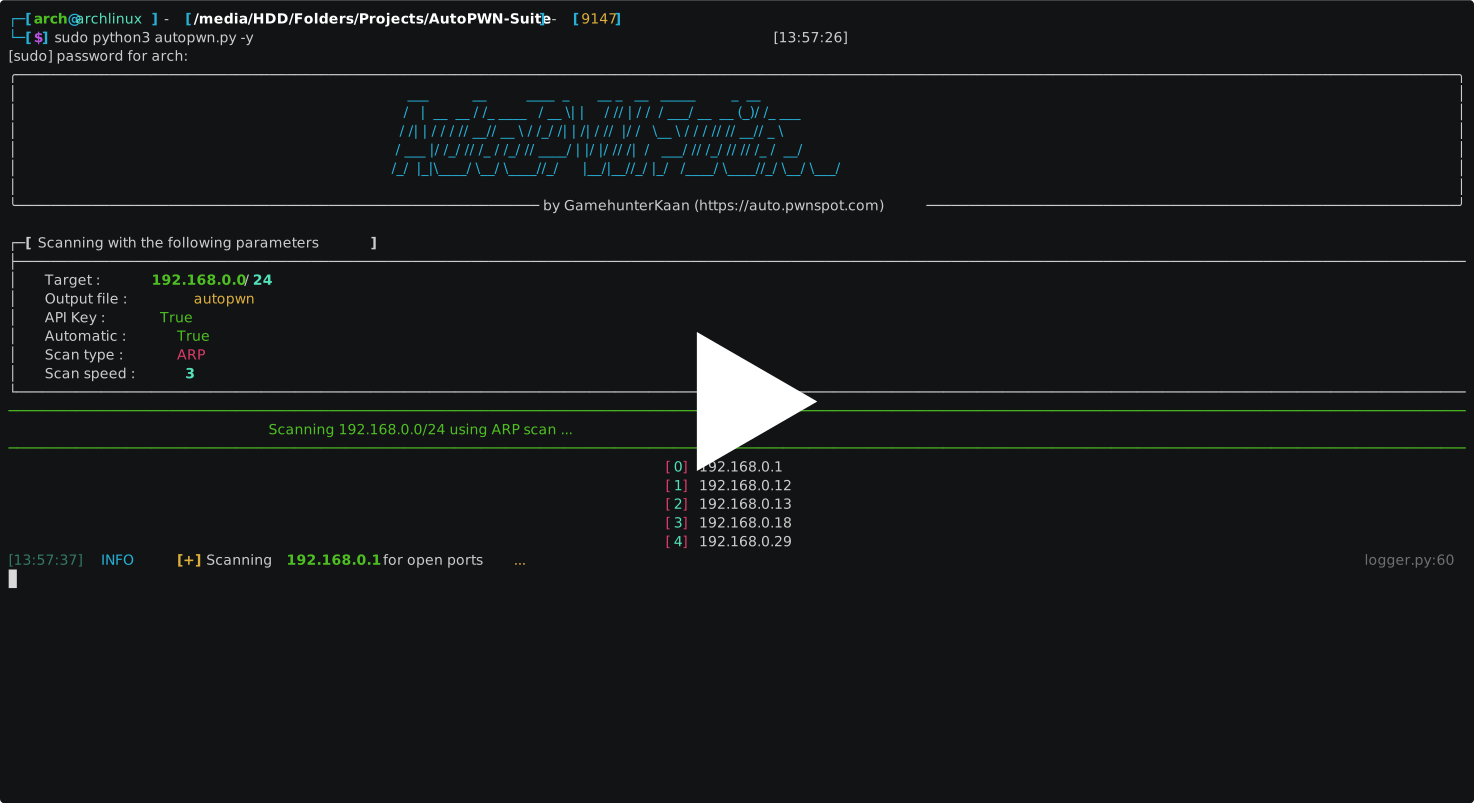
Demo
AutoPWN Suite has a very user friendly easy to read output.
Installation
AutoPWN Suite needs Nmap on PATH for network scans
(sudo apt install nmap, brew install nmap, or the installer from nmap.org on Windows).
Website-only dashboard scans do not need it, and the command line offers to install it
on first use. Every method below gives you the autopwn-suite command. Verify downloads
as described in Releasing.
pipx or uv (recommended)
Needs Python 3.10 or newer. This keeps AutoPWN Suite and its dependencies in their own environment on Linux, macOS and Windows:
pipx install autopwn-suite        # or: uv tool install autopwn-suite
pipx upgrade autopwn-suite        # update
pipx uninstall autopwn-suite      # remove
Standalone binary
Each release attaches
single-file binaries that need no Python installation: linux-amd64, linux-arm64,
windows-amd64.exe and macos-arm64. Verify the signed SHA256SUMS
(how), then on Linux or macOS make the file
executable and run it:
chmod +x autopwn-suite-v2.8.1-linux-amd64
./autopwn-suite-v2.8.1-linux-amd64 --help
The binaries are checksum-verified and Sigstore-signed but not code-signed for Windows or
macOS, so on first run Windows SmartScreen shows an "unrecognized app" warning
(More info, then Run anyway) and macOS may block the file until you run
xattr -d com.apple.quarantine <file>. Only do this for a file whose signature and
checksum you verified. Rename the file to autopwn-suite and place it on your PATH
if you want the short command.
Linux system-wide
For a system-wide installation from a checkout (requires root privileges), use the provided script:
git clone https://github.com/GamehunterKaan/AutoPWN-Suite.git
cd AutoPWN-Suite
# Install as root
sudo bash install.sh
# Uninstall
sudo bash uninstall.sh
It creates a virtual environment in /opt/autopwn-suite, installs the package into it and
links /usr/local/bin/autopwn-suite to it. Run without sudo, the script asks for it only where needed and
the installation then belongs to your account, so --daemon-install refuses it and sudo autopwn-suite
would run files you can change; sudo bash install.sh makes the installation belong to root. PREFIX, BINDIR, APPDIR and DESTDIR are
honored, and REQUIREMENTS_FILE=requirements-locked.txt installs hash-verified dependencies
(see Building).
From source
git clone https://github.com/GamehunterKaan/AutoPWN-Suite.git
cd AutoPWN-Suite
python3 -m venv .venv
source .venv/bin/activate        # Windows: .venv\Scripts\activate
pip install .                    # or: pip install -r requirements.txt && python autopwn.py
Docker
The fastest way to get the web UI running. Download the docker-compose.yml file and run:
docker compose up -d
The web UI will be available at http://localhost:8080.
Configuration
Edit docker-compose.yml to change host, port or data directory:
environment:
  - AUTOPWN_DATA_DIR=/data        # Where settings/profiles/schedules are stored
  - AUTOPWN_WEB_HOST=127.0.0.1   # Listen address (loopback by default)
  - AUTOPWN_WEB_PORT=8080        # Listen port
Note: Host networking (
network_mode: host) is required for nmap to discover and scan devices on your local network. It is also why you can sign in over plain HTTP athttp://localhost:8080: replacing it with a published port (ports:ordocker run -p 127.0.0.1:8080:8080) makes the dashboard see the bridge gateway instead of loopback and refuse sign-in without HTTPS (explained under Usage, Web UI).
You can also run the CLI via Docker:
docker run -it --net=host gamehunterkaan/autopwn-suite -t 192.168.1.0/24 -y
Where your data lives
The dashboard account, settings, profiles, schedules and the local CVE database are stored
in a per-user directory (~/.local/share/autopwn-suite, %LOCALAPPDATA%\autopwn-suite or
~/Library/Application Support/autopwn-suite), or in AUTOPWN_DATA_DIR when set.
Uninstalling never removes it, because it holds your administrator password hash and
plaintext integration settings: delete the directory yourself when you no longer want them.
Scan outputs, downloaded exploits, api.txt and configuration files stay in the directory
you run the command from.
Cloud
You can use Google Cloud Shell.

Usage
Running with root privileges (sudo) is always recommended.
CLI
Automatic Mode
autopwn-suite -y
Scan a Specific Target
autopwn-suite -t <target ip address>
Change Scanning Speed
autopwn-suite -s <1, 2, 3, 4, 5>
Change Scanning Mode
autopwn-suite -m <evade, noise, normal>
For more details about usage and flags use -h flag.
Install Daemon
autopwn-suite --daemon-install
Run it as root on Linux from a root-owned installation of AutoPWN Suite: sudo bash install.sh or a
standalone binary kept in a root-owned directory. The service runs as root, so it refuses an installation
that another user can modify (a pipx or uv tool environment or a virtual environment in a home directory) and a
source checkout started with python autopwn.py, which the service could not import. It checks this before asking any question.
The systemd service starts that same installation, and the generated configuration is kept in
/opt/autopwn-suite/autopwn-daemon.conf (mode 0600 from the moment it is created, never copied and tightened afterwards, as it can hold the SMTP password, NVD key or webhook URL).
Running --daemon-install again rewrites the service and restarts it, so a new configuration or a newer
installation takes effect. A daemon installed by release 2.6 or earlier keeps running
its old copy of the source until you do (install.sh warns when it finds
one).
sudo autopwn-suite --daemon-uninstall
stops and disables the service and deletes its unit file and /opt/autopwn-suite/autopwn-daemon.conf. The program,
/var/log/autopwn-daemon.log and the other files in /opt/autopwn-suite stay; remove the program with
sudo bash uninstall.sh, pipx uninstall autopwn-suite or by deleting the binary.
Web UI
Launch the web dashboard:
autopwn-suite --web
The dashboard listens on 127.0.0.1 by default. With a custom host and port:
autopwn-suite --web --web-host 0.0.0.0 --web-port 3000
Listening beyond localhost exposes the sign-in page to the network. Remote clients must then use HTTPS (terminate TLS in a reverse proxy that passes the Host header through, e.g. nginx proxy_set_header Host $http_host;, which keeps a non-default port, set AUTOPWN_WEB_SECURE_COOKIE=1, and firewall the service). Inside containers, -p 127.0.0.1:8080:8080 keeps the published port off the network, but a port published from Docker's bridge network reaches the dashboard from the bridge gateway, which is not loopback, so sign-in over plain HTTP is refused. For plain-HTTP sign-in on the Docker host use host networking with AUTOPWN_WEB_HOST=127.0.0.1 (as docker-compose.yml does); otherwise put a TLS reverse proxy that keeps the Host header in front and set AUTOPWN_WEB_SECURE_COOKIE=1.
REST API
The web UI exposes a full REST API:
| Method | Endpoint | Description |
|---|---|---|
GET |
/api/scans |
List all scan jobs |
POST |
/api/scan/start |
Start a new scan |
POST |
/api/scan/stop |
Stop a running scan |
GET |
/api/hosts |
All discovered hosts (merged) |
GET |
/api/log |
Log history |
GET |
/api/events |
SSE event stream; after=<id> or Last-Event-ID resumes after a log entry |
GET |
/api/web/catalog |
Web check names, default controls, bounds and offline state |
GET |
/api/web/findings |
Web finding summaries across current scans |
GET |
/api/web/findings/<scan_id>/<finding_id> |
Complete finding, evidence and verification history |
GET |
/api/web/findings/<scan_id>/<finding_id>/poc?format=python |
Download a PoC; formats: python, curl, html, json |
POST |
/api/web/findings/<scan_id>/<finding_id>/verify |
Explicitly replay the stored plan; send an empty JSON object |
GET |
/api/settings |
Get all settings |
PUT |
/api/settings |
Update settings |
GET |
/api/update |
Update channel, last check result and whether a restart is needed |
POST |
/api/update/check |
Check GitHub for a newer version now; optional {"channel": "release"} or "commit" |
POST |
/api/update/apply |
Fast-forward this git checkout to the newer release or commit |
GET |
/api/profiles |
List scan profiles |
POST |
/api/profiles |
Create a profile |
PUT |
/api/profiles/<id> |
Update a profile |
DELETE |
/api/profiles/<id> |
Delete a profile |
GET |
/api/schedules |
List scheduled scans |
POST |
/api/schedules |
Create a schedule |
PUT |
/api/schedules/<id> |
Update a schedule |
DELETE |
/api/schedules/<id> |
Delete a schedule |
Module Usage
from autopwn_suite import AutoScanner

scanner = AutoScanner()
json_results = scanner.scan("192.168.0.1")
scanner.save_to_file("autopwn.json")
Development and Testing
Use Poetry 2.5.1 to install dependencies and run tests. This is the version
required by pyproject.toml, pinned in CI, and used to generate poetry.lock.
Installing Dependencies
pipx install poetry==2.5.1
poetry install
After changing dependencies, run poetry lock with Poetry 2.5.1 and commit
pyproject.toml and poetry.lock together. This retains already locked versions
unless their constraints require a change. Use poetry check --lock to verify
that the lockfile matches the project; CI runs the same check before installation.
Running Tests
# Run all tests with coverage
poetry run pytest

# Run tests without coverage
poetry run pytest --no-cov

# Run only unit tests
poetry run pytest -m unit

# Run only integration tests
poetry run pytest -m integration

# Run tests excluding slow tests
poetry run pytest -m "not slow"
Running with Docker (Development)
docker build --tag autopwn-suite:local .
See Build from source for prerequisites, package builds and running the locally built image. The Compose file runs a published image.
Contributing to AutoPWN Suite
Pull requests with suggested changes and fixes are welcome directly: you do not need to open an issue or ask first. Click here for more info!
License
AutoPWN Suite is licensed under the Apache License 2.0. See NOTICE for attribution.
Third-party dependencies are covered by their own licenses.
This tool is intended for authorized security testing only. You are responsible for complying with all applicable laws.
Support or Contact
Having trouble using this tool? You can create an issue.
2 maintainers


Metadata
2 maintainers
Release files for autopwn-suite 2.8.1
For a detailed explanation of source distributions (sdists) and built distributions (wheels), please see the package formats documentation.
Source distribution (sdist)
| File | Size | Uploaded | Provenance | |
|---|---|---|---|---|
| autopwn_suite-2.8.1.tar.gz | 330.0 kB | With provenance | Details |
Built distribution (wheel)
| File | Interpreter | ABI | Platform | Reset |
|---|---|---|---|---|
| autopwn_suite-2.8.1-py3-none-any.whl | Python 3 | none | any | Details |
Total release size: 677.5 kB
Release files / autopwn_suite-2.8.1.tar.gz
| Download URL | autopwn_suite-2.8.1.tar.gz |
|---|---|
| Size | 330.0 kB |
| Tags | Source |
|
SHA-256 checksum How to use checksums |
2326a7b5cae08bd8bac3b4f67a4acd78453cb2b00ad72e931c1ec469b5e9043e
|
|
BLAKE2b-256 checksum How to use checksums |
0daf5eb765065d8d013aca75877f2f1aec5c19fae3ece6d2cac47e1f54c8cbb5
|
| Upload date | |
|
Uploaded using Trusted Publishing? What is trusted publishing? |
Yes |
| Uploaded via |
twine/7.0.0 CPython/3.13.14
|
Provenance
Provenance describes where a file came from. On PyPI, provenance is shared via attestations, which provide a verifiable record of the build or publishing details. View details, limitations and caveats.


PyPI Publish Attestation
PyPI verified that this artifact, at this checksum, originated from the publisher listed below.
Signed by GitHub Actions, verified by PyPI on Oct 23, 2026.
Transparency logRelease files / autopwn_suite-2.8.1-py3-none-any.whl
| Download URL | autopwn_suite-2.8.1-py3-none-any.whl |
|---|---|
| Size | 347.5 kB |
| Tags | Python 3 |
|
SHA-256 checksum How to use checksums |
63d2d3db6fe468c3ac8f24d2e31ca5af362ad1705f392a2ce588124df0205576
|
|
BLAKE2b-256 checksum How to use checksums |
2361d742d3c69314c7af50636443f386dd7494174b4821d6a69589353a6ca5f5
|
| Upload date | |
|
Uploaded using Trusted Publishing? What is trusted publishing? |
Yes |
| Uploaded via |
twine/7.0.0 CPython/3.13.14
|
Provenance
Provenance describes where a file came from. On PyPI, provenance is shared via attestations, which provide a verifiable record of the build or publishing details. View details, limitations and caveats.
PyPI Publish Attestation
PyPI verified that this artifact, at this checksum, originated from the publisher listed below.
Signed by GitHub Actions, verified by PyPI on Oct 23, 2026.
Transparency logSecurity for autopwn-suite 2.8.1
Provenance
Provenance describes where a file came from. On PyPI, provenance is shared via attestations, which provide a verifiable record of the build or publishing details. View details, limitations and caveats.
Full provenance
All 2 files in this release have been uploaded with provenance metadata.
Attestation for autopwn_suite-2.8.1.tar.gz
PyPI Publish Attestation
PyPI verified that this artifact, at this checksum, originated from the publisher listed below.
Signed by GitHub Actions, verified by PyPI on Oct 23, 2026.
Transparency logA note on package security
PyPI is a repository for distributing packages, not a service for auditing them. While third-party security researchers and our staff do their best to detect and remove malicious packages, PyPI cannot guarantee the quality, security or suitability of any given package.
To learn more about protecting yourself from malicious actors, visit our package security documentation.














