
aztree


aztree shows where your Azure money went. It draws your costs as a treemap, where a bigger box means a bigger cost.
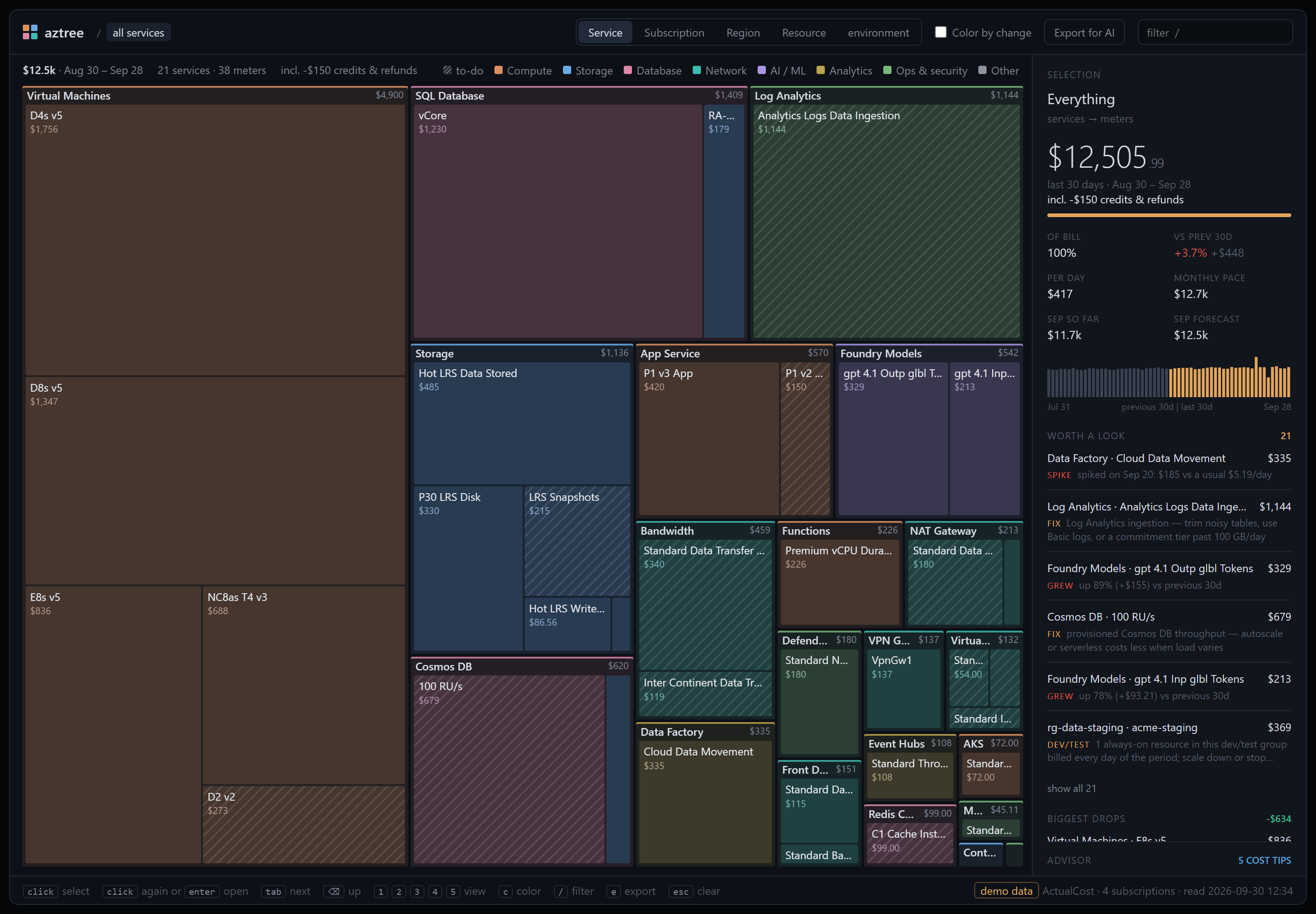
It's one small Python package with no dependencies. It writes a single HTML page that works offline.
Quick start
Install it with Python, .NET or Homebrew:
pipx install aztree              # Python 3.9+ (or: pip install aztree)
dotnet tool install -g aztree    # .NET 8 or later, no Python needed
brew install milanm/tap/aztree   # macOS and Linux, no Python needed
Or download the executable for Windows, Linux or macOS from the latest release. It doesn't need Python. The downloads aren't signed yet, so Windows and macOS ask once before running them. On Linux and macOS, run chmod +x on the file first.
Then:
aztree --demo                    # try it with fake data, no Azure needed
az login
aztree                           # your current subscription
aztree --all                     # every subscription you can see
From a clone, run python -m aztree without installing anything.
The page opens in your browser. It shows the last 30 days, compared with the 30 days before. The last day is the day before yesterday, because Azure is still posting yesterday's usage.
What you get
- Treemap of spend by service → meter. Press
2to group by subscription,3by region,4by resource group → resource and5by tag value → service. - Tag view: spend by the values of one tag, with untagged spend as its own box and its share of the bill in the header. aztree picks the tag on the most resources;
--tag KEYpicks another. - Color by change (
c): red where spend grew, green where it shrank. - Selection panel: cost, share of the bill, change vs the previous period, monthly pace and a daily chart. For the whole bill, the last two cells show this month so far and Azure's forecast for the month. The name of a selected subscription, resource group or resource opens it in the Azure portal.
- Worth a look: one list where news and to-dos take turns. The first six show, and "show all" opens the rest. On the map, the boxes a to-do is about have diagonal stripes.
- News is costs that grew and one-off spikes (a day far above that meter's usual).
- To-dos are known money pits (below) and compute left on all week in dev/test resource groups. When Advisor has no reservation or savings-plan tips, steady spend that a reservation could cut shows up too.
- Idle resources bill while doing nothing, and they count as to-dos. aztree finds them with Azure Resource Graph and lists the ones that cost something in the period.
- Compute and storage: VMs stopped but not deallocated, unattached disks, Premium disks of VMs deallocated for over 30 days, and snapshots older than 90 days or on Premium storage.
- Networking: unused public IPs, NAT gateways on no subnet, and VPN or ExpressRoute gateways with no connections. Also Application Gateways and load balancers with no backends, ExpressRoute circuits the provider hasn't set up, and disconnected private endpoints.
- Apps and databases: empty App Service plans and SQL elastic pools with no databases.
- Money pits it knows:
- Compute: retiring VM series with their retirement dates, Extended Security Updates, and Standard and Premium v2 App Service plans.
- Networking: data transfer out, NAT and Firewall processing, public IPs, private endpoints, several Front Door profiles and Front Door Premium.
- Storage and databases: snapshots, large DTU databases, provisioned Cosmos DB throughput and Azure Cache for Redis (retiring).
- Monitoring: Log Analytics ingestion and 1-minute alert rules.
- Azure DevOps: seats and hosted jobs.
- Biggest drops: what fell since the previous period, including anything that went to zero. Use it to check that a saving worked.
- Advisor: Azure Advisor's cost tips for reservations, savings plans and right-sizing, one per resource and SKU. Reservation and savings-plan tips list the meters they would cover and what those cost a month. Click a tip to jump to its biggest meter, or to the resource it's about.
- Export for AI: a JSON summary to hand to any AI agent (see below).
On the map:
- Click to select, and click again or press Enter to zoom in. Click a "+N more" box twice to see the small items it holds.
- Once you've clicked the map,
Tabmoves to the next box by size. ⌫goes back up. The browser's Back button undoes zooms and jumps./opens the filter. What doesn't match fades, and Enter keeps only the matches.Escclears the filter, then the selection.- Add
#resource,#subscription,#regionor#tagto the page's URL to open that view.
Requirements
-
The Azure CLI, logged in with
az login, and Python 3.9+ or .NET 8+ unless you use the downloaded executable. -
Without the CLI, put a token for
https://management.azure.com/inAZURE_ACCESS_TOKEN. Then name the subscriptions with--subscriptionor--all. A token only sees its own tenant. Through the CLI, aztree gets a token for every tenant you're logged in to. -
If you use Azure PowerShell instead of the CLI, give aztree a token and name the subscription:
$t = (Get-AzAccessToken -ResourceUrl https://management.azure.com/).Token
$env:AZURE_ACCESS_TOKEN = if ($t -is [securestring]) { [System.Net.NetworkCredential]::new('', $t).Password } else { $t }
aztree --subscription "My subscription"
-
The Cost Management Reader role (or Reader) on each subscription. Advisor tips, the Resource Graph checks and the automatic tag choice need Reader. Without it you still get the page, and
--tag KEYstill gives you the tag view. -
Tested on a CSP subscription, where Azure shows retail prices without your partner's discounts. It also shows reserved usage as $0, even with
--metric AmortizedCost, so the totals won't match your partner's invoice. Pay-as-you-go and Visual Studio subscriptions use the same API. -
EA and MCA billing scopes should work through
--scope, but nobody has tried yet. At such a scope the subscription view shows the whole scope as one box, and Advisor is skipped.
Cost: Cost Management queries are free, but Azure limits how often you can call them, per subscription and per tenant. A run makes about 10–14 requests per subscription and may wait 30–60 seconds when Azure asks it to.
aztree saves the data in ~/.aztree/, so reopening the page is instant:
aztree --from
Ask an AI about your bill
aztree --from --export
This writes ~/.aztree/aztree-export.json, a summary of your bill with instructions for the agent. The Export for AI button in the page (or e) downloads the same file.
The summary has totals and every meter with its change vs the previous period. It breaks the bill down by service, subscription, region, resource group and tag. It also lists the top growers and drops, credits and refunds, money pits, idle resources, this month's forecast and the Advisor tips.
Give it to an AI agent and ask "where can I save money?"
Options
| Flag | What it does |
|---|---|
--demo |
Fake data, no Azure access needed |
--subscription ID_OR_NAME |
Subscription to read; repeat for more. Default: the Azure CLI's current one |
--all |
Every enabled subscription you can see, in every tenant you're logged in to |
--scope SCOPE |
Any Cost Management scope, e.g. /providers/Microsoft.Billing/billingAccounts/ID (untested) |
--days N |
Period length, default 30. It's always compared with the period before it. |
--metric M |
ActualCost (default) or AmortizedCost |
--no-advisor |
Skip Azure Advisor |
--tag KEY |
Tag for the tag view. Default: the tag on the most resources |
--no-graph |
Skip the Resource Graph checks for idle resources |
--from [FILE] |
Reopen saved data without calling Azure (default: the last run) |
--export [FILE] |
Write the AI summary JSON instead of the page (default ~/.aztree/aztree-export.json) |
--out FILE |
Where to write the page (default ~/.aztree/aztree.html) |
--no-open |
Don't open the browser |
--verbose |
Print pages, rows and query units per request |
--version |
Print the version |
Good to know
ActualCostbooks a reservation or savings plan purchase as one lump on the day you bought it.--metric AmortizedCostspreads it over the term.- Credits and refunds count in the totals, but negative amounts can't be drawn as boxes. The header says how much of the total they are.
- Subscriptions that bill in different currencies are drawn in USD. When Azure can't convert them, the header says the totals mix currencies.
- Some subscriptions have so many resources that a daily breakdown takes more than ten pages of results. For those, the resource view still lists every resource, but with one total per period and no daily chart.
- Marketplace charges keep their publisher's meter names and get no special handling.
- The forecast is Azure's own, for the calendar month, so it doesn't follow
--days. It's left out when a subscription has none, or when it comes in a different currency from the page. - Regions show under the portal's names, such as East US. Cost Management also uses short names (US East) and ARM names (eastus) for the same region, and aztree puts them in one box.
- Runs saved by older versions open without the tag view, the forecast and the idle checks. They also show regions under Cost Management's own names, such as "us east".
- Runs save to
~/.aztree/; setAZTREE_HOMEto move it. Older versions saved runs toout/when you ran them from a clone. To open those, runaztree --from out/aztree-data.json.
Checking against the portal
In the Azure portal, open Cost Management → Cost analysis. Choose the cost type you ran with (Actual cost by default), daily granularity and the dates in aztree's header.
The totals should match to the cent. Azure can still add a little to the last day after aztree reads it, so compare soon after a run.
Privacy
aztree only reads from Azure and never changes anything in your subscriptions. It reads cost data, forecasts, tag names, Advisor recommendations and Resource Graph properties.
Everything it writes goes to ~/.aztree/ (or AZTREE_HOME), outside any git repo. Those files hold your subscription IDs and costs, so share the page or the export only with people who should see your bill.
The page loads nothing from the internet.
Development
python -m unittest discover -s tests
python -m aztree --demo
packaging/build_native.py packs aztree into one executable with PyInstaller and checks that it runs. dotnet/ holds the dotnet tool, a small launcher that runs the executable built for the machine it's on.
The tests need no Azure access. The viewer tests run the page's script in Node and are skipped without it.
Credits
aztree is a port of awstree by Branko Petric (MIT). It keeps awstree's viewer and its JSON contract and replaces the AWS parts. awstree, in turn, is inspired by disktree by Tobi Lütke.
The region names and several idle checks come from Microsoft's FinOps toolkit (MIT). See THIRD-PARTY-NOTICES.md.
aztree is not affiliated with or endorsed by Microsoft.
License
1 maintainer

Metadata
1 maintainer
Release files for aztree 0.7.0
For a detailed explanation of source distributions (sdists) and built distributions (wheels), please see the package formats documentation.
Source distribution (sdist)
| File | Size | Uploaded | |
|---|---|---|---|
| aztree-0.7.0.tar.gz | 88.5 kB | Details |
Built distribution (wheel)
| File | Interpreter | ABI | Platform | Reset |
|---|---|---|---|---|
| aztree-0.7.0-py3-none-any.whl | Python 3 | none | any | Details |
Total release size: 142.9 kB
Release files / aztree-0.7.0.tar.gz
| Download URL | aztree-0.7.0.tar.gz |
|---|---|
| Size | 88.5 kB |
| Tags | Source |
|
SHA-256 checksum How to use checksums |
b5c50a15a4c4e26c26e13a378edb8430b481b50438508d2ecd2b3d62f45bce74
|
|
BLAKE2b-256 checksum How to use checksums |
dce34763f544873d89e6c0517588dc3bc11518c9c8702360726c05cb3b815e61
|
| Upload date | |
|
Uploaded using Trusted Publishing? What is trusted publishing? |
Yes |
| Uploaded via |
twine/7.0.0 CPython/3.13.14
|
Provenance
Provenance describes where a file came from. On PyPI, provenance is shared via attestations, which provide a verifiable record of the build or publishing details. View details, limitations and caveats.


PyPI Publish Attestation
PyPI verified that this artifact, at this checksum, originated from the publisher listed below.
Signed by GitHub Actions, verified by PyPI on Sep 30, 2026.
Transparency logRelease files / aztree-0.7.0-py3-none-any.whl
| Download URL | aztree-0.7.0-py3-none-any.whl |
|---|---|
| Size | 54.4 kB |
| Tags | Python 3 |
|
SHA-256 checksum How to use checksums |
16055f82938889070b61ba86c516ee16b2d13f4b8d6d89fd3d9c2d972d8c9867
|
|
BLAKE2b-256 checksum How to use checksums |
49fd694c97a38b9f867a449d8c156dabf7515fe57c5b4b9fde8e12c4f24a0983
|
| Upload date | |
|
Uploaded using Trusted Publishing? What is trusted publishing? |
Yes |
| Uploaded via |
twine/7.0.0 CPython/3.13.14
|
Provenance
Provenance describes where a file came from. On PyPI, provenance is shared via attestations, which provide a verifiable record of the build or publishing details. View details, limitations and caveats.
PyPI Publish Attestation
PyPI verified that this artifact, at this checksum, originated from the publisher listed below.
Signed by GitHub Actions, verified by PyPI on Sep 30, 2026.
Transparency log













