
bard is a text to speech tool based on existing open-source models (local install) and APIs to install on your desktop
Verified details
These details have been verified by PyPIProject links
GitHub Statistics
Maintainers

Project description



Bard 
Bard is a text to speech client that integrates on the desktop
Install
Install libraries or system-specific dependencies:
sudo apt-get install portaudio19-dev xclip #  portaudio19-dev becomes portaudio with Homebrew
sudo apt install libcairo-dev libgirepository1.0-dev gir1.2-appindicator3-0.1  # Ubuntu ONLY (not needed on MacOS)
pip install PyGObject # Ubuntu ONLY (not needed on MacOS)
Install the main app with all optional dependencies:
pip install bard-cli[all]          # OpenAI, ElevenLabs, Kokoro (no Piper)
pip install bard-cli[all-local]    # all of the above + Piper
You can also install individual backend extras:
| Extra | Backend | Type |
|---|---|---|
bard-cli[openai] |
OpenAI TTS | remote (requires OPENAI_API_KEY) |
bard-cli[elevenlabs] |
ElevenLabs | remote (requires ELEVENLABS_API_KEY) |
bard-cli[kokoro] |
Kokoro | local, free, offline |
bard-cli[piper] |
Piper | local, free, offline |
GNOME
On GNOME desktop you can subsequently run:
bard-install [...] --openai-api-key $OPENAI_API_KEY
to produce a .desktop file for GNOME's quick-launch
(the [...] indicates any argument that bard takes)
Usage
In a terminal:
bard
which defaults to:
bard --backend openai --voice alloy --model gpt-4o-mini-tts
(this assumes the environment variable OPENAI_API_KEY is defined)
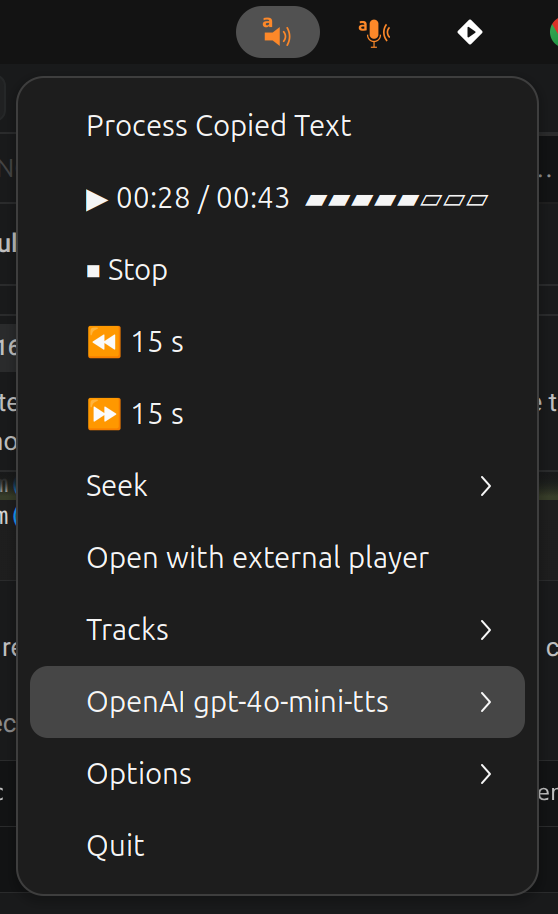
An icon should show up almost immediately in the system tray, with options to copy the content of the clipboard (the last thing you copy-pasted) and send that to the AI model for reading aloud.
Global keyboard shortcut
In tray mode bard writes its PID to $XDG_RUNTIME_DIR/bard.pid (or
/tmp/bard.pid) and listens for two signals:
SIGUSR1— read the clipboard (same as theProcess Copied Textmenu entry).SIGUSR2— toggle play/pause on the current track.
Bind these to keyboard shortcuts in your desktop environment to drive bard from
anywhere. For example, on GNOME (Settings → Keyboard → Custom Shortcuts), bind
Super+B to:
bash -c 'kill -SIGUSR1 $(cat "${XDG_RUNTIME_DIR:-/tmp}/bard.pid")'
The bash -c wrapper is needed because GNOME's custom shortcuts don't go
through a shell, so command substitution ($(...)) and ${...:-default}
wouldn't otherwise be expanded.
This delegates the hotkey to the DE rather than grabbing keys inside the process, so it works on Wayland too.
You can also do a one-off reading by indicating the source content with one of the following:
bard --text "Hello world, how are you today"
bard --clipboard
bard --url "example.com" # also accepts file://
bard --html-file /path/to/downloaded.html # access a page with paywal, download it, feed it to bard
bard --pdf-file /path/to/document.pdf  # careful if you pay for it... (the full thing will be transcribed even if you listen to a small bit of it)
bard --audio-file /path/to/audio.mp3 # no actual request, only useful for testing the audio player
The above command will still launch the system tray icon, and so provide access to the audio player's (basic) controls.
There is also a terminal version via the --no-tray parameter that renders a keyboard-driven playback dashboard
([space] play/pause, [←→] ±jump, [↑↓] track, [del] delete, [q] menu).
For a one-off execution of the program without any controls, use --no-prompt.
The clipboard parsing capabilities are elaborate enough so that it can detect an URL, a file path or common HTML markup.
If a file path is detected, the extension is checked for .html-ish and .pdf, and the data is extracted accordingly.
Here we make good use of the most useful work on readability.
In particular, this allows relatively easy reading out of webpages behind paywals, by right-clicking on "View Page Source" (or download the html file if the source doesn't contain the text), select all text, copy and just proceed with bards' "Process Copied Text" or --clipboard options.
For other articles not protected by a paywall, copying the URL should suffice.
You can resume the previous recording (the audio won't play right away in this case, but you can use the reader):
bard --resume
You can ask also ask the app to removed your (local) traces:
bard --clean-cache-on-exit
Backends
Bard supports four TTS backends. Use --backend <name> to select one at startup:
| Backend | --backend value |
Type | Notes |
|---|---|---|---|
| OpenAI TTS | openai |
remote | requires OPENAI_API_KEY (or --openai-api-key) |
| ElevenLabs | elevenlabs |
remote | requires ELEVENLABS_API_KEY (or --elevenlabs-api-key) |
| Kokoro | kokoro |
local | free, offline, multilingual (54 voices, 9 languages) |
| Piper | piper |
local | free, offline, multilingual |
bard --backend kokoro --voice af_heart
bard --backend piper --voice en_US-amy-medium
bard --backend elevenlabs --voice Rachel
Installing local backend models
Remote backends (openai, elevenlabs) only need an API key.
Local backends (kokoro, piper) need model files on disk. Bard searches, in
order: ~/.local/share/{piper,kokoro}/, then ~/.local/share/bard/{piper,kokoro}/,
then the system XDG data dirs, then the legacy ~/.cache/bard/{piper,kokoro}/.
Setting BARD_PIPER_MODEL, BARD_KOKORO_MODEL_PATH, or BARD_KOKORO_VOICES_PATH
overrides the search.
Piper — use the downloader that ships with piper-tts:
python -m piper.download_voices en_US-amy-medium --data-dir ~/.local/share/piper
Voice catalog: https://huggingface.co/rhasspy/piper-voices. Any .onnx files
in the chosen directory show up under the Voice submenu and in
bard --backend piper --list-voices.
For community voices outside the official catalog (e.g. extra French voices
hosted on HuggingFace under other users), python -m piper.download_voices
will 404 — fetch the two files directly. Each Piper voice is one .onnx
plus its sibling .onnx.json:
cd ~/.local/share/piper
HF=https://huggingface.co/csukuangfj/vits-piper-fr_FR-miro-high/resolve/main
curl -LO $HF/fr_FR-miro-high.onnx
curl -LO $HF/fr_FR-miro-high.onnx.json
Voice switching at runtime only sees .onnx files sibling to the currently
loaded voice, so keep all voices in the same directory.
Kokoro — the upstream package has no downloader, so fetch the two files directly:
mkdir -p ~/.local/share/kokoro
curl -L -o ~/.local/share/kokoro/kokoro-v1.0.onnx \
  https://github.com/thewh1teagle/kokoro-onnx/releases/download/model-files-v1.0/kokoro-v1.0.onnx
curl -L -o ~/.local/share/kokoro/voices-v1.0.bin \
  https://github.com/thewh1teagle/kokoro-onnx/releases/download/model-files-v1.0/voices-v1.0.bin
bard --list-backends shows the install command for any local backend whose
model files are missing.
Listing backends and voices
# Show all registered backends with availability:
bard --list-backends

# List voice IDs for the selected backend:
bard --backend openai --list-voices

# Full metadata table (id / language / gender / model), grouped by language:
bard --backend kokoro --list-voices --verbose
Picking a voice by language
Instead of remembering a voice id, you can let bard pick the first one matching a language tag. Useful with multilingual backends like Kokoro:
bard --backend kokoro --language fr      # first French voice
bard --backend kokoro --language pt-BR   # first Brazilian-Portuguese voice
--language is ignored when --voice is also set. The tray and terminal
Voice submenus also group entries by language for easier browsing.
Tray menu
The system tray icon shows the active Vendor model as the top-level TTS entry, with Model and Voice sub-submenus inside. Selecting a model also switches backend if needed:
OpenAI gpt-4o-mini-tts ▸
  Model ▸  OpenAI (remote)     ▸  ● gpt-4o-mini-tts
                                  ○ tts-1
                                  ○ tts-1-hd
           Kokoro (local)      ▸  …                ← greyed if not installed
           ElevenLabs (remote) ▸  …                ← greyed if API key absent
           Piper (local)          ← single radio (one model per file) — greyed if absent
  Voice ▸  ● alloy
           ○ echo (M)
           ○ nova (F)
           ...
For multilingual backends (Kokoro, Piper, ElevenLabs) the Voice submenu groups voices by language with a flag prefix on each group header, e.g. 🇺🇸 en (24), 🇫🇷 fr (3).
Backend, model, and voice can all be switched at runtime without restarting. The Options submenu retains its non-TTS controls (auto-play, jump interval, etc.).
Fine-tuning
bard --chunk-size 500 # that's the default
sets the maximum length (in characters) of a request. That means about 30 seconds of speech. The program will split up the text in chunks (according to the punctuation) and download them sequentially. The reading will start with the first chunk, that's why it is convenient to keep it small. You can set that smaller or up to the maximum allowed by the backend (4096 for OpenAI).
Player
The player was devised in conversation with Mistral's Le Chat and Open AI's Chat GPT, and my own experience with pystray on scribe. It works.
I'm open for suggestion for other, platform-independent integrations to the OS.
TODO: I want to add a functioning "Open with external reader" option. At the moment it is experimental and only accounts for the first file.
Android
I was able to install bard on Android via the excellent Termux emulator. Not everything works: the tray system app does not work, the clipboard option only partially works (only plain text is copied). However I could obtain a decent workflow via:
bard --no-tray --clipboard
and using the external player when controls are needed (nice key-driven in-terminal space for pause etc)
For paywalled articles, I ended up opening them in Firefox, acessing the Reading mode (excellent, though sometimes the icon is hidden in the URL bar), selecting all text, copying, and running the above command (for free articles just copy paste the URL). This requires the termux API pkg install termux-api.
Project details
Verified details
These details have been verified by PyPIProject links
GitHub Statistics
Maintainers
Release history Release notifications | RSS feed


Download files
Download the file for your platform. If you're not sure which to choose, learn more about installing packages.
Source Distribution
Built Distribution
Filter files by name, interpreter, ABI, and platform.
If you're not sure about the file name format, learn more about wheel file names.
Copy a direct link to the current filters
File details
Details for the file bard_cli-0.13.0.tar.gz.
File metadata
- Download URL: bard_cli-0.13.0.tar.gz
- Upload date:
- Size: 272.2 kB
- Tags: Source
- Uploaded using Trusted Publishing? Yes
- Uploaded via: twine/6.1.0 CPython/3.13.12
File hashes
| Algorithm | Hash digest | |
|---|---|---|
| SHA256 |
1fde07f2593757f7010778aa05c9b4667f499b19a151aa6f0ca6a5243de04d1f
|
|
| MD5 |
4bc759dd55f05179791b31a0563b99ed
|
|
| BLAKE2b-256 |
683e0c4276b78e89975f72791dedabe9528d04d0238c7663e9ee3e8a848849a8
|
Provenance
The following attestation bundles were made for bard_cli-0.13.0.tar.gz:
Publisher:
pypi.yml on perrette/bard
-
Statement:
-
Statement type:
https://in-toto.io/Statement/v1 -
Predicate type:
https://docs.pypi.org/attestations/publish/v1 -
Subject name:
bard_cli-0.13.0.tar.gz -
Subject digest:
1fde07f2593757f7010778aa05c9b4667f499b19a151aa6f0ca6a5243de04d1f - Sigstore transparency entry: 1575863060
- Sigstore integration time:
-
Permalink:
perrette/bard@bf8c457b78c2dbc6d4cd26617dd92e7365a46395 -
Branch / Tag:
refs/tags/v0.13.0 - Owner: https://github.com/perrette
-
Access:
public
-
Token Issuer:
https://token.actions.githubusercontent.com -
Runner Environment:
github-hosted -
Publication workflow:
pypi.yml@bf8c457b78c2dbc6d4cd26617dd92e7365a46395 -
Trigger Event:
push
-
Statement type:
File details
Details for the file bard_cli-0.13.0-py3-none-any.whl.
File metadata
- Download URL: bard_cli-0.13.0-py3-none-any.whl
- Upload date:
- Size: 213.4 kB
- Tags: Python 3
- Uploaded using Trusted Publishing? Yes
- Uploaded via: twine/6.1.0 CPython/3.13.12
File hashes
| Algorithm | Hash digest | |
|---|---|---|
| SHA256 |
8635c86f2549f86af9058712ebd4d9c4ff450d2047a59c50c5b651b2446fec01
|
|
| MD5 |
5252b67a2424bb5a9648d5276e657c08
|
|
| BLAKE2b-256 |
32251201496ffebc5e6e5939032547329b436f7dc4f257a986821b9c3f8869ca
|
Provenance
The following attestation bundles were made for bard_cli-0.13.0-py3-none-any.whl:
Publisher:
pypi.yml on perrette/bard
-
Statement:
-
Statement type:
https://in-toto.io/Statement/v1 -
Predicate type:
https://docs.pypi.org/attestations/publish/v1 -
Subject name:
bard_cli-0.13.0-py3-none-any.whl -
Subject digest:
8635c86f2549f86af9058712ebd4d9c4ff450d2047a59c50c5b651b2446fec01 - Sigstore transparency entry: 1575863133
- Sigstore integration time:
-
Permalink:
perrette/bard@bf8c457b78c2dbc6d4cd26617dd92e7365a46395 -
Branch / Tag:
refs/tags/v0.13.0 - Owner: https://github.com/perrette
-
Access:
public
-
Token Issuer:
https://token.actions.githubusercontent.com -
Runner Environment:
github-hosted -
Publication workflow:
pypi.yml@bf8c457b78c2dbc6d4cd26617dd92e7365a46395 -
Trigger Event:
push
-
Statement type:






