
bia-bob







BIA bob is a Jupyter-based assistant for interacting with data using large language models which generate Python code for Bio-Image Analysis (BIA).
It can make use of OpenAI's chatGPT, Google's Gemini, Anthropic's Claude, Github Models Marketplace, Helmholtz' blablador and Ollama.
You need an OpenAI API account or a Google Cloud account or a Helmholtz ID account to use it.
Using it with Ollama is free but requires running an Ollama server locally.
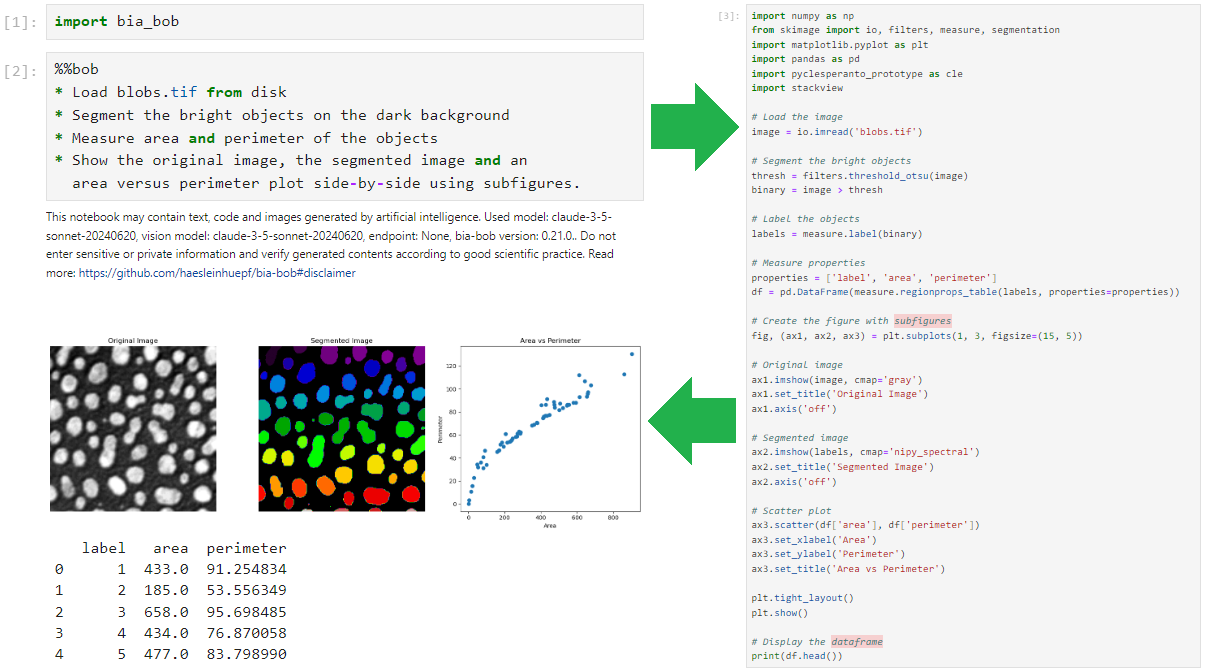
bob can write short Python code snippets and entire Jupyter notebooks for your image / data analysis workflow.
Usage
You can initialize bob like this:
from bia_bob import bob
Code generation
You can ask Bob to generate code like this:
%bob Load blobs.tif and show it
It will then respond with a Python code snippet that you can execute (see full example):
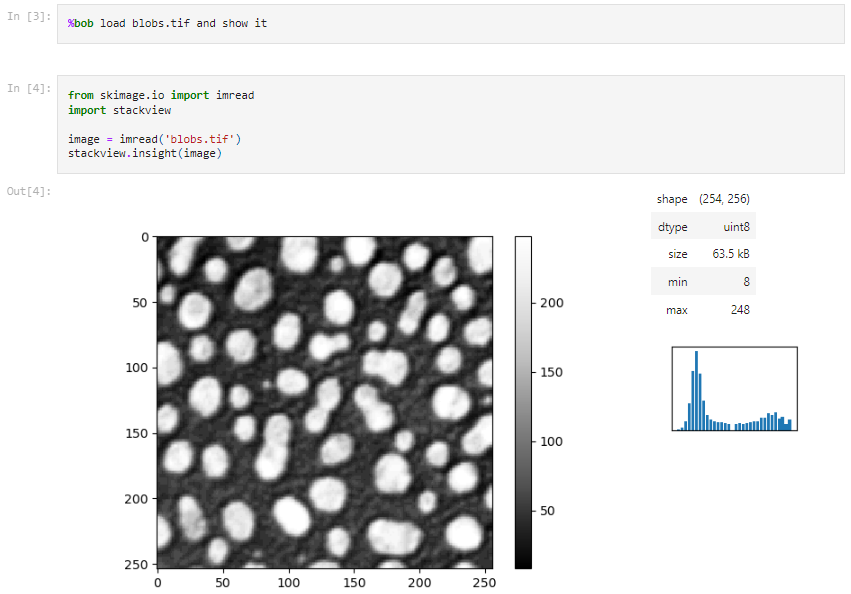
Use %bob if you want to write in the same line and %%bob if you want to write multiple lines of prompt.
Code insertion
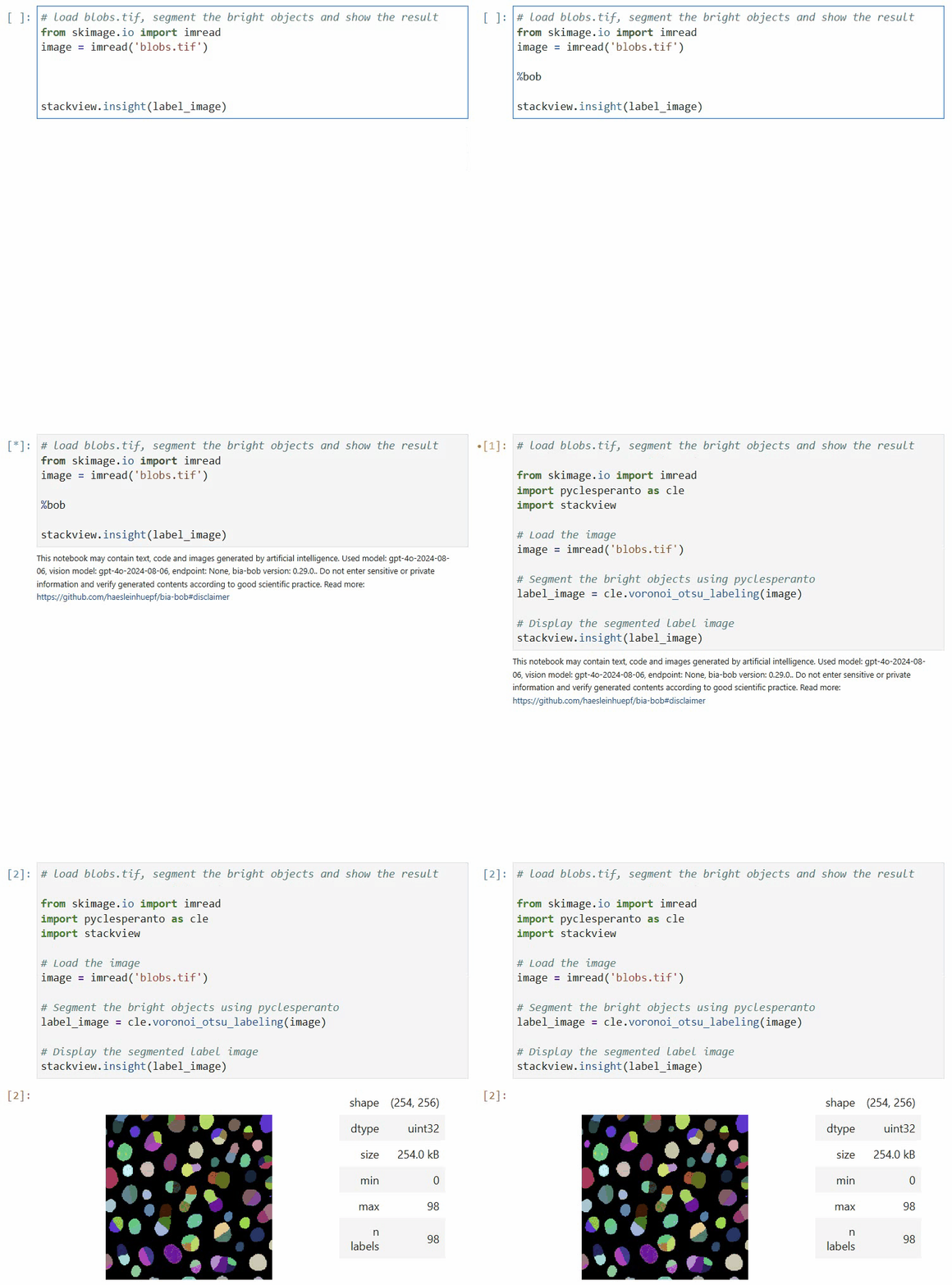
You can also place %bob in the middle of the code if you want to insert code at a specific place.
Just make sure there is enough context above and below so that the LLM can guess which code to insert there.
Notebook generation
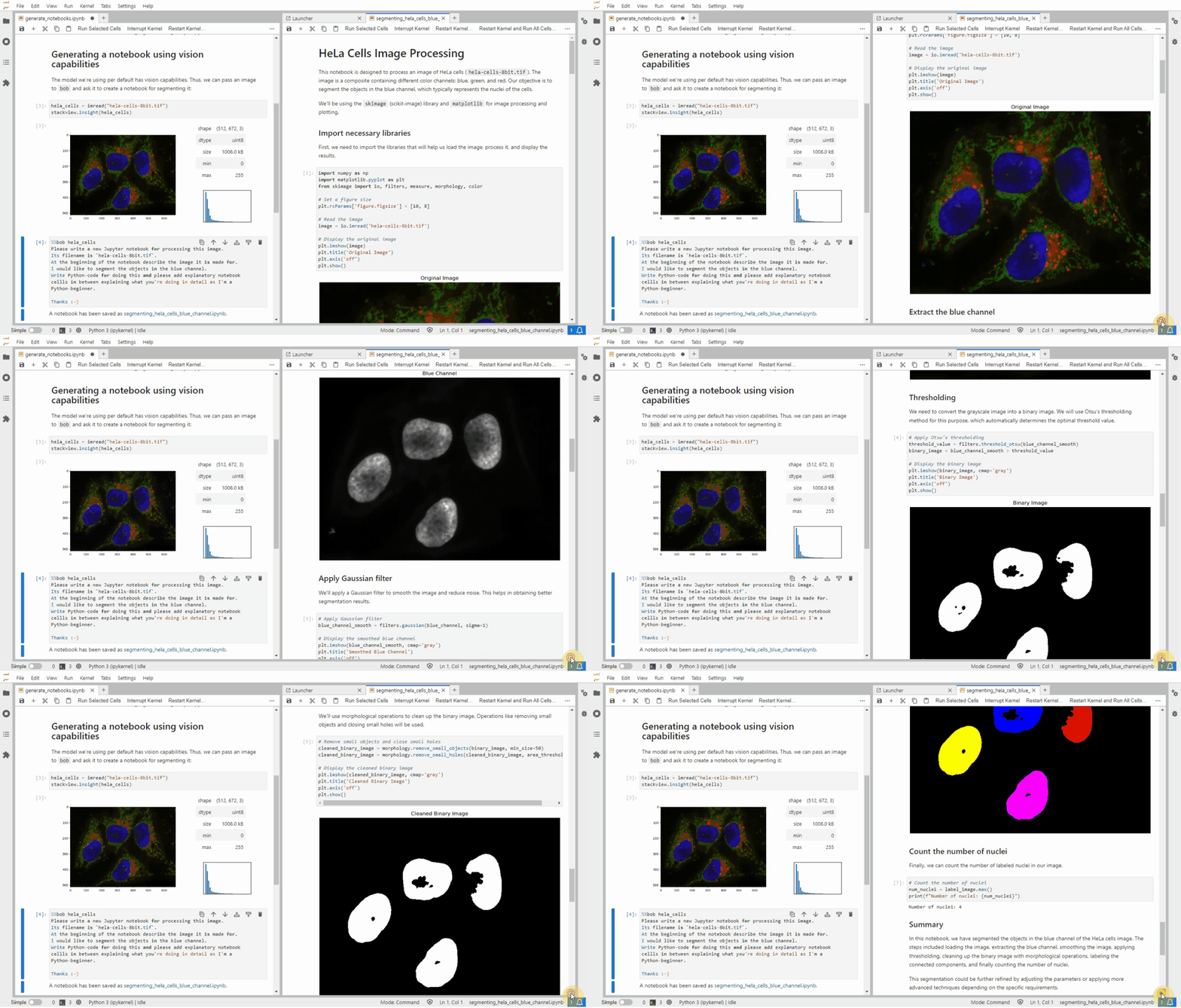
When asking Bob explicitly to generate a notebook, it will put a new notebook file in the current directory with the generated code (See full example). You can then open it in Jupyter lab.
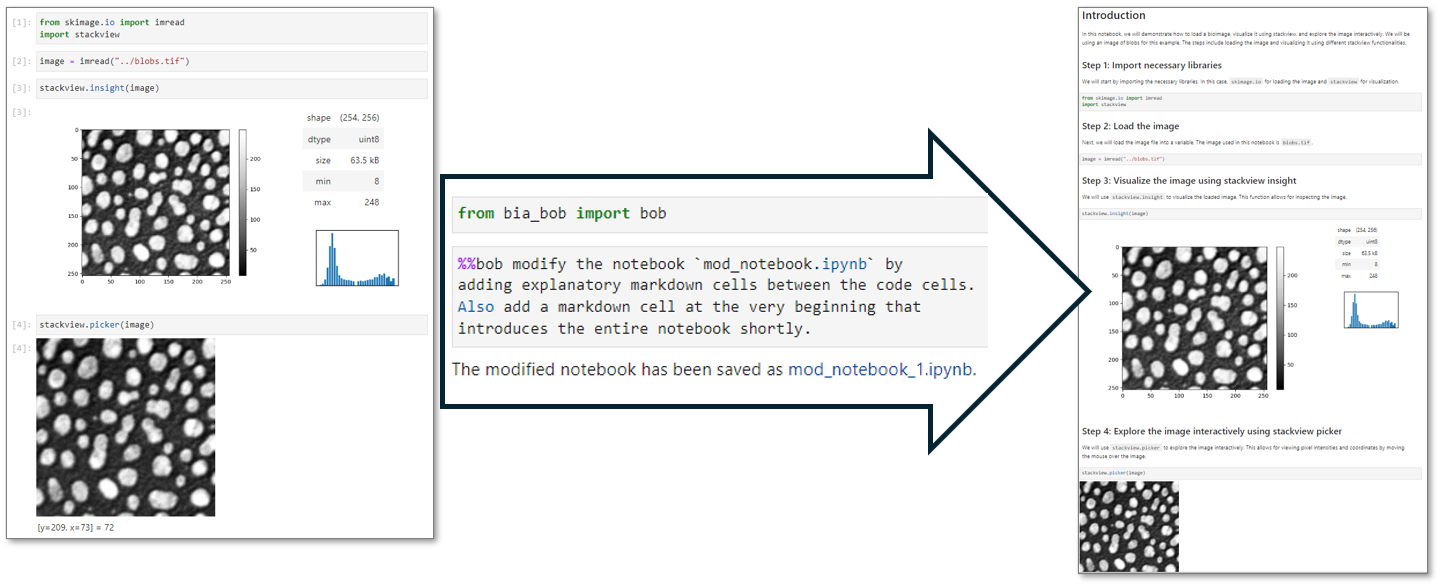
Notebook modification
You can also ask Bob to modify an existing notebook, e.g. to introduce explanatory markdown cells (See full example):
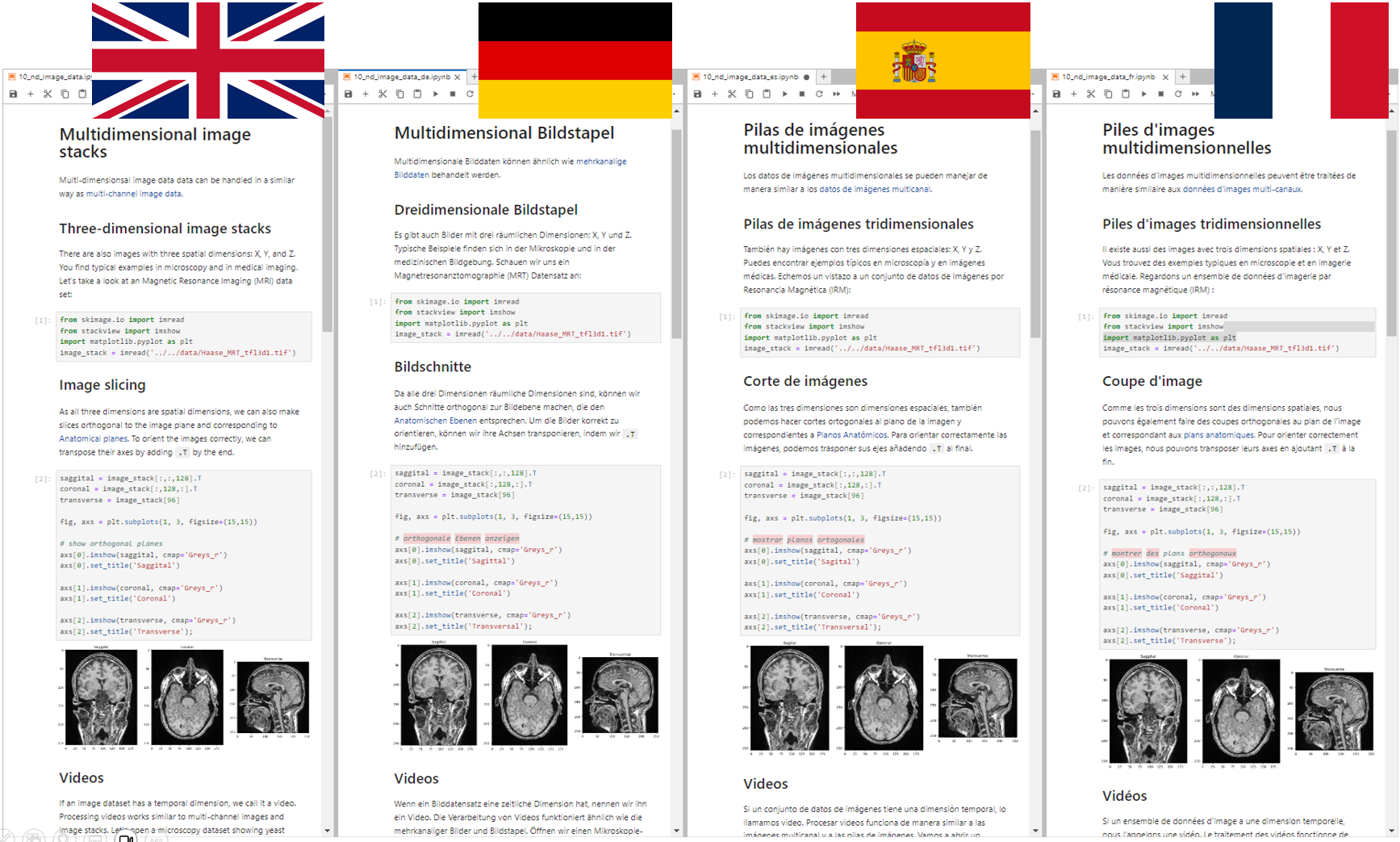
Furthermore, one can translate Jupyter notebooks to other languages, e.g. by prompting %bob translate the filename.ipynb to <language>.
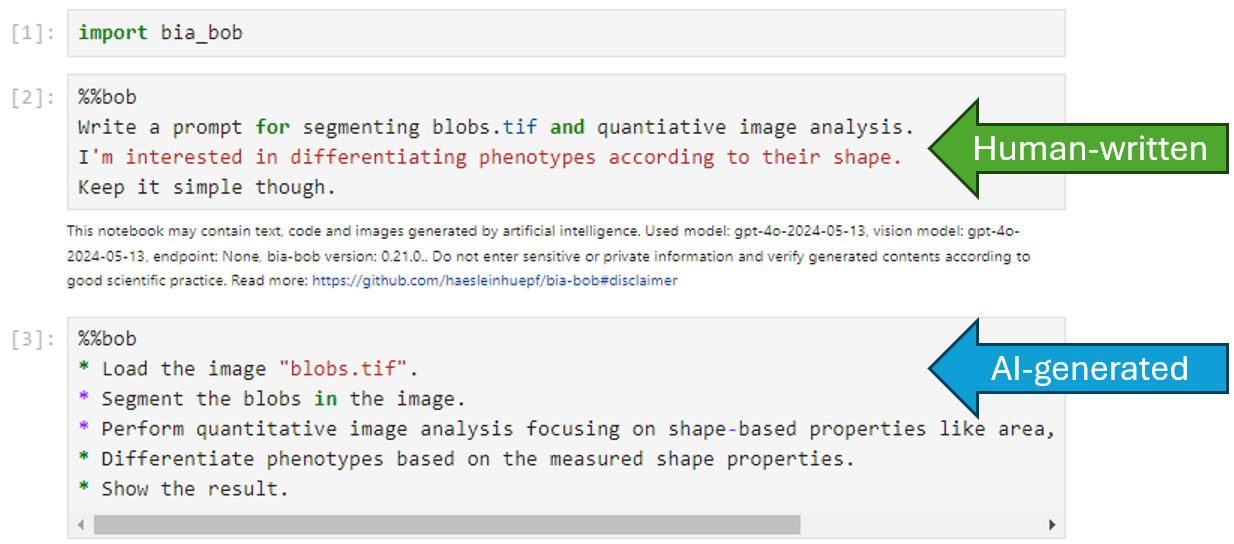
Writing prompts
You can also ask Bob to write a prompt for you. This can be useful to explore potential strategies for analyzing image data. Note: It might be necessary to modify those prompts, especially when suggested analysis workflows are long and complicated. Shorten suggested prompts to the minimal necessary steps to answer your scientific question. (See full example).
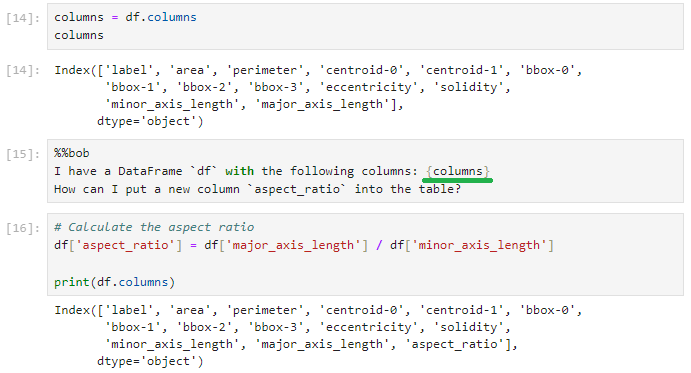
Prompt augmentation
You can add additional information from given Python variables into your prompt using the {variable_name} syntax.
With this, the content of the variable will become part of the prompt (full example).
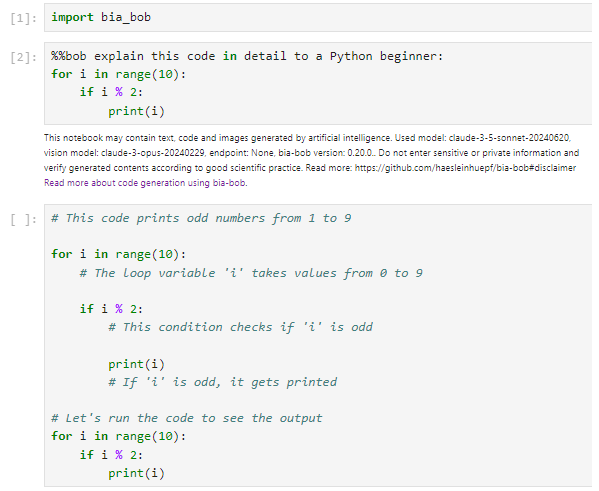
Explaining code
If you are not sure what generated code does, you can ask Bob to explain it to you:
Bug fixing
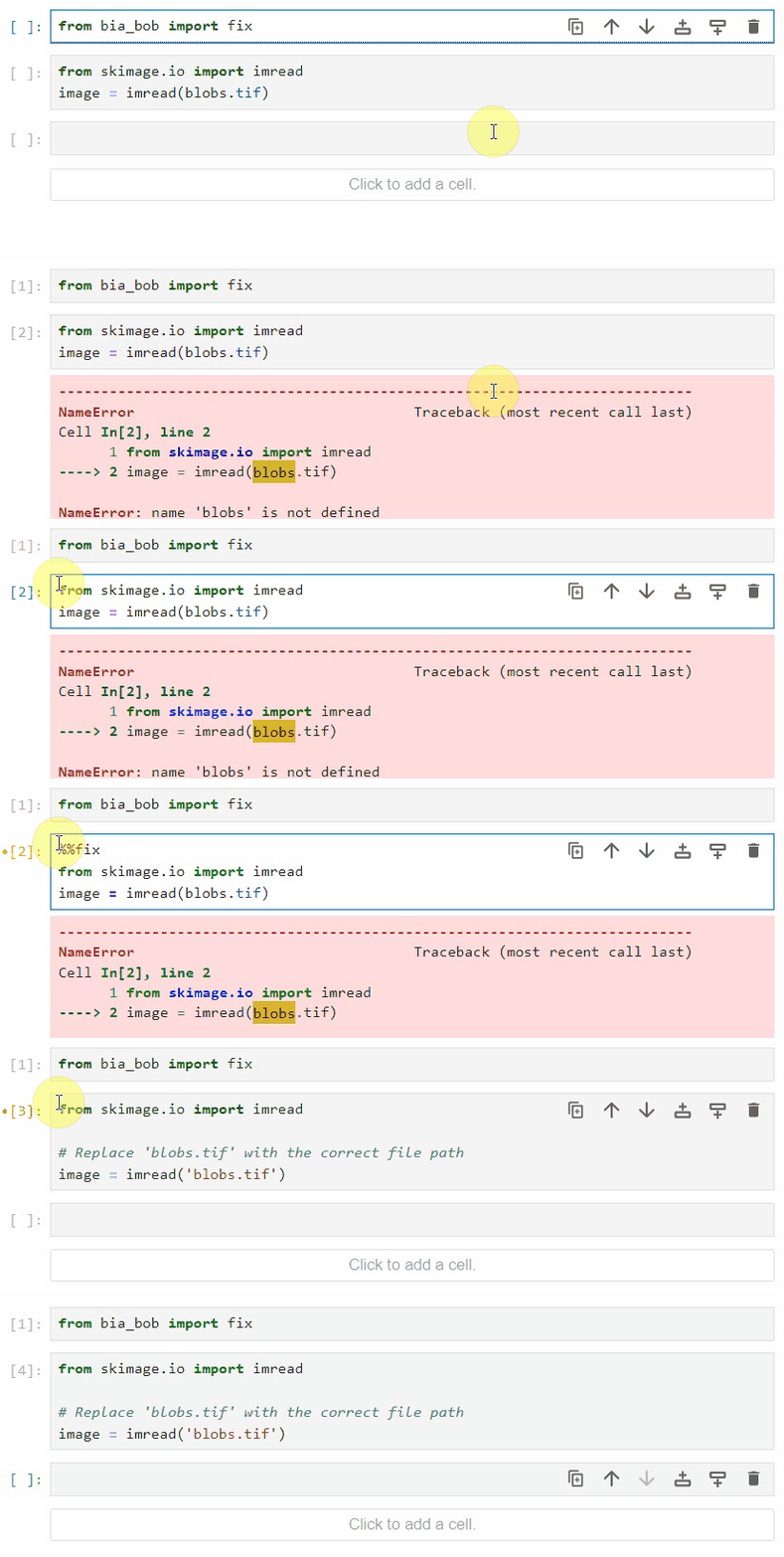
Bob can fix simple bugs in code you executed. Just add %%fix on top of the cell right after the error happened.
Code documentation
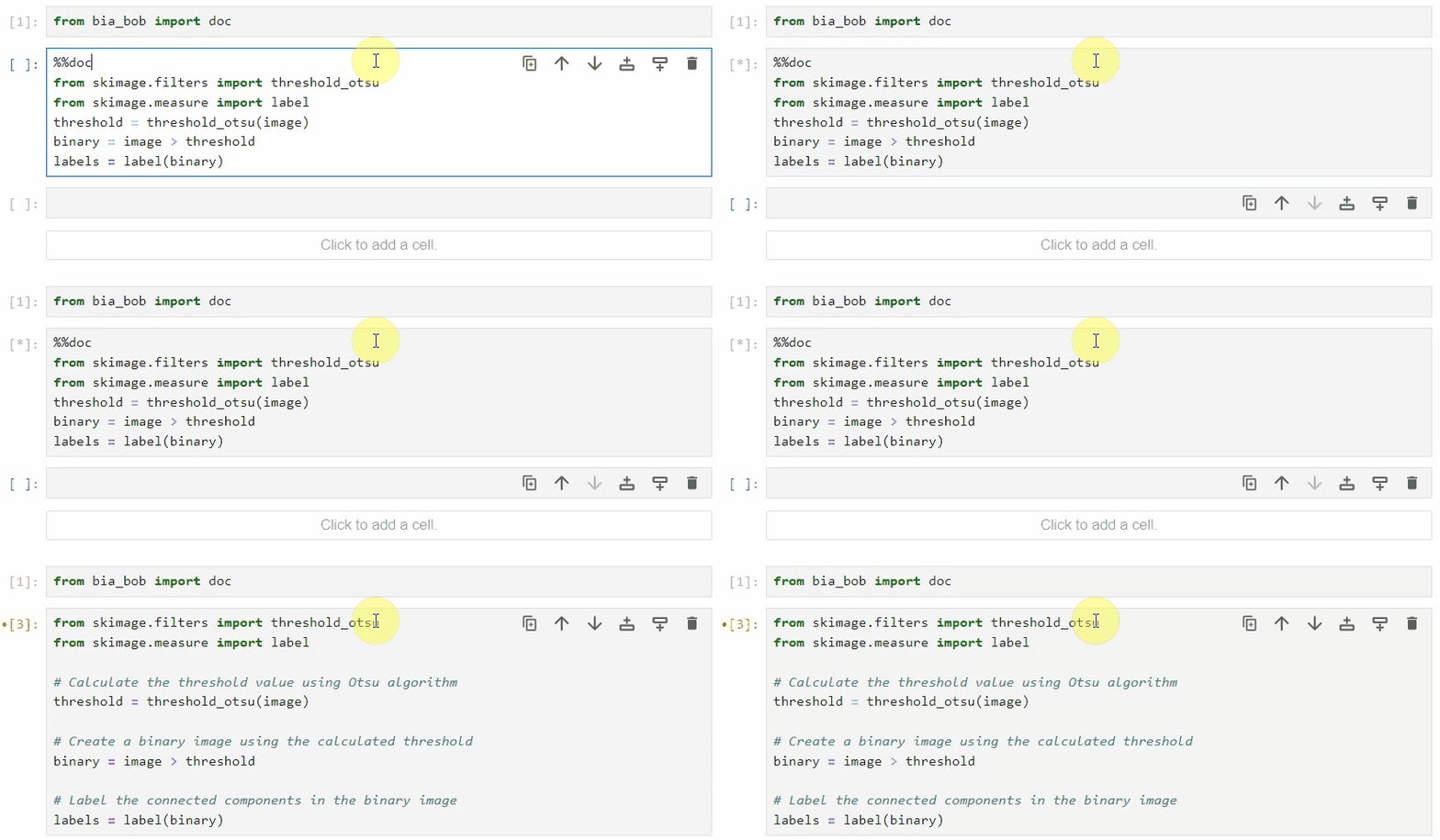
Using the %%doc magic, you can generate documentation for a given code cell.
GPU-acceleration
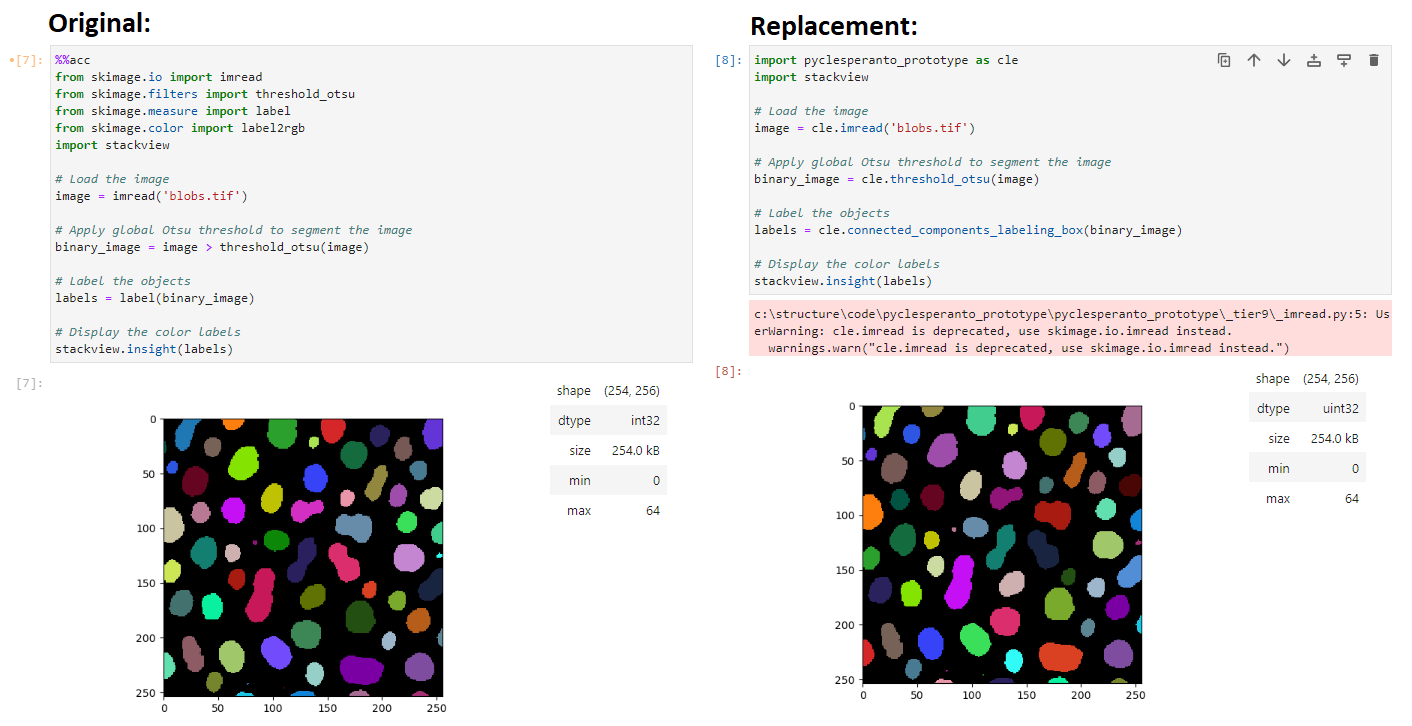
Using the %%acc magic, you can replace common image processing functions with GPU-accelerated functions. It is recommended to check if the image processing results remain the same. You can see an example in this notebook.
Example notebooks
Command line interface
You can use bia-bob from the terminal. This is recommended for creating notebooks for example like this:
bia-bob Please create a Jupyter Notebook that opens blobs.tif, segments the bright objects and shows the resulting label image on top of the original image with a curtain.
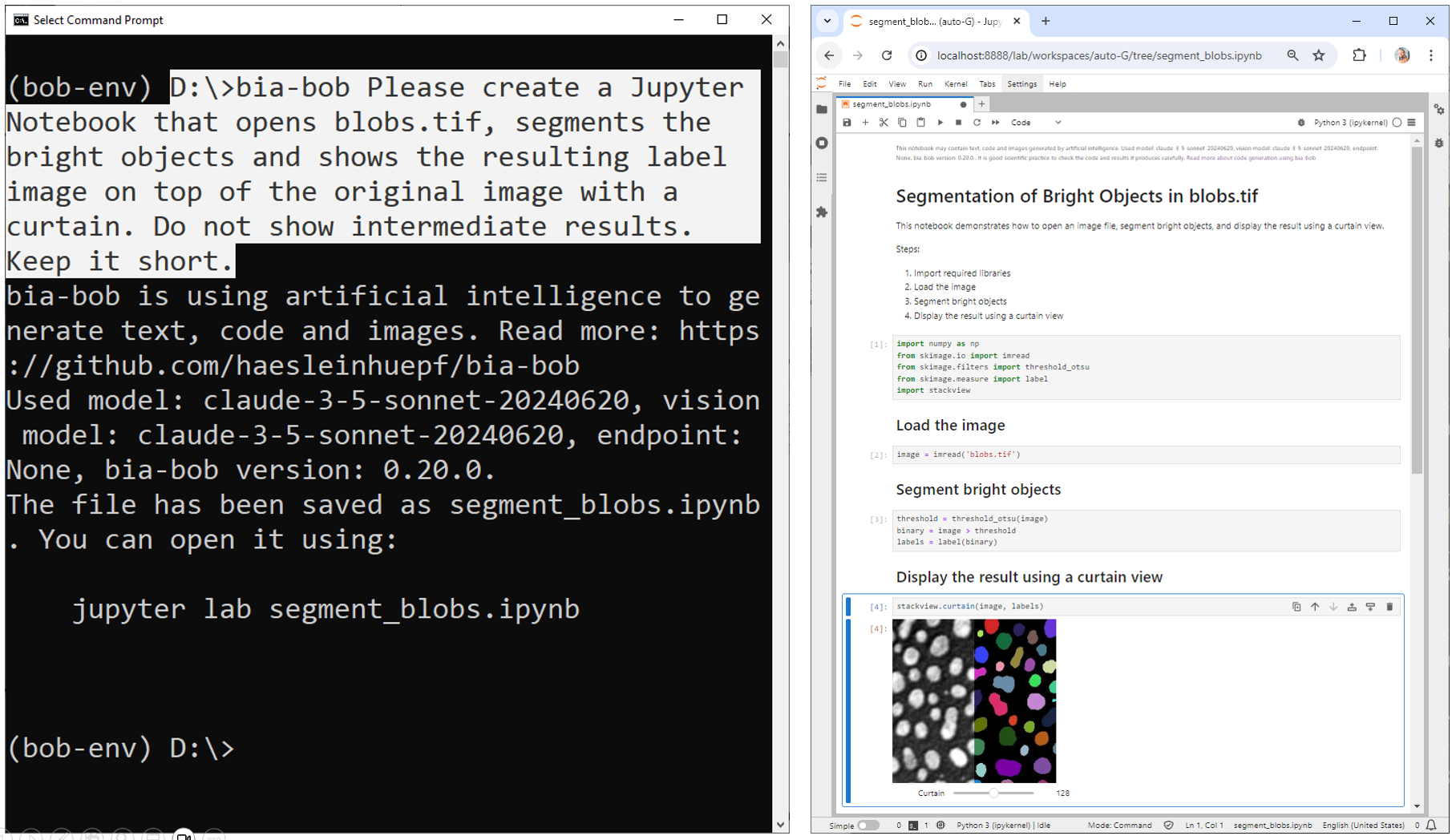
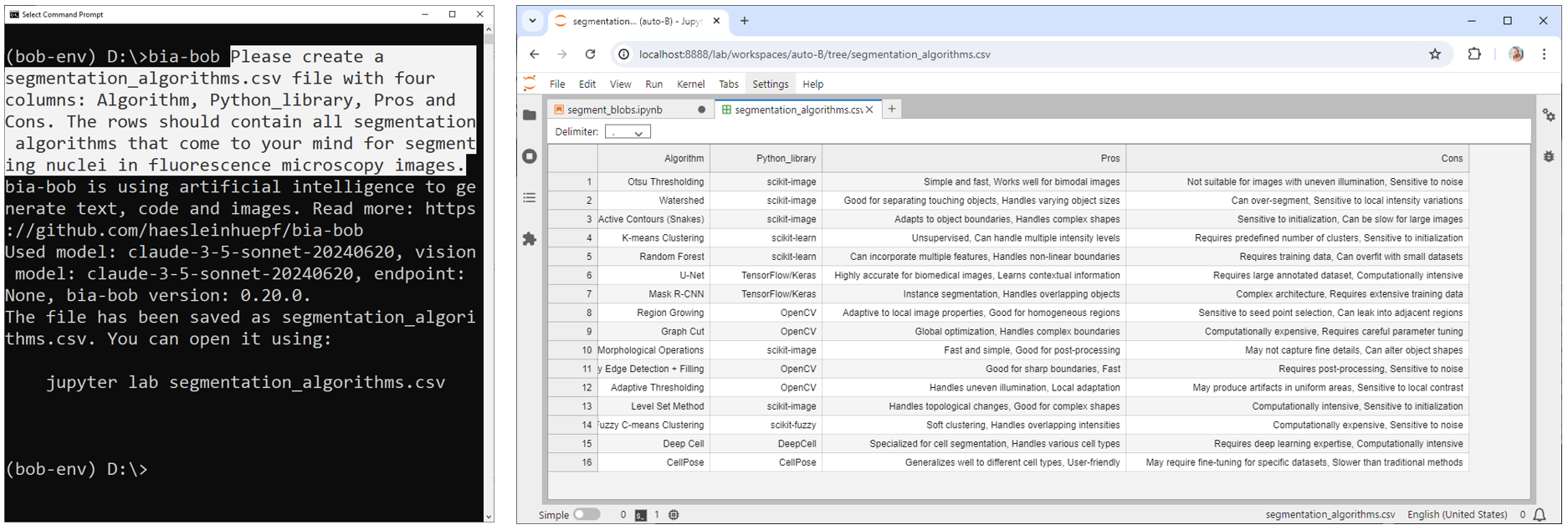
This can also be used to create other files, e.g. CSV files.
Disclaimer
bia-bob is a research project aiming at streamlining the design of image analysis workflows. Under the hood it uses
artificial intelligence / large language models to generate text and code fulfilling the user's requests.
Users are responsible to verify the generated code according to good scientific practice. Some general advice:
- If you do not understand what a generated code snippet does, ask
%%bob explain this code in detail to a Python beginner:before executing the code. - After Bob generated a data analysis workflow for you, ask
%%bob How could I verify this analysis workflow ?. It is good scientific practice to measure the quality of segmentation results for example, or to measure the difference of automated quantitative measurements, in comparison to manual analysis. - If you are not sure if an image analysis workflow is valid, consider asking human experts. E.g. reach out via https://image.sc .
What bia-bob submits to the LLM service providers
When sending a request to the LLM service providers, bia-bob sends the following information:
- The content of the cell you were typing
- If you entered variables using the
{variable}syntax, the content of these variables - All available variable, function and module names in the current Python environment (not variable values)
- A selected list of Python libraries that are installed
- The conversation history of the current session
- Optional: The image mentioned in the first line of the cell
This information is necessary to enable bia-bob to generate code that runs in your environment. If you want to know exactly what is sent to the server, you can activate verbose mode like this:
from bia_bob._machinery import Context
Context.verbose = True
Known issues
If you want to ask bob a question, you need to put a space before the ?.
%bob What do you know about blobs.tif ?
Installation
You can install bia-bob using conda/pip. It is recommended to install it into a conda/mamba environment. If you have never used conda before, please read this guide first.
It is recommended to install bia-bob in a conda-environment together with useful tools for bio-image analysis.
conda env create -f https://github.com/haesleinhuepf/bia-bob/raw/main/environment.yml
You can then activate this environment...
conda activate bob_env
OR install bob into an existing environment:
pip install bia-bob
Add to startup code (optional)
If you would like to use the %bob magic in notebooks without need for importing bia_bob first,
you can add a bia_bob.ipy file to your Jupyter startup directory ~/.ipython/profile_default/startup/ with this content:
from bia_bob import bob

Note: This might require to install bia_bob in the base environment.
Setting API keys
For using LLMs from remote service providers, you need to set an API key.
API Keys are short cryptic texts such as "proj_sk_asdasdasd" which allow you to log into a remote service without entering your username and password. Many online serives require using API keys for billing; others enable you to use their free services only after obtaining an API key.
This also means that you should not share your API key with others.
In the following sections, you find links to a couple of LLM services providers that are compatible with bia-bob.
After obtaining the key, you need to add it to the enviroment variables of your computer.
On Windows, you can do this by 1) searching for "env" in the start menu, 2) clicking on "Edit the system environment variables",
3) clicking on "Environment Variables", 4) clicking on "New" in the "System variables" section and adding a new variable with the name specified below (e.g. OPENAI_API_KEY) and the value of your API key.
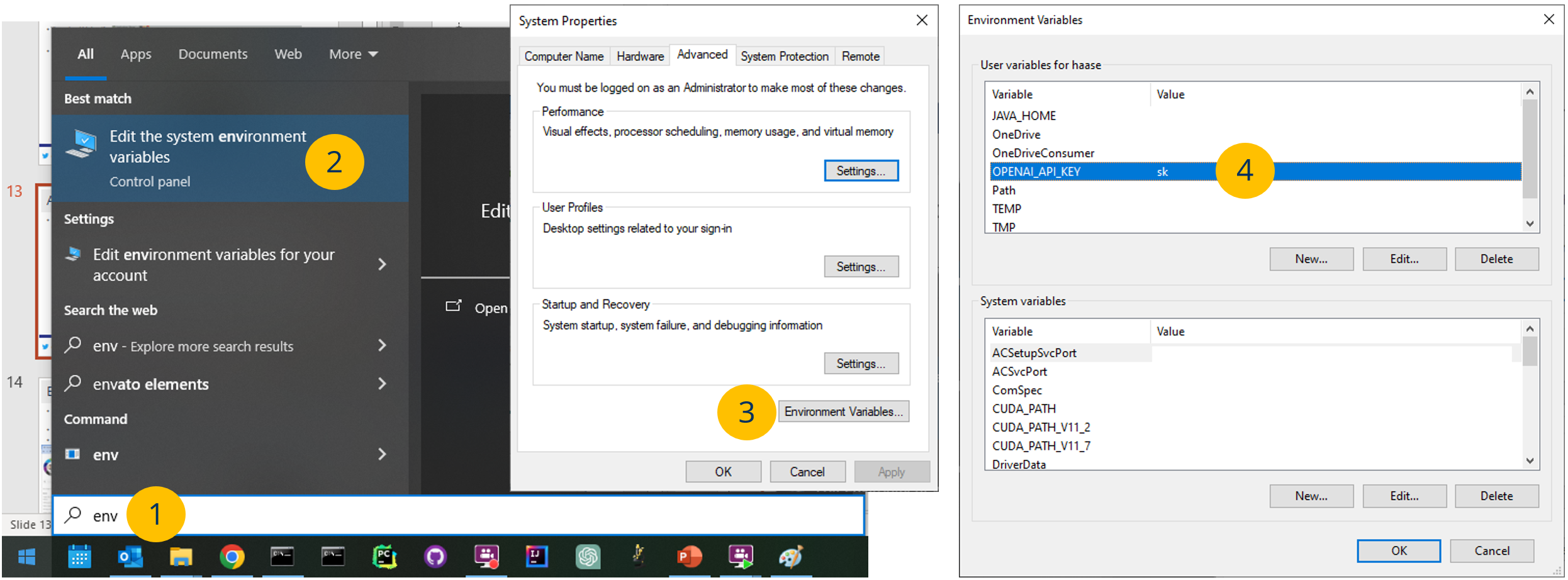
On Linux and MacOS, this is typically done by modifying a hidden .bashrc or .zshrc file in the home directory, e.g. like this:
echo "export OPENAI_API_KEY='yourkey'" >> ~/.zshrc
Note: After setting the environment variables, you need to restart your terminal and/or Jupyter Lab to make them work.
See also further instructions on this page.
Using OpenAI / ChatGPT as backend
Create an OpenAI API Key and add it to your environment variables named OPENAI_API_KEY as explained on
You can then initialize Bob like this (optional, as that's default):
from bia_bob import bob
bob.initialize(model="gpt-5.6-terra", vision_model="gpt-5.6-terra", fast_model="gpt-5.6-luna")
You can also use the codex-model which was specifically trained for coding tasks:
from bia_bob import bob
bob.initialize(model="codex-mini-latest", vision_model="codex-mini-latest")
Using Anthropic / Claude
Create an Anthropic API Key and add it to your environment variables named ANTHROPIC_API_KEY.
You can then initialize Bob like this:
from bia_bob import bob
bob.initialize(model="claude-sonnet-5",
               vision_model="claude-sonnet-5",
               fast_model="claude-haiku-4-5")
Using KISSKI / Academic Cloud
You can also apply for an API Key from the German Artificial Intelligence Service Center for Sensible and Critical Infrastructures who operates the ChatAI service.
You can store it in an environment variable named KISSKI_API_KEY and use initialize bob like this:
import os
from bia_bob import bob
bob.initialize(endpoint="https://chat-ai.academiccloud.de/v1",
               api_key=os.environ.get('KISSKI_API_KEY'),
               model="openai-gpt-oss-120b",
               vision_modle="openai-gpt-oss-120b",
               fast_model="gemma-4-31b-it")
Using OpenRouter
If you are using models via OpenRouter, store your API key for accessing the models in an environment variable named OPENROUTER_API_KEY. You can then access the models like this:
bob.initialize(model="anthropic/claude-sonnet-4.6",
               vision_model="anthropic/claude-sonnet-4.6",
               fast_moel="anthropic/claude-haiku-4.5",
               endpoint="openrouter")
Using custom endpoints
Custom endpoints can be used as well if they support the OpenAI API. Examples are DeepSeek, KISSKI, blablador and ollama, which runs locally on your computer (gaming GPU recommended). An example is shown in this notebook:
- If you want to use ollama and e.g. the
gpt-oss:20bmodel initialize bob like this:
bob.initialize(endpoint='ollama', model='gpt-oss:20b')
- If you want to use blablador, which is free for German academics, just get an API key as explained on this page and store it in your environment as
BLABLADOR_API_KEYvariable.
bob.initialize(
    endpoint='blablador',
    model='alias-code',
    vision_model='alias-qwen36-35b',
    fast_model='alias-fast')
- Custom end points can be used as well, for example like this:
bob.initialize(
    endpoint='http://localhost:11434/v1',
    model='gpt-oss:20b',
    vision_model='gemma3:12b',
    fast_model='gemma3:12b')
Using Google gemini
Create a Google API key and store it in the environment variable GOOGLE_API_KEY.
pip install google-generativeai>=0.7.2
You can then initialize Bob like this:
from bia_bob import bob
bob.initialize(model="gemini-3.5-flash",
               vision_model="gemini-3.5-flash",
               fast_model="gemini-3.5-flash")
Configuration
You can also configure the system message bia-bob is using, which might be useful in particular when using it with
small open-weight language models executed on local hardware, or when using it in scenarios that are not bio-image
analysis related.
from bia_bob import bob
bob.initialize(system_prompt="""
    You are an excellent astronomer and Python programmer.
    You typically use Python libraris from this domain.
""")
In this system message you can use place-holders which are set when bob is invoked:
{libraries}: A list of Python libraries that are installed an bio-image analysis related (scikit-image, stackview, ...){reusable_variables}: A list of variables that are available in the current Python environment{builtin_snippets}: A list of built-in code snippets that might be helpful for bio-image analysis{additional_snippets}: A list of additional code snippets that is assembled from Python libraries that support giving hints to bob.
More examples are available in the demo notebook.
Development
If you want to contribute to bia-bob, you can install it in development mode like this:
git clone https://github.com/haesleinhuepf/bia-bob.git
cd bia-bob
pip install -e .
Extensibility
If you are maintainer of a Python library and want to make BiA-bob aware of functions in your library, you can extend Bob's knowledge using entry-points. Add this to your library setup.cfg:
[options.entry_points]
bia_bob_plugins =
    plugin1 = your_library._bia_bob_plugins:list_bia_bob_plugins
In the above mentioned _bia_bob_plugins.py define this function (and feel free to rename the function and the Python file):
def list_bia_bob_plugins():
    """List of function hints for bia_bob"""
    return """
    * Computes the sum of a and b
    your_library.compute_sum(a:int,b:int) -> int

    * Determines the difference between a and b
    your_library.compute_difference(a:int, b:int) -> int

    """
Note that the syntax should be pretty much as shown above: A bullet point with a short description and a code-snippet just below.
You can also generate the list_bia_bob_plugins function as demonstrated in this notebook.
Please only list the most important functions. If the list of all plugins extending BiA-Bob becomes too long, the prompt will exceed the maximum prompt length.
List of known Python libraries that provide extensions to Bob:
(Feel free to extend this list by sending a pull-request)
Similar projects
There are similar projects:
- jupyter-ai
- JupyterLab Magic Wand
- chatGPT-jupyter-extension
- chapyter
- napari-chatGPT
- bioimageio-chatbot
- Claude Engineer
- BioChatter
- aider
- OpenDevin
- Devika
Issues
If you encounter any problems or want to provide feedback or suggestions, please create a thread on image.sc along with a detailed description and tag @haesleinhuepf .
1 maintainer

Metadata
1 maintainer
Release files for bia-bob 0.36.4
For a detailed explanation of source distributions (sdists) and built distributions (wheels), please see the package formats documentation.
Source distribution (sdist)
| File | Size | Uploaded | |
|---|---|---|---|
| bia_bob-0.36.4.tar.gz | 37.0 kB | Details |
Built distribution (wheel)
| File | Interpreter | ABI | Platform | Reset |
|---|---|---|---|---|
| bia_bob-0.36.4-py3-none-any.whl | Python 3 | none | any | Details |
Total release size: 74.0 kB
Release files / bia_bob-0.36.4.tar.gz
| Download URL | bia_bob-0.36.4.tar.gz |
|---|---|
| Size | 37.0 kB |
| Tags | Source |
|
SHA-256 checksum How to use checksums |
a8430cdc4b7416506ed9f031cecb52c467911798f25566b284f7a0a37796d273
|
|
BLAKE2b-256 checksum How to use checksums |
7db1c28d8c948e7a357cc30c7d304d1cbfccc9c150911903239e8c7161415727
|
| Upload date | |
|
Uploaded using Trusted Publishing? What is trusted publishing? |
No |
| Uploaded via |
twine/7.0.0 CPython/3.14.8
|
Release files / bia_bob-0.36.4-py3-none-any.whl
| Download URL | bia_bob-0.36.4-py3-none-any.whl |
|---|---|
| Size | 37.0 kB |
| Tags | Python 3 |
|
SHA-256 checksum How to use checksums |
5199bc114aa81047524379d66a141136783e81a81594109060f0b3b48107bfcf
|
|
BLAKE2b-256 checksum How to use checksums |
545b5af42ccfd5377cd0399de76a8fc51d49d02d661fd1652411293fb5053443
|
| Upload date | |
|
Uploaded using Trusted Publishing? What is trusted publishing? |
No |
| Uploaded via |
twine/7.0.0 CPython/3.14.8
|














