
bitp
A CLI tool for managing BitBake/Yocto/OpenEmbedded layer repositories.
The command is bit for quick typing.
pip install bitp
Or grab the single-file standalone bit (see INSTALL.md).
Overview
bit helps developers working with Yocto/OpenEmbedded projects by providing tools to:
- Update git repos backing BitBake layers from a
bblayers.conf - Explore commits interactively with fzf-based navigation
- Export patches with cover letters for upstream submission
- Move changes between projects, locally or on other build hosts
- Manage branches across multiple layer repositories
- Search the OpenEmbedded Layer Index for layers
- Bootstrap new projects by cloning core repositories
- Manage projects - switch between multiple Yocto builds from anywhere, local or over SSH
- Web dashboard - the same, in a browser, with terminals and drag and drop
Features
- Automatic layer discovery - finds layers by searching for
conf/layer.conffiles - Multi-layer repo support - handles repos containing multiple layers (e.g., meta-openembedded)
- Interactive fzf menus - fast navigation with preview panes and keyboard shortcuts
- Tab completion - bash completion via argcomplete
- Background refresh - upstream status checks run in background for fast startup
- Per-repo configuration - custom display names, update defaults, push targets
Quick Start
# Browse configs and create a new project (one-step)
bit setup configs

# Clone into a specific directory or remote host
bit setup configs ./my-project
bit setup configs user@host:/opt/yocto

# Or step by step
bit setup clone -b scarthgap --doit
bit setup

# Check status of all layer repos
bit repos summary

# Interactively explore repos and commits
bit explore

# Update all repos (interactive)
bit repos update

# Update all repos non-interactively (apply saved defaults)
bit repos update -y

# Search for layers in the OE Layer Index
bit layer-index security
Screenshots
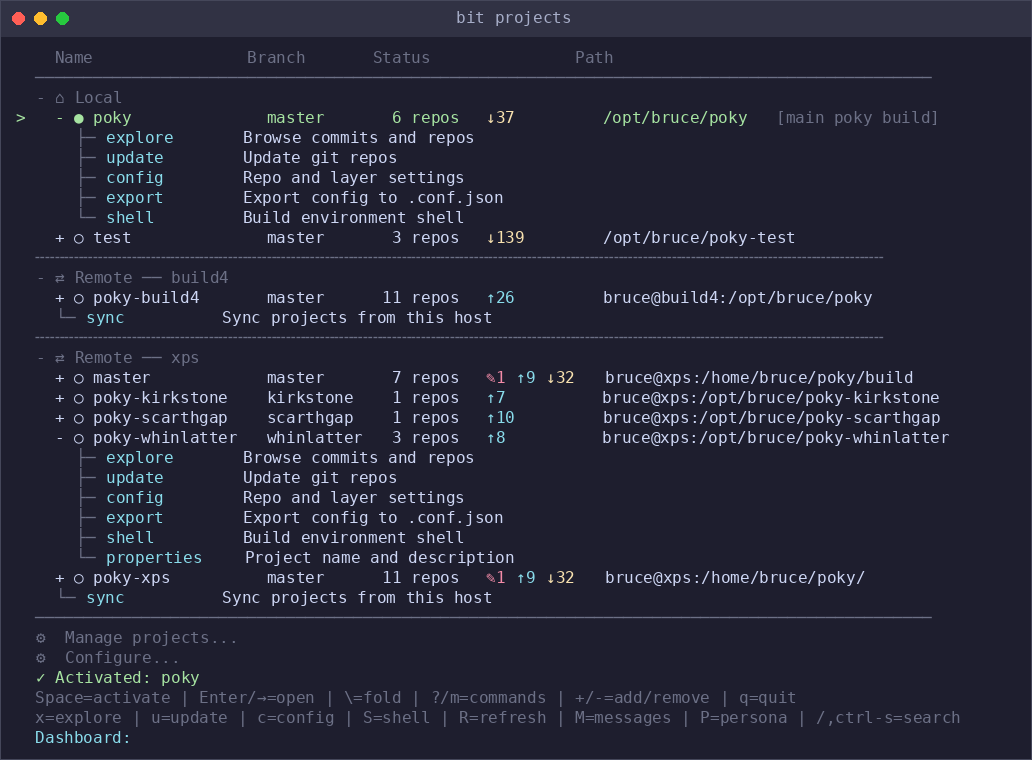
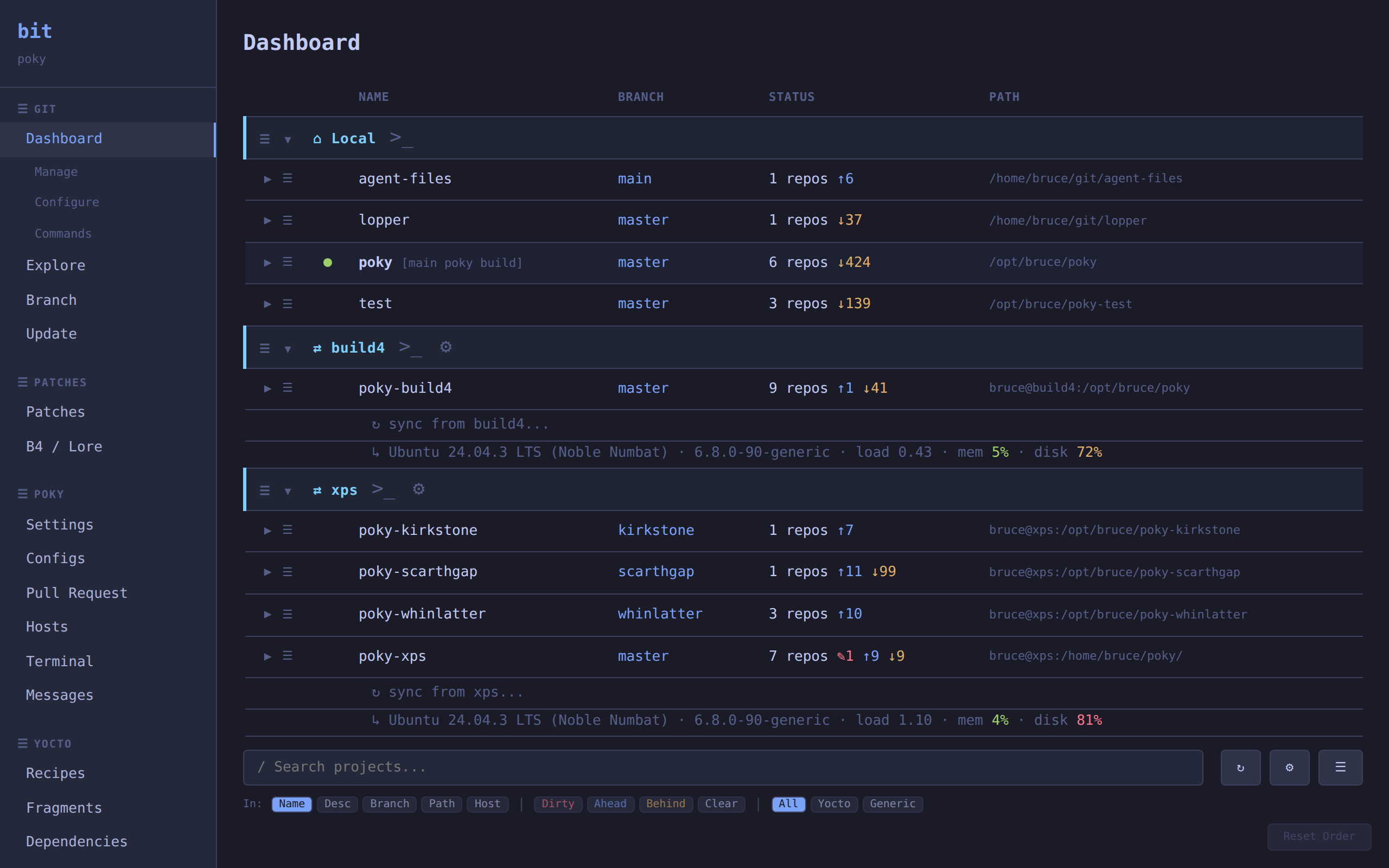
Project Dashboard
Every project in one list, local builds and ones on build hosts over SSH, with each repo's local commits (↑) and upstream changes to pull (↓). Expand a project for its actions.
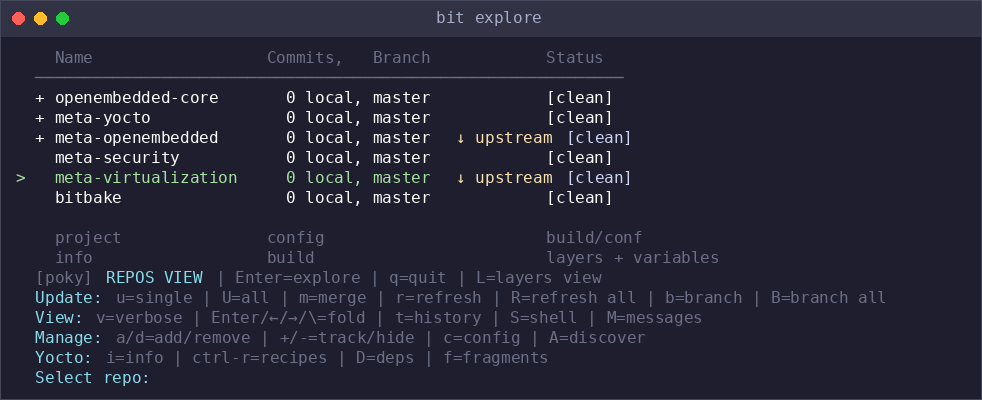
Explore Repos
Browse layer repositories with upstream status, branch info, and dirty/clean indicators. Yocto projects get extra keybindings for recipes, deps, fragments, and build info.
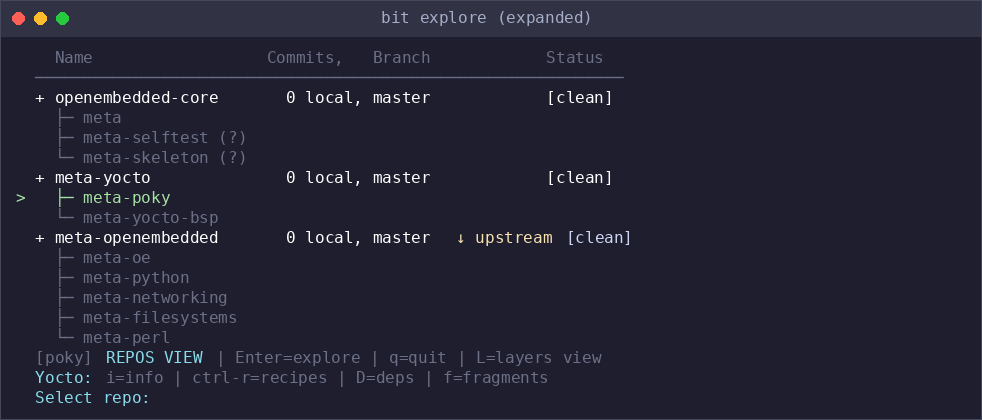
Expand multi-layer repos to see individual layers:
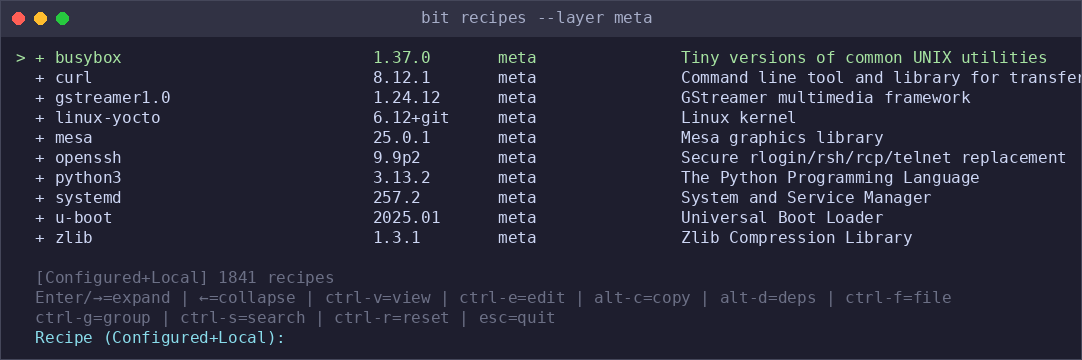
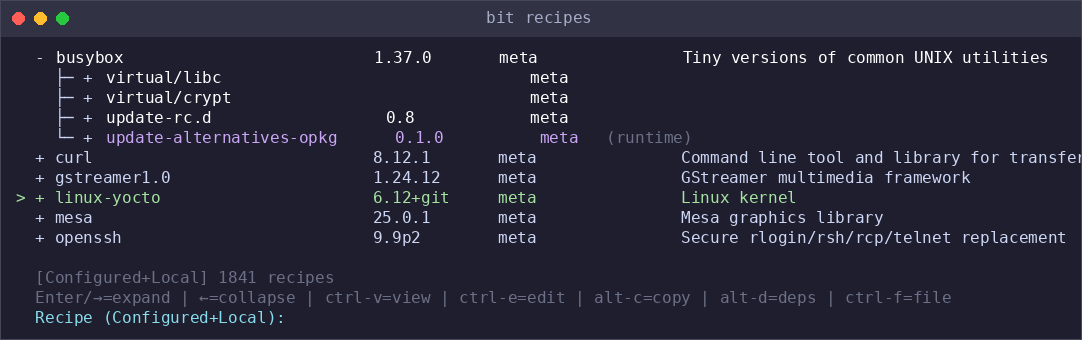
Recipe Browser
Search and browse BitBake recipes across layers. Expand recipes to see dependencies inline.
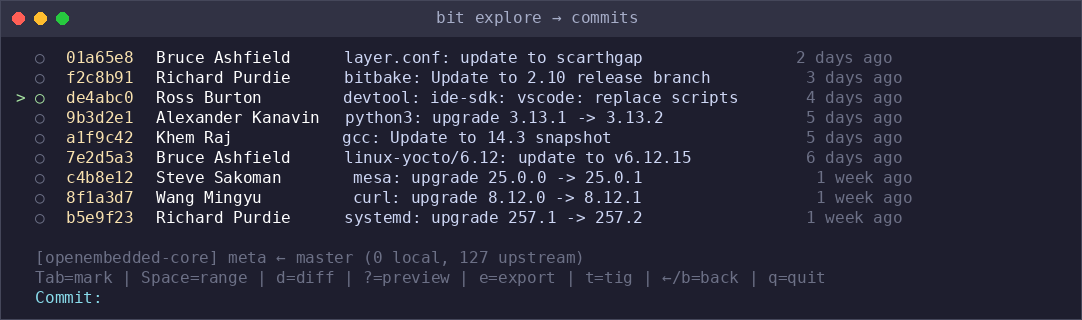
Commit Browser
Drill into a repo to browse its local commits and what upstream has, with a preview pane. Mark commits to export, drop or rebase, or launch git tools.
Web Dashboard
bit serve launches a web dashboard and auto-update daemon, with themes, keyboard navigation, terminals and live updates. Projects tagged with auto-update are periodically fetched and updated.
Dashboard — projects grouped by host:
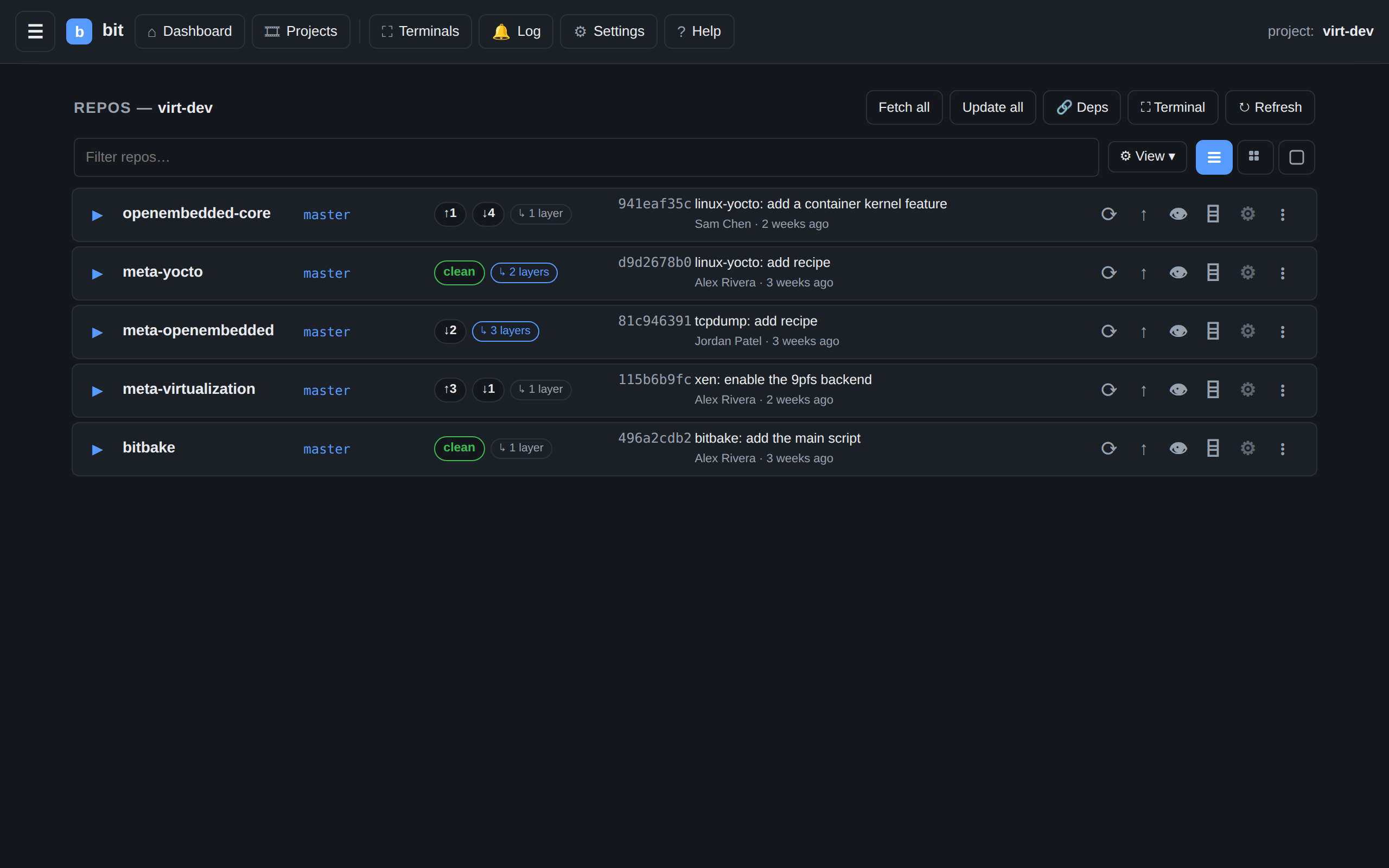
Repos — the project's repos with their newest commit, local and upstream counts, and actions:
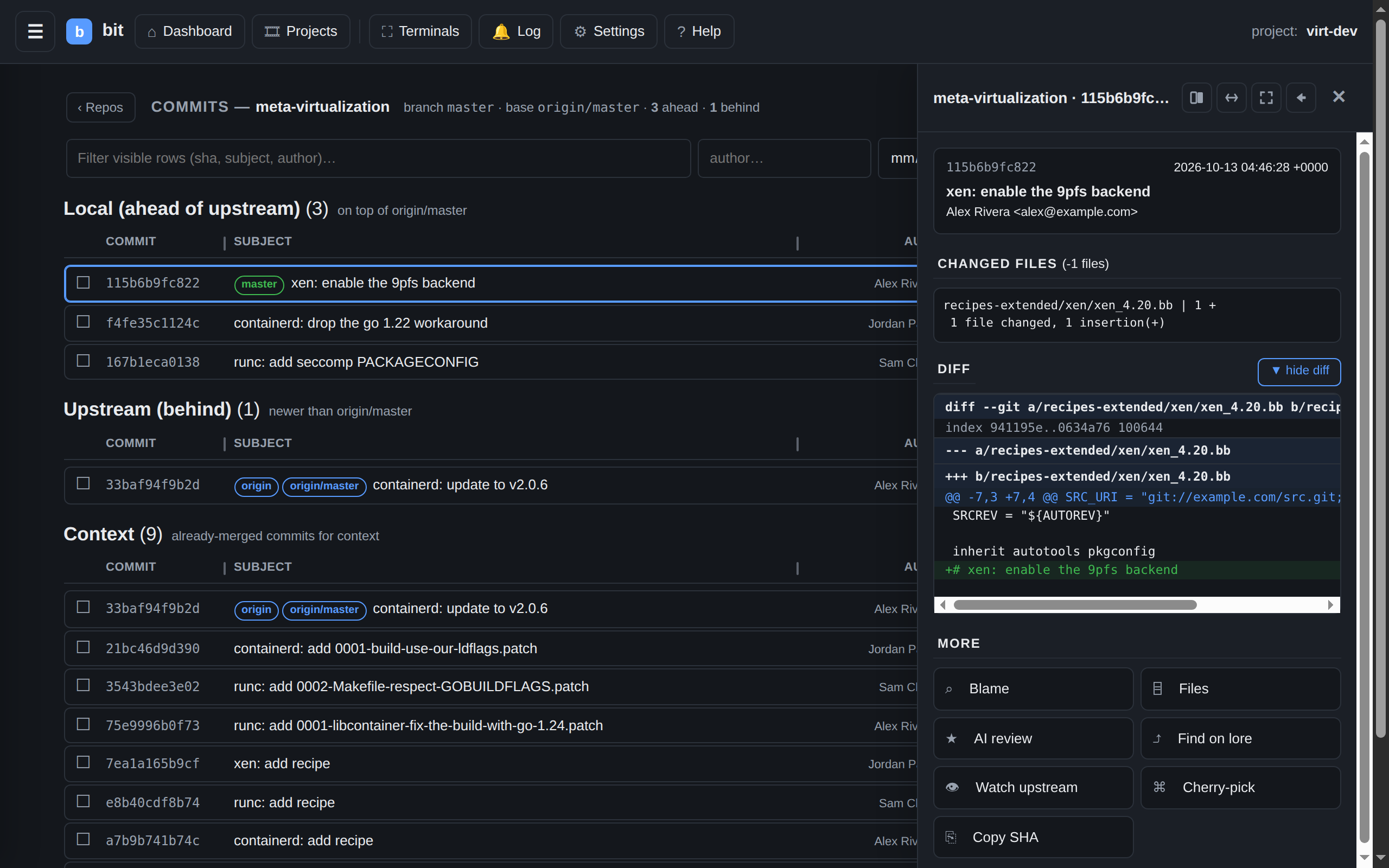
Commits — local commits, what upstream has, and recent history; a commit opens on the right with its diff:
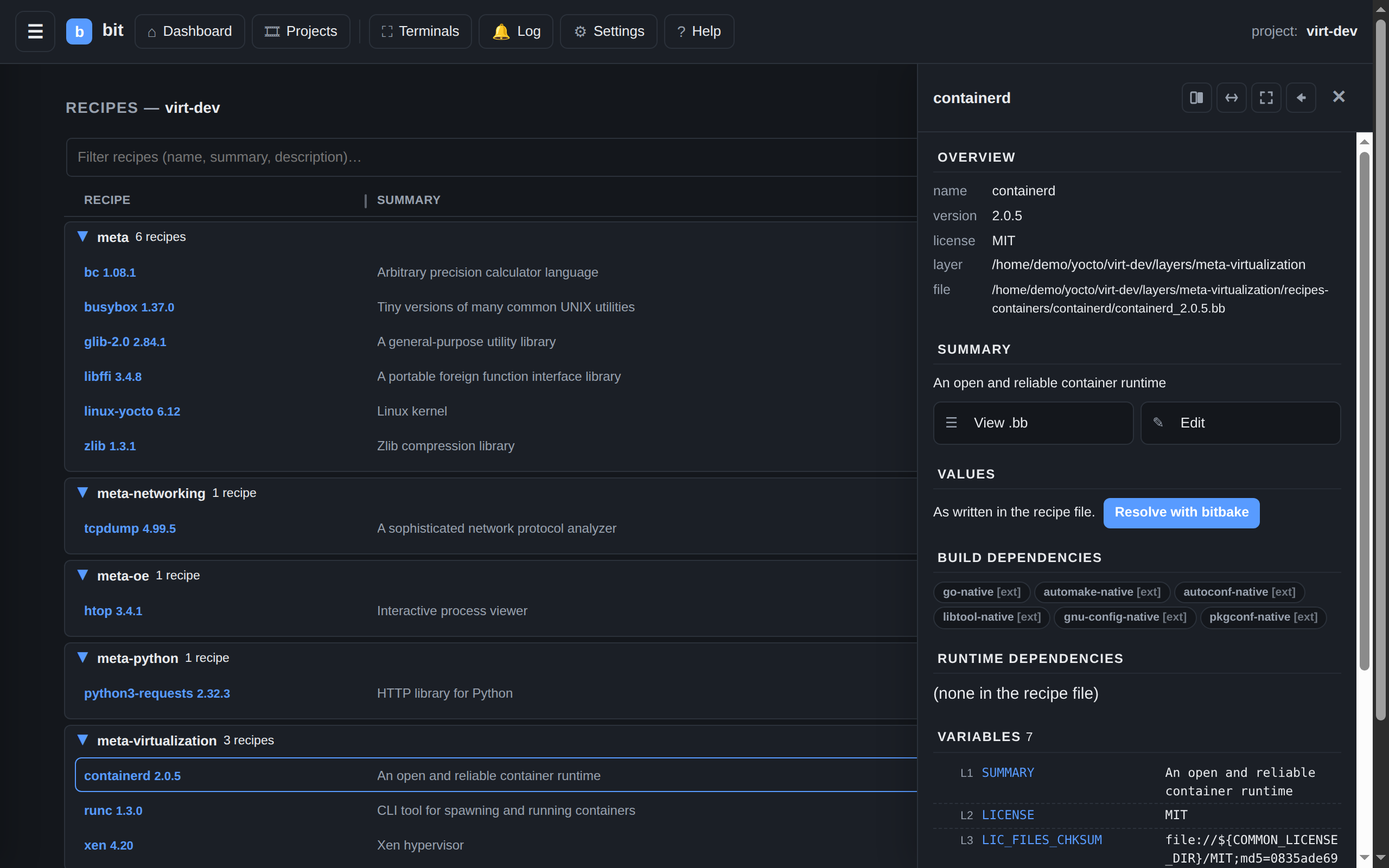
Recipes — recipes by layer, one open with its dependencies and variables:
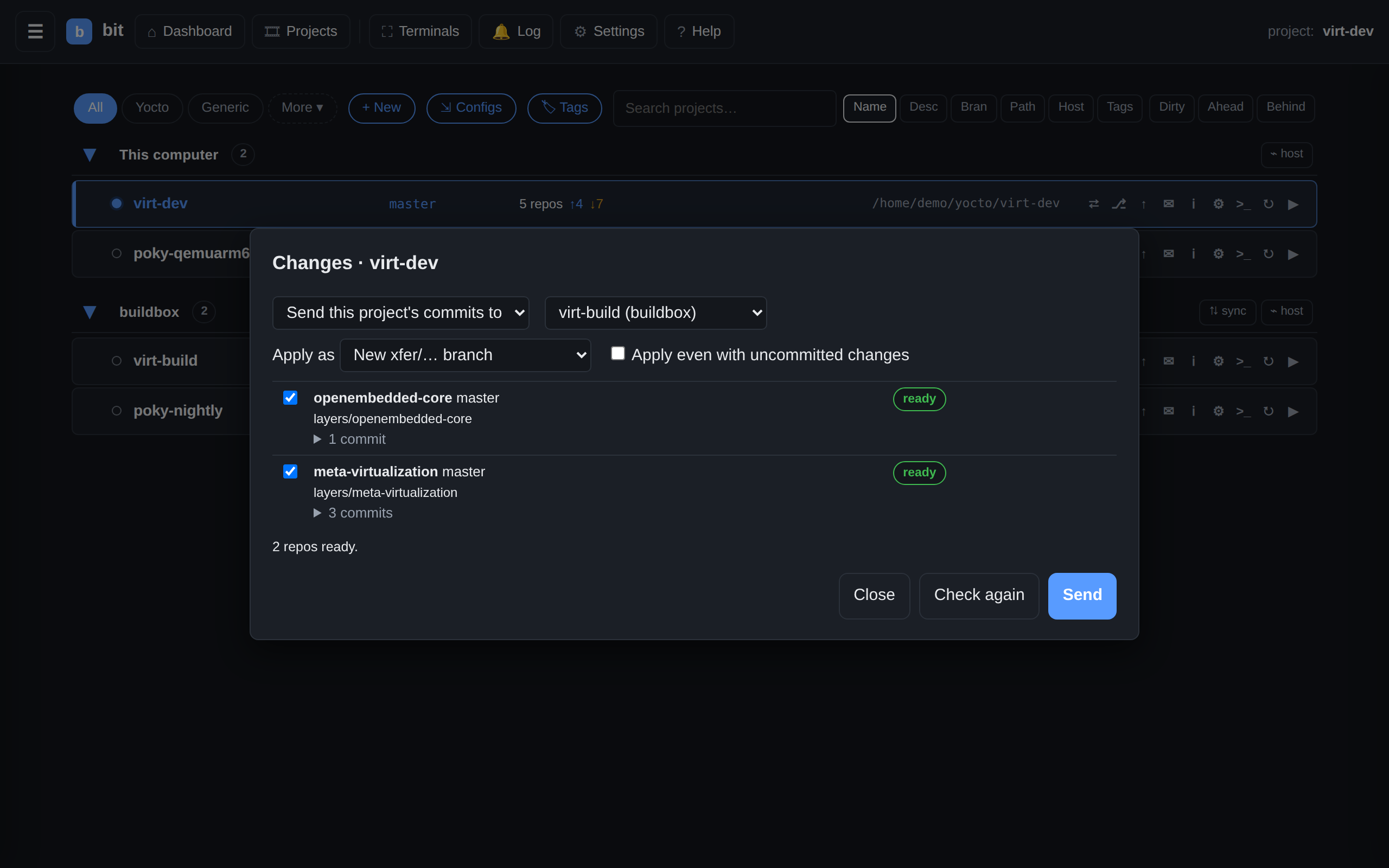
Changes — send a project's local commits to another project, here one on a build host; every repo is checked first:
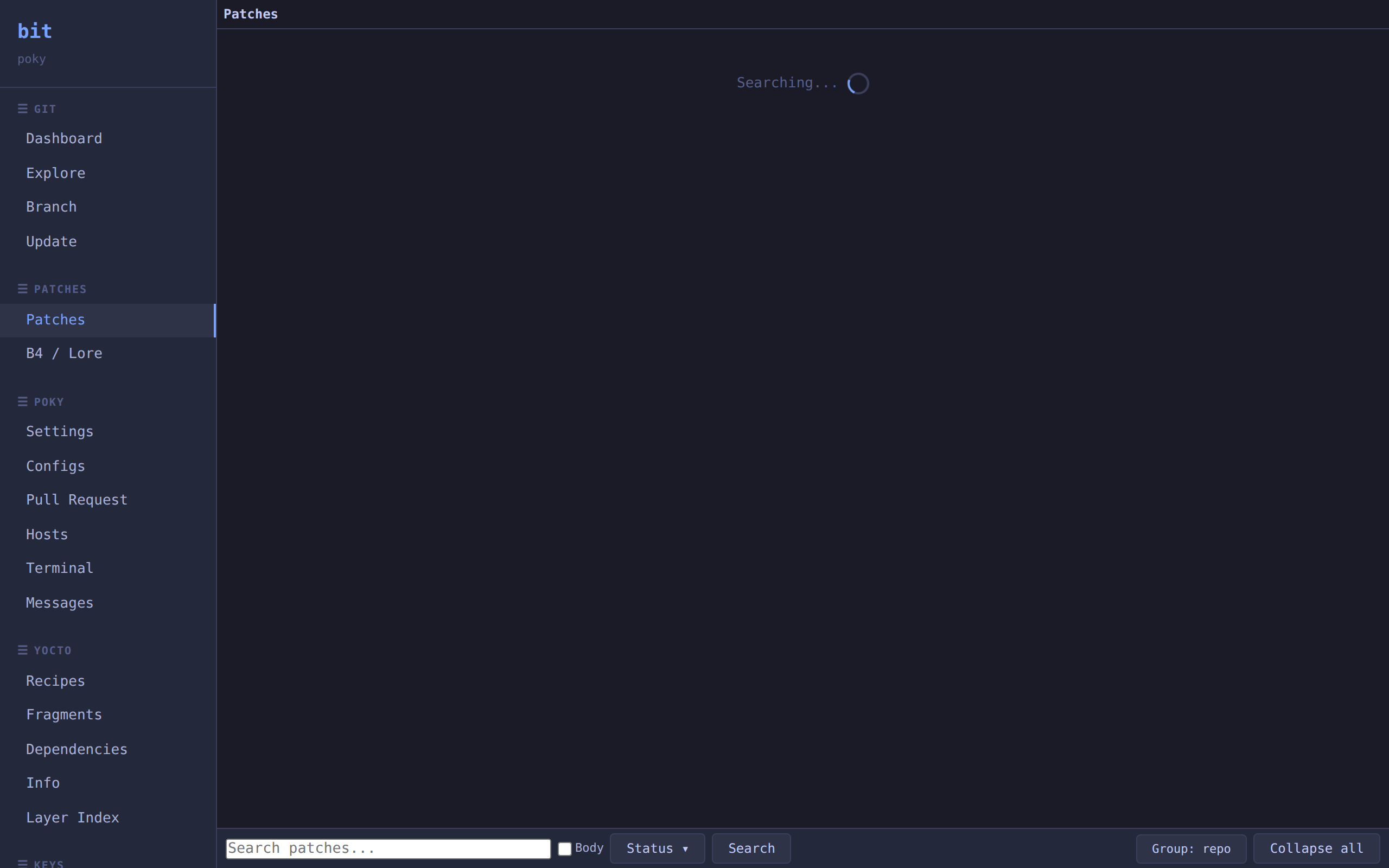
Patches — patch files across layers with their Upstream-Status:
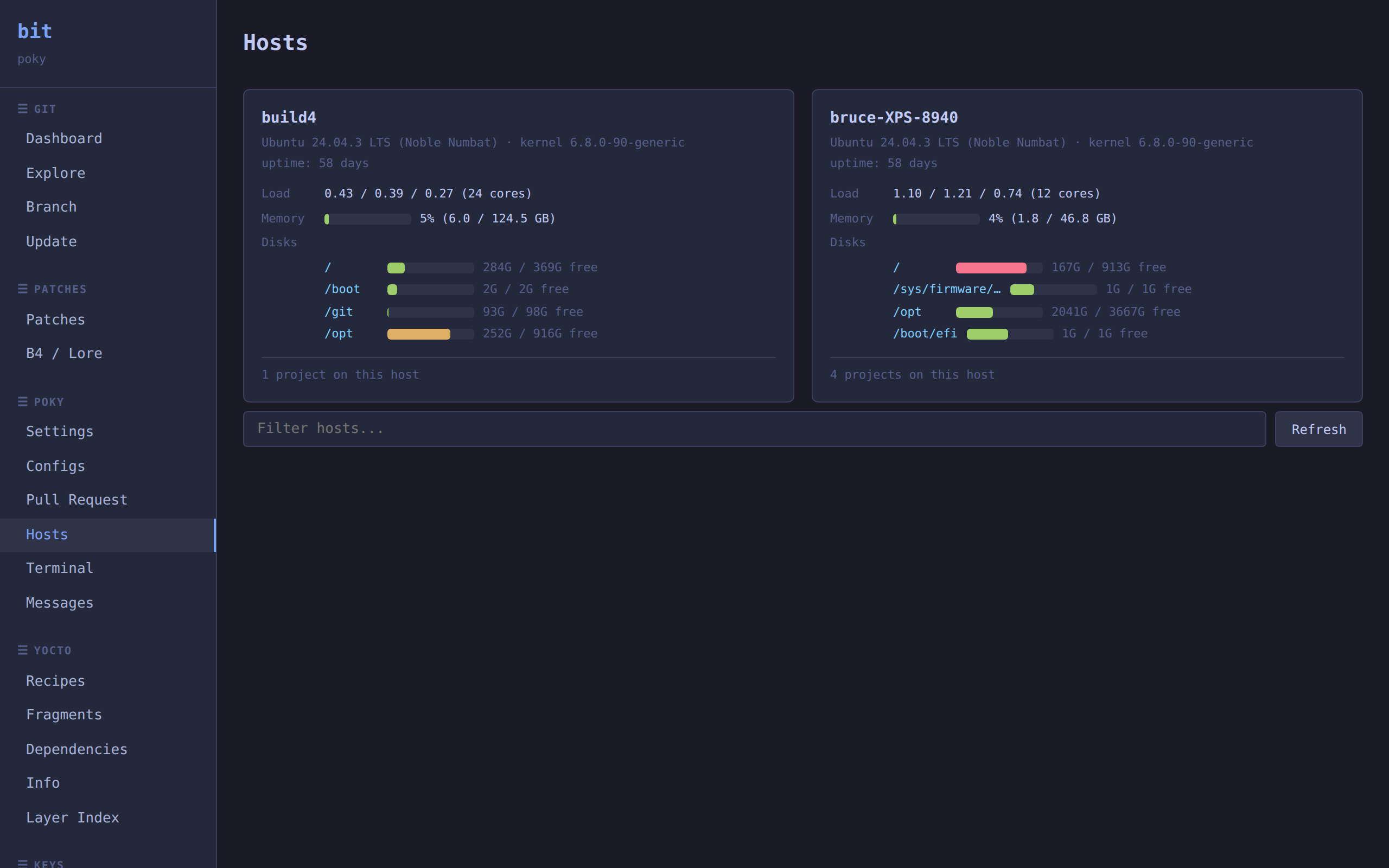
Hosts — each host's OS, load, memory and disks:
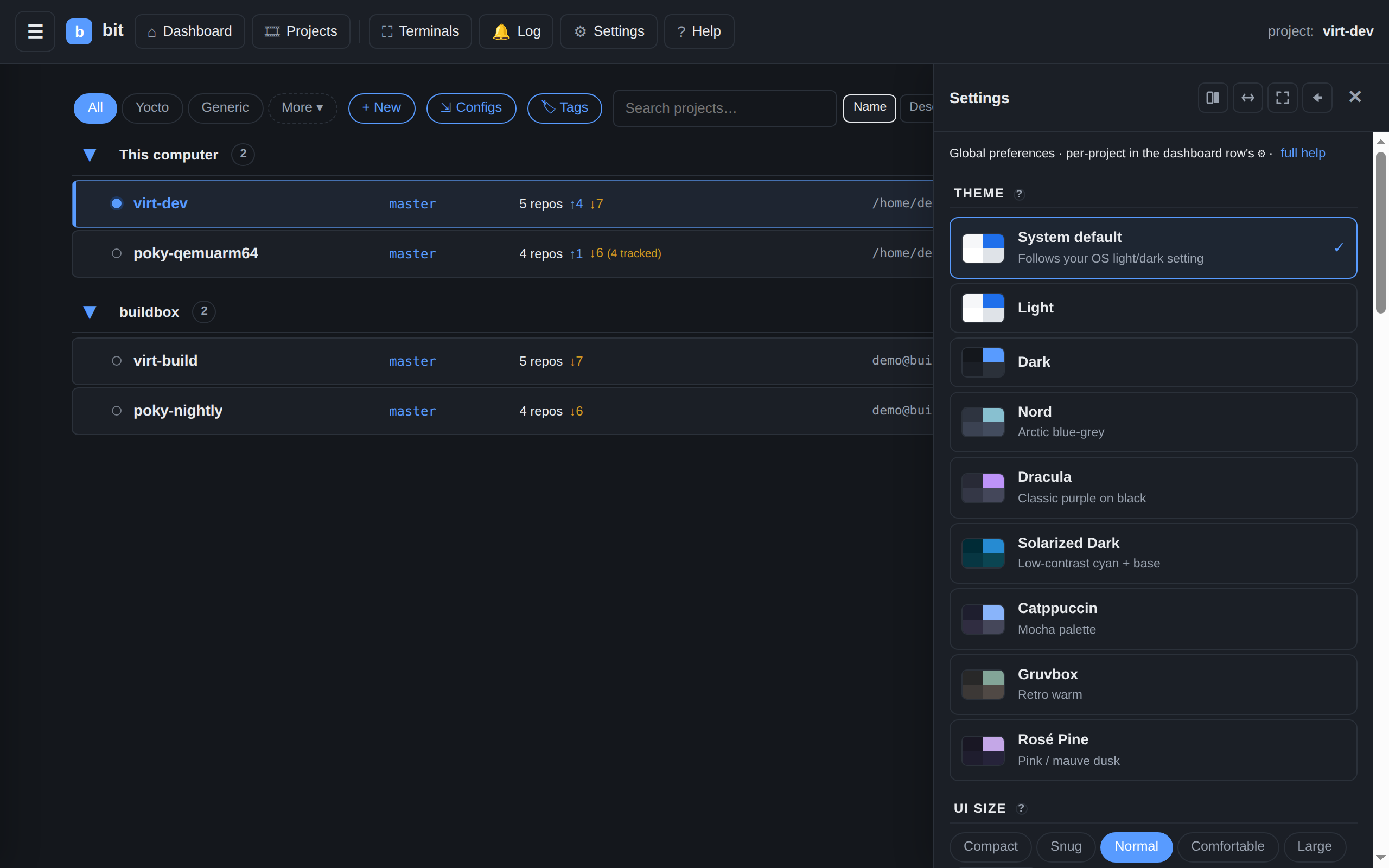
Settings — themes, sizes, fonts and defaults:
Commands
| Command | Alias | Description |
|---|---|---|
explore |
x |
Interactively explore commits in layer repos |
repos |
repo |
List repos; status (one line each), summary (local commits), update, config |
changes |
- | A project's local commits: list, send, fetch, received, clean, export, prep, summarize |
branch |
b |
List, switch and delete branches across repos |
info |
i |
Show build configuration and layer status |
config |
c |
bit's global settings (get, set, export-settings, import-settings) and the interactive repo config menu |
setup |
init |
Show OE/Yocto build environment setup command |
setup shell |
- | Start shell with OE build environment pre-sourced |
setup clone |
- | Clone the core repos, or a .conf.json config or registry entry |
setup apply |
- | Apply layers and fragments from saved config |
setup configs |
- | Browse saved build configurations, pick one and clone it |
setup export |
- | Export current build state as .conf.json |
setup registry-copy |
- | Copy a .conf.json file to the user registry |
b4 |
- | Mail-based patch management using b4 and lore.kernel.org |
pending |
- | Patches and pull requests that haven't landed yet |
patches |
- | Explore and manage patches across layers |
deps |
d |
Show layer and recipe dependencies |
recipes |
r |
Search and browse BitBake recipes |
fragments |
f |
Browse and manage OE configuration fragments |
layer-index |
layers, search |
Search OpenEmbedded Layer Index for layers |
projects |
p |
Manage and switch between multiple project directories |
dashboard |
- | The project dashboard (also what bit alone opens) |
hosts |
- | SSH host entries used by remote projects (list, add, remove, test) |
watch |
- | Watch tracked repos for commits that match a rule |
notify |
- | Email notifications from the auto-update daemon |
serve |
daemon |
Web dashboard and auto-update daemon |
help |
h |
Browse help for every command |
Renamed commands. These moved under a noun; the old names still work
for now and print a warning (set BIT_SUPPRESS_DEPRECATION=1 to silence it):
| Old | New |
|---|---|
update, u |
repos update |
status |
repos summary |
config <repo> …, config edit <layer> |
repos config <repo> …, repos config edit <layer> |
export, export prep |
changes export, changes prep |
summarize, sum |
changes summarize |
clone |
setup configs |
bootstrap |
setup clone |
Run bit with no arguments for the project dashboard, bit help to browse every command, or bit <command> --help for its options.
Common Workflows
Starting a New Project
There are several ways to create a new project, depending on whether you have a saved build configuration.
Basic clone (no config file)
Clone the three core repos (bitbake, openembedded-core, meta-yocto) and set up the build environment:
# Clone core repos at a release branch
bit setup clone -b scarthgap --doit

# Show the environment setup command
bit setup

# Or jump straight into a sourced shell
bit setup shell
Clone from a saved configuration
Build configurations (.conf.json files) capture repos, layers, branches, and OE fragments. The fastest way to create a project:
# One-step: browse configs, pick one, clone, apply, browse fragments
bit setup configs

# Pre-set the target directory (local or remote)
bit setup configs ./my-build
bit setup configs user@host:/opt/yocto

# Step-by-step alternative
bit setup clone --config poky.conf.json --doit
bit setup apply
bit setup configs opens a registry browser showing all available configs from the built-in and user registries (~/.config/bit/registry/). Each entry shows its type ([Built-in], [User]) and a preview of included repos, layers, and fragments. An optional target argument pre-fills the directory prompt and shows in the header.
When you select a config and choose Clone, the full flow runs automatically: clone repos → apply layers → apply fragments → open fragment browser for fine-tuning. If the directory prompt receives a user@host:/path, the entire flow runs on the remote host via SSH.
setup apply creates build/conf/ if missing, adds layers to bblayers.conf, and applies OE configuration fragments. For one-of fragment categories (e.g., machine, distro where only one choice makes sense), an interactive picker prompts you to choose which fragment to enable. If a different config was previously applied, a warning is shown.
From the dashboard
The dashboard detects empty or new directories and offers to create a project:
- Open
bit projects - Press
+to add a directory (browse, enter a path, or use current directory) - If the directory is empty or doesn't exist, a config registry picker opens:
- Shows all saved configs with
[Built-in],[User], and[Basic]labels - Preview pane shows config details (repos, layers, fragments)
- Select a config to clone its repos into the new project
- Or choose "Basic clone" to get the three core repos (bitbake, oe-core, meta-yocto) without a config file
- Esc skips config selection and registers an empty project
- Shows all saved configs with
- After cloning,
setup applychains automatically:- Creates
build/conf/if missing (with confirmation prompt) - Adds layers from the config to
bblayers.conf - Fragment selection: OE configuration fragments from the config are applied. For one-of categories (e.g., machine, distro), an interactive picker prompts you to choose which fragment to enable
- Validates the setup and marks the config as applied
- Creates
- If apply is declined or interrupted, the project shows
⚠ setupin the dashboard — expand it and select "setup" to resume later
If the directory already has content, it's added as an existing project (no config picker).
Saving and Sharing Build Configurations
Export current build state
# Export to a .conf.json file in the current directory
bit setup export

# Export with a custom filename
bit setup export my-build.conf.json

# Export and save to the user registry for reuse
bit setup export --registry

# Export a different registered project
bit setup export --project my-other-build
The export captures git remotes, branches, layer paths, and enabled OE fragments.
The dashboard also supports export: expand a project and select "export" to open an inline dialog with fragment checkboxes ([x]/[ ]) to toggle which fragments are included, an optional description field, and actions to export to a file or save to the registry.
Manage the config registry
# Copy a config file into the registry
bit setup registry-copy poky.conf.json

# Copy with a custom name
bit setup registry-copy poky.conf.json --as my-custom-build

# Browse and manage all saved configs
bit setup configs
The registry browser (bit setup configs) provides:
- Preview pane showing config details (repos, layers, fragments)
- Actions: Clone, Apply, Fragments, Copy, Describe, Edit, Rename, Delete
- Built-in configs are read-only (Clone, Apply, Fragments, Copy only)
- User configs support all actions including inline rename and describe
- ctrl-f or "Browse Fragments" menu item jumps to the fragment browser (when inside a project)
- Target header shows where clones will land when a target is specified
Build Environment Shell
# Show the source command for oe-init-build-env
bit setup

# Start a shell with the build environment pre-sourced
bit setup shell
setup shell starts a new shell with the OE build environment already sourced, so bitbake and related tools are immediately available.
Daily Development
# Check what's changed upstream
bit repos summary

# Update repos (interactive)
bit repos update

# Update all repos non-interactively (apply saved defaults)
bit repos update -y

# Or update a specific repo
bit repos update OE-core
Exploring Commits
# Interactive two-level browser
bit explore

# Jump directly to a repo
bit x OE-core
Keybindings in explore mode (repo list):
Enter- explore commits in selected repo→/←/\- expand/collapse a multi-layer repo (\on a heading does all of them)L- switch between the repos view and the layers viewu- update the repo (rebase),m- merge,U- update all reposr- refresh repo (fetch),R- refresh all reposb- the repo's branches,B- switch all repos to a branch (common branches first, partial dimmed)t- commit history browser (Tinside it opens your git viewer)v- toggle verbose display (HEAD commit per repo/layer)S- build environment shella/d- add/remove a layer in bblayers.conf+/-- track/hide a repo,H- show hidden repos,A- discover untracked layers*- show all layers in the repoc- open config menuP- pull patches from a remote project (browse remote commits, import)l- lore/b4 pending patchesw- add a watch ruleX- prune backup branches (with confirmation)M- open message log viewer (see Status Messages)q- quit
Yocto-specific keybindings (explore mode, Yocto projects only):
i- build info browserCtrl-R- browse recipes (scoped to selected repo's layers, or single layer if expanded)D- layer dependencies, starting on the selected layer (or the repo's layer, when it has just one)f- browse configuration fragments
Keybindings in commit browser:
Enter- actions for the commit (files, history, copy, lore, export, watch)Tab- mark commit for selectionSpace- select range of commits?- toggle preview paned- toggle diff view in preview (stat ↔ full patch)g- toggle graph view in preview (git log --graph branch topology)f- switch to file/tree view (browse files, expand commit history per file)c- copy commit hashe- export selected commitsi- interactive rebase (select range, then squash/reword/reorder)D- drop selected commits (a backup branch is kept)S- summarize selected commits with AIt- launch git history viewerl- browse commits grouped by layer (multi-layer repos)p- find patch source on lore.kernel.orgw- watch for the commit landing upstreamA/F/U- filter by author / since / until,C- clear filtersPgUp/PgDn- scroll commit listAlt-Up/Alt-Down- scroll preview pageAlt-U/Alt-D- scroll preview half-pageShift-Up/Shift-Down- scroll preview a lineF3/F4orAlt-←/Alt-→- resize the preview←,b,Escorq- back to the repo list
Keybindings in file/tree view (f from commit browser):
Enter/→- expand directory or show file's commit history←- collapse directory/file or go to parent (at the top, back to the commit browser)\- toggle expand/collapse directory or file commitsd- toggle diff/stat view in previewa- toggle blame viewf- toggle raw file content viewp- find the file or commit on lore.kernel.org?- toggle preview paneb/Esc- go back to commit browserq- quit
Exporting Patches for Upstream
# Prepare commits (reorder for upstream)
bit changes prep --branch zedd/feature

# Export patches
bit changes export --target-dir ~/patches

# Export with version number
bit changes export --target-dir ~/patches -v 2
Moving Changes Between Projects
A project's changes are its local commits, repo by repo. They can be sent to another registered project, on this machine or on a build host, without copying the project itself:
# What would be sent (default: the project you're in)
bit changes list

# Send them to another project; each repo gets an xfer/<host>/<branch> branch
bit changes send laptop-build

# Or pull them in from another project
bit changes fetch laptop-build

# Apply onto the checked-out branch instead, or just fetch the refs
bit changes send laptop-build --mode current
bit changes send laptop-build --mode fetch

# Leave repos out, or point one at a differently named repo
bit changes send laptop-build --exclude meta-virtualization
bit changes send laptop-build --map meta-mine=layers/meta-mine-v2

# See and remove what transfers left behind
bit changes received
bit changes clean
Every repo is checked before anything is applied: if one can't take its
changes (uncommitted work, or no matching repo in the target), nothing is
applied unless you pass --partial. Repos that already have the commits
are left alone. The web dashboard does the same from a project's row, or
by dragging one project's row onto another.
Searching for Layers
# Interactive search
bit layer-index

# Search with query
bit layer-index virtualization

# Get layer info for scripting
bit layer-index -i meta-virtualization

# Clone a layer directly
bit layer-index -c meta-security -b scarthgap
Managing Branches
# Interactive branch management
bit branch

# Each repo's current branch, or one repo's local branches
bit branch list
bit branch list meta-oe

# Switch one repo, or all repos, to a release branch
bit branch switch meta-oe scarthgap
bit branch switch --all scarthgap

# Delete local branches (--force for unmerged ones)
bit branch delete meta-oe old-topic

# Delete the backup branches bit makes before rewriting a branch
bit branch prune-backups            # lists them and asks first
bit branch prune-backups --older-than 30 --yes
The older short forms still work: bit branch meta-oe lists,
bit branch meta-oe scarthgap and bit branch --all scarthgap switch.
Keybindings in branch management (bit branch):
→- expand repo to show branches; on a branch, switch to itEnter- expand/collapse a repo; on a branch, switch to it←- collapseB- switch all repos to a branch (common branches first, partial dimmed)D- delete branches in the repo (pick several)q- quit
Viewing Build Info
# Show build configuration (like BitBake summary)
bit info

# Show only layer info with branch:commit
bit info layers

# Show only key variables
bit info vars
Output format matches BitBake's build configuration:
Build Configuration:
  MACHINE = qemuarm64
  DISTRO  = poky

Layers:
  meta                = "master:01a65e8d5f73..."
  meta-selftest
  meta-poky           = "master:de4abc0a175a..."
The info entry is also available in the explore repo list menu for interactive browsing.
Managing Multiple Projects
# Open project manager (interactive)
bit projects

# Add a project directory
bit projects add /path/to/yocto-build

# List known projects
bit projects list

# Remove a project from tracking
bit projects remove /path/to/old-project
Keybindings in projects menu:
Space- activate selected project (all commands will operate on it); again to deactivate→- expand project; on an already-expanded project, runs the default command (default: explore)Enter- expand/collapse project←- collapse;\- fold project or host group?/m- open commands menu+- add projects: this directory, a path, browse, a remote (SSH), or sync from a remote-- remove selected project from trackingn- rename projectu- update repos in projectx- explore repos in projectt- send or bring over changes (see Moving Changes Between Projects)r/R- refresh project statusc- the project's config menu (bit's own settings are under "Configure...")S- open shell in projecth- SSH hostsw- start, check or stop the web serverv- toggle verbose display/orCtrl-S- search and filter,Ctrl-R- resetP- pick a pane,Tab/Ctrl-P- cycle panesM- open message log viewer (see Status Messages)q- quit
Note: When no valid project context exists (no bblayers.conf found), the projects picker is automatically shown. Persona is auto-detected when adding projects (Yocto projects detected by bblayers.conf, layer.conf files, or poky directory; generic projects detected by .git directories without Yocto markers).
Web Dashboard
# Start the server (web dashboard + auto-update daemon)
bit serve

# Custom port and host
bit serve --port 9000 --host 0.0.0.0

# Don't open browser (e.g. for remote servers)
bit serve --no-browser

# Control the server
bit serve stop          # stop the running server
bit serve restart       # restart
bit serve status        # auto-update daemon health
bit serve pause/resume  # pause/resume auto-updates
bit serve interval 30   # set update interval (minutes)
bit serve starts a web dashboard and auto-update daemon. Projects tagged with auto-update are periodically fetched and updated. The server can also be launched from the TUI dashboard. bit daemon is an alias for bit serve.
The page has a project view in the centre and a pullout on the right for details (a commit, a recipe, a host, settings). Any pullout can be promoted to the centre.
Views:
- Dashboard — every project, grouped by host, with branch, local commits, upstream status and actions; tags, filters, and a card or list layout
- Repos — the project's repos and layers: commits, upstream history, branches, update, a terminal per repo
- Recipes — search recipes across layers; parsed and resolved variables (with
bitbakewhen you ask), dependencies, and a colourized editor - Fragments — enable and disable OE configuration fragments
- Dependencies — layer and recipe dependencies
- Pending — GitHub pull requests and mailing-list patches that haven't landed
- Patches —
.patchfiles across layers, with their Upstream-Status - B4 / Lore — search lore.kernel.org, then apply, diff or save a series
- Export — patches with cover letters for upstream
- Layer Index — search the OpenEmbedded Layer Index and add layers to a project
- Configs — browse and clone
.conf.jsonbuild configurations, locally or on a host - Terminals — tabbed tmux terminals, local or remote, shared with the TUI
Across projects and hosts:
- Remote projects over SSH work like local ones; bit deploys itself on the far side when needed
- Send a project's changes to another project, or copy a whole project to another host (layers, local commits and config, laid out as a current Yocto project even when the source is an older poky tree)
- Host metrics, update status and notifications for each host
Drag and drop:
- A project onto another sends its changes there; onto a host's heading, copies the project to that host
- Commits, Lore series and Layer Index layers onto a project
- A
.patchor mbox file from the desktop onto a repo (git am), or a.conf.jsononto Configs - Configs onto a host, tags onto projects, terminal tabs back to their row
Keyboard navigation works throughout (? lists the keys), and themes,
fonts and layout are in Settings. The previous web UI is still served at
/index.html for now.
Configuration
Per-repo settings are stored in .bit.defaults (JSON):
{
  "/path/to/poky": "rebase",
  "/path/to/meta-oe": "skip",
  "__extra_repos__": ["/path/to/bitbake"],
  "__hidden_repos__": ["/path/to/unwanted-repo"],
  "__push_targets__": {
    "/path/to/oe-core": {
      "push_url": "ssh://git@push.openembedded.org/oe-core-contrib",
      "branch_prefix": "yourname/"
    }
  },
  "fzf_theme": "dark",
  "fzf_text_color": "light-gray",
  "fzf_custom_colors": {"pointer": "green"}
}
Configure interactively with bit config.
Theme Customization
The tool supports customizable options via Settings menu (bit config -> Settings):
Colors submenu:
- Mode - Color source: global (
~/.config/bit/colors.json), per-project (.bit.defaults), or built-in defaults - Theme - Base color scheme (default, dark, light, dracula, nord, etc.)
- Individual - Per-element color overrides with live preview
New projects default to global mode — changing colors in any project updates ~/.config/bit/colors.json, shared by all projects in global mode. Switch to custom for per-project overrides.
A color preview panel shows all themed elements (pointer, header, prompt, etc.) with current colors applied.
Directory Browser - Choose preferred file browser for project selection:
- broot (recommended)
- ranger
- nnn
- fzf (fallback)
Git Viewer - Choose preferred git history viewer:
- auto (detect first available: tig > lazygit > gitui > gitk)
- tig - ncurses git interface
- lazygit - terminal UI for git
- gitui - blazing fast terminal git UI (Rust)
- gitk - graphical git browser
Preview Layout - Configure commit browser preview pane position:
- Bottom (default) - preview below commit list
- Right (side-by-side) - preview beside commit list
- Top - preview above commit list
Default Action - Configure what Enter/→ does on expanded projects:
- Explore (default), Shell, Recipes, Update, Config
Backup Prune Age - Auto-prune old backup branches on commit browser entry:
- Always (0), 1/3/7/14/30 days, or Never (default: 7 days)
- Backup branches (
*-backup-YYYYMMDD-HHMMSS) are created by the drop commits feature
Editor - Preferred text editor for config file editing:
- auto (default - uses
$EDITOR/$VISUAL/ vi), vim, nvim, nano, emacs, code (VS Code)
NNN Colors - Color scheme for the nnn file manager integration:
- Preset schemes: cyan dirs (default), green dirs, yellow dirs, magenta dirs, etc.
Tmux Prefix - Prefix key for remote tmux sessions:
- Ctrl-A (screen-style, default), Ctrl-B (tmux default), Ctrl-S, Ctrl-Q
Web Autostart - Auto-start web server when dashboard opens:
- Off (default), Localhost (127.0.0.1), All interfaces (0.0.0.0)
Web Open Browser - Open browser tab when web server starts:
- On or Off (default: off)
Metrics Refresh - Auto-refresh interval for host metrics on the dashboard:
- Off, 1 min, 2 min, 5 min, 10 min
Graph Renderer - Renderer for dependency graph visualization:
- Auto-detect (default - Graph::Easy if installed, else ASCII), Graph::Easy, ASCII
Explore Load Size - Number of commits to load per page in the commit browser:
- 50, 100, 200 (default), 500, 1000
Terminal Colors - Configure output colors for:
- Upstream indicator (commits to pull)
- Local commit count
- Dirty/clean status
- Repo names (configured, discovered, external)
Visual Indicators
Repos are color-coded by source:
- Green - from bblayers.conf
- Magenta with
(?)- discovered layers (not in bblayers.conf) - Cyan with
(ext)- external repos (git repos without conf/layer.conf)
Status indicators:
5 local- commits ahead of upstream tracking ref↓ 3- commits to pull from upstream→ contrib- tracking a non-origin remote (shown when not tracking origin)[clean]/[DIRTY]- working tree status
Status Messages
Actions like activating a project, refreshing repos, or running updates produce
status messages (e.g. ✓ Activated: poky, Refreshing OE-core... done). These
are captured silently — they never print to the terminal — and are available in
two ways:
- Header indicator: The most recent message appears above the keybinding help for one fzf iteration, then disappears on the next redraw.
- Message log (
Mkey): Opens a scrollable popup showing all messages from the current session with timestamps (newest first). Available in both the dashboard and explore menus.
Remote SSH Projects
Remote projects on SSH-accessible build machines can be managed alongside local ones:
- Add via manage menu (
+→ Remote SSH) withuser@host:/pathURI format - Dashboard shows remote projects with
⇄ hostnameindicator - Remote summary (branch, dirty, ahead/behind) gathered via single batched SSH call
- Actions dispatch to remote bit (auto-deployed if not installed) with fallback to raw git
- SSH connection multiplexing (
ControlMaster=auto,ControlPersist=600) avoids repeated auth - All SSH calls suppress askpass prompts (
SSH_ASKPASS_REQUIRE=never,BatchMode=yes) to prevent password dialogs from interfering with the TUI - Interactive SSH sessions (explore, shell) are preceded by a connection pre-check; if auth fails, a clean error message is shown instead of hanging
- Pull patches (
Pkey in explore repos view): browse commits on a remote build machine and import them- Automatically finds matching repo on remote by basename
- Commit browser shows provenance tags:
[build4](remote-only),[upstream][build4](shared upstream),[upstream][build4][local](shared base) - Mark commits with Tab/Space, press
eto export tlaunches history viewer on local repo,gtoggles remote graph in preview- Import methods: apply patches (git am), fetch branch (git fetch), or save .patch files
Requirements
- Python 3.9+
- Git
- fzf (optional, but recommended for interactive features)
- argcomplete (optional, for tab completion)
- xclip or xsel (optional, for clipboard support)
Development
Installation for Development
# Clone the repository
git clone https://gitlab.com/bruce-ashfield/bitbake-project.git
cd bitbake-project

# Create a virtual environment
python3 -m venv .venv
source .venv/bin/activate

# Install with dev dependencies
pip install -e .[dev]
Running Tests
The project uses pytest with pytest-mock and pytest-cov:
# Activate virtual environment first
source .venv/bin/activate

# Run all tests
pytest tests/ -v

# Run with coverage report
pytest tests/ --cov=bitbake_project --cov-report=term-missing

# Run only unit tests
pytest tests/unit/ -v

# Run only integration tests
pytest tests/integration/ -v

# Run tests matching a pattern
pytest tests/ -k "test_colors" -v
Test Structure
Unit tests are in tests/unit/, tests that run the bit command end to
end in tests/integration/, and shared fixtures in tests/conftest.py.
Project Structure
The project is organized as a Python package with a commands subpackage:
bitbake_project/
├── cli.py            # Argument parsing and main()
├── core.py           # Core abstractions (Colors, GitRepo, FzfMenu)
├── daemon.py         # Auto-update daemon
├── projects_store.py # Registered projects (~/.config/bit/projects.json)
├── personas/         # Yocto and generic project behaviour
├── tui/              # fzf and Textual menus, inline dialogs
├── commands/         # One module per command
│   ├── changes.py    # changes: collect, check and apply changesets
│   ├── setup.py      # setup: clone, apply, export, configs, project copy
│   ├── query.py      # JSON queries, run on the far side for remote projects
│   ├── ssh_remote.py # SSH transport for remote projects
│   └── ...           # repos, branch, explore, b4, recipes, deps, ...
└── web/              # Browser dashboard (stdlib http.server)
    ├── server.py     # HTTP server with WebSocket upgrade
    ├── api.py        # REST API
    ├── terminal.py   # PTY-to-WebSocket bridge (tmux sessions)
    └── static/       # The page (preview.html) and the previous UI
Distribution options:
- Standalone: Single-file zipapp (
dist/bit) - Pip install:
pip install -e .for development
License
This project is licensed under the GNU General Public License v2.0 (GPL-2.0-only).
See COPYING for the full license text.
See Also
- INSTALL.md - Installation instructions
- Yocto Project
- OpenEmbedded
- OpenEmbedded Layer Index
1 maintainer

Metadata
1 maintainer
Release files for bitp 1.6.1
For a detailed explanation of source distributions (sdists) and built distributions (wheels), please see the package formats documentation.
Source distribution (sdist)
| File | Size | Uploaded | Provenance | Actions |
|---|---|---|---|---|
| bitp-1.6.1.tar.gz | 4.3 MB | Without provenance | Details for bitp-1.6.1.tar.gz |
Built distribution (wheel)
| File | Interpreter | ABI | Platform | Actions Reset |
|---|---|---|---|---|
| bitp-1.6.1-py3-none-any.whl | Python 3 | none | any | Details for bitp-1.6.1-py3-none-any.whl |
Total release size: 6.1 MB
Release files / bitp-1.6.1.tar.gz
| Download URL | bitp-1.6.1.tar.gz |
|---|---|
| Size | 4.3 MB |
| Tags | Source |
|
SHA-256 checksum How to use checksums |
a971ed18c2974be8c5b075697d08876618a576fac4ad0f28731ea6914b7bc1ae
|
|
BLAKE2b-256 checksum How to use checksums |
81b7f4914aab6ed7e24a8c7acd28c62fd7310de03ecff1dbeae92fa5799206e8
|
| Upload date | |
|
Uploaded using Trusted Publishing? What is trusted publishing? |
No |
| Uploaded via |
twine/7.0.0 CPython/3.12.16
|
Release files / bitp-1.6.1-py3-none-any.whl
| Download URL | bitp-1.6.1-py3-none-any.whl |
|---|---|
| Size | 1.7 MB |
| Tags | Python 3 |
|
SHA-256 checksum How to use checksums |
ad6e7f2ec3a7afc124cad74e8a919d77593eac8620127987003a4dcf60fe5236
|
|
BLAKE2b-256 checksum How to use checksums |
9ba4a78872b396d467daadf6414af78727bb5ac6c5086fddd66d73dd5ee4b06a
|
| Upload date | |
|
Uploaded using Trusted Publishing? What is trusted publishing? |
No |
| Uploaded via |
twine/7.0.0 CPython/3.12.16
|
Security for bitp 1.6.1
Provenance
Provenance describes where a file came from. On PyPI, provenance is shared via attestations, which provide a verifiable record of the build or publishing details. View details, limitations and caveats.
No provenance found
None of the files in this release were uploaded with provenance metadata.
A note on package security
PyPI is a repository for distributing packages, not a service for auditing them. While third-party security researchers and our staff do their best to detect and remove malicious packages, PyPI cannot guarantee the quality, security or suitability of any given package.
To learn more about protecting yourself from malicious actors, visit our package security documentation.














