
This release is a pre-release and may not be stable for production use.
Celesto AI
Give AI agents secure, persistent computers

Try OpenMuse
OpenMuse is an open-source computer coworker that can browse the web, use apps, and keep working in the background — even when your laptop is off. OpenMuse is powered by Celesto





Celesto gives AI agents their own secure and persistent computer. Each microVM boots in milliseconds, runs any code or software you throw at it, persists files and state across sessions, and disappears when you're done — ready to handle thousands of sandboxes in production.
|
Your agent has a running VM before the API call returns (~500 ms). No waiting for provisioning or image pulls. |
Each sandbox runs in its own virtual machine with hardware-level separation. Untrusted code can't escape or access your host. |
|
Turn outbound access off or limit it to specific IP addresses on Linux Firecracker. |
Give agents a full browser inside the sandbox. Navigate, click, fill forms, and watch it live in your own browser. |
|
Share local directories with the sandbox, read-only or writable. Agents work on your real codebase without copying files around. |
Pause a sandbox and resume it later with everything intact — memory, disk, and running processes. |
|
One command to launch a sandbox with Claude Code, Codex, or Pi pre-installed and git credentials forwarded. |
Boot a Windows 11 guest and drive it from Python — PowerShell, file upload, env vars. Linux host only for now. |
 Sub-second boot
 Hardware isolation
 Network controls
 Browser sandbox
 File sharing
 Snapshots
 Coding agents
 Windows sandbox
Use cases
- Run untrusted code safely. Execute AI-generated code in an isolated sandbox instead of on your machine.
- Give agents a browser. Spin up a full browser sandbox that agents can see and control in real time.
- Let agents read your project. Mount a local directory so agents can explore your codebase inside a sandbox.
- Keep state across turns. Reuse the same sandbox throughout a multi-step workflow.
Quickstart
Install the Celesto alpha with Python 3.11 or newer:
pip install 'celesto==0.0.15a0'
Then prepare your machine and check that it is ready:
celesto setup
celesto doctor
Installation details
On supported Linux and macOS systems, installing celesto also pulls in the matching smolvm-core wheel automatically. The smolvm-core package name is unchanged. Most users do not need Rust installed.
Linux may prompt for sudo during setup so it can install host dependencies and configure runtime permissions.
For golden-AMI builds, two-stage deploys, pinning the Firecracker version, and other non-default install paths, see docs/installation.md.
Start a sandbox in Python
from celesto import Computer

with Computer(local=True) as comp:
    result = comp.run("echo 'Hello from the sandbox!'")
    print(result.stdout)
The Python package is now named celesto; import from celesto as shown above.
Old smolvm Python imports are no longer supported.
Use celesto setup and celesto doctor to prepare your machine.
The computer is deleted when the with block ends, including when your code
raises an exception. local=True runs it on your machine.
Outside with, call delete() yourself; automatic expiry after a crash is not
implemented yet.
To keep a computer after Python exits, create it with
Computer(local=True, lifetime="persistent"), save its id after the first
command, and reconnect with Computer.get(id, local=True). Persistent computers
cannot be used in a with block. Remove them with delete() or
celesto sandbox delete <id>.
Advanced local APIs are available as celesto.Celesto and celesto.CelestoManager.
Existing local data, environment settings, and image caches retain their current
locations. Use the celesto command; the smolvm command is no longer installed.
To run in Celesto Cloud, set CELESTO_API_KEY in your environment, then omit
local=True:
from celesto import Computer

with Computer() as comp:
    print(comp.run("echo 'Hello from the cloud!'").stdout)
Cloud creation and commands can incur charges. Missing credentials raise an error; they never switch execution to your machine. See Python cloud usage for connection options, persistence, and cleanup limits.
Start a sandbox in TypeScript (alpha)
The TypeScript SDK gives Node.js agents a disposable computer on the same machine. It starts the local runtime automatically, so there is no server command or cloud credential to configure.
The separate TypeScript preview still uses the @celestoai/smolvm package and
SmolVM class. Set runtimePath: "celesto" to use this Python release.
The alpha supports Node.js 20.4 or newer on Linux x64 and Apple Silicon macOS. After installing Celesto above, install the preview package and tsx:
pip install 'celesto[server]==0.0.15a0'
npm install https://github.com/CelestoAI/SmolVM/releases/download/typescript-v0.1.0-preview.1/celestoai-smolvm-0.1.0-preview.1.tgz
npm install --save-dev tsx
import { SmolVM } from "@celestoai/smolvm";

async function main() {
  const smolvm = new SmolVM({ runtimePath: "celesto", onEvent: (event) => console.log(event.type) });
  const sandbox = await smolvm.sandboxes.create({ network: { mode: "off" } });

  try {
    await sandbox.files.write("/workspace/input.txt", "hello");
    const result = await sandbox.exec(
      ["sh", "-c", "tr a-z A-Z < /workspace/input.txt"],
      { timeoutMs: 30_000 },
    );
    console.log(result.stdout);
  } finally {
    await smolvm.close();
  }
}

main().catch((error) => { console.error(error); process.exitCode = 1; });
Run it with npx tsx quickstart.ts. See the TypeScript guide for files, network rules, cancellation, diagnostics, CI, and the current alpha limits.
For a free-flow chat experience with a live computer pane, try OpenMuse. It uses Pi and an ephemeral, open-network browser with approval-gated interactions. An offline fixture mode is available for deterministic testing without a real account.
For a structured workflow, try OpenMuse Research. It researches a three-day trip in a temporary VM and exports a sourced itinerary, budget, and ZIP packet.
Start a sandbox from the CLI
Create a sandbox, check that it's running, then stop it:
celesto sandbox create --name my-sandbox
# my-sandbox  running  172.16.0.2

celesto sandbox list
# NAME         PRESET  STATUS   PID
# my-sandbox   -       running  12345

celesto sandbox stop my-sandbox
Open a shell inside a running sandbox:
celesto sandbox shell my-sandbox
Use celesto sandbox ssh my-sandbox when you specifically need an SSH session.
Run a single command in a running sandbox without opening a shell — useful in scripts. Put the command after --, and add --start if you want a stopped sandbox started first:
celesto sandbox exec my-sandbox -- python --version
If something goes wrong, read the sandbox's logs (add --follow to watch them live):
celesto sandbox logs my-sandbox
Tip: turn on tab completion so your shell can finish commands and sandbox names for you — run celesto completion bash --install (or zsh, fish) once. See the CLI reference for details.
macOS desktop sandbox (preview)
On an Apple Silicon Mac, Celesto can open a temporary macOS desktop for testing apps and installers without changing your everyday system. The first run downloads macOS from Apple and prepares a reusable local image.
celesto setup --macos
Create the desktop sandbox:
celesto sandbox create --os macos --name test-mac
# Next: celesto sandbox desktop test-mac
Open it in the built-in Screen Sharing app:
celesto sandbox desktop test-mac
Image preparation needs about 50 GB and 20–40 minutes. macOS images stay on the Mac that created them, and at most two macOS guests can run at once. See the macOS desktop guide for shared folders, limits, and cleanup.
Windows sandbox
Celesto can boot a Windows 11 guest as well as Linux. Hand it a Windows image and you get the same Python and CLI you use for Linux — run PowerShell, upload files, set environment variables, and run many sandboxes in parallel from one baseline image.
from celesto import Celesto

with Celesto(
    os="windows",
    image="~/.smolvm/images/win11.qcow2",
    ssh_user="smolvm",
    ssh_password="smolvm",
) as vm:
    print(vm.run("Write-Output 'hello from windows'").stdout)
Build your own image from a Windows ISO:
celesto windows build-image --iso ./Win11.iso \
    --virtio-win-iso ./virtio-win.iso \
    --output ~/.smolvm/images/win11.qcow2
Windows guests need a Linux host with KVM. Host mounts, network controls, and snapshots are Linux-only today. See the full Windows guide for details.
Coding agents
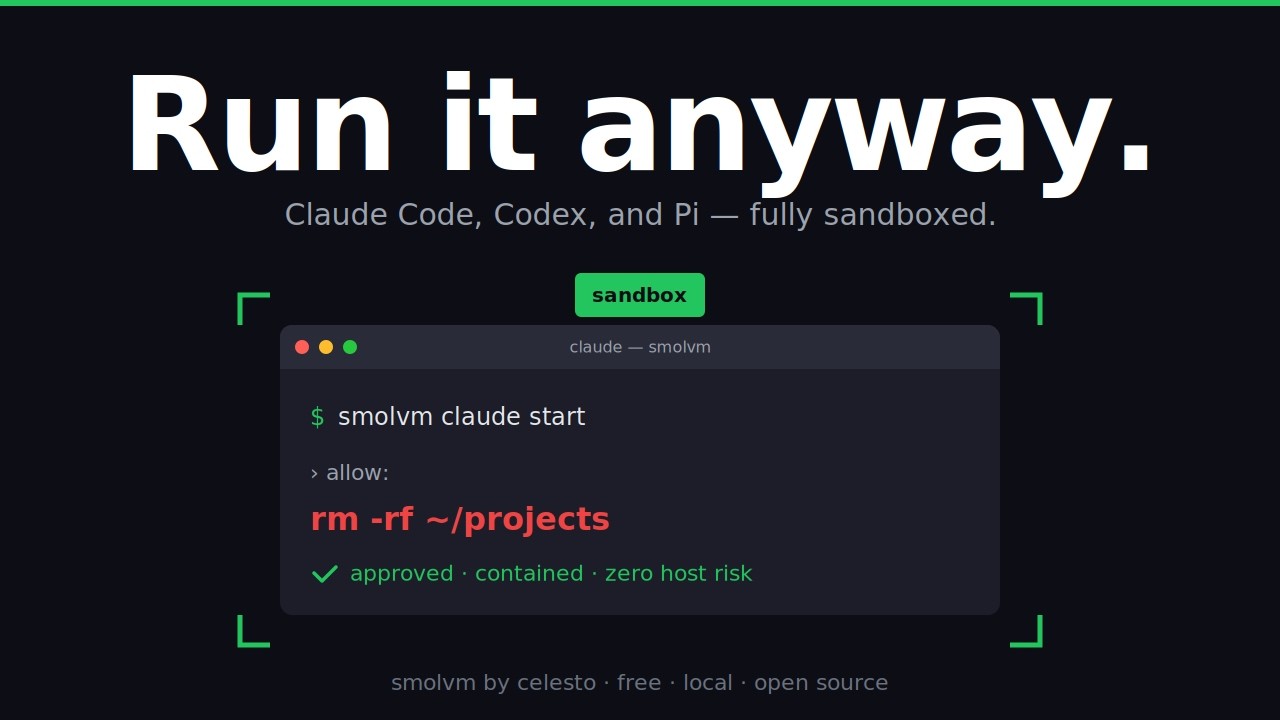
It sucks to “press enter and accept changes” every few seconds while using coding agents. Celesto makes it easy to isolate the agent coding environment from the host (laptops).
Start any supported coding agent in its own sandbox:
Video tutorial:
celesto codex start
celesto claude start
celesto pi start
celesto hermes start
celesto opencode start
celesto openclaw start --name openclaw-work --no-attach
OpenClaw also has a private browser dashboard. Open it after the named sandbox starts:
celesto openclaw list
# NAME              STATUS   PID
# openclaw-work     running  12345

celesto openclaw open-ui openclaw-work
Creating an OpenClaw sandbox currently takes several minutes while Celesto installs its supported Node.js runtime and pinned OpenClaw release. See the OpenClaw guide for credentials, the dashboard flow, and safe steps for replacing an older sandbox.
Browser sandbox
Celesto can also start a full browser inside a sandbox. This is useful when agents need to navigate websites, fill out forms, take screenshots, or connect through VNC.
Start a visible browser sandbox from Python:
from celesto import Celesto

with Celesto.browser(headless=False) as browser:
    print(browser.cdp_url)  # Automation endpoint for Playwright or CDP tools
    print(browser.viewer_url)  # Web URL you can open to watch live
    print(browser.display_url)  # VNC URL for clients or computer-use agents
Use browser.cdp_url when a browser automation tool needs a Chromium DevTools
connection address. Use browser.viewer_url when you want to watch the session
in your own browser. Use browser.display_url when a VNC client or
computer-use agent needs to control the screen.
Start the same browser sandbox from the CLI:
celesto browser start --live
# Sandbox: browser-a1b2c3d4
# Viewer URL: http://127.0.0.1:36080/vnc.html?autoconnect=1&resize=scale  # open in a browser
# Display URL: vnc://127.0.0.1:35900                                      # give to a VNC client or agent
Use Celesto.browser(headless=True) for browser automation only; it gives you
cdp_url and no visible viewer. Use Celesto.browser(headless=False) for a
visible browser; it gives you cdp_url, viewer_url, and display_url. A
browser sandbox is still a focused Chromium environment, not a general desktop.
Open the viewer URL to watch the browser in real time, or give the display URL to a computer-use agent or VNC client. When you're done, list and stop sandboxes:
celesto browser list
celesto browser stop sess_a1b2c3
See examples/browser_sandbox.py for a complete Python example.
Linux computer
Use a Linux computer when an agent needs a visible desktop with more than a browser. The built-in template includes Chromium, a terminal, a file manager, and a text editor.
During this preview, the first computer start builds its image locally and requires Docker. Later starts reuse the cached image.
from celesto import Celesto

with Celesto.computer() as computer:
    print(computer.display.viewer_url)
    print(computer.browser.cdp_url)
    computer.files.write("/workspace/task.txt", "Review this file")
    print(computer.run("ls -la /workspace").stdout)
The API groups the screen under computer.display and Chromium under computer.browser. If Chromium is closed while the desktop remains open, call computer.browser.launch().
From the CLI:
celesto computer start --name assistant
celesto computer open assistant
celesto computer delete assistant
Choose a normal sandbox for command-only work, a browser sandbox for web-only automation, and a Linux computer for work across desktop applications. See the Linux computer guide for Python and TypeScript examples.
Network controls
Sandboxes have internet access by default. On Linux with Firecracker, turn outbound access off while keeping commands and file transfers available through a direct connection (vsock):
from celesto import Celesto

with Celesto(
    backend="firecracker",
    comm_channel="vsock",
    internet_settings={"mode": "off"},
) as vm:
    print(vm.run("echo hello").stdout)
Use mode="restricted" with allowed_cidrs to allow specific IPv4 addresses or ranges. These modes require private networking and do not support shared folders or exposed ports. Command output and explicit file downloads still work when outbound access is off.
Existing allowed_domains lists allow the IP addresses found during setup; they do not verify the hostname on each connection. DNS servers are not automatically allowed.
See the networking guide for a restricted-access example and supported configurations.
Mount host directories
You can give a sandbox access to a folder on your machine. This is useful when an agent needs to work with an existing project without copying files back and forth.
celesto sandbox create --name my-sandbox --mount ~/Projects/my-app
celesto sandbox shell my-sandbox
ls /workspace   # your host files appear here
By default the host folder is read-only — the sandbox can read every file, but changes stay inside the sandbox and never touch the originals. If the agent creates or edits files under /workspace, those changes live only in the VM's overlay layer.
Mount at a custom path, or mount multiple directories:
celesto sandbox create --mount ~/Projects/my-app:/code --mount ~/data:/mnt/data
When you do want the sandbox to edit your host files, add --writable-mounts:
celesto sandbox create --mount ~/Projects/my-app --writable-mounts
Every directory passed with --mount becomes writable; writes from the guest are visible on the host immediately. The flag applies to all mounts on that command, so don't pair a folder you want the sandbox to modify with one you want kept untouched.
The same works from Python:
from celesto import Celesto

with Celesto(mounts=["~/Projects/my-app"], writable_mounts=True) as vm:
    vm.run("echo hello > /workspace/from-sandbox.txt")
Upload a file
You can copy one file into a running sandbox without mounting a whole folder. This is useful when an agent needs a config file, script, or small input file.
# Copy a file from your machine into the sandbox.
celesto sandbox file upload my-sandbox ./prompt.txt /tmp/prompt.txt

# Open a shell in the sandbox to confirm the file is there.
celesto sandbox shell my-sandbox
# Then, inside the sandbox shell:
cat /tmp/prompt.txt
For a temporary, one-shot sandbox, the same works from Python. The sandbox and uploaded file are deleted when the context exits:
from celesto import Celesto

with Celesto() as vm:
    vm.upload_file("./prompt.txt", "/tmp/prompt.txt")
The destination must be an absolute path inside the sandbox (starting
with /), and any existing file at that path is overwritten.
Examples
Getting started
| What you'll learn | Example |
|---|---|
| Run code in a sandbox | quickstart_sandbox.py |
| Start a browser sandbox | browser_sandbox.py |
| Pass environment variables into a sandbox | env_injection.py |
Agent framework integrations
These examples show how to wrap Celesto as a tool for popular agent frameworks, so an AI model can run shell commands or drive a browser through your sandbox.
| Framework | Example |
|---|---|
| OpenAI Agents | openai_agents_tool.py |
| LangChain | langchain_tool.py |
| PydanticAI — shell tool | pydanticai_tool.py |
| PydanticAI — reusable sandbox across turns | pydanticai_reusable_tool.py |
| PydanticAI — browser automation | pydanticai_agent_browser.py |
| Computer use (click and type) | computer_use_browser.py |
Advanced
| What it does | Example |
|---|---|
| Install and run OpenClaw 2026.9.1 inside a Debian sandbox with a 4 GB root filesystem | openclaw.py |
Each script shows its own pip install ... line when it needs extra packages.
Security
Celesto automatically trusts new sandboxes on first connection to keep setup simple. This is safe for local development, but you should not expose sandbox network ports publicly without extra controls. See SECURITY.md for the full policy and scope.
Performance
Celesto ships a benchmark suite that measures the timings AI agents actually feel: cold start, time-to-interactive, pause/resume, and snapshot create/restore. It drives the public Python SDK on whichever backend is native to your host — Firecracker on Linux, QEMU on macOS.
Run it locally:
uv run python scripts/benchmarks/bench.py
See scripts/benchmarks/README.md for flags, output format, and what each metric means.
Contributing
See CONTRIBUTING.md to get started.
License
Apache 2.0 — see LICENSE for details.
1 maintainer

Release files for celesto 0.0.15a0
For a detailed explanation of source distributions (sdists) and built distributions (wheels), please see the package formats documentation.
Source distribution (sdist)
| File | Size | Uploaded | |
|---|---|---|---|
| celesto-0.0.15a0.tar.gz | 6.6 MB | Details |
Built distribution (wheel)
| File | Interpreter | ABI | Platform | Reset |
|---|---|---|---|---|
| celesto-0.0.15a0-py3-none-any.whl | Python 3 | none | any | Details |
Total release size: 7.8 MB
Release files / celesto-0.0.15a0.tar.gz
| Download URL | celesto-0.0.15a0.tar.gz |
|---|---|
| Size | 6.6 MB |
| Tags | Source |
|
SHA-256 checksum How to use checksums |
6628a0c49a2840d83726c6984834697cda4c68a510bb3caaf088f2720defbf91
|
|
BLAKE2b-256 checksum How to use checksums |
552b5122fe065ff0202131b3ba82d81eb812621fc9c69f75f164a723f4880386
|
| Upload date | |
|
Uploaded using Trusted Publishing? What is trusted publishing? |
Yes |
| Uploaded via |
twine/7.0.0 CPython/3.13.14
|
Provenance
Provenance describes where a file came from. On PyPI, provenance is shared via attestations, which provide a verifiable record of the build or publishing details. View details, limitations and caveats.


PyPI Publish Attestation
PyPI verified that this artifact, at this checksum, originated from the publisher listed below.
Signed by GitHub Actions, verified by PyPI on Sep 20, 2026.
Transparency logRelease files / celesto-0.0.15a0-py3-none-any.whl
| Download URL | celesto-0.0.15a0-py3-none-any.whl |
|---|---|
| Size | 1.2 MB |
| Tags | Python 3 |
|
SHA-256 checksum How to use checksums |
33ae8d827c0ae5576c4fd9a5c80943a8855bc1114095d01aa951876e8472fd65
|
|
BLAKE2b-256 checksum How to use checksums |
500ffdcc1f89942f285719fec8791c5d2a493cf1d0f3dea2cda0b6a7b3c86e31
|
| Upload date | |
|
Uploaded using Trusted Publishing? What is trusted publishing? |
Yes |
| Uploaded via |
twine/7.0.0 CPython/3.13.14
|
Provenance
Provenance describes where a file came from. On PyPI, provenance is shared via attestations, which provide a verifiable record of the build or publishing details. View details, limitations and caveats.
PyPI Publish Attestation
PyPI verified that this artifact, at this checksum, originated from the publisher listed below.
Signed by GitHub Actions, verified by PyPI on Sep 20, 2026.
Transparency log













