
Celesto
Secure, persistent computers for AI agents




OpenMuse · Quickstart · Python API · Agents and automation · Runtimes · Examples · Docs · Discord
Celesto gives an AI agent its own computer for running code, browsing the web, and using desktop apps. You can run that computer on your machine during development or in Celesto Cloud for remote and production work.
Each sandbox is a lightweight virtual machine, starts in about 500 ms, and can keep files and state between sessions. Because the agent runs in a separate virtual machine instead of a process on your computer, Celesto provides a stronger boundary for untrusted code.
Built with Celesto: OpenMuse

OpenMuse is our open-source computer coworker, built end to end on Celesto. It browses public websites in its own disposable Linux desktop while you watch, approve clicks and form changes, or take control.
OpenMuse is a preview. Clone this repository to run it locally.
Quickstart
1. Install Celesto
On Linux or macOS, this command installs the Celesto CLI and Python SDK, prepares the machine, and checks that it is ready:
curl -fsSL https://celesto.ai/install.sh | bash
Manual local setup
Install Celesto with Python 3.11 or newer, prepare the machine, then check the setup:
pip install celesto
celesto setup
celesto doctor
On macOS, setup uses Homebrew to install QEMU. On Linux, setup may ask for sudo.
2. Create a sandbox
Give the sandbox a name so later commands can find it:
celesto sandbox create --name my-sandbox
3. Run a command
Everything after -- runs inside the sandbox:
celesto sandbox exec my-sandbox -- python --version
4. Delete the sandbox
Delete it when you no longer need its files or state:
celesto sandbox delete my-sandbox
Use celesto sandbox stop my-sandbox instead when you want to keep it for later. Restart it with celesto sandbox start my-sandbox.
Use the Python API
The installer includes the Python SDK. The with block creates a local sandbox when the block starts and deletes it when the block ends:
from celesto import Computer

with Computer() as computer:
    result = computer.run("echo 'Hello from Celesto!'")
    print(result.stdout)
Run in Celesto Cloud
Cloud sandboxes do not require virtualization software on your machine. First, set your API key:
export CELESTO_API_KEY="your-api-key"
Then run the same Python code with the cloud provider:
from celesto import Computer

with Computer(provider="cloud") as computer:
    result = computer.run("echo 'Hello from Celesto Cloud!'")
    print(result.stdout)
| Provider | Best for | Host requirements |
|---|---|---|
| Local | Development, tests, and private workloads on your machine | Local virtualization setup |
| Cloud | Remote tasks, persistent workspaces, and production workloads | Python package and CELESTO_API_KEY |
Agents and automation
Celesto commands print readable output by default. Add --json when a script or agent needs stable, machine-readable output. Every JSON response contains ok, command, exit_code, data, and error fields.
Check the machine before accepting work. --strict makes warnings fail the check:
celesto doctor --strict --json
Create a named sandbox and capture the JSON response:
celesto sandbox create --name agent-job --json
Run a command without opening an interactive shell:
celesto sandbox exec agent-job --json -- python -m pytest
Always clean up the sandbox by its exact name when the job ends:
celesto sandbox delete agent-job --json
Use unique names for concurrent jobs. Prefer exec for automation; reserve shell, ssh, and desktop for interactive work. Commands return a nonzero exit code on failure, and JSON errors include a recovery command when Celesto can provide one.
For a coding agent with its CLI already installed, start a preset directly:
celesto codex start
Celesto also provides presets for Claude Code, Pi, Hermes, OpenCode, and OpenClaw. See the agent presets guide for credentials, naming, and unattended usage.
Inspect and connect
Use celesto sandbox list to see sandboxes, celesto sandbox logs my-sandbox to inspect startup output, or celesto sandbox shell my-sandbox to open a fast interactive shell.
Add --follow to stream logs. Use celesto sandbox ssh my-sandbox when you need an SSH session. See the CLI reference for every command and shell completion.
Choose a runtime
Celesto exposes one default API and focused APIs for browser and desktop work:
| Runtime | Use it when an agent needs | Python API | CLI |
|---|---|---|---|
| Shell sandbox | Commands, code, and files | Computer() |
celesto sandbox |
| Browser | Chromium, CDP, screenshots, or a live viewer | Celesto.browser() |
celesto browser |
| Linux computer | A full desktop and multiple GUI apps | Celesto.computer() |
celesto computer |
| Windows sandbox | PowerShell or Windows software | Celesto(os="windows", ...) |
— |
| macOS desktop | App or installer tests on Apple Silicon | — | celesto sandbox create --os macos |
Use Computer for the common command sandbox path. Use the Celesto factories for focused browser and desktop runtimes. Use Celesto(...) directly when you need low-level VM options such as the backend, communication channel, guest OS, mounts, or network policy.
Core capabilities
| Capability | What it provides |
|---|---|
| Fast start | A ready microVM in about 500 ms, without an image pull on each start |
| VM isolation | A separate virtual machine for each sandbox |
| Local or cloud | The same Computer API across development and production |
| Persistent state | Files and state that survive across sessions |
| Host mounts | Read-only or writable access to selected local directories |
| Snapshots | Pause and restore memory, disk, and active processes |
| Network policy | Disable outbound access or allow specific IPv4 ranges on Linux with Firecracker |
| Multiple operating systems | Linux, Windows 11, and macOS preview support |
Browser
Use a browser sandbox when an agent only needs Chromium. Celesto exposes a CDP endpoint for automation and, in visible mode, URLs for live view and screen control.
from celesto import Celesto

with Celesto.browser(headless=False) as browser:
    print(browser.cdp_url)
    print(browser.viewer_url)
    print(browser.display_url)
cdp_url: connect Playwright or another CDP client.viewer_url: watch the browser from another browser.display_url: connect a VNC client or computer-use agent.
Use headless=True when the agent only needs CDP. Start a visible browser from the CLI with:
celesto browser start --live
See examples/browser_sandbox.py for a complete example.
Linux computer
Use a Linux computer when an agent needs a visible desktop with more than a browser. The default image includes Chromium, a terminal, a file manager, and a text editor.
from celesto import Celesto

with Celesto.computer() as computer:
    print(computer.display.viewer_url)
    print(computer.browser.cdp_url)

    computer.files.write("/workspace/task.txt", "Review this file")
    print(computer.run("ls -la /workspace").stdout)
The API groups screen access under computer.display and Chromium access under computer.browser. If Chromium closes while the desktop stays active, call computer.browser.launch().
The first start downloads and verifies the Linux desktop image. Later starts reuse the cached image, so Docker is not required.
celesto computer start --name assistant
celesto computer open assistant
celesto computer delete assistant
See the Linux computer guide for Python and TypeScript examples.
Windows sandbox
Use a Windows sandbox when an agent must run PowerShell or Windows software. Celesto can boot Windows 11 from a baseline image, upload files, set environment variables, and start multiple guests from the same image.
from celesto import Celesto

with Celesto(
    os="windows",
    image="~/.celesto/images/win11.qcow2",
    ssh_user="celesto",
    ssh_password="celesto",
) as vm:
    print(vm.run("Write-Output 'hello from windows'").stdout)
Create an image from a Windows ISO:
celesto windows build-image \
    --iso ./Win11.iso \
    --virtio-win-iso ./virtio-win.iso \
    --output ~/.celesto/images/win11.qcow2
Windows guests require a Linux host with KVM. Host mounts, network controls, and snapshots remain Linux-only. See the Windows guide for image setup and guest requirements.
macOS desktop preview
On an Apple Silicon Mac, Celesto can create a temporary macOS desktop for app and installer tests without changes to your main system.
Prepare the reusable local image:
celesto setup --macos
Create and open a desktop:
celesto sandbox create --os macos --name test-mac
celesto sandbox desktop test-mac
The first setup downloads macOS from Apple, requires about 50 GB, and takes 20–40 minutes. The image stays on the Mac that created it. Celesto supports at most two macOS guests at once. See the macOS desktop guide for limits, shared folders, and cleanup.
Common workflows
Mount a host directory
Give a local sandbox access to an existing project without a copy step:
celesto sandbox create --name my-sandbox --mount ~/Projects/my-app
celesto sandbox shell my-sandbox
ls /workspace
Host mounts are read-only by default. The sandbox can read the source files, but writes under /workspace stay in the VM overlay and do not change the host copy.
Choose a guest path or mount multiple directories:
celesto sandbox create \
    --mount ~/Projects/my-app:/code \
    --mount ~/data:/mnt/data
Add --writable-mounts only when the sandbox must change the host files:
celesto sandbox create \
    --mount ~/Projects/my-app \
    --writable-mounts
The flag applies to every mount in that command. Do not combine a writable project directory with a directory that must remain unchanged.
The same option exists in Python:
from celesto import Celesto

with Celesto(mounts=["~/Projects/my-app"], writable_mounts=True) as vm:
    vm.run("echo hello > /workspace/from-sandbox.txt")
Upload one file
Copy a config, script, or small input into a live sandbox:
celesto sandbox file upload my-sandbox ./prompt.txt /tmp/prompt.txt
Or upload a file to a temporary sandbox from Python:
from celesto import Celesto

with Celesto() as vm:
    vm.upload_file("./prompt.txt", "/tmp/prompt.txt")
The destination must be an absolute guest path. Celesto replaces any file that already exists at that path.
Restrict network access
Sandboxes have internet access by default. On Linux with Firecracker, use vsock to keep command and file-transfer access while you disable outbound network access:
from celesto import Celesto

with Celesto(
    backend="firecracker",
    comm_channel="vsock",
    internet_settings={"mode": "off"},
) as vm:
    print(vm.run("echo hello").stdout)
Use mode="restricted" with allowed_cidrs to allow specific IPv4 addresses or ranges. The restricted modes require private network mode and do not support host mounts or exposed ports. Explicit command output and file downloads still work when outbound access is off.
An allowed_domains list resolves domains during setup and permits the resulting IP addresses. It does not check the hostname on each connection. DNS servers do not receive automatic access. See the network guide for supported combinations.
Start a code agent
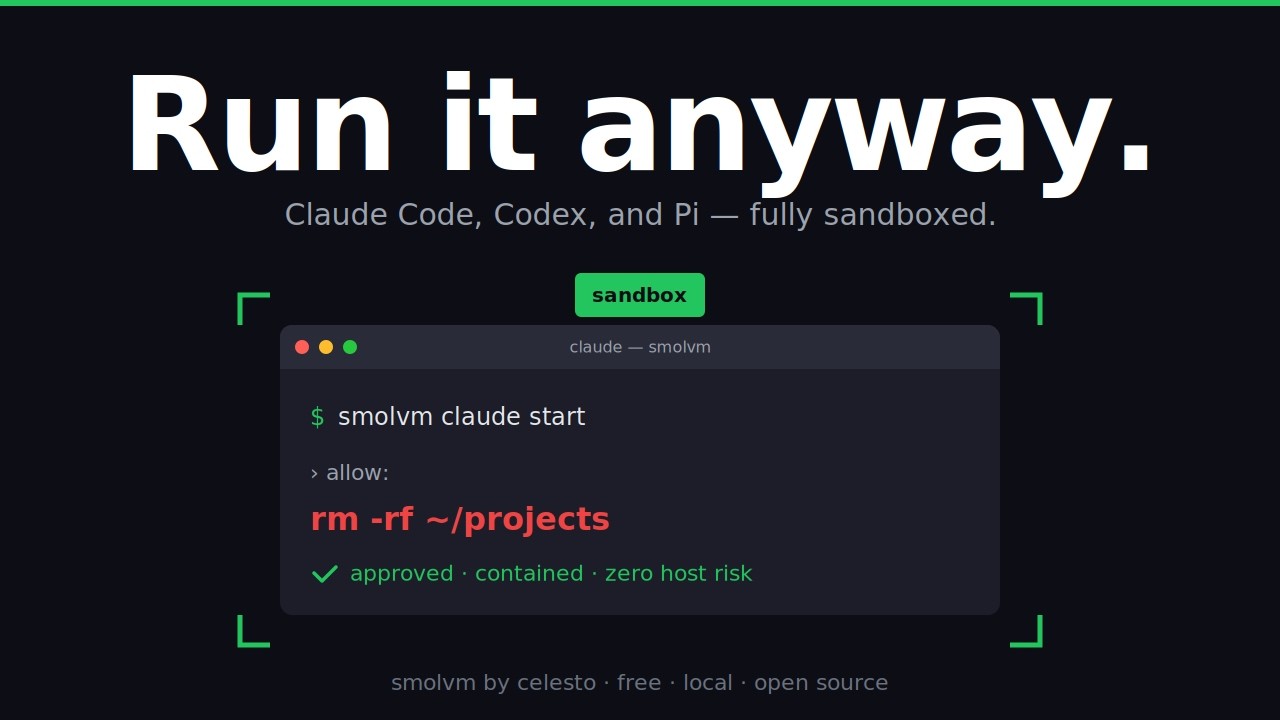
Run a supported code agent in its own sandbox so it can edit and execute code without direct access to your host environment:
celesto codex start
celesto claude start
celesto pi start
celesto hermes start
celesto opencode start
celesto openclaw start --name openclaw-work --no-attach
Open the private OpenClaw dashboard after the sandbox starts:
celesto openclaw open-ui openclaw-work
The first OpenClaw start can take several minutes while Celesto installs its supported Node.js runtime and pinned OpenClaw release. See the agent presets guide for credentials and dashboard access.
Examples
Start here
| Goal | Example |
|---|---|
| Run code in a sandbox | quickstart_sandbox.py |
| Start a browser sandbox | browser_sandbox.py |
| Pass environment variables | env_injection.py |
Agent framework integrations
| Framework or task | Example |
|---|---|
| OpenAI Agents | openai_agents_tool.py |
| LangChain | langchain_tool.py |
| PydanticAI shell tool | pydanticai_tool.py |
| PydanticAI sandbox across turns | pydanticai_reusable_tool.py |
| PydanticAI browser automation | pydanticai_agent_browser.py |
| Computer use | computer_use_browser.py |
Each example includes any extra package command it requires.
Security
Each sandbox runs in its own virtual machine, which provides a stronger isolation boundary than process-level containers. Isolation still depends on secure host, hypervisor, image, credential, mount, and network configuration.
Celesto trusts a new local sandbox on its first connection to simplify development. Do not expose sandbox ports to the public internet without authentication and network controls. Treat writable mounts, forwarded credentials, and host-accessible services as explicit trust decisions.
See SECURITY.md for the security policy, threat model, and disclosure process.
Performance
The benchmark suite measures cold start, time to interactive, pause and resume, and snapshot create and restore. It uses the public Python SDK with the native host backend: Firecracker on Linux and QEMU on macOS.
uv run python scripts/benchmarks/bench.py
See the benchmark guide for flags, output, and metric definitions.
Contributing
See CONTRIBUTING.md to set up a development environment and submit a change. Coding agents should also read AGENTS.md for repository-specific commands, CLI conventions, release checks, and writing guidelines before editing the project.
License
Apache 2.0. See LICENSE for details.
Built with 🧡 by Celesto AI
1 maintainer

Release files for celesto 0.1.0
For a detailed explanation of source distributions (sdists) and built distributions (wheels), please see the package formats documentation.
Source distribution (sdist)
| File | Size | Uploaded | |
|---|---|---|---|
| celesto-0.1.0.tar.gz | 6.7 MB | Details |
Built distribution (wheel)
| File | Interpreter | ABI | Platform | Reset |
|---|---|---|---|---|
| celesto-0.1.0-py3-none-any.whl | Python 3 | none | any | Details |
Total release size: 7.9 MB
Release files / celesto-0.1.0.tar.gz
| Download URL | celesto-0.1.0.tar.gz |
|---|---|
| Size | 6.7 MB |
| Tags | Source |
|
SHA-256 checksum How to use checksums |
d52eca3ff631fb54172fa0fb077fa7104aad69a77a93fb11397ce372f939bf5f
|
|
BLAKE2b-256 checksum How to use checksums |
10f0b24ec6ed87cc1e16fe493bde7698db2c858c03680d7b4765df134a9d81e8
|
| Upload date | |
|
Uploaded using Trusted Publishing? What is trusted publishing? |
Yes |
| Uploaded via |
twine/7.0.0 CPython/3.13.14
|
Provenance
Provenance describes where a file came from. On PyPI, provenance is shared via attestations, which provide a verifiable record of the build or publishing details. View details, limitations and caveats.


PyPI Publish Attestation
PyPI verified that this artifact, at this checksum, originated from the publisher listed below.
Signed by GitHub Actions, verified by PyPI on Sep 22, 2026.
Transparency logRelease files / celesto-0.1.0-py3-none-any.whl
| Download URL | celesto-0.1.0-py3-none-any.whl |
|---|---|
| Size | 1.3 MB |
| Tags | Python 3 |
|
SHA-256 checksum How to use checksums |
e4dbfcd3c57208e0841a4879339cd98255ca96ba0f4742f61ad3860ba6fb2a7a
|
|
BLAKE2b-256 checksum How to use checksums |
64cd7693ecbb2a6132d8a251332090ebdacd94a83895c34f96fcac9e62ed3c45
|
| Upload date | |
|
Uploaded using Trusted Publishing? What is trusted publishing? |
Yes |
| Uploaded via |
twine/7.0.0 CPython/3.13.14
|
Provenance
Provenance describes where a file came from. On PyPI, provenance is shared via attestations, which provide a verifiable record of the build or publishing details. View details, limitations and caveats.
PyPI Publish Attestation
PyPI verified that this artifact, at this checksum, originated from the publisher listed below.
Signed by GitHub Actions, verified by PyPI on Sep 22, 2026.
Transparency log













