
Charted is a zero dependency SVG chart generator that aims to provide a simple interface for generating beautiful and customisable graphs. This project is inspired by chart libraries like mermaid.js.

Project description



Charted is a zero-dependency SVG chart library for Python. Drop in a list of numbers, get back a clean SVG string with no numpy, no pandas, and no heavy dependencies. 14 chart types, multi-series support, theming, and a CLI so you can generate charts without writing code.
Core principle: charted itself has zero runtime dependencies. PNG export and MCP server support are opt-in extras that pull in their own dependencies, and the base library stays pure Python.
pip install charted
from charted import BarChart

chart = BarChart(
    title="Sales by Quarter",
    data=[120, 180, 210, 150],
    labels=["Q1", "Q2", "Q3", "Q4"],
)
chart.save("chart.svg")
chart.save("chart.png")  # PNG export (requires cairosvg)
Why Charted?
- Zero runtime dependencies: pure Python, no numpy/pandas required
- 14 chart types: Bar, Column, Line, Scatter, Pie, Area, Radar, Box Plot, Histogram, Heatmap, Gantt, Bubble, Combo, Polar Area
- Multi-series support: stacked, side-by-side, grouped layouts
- Negative values handled: proper zero baseline calculations
- SVG and PNG output: SVG natively, PNG via optional
cairosvg(pip install charted[png]) - Theme system: 3 built-in presets + custom theme composition
- Per-series styling: granular control with SeriesStyle builders
- Data loading: CSV/JSON parsers built-in
- Markdown export: generate embed-ready markdown snippets
- CLI included: create charts without writing Python code
- Jupyter ready: charts render inline automatically
- Base Chart class: unified API for dynamic chart type selection
Quick Tour
Every chart type shares the same simple interface: pass data, labels, dimensions, and a title:
from charted.charts import BarChart, LineChart, PieChart

# Bar: single series with negatives
BarChart(
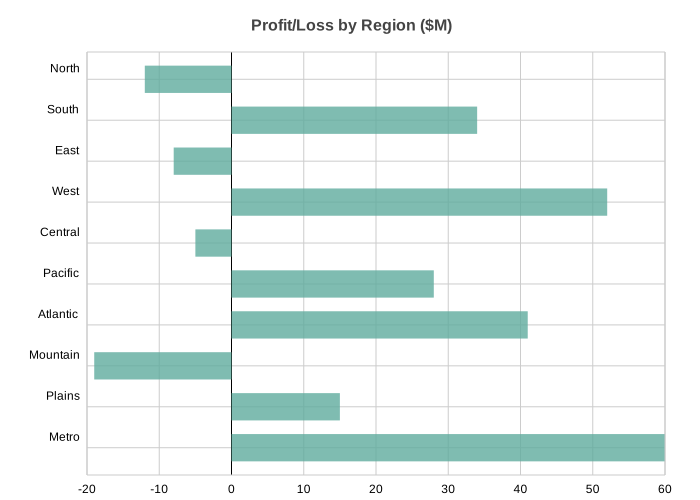
    title="Profit/Loss by Region ($M)",
    data=[-12, 34, -8, 52, -5, 28, 41, -19, 15, 60],
    labels=["North", "South", "East", "West", "Central", "Pacific", "Atlantic", "Mountain", "Plains", "Metro"],
    width=700, height=500,
).save("bar.svg")
# Bar: multi-series side-by-side
BarChart(
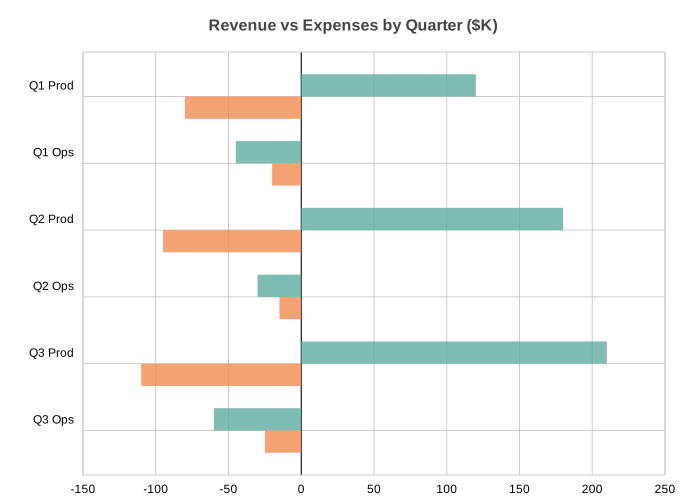
    title="Revenue vs Expenses by Quarter ($K)",
    data=[[120, -45, 180, -30, 210, -60], [-80, -20, -95, -15, -110, -25]],
    labels=["Q1 Prod", "Q1 Ops", "Q2 Prod", "Q2 Ops", "Q3 Prod", "Q3 Ops"],
    width=700, height=500,
).save("bar_multi.svg")
# Bar: stacked
BarChart(
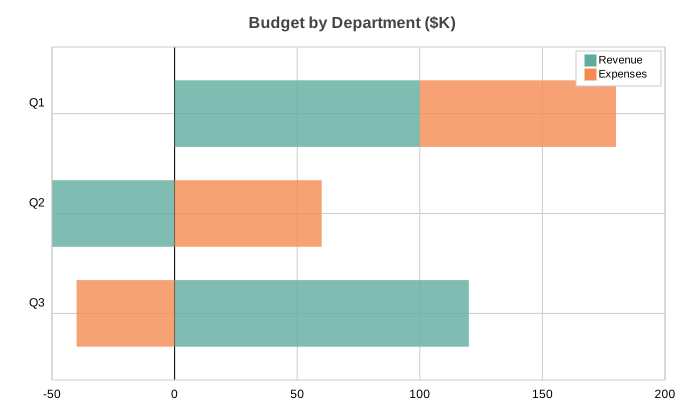
    title="Budget by Department ($K)",
    data=[[100, -50, 120], [80, 60, -40]],
    labels=["Q1", "Q2", "Q3"],
    series_names=["Revenue", "Expenses"],
    x_stacked=True, width=700, height=400,
).save("bar_stacked.svg")
# Bar: side-by-side with negatives
BarChart(
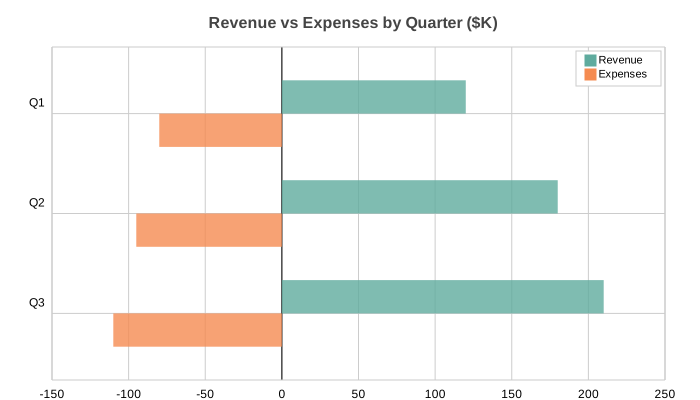
    title="Revenue vs Expenses by Quarter ($K)",
    data=[[120, 180, 210], [-80, -95, -110]],
    labels=["Q1", "Q2", "Q3"],
    series_names=["Revenue", "Expenses"],
    width=700, height=400,
).save("bar_sidebyside.svg")
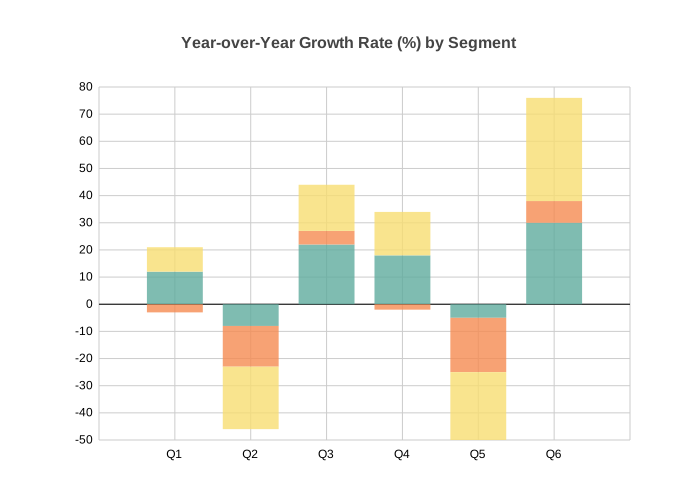
# Column: multi-series with negatives
from charted.charts import ColumnChart

ColumnChart(
    title="Year-over-Year Growth Rate (%) by Segment",
    data=[[12, -8, 22, 18, -5, 30], [-3, -15, 5, -2, -20, 8], [9, -23, 17, 16, -25, 38]],
    labels=["Q1", "Q2", "Q3", "Q4", "Q5", "Q6"],
    width=700, height=500,
    theme={"v_padding": 0.12, "h_padding": 0.10},
).save("column.svg")
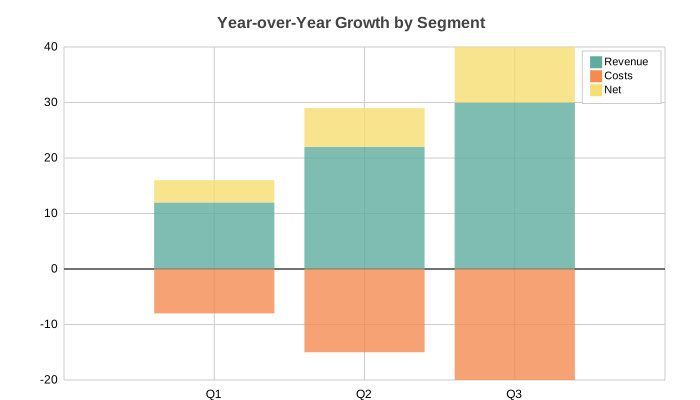
# Column: stacked (default for multi-series)
ColumnChart(
    title="Year-over-Year Growth by Segment",
    data=[[12, 22, 30], [-8, -15, -20], [4, 7, 10]],
    labels=["Q1", "Q2", "Q3"],
    series_names=["Revenue", "Costs", "Net"],
    width=700, height=400,
).save("column_stacked.svg")
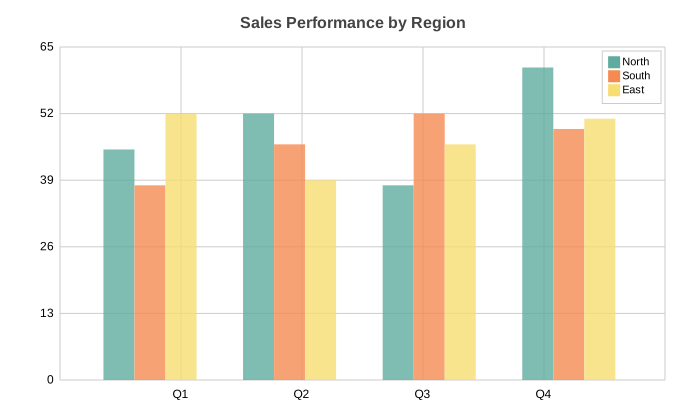
# Column: side-by-side
ColumnChart(
    title="Sales Performance by Region",
    data=[[45, 52, 38, 61], [38, 46, 52, 49], [52, 39, 46, 51]],
    labels=["Q1", "Q2", "Q3", "Q4"],
    series_names=["North", "South", "East"],
    width=700, height=400, y_stacked=False,
).save("column_sidebyside.svg")
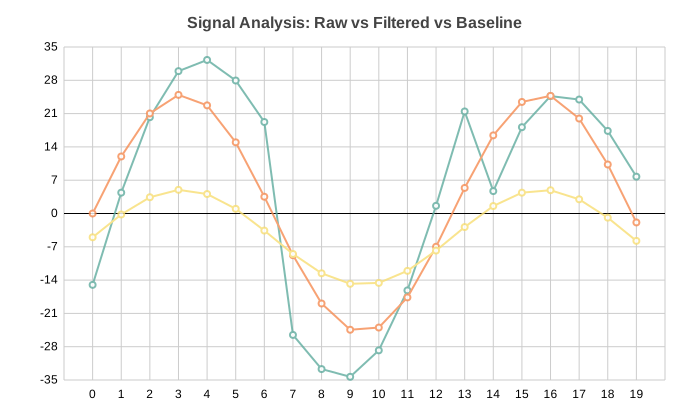
# Line: multi-series signal data
import math
from charted.charts import LineChart

n = 20
LineChart(
    title="Signal Analysis: Raw vs Filtered vs Baseline",
    data=[
        [math.sin(i * 0.5) * 30 + (i % 7 - 3) * 5 for i in range(n)],
        [math.sin(i * 0.5) * 25 for i in range(n)],
        [math.sin(i * 0.5) * 10 - 5 for i in range(n)],
    ],
    labels=[str(i) for i in range(n)],
    width=700, height=400,
).save("line.svg")
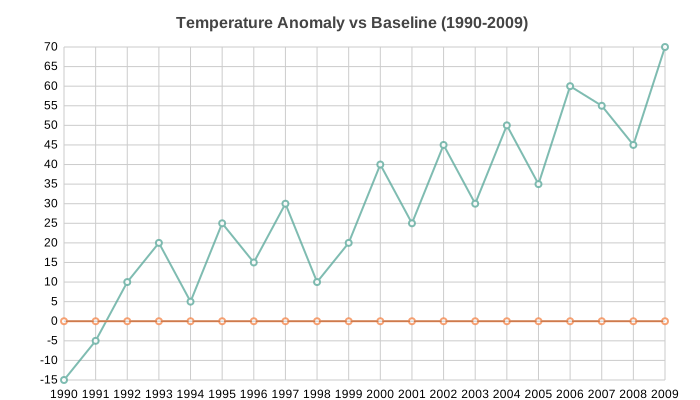
# Line: XY mode with temperature anomaly data
years = list(range(1990, 2010))
anomalies = [-15, -5, 10, 20, 5, 25, 15, 30, 10, 20, 40, 25, 45, 30, 50, 35, 60, 55, 45, 70]
baseline = [round(5 + 2 * math.sin(i * 0.4) + i * 0.5, 1) for i in range(len(years))]

LineChart(
    title="Temperature Anomaly vs 5-Year Rolling Baseline (1990-2009)",
    data=[anomalies, baseline],
    x_data=years,
    labels=[str(y) for y in years],
    width=700, height=400,
).save("xy_line.svg")
# Line: single series
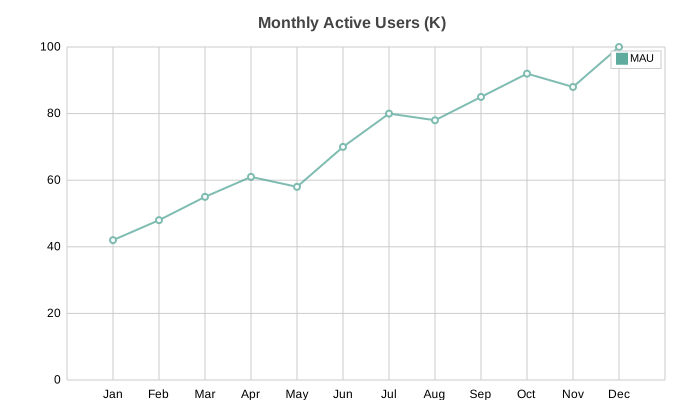
LineChart(
    title="Monthly Active Users (K)",
    data=[[42, 48, 55, 61, 58, 70, 80, 78, 85, 92, 88, 100]],
    labels=["Jan", "Feb", "Mar", "Apr", "May", "Jun", "Jul", "Aug", "Sep", "Oct", "Nov", "Dec"],
    series_names=["MAU"], width=700, height=400,
).save("line_single.svg")
# Scatter: multi-series cluster analysis
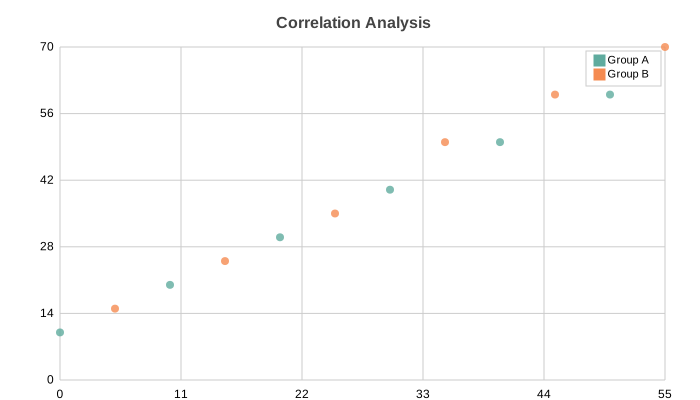
import random
from charted.charts import ScatterChart

random.seed(42)
ca_x = [30 + random.gauss(0, 8) for _ in range(20)]
ca_y = [40 + random.gauss(0, 8) for _ in range(20)]
cb_x = [70 + random.gauss(0, 10) for _ in range(20)]
cb_y = [20 + random.gauss(0, 10) for _ in range(20)]

ScatterChart(
    title="Cluster Analysis: Two Distinct Populations",
    x_data=[ca_x, cb_x], y_data=[ca_y, cb_y],
    series_names=["Cluster A", "Cluster B"],
    width=700, height=400,
).save("scatter.svg")
# Scatter: single series with quadratic curve
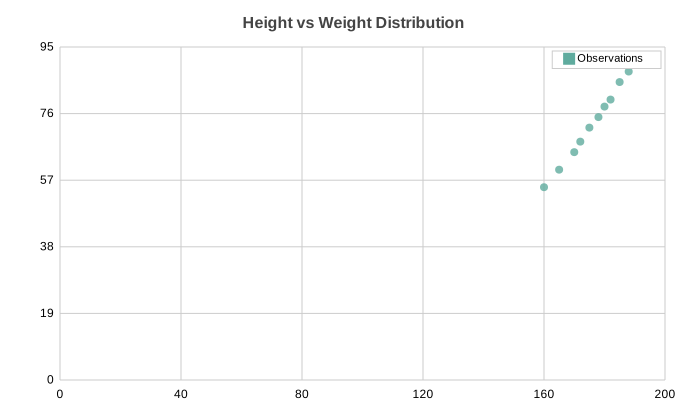
random.seed(1)
x_vals = [i for i in range(5, 95, 5)]
y_vals = [round(10 + (v - 50) ** 2 / 50 + random.gauss(0, 4), 1) for v in x_vals]

ScatterChart(
    title="U-Shaped Response Curve: Signal vs Input",
    x_data=x_vals, y_data=y_vals,
    series_names=["Observations"],
    width=700, height=400,
).save("scatter_single.svg")
# Pie: basic
from charted.charts import PieChart

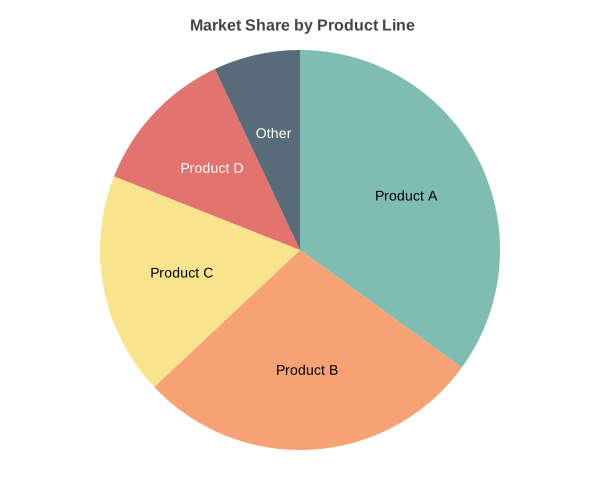
PieChart(
    title="Market Share by Product Line",
    data=[35, 28, 18, 12, 7],
    labels=["Product A", "Product B", "Product C", "Product D", "Other"],
    width=600, height=500,
).save("pie.svg")
# Pie: doughnut mode
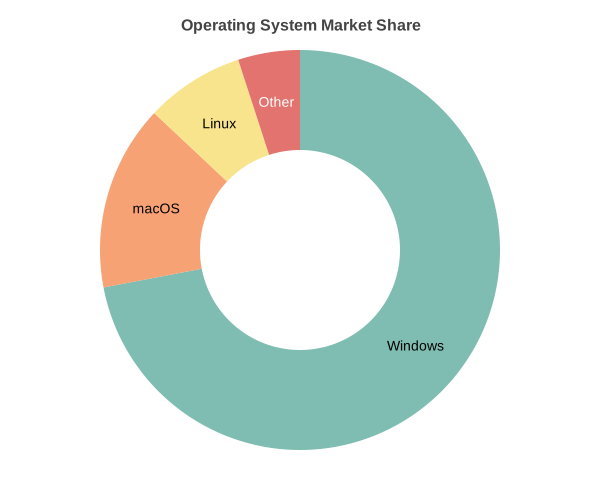
PieChart(
    title="Operating System Market Share",
    data=[72, 15, 8, 5],
    labels=["Windows", "macOS", "Linux", "Other"],
    inner_radius=0.5, width=600, height=500,
).save("pie_doughnut.svg")
# Radar: multi-series
from charted.charts import RadarChart

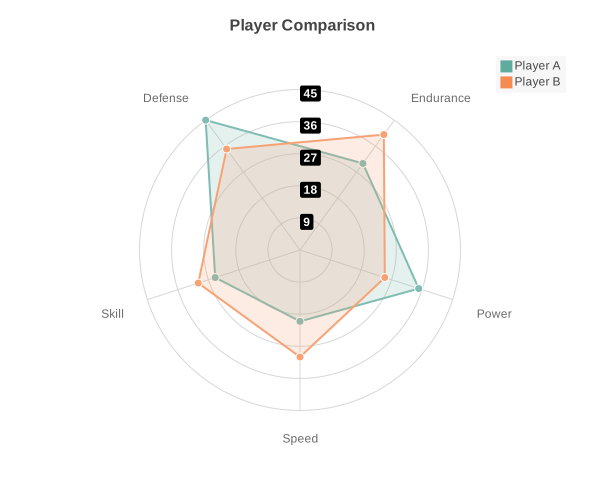
RadarChart(
    title="Player Skill Comparison",
    data=[[85, 90, 75, 88, 92], [70, 85, 90, 75, 80]],
    labels=["Speed", "Strength", "Defense", "Technique", "Stamina"],
    width=600, height=500,
).save("radar.svg")
# Radar: single series
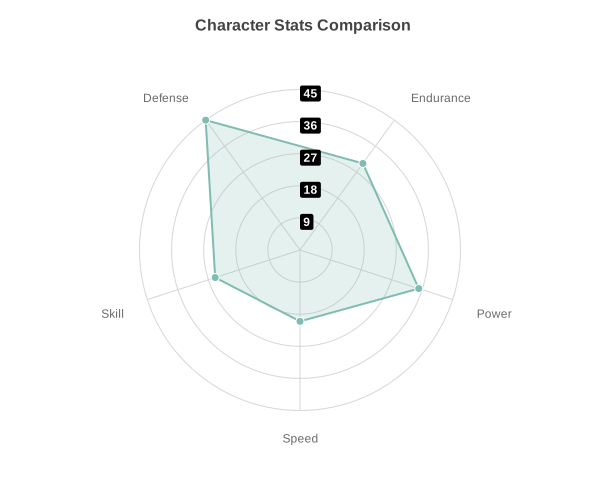
RadarChart(
    title="Character Stats",
    data=[20, 35, 30, 45, 25],
    labels=["Speed", "Power", "Endurance", "Defense", "Skill"],
    width=600, height=500,
).save("radar_multi.svg")
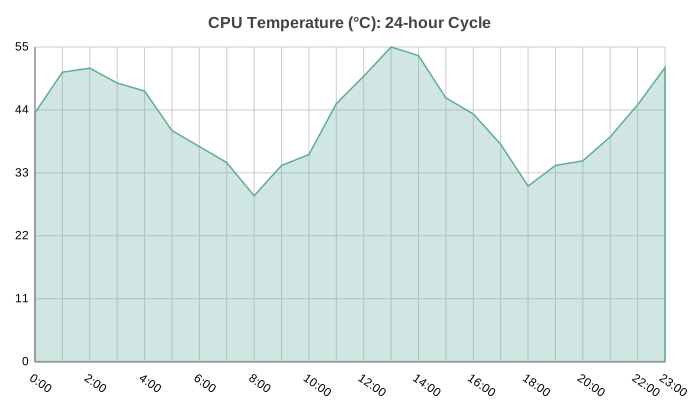
# Area: CPU temperature over 24 hours
from charted.charts import AreaChart

temps = [42 + 10 * math.sin(i * 0.6) + (hash(str(i)) % 5 - 2) * 1.5 for i in range(24)]

AreaChart(
    title="CPU Temperature (°C): 24-hour Cycle",
    data=[round(t, 1) for t in temps],
    labels=[f"{h}:00" for h in range(24)],
    width=700, height=400,
).save("area.svg")
# Area: multi-series revenue by channel
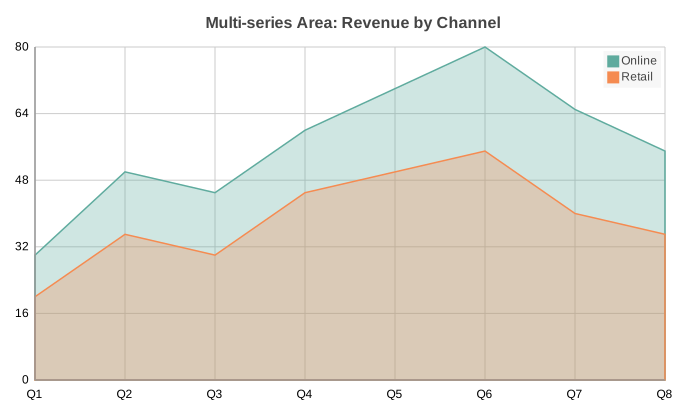
AreaChart(
    title="Multi-series Area: Revenue by Channel",
    data=[[30, 50, 45, 60, 70, 80, 65, 55], [20, 35, 30, 45, 50, 55, 40, 35]],
    labels=["Q1", "Q2", "Q3", "Q4", "Q5", "Q6", "Q7", "Q8"],
    series_names=["Online", "Retail"],
    width=700, height=400,
).save("area_multi.svg")
# Box Plot: distribution quartiles with outliers
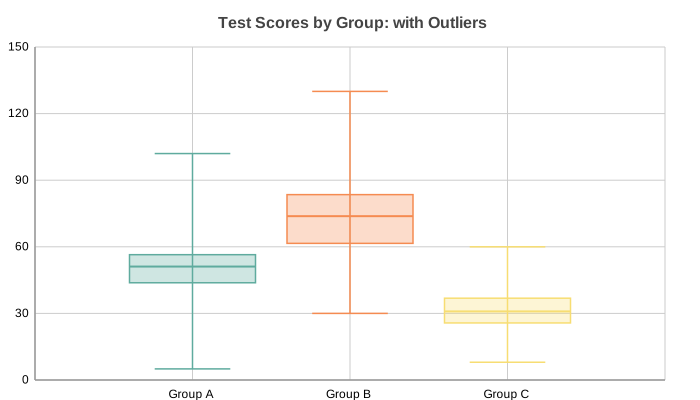
import random
from charted.charts import BoxPlot

random.seed(42)
box_a = [round(random.gauss(50, 10), 1) for _ in range(50)] + [95, 5, 102]
box_b = [round(random.gauss(70, 15), 1) for _ in range(50)] + [120, 30, 130]
box_c = [round(random.gauss(30, 8), 1) for _ in range(50)] + [55, 8, 60]

BoxPlot(
    title="Test Scores by Group: with Outliers",
    data=[box_a, box_b, box_c],
    labels=["Group A", "Group B", "Group C"],
    width=700, height=400,
).save("boxplot.svg")
# Histogram: normal distribution (bell curve)
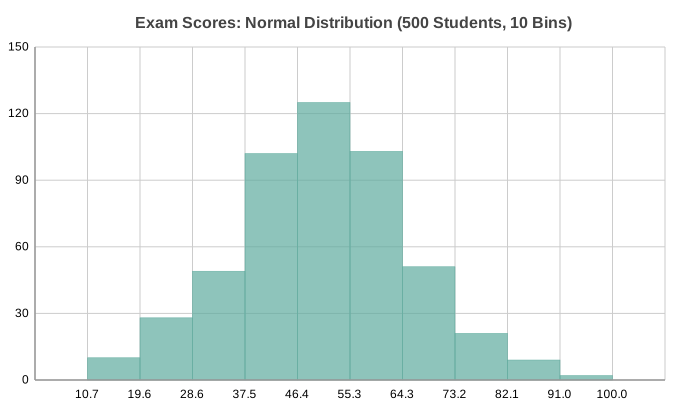
import random
from charted.charts import Histogram

random.seed(42)
scores = [random.gauss(50, 15) for _ in range(500)]

Histogram(
    title="Exam Scores: Normal Distribution (500 Students, 10 Bins)",
    data=scores,
    bins=10, width=700, height=400,
).save("histogram.svg")
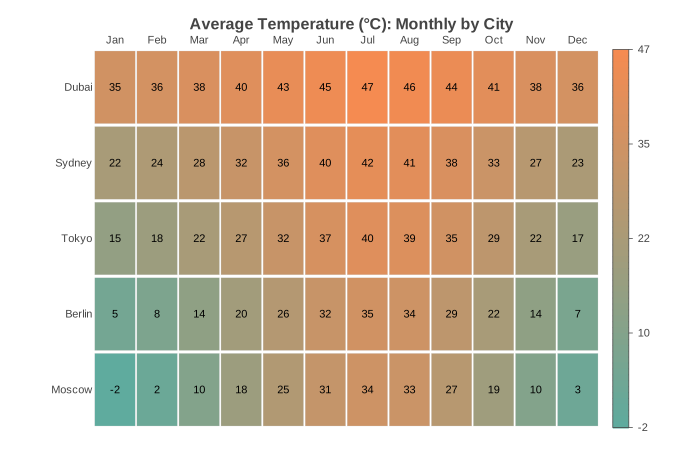
# Heatmap: monthly temperature matrix
from charted.charts import HeatmapChart

HeatmapChart(
    title="Average Temperature (°C): Monthly by City",
    data=[
        [35, 36, 38, 40, 43, 45, 47, 46, 44, 41, 38, 36],
        [22, 24, 28, 32, 36, 40, 42, 41, 38, 33, 27, 23],
        [15, 18, 22, 27, 32, 37, 40, 39, 35, 29, 22, 17],
        [5, 8, 14, 20, 26, 32, 35, 34, 29, 22, 14, 7],
        [-2, 2, 10, 18, 25, 31, 34, 33, 27, 19, 10, 3],
    ],
    x_labels=["Jan", "Feb", "Mar", "Apr", "May", "Jun", "Jul", "Aug", "Sep", "Oct", "Nov", "Dec"],
    y_labels=["Dubai", "Sydney", "Tokyo", "Berlin", "Moscow"],
    width=700, height=450,
    low_color="#21639e", high_color="#f97316",
    show_values=True, value_format=".0f",
).save("heatmap.svg")
# Gantt: software project timeline
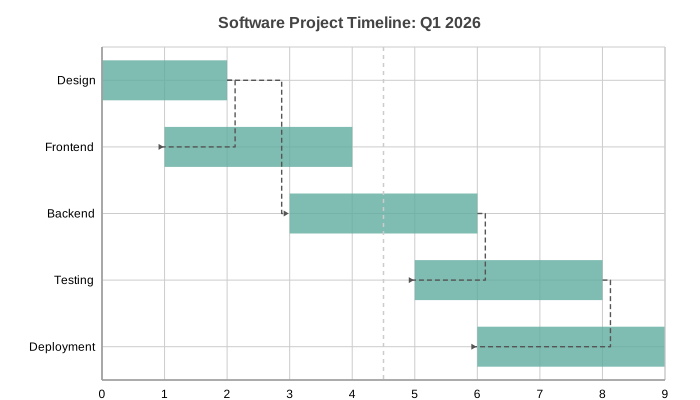
from charted.charts import GanttChart

GanttChart(
    title="Software Project Timeline: Q1 2026",
    data=[(0, 2), (1, 4), (3, 6), (5, 8), (6, 9)],
    labels=["Design", "Frontend", "Backend", "Testing", "Deployment"],
    width=700, height=400,
    dependencies=[(0, 1), (0, 2), (2, 3), (3, 4)],
    show_today_line=True,
    x_position=4.5,
).save("gantt.svg")
Theming
Three built-in presets (light, dark, high-contrast) plus custom theme composition:
from charted import BarChart

# Built-in themes
chart = BarChart(data=[120, 180, 210], labels=["Q1", "Q2", "Q3"], theme="light")
chart = BarChart(data=[120, 180, 210], labels=["Q1", "Q2", "Q3"], theme="dark")
chart = BarChart(data=[120, 180, 210], labels=["Q1", "Q2", "Q3"], theme="high-contrast")
| Theme | Preview |
|---|---|
| Light | 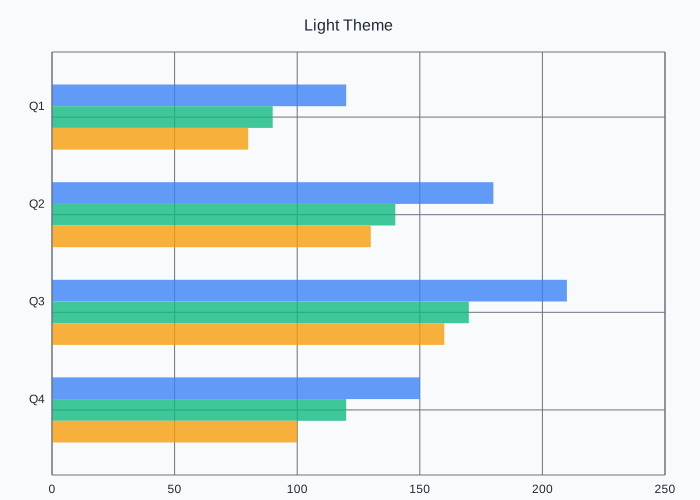 |
| Dark | 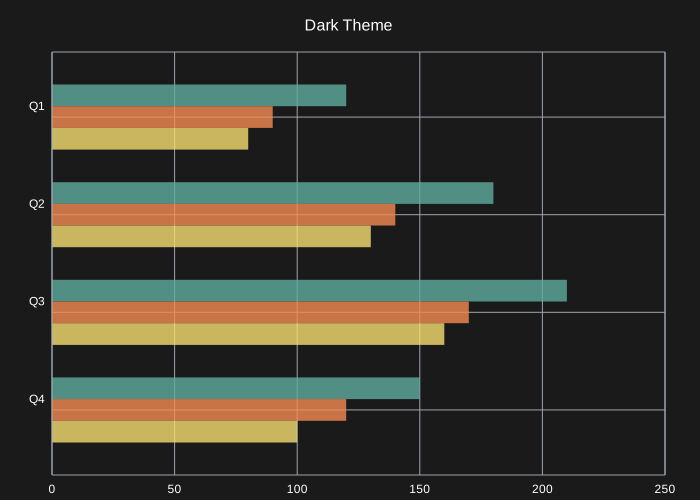 |
| High Contrast | 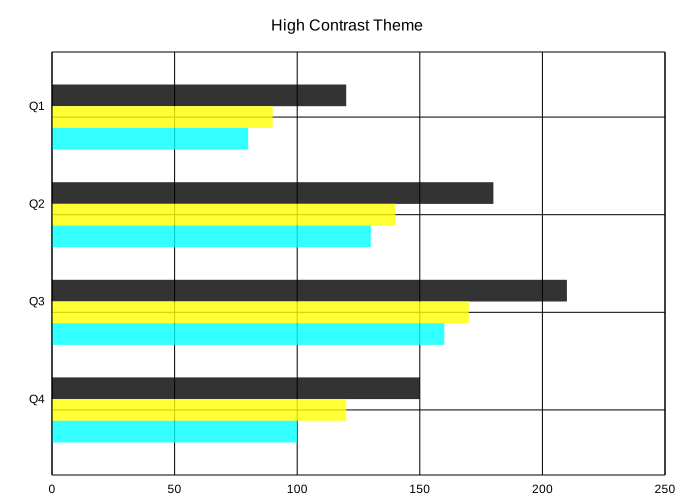 |
See the Theming docs for custom palettes, font overrides, and per-series styling.
CLI Usage
Generate charts without writing Python:
# From CSV
python -m charted create bar output.svg --data sales.csv

# From JSON
python -m charted create column chart.svg -d data.json

# Set the title and dimensions
python -m charted create bar output.svg --data sales.csv \
    --title "Q3 Sales" --width 900 --height 400

# Batch from directory
python -m charted batch input_data/ output_svg/
--title, --width, and --height override the same values in a --config
file when you pass both.
CSV format (default):
The first column is the x-axis labels. Every other column is a data series.
Quarter,Revenue,Expenses
Q1,120,80
Q2,180,95
Q3,210,110
Wide CSV (--transpose):
If your CSV is laid out sideways, with one series per row and the x values
across the header, pass --transpose. The corner cell is ignored, the rest of
the header row becomes the x-axis labels, and each following row is a series
named by its first cell. Without --transpose this layout would plot with the
axes swapped, so the flag is explicit rather than guessed.
Series,Q1,Q2,Q3
Revenue,120,180,210
Expenses,80,95,110
python -m charted create column out.svg --data wide.csv --transpose
JSON format:
{
  "labels": ["Q1", "Q2", "Q3"],
  "data": [[120, 180, 210], [80, 95, 110]],
  "series_names": ["Revenue", "Expenses"]
}
Full CLI docs: python -m charted --help
Data Loading
Load CSV/JSON without pandas:
from charted import load_csv, load_json, BarChart

# From CSV
x, y, labels = load_csv("sales.csv", x_col="Quarter", y_col="Revenue")
chart = BarChart(data=y, labels=x, title=labels[0])
chart.save("sales.svg")

# From JSON
x, y, labels = load_json("data.json")
chart = ColumnChart(data=y, labels=x)
Jupyter Notebook
Charts render inline automatically, no extra setup needed:
from charted.charts import BarChart

chart = BarChart(
    title="Sales by Quarter",
    data=[120, 180, 210, 150],
    labels=["Q1", "Q2", "Q3", "Q4"],
)
# Renders inline in the notebook cell
Markdown Export
from charted import BarChart
chart = BarChart(data=[120, 180, 210], labels=["Q1", "Q2", "Q3"], title="Sales")
# With file path
chart.save("docs/sales.svg")
md = chart.to_markdown(path="docs/sales.svg") # 
# As inline data URL
md = chart.to_markdown() # Data URL embedded in markdown
Base Chart Class
Dynamically select chart type at runtime:
from charted import Chart

chart = Chart(
    data=[120, 180, 210],
    labels=["Q1", "Q2", "Q3"],
    title="Sales",
    chart_type="bar",  # or column, line, scatter, pie, area, boxplot, histogram, heatmap, gantt
)
chart.save("chart.svg")

# Access all chart methods
svg = chart.to_svg()
md = chart.to_markdown()
Installation
pip install charted
Optional extras (these add dependencies, the core library stays zero-dep):
pip install 'charted[png]'     # PNG export via cairosvg
pip install 'charted[mcp]'     # MCP server for AI agent integration
pip install 'charted[duckdb]'  # generate charts from SQL queries
pip install 'charted[dev]'     # dev tools including PNG visual testing
PNG Export
Save charts directly as PNG by using the .png extension:
chart = BarChart(data=[10, 20, 30], labels=["A", "B", "C"])
chart.save("chart.svg")          # SVG (no extra dependencies)
chart.save("chart.png")          # PNG (requires cairosvg)
chart.save("chart.png", scale=3) # PNG at 3x resolution
PNG export requires cairosvg. If it's not installed, save() raises a helpful ImportError with install instructions.
MCP Server (AI Agent Integration)
Charted includes an MCP server so AI agents (Claude Code, Cursor, etc.) can generate charts without writing Python:
# Register with Claude Code
claude mcp add charted -- charted-mcp

# Or run standalone
charted-mcp
Exposes tools: create_chart, list_chart_types, list_themes, chart_from_csv. Requires pip install charted[mcp].
More features
A few extra parts of the public API that the examples above don't cover.
Auto chart selection. auto(data, **kwargs) picks a chart type from the shape of the data (1D becomes a bar or pie, a matrix becomes a heatmap, and so on) and returns a chart instance. auto_size(data, width, height) returns the (width, height) it would scale a dataset up to when you don't pass explicit dimensions.
from charted import auto

chart = auto([10, 20, 30], title="Sales")
Build from a dict or DataFrame. from_dict({"data": ..., "chart_type": ...}) builds a chart from a config dict. from_dataframe(df) takes a pandas DataFrame (or a plain dict of column to list if pandas isn't installed) and uses the first numeric column as the data and the index or first string column as the labels.
from charted import from_dict, from_dataframe

chart = from_dict({"chart_type": "line", "data": [1, 2, 3]})
chart = from_dataframe(df)  # falls back to a dict if pandas is missing
Inline and data-URL embedding. inline_svg(path) reads an SVG file back as a string for embedding in HTML or notebooks. chart_to_data_url(path) returns the same SVG URL-encoded as a data:image/svg+xml,... URI you can drop straight into an <img> tag or markdown image.
Save and restore a chart's config. chart.to_config() serializes a chart to a JSON-friendly dict (dimensions, data, labels, scales, reference lines, annotations, and so on). Chart.from_config(config, **overrides) rebuilds the chart from that dict, with keyword overrides merged on top so you can tweak one value without rebuilding the whole config.
config = chart.to_config()
chart2 = Chart.from_config(config, title="Updated title")
Fluent styling. chart.style(**kwargs) applies theme overrides and returns the chart for chaining, so you can set things like background_color or legend_font_size after construction.
chart = BarChart(data=[1, 2, 3]).style(background_color="#fff", legend_font_size=12)
Hover tooltips in HTML. chart.to_html(tooltips=True) attaches a native SVG <title> to each data mark so browsers show a built-in hover tooltip with no JavaScript. This only affects the HTML output; to_svg() and save() are unchanged.
Named palettes. resolve_palette(name) turns one of the built-in palette names into a list of hex colors you can pass as colors=. The names live in NAMED_PALETTES: default, viridis, ocean, categorical, rainbow, monochrome, pastel, sunset, forest, inferno, and the colourblind-safe okabe-ito.
from charted import resolve_palette

chart = BarChart(data=[1, 2, 3], colors=resolve_palette("viridis"))
Reference lines. Pass reference_lines=[{"value": 50, "axis": "y", "label": "Target"}] to draw a horizontal or vertical line at a value with an optional label. axis is "y" for a horizontal line (the default) or "x" for a vertical one.
Annotations. Pass annotations=[...] using LineAnnotation, BoxAnnotation, or LabelAnnotation to mark up the plot with lines, shaded regions, or text.
from charted import BarChart, LineAnnotation, BoxAnnotation, LabelAnnotation
Log and time scales. Pass x_scale= or y_scale= as "log" for a logarithmic axis or "time" for a time axis (which accepts dates, datetimes, or ISO date strings as x values). The default is "linear". Log and time scales are rejected on the value axis of a bar or column chart, since those fill from a zero baseline.
LineChart(data=[1, 10, 100, 1000], labels=["a", "b", "c", "d"], y_scale="log")
Links
Font System
Charted avoids tkinter by using pre-defined font metrics in fonts/definitions/. Generate new font definitions:
uv run python charted/commands/create_font_definition.py Helvetica
Release history Release notifications | RSS feed


Download files
Download the file for your platform. If you're not sure which to choose, learn more about installing packages.
Source Distribution
Built Distribution
Filter files by name, interpreter, ABI, and platform.
If you're not sure about the file name format, learn more about wheel file names.
Copy a direct link to the current filters
File details
Details for the file charted-1.1.0.tar.gz.
File metadata
- Download URL: charted-1.1.0.tar.gz
- Upload date:
- Size: 1.1 MB
- Tags: Source
- Uploaded using Trusted Publishing? No
- Uploaded via: uv/0.5.20
File hashes
| Algorithm | Hash digest | |
|---|---|---|
| SHA256 |
2c8639ca6e7fe2dfa01d78802e80f33eb7f7d40c6b7e568164f6825260d9a0e4
|
|
| MD5 |
8a72ae05bb9861dcc4990163a9116e19
|
|
| BLAKE2b-256 |
7453190a68f463328b3026c21cc5e808ab3a8cdeefbbc4065a702af0bb046d06
|
File details
Details for the file charted-1.1.0-py3-none-any.whl.
File metadata
- Download URL: charted-1.1.0-py3-none-any.whl
- Upload date:
- Size: 251.1 kB
- Tags: Python 3
- Uploaded using Trusted Publishing? No
- Uploaded via: uv/0.5.20
File hashes
| Algorithm | Hash digest | |
|---|---|---|
| SHA256 |
0f5bee09e731c7d2cb2353cd286dc04323d9e8e3b5376d4468f5748d4136e1c2
|
|
| MD5 |
3b63913c5519c189601a116341ee7dff
|
|
| BLAKE2b-256 |
8cbfa7d095b54e71e74590eaa41bfe7e3181de4918b36b198ec44c77a87401b5
|






