
Chrome Lens API for Python
English | Русский




This project provides a powerful, asynchronous Python library and command-line tool for interacting with Google Lens. It allows you to perform advanced Optical Character Recognition (OCR), get segmented text blocks (e.g., for comics), translate text, and get precise word coordinates.
🚀 Quick Start for Windows Users
No Python needed:
irm https://raw.githubusercontent.com/bropines/chrome-lens-py/main/scripts/install.ps1 | iex
📸 Automated ShareX Setup
If you use ShareX, you can fully automate the setup with one command:
lens_scan --setup-sharex
This will automatically configure a hotkey (Ctrl + O) and the necessary actions to use Google Lens OCR. Add -t ru (any language code) to make the hotkey translate instead. Your old HotkeysConfig.json is backed up first. Details: docs/sharex.md.
✨ Key Features
- Modern Backend: Utilizes Google's official Protobuf endpoint (
v1/crupload) for robust and accurate results. - Asynchronous & Safe: Built with
asyncioandhttpx. Includes a built-in semaphore to prevent API abuse and IP bans from excessive concurrent requests. - Powerful OCR & Segmentation:
- Extract text from images as a single string.
- Get text segmented into logical blocks (paragraphs, dialog bubbles) with their own coordinates.
- Get individual text lines with their own precise geometry.
- Built-in Translation: Instantly translate recognized text into any supported language.
- Versatile Image Sources: Process images from a file path, URL, bytes, PIL Image object, or NumPy array.
- Chromium-Accurate Text Overlay: Repaints translated text in place the way Chrome's own Lens overlay does — erasing the source with the server's inpainted background patch, then drawing the translation in the original colours, angle and line box. Handles right-to-left scripts, vertical CJK, and per-character font fallback.
- Region Queries: Re-read one region of an image at native resolution (
process_region), which reads small print far better than the full-image pass. - Local Daemon:
lens_scan --servekeeps a warm process so callers skip the ~1.2 s interpreter start on every invocation. Doubles as a backend for browser userscripts. - Feature-Rich CLI: A simple yet powerful command-line interface (
lens_scan) for quick use. - Proxy Support: Full support for HTTP, HTTPS, and SOCKS proxies, plus
--no-env-proxywhen you want to bypass the proxy your environment sets. - Clipboard Integration: Instantly copy OCR or translation results to your clipboard with the
--sharexflag. - Flexible Configuration: Manage settings via a
config.jsonfile, CLI arguments, or environment variables.
📦 Which install to pick
| startup | download | notes | |
|---|---|---|---|
uv tool install |
488 ms | ~10 MB | no binary at all, so nothing for antivirus heuristics to flag; updates with one command |
| standalone zip | 202 ms | 25 MB | no Python needed; a folder, not a single file |
.exe |
1782 ms | 18 MB | no longer built: self-extracts on every run, which is both the antivirus trigger and the startup cost |
Measured on the same machine, --help only, median of six runs.
The standalone build starts fastest of the three because Nuitka has compiled the imports away; the one-file variant lost to both by unpacking itself first.
Four ways in, differing in what they need from you:
| needs Python? | how | update with | |
|---|---|---|---|
| Homebrew (macOS, Linux) | no | brew install bropines/tap/lens-scan |
brew upgrade lens-scan |
| uv | no — uv fetches one | install-uv.ps1 / install-uv.sh |
uv tool upgrade chrome-lens-py |
| standalone zip | no | install.ps1 / install.sh |
re-run the installer |
| pip | yes, your own | pip install chrome-lens-py |
pip install -U chrome-lens-py |
brew install bropines/tap/lens-scan           # macOS / Linux
uv tool install "chrome-lens-py[clipboard]"   # or: pipx install chrome-lens-py
pip install chrome-lens-py                    # if you manage Python yourself
Homebrew
That is one command, not two: brew taps
bropines/homebrew-tap on the way
past. It installs the prebuilt standalone folder, so it does not care which
Python you have, and the formula is bumped automatically on every release.
Published builds cover Apple Silicon and x86_64 Linux. On an Intel Mac or ARM Linux the formula stops and points you at uv, rather than failing to download something that was never built.
One-line install with uv
Installs uv if you do not have it, then installs lens_scan as a uv tool and
puts it on PATH. Nothing is frozen into an executable, so there is nothing for
antivirus heuristics to react to, and no Python is needed beforehand — uv
brings its own.
irm https://raw.githubusercontent.com/bropines/chrome-lens-py/main/scripts/install-uv.ps1 | iex
curl -fsSL https://raw.githubusercontent.com/bropines/chrome-lens-py/main/scripts/install-uv.sh | sh
Installs the [clipboard] extra too, so --sharex works out of the box.
uv tool upgrade chrome-lens-py      # later
uv tool uninstall chrome-lens-py
If another
lens_scanis already on your PATH — a pip install behind a pyenv shim, say, or an older standalone build — that one may come first and keep winning after this install. The installer warns you when it spots this.lens_scan --versionprints the path it actually ran from, which settles it.
One-line install of the standalone build
Downloads the latest release, verifies its SHA-256, unpacks it, puts lens_scan
on your PATH, and checks it starts before declaring victory.
# Windows
irm https://raw.githubusercontent.com/bropines/chrome-lens-py/main/scripts/install.ps1 | iex
# Linux / macOS
curl -fsSL https://raw.githubusercontent.com/bropines/chrome-lens-py/main/scripts/install.sh | sh
Installs to %LOCALAPPDATA%\Programs\lens-scan or ~/.local/share/lens-scan.
Re-running replaces the existing install, unpacking into a staging folder first,
so a download that fails verification leaves the old install untouched. Pin a
version with LENS_SCAN_VERSION=3.6.0.
Builds: Windows x64 (compiled, plus the portable fallback), Linux x64 and arm64
(built against glibc 2.35, so Ubuntu 22.04 / Debian 12 and newer), macOS Apple
Silicon and Intel. Anything else is pointed at uv tool install.
Scoop
scoop bucket add lens https://github.com/bropines/chrome-lens-py
scoop install lens-scan            # or lens-scan-portable
Docker (the daemon)
docker run -d -p 127.0.0.1:8765:8765 -e LENS_TOKEN=change-me ghcr.io/bropines/chrome-lens-py
The container refuses to start without LENS_TOKEN, because inside the
container it listens beyond loopback.
Every release publishes a .sha256 next to each archive, and the installers
check it before unpacking. Verify one by hand with:
sha256sum -c lens_scan-linux-amd64.zip.sha256
Be clear about what that buys: it catches a corrupted or truncated download and a CDN serving something other than what was uploaded. It is not a signature — anyone able to rewrite the release could rewrite the checksum with it.
For that, every archive also carries a signed build-provenance attestation, proving it was built by this repository's release workflow from a given commit:
gh attestation verify lens_scan-linux-amd64.zip --repo bropines/chrome-lens-py
Not sure which copy you are running? lens_scan --version prints the version
along with the path it was loaded from, which settles the usual confusion
between a pip install, a uv tool install, an editable checkout and a
standalone build all owning the same name.
🚀 Installation
You can install the package using pip:
pip install chrome-lens-py
To enable clipboard functionality (the --sharex flag), install the library with the [clipboard] extra:
pip install "chrome-lens-py[clipboard]"
Or, install the latest version directly from GitHub:
pip install git+https://github.com/bropines/chrome-lens-py.git
🚀 Usage
🛠️ CLI Usage (`lens_scan`)
The command-line tool provides quick access to the library's features directly from your terminal.
lens_scan <image_source> [ocr_lang] [options]
<image_source>: Path to a local image file or an image URL.[ocr_lang](optional): BCP 47 language code for OCR (e.g., 'en', 'ja'). If omitted, the API will attempt to auto-detect the language.
Options
| Flag | Alias | Description |
|---|---|---|
--translate <lang> |
-t |
Translate the OCR text to the target language code (e.g., en, ru). |
--translate-from <lang> |
Specify the source language for translation (otherwise auto-detected). | |
--translate-out <path> |
-to |
Save the image with the translated text overlaid to the specified file path. |
--output-blocks |
-b |
Output OCR text as segmented blocks (useful for comics). Incompatible with --get-coords, --output-lines, --format and --oneline. |
--output-lines |
-ol |
Output OCR text as individual lines with their geometry. Incompatible with --output-blocks, --get-coords, --format and --oneline. |
--get-coords |
Output recognized words and their coordinates in JSON format. Incompatible with --output-blocks, --output-lines, --format and --oneline. |
|
--format <fmt> |
Output format: text (default), json, jsonl (one object per image), hocr (XHTML with pixel bboxes) or tsv (tesseract-style columns). Incompatible with -b, -ol, --get-coords, --oneline. |
|
--oneline |
Print each result as one compact JSON line: {"file", "ocr_text", "translated_text", "error"}. Drop-in for the Chrome-Lens-OCR fork (SubtitleEdit, VideOCR). |
|
--sharex |
-sx |
Copy the result (translation or OCR) to the clipboard. |
--ocr-single-line |
Join all recognized OCR text into a single line, removing line breaks. | |
--config-file <path> |
Path to a custom JSON configuration file. | |
--update-config |
Save the settings given on this command line into the default config file (never the API key). The previous file is kept as config.json.bak. Works without an image. |
|
--font <path> |
Path to a .ttf font file for the text overlay. |
|
--font-size <size> |
Font size for the text overlay (default: 20). | |
--proxy <url> |
Proxy server URL (e.g., socks5://127.0.0.1:9050). |
|
--no-env-proxy |
Ignore HTTP_PROXY/HTTPS_PROXY/ALL_PROXY and connect directly. |
|
--concurrency <N> |
Maximum concurrent requests (default 5, hard limit 30). | |
--timeout <sec> |
Request timeout in seconds (default 60). | |
--retries <N> |
Retries after a network error or a retryable HTTP status (default 2). | |
--api-key <key> |
Google Cloud API key (prefer LENS_API_KEY). |
|
--client-region <code> |
Client region code (default US). |
|
--client-time-zone <id> |
Client time zone ID (default America/New_York). |
|
--overlay-mode <mode> |
chromium (default) or legacy, the old white-box overlay. |
|
--vertical-text <mode> |
Vertical CJK source: auto, keep or horizontal. |
|
--erase-mode <mode> |
patch (server inpaint) or hull (cover the whole area). |
|
--hull-padding <N> |
How far the hull reaches past the text, in line heights. | |
--outline <N> |
Multiplier on the outline behind translated text; 0 removes it. |
|
--min-text-size <px> |
Floor on rendered text size, for readability. | |
--text-align <side> |
auto, left, center or right. |
|
--manga |
Preset for vertical Japanese pages (see the rendering section). | |
--manga-growth <N> |
How much wider than the detected box to lay out in manga mode. | |
--region <cx,cy,w,h> |
Re-read one region at native resolution (normalized 0..1). | |
--text-query <text> |
Text to send alongside --region. |
|
--daemon <mode> |
Warm-process fast mode: auto (default), on or off. See Daemon / fast mode. |
|
--daemon-idle-timeout <sec> |
An automatically started daemon exits after this long without requests (default 600, 0 = never). |
|
--daemon-status / --daemon-start / --daemon-stop |
Inspect, start or stop the background daemon. | |
--install-service / --uninstall-service |
Keep the daemon running from login on a fixed port, restarted if it crashes (ShareX uploader mode). | |
--serve |
Run as a local HTTP server in the foreground instead of processing one image. | |
--host <addr> |
Address for the server (default 127.0.0.1). |
|
--port <N> |
Port for the server and for the service daemon (default 8765). |
|
--token <token> |
Require a bearer token. Mandatory when --host is not loopback. |
|
--allow-origin <origin> |
Let one browser origin call the daemon (repeatable). None by default. | |
--setup-sharex |
Wire lens_scan into ShareX automatically (Windows). Add -t <lang> to make the hotkey translate; --mode both adds a second, faster hotkey that posts straight to the daemon. See docs/sharex.md. |
|
--logging-level <lvl> |
-l |
Set logging level (DEBUG, INFO, WARNING, ERROR). |
--version |
-V |
Show the version and which copy of it is running. |
--help |
-h |
Show this help message and exit. The text is generated from the parser, so it always lists every option. |
Output and exit codes. Result data (OCR text, translations, JSON) goes to stdout exactly as produced; headers, progress and errors go to stderr, so lens_scan img.png > out.txt holds only the text. The exit code is 0 when every image succeeded, 1 when all failed (or the arguments were invalid) and 2 when some failed.
Examples
1. Basic OCR and Translation
Auto-detects the source language on the image and translates it to English. This is the most common use case.
lens_scan "path/to/your/image.png" -t en
2. Get Segmented Text Blocks (for Comics/Manga)
Ideal for images with multiple, separate text boxes. This command outputs each recognized text block individually, making it perfect for translating comics or complex documents.
lens_scan "path/to/manga.jpg" ja -b
-bis the alias for--output-blocks.
3. Get Individual Text Lines
Outputs each recognized line of text along with its geometry.
lens_scan "path/to/document.png" --output-lines
-olis the alias for--output-lines.
4. Get Coordinates of All Individual Words
Outputs a detailed JSON array containing every single recognized word and its precise geometric data (center, size, angle). Useful for programmatic analysis or custom overlays.
lens_scan "path/to/diagram.png" --get-coords
5. Translate, Save Overlay, and Copy to Clipboard
A power-user workflow. This command will:
- OCR a Japanese image.
- Translate it to Russian.
- Save a new image named
translated_manga.pngwith the Russian text rendered on it. - Copy the final translation to your clipboard.
lens_scan "path/to/manga.jpg" ja -t ru -to "translated_manga.png" -sx
6. Process an Image from a URL as a Single Line
Fetches an image directly from a URL and joins all recognized text into one continuous line, removing any line breaks.
lens_scan "https://i.imgur.com/VPd1y6b.png" en --ocr-single-line
7. Use a SOCKS5 Proxy
All requests to the Google API will be routed through the specified proxy server, which is useful for privacy or bypassing region restrictions.
lens_scan "image.png" --proxy "socks5://127.0.0.1:9050"
👨💻 Programmatic API Usage (`LensAPI`)
Basic Example (Full Text)
import asyncio
from chrome_lens_py import LensAPI

async def main():
    # Initialize the API. You can pass a proxy, region, etc. here.
    # By default, an API key is not required.
    api = LensAPI()

    image_source = "path/to/your/image.png" # Or a URL, PIL Image, NumPy array

    try:
        # Process the image and get a single string of text
        result = await api.process_image(
            image_path=image_source,
            ocr_language="ja",
            target_translation_language="en"
        )

        print("--- OCR Text ---")
        print(result.get("ocr_text"))

        print("\n--- Translated Text ---")
        print(result.get("translated_text"))

    except Exception as e:
        print(f"An error occurred: {e}")

if __name__ == "__main__":
    asyncio.run(main())
Working with Different Image Sources
The process_image method seamlessly handles various input types.
from PIL import Image
import numpy as np

# ... inside an async function ...

# From a URL
result_url = await api.process_image("https://i.imgur.com/VPd1y6b.png")

# From a PIL Image object
with Image.open("path/to/image.png") as img:
    result_pil = await api.process_image(img)

# From a NumPy array (e.g., loaded via OpenCV)
with Image.open("path/to/image.png") as img:
    numpy_array = np.array(img)
    result_numpy = await api.process_image(numpy_array)
Getting Segmented Text Blocks
To get text segmented into logical blocks (like dialog bubbles in a comic), use the output_format='blocks' parameter.
import asyncio
from chrome_lens_py import LensAPI

async def process_comics():
    api = LensAPI()
    image_source = "path/to/manga.jpg"

    result = await api.process_image(
        image_path=image_source,
        output_format='blocks' # Get segmented blocks instead of a single string
    )

    # The result now contains a 'text_blocks' key
    text_blocks = result.get("text_blocks", [])
    print(f"Found {len(text_blocks)} text blocks.")

    for i, block in enumerate(text_blocks):
        print(f"\n--- Block #{i+1} ---")
        print(block['text'])
        # block also contains 'lines' and 'geometry' keys

asyncio.run(process_comics())
Getting Individual Lines and their Geometry
To get each recognized line of text as a separate item, use the output_format='lines' parameter.
import asyncio
from chrome_lens_py import LensAPI

async def process_document_lines():
    api = LensAPI()
    image_source = "path/to/document.png"

    result = await api.process_image(
        image_path=image_source,
        output_format='lines' # Get individual lines with their geometry
    )

    # The result now contains a 'line_blocks' key
    line_blocks = result.get("line_blocks", [])
    print(f"Found {len(line_blocks)} lines.")

    for i, line in enumerate(line_blocks):
        print(f"\n--- Line #{i+1} ---")
        print(f"Text: {line['text']}")
        print(f"Geometry: {line['geometry']}")

asyncio.run(process_document_lines())
Getting Fully Detailed Text Structures
To get a complete, nested structure of paragraphs, lines, and words with geometry at each level, use output_format='detailed'.
import asyncio
from chrome_lens_py import LensAPI

async def process_with_details():
    api = LensAPI()
    image_source = "path/to/document.png"

    result = await api.process_image(
        image_path=image_source,
        output_format='detailed' # Get the fully nested structure
    )

    # The result now contains a 'detailed_blocks' key
    detailed_blocks = result.get("detailed_blocks", [])
    print(f"Found {len(detailed_blocks)} detailed blocks.")

    for i, block in enumerate(detailed_blocks):
        print(f"\n--- Block #{i+1} ---")
        print(f"  Geometry: {block['geometry']}")
        for j, line in enumerate(block['lines']):
            print(f"    --- Line #{j+1}: '{line['text']}' ---")
            for k, word in enumerate(line['words']):
                 print(f"      - Word: '{word['text']}', Geometry: {word['geometry']}")

asyncio.run(process_with_details())
LensAPI Constructor
api = LensAPI(
    api_key: str = "YOUR_API_KEY_OR_DEFAULT",
    client_region: Optional[str] = None,
    client_time_zone: Optional[str] = None,
    proxy: Optional[str] = None,
    timeout: int = 60,
    font_path: Optional[str] = None,
    font_size: Optional[int] = None,
    max_concurrent: int = 5,
    trust_env: bool = True,
)
trust_env: Whether to honourHTTP_PROXY/HTTPS_PROXY/ALL_PROXYfrom the environment. SetFalseif a stale proxy variable is making requests hang — that was the cause of the "it only works with a proxy on" reports.
LensAPI is an async context manager, and closing it returns the pooled
connections:
async with LensAPI() as api:
    ...
# or: api = LensAPI(); ...; await api.aclose()
process_image Method
result: dict = await api.process_image(
    image_path: Any,
    ocr_language: Optional[str] = None,
    target_translation_language: Optional[str] = None,
    source_translation_language: Optional[str] = None,
    output_overlay_path: Optional[str] = None,
    new_session: bool = True,
    ocr_preserve_line_breaks: bool = True,
    output_format: Literal['full_text', 'blocks', 'lines', 'detailed'] = 'full_text',
    # overlay rendering; see the rendering section for what each one is for
    overlay_mode: Literal['chromium', 'legacy'] = 'chromium',
    vertical_text: Literal['keep', 'auto', 'horizontal'] = 'auto',
    erase_mode: Literal['patch', 'hull'] = 'patch',
    hull_padding: float = 0.45,
    outline_scale: float = 1.0,
    min_readable_px: float = 0.0,
    text_align: Literal['auto', 'left', 'center', 'right'] = 'auto',
    manga_mode: bool = False,
    manga_box_growth: float = 1.45,
    include_raw_response: bool = False,
)
output_format: Controls the structure of the OCR output.'full_text'(default) returns a single string inocr_text.'blocks'returns a list intext_blocks.'lines'returns a list inline_blocks.'detailed'returns a fully nested structure indetailed_blocks.ocr_preserve_line_breaks: IfFalseandoutput_formatis'full_text', joins all OCR text into a single line.include_raw_response: Off by default. The raw protobuf objects are large and not serializable, so they are only attached when you ask.- The rendering parameters only matter when
output_overlay_pathis set. Each one has a CLI flag of the same name — see Overlay rendering.
The returned result dictionary contains:
ocr_text(Optional[str]): The full recognized text (ifoutput_format='full_text').text_blocks(Optional[List[dict]]): A list of segmented text blocks (ifoutput_format='blocks'). Each block is a dict withtext,lines, andgeometry.line_blocks(Optional[List[dict]]): A list of individual text lines (ifoutput_format='lines'). Each block is a dict withtextandgeometry.translated_text(Optional[str]): The translated text, if requested.word_data(List[dict]): A list of dictionaries for every recognized word with its geometry.detailed_blocks(Optional[List[dict]]): A list of fully structured text blocks (ifoutput_format='detailed'). Each block contains lines, which in turn contain words, with geometry at every level.raw_response_objects: The "raw" Protobuf response object — only wheninclude_raw_response=True.
process_region Method
result: dict = await api.process_region(
    image_path: Any,
    region: Tuple[float, float, float, float],   # center_x, center_y, w, h
    ocr_language: Optional[str] = None,
    text_query: Optional[str] = None,
    ocr_preserve_line_breaks: bool = True,
)
Re-reads one region at native resolution. See Region queries.
⚙️ Configuration
Settings are resolved with the following priority: CLI flag given explicitly > config.json > LENS_* environment variable > default.
config.json
A config.json file can be placed in your system's default config directory to set persistent options (or pass another one with --config-file).
- Linux:
~/.config/chrome-lens-py/config.json - macOS:
~/Library/Application Support/chrome-lens-py/config.json - Windows:
C:\Users\<user>\.config\chrome-lens-py\config.json
Every key is optional. A file that is not a JSON object, or a value of the wrong type, stops the run with a message naming the key. --update-config writes the file atomically and keeps the previous one as config.json.bak.
| Key | Env variable | Flag | Default |
|---|---|---|---|
api_key |
LENS_API_KEY |
--api-key |
built-in key |
proxy |
LENS_PROXY |
--proxy |
none |
trust_env |
LENS_TRUST_ENV |
--no-env-proxy (inverted) |
true |
client_region |
LENS_CLIENT_REGION |
--client-region |
US |
client_time_zone |
LENS_CLIENT_TIME_ZONE |
--client-time-zone |
America/New_York |
timeout |
LENS_TIMEOUT |
--timeout |
60 |
retries |
LENS_RETRIES |
--retries |
2 |
concurrency |
LENS_CONCURRENCY |
--concurrency |
5 (max 30) |
target_lang |
LENS_TARGET_LANG |
-t |
none (no translation) |
ocr_preserve_line_breaks |
LENS_OCR_PRESERVE_LINE_BREAKS |
--ocr-single-line (inverted) |
true |
logging_level |
LENS_LOGGING_LEVEL |
-l |
WARNING |
font_path |
LENS_FONT_PATH |
--font |
system font |
font_size |
LENS_FONT_SIZE |
--font-size |
20 |
overlay_mode |
LENS_OVERLAY_MODE |
--overlay-mode |
chromium |
vertical_text |
LENS_VERTICAL_TEXT |
--vertical-text |
auto |
erase_mode |
LENS_ERASE_MODE |
--erase-mode |
patch |
hull_padding |
LENS_HULL_PADDING |
--hull-padding |
0.45 |
outline_scale |
LENS_OUTLINE_SCALE |
--outline |
1.0 |
min_readable_px |
LENS_MIN_READABLE_PX |
--min-text-size |
0 |
text_align |
LENS_TEXT_ALIGN |
--text-align |
auto |
manga_mode |
LENS_MANGA_MODE |
--manga |
false |
manga_box_growth |
LENS_MANGA_BOX_GROWTH |
--manga-growth |
1.45 |
daemon |
LENS_DAEMON |
--daemon |
auto |
daemon_idle_timeout |
LENS_DAEMON_IDLE_TIMEOUT |
--daemon-idle-timeout |
600 |
daemon_port |
LENS_DAEMON_PORT |
--port |
8765 |
The flag spellings translate, font, outline, min_text_size, manga, manga_growth and no_env_proxy are also accepted as config keys. Booleans in environment variables take 1/0, true/false, yes/no, on/off. --serve reads the same settings.
Example config.json
{
  "proxy": "socks5://127.0.0.1:9050",
  "client_region": "DE",
  "client_time_zone": "Europe/Berlin",
  "timeout": 90,
  "retries": 3,
  "target_lang": "en",
  "overlay_mode": "chromium",
  "manga_mode": false,
  "concurrency": 4,
  "font_path": "/usr/share/fonts/truetype/dejavu/DejaVuSans.ttf",
  "ocr_preserve_line_breaks": true
}
api_key is accepted too, but an environment variable keeps the key out of a file you might share.
⚡ Daemon / fast mode
A cold lens_scan spends most of its time importing Pillow, protobuf and httpx
and opening a fresh TLS connection to Google. A process that is already running
has done both. ShareX can only execute a program per screenshot, so
lens_scan is now a thin client that hands the command to a warm background
daemon by itself - there is nothing to set up.
Measured on Windows 11, Python 3.13, the real API through a local proxy, the same image each time, median of 7:
| median | range | |
|---|---|---|
cold lens_scan (--daemon off) |
3323 ms | 3233-3762 ms |
lens_scan -> warm daemon |
451 ms | 392-481 ms |
POST /v1/ocr/raw with curl (no process at all) |
318 ms | 304-363 ms |
for scale: python -c pass on this machine |
98 ms | 82-143 ms |
client overhead: whole lens_scan against an instant mock daemon |
136 ms | 114-176 ms |
The last two rows are the floor: this machine's interpreter alone takes 98 ms
(an editable-install .pth in site accounts for about half of that), and the
client adds roughly 40 ms on top (about 19 ms to import, 10 ms for the first
call, in a process that imports no Pillow, protobuf, httpx or rich).
How auto works (the default)
lens_scanlooks for the daemon's discovery file (below). If a daemon is running and is the same version, it sends it the command line and prints what comes back - same stdout, same stderr, same exit code.- If none is running, it does the work in-process exactly as before and starts a detached background daemon for the next call (no console window, nothing inherited from the caller: ShareX can read the output to EOF without waiting for the daemon).
- The daemon exits by itself after
daemon_idle_timeoutseconds (default 600) with no requests, and removes its files.
Correctness never depends on the daemon. If anything is off - no daemon, a stale file, a version mismatch, a refused or dropped connection (even mid-request), a reply that does not parse, a timeout - the client silently runs the command in-process instead. A daemon of a different version is asked to exit and is replaced. Several first calls at once start one daemon (a lock file), not several.
What runs in the daemon is the same CLI code, with the client's working
directory (so relative paths work), the client's LENS_* variables and config
file (so settings behave the same), and --sharex copying to your clipboard
from the daemon, which runs in your session. What never runs in the daemon:
--help, --version, --setup-sharex, --update-config, --serve, the
service and daemon commands, and any command line argparse would reject - they
run in your own process, so they behave exactly as without a daemon.
Turning it on, off, or managing it
lens_scan img.png --daemon off          # this call only
export LENS_DAEMON=off                  # this shell / CI job
#   "daemon": "off"                     # in config.json, for good
lens_scan img.png --daemon on           # wait (up to 5 s) for a starting daemon
                                        # instead of running in-process

lens_scan --daemon-status               # pid, version, uptime, transport, requests, idle time left
lens_scan --daemon-stop
lens_scan --daemon-start                # normally unnecessary
lens_scan --daemon-idle-timeout 3600 img.png      # longer-lived daemon (0 = never exits)
Use LENS_DAEMON=off in CI and containers where a process that outlives the job
is unwelcome. The daemon's log is daemon.log next to the state files.
Things to know:
- The client forwards
LENS_*variables and a few rendering variables (NO_COLOR,FORCE_COLOR,COLORTERM,TERM,XDG_CONFIG_HOME). It does not forwardHTTP_PROXY/HTTPS_PROXY/ALL_PROXY: the daemon reads those from the environment it was started in. If you change them, runlens_scan --daemon-stop(or setproxy/LENS_PROXY, which are forwarded). -l DEBUGin a forwarded run shows this package's debug log, not httpx's.- One daemon per user. It keeps one HTTP/2 connection per distinct combination of API key, proxy, timeout, region and the other connection settings.
Where it lives, and who can talk to it
| Windows | macOS | Linux | |
|---|---|---|---|
| state directory | %LOCALAPPDATA%\chrome-lens-py\ |
~/Library/Caches/chrome-lens-py/ |
$XDG_RUNTIME_DIR/chrome-lens-py/, else ~/.cache/chrome-lens-py/ |
| transport | 127.0.0.1, ephemeral port |
Unix socket in that directory | Unix socket in that directory |
| directory / file mode | per-user ACL inherited from %LOCALAPPDATA% |
0700 / 0600 |
0700 / 0600 |
daemon.json holds {version, pid, transport, address, token, started_at}, is
written atomically, and is how a client finds the daemon. Every request must carry
the random 32-byte token (secrets.token_urlsafe); on POSIX the socket's
permissions already keep other users out, and the token is sent regardless. No
browser can reach it: the client sends no Origin, and a request with one is
refused (see What can reach it). Override the directory with
LENS_STATE_DIR (the tests do).
ShareX: two hotkeys
lens_scan --setup-sharex --mode both -t ru # -t is optional
- Ctrl + Shift + O posts the capture straight to the daemon - no process per capture, the fastest path.
- Ctrl + O runs
lens_scanon it - works even when the daemon is down, and brings the daemon back.
--mode uploader installs only the first, --mode program (the default) only the
second. The uploader is registered in ShareX and selected by the hotkey itself, so
your normal image destination is left as it was.
Uploader and both modes install the daemon as a login service on a fixed port
(--port, setting daemon_port, default 8765): on Windows a Startup-folder item
running a supervisor that restarts the daemon if it crashes, with no console
window; a KeepAlive LaunchAgent on macOS; a systemd --user unit with
Restart=on-failure on Linux. --install-service / --uninstall-service manage it
on their own. Details: docs/sharex.md.
To keep the auto daemon alive too, set daemon_idle_timeout: 0 (or
LENS_DAEMON_IDLE_TIMEOUT=0).
🖥️ Daemon mode
This is the plain HTTP server for your own programs (the fast mode above is the automatic one). Importing Pillow, protobuf and httpx costs roughly a second. If something calls it repeatedly, run it as a daemon and pay that once:
lens_scan --serve                      # http://127.0.0.1:8765
lens_scan --serve --port 9000 --token secret
| route | body |
|---|---|
POST /v1/ocr |
{"image": "<path or URL>"} or {"image_b64": "..."}, plus any of translate_to, translate_from, ocr_language, ocr_preserve_line_breaks, output_format, overlay_path, overlay_mode, vertical_text, erase_mode, hull_padding, outline_scale, min_readable_px, text_align, manga_mode, manga_box_growth |
POST /v1/region |
the same source, plus "region": [center_x, center_y, width, height] normalized 0..1, and optionally text_query |
POST /v1/ocr/raw |
the image itself as the body (Content-Type: image/png, image/jpeg, image/webp or image/bmp); query translate_to, translate_from, ocr_language, preserve_line_breaks, format=text|json. Answers text/plain: the translation if one was asked for, else the OCR text. Made for ShareX's custom uploader. |
GET /health |
liveness check; reports the version |
Every rendering option the CLI has is accepted here under the same name, so
--erase-mode hull --outline 3 on the command line is "erase_mode": "hull", "outline_scale": 3 in the body. Requests must be Content-Type: application/json (/v1/ocr/raw takes an image type instead).
What can reach it
This daemon holds an API key and will call Google for anyone who reaches it, so the defaults are deliberately closed:
- No web page can use it. A request carrying an
Originheader is refused unless you named that origin with--allow-origin. The check is on the request, not the response, because a page can send a POST it is forbidden to read and still get the side effect it wanted — a Google call billed to your key, or a file opened off your disk. --hostanywhere but loopback requires--token, and then the daemon accepts onlyimage_b64. A path or a URL is something it would go and open itself, which on a network listener means reading your disk, or fetching a host of the caller's choosing.- Tokens are compared in constant time.
/v1/ocr/rawis closed to pages for the same reason as the JSON routes. The four image types it accepts are not ones a page may send without a CORS preflight (onlytext/plain, form-encoded and multipart are), and the preflight carries anOrigin, which is refused. The tests cover both the POST and the preflight.- The background daemon of fast mode is stricter still:
its private socket / ephemeral port is announced only in a file readable by
your user, every request needs its random token, and its extra routes
(
/v1/cli,/v1/status,/v1/shutdown, which can run alens_scancommand on your behalf) exist only on a local listener that has a token.
# let one page you control use it
lens_scan --serve --allow-origin https://yoursite.example

# on the network: token required, pixels only
lens_scan --serve --host 0.0.0.0 --token "$(openssl rand -hex 24)"
The Tampermonkey userscript does not need any of this — it talks to Google
directly through GM_xmlhttpRequest, which is not subject to CORS. Opening the
daemon to a browser origin is only for pages you write yourself.
Measured here, same work each time:
| median | |
|---|---|
| daemon | 0.37 s |
python -m, from source |
1.53 s |
| Nuitka onefile binary | 2.00 s |
The binary being the slowest is not a typo. Onefile extracts its payload to a
temporary directory on every run, which costs more than importing the modules
did: startup alone is 1.67 s against 0.52 s from source. Freezing is for
distribution, not for speed - if startup is what you care about, the daemon is
the answer, and --standalone rather than --onefile would at least stop the
binary making it worse.
🔍 Region queries
The full-image pass downscales anything over 1600px, which is exactly when small print suffers. A region query sends only the cropped pixels, at native scale:
async with LensAPI() as api:
    # (center_x, center_y, width, height), normalized against the full image
    result = await api.process_region("page.png", (0.8, 0.82, 0.35, 0.06))
    print(result["ocr_text"])
lens_scan page.png --region 0.8,0.82,0.35,0.06
lens_scan page.png --region 0.8,0.82,0.35,0.06 --text-query "what does this say"
Geometry comes back in full-image coordinates, so it lines up with
process_image output directly.
🎨 Overlay rendering
lens_scan manga.png -t ru -to out.png                      # Chromium-style, default
lens_scan manga.png -t ru -to out.png --vertical-text horizontal
lens_scan page.png  -t ru -to out.png --overlay-mode legacy
--vertical-text controls what happens to top-to-bottom CJK source text:
| value | behaviour |
|---|---|
auto (default) |
stays vertical only when translating into a CJK language |
keep |
always vertical, exactly like Chromium |
horizontal |
reflows the paragraph into horizontal wrapped lines |
Making the result readable
Chromium repaints each line into the box the original occupied. That is right for a street sign and wrong for a manga bubble, where the translation is far longer than the Japanese it replaces. These knobs exist for that gap:
| flag | API parameter | what it does |
|---|---|---|
--erase-mode patch|hull |
erase_mode |
patch uses the server's inpainted background, like Chromium. hull wraps the text area in a convex hull and fills it with the surrounding colour — cleaner, but only where that colour is flat. |
--hull-padding N |
hull_padding |
How far past the text the hull reaches, in fractions of line height (default 0.45). |
--outline N |
outline_scale |
Multiplier on the outline drawn behind translated text; 0 removes it. Drawn with a real stroke, so it stays clean up to 8. |
--min-text-size PX |
min_readable_px |
Floor on rendered text size. Enlarging the text does not enlarge the erased area — that is measured from the text as actually drawn. |
--text-align auto|left|center|right |
text_align |
auto follows the source line. |
--manga |
manga_mode |
Preset for pages of vertical Japanese: always reflow, lay out wider than the detected box, erase by hull, bigger minimum size. |
--manga-growth N |
manga_box_growth |
How much wider than the detected box to lay out in manga mode (default 1.45). |
lens_scan page.png -t en -to out.png --manga
lens_scan page.png -t en -to out.png --erase-mode hull --outline 3 --min-text-size 18
Right-to-left targets (Arabic, Hebrew, Persian…) need shaping that Pillow's published wheels cannot do, since they are built without libraqm:
pip install "chrome-lens-py[rtl]"      # python-bidi + arabic-reshaper
pip install "chrome-lens-py[fonts]"    # fontTools, for per-character font fallback
Without the fonts extra the renderer still works, but a font lacking glyphs for
the target script will draw tofu boxes.
Sharex Integration
Check sharex.md for more information on how to use this library with ShareX.
❤️ Support & Acknowledgments
- OWOCR: Greatly inspired by and based on OWOCR. Thank you to them for their research into Protobuf and OCR implementation.
- Chrome Lens OCR: For the original implementation and ideas that formed the basis of this library. The update with SHAREX support was originally tested and added by me to chrome-lens-ocr, thanks for the initial implementation and ideas.
- AI Collaboration: A significant portion of the v3.0 code, including the architectural refactor, asynchronous implementation, and Protobuf integration, was developed in collaboration with an advanced AI assistant.
- GOOGLE: For the convenient and high-quality Lens technology.
- Support the Author: If you find this library useful, you can support the author - Boosty
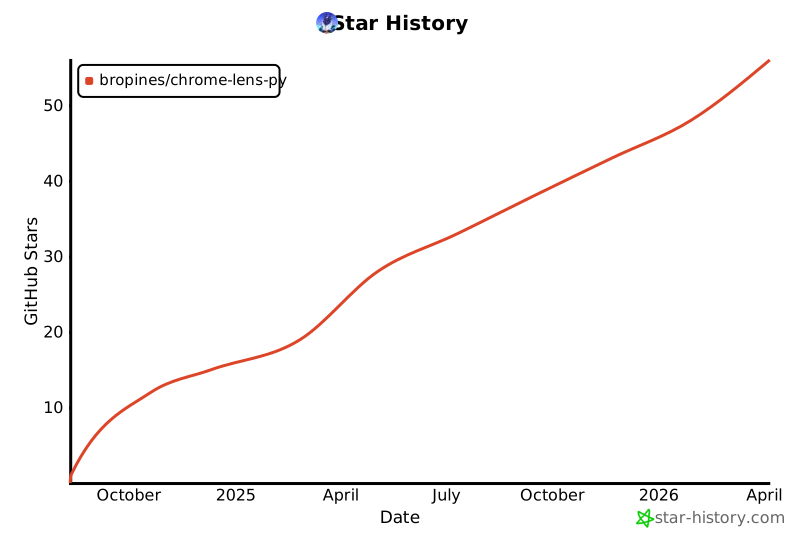
Star History
Disclaimer
This project is intended for educational and experimental purposes only. Use of Google's services must comply with their Terms of Service. The author is not responsible for any misuse of this software.
1 maintainer

Metadata
1 maintainer
Release files for chrome-lens-py 3.7.0
For a detailed explanation of source distributions (sdists) and built distributions (wheels), please see the package formats documentation.
Source distribution (sdist)
| File | Size | Uploaded | |
|---|---|---|---|
| chrome_lens_py-3.7.0.tar.gz | 243.7 kB | Details |
Built distribution (wheel)
| File | Interpreter | ABI | Platform | Reset |
|---|---|---|---|---|
| chrome_lens_py-3.7.0-py3-none-any.whl | Python 3 | none | any | Details |
Total release size: 448.7 kB
Release files / chrome_lens_py-3.7.0.tar.gz
| Download URL | chrome_lens_py-3.7.0.tar.gz |
|---|---|
| Size | 243.7 kB |
| Tags | Source |
|
SHA-256 checksum How to use checksums |
de2fdeeae8fa94c7804566a1b5eb3b4bf034a9f2998e0b16725ace016f2cd69f
|
|
BLAKE2b-256 checksum How to use checksums |
b1359da9cfd51413d7f8d663140636cc860f06d45dc7c06fc2addbfd90d23511
|
| Upload date | |
|
Uploaded using Trusted Publishing? What is trusted publishing? |
Yes |
| Uploaded via |
twine/7.0.0 CPython/3.13.14
|
Provenance
Provenance describes where a file came from. On PyPI, provenance is shared via attestations, which provide a verifiable record of the build or publishing details. View details, limitations and caveats.


PyPI Publish Attestation
PyPI verified that this artifact, at this checksum, originated from the publisher listed below.
Signed by GitHub Actions, verified by PyPI on Oct 17, 2026.
Transparency logRelease files / chrome_lens_py-3.7.0-py3-none-any.whl
| Download URL | chrome_lens_py-3.7.0-py3-none-any.whl |
|---|---|
| Size | 205.0 kB |
| Tags | Python 3 |
|
SHA-256 checksum How to use checksums |
5df48d98df2b1b0bd0cabad619e28942e0fa11c81f40601ad1c3ecf92ff72be6
|
|
BLAKE2b-256 checksum How to use checksums |
ba831f5209ab9784edf3f52af38ffafea0a144ebfda9b827123a488316791784
|
| Upload date | |
|
Uploaded using Trusted Publishing? What is trusted publishing? |
Yes |
| Uploaded via |
twine/7.0.0 CPython/3.13.14
|
Provenance
Provenance describes where a file came from. On PyPI, provenance is shared via attestations, which provide a verifiable record of the build or publishing details. View details, limitations and caveats.
PyPI Publish Attestation
PyPI verified that this artifact, at this checksum, originated from the publisher listed below.
Signed by GitHub Actions, verified by PyPI on Oct 17, 2026.
Transparency log













