
ChronoNav
A sleek and powerful CLI for navigating timezones with ease, right from your terminal.
ChronoNav is a command-line tool that makes dealing with timezones simple and intuitive. Whether you need a quick glance at world clocks, want to know the current time for a colleague overseas, or need to schedule a meeting across multiple timezones, ChronoNav has you covered.
Key Features
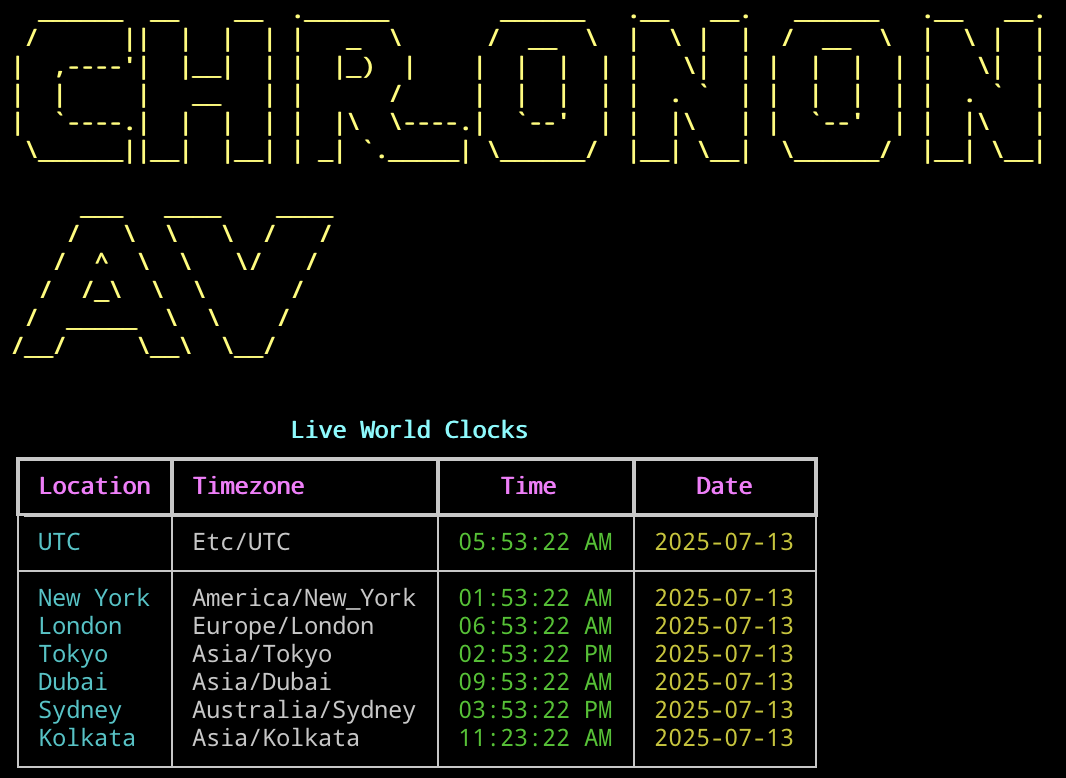
- Live World Clocks: Run
chrononavwith no arguments for a beautiful dashboard of current times in major world cities. - Specific Time Conversion: Convert any time from a source timezone to multiple destination timezones.
- "Now" Command: Instantly check the current time in any list of cities or timezones.
- 12/24 Hour Format: Use the
--am-pmflag to toggle between 12-hour and 24-hour clock formats. - Smart Aliases: Use common city names and aliases (like
nyc,la,kolkata) instead of formal timezone identifiers. - Polished Interface: Features ASCII art and rich, colorful tables for excellent readability.
Installation
The recommended way to install ChronoNav is using pipx, which installs Python CLI tools in isolated environments, preventing dependency conflicts.
Recommended Method: pipx
-
First, install pipx (you only need to do this once):
python3 -m pip install --user pipx
python3 -m pipx ensurepath
(You may need to restart your terminal after this step for the
PATHchange to take effect.) -
Install ChronoNav:
pipx install chrononav
Alternative Method: pip
If you prefer, you can install with pip. The --user flag is crucial to avoid modifying system packages.
-
Install ChronoNav for your user:
python3 -m pip install --user chrononav
-
Verify your PATH (Important!): This method may install the
chrononavcommand to a directory not in your shell'sPATH. If you get a "command not found" error, you must add it. Open your~/.bashrc,~/.zshrc, or equivalent shell configuration file and add one of the following lines:# For Linux: export PATH="$HOME/.local/bin:$PATH" # For macOS (path may vary depending on Python version): export PATH="$HOME/Library/Python/3.9/bin:$PATH"
Restart your terminal for the change to take effect.
Usage Examples
Default View (Live World Clocks)
Simply run the command by itself. Use --am-pm for 12-hour format.
chrononav --am-pm
Usage Showcase
Here are some real-world examples of how you can use chrononav to solve common timezone challenges.
1. Checking a Few Key Timezones
Get a quick, clean report of the current time in specific locations using the now command. This is great for getting a daily overview of major business hubs.
Command:
chrononav now london nyc tokyo dubai
2. Planning an International Team Meeting
You're in Chicago and want to schedule a meeting for 10:00 AM your time. What time is that for your colleagues in Berlin and Kolkata?
Command:
chrononav convert "10:00am" --from chicago --to berlin --to kolkata
3. Announcing a Global Webinar
A webinar is scheduled for 14:00 UTC on November 20th, 2025. Find out the local time for attendees in New York and Sydney, and display it in AM/PM format.
Command:
chrononav convert "2025-11-20 14:00" --from utc --to nyc --to sydney --am-pm
Note: ChronoNav will correctly handle the date rolling over to the next day for locations across the dateline.
4. Coordinating a Project Deadline
A project deadline is Friday at 5 PM Pacific Time (Los Angeles). What time and date is that for the team in Paris? chrononav is smart enough to parse relative dates like "Friday".
Command:
chrononav convert "Friday 5pm" --from "America/Los_Angeles" --to "Europe/Paris"
This shows how a deadline can easily be early the next morning for another team.
5. Decoding Server Log Timestamps
Your server logs show a critical error at 02:30 UTC. You need to know what time this occurred for the on-call engineers in India (IST) and London. This is perfect for developers and system administrators working with globally distributed systems.
Command:
chrononav convert "02:30" --from utc --to kolkata --to london
6. Mixing and Matching Aliases and Timezones
ChronoNav lets you use a mix of simple aliases (la), full timezone names (Asia/Singapore), and cities (berlin) all in the same command.
Command:
chrononav now la Asia/Singapore berlin
7. Checking Flight Arrival Times Across the Dateline
Your flight departs from Los Angeles at 11:30 PM on March 15th, 2026. What is the local time and—more importantly—the date when you land in Tokyo? This powerful example demonstrates how chrononav handles complex multi-day conversions.
Command:
chrononav convert "2026-03-15 11:30 PM" --from la --to tokyo --am-pm
1 maintainer

Download files
Download the file for your platform. If you're not sure which to choose, learn more about installing packages.
Source Distribution
Built Distribution
Filter files by name, interpreter, ABI, and platform.
If you're not sure about the file name format, learn more about wheel file names.
Copy a direct link to the current filters














