
Windows tray widget + dashboard for Claude plan usage (5-hour & weekly limits)
Verified details
These details have been verified by PyPIProject links
GitHub Statistics
Maintainers

Project description

Claude Usage Tracker
A small Windows desktop app that tracks your Claude plan limits — the 5-hour
and weekly usage windows, the exact numbers the /usage command shows — with
always-on-top overlays (a mini widget and a one-line HUD bar), a tabbed
dashboard (Live · All-time · Status · Settings), a live tray icon, and a toast
notification every time usage crosses a 20% mark.
It reads the OAuth token Claude Code already stores on your machine and calls the
same endpoint /usage uses. Read-only — it never modifies your credentials and
talks to nothing but that one Anthropic endpoint.
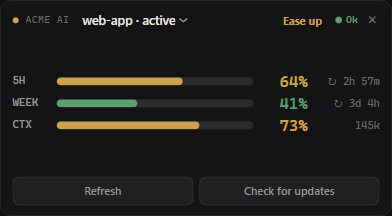
The always-on-top mini widget — 5h / weekly / context %, with a session picker, verdict, and status dot (sample data)
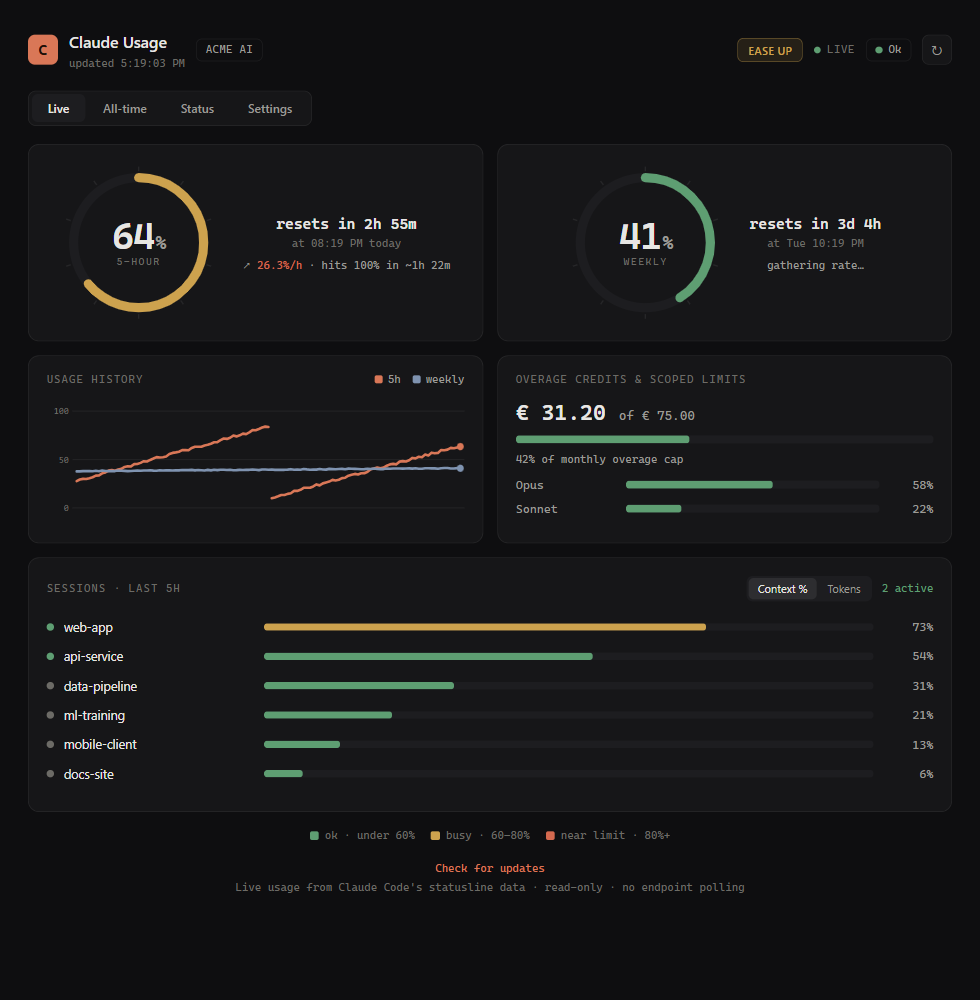
The minimal one-line HUD bar — a solid, FPS-counter-style strip; fields and order are configurable (sample data)

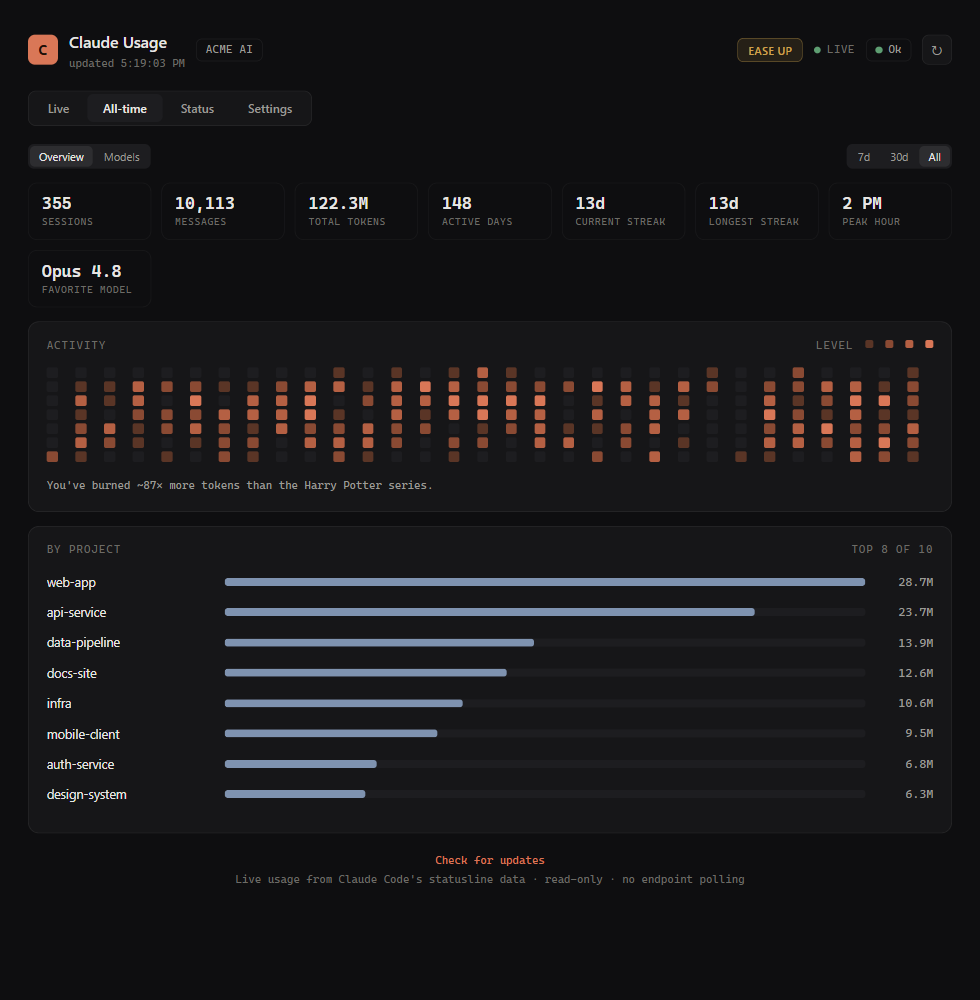
The dashboard's Live tab — instrument-dial gauges, reset countdowns, a burn-rate projection, a usage-history sparkline, overage credits, scoped weekly limits, and Sessions (sample data)
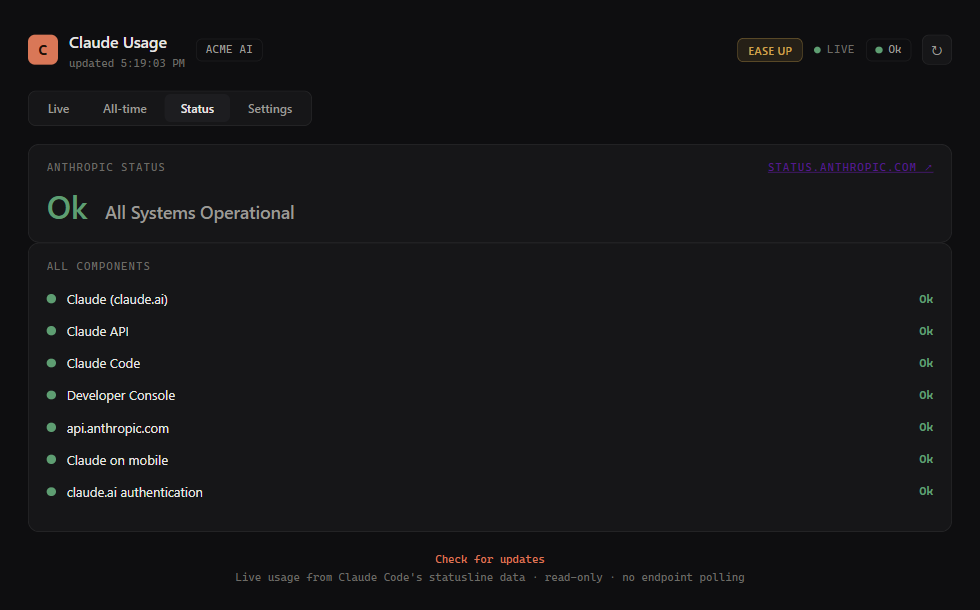
The All-time tab — sessions, messages, total tokens, active days, streaks, peak hour, favorite model, a contribution heatmap, and by-project totals, with a 7d / 30d / All toggle (sample data)
The Status tab — Anthropic service status (Ok / Errors / Down) with every component listed (sample data)
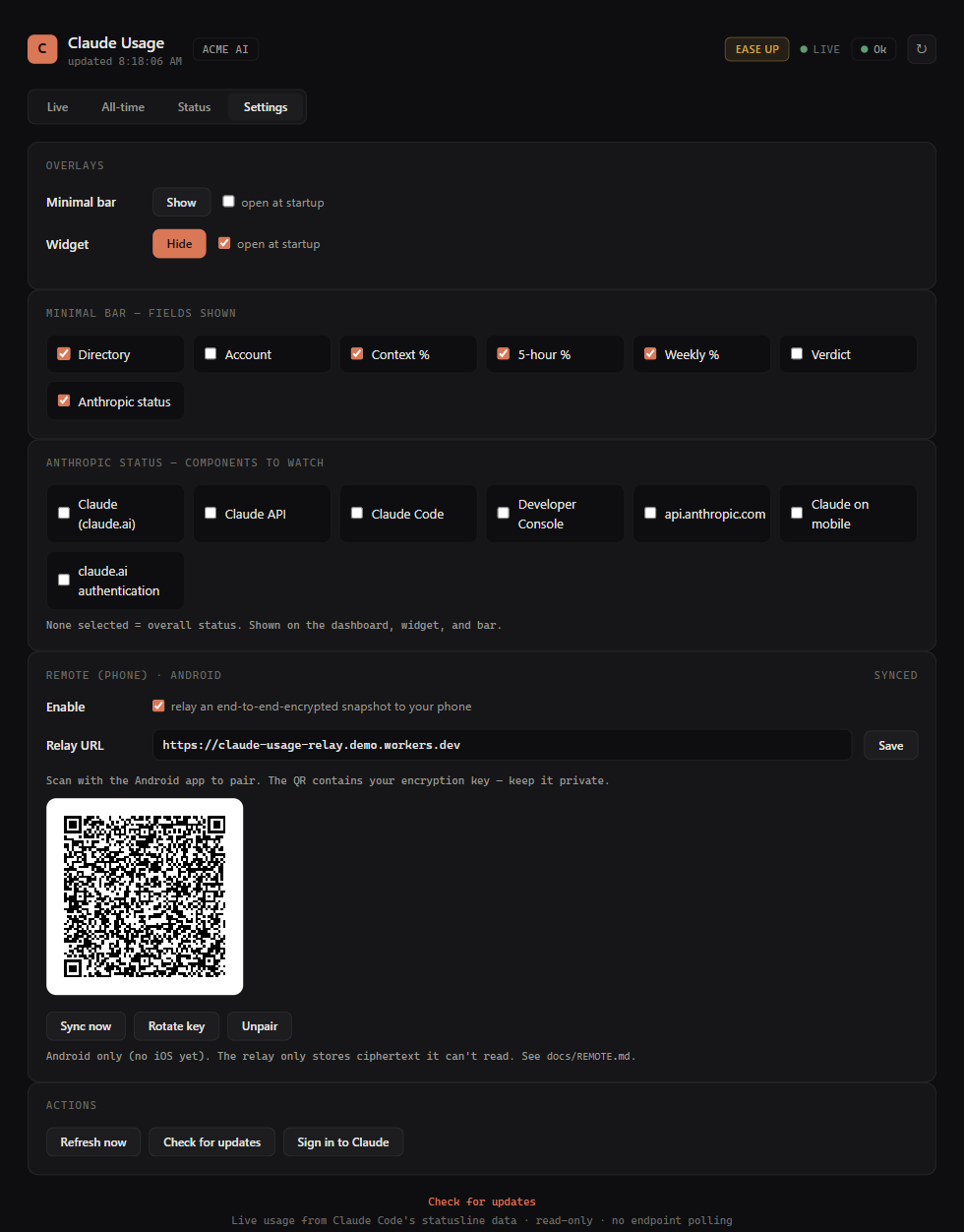
The Settings tab — show/hide the overlays, choose the HUD-bar fields, and pick which status components drive the indicator (sample data)
Features
- Always-on-top overlays — a frameless, draggable, resizable mini widget (5h,
weekly, context %) with Refresh / Check-for-updates buttons and a dropdown to pick
which session's context to track; and a minimal HUD bar — a solid, one-line,
FPS-counter-style strip (
dir Ctx: 73% 5h: 64% 7d: 41% ● Ok) whose controls appear on hover. Toggle either from the tray; they can be shown together. Drag any edge or corner to resize; size is remembered. - Full dashboard — animated ring gauges, live reset countdowns, a burn-rate / time-to-limit projection ("≈7%/h · hits 100% in ~1h 10m"), a usage history sparkline, overage credits, and per-model (Opus/Sonnet) scoped weekly limits.
- Open Sessions — per-project context-window fill % and last-5h token usage, read from your local Claude Code logs (token counts only, never content), with Context % / Tokens tabs and active indicators — see which terminal is burning your usage.
- All-time stats — a second dashboard tab that mines your whole local history: an Overview (sessions, messages, total tokens, active days, current/longest streak, peak hour, favorite model, a contribution heatmap, and a "you've burned N× more tokens than War and Peace" line) and a Models view (tokens-over-time stacked chart + per-model input/output split), all with a 7d / 30d / All toggle. Folded incrementally from your local logs (each file read once, then only new bytes), so it's accurate without rescanning gigabytes — token counts only, never content.
- Proactive alerts + traffic-light verdict — toasts when a window is on track to
run out before it resets, when the active context hits 90% (time to
/compact), or when overage credits near the cap; plus a one-glance green / amber / red verdict in the widget and dashboard, and a daily update check with a one-click in-app Update that upgrades in place and restarts — the.exeruns the signed installer, and pip/pipx installs upgrade themselves via the app's own Python (nopipxon PATH needed, no trip to GitHub). Refresh and Check for updates are one click away in the dashboard, widget, and tray menu too. - Anthropic status — a live Ok / Errors / Down service-status indicator (from status.anthropic.com) on the dashboard, widget, and bar, plus a Status tab listing every component (claude.ai / API / Claude Code / Console / …). Pick which components drive the indicator in Settings, or use the overall status.
- Live tray icon — two bars (left = 5h, right = weekly) that fill and change colour with usage.
- 20% notifications — a Windows toast each time the 5h or weekly window crosses 20 / 40 / 60 / 80 / 100%. The first reading is recorded silently, so you only get pinged on future crossings, never a burst at startup.
- One-click sign-in — when your login expires, a Sign in to Claude action (in
the tray menu and on the dashboard banner) runs
claude auth login— Claude Code's own sign-in — so you can refresh it without opening a terminal. The app never writes your credentials itself; it just triggers Claude Code's flow. - Auto-start on login, single-instance, graceful rate-limit (HTTP 429) back-off, and automatic pickup of account/token changes (it re-reads your login each poll).
Colour scale
Bars, gauges, and the tray icon share one muted scale:
| Usage | under 60% | 60–80% | 80%+ |
|---|---|---|---|
| Colour | green | amber | red |
Tray icon at 5/40, 45/72, 85/94, 95/100, and 0/0 percent

Install
Requires Windows 10/11, Claude Code installed and logged in (so
~/.claude/.credentials.json exists), and the Edge WebView2 runtime
(preinstalled on Windows 11; otherwise a free
download). Then pick one:
Option A — Installer (easiest, no Python needed)
Download ClaudeUsageTracker-Setup.exe from the
latest release
and run it. A standard Windows wizard: accept the license, then tick the shortcuts
you want — Desktop / Start Menu / start at sign-in.
Windows SmartScreen ("Windows protected your PC") appears because the installer isn't code-signed — normal for small open-source apps. Click More info → Run anyway.
Option B — pipx (updatable from the command line)
pipx install claude-usage-tracker
claude-usage-tracker --install      # interactive: Desktop / Start Menu / Startup
pipx upgrade claude-usage-tracker   # later, to update
Option C — from source
git clone https://github.com/paris-paraskevas/claude-usage-tracker.git
cd claude-usage-tracker
python install.py
After any of these, the mini widget appears top-right and a tray icon by the clock. To pin it to the taskbar (Windows blocks apps from doing this themselves): right-click the running app's taskbar icon → Pin to taskbar.
Updating: the app checks daily and surfaces an Update action (tray menu, and on
the dashboard/widget). One click upgrades in place and restarts — the installer build
runs the new Setup.exe, pip/pipx installs upgrade via the app's own Python, and a source
checkout runs git pull. Check for updates is available any time too.
Usage
Launch "Claude Usage Tracker" from the Start Menu/Desktop, or run it directly:
.venv\Scripts\pythonw.exe claude_usage_tracker.py
Tray menu: Show/Hide widget, Show/Hide minimal bar, Open dashboard, Open
in browser, Refresh now, Check for updates, Sign in to Claude…, open
config/log, Quit. Overlays drag anywhere, resize from any edge, and have a × to hide.
CLI:
.venv\Scripts\python.exe claude_usage_tracker.py --once          # print status once
.venv\Scripts\python.exe claude_usage_tracker.py --once --debug  # + raw API JSON
.venv\Scripts\pythonw.exe claude_usage_tracker.py --widget       # just the widget
.venv\Scripts\pythonw.exe claude_usage_tracker.py --bar          # just the minimal HUD bar
.venv\Scripts\pythonw.exe claude_usage_tracker.py --window       # just the dashboard window
.venv\Scripts\python.exe claude_usage_tracker.py --uninstall-autostart
Configuration
Edit config.json (created on first run, in the app's data dir), then restart:
| Key | Default | Meaning |
|---|---|---|
poll_interval_seconds |
60 |
How often to check usage. |
threshold_step |
20 |
Ping every N percent. |
windows |
["five_hour", "seven_day"] |
Which limits to notify on. |
notify_at_100 |
true |
Ping when a limit hits 100%. |
notify_on_start |
true |
One summary toast at launch. |
dashboard_port |
8787 |
Local dashboard port. |
show_widget_on_start |
true |
Show the mini widget at launch. |
widget_width / widget_height |
392 / 216 |
Widget size in pixels. |
show_bar_on_start |
false |
Show the minimal HUD bar at launch. |
bar_fields |
["dir","ctx","5h","7d"] |
HUD-bar fields, in order. |
bar_opacity |
85 |
HUD-bar background opacity (30–100). |
alltime_days |
30 |
Days shown in the All-time daily-usage chart. |
How it works
GET https://api.anthropic.com/api/oauth/usage with the bearer token from
~/.claude/.credentials.json (claudeAiOauth.accessToken) and the
anthropic-beta: oauth-2025-04-20 header. The response carries five_hour,
seven_day, scoped per-model weekly limits, overage spend, and reset timestamps —
the same data the CLI's /usage renders.
Token refresh is handled by Claude Code itself; if your login expires, the tracker
shows an error state until you run any claude command to refresh it. The token is
only ever read — never written, logged, or sent anywhere but that endpoint.
Privacy
Read-only and local. It reads your Claude login token and session logs from
~/.claude and displays the numbers; it sends nothing anywhere except the Anthropic
usage endpoint (using your own token). No telemetry, no analytics, no data collection.
Code signing
Windows builds are signed with free code signing provided by SignPath.io, with a free code signing certificate from the SignPath Foundation.
Layout
claude_usage_tracker.py   the whole app (tray, server, dashboard+widget HTML, poller)
install.py / uninstall.py shortcut setup / teardown
requirements.txt          pystray, Pillow, winotify, pywebview
docs/                     screenshots
Runtime files (config.json, state.json, history.json, *.log) live next to the
script (or in %LOCALAPPDATA%\ClaudeUsageTracker when packaged) and are git-ignored.
Project details
Verified details
These details have been verified by PyPIProject links
GitHub Statistics
Maintainers
Release history Release notifications | RSS feed


Download files
Download the file for your platform. If you're not sure which to choose, learn more about installing packages.
Source Distribution
Built Distribution
Filter files by name, interpreter, ABI, and platform.
If you're not sure about the file name format, learn more about wheel file names.
Copy a direct link to the current filters
File details
Details for the file claude_usage_tracker-0.1.26.tar.gz.
File metadata
- Download URL: claude_usage_tracker-0.1.26.tar.gz
- Upload date:
- Size: 53.6 kB
- Tags: Source
- Uploaded using Trusted Publishing? Yes
- Uploaded via: twine/6.1.0 CPython/3.13.12
File hashes
| Algorithm | Hash digest | |
|---|---|---|
| SHA256 |
28f24c3750deb9b516cd8cb0bfce9ea54c2f500072ee20fcb069dcfeb6020ec2
|
|
| MD5 |
7017f214b1896dc3e3b8a7631b11a4d7
|
|
| BLAKE2b-256 |
abdd1aacc3bbc8bb2bd4d1e8553c5e470dbdfdb351f47f92969a48036487be3b
|
Provenance
The following attestation bundles were made for claude_usage_tracker-0.1.26.tar.gz:
Publisher:
publish.yml on paris-paraskevas/claude-usage-tracker
-
Statement:
-
Statement type:
https://in-toto.io/Statement/v1 -
Predicate type:
https://docs.pypi.org/attestations/publish/v1 -
Subject name:
claude_usage_tracker-0.1.26.tar.gz -
Subject digest:
28f24c3750deb9b516cd8cb0bfce9ea54c2f500072ee20fcb069dcfeb6020ec2 - Sigstore transparency entry: 1982068693
- Sigstore integration time:
-
Permalink:
paris-paraskevas/claude-usage-tracker@b49acf300f871cda451e76373e8c3a46e79fd811 -
Branch / Tag:
refs/tags/v0.1.26 - Owner: https://github.com/paris-paraskevas
-
Access:
public
-
Token Issuer:
https://token.actions.githubusercontent.com -
Runner Environment:
github-hosted -
Publication workflow:
publish.yml@b49acf300f871cda451e76373e8c3a46e79fd811 -
Trigger Event:
release
-
Statement type:
File details
Details for the file claude_usage_tracker-0.1.26-py3-none-any.whl.
File metadata
- Download URL: claude_usage_tracker-0.1.26-py3-none-any.whl
- Upload date:
- Size: 51.7 kB
- Tags: Python 3
- Uploaded using Trusted Publishing? Yes
- Uploaded via: twine/6.1.0 CPython/3.13.12
File hashes
| Algorithm | Hash digest | |
|---|---|---|
| SHA256 |
15753f07a029ffd2ccbfcaa694bc20936f72ad03856dc356b19c853d477b0c92
|
|
| MD5 |
9ca519fc79906cb1d734c76105f761b0
|
|
| BLAKE2b-256 |
0c865c36fec46320b5e90779eb83525243dd6f204de56ca809e78a49a614c589
|
Provenance
The following attestation bundles were made for claude_usage_tracker-0.1.26-py3-none-any.whl:
Publisher:
publish.yml on paris-paraskevas/claude-usage-tracker
-
Statement:
-
Statement type:
https://in-toto.io/Statement/v1 -
Predicate type:
https://docs.pypi.org/attestations/publish/v1 -
Subject name:
claude_usage_tracker-0.1.26-py3-none-any.whl -
Subject digest:
15753f07a029ffd2ccbfcaa694bc20936f72ad03856dc356b19c853d477b0c92 - Sigstore transparency entry: 1982068820
- Sigstore integration time:
-
Permalink:
paris-paraskevas/claude-usage-tracker@b49acf300f871cda451e76373e8c3a46e79fd811 -
Branch / Tag:
refs/tags/v0.1.26 - Owner: https://github.com/paris-paraskevas
-
Access:
public
-
Token Issuer:
https://token.actions.githubusercontent.com -
Runner Environment:
github-hosted -
Publication workflow:
publish.yml@b49acf300f871cda451e76373e8c3a46e79fd811 -
Trigger Event:
release
-
Statement type:






