
This release is a pre-release and may not be stable for production use.
Codex Desk
Find an earlier Codex investigation before repeating it. Search your recent local history, read the exact task’s response and its own supplied command or tool results, then decide which check to change or skip. Continue in the same native thread when you need to.
Try the browser sample — no install: search retry budget, read the checkout task’s response, then inspect its printf sample-checkout command and reported result. Optional: continue the sample conversation, save a draft, then reload to return. Sample preparation stays in this browser. Use the installer below for your own Codex history.
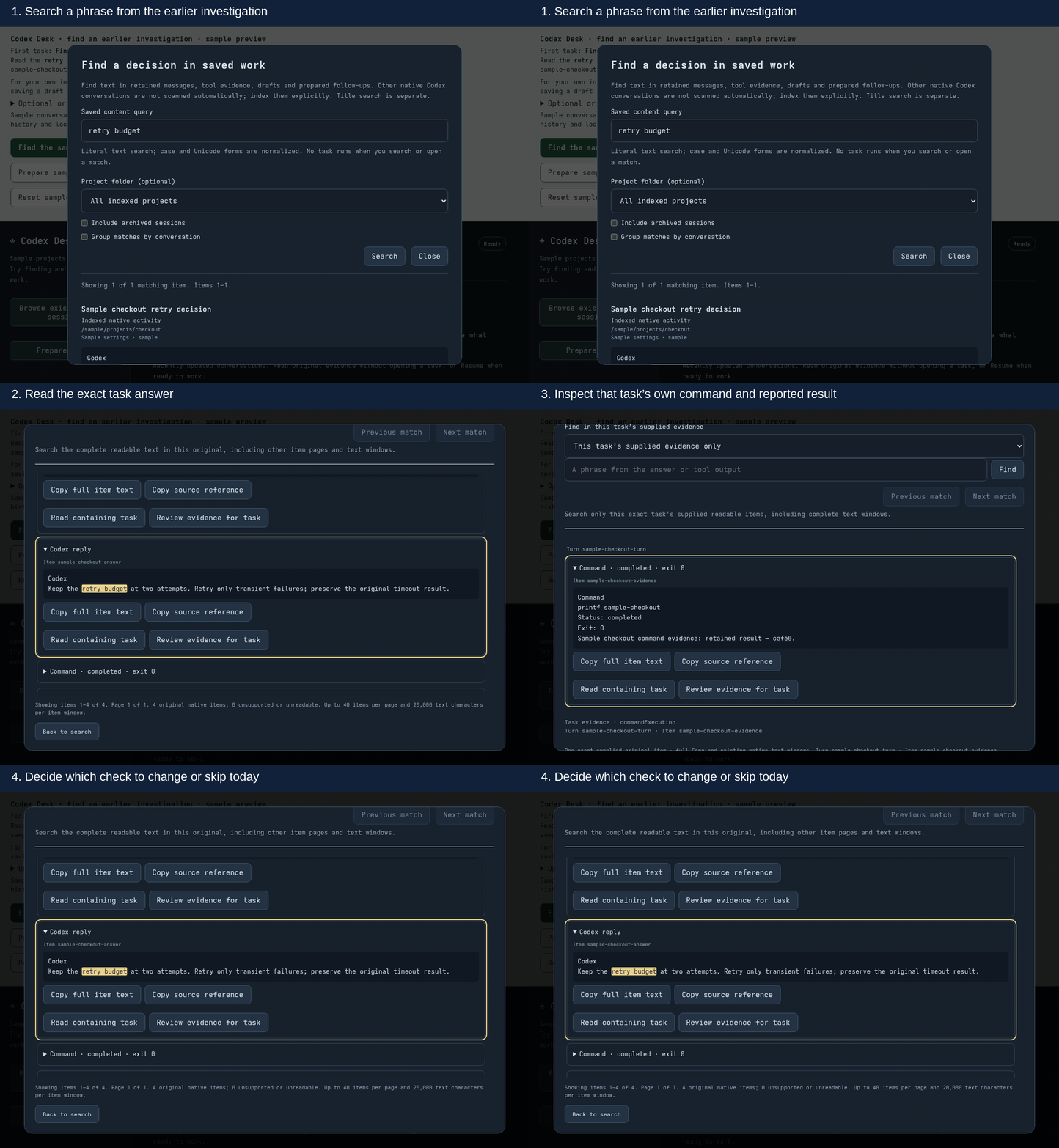
20-second synthetic checkout walkthrough: search “retry budget” → read the exact answer → inspect its own command result. Decide which check to change or skip; continuing is optional.
Install the preview
Use your existing Codex CLI installation and sign-in. Check codex --version in the terminal where you will launch Desk; this reports the native Codex CLI version. On macOS, you can also use the Codex bundled with Desktop through --codex, without installing another CLI. On Windows, check the reader in your installed app; use that bundled entry when its version check succeeds in your ordinary PowerShell terminal.
With uv, one command installs and opens the free local workbench on Linux, macOS, Windows or WSL:
uvx --prerelease allow codex-desk
The current version is an alpha, so --prerelease allow selects the preview from PyPI. The accepted GitHub wheel is also available.
Keep that terminal running. Desk opens the complete launch URL printed in that terminal in your browser (normally at http://127.0.0.1:8787). Run the same command next time and open its newly printed URL; your saved conversations and drafts remain local.
For your first task, pick one earlier investigation you would otherwise repeat. Choose Find a decision in past work → Index existing Codex history, enter a remembered phrase and choose Search, then Read original conversation. From the matching response or tool item, choose Read containing task → Read this task’s evidence to inspect the results supplied for that task. If its original supplies only messages, read the response; keep any check that still needs the missing command or tool result. Decide which check to change or skip; continuing the conversation is optional. First-task guide. Expected history missing?
If that address is already in use, use the complete URL in the existing Desk terminal to reopen that running server. To replace it with an updated version, stop its terminal with Ctrl+C before relaunching. To use a different port, append --port 8788 to the launch command. An occupied port does not create or change Desk state.
Update an existing uvx installation
uvx can reuse an older cached preview. First stop the running Desk terminal with Ctrl+C, then run this command once:
uvx --refresh --prerelease allow codex-desk@latest
Afterwards use the usual uvx --prerelease allow codex-desk launch command. Append any original --codex, --codex-home, --state-dir and --port options to the update and later launches. Reusing the same state directory retains your saved conversations, indexed history, drafts and prepared follow-ups. Check the selected Desk package version with uvx --prerelease allow codex-desk --version; codex --version checks your separate native Codex CLI installation.
Install with Python instead of uv
Python 3.11+ is required. The wheel has no runtime dependencies.
Linux/macOS/WSL:
mkdir -p "$HOME/codex-desk-install"
cd "$HOME/codex-desk-install"
python3 -m venv .venv
. .venv/bin/activate
python3 -m pip install --pre codex-desk
codex-desk
Windows PowerShell:
New-Item -ItemType Directory -Force "$HOME\codex-desk-install" | Out-Null
Set-Location "$HOME\codex-desk-install"
py -3 -m venv .venv
.\.venv\Scripts\python.exe -m pip install --pre codex-desk
.\.venv\Scripts\codex-desk.exe
For later launches, use codex-desk in the activated environment, or .\.venv\Scripts\codex-desk.exe in PowerShell.
Find an earlier answer
Have a native thread ID? Browse all conversations → Native conversation ID → Read original by ID; Copy native conversation ID in the reader keeps it for next time. Remember a title? Use Search titles. In an open original, Read containing task → Jump to supplied user instruction finds your prompt; Find in this original conversation finds reply/tool text. Show Find matches lists occurrences within that loaded original; choose an exact duplicate directly, then Return to Find matches to choose another. F3 continues from the occurrence you selected. Choose the entrance and carry its own response into your current draft — English / 中文.
- Choose Find a decision in past work on the first screen, or Search saved content in the sidebar.
- Choose Index existing Codex history to read up to 200 recently updated native conversations into a local cache, including work you have never opened in Desk. Indexing is explicit; it neither opens those conversations nor sends a task.
- Enter a word or phrase from the answer, command output or tool result, then Search. You can search while indexing: when the explicit scan completes, an unchanged submitted query in the active search dialog refreshes once. Edits stay unsent; choose Search after changing the phrase or scope. Choose Read original conversation on a native result to inspect the matching evidence—even if its project folder has been removed. Use Next matches / Previous matches to reach later results. Your selected task and draft stay unchanged; Back to search keeps the query, page and results. In the reader, Find in this original conversation locates text across every supplied item and long-output window; Previous match / Next match (F3 / Shift+F3) visits each occurrence. Copy full item text and Copy source reference let you reuse the exact evidence in today's work.
When one long conversation fills the results, check Group matches by conversation and choose Search. Each matching conversation shows its own item count and one original snippet. Show matching items in this conversation narrows the same literal query to that exact saved task or indexed native original. Read an item, return to the same item page, then Return to matching conversations restores the chosen conversation row. Uncheck grouping to keep the ordinary all-item search. Grouping uses the current index and keeps the selected task unchanged.
- Ready to work on it? Choose Continue this conversation to resume the original native thread using Current Codex settings. Continuing requires the saved project folder to exist. Prepare the next instruction, then send it when ready.
Search is literal, case-insensitive and Unicode-normalized. It also covers Desk-cached activity, drafts, prepared follow-ups and current unconfirmed captured Work/Plan requests. On a captured-request hit, Review captured request reads the exact saved instruction and its original target without opening a task; Return to results keeps your submitted query and page. Index coverage and text limits shows cached coverage and shortened or omitted text; this is a bounded recent-history cache. Refresh recent history starts at the current top and skips unchanged snapshots. Choose Index next older conversations to continue explicitly beyond the recent window. Unread page progress survives cancellation and restart; Continue indexing resumes it without sending a task. Native title browsing remains available.
Short guide: find a past Codex answer and reopen its task
Skim the original by task, then inspect its evidence
In a loaded original, Task overview shows 20 supplied tasks per page: your instructions, each task’s own response/phase and its reported status. Choose Read task or Read task response, then Return to task overview to keep the same overview page and control.
From that exact task, Read this task’s evidence lists its supplied messages, commands, file changes and tools in native order, 20 items per page. Choose Read full original item for the existing long-text windows, full Copy and reviewed quote. Find in this task’s supplied evidence searches that task; Whole original conversation searches the complete loaded source. Return through Return to task evidence, Return to task overview and Return to original passage without changing your current draft or queues. Task-led original review — English / 中文.
Rehearse the linked-original return
The maintained browser sample includes the checkout parent's reported linked
child original. Expand collaboration → Read linked agent original → Find
Child decisive evidence — café🙂 项目 exact source. → F3 → Copy/review the second
quote → append once to the existing unsent Plan. The saved child reference returns
to the same editor and parent passage; Back to Changed work restores its row
and scope. Build and check both hosting modes at 1250/390.
Follow newly supplied original items
Deliberately reopen an original or choose Refresh original. Read first newly supplied item opens the earliest native item added since the previous successful fresh original read in this browser, even when that item is a user instruction before a later final answer. This compares supplied turn/item identities, not unread text or the saved task's Read first new activity review frontier. Existing-item text edits do not count as newly supplied items.
Return to original passage returns to your prior reading view. Reopening at a narrower or wider width keeps the remembered literal character anchored through responsive reflow; an explicit saved quote, item or response target takes priority. A command's status/exit header can change while its output stays identical: reopening or refreshing retains the same output-relative character, including after a resize. Newly reviewed output-only evidence quotes also keep their exact output-relative span when the command completes; read them from the saved draft without repeating discovery. Save and revisit command output. Rehearse that command return. Rehearse with five deliberate sample additions.
Bring your existing work
- Your recent Codex work appears on the first screen, including the project folder. Choose Read original conversation to inspect evidence without opening a task, including when its project folder is gone. Click Resume conversation when you want to continue work in an available folder. From an active or restored task, choose Recent work to review the same list. Back to recent work returns to the original row; Return to selected task closes the overview without reopening the task or changing its draft, mode, or prepared follow-ups. The selected task’s live status stays visible in the overview.
- Read the saved messages, command results and tool evidence. Write your next task and wait for Draft saved locally, or choose Save as follow-up. Choose Run task when ready; Work and Plan modes use native Codex. If its local reply is lost, Check Run request recovers the same admission instead of starting another task. Later edits stay unsent; prepared follow-ups stay paused.
- Close the page and return to the printed URL. Desk reopens your last saved conversation with its unsent draft and remembered activity reading place. After stopping Desk with Ctrl+C, relaunch with the same command and any original
--codex,--codex-home,--state-dirand--portoptions to return.
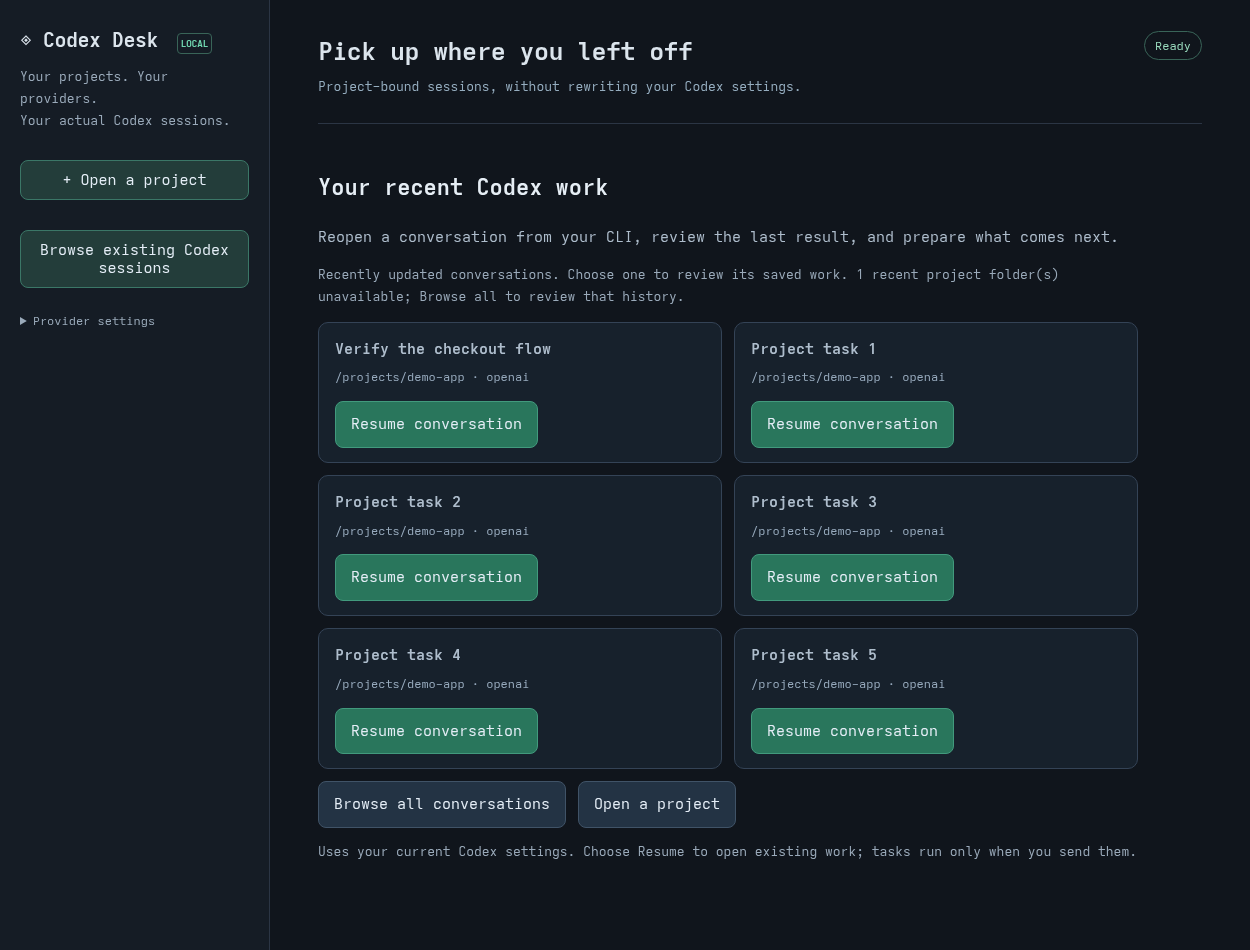
Example first screen. Listing recent work runs no task; Resume is an explicit choice.
Know the title? Browse all conversations searches native conversation titles across folders. Open a project lets you choose an exact folder, another retained profile, or explicitly start a new conversation. Enter the exact saved folder even if it has been removed: Find existing sessions and Read original conversation still work. Restore the folder to resume or start new work. For a custom Codex history location, add --codex-home /your/codex-home to the launch command.
For native archived history, choose Archived conversations under Native history in Browse all conversations (sidebar Browse existing Codex sessions), then search its title and read the original without restoring or resuming it. Close and explicitly reopen that original to return to its browser-local reading passage in fresh native text. Original lookup and revisit guide.
中文:打开已有会话并继续工作 · Illustrated walkthrough
Why use Desk?
Choose Desk when you want to inspect existing Codex evidence and prepare the next task in the same local workbench. Choose a history workflow covers native terminal resume, multi-agent history browsers and agent-memory tools.
- Resume, don't reconstruct. Reopen the actual saved CLI thread and its prior messages, commands, file changes and MCP results.
- Return to what you were reading. Switch from saved task A to B and back: the same original activity, tool disclosures and scroll positions return. In the same browser, they also return after reload. Choose Latest output ↓ to follow the end instead.
- Read what changed across projects. Read first new activity opens the earliest recorded native item update since your review. Deliberately mark displayed updates reviewed or choose Latest output ↓; later arrivals remain new.
- Keep several projects moving. Active tasks and approvals stay visible while you read another project's results.
- Read the proposed plan. Plan-mode output appears as native Codex streams it; the final native plan remains readable in activity, original history, content recall and reviewed handoffs. It stays separate from your unsent Plan draft and native task checklist.
- Review this turn's changes. The latest native cumulative diff appears in Turn changes. Read or copy its full patch without losing your position as output continues; actual completion, interruption or failure keeps the last reported diff until the next turn.
- Stop the task you selected. Stop current task captures the active native thread and turn once. Check stop receipt recovers the same request after a lost reply or restart without sending it again; actual native completion reports when the task ended. Your draft and prepared follow-ups stay in place.
- Correct the task underway. Use a separate Instruction for current task editor and Send to current task to steer the active native turn while keeping your unsent Plan and prepared follow-ups intact.
- Prepare tomorrow's work. Session-bound drafts and ordered follow-ups persist across page and server restarts. Prepared work reviews saved drafts, queued instructions and unconfirmed Run requests across projects without starting native work, including removed folders. Edit, remove, reorder or clear saved queued instructions locally while leaving today's task and draft in place. Choose Review task request to inspect the original captured instruction and target independently of your current draft. Explicitly append or replace draft text to reuse an instruction; save locally, then choose when to open and send it.
- Read the last task response. Expand Last native task outcome and choose Read task response to read the exact displayed parent turn’s supplied final answer, or its last assistant message with the reported phase. Reading does not continue or send a task.
- Find the preparation you already saved. In Prepared work, enter a remembered phrase and choose Search. Results identify the saved draft, follow-up, captured instruction or Run request in the current project/archive scope. Read its retained original evidence and return to the same preparation.
- Carry original evidence into the next task. Review an exact excerpt from A, append it to B's existing unsent draft, then return to that original occurrence. The saved quote and native source reference travel with ordinary preparation text.
- Review before changing provider. Carry editable visible task evidence into a distinct target-provider conversation, preserving the original.
- Find a saved decision. Search readable history and inspect the original answer before deciding whether to continue the task.
Workflow reference: search, profiles, follow-ups, handoffs and usage
Local by design
Desk runs on loopback and uses your installed Codex app-server. The printed URL carries a per-launch browser access fragment; the browser keeps it in this tab’s session storage and uses it for private API requests. After a server restart, open the newly printed complete URL. Existing sign-in, model/provider, MCP, trust and sandbox settings come from your Codex configuration. A new Desk account or API key is unnecessary.
Reading-place metadata stays in this browser’s local storage: native home namespace and source IDs, disclosure states, text-window/visible-character offsets and scroll positions. Original supplied-item snapshots retain an item count and exact turn/item boundary for the next deliberate fresh read. Desk reads native content afresh on return; these records contain view and identity metadata. Project bindings, cached activity, indexed native history and drafts live in ~/.local/state/codex-desk/desk.sqlite3. History indexing and the original-conversation reader use native list/read requests; searching uses the local cache. New provider keys stay in a private local sidecar. Desk keeps your main configuration, auth and original rollouts intact. Native Codex sends model requests to your selected provider when you run a task.
Closing the browser leaves Desk running; Ctrl+C stops Desk and its owned native tasks. It runs its own app-server rather than attaching to an already-running Desktop backend.
Other launch options (append to either launcher):
codex-desk --codex /path/to/codex --no-browser
codex-desk --codex-home /your/codex-home --state-dir /your/desk-state --port 8788
codex-desk --version
The native launcher/profile smoke has passed on Ubuntu, Windows and macOS with CLI 0.171.0. Native task/MCP interaction acceptance uses Linux; browser first-use checks exercise desktop and 390px layouts.
Feedback and development
Task help: find one earlier investigation. Tell us the decision or result you need to find, the step reached, and the task’s own evidence or first blocker. For a useful read, say which check it changed or avoided. If you return for another task, tell us what you reused. OS/native version are optional; for --codex setups, use the selected executable's version probe in the Mac/Windows guide above. Browser sample feedback. Suggestions and contributions are welcome.
From the source checkout directory, start the workbench with:
python3 -m codex_desk.server
Run the unit suite separately (Python 3.11+; Node.js runs the JavaScript cases):
python3 -m unittest discover -s tests
Unit fixtures create disposable native homes and SQLite state in the checkout's
ignored temp/ directory and clean them up after each test. No native installation
or provider is needed. Set DESK_TEST_TEMP to choose another scratch directory.
Browser regressions use controlled local HTTP/SQLite, with no provider calls. See the first-use test and installed daily-workflow CI. Native MCP fixture and result walkthrough.
The original keyboard regression exercises Unicode Find, backward pointer excerpts, Tab/Enter evidence review, selected-task pages, and return to the original passage and the exact unsent Plan. The daily workflow runs this bounded acceptance in Firefox, Chromium and WebKit at desktop and phone widths, retaining JSON receipts and screenshots for each engine.
Run it with an installed workbench and Playwright 1.56.0 browser cache:
python tests/browser_original_keyboard.py --installed --engine firefox \
  --source "$PWD" --scratch "$PWD/temp/original-keyboard" \
  --evidence "$PWD/temp/evidence/original-keyboard/firefox" \
  --browsers-path "$PLAYWRIGHT_BROWSERS_PATH"
--engine chromium or --engine webkit selects another maintained engine. --widths 390 runs one
viewport for a focused reproduction. --installed-root and --expect-version
pin the package environment and version; --executable selects an explicit
browser binary. --help lists the equivalent DESK_* environment settings.
The portable sample task-reader check
uses the same supplied-task and evidence fixture in Chromium, Firefox or WebKit.
Build a sample with examples/build_browser_preview.py, then pass its directory
as --site and select --engine. --embedded checks a real iframe; --rich
checks a sample built with --session-reading-fixture. Its receipts include
exact Unicode excerpt offsets, keyboard Review return and retained preparation.
License
MIT.
1 maintainer

Metadata
1 maintainer
Release files for codex-desk 0.1.0a70
For a detailed explanation of source distributions (sdists) and built distributions (wheels), please see the package formats documentation.
Built distribution (wheel)
| File | Interpreter | ABI | Platform | Actions Reset |
|---|---|---|---|---|
| codex_desk-0.1.0a70-py3-none-any.whl | Python 3 | none | any | Details for codex_desk-0.1.0a70-py3-none-any.whl |
Release files / codex_desk-0.1.0a70-py3-none-any.whl
| Download URL | codex_desk-0.1.0a70-py3-none-any.whl |
|---|---|
| Size | 263.2 kB |
| Tags | Python 3 |
|
SHA-256 checksum How to use checksums |
5f66a352e9b2680cc66c91eafd43556e692368cea26a7d1fc1894d9bd5ad1aec
|
|
BLAKE2b-256 checksum How to use checksums |
efb59a12005235f97a650491eb8784c2ef7a42e077dbb8d771f20e0c6c24f591
|
| Upload date | |
|
Uploaded using Trusted Publishing? What is trusted publishing? |
Yes |
| Uploaded via |
twine/7.0.0 CPython/3.13.16
|
Provenance
Provenance describes where a file came from. On PyPI, provenance is shared via attestations, which provide a verifiable record of the build or publishing details. View details, limitations and caveats.


PyPI Publish Attestation
PyPI verified that this artifact, at this checksum, originated from the publisher listed below.
Signed by GitHub Actions, verified by PyPI on Nov 28, 2026.
Transparency logSecurity for codex-desk 0.1.0a70
Provenance
Provenance describes where a file came from. On PyPI, provenance is shared via attestations, which provide a verifiable record of the build or publishing details. View details, limitations and caveats.
Full provenance
1 file in this release has been uploaded with provenance metadata.
Attestation for codex_desk-0.1.0a70-py3-none-any.whl
PyPI Publish Attestation
PyPI verified that this artifact, at this checksum, originated from the publisher listed below.
Signed by GitHub Actions, verified by PyPI on Nov 28, 2026.
Transparency logA note on package security
PyPI is a repository for distributing packages, not a service for auditing them. While third-party security researchers and our staff do their best to detect and remove malicious packages, PyPI cannot guarantee the quality, security or suitability of any given package.
To learn more about protecting yourself from malicious actors, visit our package security documentation.














