
MCP server that provides computer control capabilities, like mouse, keyboard, OCR, etc. using PyAutoGUI, RapidOCR, ONNXRuntime. Similar to 'computer-use' by Anthropic. With Zero External Dependencies.

Project description
Computer Control MCP
MCP server that provides computer control capabilities, like mouse, keyboard, OCR, etc. using PyAutoGUI, RapidOCR, ONNXRuntime. Similar to 'computer-use' by Anthropic. With Zero External Dependencies.




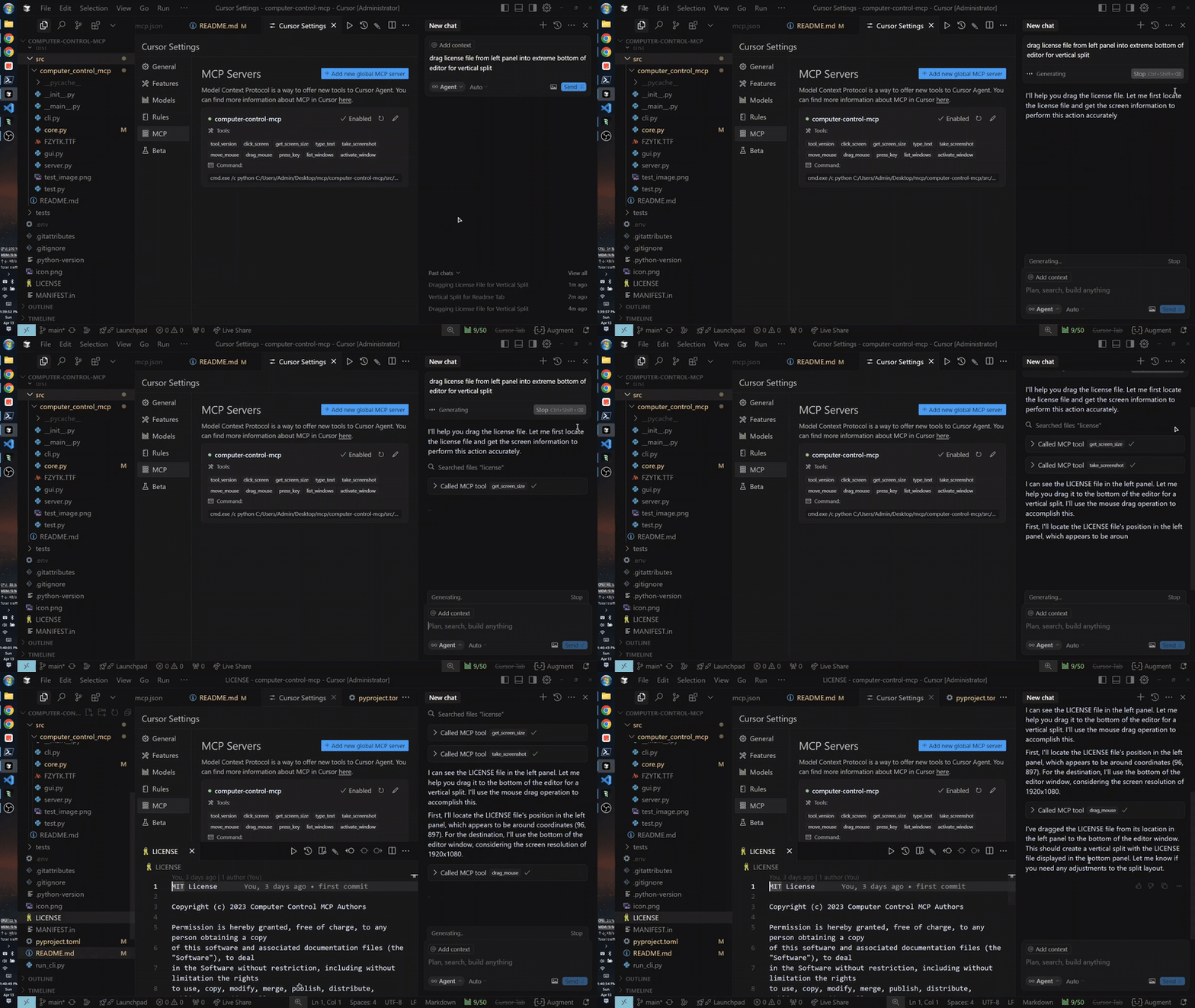
Quick Usage (MCP Setup Using uvx)
Note: Running uvx computer-control-mcp@latest for the first time will download python dependencies (around 70MB) which may take some time. Recommended to run this in a terminal before using it as MCP. Subsequent runs will be instant.
{
  "mcpServers": {
    "computer-control-mcp": {
      "command": "uvx",
      "args": ["computer-control-mcp@latest"]
    }
  }
}
OR install globally with pip:
pip install computer-control-mcp
Then run the server with:
computer-control-mcp # instead of uvx computer-control-mcp, so you can use the latest version, also you can `uv cache clean` to clear the cache and `uvx` again to use latest version.
Features
- Control mouse movements and clicks
- Type text at the current cursor position
- Take screenshots of the entire screen or specific windows with optional saving to downloads directory
- Extract text from screenshots using OCR (Optical Character Recognition)
- List and activate windows
- Press keyboard keys
- Drag and drop operations
- Enhanced screenshot capture for GPU-accelerated windows (Windows only)
Why Windows Graphics Capture (WGC) is Needed
Traditional screenshot methods like GDI/PrintWindow cannot capture the content of GPU-accelerated windows, resulting in black screens. This affects:
- Games and 3D applications that use DirectX/OpenGL
- Media players with hardware-accelerated video decoding
- Electron applications like Discord, WhatsApp, and Slack
- Browsers with GPU acceleration enabled
- Streaming/recording software like OBS Studio
- CAD and design software that utilize GPU rendering
WGC solves this by using the modern Windows Graphics Capture API, which can capture frames directly from the GPU composition surface, bypassing the limitations of traditional capture methods.
Configuration
Custom Screenshot Directory
By default, screenshots are saved to the OS downloads directory. You can customize this by setting the COMPUTER_CONTROL_MCP_SCREENSHOT_DIR environment variable:
{
  "mcpServers": {
    "computer-control-mcp": {
      "command": "uvx",
      "args": ["computer-control-mcp@latest"],
      "env": {
        "COMPUTER_CONTROL_MCP_SCREENSHOT_DIR": "C:\\Users\\YourName\\Pictures\\Screenshots"
      }
    }
  }
}
Or set it system-wide:
# Windows (PowerShell)
$env:COMPUTER_CONTROL_MCP_SCREENSHOT_DIR = "C:\Users\YourName\Pictures\Screenshots"

# macOS/Linux
export COMPUTER_CONTROL_MCP_SCREENSHOT_DIR="/home/yourname/Pictures/Screenshots"
If the specified directory doesn't exist, the server will fall back to the default downloads directory.
Automatic WGC for Specific Windows
You can configure the system to automatically use Windows Graphics Capture (WGC) for specific windows by setting the COMPUTER_CONTROL_MCP_WGC_PATTERNS environment variable. This variable should contain comma-separated patterns that match window titles:
{
  "mcpServers": {
    "computer-control-mcp": {
      "command": "uvx",
      "args": ["computer-control-mcp@latest"],
      "env": {
        "COMPUTER_CONTROL_MCP_WGC_PATTERNS": "obs, discord, game, steam"
      }
    }
  }
}
Or set it system-wide:
# Windows (PowerShell)
$env:COMPUTER_CONTROL_MCP_WGC_PATTERNS = "obs, discord, game, steam"

# macOS/Linux
export COMPUTER_CONTROL_MCP_WGC_PATTERNS="obs, discord, game, steam"
When this variable is set, any window whose title contains any of the specified patterns will automatically use WGC for screenshot capture, eliminating black screens for GPU-accelerated applications.
Windows Graphics Capture (WGC) Support
On Windows 10 version 1803 and later, this package supports the Windows Graphics Capture (WGC) API for enhanced screenshot capabilities. This is particularly useful for capturing GPU-accelerated windows such as:
- OBS Studio
- Games and 3D applications
- Discord, WhatsApp (Electron applications)
- Video players with hardware decode
- Browsers with GPU acceleration
To enable WGC support, install the optional dependency:
pip install windows-capture
When WGC is available, the take_screenshot tool will automatically attempt to use it for window captures when:
- The
use_wgcparameter is set toTrue - The window title matches any pattern defined in the
COMPUTER_CONTROL_MCP_WGC_PATTERNSenvironment variable
Available Tools
Mouse Control
click_screen(x: int, y: int): Click at specified screen coordinatesmove_mouse(x: int, y: int): Move mouse cursor to specified coordinatesdrag_mouse(from_x: int, from_y: int, to_x: int, to_y: int, duration: float = 0.5): Drag mouse from one position to anothermouse_down(button: str = "left"): Hold down a mouse button ('left', 'right', 'middle')mouse_up(button: str = "left"): Release a mouse button ('left', 'right', 'middle')
Keyboard Control
type_text(text: str): Type the specified text at current cursor positionpress_key(key: str): Press a specified keyboard keykey_down(key: str): Hold down a specific keyboard key until releasedkey_up(key: str): Release a specific keyboard keypress_keys(keys: Union[str, List[Union[str, List[str]]]]): Press keyboard keys (supports single keys, sequences, and combinations)
Screen and Window Management
take_screenshot(title_pattern: str = None, use_regex: bool = False, threshold: int = 60, scale_percent_for_ocr: int = None, save_to_downloads: bool = False, use_wgc: bool = False): Capture screen or windowtake_screenshot_with_ocr(title_pattern: str = None, use_regex: bool = False, threshold: int = 10, scale_percent_for_ocr: int = None, save_to_downloads: bool = False): Extract adn return text with coordinates using OCR from screen or windowget_screen_size(): Get current screen resolutionlist_windows(): List all open windowsactivate_window(title_pattern: str, use_regex: bool = False, threshold: int = 60): Bring specified window to foregroundwait_milliseconds(milliseconds: int): Wait for a specified number of milliseconds
Development
Setting up the Development Environment
# Clone the repository
git clone https://github.com/AB498/computer-control-mcp.git
cd computer-control-mcp

# Build/Run:

# 1. Install in development mode | Meaning that your edits to source code will be reflected in the installed package.
pip install -e .

# Then Start server | This is equivalent to `uvx computer-control-mcp@latest` just the local code is used
computer-control-mcp

# -- OR --

# 2. Build after `pip install hatch` | This needs version increment in orer to reflect code changes
hatch build

# Windows
$latest = Get-ChildItem .\dist\*.whl | Sort-Object LastWriteTime -Descending | Select-Object -First 1
pip install $latest.FullName --upgrade

# Non-windows
pip install dist/*.whl --upgrade

# Run
computer-control-mcp
Running Tests
python -m pytest
API Reference
See the API Reference for detailed information about the available functions and classes.
License
MIT
For more information or help
Release history Release notifications | RSS feed


Download files
Download the file for your platform. If you're not sure which to choose, learn more about installing packages.
Source Distribution
Built Distribution
Filter files by name, interpreter, ABI, and platform.
If you're not sure about the file name format, learn more about wheel file names.
Copy a direct link to the current filters
File details
Details for the file computer_control_mcp-0.3.9.tar.gz.
File metadata
- Download URL: computer_control_mcp-0.3.9.tar.gz
- Upload date:
- Size: 1.8 MB
- Tags: Source
- Uploaded using Trusted Publishing? No
- Uploaded via: uv/0.9.0
File hashes
| Algorithm | Hash digest | |
|---|---|---|
| SHA256 |
b39aed2c8f87ed28e5f8e7c8caf3e2fea3a4edc2aa06824c8b67741090d0d7c6
|
|
| MD5 |
ac1a462be9e2eb9b1d66c5989e270f73
|
|
| BLAKE2b-256 |
2b4038a20d81d5c0f5372d8621908aa680b11ab1b005f4f0b4510ad5336077b8
|
File details
Details for the file computer_control_mcp-0.3.9-py3-none-any.whl.
File metadata
- Download URL: computer_control_mcp-0.3.9-py3-none-any.whl
- Upload date:
- Size: 1.8 MB
- Tags: Python 3
- Uploaded using Trusted Publishing? No
- Uploaded via: uv/0.9.0
File hashes
| Algorithm | Hash digest | |
|---|---|---|
| SHA256 |
9ba05a094fc71f7df981ccd30f219bd4c11fbb893fc417d27b99b1bff29c7900
|
|
| MD5 |
28768efed1b0df35251618b82aedb1a3
|
|
| BLAKE2b-256 |
e0302772e9a36d9070bc3292dffa59c499b668361c76b4e9e4eaef8a6b3879ce
|






