
ConsoleLink
ConsoleLink is an original software tool designed to communicate with existing lighting desks and add new features:
- Web interface that mirrors and controls the console from any browser
- Art-Net output
It keeps these consoles usable when the manufacturer's software is not updated or supported on current operating systems.
ConsoleLink was tested with SmartFade ML, by Electronic Theatre Controls, Inc. (ETC). Support for more lighting desks may be added in later releases.
Disclaimer: ConsoleLink is an independent project and is not affiliated with, endorsed by, or sponsored by ETC. SmartFade and SmartSoft are trademarks of ETC and are used here only to identify compatible products. Use at your own risk; no warranty is provided.
Contents
Screenshots
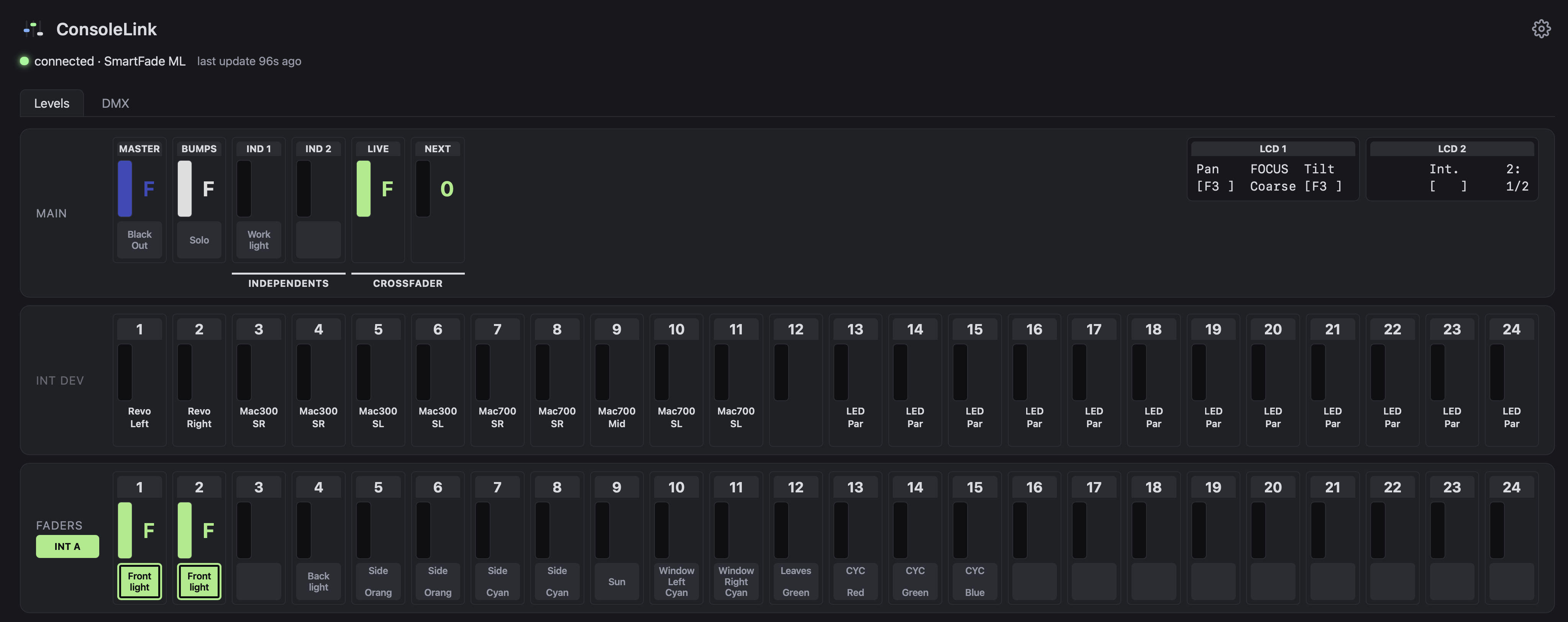
The web app (consolelink) in a desktop browser:
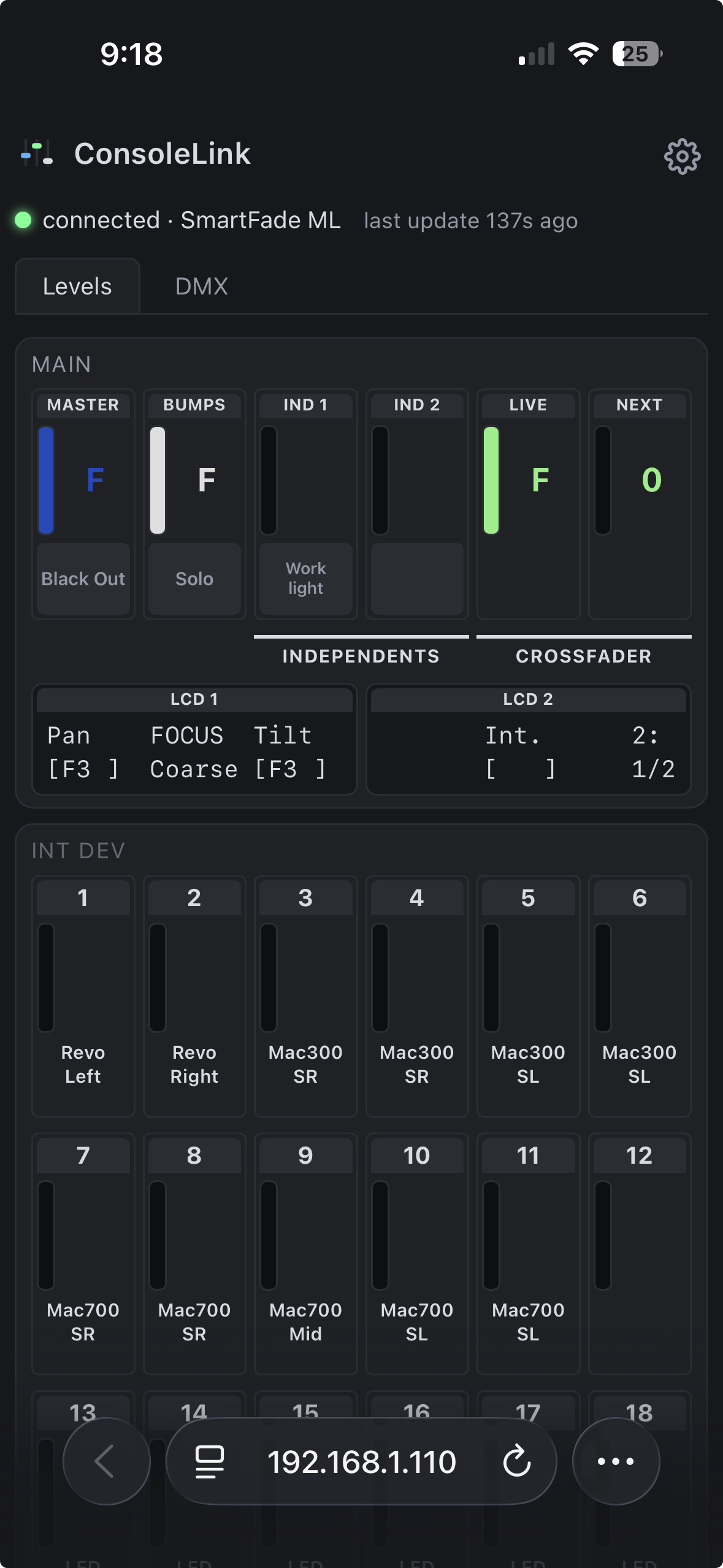
And on a phone, where each row wraps to 6 columns:
Requirements
- Python 3.10 or newer. macOS's built-in
python3is older (3.9): install a current one, for examplebrew install python, and create the virtual environment below with it - A native
libusblibrary, whichpyusbuses to talk to the console:brew install libusbon macOS,sudo apt install libusb-1.0-0on Debian/Ubuntu (Windows: not tried) - The console connected over USB and powered on
ConsoleLink looks for the console at idVendor=0x14D5, idProduct=0x0201 and
claims the vendor bulk interface directly — no vendor driver required, but you
may need permissions to access the raw USB device (on macOS this generally
works out of the box for a user-space process).
Install
pipx (recommended)
pipx installs a command-line app into its own private environment and puts the command on your PATH, so there is no virtual environment to create or activate. Install pipx first if you don't have it:
- macOS:
brew install pipx - Debian, Ubuntu, Raspberry Pi OS:
sudo apt install pipx - Anywhere with Python:
python3 -m pip install --user pipx
Then install ConsoleLink, depending on your system:
-
macOS (includes the menu-bar app):
pipx install 'consolelink[menubar]' -
Linux, Windows, Raspberry Pi, or macOS with the command line only:
pipx install consolelink
Both install pyusb, the package with its web files, and the consolelink command. The menubar
extra also installs rumps and keyring, which the menu-bar app
(below) needs (macOS only: elsewhere the extra adds nothing).
To update later: pipx upgrade consolelink.
pip
The same packages with plain pip, inside a virtual environment:
python3 -m venv consolelink-env
source consolelink-env/bin/activate
pip install 'consolelink[menubar]'   # macOS; everywhere else: pip install consolelink
Activate the environment again (source consolelink-env/bin/activate) in any new terminal before
running consolelink.
Using conda? conda install pipx and follow the pipx steps, or run the pip command inside a conda
environment (conda-forge also provides libusb, so no separate system install).
Usage
consolelink [--debug] [--capture PATH] [--no-web] [--artnet [DEST]]
            [--listen localhost|network] [--port N] [--allow-write [PASSWORD]]
Then open http://localhost:8765. The page updates live as controls move; it also auto-reconnects if the console is unplugged and replugged.
For terminal use only, without the web server: consolelink --no-web --debug prints
every control change (and any message type that isn't decoded yet) until Ctrl+C.
By default only the machine running consolelink can open the page. With --listen network
the server listens on all network interfaces, so a phone or another computer on the same
network can open it too, at http://<IP>:8765. To get the IP of the machine running
consolelink:
ipconfig getifaddr en0   # macOS (en0 is usually Wi-Fi; try en1 for Ethernet)
hostname -I              # Linux
ipconfig                 # Windows (look for "IPv4 Address" under your Wi-Fi or Ethernet adapter)
Command-line options (consolelink --help lists them too):
--debug: per-control change logging to stderr (including DMX changes), plus a liveness heartbeat, handshake diagnostics, and a line for every message type that has no decoder yet.--capture PATH: append every message (decoded or not) as a timestamped hex line toPATH, for comparing against a packet capture when something behaves unexpectedly.--no-web: don't start the web server, just poll the console. Needs at least one of--debug,--capture,--artnet.--listen localhost|network: who can open the web page.localhost(the default) means only this machine;networkalso serves it to every device on the same network. Not for--no-web.--port N: port of the web page. Default 8765.--allow-write [PASSWORD]: let the web page control the console: BlackOut, Solo, Ind 1/2, the bump buttons (press and hold the LED under a fader), the MEMS page, and the 24 faders, MASTER, BUMPS, LIVE and NEXT (drag a bar), and in MEMS mode the INT ONLY and GO MODE buttons. Off by default. With the default--listen localhostthe password is optional: without one, the controls are unlocked straight away, and the server only accepts writes from the page served on localhost (it checks the Host and Origin headers, so another website open in your browser can't press buttons). With--listen networkaPASSWORDis required, and every write must carry it: type it once in the page's settings ("Control password", kept in that browser) and the controls unlock. The password travels in the URL over plain HTTP, so it keeps casual users out and nothing more: enable writing over the network only on a network you trust. On a touch screen a fader must be tapped (it gets an outline) before it drags, so scrolling the page doesn't move faders.--artnet [DEST]: send both DMX universes as Art-Net toDEST(an IP address, orbroadcast). Bare--artnetsends to127.0.0.1. Off by default.
Advanced options (Art-Net tuning):
--artnet-universe N: Art-Net universe for console universe 1; universe 2 goes to N+1. Default 0.--artnet-rate HZ: maximum send rate when levels change. Default 40.--artnet-keepalive SEC: re-send the last frame this often when nothing changes. Default 1.
macOS menu-bar app
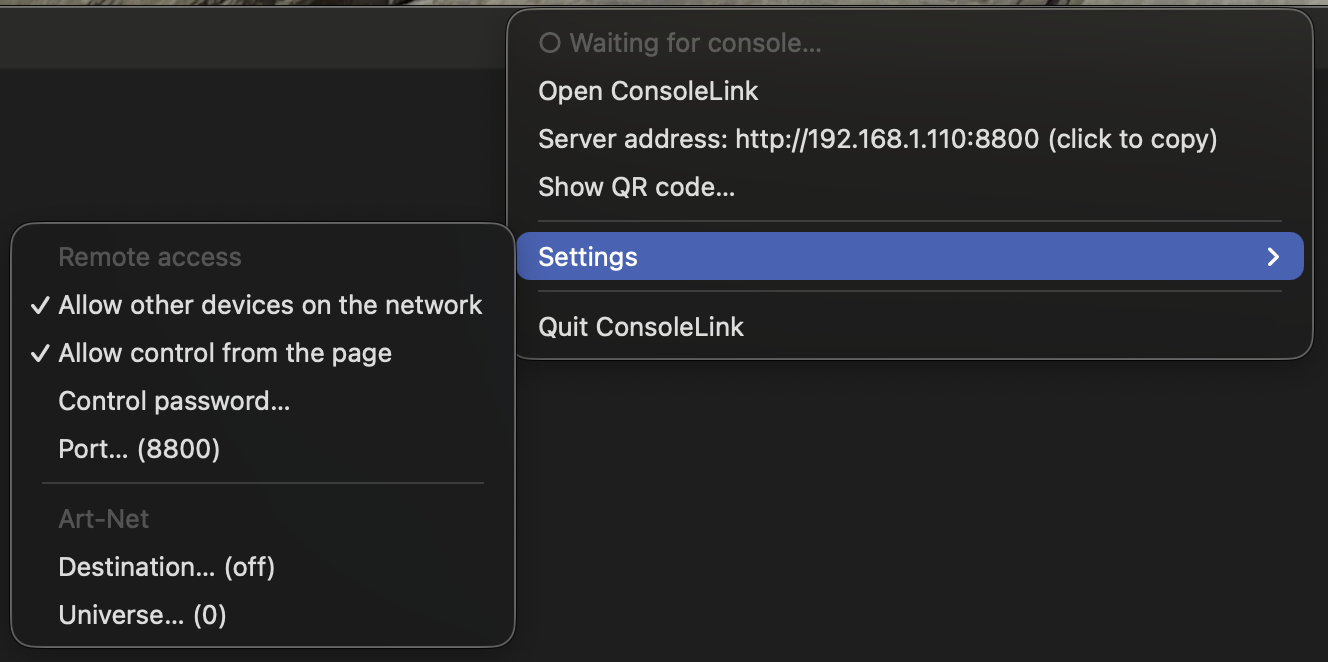
On macOS the same service can run from the menu bar instead of the command line (no Dock icon, no flags to remember).
It needs the menubar extra (see Install); then start it with:
consolelink-menubar
The menu-bar icon (the favicon's three faders, faded while there is no console) and the first menu line show whether the console is connected. The menu has:
- Open ConsoleLink: opens the page in the browser.
- Server address (only when other devices are allowed): the address another device opens; click to copy it. Show QR code… opens a small window with that address as a QR code: scan it with a phone or tablet camera to open the page. The code holds the address only, never the password.
- Settings: allow other devices on the network (
--listen network), allow control from the page (--allow-write), the control password, the Art-Net destination and universe, and the port. The password is kept in the macOS Keychain; the rest in~/Library/Application Support/ConsoleLink/settings.json. A change is saved and applied right away (the service restarts). - Quit ConsoleLink: releases the console before exiting.
Only one program can use the console at a time, so don't run consolelink and the menu-bar app
together. The command line works as before on every system; the menu-bar app is macOS only.
Art-Net output
consolelink --artnet                    # visualiser on this machine
consolelink --artnet 192.168.1.50       # an Art-Net node or another computer
consolelink --artnet broadcast          # whole local network
Console universe 1 and 2 are sent as Art-Net universes 0 and 1 (change with --artnet-universe).
Art-Net counts from 0, so some software labels these "1" and "2" — if a visualiser shows nothing,
try the neighbouring universe numbers. On the same machine, set the visualiser's Art-Net input to
listen on UDP port 6454 (some let you pick the network interface: choose loopback or "all").
If several programs on this machine listen on port 6454 (say a visualiser and an Art-Net monitor),
a unicast destination reaches only one of them. Use --artnet broadcast to feed all of them.
The console only reports DMX when a patched output changes, but Art-Net receivers expect a steady
stream, so the last frame is re-sent every second (--artnet-keepalive) while nothing moves. If the
console is unplugged, the last frame keeps being sent.
Frames go console → USB → this program → UDP with no timing guarantee, so this is fine for visualisation and casual use, not for anything where a stall or a frozen frame would be a problem.
For Developers
How it works
The console speaks a request/reply protocol over two USB bulk endpoints: a
12-byte header (msgType, payloadLen, 4×uint16 state) is polled OUT
repeatedly, and the console replies with its own header, followed by a
payload when it has one. When a control changes, the console first sends an
"announce" (payload type 0x28) naming which object type(s) are ready; the
host acks by naming that type back, then the real payload follows.
ConsoleLink also proactively requests the types it needs at connect time
(ConsoleLink.request_type()) rather than waiting for an announce, since
the console's own unprompted announce loses a race against the OS's USB
probing on connect.
See protocol.py's module docstring for the full message-type breakdown
(which types are decoded, which are known-but-not-yet decoded, and why).
Protocol study process
The general process to establish the protocol details was to capture USB traces using the original software and consoles, and study the traces to understand the wire protocol.
For the SmartFade ML case in particular, the traces were obtained running the original SmartSoft software under Windows 10 against an actual SmartFade ML console. USB traffic was captured with Wireshark. Each capture isolated a single step (initial connection, moving one fader, pressing one button, etc.) so the resulting traces could be matched to a specific action.
Source files
| File | What it is |
|---|---|
src/consolelink/protocol.py |
Shared library: USB framing, the idle-poll/announce/ack handshake, and decoders for every known message type. Everything else imports this rather than re-deriving the protocol. |
src/consolelink/app.py |
The program (the consolelink command): polls the console in a background thread and serves index.html over Server-Sent Events, so a browser tab shows live values. With --no-web it only polls (logging changes with --debug, or sending Art-Net). |
src/consolelink/menubar.py, menubar_logic.py, menubar_qr.py, settings_store.py |
The macOS menu-bar app (consolelink-menubar): menubar.py is the thin rumps layer, menubar_logic.py and settings_store.py hold the testable decisions and the saved settings, and menubar_qr.py draws the server address as a QR code (Core Image, no extra dependency). It drives app.Service, the same start/stop API consolelink uses. |
scripts/make_menubar_icons.py |
Draws the menu-bar icons (macOS, PyObjC) into src/consolelink/menubar_icons/; run again after changing the drawing. |
src/consolelink/artnet.py |
Optional Art-Net output of the two DMX universes, enabled with --artnet. |
src/consolelink/static/index.html |
Static single-page UI for consolelink: intensity meters (INT A / INT B / INT DEV), physical faders, most important buttons and indicators, like BlackOut and Master, and a mirror of the console's two LCDs, plus a "DMX Outputs" tab showing both DMX universes (1024 channels) at once. |
src/consolelink/static/app.js |
Front-end logic for index.html: builds the meter grid, connects to the SSE stream, and renders each incoming state update. |
src/consolelink/static/style.css |
Styling for index.html: colours, the meter and indicator layout, the blinking-LED animations, and the breakpoints that reflow the page for phones. |
src/consolelink/static/favicon.svg |
The browser tab icon. |
pyproject.toml |
Packaging: makes pip install . install the package, its web files and the consolelink command; lists the dependencies, including the dev extra (pytest, bump-my-version) and the menubar extra (rumps, keyring; macOS only). |
tests/ |
Decoder and server tests, replaying recorded console traffic from tests/fixtures/ -- no console needed. |
Install from source
To run an unreleased version, or to work on the code, clone the repository and install from the folder that
contains pyproject.toml: pip install . (or pip install '.[menubar]' on macOS).
To work on the code, install with the dev extra (adds pytest and bump-my-version) and
-e, so edits to the source take effect without reinstalling (new commands still need one reinstall).
On macOS add the menubar extra too:
pip install -e ".[dev]"            # Linux, Windows, Raspberry Pi
pip install -e ".[dev,menubar]"    # macOS
Tests
The tests replay real console traffic recorded from a SmartFade ML, so they run without a console attached:
python -m pytest
(Run from this folder. pyproject.toml points pytest at src/.)
Each file in tests/fixtures/ is a few messages in the same line format
--capture writes, with comments saying what the console was doing, and
# @tag: lines naming the messages the tests look up. The expected values in
the tests are what the console itself showed at the time -- not just whatever
the decoder currently returns -- so a decoder change that breaks one is a real
regression.
Releasing
Release from main, after the work is merged from the feature branch:
git checkout main && git pull
git status                     # the tree must be clean
bump-my-version bump patch     # or minor / major; add --dry-run -vv to preview
git push --follow-tags         # pushes the commit and the tag together
Pushing the tag starts the release workflow (.github/workflows/release.yml): it runs the tests,
builds the package, and publishes it to PyPI with trusted publishing (no API token is stored). The
pypi GitHub environment requires a reviewer, so approve the run in the Actions tab. A PyPI version can
never be uploaded twice: if a release is bad, yank it on PyPI and release the next version.
bump-my-version (part of the dev extra) edits VERSION in src/consolelink/protocol.py,
commits it, and creates an annotated tag, so the file and the tag can't drift apart. Going from
0.1.1 to 0.1.2, for example, it commits "Bump version: 0.1.1 → 0.1.2" and tags that commit v0.1.2
(annotated: the tag records who made it, when, and the message "Version 0.1.2").
Don't edit VERSION by hand.
Bump on a feature branch is blocked.
License
MIT -- see LICENSE.
1 maintainer

Metadata
1 maintainer
Release files for consolelink 0.1.6
For a detailed explanation of source distributions (sdists) and built distributions (wheels), please see the package formats documentation.
Source distribution (sdist)
| File | Size | Uploaded | Provenance | |
|---|---|---|---|---|
| consolelink-0.1.6.tar.gz | 96.5 kB | With provenance | Details |
Built distribution (wheel)
| File | Interpreter | ABI | Platform | Reset |
|---|---|---|---|---|
| consolelink-0.1.6-py3-none-any.whl | Python 3 | none | any | Details |
Total release size: 173.1 kB
Release files / consolelink-0.1.6.tar.gz
| Download URL | consolelink-0.1.6.tar.gz |
|---|---|
| Size | 96.5 kB |
| Tags | Source |
|
SHA-256 checksum How to use checksums |
6840ebc485bb842e725519d272d1dd48726d132f714b237225a9044ae5912015
|
|
BLAKE2b-256 checksum How to use checksums |
a808f80816fe52d7cca55243d3a0d64725fd23530ab95383032f7daa3955db86
|
| Upload date | |
|
Uploaded using Trusted Publishing? What is trusted publishing? |
Yes |
| Uploaded via |
twine/7.0.0 CPython/3.13.14
|
Provenance
Provenance describes where a file came from. On PyPI, provenance is shared via attestations, which provide a verifiable record of the build or publishing details. View details, limitations and caveats.


PyPI Publish Attestation
PyPI verified that this artifact, at this checksum, originated from the publisher listed below.
Signed by GitHub Actions, verified by PyPI on Oct 5, 2026.
Transparency logRelease files / consolelink-0.1.6-py3-none-any.whl
| Download URL | consolelink-0.1.6-py3-none-any.whl |
|---|---|
| Size | 76.5 kB |
| Tags | Python 3 |
|
SHA-256 checksum How to use checksums |
38197f1d48e887cd122d1dc3f1cda8545e1cb6c44871db8723647668e6f6e4a6
|
|
BLAKE2b-256 checksum How to use checksums |
689e18b810806c37095b20326971575a34219bad6bc346ca87ce7d99020f5234
|
| Upload date | |
|
Uploaded using Trusted Publishing? What is trusted publishing? |
Yes |
| Uploaded via |
twine/7.0.0 CPython/3.13.14
|
Provenance
Provenance describes where a file came from. On PyPI, provenance is shared via attestations, which provide a verifiable record of the build or publishing details. View details, limitations and caveats.
PyPI Publish Attestation
PyPI verified that this artifact, at this checksum, originated from the publisher listed below.
Signed by GitHub Actions, verified by PyPI on Oct 5, 2026.
Transparency logSecurity for consolelink 0.1.6
Provenance
Provenance describes where a file came from. On PyPI, provenance is shared via attestations, which provide a verifiable record of the build or publishing details. View details, limitations and caveats.
Full provenance
All 2 files in this release have been uploaded with provenance metadata.
Attestation for consolelink-0.1.6.tar.gz
PyPI Publish Attestation
PyPI verified that this artifact, at this checksum, originated from the publisher listed below.
Signed by GitHub Actions, verified by PyPI on Oct 5, 2026.
Transparency logA note on package security
PyPI is a repository for distributing packages, not a service for auditing them. While third-party security researchers and our staff do their best to detect and remove malicious packages, PyPI cannot guarantee the quality, security or suitability of any given package.















