
Competitive Programming Knowledge Base (CPKB)
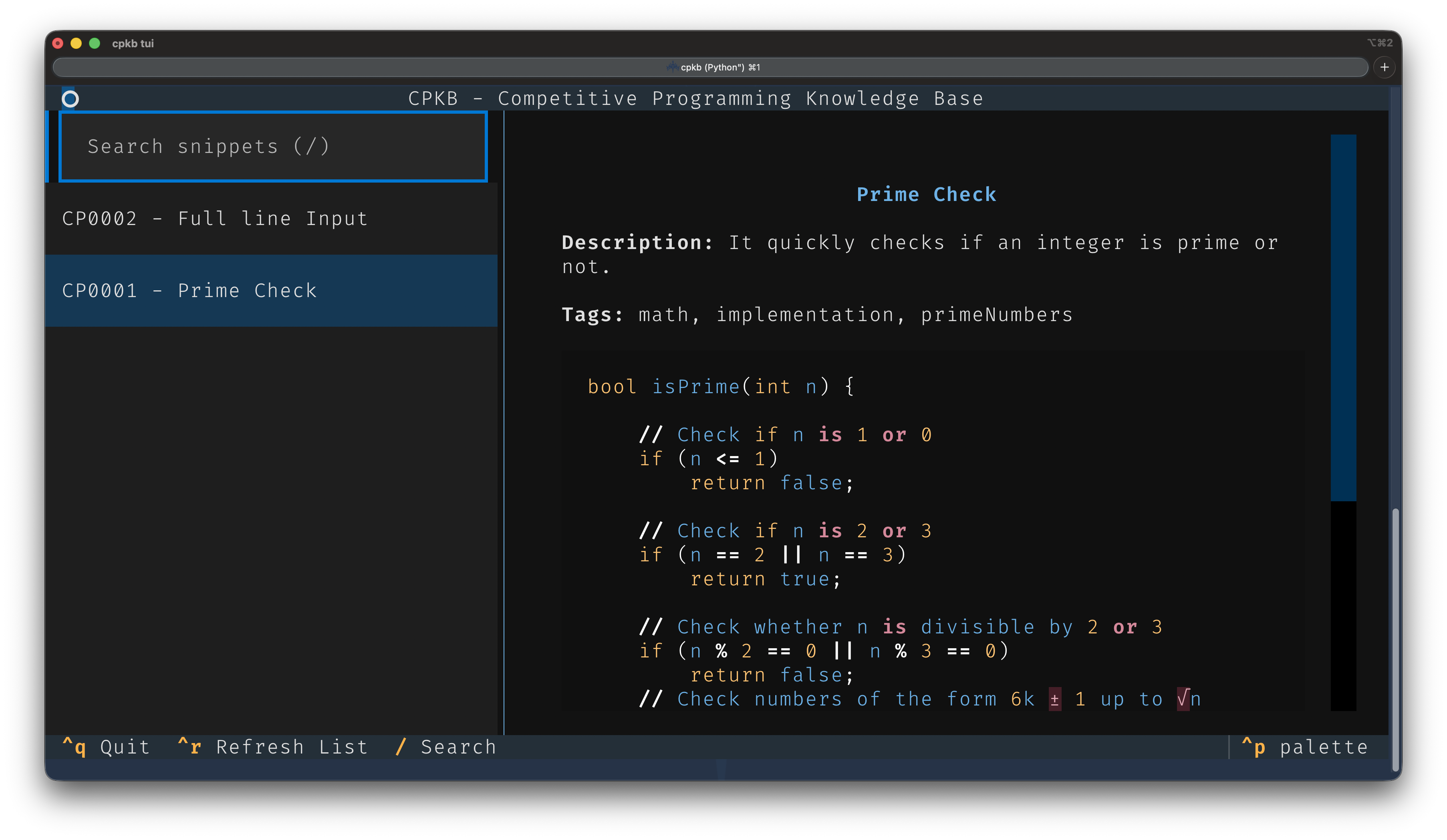
CPKB is a local, terminal-first knowledge base designed to store, search, and track usages of competitive programming snippets, algorithms, and tricks. It uses SQLite for storage, keeping your snippets incredibly fast and perfectly organised.
Version 2.0 Features
- Store snippets: Add code snippets with metadata like title, use case, and tags.
- Search snippets: Full-text search across titles, descriptions, tags, and code.
- Track usage: Record every time you use a snippet in a problem, linking to the file and optionally taking notes.
- Textual TUI: A beautiful terminal UI for browsing and copying your snippets.
- FZF Integration: Fuzzy find snippets directly in the terminal.
- Snippet Insertion: Instantly copy code to the clipboard or append to files.
- Spaced Repetition (SM-2): Revise your knowledge base using the
revisecommand with a true SM-2 spaced-repetition algorithm that tracks ease, interval, and repetitions per snippet. - Optional Password-based Encryption: Encrypt your database at rest with a password (PBKDF2-HMAC-SHA256 key derivation). No keys stored on disk. Requires the
cpkb[encrypt]extra andencryption.enabledin config. - XDG Base Directory compliant: Stores your data safely in
~/.local/share/cpkb.
Installation
The recommended install method is pipx:
pipx install cpkb
cpkb setup
You can also install it with pip:
python -m pip install cpkb
cpkb setup
The pip and pipx packages install the Python dependencies declared by CPKB, including Textual for cpkb tui.
You can safely run cpkb setup again later to revisit configuration; it preserves your snippet database.
Use cpkb setup --reset-config to start the prompts from factory defaults without deleting snippets.
Homebrew
macOS and Linux users can install CPKB from the Homebrew tap:
brew tap Aaravshah2907/cpkb
brew trust --formula Aaravshah2907/cpkb/cpkb
brew install cpkb
cpkb setup
The Homebrew package runs CPKB with your global python3 instead of a private Homebrew virtualenv, so Python packages you install globally are visible to cpkb. If cpkb tui reports that Textual is missing, install it into that same Python with the command printed by CPKB.
Optional Encryption
Encryption support is opt-in because it depends on cryptography, which can make source-based package manager installs much heavier.
For encryption support, install with the encrypt extra:
pipx install "cpkb[encrypt]"
cpkb setup --enable-encryption
Then enable encryption in your CPKB config:
cpkb config
Open the printed config.json path and set:
{
  "encryption": {
    "enabled": true
  }
}
If encryption is disabled or the extra is not installed, encrypted commands print the install/config steps instead of failing with a Python traceback.
From Source
git clone https://github.com/Aaravshah2907/cpkb.git
cd cpkb
python -m pip install -e .
Local Development & Testing
If you wish to contribute to the codebase or run the unit tests locally to verify the CLI and TUI functionality, set up a virtual environment and run pytest. The current suite covers CLI commands, database behavior, imports/exports, config-driven IDs, and TUI modal layout checks.
# 1. Create and activate a virtual environment
python3 -m venv venv
source venv/bin/activate  # On Windows use: venv\Scripts\activate

# 2. Install CPKB and test dependencies
python -m pip install -e ".[dev]"

# 3. Run tests
pytest
Testing CLI overrides (Homebrew vs Pip)
If you normally use the Homebrew installation of cpkb, but want to test your local codebase changes as a global command in your terminal:
- Run
pip install -e .(without a virtual environment) to temporarily override the Homebrew installation. This links your active terminal to your live local folder, allowing you to instantly see your changes when you typecpkb. - When you are done testing, run
pip uninstall cpkbto safely fall back to the stable Homebrew installation.
For more detail while debugging, use:
pytest -vv
pytest --collect-only -q
Platform‑specific dependencies
| Platform | Clipboard utility | Fuzzy finder |
|---|---|---|
| macOS | pbcopy (built‑in) |
brew install fzf |
| Linux | xclip or xsel |
sudo apt-get install fzf |
| Windows | clip (built‑in) |
scoop install fzf or choco install fzf |
Extras & Integrations
CPKB includes several optional extras to integrate seamlessly into your workflow, all located in the extras/ directory.
Editor Plugins
- VS Code: A VS Code extension that uses a QuickPick menu to search for snippets via
cpkb queryand inserts them right into your active editor. Located in extras/vscode. - Neovim: A Telescope extension for querying and inserting snippets inside Neovim. Located in extras/nvim. Add it to your Neovim config and load the
cpkbtelescope extension.
Shell Completions
- Bash, Zsh, and Fish: Auto-completion scripts for CLI subcommands and dynamic snippet IDs. Located in src/cpkb/completions.
To automatically install tab completions for your active shell, run:
cpkb install-completions
This will detect your shell and append the necessary source command to your profile (e.g., ~/.bashrc, ~/.zshrc, or ~/.config/fish/config.fish).
If you prefer to install them manually, you can source the appropriate script directly:
Bash (~/.bashrc):
source /path/to/cpkb/src/cpkb/completions/cpkb.bash
Zsh (~/.zshrc):
source /path/to/cpkb/src/cpkb/completions/cpkb.zsh
Fish (~/.config/fish/config.fish):
source /path/to/cpkb/src/cpkb/completions/cpkb.fish
SketchyBar (macOS)
- SketchyBar: Adds a menu bar item that opens a snippet search dialog and copies the selected snippet. Located in extras/sketchybar. See the folder for the plugin script and
sketchybarrcsnippet.
Usage
Here are the commands available in Version 2.0:
Core V1 Commands
cpkb add: Add a new snippet interactively.cpkb add --id-format <name>: Add a snippet using a configured ID format.cpkb list: List all snippets.cpkb show <id>: Show details, code, and usages of a specific snippet.cpkb search <query>: Search for snippets matching multiple words.cpkb use <id> <file>: Record the usage of a snippet in a specific file.cpkb usages <id>: List all recorded usages for a snippet.cpkb stats: Show basic database statistics.cpkb random: Show a random snippet for review or practice.cpkb edit <id>: Edit a snippet's metadata and code in your default$EDITOR.cpkb edit-usage <id>: Edit a past usage record.cpkb delete <id>: Delete a snippet permanently.cpkb recent: Show the 10 most recently added snippets.cpkb export: Export your entire knowledge base to a single Markdown file.cpkb export-db [--encrypted]: Export your SQLite database, optionally encrypted with a password.cpkb import <file-or-url>: Append snippets from a CPKBdb,json,md, orhtmlexport.cpkb import --defaults: Import bundled C++ STL competitive-programming cheatsheets with specialcp_IDs.cpkb import --list-defaults: Preview the bundled cheatsheets before importing.cpkb backup: Manually trigger a backup of the SQLite database.cpkb setup: Set up or revisit app directories, config, optional encryption settings, and bundled defaults without deleting snippets.cpkb setup --reset-config: Recreate config from factory defaults while preserving your snippet database.cpkb id-format list: Show configured ID formats fromconfig.json.cpkb id-format add <name> --pattern <pattern>: Store or update an ID format inconfig.json.cpkb id-format add <name> --prefix <prefix> --width <auto-or-number>: Store or update an ID format using the legacy prefix/width form.cpkb id-format default <name>: Set the format used bycpkb addwhen--id-formatis omitted.
Patterns use # characters for the generated number. Any literal prefix, suffix, or separator is kept:
cpkb id-format add note --pattern "NOTE-###"
cpkb id-format add algo --pattern "ALG_####"
cpkb id-format add handle --pattern "ID@#######"
The pattern guide is:
<ID_BEG_KEY><_.-@><#######>
For example, NOTE-### means begin key NOTE, separator -, and a three-digit number.
To make note IDs like NOTE-001 the default:
cpkb id-format add note --pattern "NOTE-###" --default
cpkb add
Or keep your default format unchanged and use it for one snippet:
cpkb id-format add note --pattern "NOTE-###"
cpkb add --id-format note
You can change the default later:
cpkb id-format default algo
New V2 Commands
cpkb tui: Launch the interactive Textual TUI (presscto copy a snippet).cpkb fzf: Interactively fuzzy search snippets usingfzf.cpkb copy <id> [-f <file>]: Instantly copy the snippet's code to your system clipboard (usespbcopyon macOS,xclip/xselon Linux,clipon Windows) or append to a file.cpkb revise: Start a spaced-repetition session — the SM-2 algorithm selects the most overdue snippet, shows the title, then reveals the code. Rate your recall (0–5) to schedule the next review.cpkb srs-stats: Show spaced-repetition statistics (total reviewed, due now, avg ease factor).cpkb encrypt-db: Encrypt the database with a password (PBKDF2 + Fernet). Requires optional encryption support.cpkb decrypt-db: Decrypt the database by entering your password. Requires optional encryption support.
TUI Customization
The Textual TUI includes a rich Settings menu (Ctrl+,) where you can deeply customize the interface:
- Custom Themes: Create a completely custom color theme (backgrounds, foregrounds, boost, accents) right from the TUI.
- Dynamic Layouts: Toggle between Vertical and Horizontal pane layouts, and adjust the exact width mapping on-the-fly (
[and]). - Format Colors: Assign standard accent colors or specific hex codes (e.g.
#ff6347) to particular snippet ID formats for colorful organization. - Border Styles: Pick border aesthetics for panes (solid, dashed, heavy, thick, round).
- Tag Filtering: Filter the snippet list by a specific tag using the
fshortcut, or explore all shortcuts through the Help Menu (?).
Directory Structure
Data is kept completely separate from the code repo. The application automatically creates the required directories on first run:
~/.local/share/cpkb/
├── snippets.db
├── attachments/
├── backups/
├── exports/
├── imports/
└── logs/
Requirements
- Python 3.11+
textualcryptographyviacpkb[encrypt](optional, forencrypt-db/decrypt-db)fzf(Optional, forcpkb fzf)- A platform clipboard helper:
pbcopyon macOS,xcliporxselon Linux,clipon Windows
License
MIT License.
1 maintainer

Metadata
1 maintainer
Release files for cpkb 2.2.14
For a detailed explanation of source distributions (sdists) and built distributions (wheels), please see the package formats documentation.
Source distribution (sdist)
| File | Size | Uploaded | Provenance | |
|---|---|---|---|---|
| cpkb-2.2.14.tar.gz | 74.0 kB | With provenance | Details |
Built distribution (wheel)
| File | Interpreter | ABI | Platform | Reset |
|---|---|---|---|---|
| cpkb-2.2.14-py3-none-any.whl | Python 3 | none | any | Details |
Total release size: 125.4 kB
Release files / cpkb-2.2.14.tar.gz
| Download URL | cpkb-2.2.14.tar.gz |
|---|---|
| Size | 74.0 kB |
| Tags | Source |
|
SHA-256 checksum How to use checksums |
e08dda214d9a126b5fd7f7898c75719fc9df9ced468de9b45962032bfff607ea
|
|
BLAKE2b-256 checksum How to use checksums |
09ad5478fbfb2792e557ca0c9fbc303eb0ee0723b16673e6e31b73ee23b14106
|
| Upload date | |
|
Uploaded using Trusted Publishing? What is trusted publishing? |
Yes |
| Uploaded via |
twine/7.0.0 CPython/3.13.14
|
Provenance
Provenance describes where a file came from. On PyPI, provenance is shared via attestations, which provide a verifiable record of the build or publishing details. View details, limitations and caveats.


PyPI Publish Attestation
PyPI verified that this artifact, at this checksum, originated from the publisher listed below.
Signed by GitHub Actions, verified by PyPI on Sep 16, 2026.
Transparency logRelease files / cpkb-2.2.14-py3-none-any.whl
| Download URL | cpkb-2.2.14-py3-none-any.whl |
|---|---|
| Size | 51.5 kB |
| Tags | Python 3 |
|
SHA-256 checksum How to use checksums |
6c87cc6f735070017cce217b71c879910ec868536f65352415f93e920a3934e0
|
|
BLAKE2b-256 checksum How to use checksums |
0c8aed5ce394b54eaed1f60698b2103da1b6cc1fbba14738a41ae5dddf419ca7
|
| Upload date | |
|
Uploaded using Trusted Publishing? What is trusted publishing? |
Yes |
| Uploaded via |
twine/7.0.0 CPython/3.13.14
|
Provenance
Provenance describes where a file came from. On PyPI, provenance is shared via attestations, which provide a verifiable record of the build or publishing details. View details, limitations and caveats.
PyPI Publish Attestation
PyPI verified that this artifact, at this checksum, originated from the publisher listed below.
Signed by GitHub Actions, verified by PyPI on Sep 16, 2026.
Transparency logSecurity for cpkb 2.2.14
Provenance
Provenance describes where a file came from. On PyPI, provenance is shared via attestations, which provide a verifiable record of the build or publishing details. View details, limitations and caveats.
Full provenance
All 2 files in this release have been uploaded with provenance metadata.
Attestation for cpkb-2.2.14.tar.gz
PyPI Publish Attestation
PyPI verified that this artifact, at this checksum, originated from the publisher listed below.
Signed by GitHub Actions, verified by PyPI on Sep 16, 2026.
Transparency logA note on package security
PyPI is a repository for distributing packages, not a service for auditing them. While third-party security researchers and our staff do their best to detect and remove malicious packages, PyPI cannot guarantee the quality, security or suitability of any given package.














