
Tableau Workbook (.twb) generation toolkit and MCP server

Project description
cwtwb

Tableau workbook engineering for reproducible
.twb/.twbxgeneration, validation, and migration.
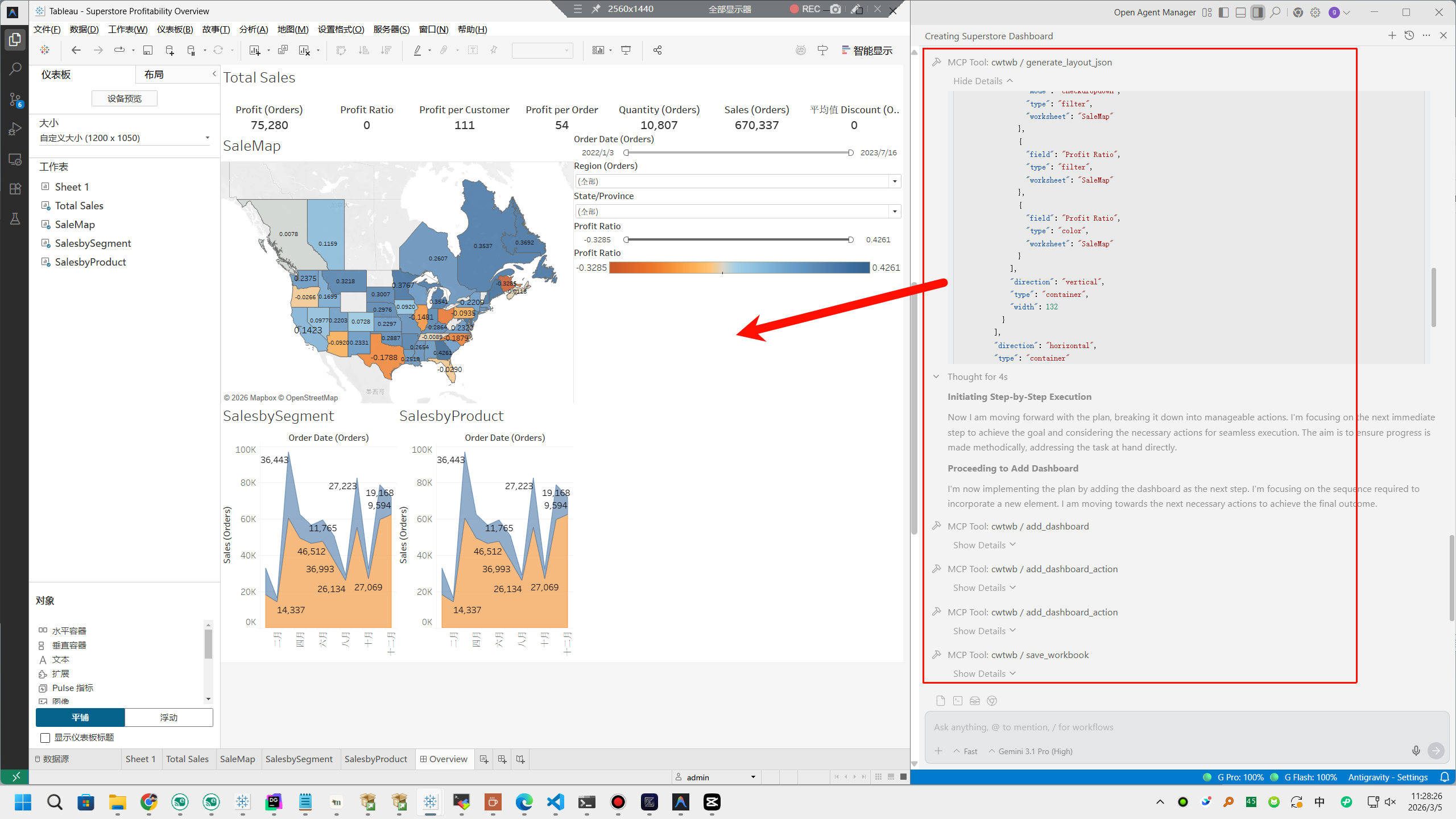
cwtwb is a Python toolkit and Model Context Protocol (MCP) server for building Tableau Desktop workbooks from code or agent tool calls.
It is meant to be a workbook engineering layer, not a conversational analytics agent. The focus is reproducibility, inspectability, and safe automation in local workflows, scripts, and CI.
The cw in cwtwb comes from Cooper Wenhua.
Author: Cooper Wenhua <imgwho@gmail.com>




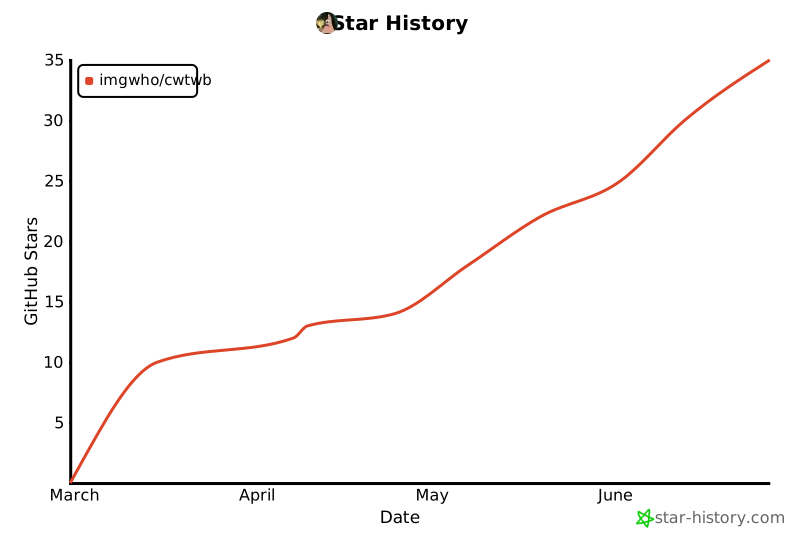
Try the example workflow · Read the guide
Quick Start
Install
pip install cwtwb
If you want the bundled Hyper-backed example too:
pip install "cwtwb[examples]"
If you want cloud validation (upload to Tableau Cloud/Server):
pip install "cwtwb[validate]"
Run As An MCP Server
uvx cwtwb
Add the server to your MCP client with the same command. For example:
{
  "mcpServers": {
    "cwtwb": {
      "command": "uvx",
      "args": ["cwtwb"]
    }
  }
}
For Claude Code:
claude mcp add cwtwb -- uvx cwtwb
For VSCode, add cwtwb to your workspace or user mcp.json and use uvx cwtwb as the command.
For client-specific details and the full reference, see https://github.com/imgwho/cwtwb/blob/master/docs/guide.md.
Highlights
| Area | What you get |
|---|---|
| Workbook authoring | Generate .twb / .twbx files from templates or from scratch |
| Chart building | Build bar, line, pie, map, KPI, and dual-axis workbooks |
| Safety | Validate structure, Tableau XSD (2026.1/2026.2), and REST API semantic validation before publishing |
| Cloud validation | REST API syntactic/semantic validation + upload to Tableau Cloud/Server with optional screenshot |
| Migration | Repoint existing workbooks to new data sources with explicit steps |
| MCP support | Drive workbook workflows from Claude, Cursor, VSCode, or other MCP clients |
See It In Action
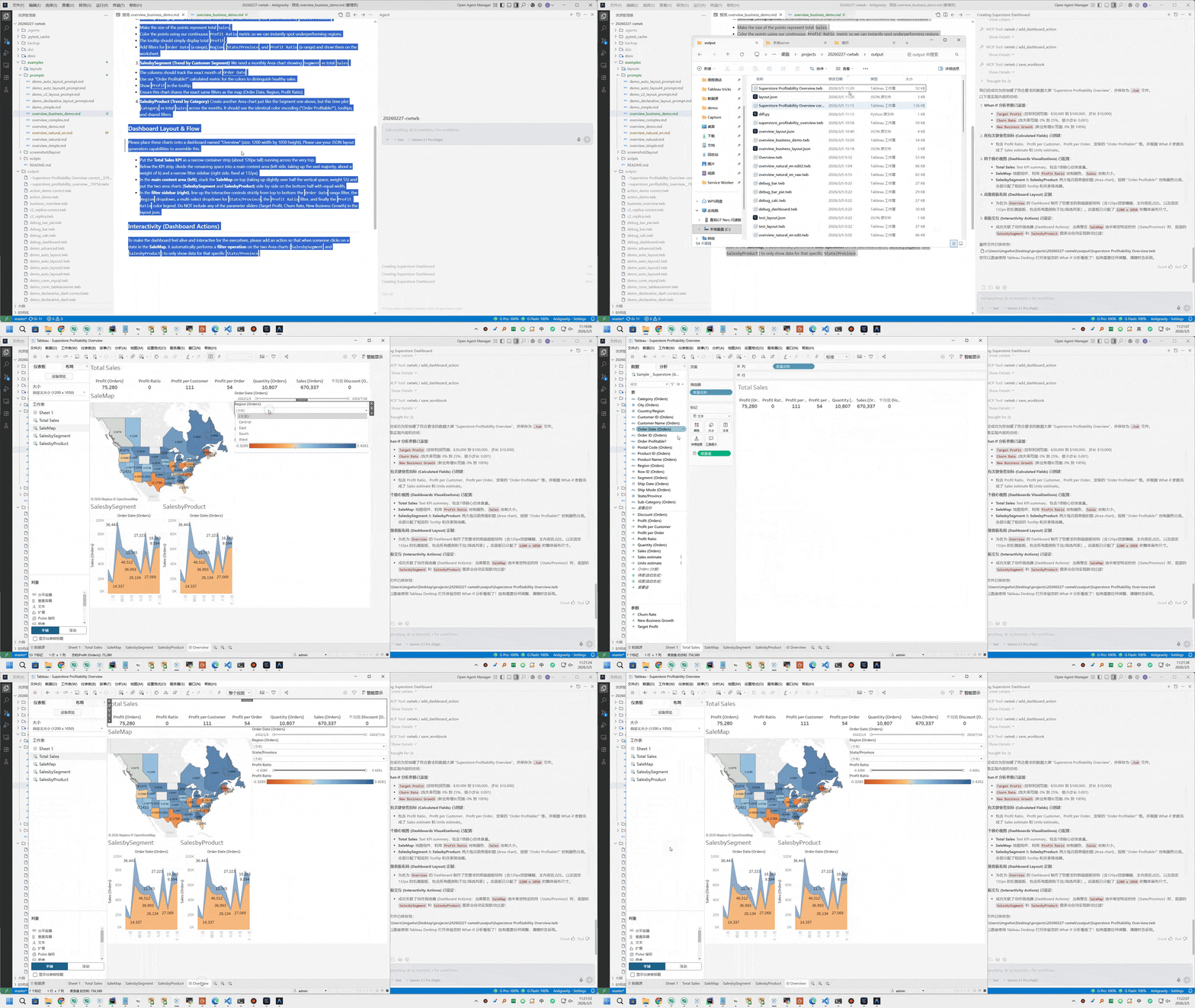
This GIF shows the MCP tool flow that builds a dashboard step by step.
Architecture
                            Interfaces
  ┌───────────────────────────────────────────────────────────────┐
  │  ┌──────────────────────────┐  ┌───────────────────────────┐  │
  │  │        MCP Server        │  │      Python Library       │  │
  │  │  tools_workbook          │  │  from cwtwb.twb_editor    │  │
  │  │  tools_validate          │  │  import TWBEditor         │  │
  │  │                          │  │                           │  │
  │  │                          │  │  editor.add_...()         │  │
  │  │                          │  │  editor.configure_...()   │  │
  │  │                          │  │  editor.validate_schema() │  │
  │  │  (Claude / Cursor /      │  │  editor.save(...)         │  │
  │  │   VSCode / Claude Code)  │  │                           │  │
  │  └─────────────┬────────────┘  └──────────────┬────────────┘  │
  │                └──────────────┬────────────────┘               │
  └─────────────────────────────  ┼  ─────────────────────────────┘
                                  ▼
  ┌───────────────────────────────────────────────────────────────┐
  │                          TWBEditor                            │
  │       ParametersMixin  ·  ConnectionsMixin                    │
  │       ChartsMixin      ·  DashboardsMixin                     │
  │       validate_schema()  ·  save()                            │
  └──────────┬──────────────────┬──────────────────┬─────────────┘
             ▼                  ▼                  ▼
  ┌──────────────────┐  ┌──────────────┐  ┌──────────────────────┐
  │  Chart Builders  │  │  Dashboard   │  │  Analysis &          │
  │                  │  │  System      │  │  Migration           │
  │  Basic  DualAxis │  │              │  │                      │
  │  Pie    Text     │  │  layouts     │  │  migration.py        │
  │  Map    Recipes  │  │  actions     │  │  twb_analyzer.py     │
  │                  │  │  dependencies│  │  capability_registry │
  └────────┬─────────┘  └──────┬───────┘  └──────────┬───────────┘
           └───────────────────┼──────────────────────┘
                               ▼
  ┌───────────────────────────────────────────────────────────────┐
  │                     XML Engine  (lxml)                        │
  │    template.twb/.twbx  →  patch  →  validate  →  save        │
  └───────────────────────────────┬───────────────────────────────┘
                                  ▼
                      output.twb  /  output.twbx
                                  ▼
  ┌───────────────────────────────────────────────────────────────┐
  │               Cloud Validation (optional)                    │
  │    validate_workbook → REST API semantic validation          │
  │    upload_workbook   → Tableau Cloud/Server publish          │
  │    screenshot_workbook → capture view for visual check       │
  └───────────────────────────────────────────────────────────────┘
Validation
cwtwb provides four levels of workbook validation:
| Level | Description | Requires |
|---|---|---|
| 1. Local XSD | Validate against the official Tableau TWB XSD schema (version-aware: 2026.1 or 2026.2) | None (built-in) |
| 2. REST API Syntactic | Validate XML syntax via Tableau Cloud REST API | .env + Tableau Cloud 2026.2+ |
| 3. REST API Semantic | Full semantic validation — guarantees the workbook opens in Tableau | .env + Tableau Cloud 2026.2+ |
| 4. Upload + Screenshot | Publish to Tableau Cloud/Server and capture a view image | .env + pip install "cwtwb[validate]" |
# Level 1 — Local XSD (in-memory, no save required)
result = editor.validate_schema()
print(result.to_text())

# Level 3 — REST API semantic validation
from cwtwb.validate.uploader import TableauUploader
uploader = TableauUploader()
result = uploader.validate("output.twb", validation_level="semantic")

# Save with automatic REST API validation (enforced when .env is configured)
editor.save("output.twb")  # runs local XSD + REST API semantic validation
# MCP tools
validate_workbook(twb_path="output.twb")                             # REST API validation
upload_workbook(twb_path="output.twb")                               # Cloud upload
screenshot_workbook(workbook_id="...", view_name="Sheet 1")          # Visual check
FAQ
What is the difference between .twb and .twbx?
.twb is the workbook XML. .twbx is the packaged version that bundles the workbook together with extracts and images.
Does validate_workbook save files?
No. validate_workbook() validates via the Tableau Cloud REST API (requires .env configuration). It does not write output. save_workbook() is the tool that writes files.
What validation does save() perform?
save() runs local XSD validation automatically. If .env is configured and the Tableau server supports it (Cloud 2026.2+ / Server 2026.2+), REST API semantic validation is also enforced — this guarantees the workbook will open in Tableau. If .env is not configured, only local XSD validation runs.
What is upload_workbook for?
upload_workbook uploads a .twb to Tableau Cloud/Server to verify it is structurally valid. Upload success means Tableau Cloud/Server can parse the workbook. Requires pip install "cwtwb[validate]" and a .env file with Tableau credentials (see .env.example).
How do I set up Tableau Cloud/Server validation?
- Install:
pip install "cwtwb[validate]" - Copy
.env.exampleto.env - Fill in your Tableau Cloud/Server PAT credentials
save_workbookwill automatically run REST API semantic validation- Or call
validate_workbookdirectly for validation without saving
When should I use uvx cwtwb versus python -m cwtwb.mcp?
Use uvx cwtwb for the normal MCP workflow. Use python -m cwtwb.mcp for local testing without uvx.
Where is the full guide?
See the online guide.
Documentation
License
AGPL-3.0-or-later
Release history Release notifications | RSS feed


Download files
Download the file for your platform. If you're not sure which to choose, learn more about installing packages.
Source Distribution
Built Distribution
Filter files by name, interpreter, ABI, and platform.
If you're not sure about the file name format, learn more about wheel file names.
Copy a direct link to the current filters
File details
Details for the file cwtwb-0.22.0.tar.gz.
File metadata
- Download URL: cwtwb-0.22.0.tar.gz
- Upload date:
- Size: 19.3 MB
- Tags: Source
- Uploaded using Trusted Publishing? No
- Uploaded via: twine/6.2.0 CPython/3.13.1
File hashes
| Algorithm | Hash digest | |
|---|---|---|
| SHA256 |
b59ab1f07c08a6e90e5e3d43d6adba451c96f90d57b49e95ad874ca42ce7e6a3
|
|
| MD5 |
5674547cf1a72066d7daa6204e183f75
|
|
| BLAKE2b-256 |
703f7623c513748920eaf05c631fdacd13d68cf62d2a3f211a6a17dc40acc7ed
|
File details
Details for the file cwtwb-0.22.0-py3-none-any.whl.
File metadata
- Download URL: cwtwb-0.22.0-py3-none-any.whl
- Upload date:
- Size: 1.3 MB
- Tags: Python 3
- Uploaded using Trusted Publishing? No
- Uploaded via: twine/6.2.0 CPython/3.13.1
File hashes
| Algorithm | Hash digest | |
|---|---|---|
| SHA256 |
be91d33eeb5facf808e78a140afce80f069f6d1cfbc241288fd57af7c594da5a
|
|
| MD5 |
b7be9959ca31fb9386bd28a420485469
|
|
| BLAKE2b-256 |
5173d0e97210f3845171291cdc2f9b51f7ff9dfea22f7bbce2dbb3a65dd61f7e
|






