
daylogs
I only get real control of my weight and my spending when I type the numbers in myself — not when something syncs them for me, but when I deliberately type them. The typing is what makes me notice, and noticing is what changes the next decision. A number that arrives on its own gets read once and forgotten.
So daylogs has no bank integration and no health-app import, deliberately. The manual entry isn't friction waiting to be automated away; it is the mechanism. Everything here exists to make that daily typing fast enough that I keep doing it — a grammar that takes a whole entry on one line, and one keystroke per view.
Three things, in a terminal: what you weigh, what you eat, and what you spend — plus one short daily read of all of it, written by Claude.
One command. One process. No server, no browser, no ports.
What it is, and what it isn't
Three things, deliberately. There is no income tracking, no net worth, no cash projection, no investments, no journal, no sync, no server and no web UI. Money answers one question: where did it go this period, and am I inside the budget.
The design rule: anything that doesn't survive daily use doesn't ship.
Install
uv tool install daylogs
or, equivalently, pipx install daylogs. Either one puts day on your PATH in
its own isolated environment — no environment to activate, nothing added to
whatever Python you use for other work. If you have neither tool, uv installs in
one line:
curl -LsSf https://astral.sh/uv/install.sh | sh
Upgrade with uv tool upgrade daylogs, remove with uv tool uninstall daylogs.
To run an unreleased main instead of the published version:
uv tool install git+https://github.com/IngTian/daylogs
Working on daylogs itself is a different setup — see Development.
Requirements. Python 3.12+ and any terminal with truecolour. macOS and Linux; not tested on Windows.
The Claude Code CLI on PATH is needed for
calorie estimation and the daily summary — everything else works without it, and
the app degrades to plain messages rather than failing.
Pasting a photo from the clipboard uses osascript, so that one path is macOS
only. The inbox folder and a pasted file path work anywhere.
Use
day                            # the TUI
day summary                    # generate yesterday's summary, print to stdout
day summary --date 2026-08-20  # a specific day
day backup ~/Drive/daylogs     # consistent DB copy (cron-friendly)
day export ~/Drive/daylogs     # one CSV per table, readable anywhere
day --version
uv tool install already puts day on your PATH, so there is no environment to
activate. If you installed into an environment by hand instead, symlink the
console script:
ln -sf "$(command -v day)" ~/.local/bin/day
build_binary.sh produces a standalone PyInstaller executable for a machine with
no Python at all — but it starts in ~4,770 ms against ~60 ms for an installed
console script, because --onefile unpacks 15 MB on every launch. Prefer a real
install unless you genuinely have no Python.
Keys
Press ? for the full map at any time — it's generated from the same table the
bindings and the footer come from, so it can't be out of date.
The footer is two rows: what you're looking at on top (range, sort, filters), and
the keys below, grouped into actions, view controls and navigation and coloured by
group. On a narrow terminal it sheds navigation keys first and never ? or q.
Anything that calls Claude — a calorie estimate, an activity factor, the daily read — takes seconds to a minute, so a small popup appears above the prompt for exactly as long as the call runs, counting elapsed against the time that call is allowed:
╭───────────────────────────────────╮
│ • estimating calories   18s / 60s │
╰───────────────────────────────────╯
It is app-level, so switching tabs while you wait doesn't hide it, and two calls at once show as two lines.
Everywhere
| Key | Does |
|---|---|
1 2 3 |
Day / Body / Money |
← → |
previous / next tab — stops at the ends rather than wrapping |
tab shift+tab |
next / previous sub-view within the tab — the strip above the table lists them and marks the one you're on (Body, Money) |
[ ] |
previous / next period — one whole horizon on Body and Money, one report on Day |
t |
jump to now — today, this month, newest report |
g |
go to a date (2026-06-15 or 2026-06) |
+ or = |
zoom in — a shorter time horizon, seen in more detail (Body, Money) |
- |
zoom out — a longer horizon: 1d 3d 1w 1m MTD 3m YTD 1y all |
T |
change the theme — ← → preview each one live, enter keeps it, esc restores |
? |
the full keymap |
u |
undo the last delete or edit |
esc |
back out one step — never quits |
q |
quit |
t and g are why [ / ] stepping one period at a time is fine: you're
never more than two keystrokes from anywhere.
Day — 1 · r regenerates the daily read. [ ] browse earlier ones; the
figures above them are always today's.
Body — 2
| Key | Does |
|---|---|
w |
weigh in |
f |
log food |
p |
log food from a photo |
a |
log an activity — only for a day that departs from your ordinary one |
c |
cycle the chart: weight → intake → net |
h |
set height, sex, birthday, ordinary-day level and timezone |
enter |
edit the selected row |
x |
delete the selected row (confirm with y) |
Money — 3
| Key | Does |
|---|---|
e |
log an expense |
b |
set a budget line — prefilled from the selected category |
s |
add or update a recurring item |
o |
pause or resume the selected recurring item |
n |
add a category to config.toml |
r |
roll active recurring items into the month's budget |
d c k |
sort by date / cost / category — press again to flip direction |
/ |
filter by text |
G |
group the expense list by category |
enter |
drill into a category, fold a group, or edit the selected row |
x |
delete the selected row (confirm with y) |
What you type
| Prompt | Type | Result |
|---|---|---|
weigh › |
78.2 |
logged now |
weigh › |
78.2 post-run @07:30 |
with a note, at a time |
food › |
chicken salad =610 |
labelled — no LLM call |
food › |
chicken salad |
Claude estimates; review and accept |
activity › |
gym 1h =active |
the whole day was an active day — no LLM call |
activity › |
gym 1h =1.45 |
the same, as a multiplier |
activity › |
gym 1h |
Claude estimates the day's factor; review and accept |
expense › |
12.40 lunch !restaurant |
amount, description, category |
expense › |
127 Grocery Item X !grocery ~receipt in wallet |
with a note |
expense › |
-24.99 returned shoes !grocery |
a refund |
budget › |
500 !grocery |
named after the category |
recurring › |
20.99 Streaming !subscriptions #monthly |
monthly |
new category › |
gym Gym & Pool |
slug, then an optional display name |
Sigils mark the fields, so nothing is ever taken out of your own words:
!  a category                   tab completes
#  a cycle                      tab completes
@  a date and/or a time         @2026-08-24  @08-24  @14:30  @08-24/14:30
~  a note (may contain spaces)
=  calories on food, the whole day's activity factor on activity
Everything unsigiled is the description. The first token is the amount. \ escapes
a leading sigil, so \!important is just a word.
Every prompt shows what it wants, in three places and no extra screen rows:
╭─ profile › ──────────────────────────────────────────────────────────────╮
│ 180 male 1990-01-01 desk America/Toronto                                 │
╰─ height · m/f · birthday · desk/light/active/heavy · zone — any order ───╯
The example is the placeholder, so it gets out of the way as soon as you type. The grammar stays, because that's the part you still want halfway through a line. Every example is a line the parser actually accepts — a test parses all of them.
Every write answers with its consequence, not just an acknowledgement —
78.2 kg logged · ▼0.4 vs 7d, or 12.40 lunch → restaurant 289.50 of 200.00 ⚠.
A rejected entry keeps your text and shows why on the bottom border, so one wrong character costs one correction rather than a retype.
Amounts take $ and thousands separators ($1,240.50), but a comma is never a
decimal point — 12,40 is rejected with a suggestion rather than quietly becoming
1240.
Editing
enter acts on whatever is under the cursor: a weight, food, expense or recurring
row opens for editing, a category drills in, a group folds.
Editing prefills the same grammar you used for entry. The submitted line is
authoritative: drop the note words and the note is cleared; submit unchanged and
the note survives. Food entries always require =kcal — dropping it is rejected
rather than silently zeroing the calories. Each line carries exactly the columns
that row's table shows, so what you can see is what you can edit.
The one exception is a recurring item's on column, which o toggles on the recurring
pane rather than putting a field in the line — a boolean's whole edit is a toggle. r
skips a paused item from then on, and a budget line already rolled for this month stays:
pausing means "not from now on", not "this never happened", so a month you have already
paid for keeps its number. Re-adding the item with s to change its price leaves it
paused.
u undoes an edit, a delete, and the o toggle.
Time horizons
One list serves both tabs, so + and - mean the same thing everywhere:
1d · 3d · 1w · 1m · MTD · 3m · YTD · 1y · all
1d/3d/1w/1m/3m/1y look back from the day you're on; MTD and YTD run
from the start of that month or year. [ and ] then step by one whole horizon — on
MTD that's a calendar month, so you compare the same elapsed slice of the previous
month rather than a ragged window.
On Body the window governs everything on the tab — the chart and all three tables.
Zoom out and the weight, food and activity lists reach further back; g and [ ] move
the whole window, and [ ] step by one whole horizon, so at 1d they step a day. Every row carries its date as well as its clock time, because over a
window two 08:00 rows five days apart are otherwise the same morning. 1d is exactly
one day, so zooming all the way in is how you ask "what did I eat today":
 FOOD   Aug 29 – Sep 4 2026   7 meals   4,494 kcal in
 weight   food   activity
  date        time   description  kcal  src
  2026-09-04  12:30  lunch day 9  663   lab
  2026-09-03  12:30  lunch day 8  656   lab
Newest day first, and each day reads in the order it happened — so 1d is exactly the
day, forwards, the way the digest reads it.
Each header says the same three things — what you're looking at, the window, and how much is in it. The day's own calorie balance is in the ENERGY panel, stated once.
At 1d and 3d the weight chart switches to a clock. The axis is labelled in
hours instead of dates, and every weigh-in is plotted at the time it was taken —
so two readings on one day sit apart rather than on top of each other. Wider
horizons keep one point per day, deliberately: weight swings a kilo inside a day,
and plotting every reading across a month makes the trend noisier without telling
you anything a shorter window wouldn't tell you better.
g 2026-06 lands on the last day of June, so under MTD you get all of it.
Reading money
Over several months the budget column is the sum of those months' lines.
Green means inside the budget, amber means within 10% of a cap, red means over —
alongside the ⚠ glyph, never instead of it. On Body, a falling weight is green and
a rising one red; there's no goal weight to compare against, so that's an
assumption, and the arrow carries the direction either way.
T changes the theme — the background, borders, muted text and accents. Every
theme Textual ships is on offer (gruvbox, nord, tokyo-night, dracula, catppuccin,
solarized, rose-pine and a dozen more), and you pick one by looking at it:
╭─ theme › nord   13 of 21 ────────────────────────────────────────────────────────╮
│ … gruvbox   monokai   ▸nord◂   rose-pine   rose-pine-dawn   rose-pine-moon …     │
╰─ ← → preview · enter keeps it · esc restores nord ───────────────────────────────╯
← and → apply each theme immediately, so the app you are looking at is the
preview. enter keeps the one on screen and writes it to config.toml; esc puts
back the one you started with. The tabs still work while it is open — 2 and 3 —
because the charts and the summary are where you most want to see the difference.
daylogs defines no palettes of its own: the stylesheet uses only Textual's design tokens, so this costs nothing to maintain.
What a theme deliberately does not change is the nine category colours or the green/red/amber signals. A category's colour is its identity — grocery being amber is a fact about grocery, not about the chrome around it — and those hues were checked against a warm dark theme, a cool dark theme and a light one.
The Day tab speaks the same three colours rather than inventing any: the weight trend and the calorie net are green down and red up, on that same assumption; what is left of the budget is green while positive and red once over; and the burn line turns amber when spending has run ahead of the elapsed days, not past a flat threshold — 84% on day 27 of 31 is fine and the same number on day 12 is not. Every sign and glyph stays, so colour is emphasis rather than the only signal.
A month nobody has rolled yet has no budget at all, and the header says so and names the key rather than reporting a meaningless "0.00 budget".
The burn bar's ┃ marker is how far through the month you are — 84% of budget
spent on day 27 of 31 is fine, the same number on day 12 is not. It only appears
for the current single month, because burn-against-elapsed means nothing across a
quarter; the bar says so when it's hidden.
Panels
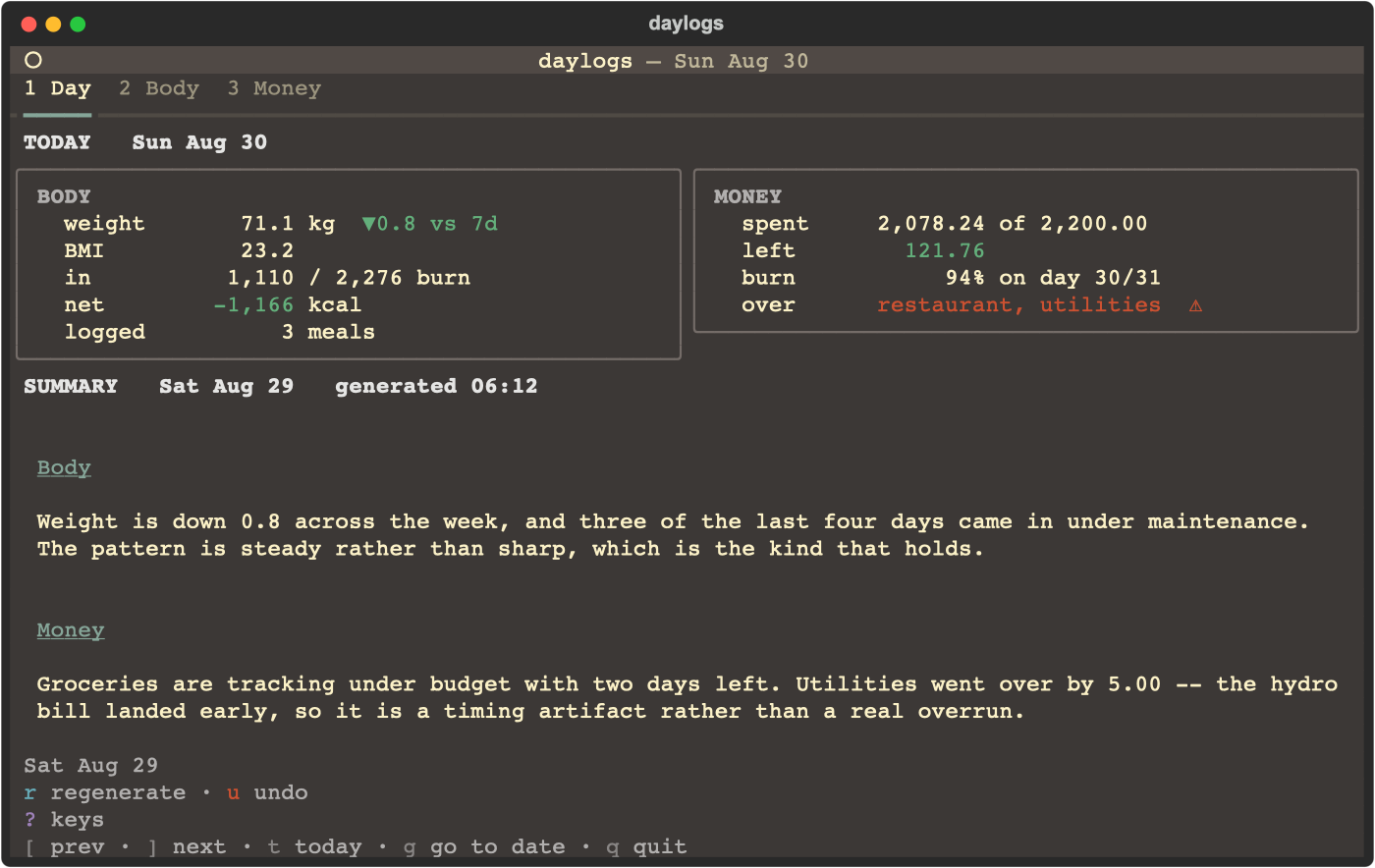
Day shows BODY beside MONEY — today's weight, BMI and trend, intake against what the day cost, this month's spend against its budget and how far through the month you are — with the generated daily read scrolling underneath. The figures are always today's; the read is dated by the day it describes, which is why each half carries its own date.
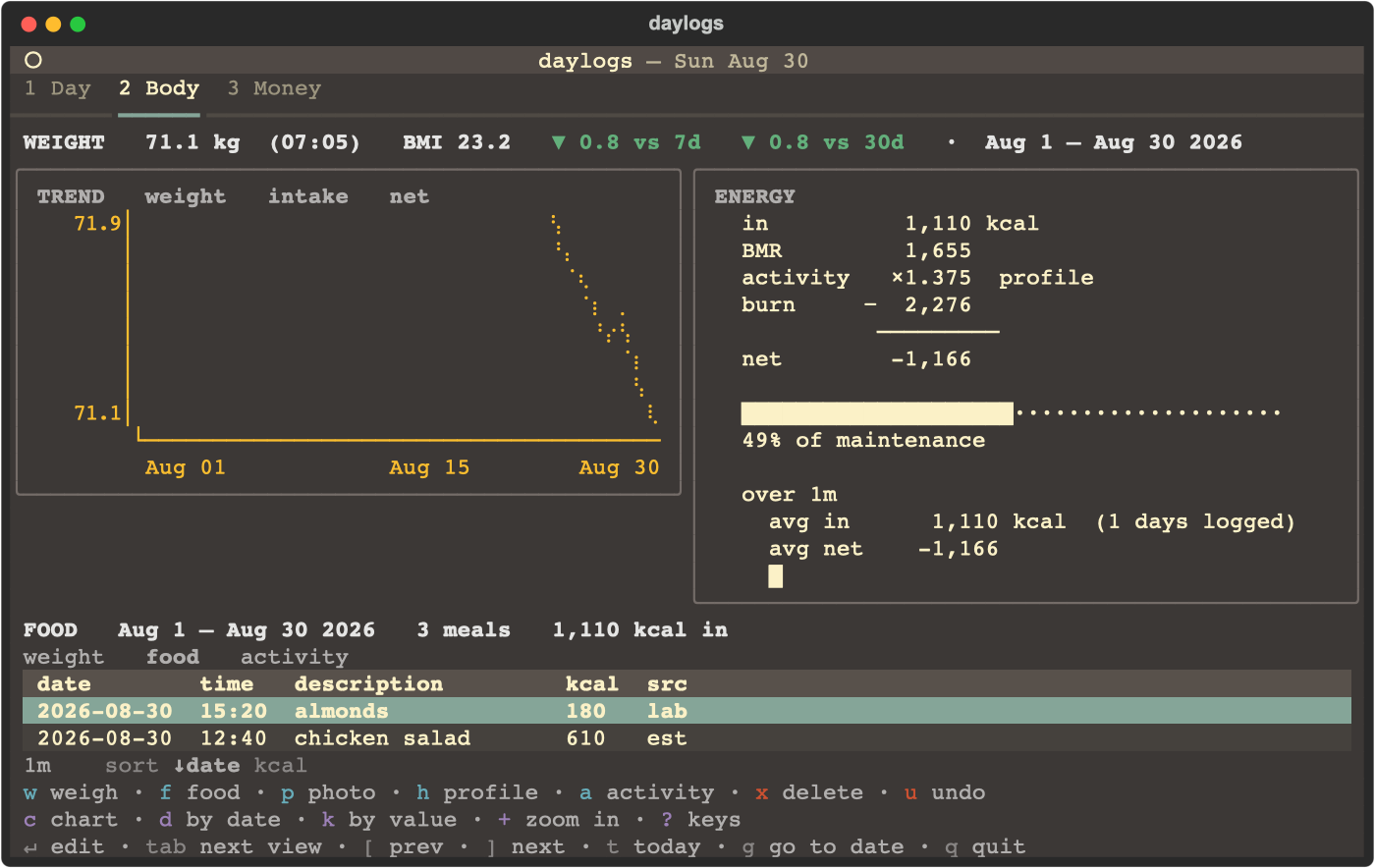
Body shows TREND (the braille chart) beside ENERGY — intake against maintenance for the day, then the average and a sparkline over the horizon.
Money shows BUDGET vs SPENT beside WHERE IT WENT. The first scales each bar to that category's own cap, so "how close to this limit" is readable per row; the second is a ranked share list.
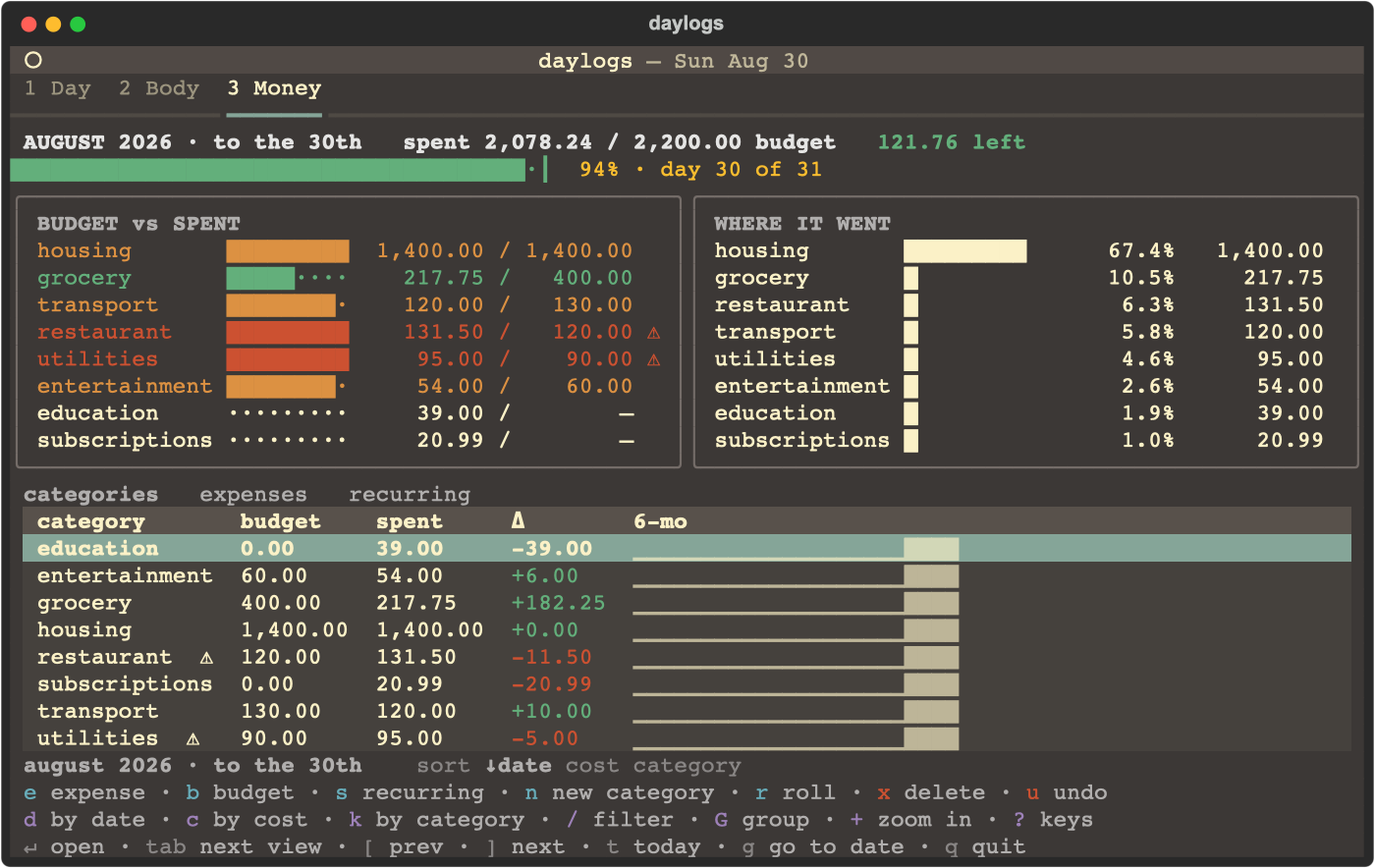
Ranked bars rather than pie charts, deliberately: a terminal has about eight distinguishable fill glyphs and there are nine categories, so a pie collides — and you still need a legend to read any amount.
Shares are of gross spend. A refund can push a category below zero for the window — a reimbursed bill, a returned order — and such a row keeps its amount but shows no share, because a part-to-whole has no negative slice. It still appears on both panels, so the rows and the header total reconcile.
Maintenance, not resting BMR
Mifflin-St Jeor gives resting expenditure — roughly what you'd burn asleep all
day. Netting calories against that calls a sedentary day a deficit it isn't, and
understates a hard one. So net is measured against burn: resting BMR times an
activity factor.
The factor comes from your profile, not from a daily entry. "Sat at a desk" is
true almost every day, and a field you have to retype daily is one you skip — which
leaves net on the wrong baseline. Set it once, with h:
| Level | × | An ordinary day of |
|---|---|---|
desk |
1.2 | sitting — desk work, little walking |
light |
1.375 | some walking, errands, light standing |
active |
1.55 | on your feet most of the day |
heavy |
1.725 | physical work |
These are the standard PAL multipliers, re-described on purpose. The textbook labels bake habitual exercise into the band ("moderate: exercise 3–5 days a week"), and using those as a baseline while also logging hard days would count the exercise twice. A level here means a day with nothing logged, so the wording describes occupational movement only. Expect a different answer from an online TDEE calculator; double counting is the worse error.
Nothing is assumed if you leave it out. With no level there is no factor, and every
calorie figure sits against resting BMR exactly as it did before — silently
defaulting to desk would raise your maintenance by 20% and restate every number on
screen and in every summary already written.
The ENERGY panel keeps the multiplier and where it came from on screen:
  in          1,200 kcal
  BMR         1,780
  activity     ×1.2  profile
  burn     −  2,136
            ─────────
  net          -936
A factor rescales every calorie judgement for its day, so it says whether it came
from your profile or was logged, rather than arriving as a number with nothing
to make you doubt it. The window average underneath is computed per day against
that day's own burn, so one hard day can't restate a whole month.
Days that depart from the ordinary one
a logs an activity — and only then. An ordinary day needs no entry at all, which is
the entire reason the baseline lives in the profile.
gym 1h =active states the day's level outright and writes immediately. Omit the =
and Claude is asked instead, given your ordinary day and everything already logged
for that day — "a desk job at ×1.2, and today they also did gym 1h and a long walk"
is a far better-posed question than "estimate a multiplier". The answer arrives in a
review line you can correct before it lands, and is clamped to 1.2–1.9.
What is stored is the whole day's multiplier, not the session's own contribution:
a PAL describes a day and is not additive, so gym plus walked is not 1.375 + 1.2.
Log again and the newer row wins — so correcting a day's factor means logging it again,
and the earlier rows stay as a record of what was believed when. Weight is the opposite:
a day's first, fasted reading is the one the trend, the deltas and the digest use, so
re-weighing does not replace it — see the chart section below.
If the estimate fails — no CLI, a timeout — the activity is still recorded, with no factor, and the day falls back to your ordinary-day level. What you did is your data; the multiplier is a guess, and losing the first because the second failed would be the worse outcome.
tab reaches the activity view, where the window's rows are listed with their
factors — zoom to 1d for a single day — enter edits one and x deletes it. A row
whose estimate never landed shows a —.
BMI shows as a bare number beside your weight. No band, no colour and no chart: "overweight" is a judgement daylogs doesn't make, and a BMI chart would be the weight curve times a constant.
The chart
A braille line chart: 2×4 dots per cell, so an 8-row by 48-column chart carries 96×32 dot resolution. The width follows the panel, so a wider terminal buys more horizontal detail.
c cycles which series it plots — weight, intake, net — over whatever
window + / - have set.
Two readings on one day are two different questions, so the app answers both. The header shows your latest reading with its clock time — what you weigh now. The trend, the 7d/30d deltas and the daily summary use each day's first reading, taken fasted before food and water, because that is the only one comparable across days. On a day you weighed twice the header and the last point of the trend will differ, and that is deliberate.
The y-axis describes the window, not just the points drawn. Over a month the line is one point per day, so a day's other readings would otherwise be missing from the range as well as from the line — a week could claim a top of 81.85 with an 82.65 inside it. The line not quite touching the top of the panel means the reading that defines it is not one of the points on screen. The panel names all three and marks the one you're on, and the two controls are independent: zooming doesn't reset the series.
net is intake against each day's own burn, so one hard day moves only its own
point. It's a signed series, so zero has to be visible or a deficit and a surplus draw
the same line — an all-deficit month puts 0 at the ceiling, an all-surplus one at the
floor, and a month that crosses zero gets a ┼ on the axis at exactly that row.
intake is anchored at zero, because calories are a magnitude: fitted to its own
minimum, a run of similar days would read as a climb from nothing. Weight still fits
its own range, for the opposite reason —
Points sit at their real dates, not spread evenly across the panel. Two weigh-ins a day apart show up as two weigh-ins a day apart, with the weeks you didn't step on the scale visibly empty — a gap is information.
it sits in a narrow band, and anchored at zero a 70–75 kg series is a flat line at the top of the panel.
It's a line rather than bars deliberately. A bar or filled area implies a meaningful zero baseline; anchored at your minimum weight it would render as a solid block whose only readable feature is its top edge. Spend is a magnitude from zero, so bars stay correct there.
Days with nothing logged are absent from the calorie series rather than plotted as
zero — a logging gap is not a fast. net also skips days with no weigh-in behind
them, because there is no BMR to scale and showing the intake bare would read as an
enormous surplus.
The daily summary
One claude -p call, once a day, over whatever the other two tabs recorded. It
runs unattended the first time you open the app after summary_after_hour, and r
regenerates it.
A report is dated by the day it describes, not the day it runs — a summary of today would be reading a half-finished day, so the target is yesterday.
Anything you put in memory.md (see Configuration) is passed along as context for
who you are, so the summary can be about you rather than about a table of numbers.
Any entry prompt
In the weigh / food / expense prompts, @2026-08-25 or @08-25 sets the date
and @13:05 sets the time, wherever you put them in the line.
Everywhere: esc cancels, ↑ / ↓ walk that prompt's history.
Configuration
Optional. ~/Documents/daylogs/config.toml; every key has a default.
timezone             = "America/Toronto"  # defaults to your machine's zone
height_cm            = 170          # BMR input, and BMI
sex                  = "female"     # BMR constant term only
birthday             = "1990-01-01" # age, for BMR
activity             = "desk"       # ordinary day: desk/light/active/heavy
claude_model         = ""           # empty = CLI default
theme                = "gruvbox"    # any Textual theme; `T` sets it for you
summary_after_hour   = 6
summary_timeout_sec  = 120
estimate_timeout_sec = 60

# Paths. Relative values resolve against the data root above.
db_path              = "daylogs.db"
inbox_dir            = "inbox"      # phone photos land here
memory_path          = "memory.md"  # free text passed to the daily summary

[[category]]
slug    = "gym"
display = "Gym"
color   = "#9ba068"
Built-in categories: grocery, restaurant, transport, housing,
utilities, subscriptions, entertainment, education, other. Adding
one needs no code change and no restart: n on the Money tab writes the
[[category]] block for you and the slug is usable on the next keystroke, colour
included — it is hashed from the slug, the same way a hand-written block with no
color gets one. The toast then points at b, because a category with neither a
budget nor a spend is not yet a row in the pane.
timezone defaults to your machine's zone and is what every stored time is read
and written in — so @07:30 means 07:30 where you are. Set it explicitly only if you
want a fixed zone regardless of the machine (travelling with a laptop, say); h writes
it for you, and an unrecognised name falls back to the machine's zone rather than
stopping the app.
Height, sex and birthday feed the Mifflin-St Jeor BMR line, and height also gives
BMI. Leave them out and the Body tab shows calories with no baseline at all.
activity turns that resting number into maintenance — see Maintenance, not
resting BMR — and is deliberately not defaulted.
You don't have to edit the file for any of the four: h on the Body tab writes them
here for you, keeping your comments and [[category]] blocks intact.
Photos from a phone
Three ways in, tried in that order when you press p:
- Clipboard — screenshot or Continuity Camera, then
p. - Inbox — on the phone: Photos → Share → Save to Files →
daylogs/inbox. The Body tab shows a pending count;ptakes the oldest and moves it toinbox/processed/once the row is written. Shoot at lunch, log at night. - Path — paste or drag a file into the prompt.
A failed estimate leaves the file pending rather than silently consuming it.
Data
SQLite, seven tables, at ~/Documents/daylogs/daylogs.db. Logs at
~/.daylogs/logs/. Override the data root with DAYLOGS_HOME.
This project was called daybook until 0.2.0, and the data root moved with the
rename. If a ~/Documents/daybook/ is still there, day refuses to start and
prints the two mv commands that move it — rather than quietly opening a new,
empty database beside your old one.
The connection runs PRAGMA journal_mode=DELETE on purpose. WAL's -wal and
-shm sidecars can sync independently of the main file under iCloud Drive and
corrupt the database on the receiving device; rollback-journal keeps SQLite to
one file. daylogs is read-heavy, so the write cost is noise.
Back it up. A synced folder is not a backup: it replicates a deletion or a
corruption as faithfully as it replicates a write. day backup <dir> writes a
consistent copy via VACUUM INTO; point it somewhere else you own and run it
from cron.
And get it out. A backup only daylogs can open is a weaker promise than a file
anything can read, so day export <dir> writes one CSV per table into a dated
subdirectory — weight, food, activity, expense, recurring, budget,
report, with the schema's own column names as headers. The table list comes from the database
rather than a hand-kept list, so nothing is silently left out. It prints the
directory on stdout and per-table row counts on stderr, so cd "$(day export ~/Drive/daylogs)" works and cron logs stay readable.
CSV, because every table is flat and "open it in a spreadsheet" is the point. The one cost: CSV cannot tell an empty note from an absent one — both come out blank. It is an export, not an import; loading it back in is not supported.
Development
Working on daylogs wants an editable install with the dev extras, which is a different thing from the isolated tool install above. Any environment manager does; this is conda because that's what I use:
conda create -n daylogs python=3.12
conda activate daylogs
pip install -e '.[dev]'
pytest
ruff check .
Runtime dependency: textual. Everything else is the standard library.
The README's three screenshots are generated, not drawn:
python tools/screenshots.py # rewrites assets/{day,body,money}.png
Run it after anything that moves the layout and commit the result. The seed data is synthetic and the clock is pinned, so two runs produce byte-identical files — a diff means the UI actually changed. The previous hand-drawn ASCII had drifted out of alignment and had once advertised a key that was never bound; an illustration nobody can verify against the app is an illustration that lies eventually.
Design notes:
- Business logic never lives in
daylogs/tui/. Tabs render and handle keys; arithmetic lives inbody.py/money.py/summary.pywith tests. - The
claude -prunners are always injected, so no test spawns a subprocess. - Parsers in
parse.pyare pure functions withnowpassed in — no test depends on when it runs. - Deletes are hard, with a session-scoped undo ring. That drops a
deleted_atcolumn from every table, the active/in-use query wrappers, a trash service, and a partial unique index.
Contributing
See CONTRIBUTING.md. Short version: improvements to the three existing features are welcome; a fourth feature needs an issue first, because staying small is the point.
Licence
MIT — see LICENSE.
1 maintainer

Metadata
1 maintainer
Release files for daylogs 0.4.0
For a detailed explanation of source distributions (sdists) and built distributions (wheels), please see the package formats documentation.
Source distribution (sdist)
| File | Size | Uploaded | |
|---|---|---|---|
| daylogs-0.4.0.tar.gz | 296.1 kB | Details |
Built distribution (wheel)
| File | Interpreter | ABI | Platform | Reset |
|---|---|---|---|---|
| daylogs-0.4.0-py3-none-any.whl | Python 3 | none | any | Details |
Total release size: 443.1 kB
Release files / daylogs-0.4.0.tar.gz
| Download URL | daylogs-0.4.0.tar.gz |
|---|---|
| Size | 296.1 kB |
| Tags | Source |
|
SHA-256 checksum How to use checksums |
52c1b8ae163c102efab97b7889b36ac462071910179d5369d0532fadc5757ca5
|
|
BLAKE2b-256 checksum How to use checksums |
63a8b4363d4e88ef64b45d8d0d3f09ef1cb8e5d07bcbab64e24dfe777b7dcf2b
|
| Upload date | |
|
Uploaded using Trusted Publishing? What is trusted publishing? |
Yes |
| Uploaded via |
twine/7.0.0 CPython/3.13.14
|
Provenance
Provenance describes where a file came from. On PyPI, provenance is shared via attestations, which provide a verifiable record of the build or publishing details. View details, limitations and caveats.


PyPI Publish Attestation
PyPI verified that this artifact, at this checksum, originated from the publisher listed below.
Signed by GitHub Actions, verified by PyPI on Sep 5, 2026.
Transparency logRelease files / daylogs-0.4.0-py3-none-any.whl
| Download URL | daylogs-0.4.0-py3-none-any.whl |
|---|---|
| Size | 147.0 kB |
| Tags | Python 3 |
|
SHA-256 checksum How to use checksums |
578bf4d2048a32516b1f4fcaea5b36fbc0e77a8240ce7a44800162806ae1e3f8
|
|
BLAKE2b-256 checksum How to use checksums |
47552ce76b6f3127dc620aab2577fdaa6ae0bdb27f84c42590d0285a9d2bec3b
|
| Upload date | |
|
Uploaded using Trusted Publishing? What is trusted publishing? |
Yes |
| Uploaded via |
twine/7.0.0 CPython/3.13.14
|
Provenance
Provenance describes where a file came from. On PyPI, provenance is shared via attestations, which provide a verifiable record of the build or publishing details. View details, limitations and caveats.
PyPI Publish Attestation
PyPI verified that this artifact, at this checksum, originated from the publisher listed below.
Signed by GitHub Actions, verified by PyPI on Sep 5, 2026.
Transparency log













