
DoList
  ____        _ _     _
 |  _ \  ___ | (_)___| |_
 | | | |/ _ \| | / __| __|
 | |_| | (_) | | \__ \ |_
 |____/ \___/|_|_|___/\__|
To Do list on Command Line Interface
Manage to-do list on a shell-based interface with beautiful tables and optional TUI mode. Stores your to-do locally in a SQLite database.
optionally use your Dropbox to store the database
Features
- Modern CLI powered by Cyclopts with type hints
- Beautiful Tables using Rich library
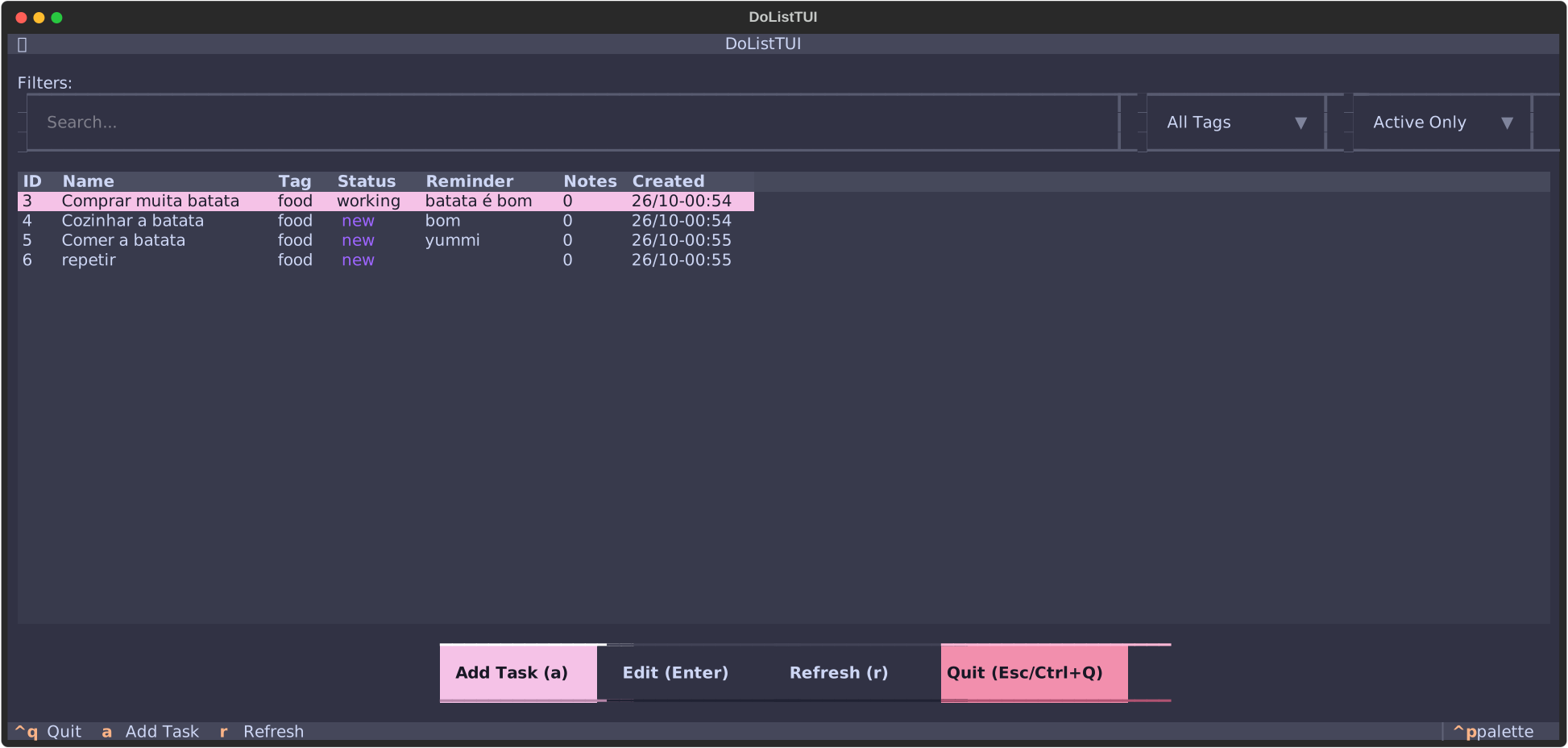
- Interactive TUI Mode with Textual for graphical terminal interface
- Enhanced Python REPL with ptpython featuring syntax highlighting and auto-completion
- Data Validation with Pydantic models
- SQLite Database for local task storage with automatic migrations
- Tag Support to organize tasks
- Priority & Size Fields to organize and categorize tasks
- Configurable Columns - customize which columns to display and their order
- Notes on tasks with stdin support for piping content
- Task History tracking all changes to tasks over time
- Smart Reminders with flexible natural language parsing and background service
- Desktop Notifications for due reminders (with custom handler support)
- Systemd Integration for automatic reminder service
- Multiple Databases support
- Stdin Support for adding tasks and notes from pipes and files
Requirements
- Python 3.10 or higher
- uv package manager (recommended)
Installation
Option 1: Using uvx from PyPI (Recommended)
The easiest way to use DoList is with uvx - no installation or cloning needed:
# Run dolist commands directly from PyPI
uvx dolist --help
uvx dolist add "My first task"
uvx dolist ls

# Launch the interactive TUI
uvx dolist
This will automatically download and run the latest version from PyPI each time.
Option 2: Using uvx from GitHub
Run the latest development version directly from GitHub:
# Run dolist commands from GitHub
uvx --from git+https://github.com/rochacbruno/dolist dolist --help
uvx --from git+https://github.com/rochacbruno/dolist dolist add "My first task"
uvx --from git+https://github.com/rochacbruno/dolist dolist ls
Option 3: Install with uv/pip
For permanent installation:
# Install from PyPI
uv pip install dolist

# Or install from GitHub for latest development version
uv pip install git+https://github.com/rochacbruno/dolist

# Now dolist is available as a command
dolist --help
dolist add "My task"
dolist ls
Option 4: Development installation
# Clone the repository
git clone https://github.com/rochacbruno/dolist
cd dolist

# Install dependencies and set up the project
uv sync

# Run dolist
dolist --help

# Or install in development mode
uv pip install -e .
dolist --help
Configuration
DoList can be configured via a TOML configuration file located at:
~/.config/dolist/config.toml(Linux/Unix)$XDG_CONFIG_HOME/dolist/config.toml(if XDG_CONFIG_HOME is set)
A default configuration file is automatically created on first run. You can also copy the example configuration:
cp config.example.toml ~/.config/dolist/config.toml
Configuration Options
Database Settings
[database]
# Database directory
dir = "~/.config/dolist"

# Database URI
uri = "sqlite://tasks.db"
UI Settings
[ui]
# TUI theme (default: textual-dark)
# Available: textual-dark, textual-light, nord, gruvbox, catppuccin,
#            dracula, monokai, solarized-light, solarized-dark
theme = "textual-dark"

# Columns to display in tables (both TUI and CLI)
# The 'id' column is always required and must be first
# Available columns: id, name, tag, status, reminder, notes, created, priority, size
columns = ["id", "name", "tag", "status", "reminder", "notes", "created", "priority", "size"]
Column Configuration Examples:
Show only essential columns:
columns = ["id", "name", "priority", "size"]
Prioritize priority and size:
columns = ["id", "priority", "size", "name", "tag", "status"]
Minimal view for focus:
columns = ["id", "name", "status", "priority"]
TUI Settings
[tui]
# Auto-refresh interval in seconds (default: 30)
# Set to 0 to disable auto-refresh
autorefresh_interval = 30
Reminder Settings
[reminders]
# Custom command to handle reminders (optional)
# If not set, uses notify-send by default
# The command receives task JSON via stdin
# reminder_cmd = "/path/to/custom/reminder/handler"
For more examples, see config.example.toml in the repository.
Usage
     ____        _ _     _
    |  _ \  ___ | (_)___| |_
    | | | |/ _ \| | / __| __|
    | |_| | (_) | | \__ \ |_
    |____/ \___/|_|_|___/\__|
Quick Reference
Most common operations:
dolist                           # Launch TUI
dolist --actions                 # List all available actions
dolist add "Task name"           # Add task
dolist ls                        # List active tasks
dolist 1 done                    # Mark task 1 as done
dolist 2 remind tomorrow         # Set reminder on task 2
dolist 3 start                   # Start working on task 3
dolist 4                         # Edit task 4 interactively
echo "Note" | dolist 5 note      # Add note from stdin
cat task.txt | dolist add        # Add task with notes from file
Command Reference
ID Shortcut Syntax
DoList supports a convenient shortcut for working with tasks by ID:
dolist <id> [action] [args]
Available actions:
remind <time>- Set a reminder (supports unquoted multi-word args)delay [time]- Delay reminder (default: 10 minutes)note <text>- Add a note (supports unquoted multi-word args and stdin)note --rm <index>- Remove a note by indexdone- Mark as donecancel- Mark as cancelledstart- Mark as in-progressnew- Reset to newpost- Mark as postponedshow- Show task details with notesedit- Open TUI with task selected for editingclear-reminder- Clear reminderdelete,rm- Delete taskget- Interactive Python shell for task- (no action) - Show task details
Examples:
dolist 1                           # Show task 1 details
dolist 2 done                      # Mark task 2 as done
dolist 3 remind tomorrow           # Set reminder (quoted or unquoted)
dolist 3 remind 2 hours            # Unquoted multi-word args work!
dolist 3 delay 1 hour              # Delay reminder by 1 hour
dolist 4 start                     # Start working on task 4
dolist 5 note This is my note      # Add note (unquoted!)
dolist 5 note "Or use quotes"      # Or use quotes
echo "Note from stdin" | dolist 5 note  # Add note from stdin
dolist 5 note --rm 0               # Remove first note
dolist 6 show                      # Show details of task 6
Command Syntax
Usage: dolist [ID] [ACTION] [ARGS] | dolist COMMAND [OPTIONS]

DoList - To-Do list on Command Line Interface

Core Commands:
  dolist                   # Launch interactive TUI (default)
  dolist --actions         # List all available actions
  dolist <id>              # Show task details
  dolist <id> <action>     # Perform action on task
  dolist add "Task"        # Add a new task
  dolist ls [OPTIONS]      # List tasks
  dolist shell             # Start Python REPL
  dolist service           # Manage reminder service
  dolist reset             # Reset database (with backup)

List Options:
  --all                    # Show all tasks (including done/cancelled)
  --tag <tag>              # Filter by tag
  --status <status>        # Filter by status
  --search <term>          # Search in task names
  --json                   # Output in JSON format
  --action <action>        # Bulk action on matching tasks
  --action-args <args>     # Arguments for bulk action
  -y, --yes                # Skip confirmation for bulk actions

Bulk Actions:
  dolist ls --status done --action delete          # Delete all done tasks
  dolist ls --search "bug" --action start          # Start all tasks with "bug"
  dolist ls --tag work --action remind --action-args "2 hours"
  dolist ls --search "old" --action cancel -y      # Skip confirmation

JSON Output:
  dolist ls --json                                 # All tasks as JSON
  dolist ls --status new --json | jq '.[].id'      # Extract IDs with jq
  dolist ls --search "test" --json                 # Search results as JSON

Note: Running 'dolist' without arguments launches the TUI by default.
Note: Command examples below show direct
dolistusage. If usinguvx, prefix withuvx dolist(from PyPI) oruvx --from git+https://github.com/rochacbruno/dolist dolist(from GitHub)
Quick Start Examples
1. Textual TUI Mode (Default)
The beautiful terminal user interface launches by default:
# Using uvx from PyPI (recommended)
uvx dolist

# Or from GitHub for latest development version
uvx --from git+https://github.com/rochacbruno/dolist dolist

# Or if installed
dolist
Features of TUI mode:
- Interactive table view of tasks with sortable columns
- Add/Edit/Delete tasks via modal dialogs
- Advanced search with vim-like
/syntax - Status filters with toggle buttons
- Auto-refresh with configurable interval
- Command palette for quick actions
- State preservation across refreshes
Keyboard Shortcuts
| Key | Action | Description |
|---|---|---|
a |
Add Task | Open dialog to create new task |
Enter |
Edit Task | Edit the selected task |
/ |
Search | Open vim-like search overlay |
: |
Commands | Open command palette for sorting and actions |
? |
Help | Show all key bindings |
r |
Refresh | Manually refresh the task list |
Ctrl+Q |
Quit | Exit the TUI |
Esc |
Cancel | Close modals/overlays |
Search Syntax
The search overlay (/) supports powerful filtering:
| Syntax | Example | Description |
|---|---|---|
text |
/bug fix |
Search in both name and notes (name matches first) |
name=value |
/name=urgent |
Search only in task names |
note=value |
/note=meeting |
Search only in task notes |
tag=value |
/tag=work |
Filter by single tag |
tag=a,b |
/tag=work,home |
Filter by multiple tags (OR logic) |
status=value |
/status=new |
Filter by single status |
status=a,b |
/status=new,done |
Filter by multiple statuses |
priority=N |
/priority=5 |
Filter by exact priority |
priority=>N |
/priority=>5 |
Filter by priority greater than N |
priority=>=N |
/priority=>=3 |
Filter by priority greater than or equal to N |
priority=<N |
/priority=<2 |
Filter by priority less than N |
priority=<=N |
/priority=<=5 |
Filter by priority less than or equal to N |
size=value |
/size=M |
Filter by single size (U, S, M, L) |
size=a,b |
/size=S,M |
Filter by multiple sizes |
| Combined | /tag=work urgent |
Combine filters (tag=work AND text contains "urgent") |
Examples:
/bug- Find all tasks with "bug" in name or notes (name matches first)/name=urgent- Find tasks with "urgent" in the name only/note=meeting- Find tasks with "meeting" in notes only/tag=urgent- Show only tasks tagged "urgent"/status=new,in-progress- Show new or in-progress tasks/priority=>5- Show high priority tasks (priority > 5)/size=M- Show medium-sized tasks/tag=work priority=>=3- Show work tasks with priority 3 or higher/tag=work test- Show work tasks with "test" in name or notes
Command Palette
Press : to open the command palette with these commands:
| Command | Description |
|---|---|
| Sort by Name (A-Z) | Sort tasks alphabetically |
| Sort by Name (Z-A) | Sort tasks reverse alphabetically |
| Sort by Created (Oldest) | Sort by creation date (oldest first) |
| Sort by Created (Newest) | Sort by creation date (newest first) |
| Sort by Status | Sort by status |
| Sort by Tag | Sort by tag |
| Sort by ID | Sort by task ID |
| Refresh | Manually refresh the task list |
| Quit | Exit the TUI |
Column Sorting
Click on any column header to sort by that column:
- First click: Sort ascending (▲)
- Second click: Sort descending (▼)
Sortable columns: ID, Name, Tag, Status, Created
Status Filters
Use the status filter buttons at the top to toggle task visibility:
- All - Show all tasks (default shows active tasks only)
- New - Show only new tasks
- In Progress - Show only in-progress tasks
- Done - Show completed tasks
- Cancel - Show cancelled tasks
- Post - Show postponed tasks
Filters can be combined by clicking multiple buttons.
Auto-Refresh
Click the Auto-Refresh button to enable automatic task list updates every 30 seconds (configurable in ~/.config/dolist/config.toml):
[tui]
autorefresh_interval = 30  # seconds, 0 to disable
The button turns green when auto-refresh is enabled.
2. Interactive Python REPL (Enhanced with ptpython)
For advanced scripting and automation, launch the interactive Python shell:
dolist shell
Features of the modern REPL:
- Syntax highlighting for Python code
- Auto-completion with Tab key
- Signature hints for functions
- History search with Ctrl+R
- Vi/Emacs mode toggle with F2
- Access to
tasklist,db, andtasksobjects
Example REPL session:
dolist >>> tasklist                           # View all tasks
[Task(id=1, name='Test task'...), ...]

dolist >>> tasklist[0].name                   # Get task name
'Test task for Python 3'

dolist >>> tasklist[0].update_status('done')  # Update task

dolist >>> [t.name for t in tasklist]         # List all names
['Test task for Python 3', 'Batata', ...]

dolist >>> quit()                             # Exit
3. Add a New Task
With all fields specified:
dolist add "Pay the telephone bill" --tag personal --status new --reminder today
With default values (tag=default, status=new, no reminder):
dolist add "Implement new features on my project"
Adding tasks from stdin (New!):
You can pipe content to dolist add to create tasks with notes:
# From a file (first line = task name, remaining lines = notes)
cat task.txt | dolist add --tag work --reminder "2 hours"
dolist add --tag work --reminder "2 hours" < task.txt

# From echo (simple task without notes)
echo "Simple task" | dolist add --tag urgent

# Multi-line with echo
echo -e "Task name\nFirst note\nSecond note" | dolist add --tag work
When using stdin:
- The first line becomes the task name
- All remaining lines are automatically added as notes to the task
- Command-line options (
--tag,--reminder, etc.) work as usual
4. List Tasks
List all open tasks:
dolist ls
Example output with Rich tables:
  ID   Name                       Tag       Status   Reminder   Notes   Created
 ──────────────────────────────────────────────────────────────────────────────
  1    Pay telephone bill         personal  new      today      0       31/12-08:03
  2    Implement features         default   new               0       31/12-08:03

TOTAL: 2 tasks
Filter by tag:
dolist ls --tag personal
Search in both task names and notes (name matches first):
dolist ls --search phone # Searches in both name and notes
Search only in task names:
dolist ls --name "important" # Only searches task names
Search only in task notes:
dolist ls --note "meeting" # Only searches task notes
Filter by status:
dolist ls --status done
Filter by priority:
dolist ls --priority 5           # Exact match
dolist ls --priority '>5'        # Greater than 5
dolist ls --priority '>=3'       # Greater than or equal to 3
dolist ls --priority '<2'        # Less than 2
Filter by size:
dolist ls --size M               # Medium sized tasks
dolist ls --size S               # Small sized tasks
List all tasks (including done/cancelled):
dolist ls --all
JSON Output (New!):
Export tasks as JSON for scripting and integration:
# Export all active tasks as JSON
dolist ls --json

# Filter and export
dolist ls --status new --json
dolist ls --tag work --json
dolist ls --search "bug" --json

# Pipe to jq for processing
dolist ls --json | jq '.[].id'                    # Extract all task IDs
dolist ls --json | jq '.[] | select(.status == "new")'  # Filter in jq
dolist ls --status new --json | jq -r '.[].name'   # Get task names only
Bulk Actions (New!):
Perform actions on multiple tasks at once with confirmation:
# Delete all done tasks
dolist ls --status done --action delete

# Mark all tasks with "bug" as in-progress
dolist ls --search "bug" --action start

# Set reminder on all work tasks
dolist ls --tag work --action remind --action-args "tomorrow"

# Postpone all tasks in a specific tag
dolist ls --tag "low-priority" --action post

# Cancel all tasks matching search
dolist ls --search "cancelled meeting" --action cancel

# Skip confirmation with --yes flag (use with caution!)
dolist ls --status done --action delete --yes
dolist ls --search "old" --action cancel -y
By default, bulk actions require typing 'yes' to confirm before execution. Use the -y or --yes flag to bypass the confirmation prompt.
5. Quick Task Actions with ID Shortcuts
DoList provides an intuitive shortcut syntax: dolist <id> <action> [args]
# Change status quickly
dolist 1 done              # Mark task 1 as done
dolist 2 start             # Mark task 2 as in-progress
dolist 3 cancel            # Mark task 3 as cancelled
dolist 4 post              # Mark task 4 as postponed
dolist 5 new               # Reset task 5 to new

# Set reminders on existing tasks
dolist 1 remind tomorrow   # Set reminder for tomorrow
dolist 2 remind 2 hours    # Set reminder for 2 hours from now
dolist 3 remind next week  # Set reminder for next week

# Delay reminders
dolist 1 delay             # Delay reminder by 10 minutes (default)
dolist 2 delay 1 hour      # Delay reminder by 1 hour
dolist 3 delay 30 mins     # Delay reminder by 30 minutes

# Other quick actions
dolist 1                   # Show task 1 details
dolist 1 show              # Show task details (same as above)
dolist 1 edit              # Open TUI and edit task 1
dolist 2 clear-reminder    # Clear reminder
dolist 3 delete            # Delete task
dolist 4 get               # Interactive Python shell for task 4
Unquoted Multi-Word Arguments (New!):
You can now pass multi-word arguments without quotes:
# Reminders
dolist 1 remind 2 hours           # No quotes needed!
dolist 2 remind next week         # Works naturally
dolist 3 delay 30 minutes         # Simple and intuitive

# Notes
dolist 4 note This is my amazing note     # No quotes required!
dolist 5 note "Or use quotes if you prefer"

# Manage notes
dolist 5 note --rm 0              # Remove first note
Available statuses: new, in-progress, done, cancel, post
6. Remove a Task
dolist rm 2
7. Reset Database (with Backup)
DoList provides a safe way to reset your database with automatic timestamped backup:
# Reset database with confirmation prompt
dolist reset

# Reset database without confirmation (use with caution)
dolist reset --yes

# Reset a specific database
dolist reset --use mydb
This command will:
- Ask for confirmation (unless
--yesflag is used) - Create a timestamped backup (e.g.,
tasks.db.backup_20231215_143022) - Delete the database file
- A new empty database will be created on next use
The backup file is stored in the same directory as your database (~/.config/dolist/ by default).
8. Task Dependencies
DoList supports task dependencies through special markers in task notes. This allows you to:
- Block tasks until prerequisites are complete
- Organize tasks into parent-child hierarchies
- Navigate between related tasks
Dependency Markers
Add dependency markers to task notes using these patterns:
# Create a blocking dependency
dolist add "Turn on the oven"                     # Task ID: 1
dolist add "Bake the cake" --note "depends #1"    # Blocked until task 1 is done

# Create a parent-child relationship
dolist add "Sprint Planning" --note "under #5"    # This task is under task 5
Markers:
depends #N- This task is blocked until task N is completeunder #N- This task is a child/subtask of task N
Visual Indicators
Tasks with dependencies show special visual indicators:
Blocked Tasks (depends):
- Display:
2! Bake the cake(shows blocking task ID) - Color: Red-ish text
- Status: Shows as "blocked" (computed, cannot be manually changed)
- Status is immutable while dependency exists
Child Tasks (under):
- Display:
5> Sprint Planning(shows parent task ID) - Color: Yellow-ish text
- Status: Can be changed normally
Parent Tasks:
- Display:
Turn on the oven (2)(shows number of children) - Only shown when task has 1 or more children
Navigation in TUI
Navigate to Parent:
- Press
pwhile on a task to jump to its parent - Works for both
dependsandunderrelationships
Show Children:
- Press
cwhile on a task to filter and show only its children - Applies
under=Nfilter automatically
CLI Filtering
Filter tasks by parent ID:
# Show all tasks that depend on or are under task 3
dolist ls --under 3

# Combine with other filters
dolist ls --under 5 --status new
Behavior Notes
- If both
dependsandundermarkers exist,dependstakes precedence for visual style - Blocked tasks cannot have their status changed (via CLI or TUI)
- All other fields (name, tags, notes, priority, etc.) remain editable on blocked tasks
- Deleting or completing a parent task doesn't automatically affect children
9. Smart Reminders
DoList provides a powerful reminder system with natural language parsing and a background service for notifications.
Setting Reminders
Use flexible, human-friendly syntax when adding or editing tasks:
# Special keywords
dolist add "Call dentist" --reminder today      # Today at 3:00 PM
dolist add "Team meeting" --reminder tomorrow   # Tomorrow at 9:00 AM

# Relative time with "next"
dolist add "Review PR" --reminder "next hour"
dolist add "Update docs" --reminder "next day"
dolist add "Sprint planning" --reminder "next week"
dolist add "Quarterly review" --reminder "next quarter"

# Specific durations (supports singular, plural, and abbreviations)
dolist add "Check email" --reminder "30 minutes"
dolist add "Lunch break" --reminder "2 hours"
dolist add "Follow up" --reminder "3 days"
dolist add "Project deadline" --reminder "2 weeks"
dolist add "Renewal" --reminder "6 months"

# Abbreviations work too!
dolist add "Quick task" --reminder "10 mins"    # 10 minutes
dolist add "Short break" --reminder "2 hrs"     # 2 hours
dolist add "Follow-up" --reminder "5 d"         # 5 days

# Recurring reminders (repeating tasks)
dolist add "Drink water" --reminder "2 hours repeat"      # Repeats every 2 hours
dolist add "Daily standup" --reminder "tomorrow repeat"   # Repeats daily
dolist add "Weekly review" --reminder "1 week repeat"     # Repeats weekly
dolist add "Take medication" --reminder "8 hours repeat"  # Repeats every 8 hours
Supported time units:
- Seconds:
sec,secs,s,second,seconds - Minutes:
min,mins,m,minute,minutes - Hours:
hr,hrs,h,ho,hour,hours - Days:
d,day,days - Weeks:
w,wk,wks,week,weeks - Months:
mo,mon,mos,month,months - Quarters:
q,qtr,quarter,quarters(3 months each) - Years:
y,yr,yrs,year,years - Decades:
decade,decades
Delaying Reminders
Need more time? Delay any reminder easily:
# Delay by default 10 minutes
dolist 1 delay

# Delay by custom amount
dolist 2 delay 1 hour
dolist 3 delay 30 minutes
dolist 4 delay tomorrow
In the TUI, use the "Delay 10min" button in the edit dialog.
Clearing Reminders
# Clear reminder from a specific task
dolist 5 clear-reminder
In the TUI, use the "Clear Reminder" button in the edit dialog.
Smart Display:
- When listing tasks, reminders show as "in 2 hours", "in 30 minutes", etc.
- Repeating reminders are indicated with "(r)" suffix (e.g., "in 2 hours (r)")
- Past reminders are automatically cleared when viewing task lists
- Done/cancelled tasks will not trigger reminder notifications
Running the Reminder Service
The reminder service monitors your tasks and sends notifications when they're due:
# Run service manually (foreground)
dolist service

# Monitor multiple databases
dolist service --databases tasks.db:work.db:personal.db

# With absolute paths
dolist service --databases /tmp/work.db:/home/user/personal.db

# Verbose mode with custom interval (10 seconds)
dolist service --verbose --interval 10

# Combine all options
dolist service --verbose --interval 10 --databases tasks.db:work.db

# Install as systemd service (runs automatically)
dolist service --enable

# Check service status
systemctl --user status dolist-reminder.service

# Stop the service
systemctl --user stop dolist-reminder.service
Multi-Database Support:
The service can monitor multiple databases simultaneously:
# Via command line (colon-separated)
dolist service --databases tasks.db:work.db:personal.db

# Or via config file (~/.config/dolist/config.toml)
[reminder]
databases = ["tasks.db", "work.db", "personal.db"]
This allows you to run a single service instance that watches all your task databases. The service loops through each database every cycle and processes reminders from all of them.
Service Options:
-
--verbose: Enable detailed debugging output showing:- Cycle number and timestamp
- Total tasks per database
- Tasks with reminders (even if not due yet)
- Due reminder counts
- Processing details
-
--interval N: Set check interval in seconds (default: 30)- Lower values = faster reminder detection but more CPU usage
- Example:
--interval 10checks every 10 seconds
Verbose Output Example:
>>> Cycle 1 at 14:25:59
  (/tmp/foo.db) Total tasks: 5
  (/tmp/foo.db) Tasks with reminders: 3
  (/tmp/foo.db) Due reminders: 1
Database '(/tmp/foo.db)': Found 1 due reminder(s)
  (/tmp/foo.db) Processing task #1: Important meeting
✓ Notification sent for task #1
✓ Reminder cleared for task #1
Waiting 30 seconds until next check...
What happens when a reminder is due?
By default, DoList uses notify-send to display desktop notifications with:
- Task name as the title
- Tag, status, and note count in the body
- 10-second display duration
- Service checks every 30 seconds for due reminders
- Done/cancelled tasks are excluded from reminder notifications
Recurring reminders behavior:
- When a recurring reminder triggers, it automatically reschedules for the next occurrence
- Example: A task with "2 hours repeat" will trigger every 2 hours indefinitely
- The reminder service handles rescheduling automatically - no manual intervention needed
- To stop a recurring reminder, clear the reminder or mark the task as done/cancelled
Custom Reminder Handlers
You can create custom handlers for reminders by setting reminder_cmd in your config file (~/.config/dolist/config.toml):
[reminders]
reminder_cmd = "/path/to/custom/handler"
Your custom handler will receive task data as JSON via stdin:
{
  "id": 1,
  "name": "Task name",
  "tag": "work",
  "status": "in-progress",
  "reminder": "2 hours",
  "notes": ["Note 1", "Note 2"],
  "created_on": "2024-01-15T10:30:00"
}
Example custom handler (Python):
#!/usr/bin/env python
import json
import sys
import subprocess

# Read task data
task = json.load(sys.stdin)

# Send to Slack, email, or your preferred notification system
subprocess.run([
    'curl', '-X', 'POST', 'YOUR_WEBHOOK_URL',
    '-H', 'Content-Type: application/json',
    '-d', json.dumps({'text': f"Reminder: {task['name']}"})
])
9. Edit a Task in Interactive Shell
For advanced task manipulation, you can use the interactive Python shell:
dolist 3 get
Interactive session with Pydantic Task model:
$ dolist 3 get
To show the task
>>> print(task)
Task(id=3, name=Pay telephone bill, tag=personal, status=new)

To show a field (available: name, tag, status, reminder, notes)
>>> task.name
'Pay telephone bill'
>>> task.status
'new'

To edit the task using update methods
>>> task.update_name("Other name")
>>> task.update_status("working")
>>> task.status
'working'

To delete a task
>>> task.delete()

To exit
>>> quit()
Managing Notes
You can add notes to tasks using their ID (visible in dolist ls output).
Adding a Note
Add a note directly as an argument:
dolist 1 note "This is the note for task 1"
Adding notes from stdin (New!):
You can also pipe content to add notes:
# From echo
echo "Hello World" | dolist 1 note

# From a file
cat notes.txt | dolist 9 note

# Multi-line notes (preserved as-is)
echo -e "Multi-line note\nwith several lines\nof content" | dolist 1 note
The above command inserts the note and prints the task with notes:
  ID   Name    Tag       Status   Reminder   Created
 ───────────────────────────────────────────────────
  1    teste   default   new                 01/01-02:14

NOTES:
  [0] This is the note for task 1

Total: 1 note(s)
Viewing Notes
Show all notes for a task:
dolist 1 show
Or simply:
dolist 1
Example output:
  ID   Name    Tag       Status   Reminder   Created
 ───────────────────────────────────────────────────
  1    teste   default   new                 01/01-02:14

NOTES:
  [0] This is the note for task 1
  [1] This is another note for task 1

Total: 2 note(s)
Removing a Note
Notes can be removed by their index number using the --rm flag:
dolist 1 note --rm 0
Multiple Databases
You can use multiple databases by specifying the --use argument.
Create/use a different database:
dolist add "Including on another db" --use mynewdb
This creates a new database called "mynewdb" if it doesn't exist.
List tasks from specific database:
dolist ls --all --use mynewdb
Note: You can also change the default database in the
~/.config/dolist/config.tomlconfiguration file.
Testing
This project includes a comprehensive test suite with 127 tests, all passing!
# Run all tests
uv run pytest

# Run with verbose output
uv run pytest -v
Test Coverage: 127 tests covering all major components
- Colors module (22 tests)
- Database module (12 tests)
- Print table module (33 tests)
- Task model with Pydantic (18 tests)
- Main application with Cyclopts (21 tests)
- New CLI features (21 tests) - New!
See README_TESTS.md for detailed testing documentation.
Development
Project Structure
dolist/
├── dolist/              # Main package
│   ├── __init__.py    # Package initialization
│   ├── do.py          # Main application & Cyclopts CLI
│   ├── database.py    # Lightweight SQLite database wrapper
│   ├── taskmodel.py   # Pydantic Task model
│   ├── colors.py      # Color formatting helpers
│   ├── printtable.py  # Legacy table rendering
│   ├── rich_table.py  # Rich table rendering
│   └── tui.py         # Textual TUI application
├── tests/             # Test suite (127 tests)
│   ├── test_colors.py      # Color function tests (22 tests)
│   ├── test_database.py    # Database layer tests (12 tests)
│   ├── test_printtable.py  # Table rendering tests (33 tests)
│   ├── test_taskmodel.py   # Task model tests (18 tests)
│   ├── test_do.py          # Main app tests (21 tests)
│   └── test_new_features.py # New CLI features tests (21 tests)
├── pyproject.toml     # Modern Python packaging
├── pytest.ini         # Pytest configuration
└── README_TESTS.md    # Testing documentation
Modern Stack
This project has been modernized with:
- Cyclopts - Modern CLI framework with type hints (replaced docopt)
- Rich - Beautiful terminal output and tables
- Textual - Terminal user interface framework
- ptpython - Enhanced Python REPL with syntax highlighting and auto-completion
- Pydantic - Data validation and settings management
- uv - Fast Python package manager
- pytest - Modern testing framework
Contributing
- Fork the repository
- Create a feature branch
- Make your changes
- Run tests:
uv run pytest - Ensure all 127 tests pass
- Submit a pull request
Python Version Support
- Python 3.10+: Fully supported with modern dependencies
- Python 2.7: No longer supported (legacy version deprecated)
Architecture
Task Model
The Task model is now powered by Pydantic with:
- Field validation (status must be one of: new, in-progress, done, cancel, post)
- Type hints for all fields
- Automatic serialization/deserialization
- Methods for database updates:
update_name(),update_status(),add_note(), etc.
CLI Structure
The CLI uses Cyclopts for:
- Type-safe command definitions
- Automatic help generation
- Parameter validation
- Sub-command routing
Database
Uses a lightweight SQLite wrapper that:
- Supports multiple databases via
--useflag - Stores data in
~/.config/dolist/tasks.dbby default (or$XDG_CONFIG_HOME/dolist/tasks.db) - Configuration in
~/.config/dolist/config.toml(TOML format) - Backwards compatible with legacy
~/.dopy/dopy.dblocation


License
This project is open source. See the repository for license details.
Roadmap
- Migrate from docopt to Cyclopts
- Add Rich table rendering
- Create Textual TUI mode
- Implement Pydantic models
- Lightweight SQLite database wrapper
- Comprehensive test suite (105 tests)
- Smart reminders with natural language parsing
- Background reminder service with systemd support
- Desktop notifications for reminders
- Add export functionality JSON
- Implement task priorities
- Add recurring tasks
- Task dependencies and subtasks
1 maintainer

Release files for dolist 0.5.0
For a detailed explanation of source distributions (sdists) and built distributions (wheels), please see the package formats documentation.
Source distribution (sdist)
| File | Size | Uploaded | |
|---|---|---|---|
| dolist-0.5.0.tar.gz | 870.5 kB | Details |
Built distribution (wheel)
| File | Interpreter | ABI | Platform | Reset |
|---|---|---|---|---|
| dolist-0.5.0-py3-none-any.whl | Python 3 | none | any | Details |
Total release size: 933.6 kB
Release files / dolist-0.5.0.tar.gz
| Download URL | dolist-0.5.0.tar.gz |
|---|---|
| Size | 870.5 kB |
| Tags | Source |
|
SHA-256 checksum How to use checksums |
146744ff7da93bce15598981c4b4a95c549a3742ce0c845545c2508bb6d67680
|
|
BLAKE2b-256 checksum How to use checksums |
5f3048c116ace3940091383fcc6c44047f11aabeb262d7fc257cb448416c7147
|
| Upload date | |
|
Uploaded using Trusted Publishing? What is trusted publishing? |
No |
| Uploaded via |
uv/0.9.2
|
Release files / dolist-0.5.0-py3-none-any.whl
| Download URL | dolist-0.5.0-py3-none-any.whl |
|---|---|
| Size | 63.2 kB |
| Tags | Python 3 |
|
SHA-256 checksum How to use checksums |
b61effafac5f23609f04f4df28368190426a1add138aa129bd1c2d4724937d10
|
|
BLAKE2b-256 checksum How to use checksums |
6ad6e7575c6fe2db594a8890d85b7e2e66ed4635981bdb64bcc967b46318363b
|
| Upload date | |
|
Uploaded using Trusted Publishing? What is trusted publishing? |
No |
| Uploaded via |
uv/0.9.2
|














