
To-Do list on Command Line Interface

Project description
DoList
 ██████████            ████   ███           █████
░░███░░░░███          ░░███  ░░░           ░░███
 ░███   ░░███  ██████  ░███  ████   █████  ███████
 ░███    ░███ ███░░███ ░███ ░░███  ███░░  ░░░███░
 ░███    ░███░███ ░███ ░███  ░███ ░░█████   ░███
 ░███    ███ ░███ ░███ ░███  ░███  ░░░░███  ░███ ███
 ██████████  ░░██████  █████ █████ ██████   ░░█████
░░░░░░░░░░    ░░░░░░  ░░░░░ ░░░░░ ░░░░░░     ░░░░░
To Do list on Command Line Interface
Manage to-do list on a shell-based interface with beautiful tables and optional TUI mode. Stores your to-do locally in a SQLite database.
optionally use your Dropbox to store the database
✨ Features
- 🎨 Modern CLI powered by Cyclopts with type hints
- 📊 Beautiful Tables using Rich library
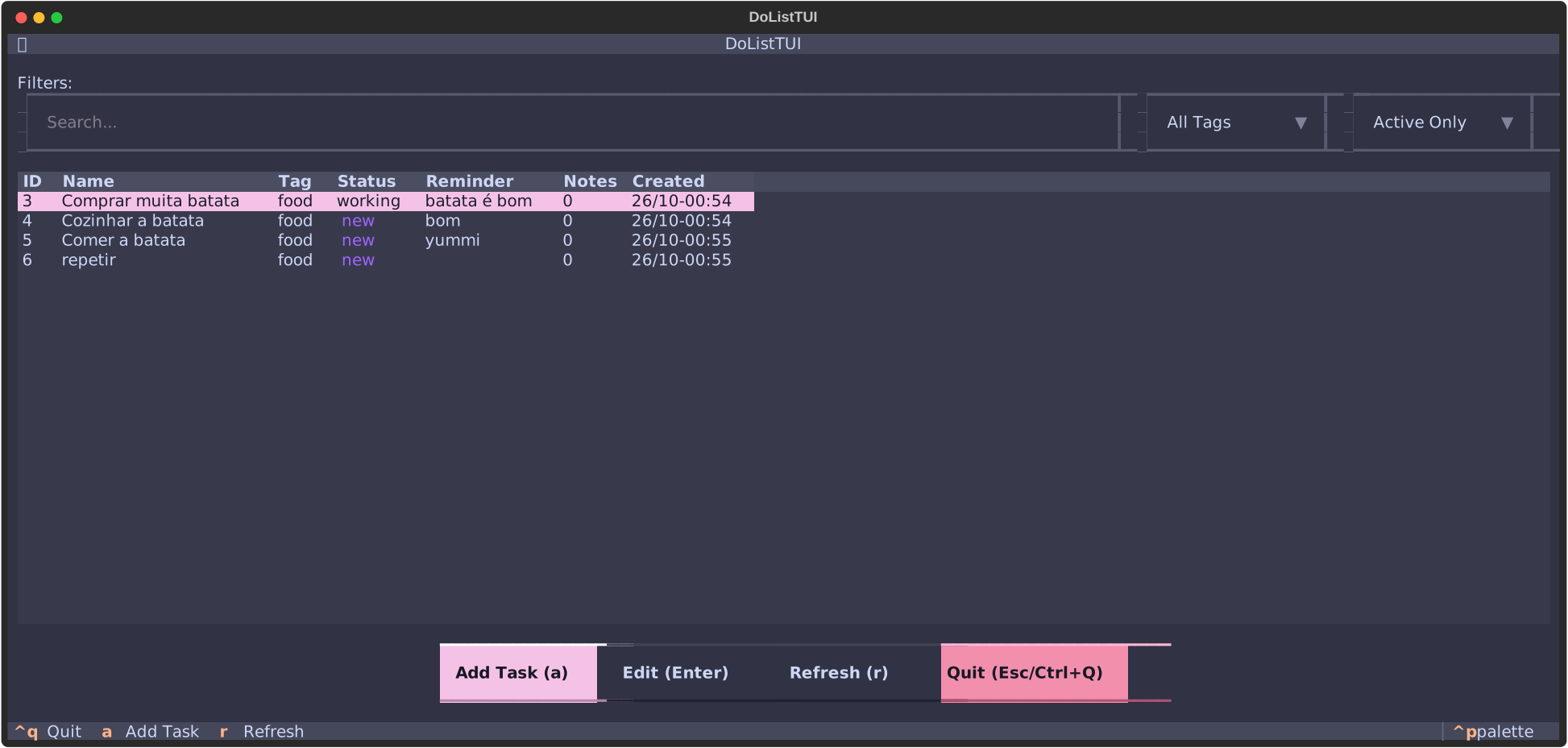
- 🖥️ Interactive TUI Mode with Textual for graphical terminal interface
- 🐍 Enhanced Python REPL with ptpython featuring syntax highlighting and auto-completion
- ✅ Data Validation with Pydantic models
- 🗄️ SQLite Database for local task storage
- 🏷️ Tag Support to organize tasks
- 📝 Notes on tasks with stdin support for piping content
- ⏰ Smart Reminders with flexible natural language parsing and background service
- 🔔 Desktop Notifications for due reminders (with custom handler support)
- 🔧 Systemd Integration for automatic reminder service
- 💾 Multiple Databases support
- 📥 Stdin Support for adding tasks and notes from pipes and files
Requirements
- Python 3.10 or higher
- uv package manager (recommended)
Installation
Option 1: Using uvx from PyPI (⭐ Recommended)
The easiest way to use DoList is with uvx - no installation or cloning needed:
# Run dolist commands directly from PyPI
uvx dolist --help
uvx dolist add "My first task"
uvx dolist ls

# Launch the interactive TUI
uvx dolist
This will automatically download and run the latest version from PyPI each time.
Option 2: Using uvx from GitHub
Run the latest development version directly from GitHub:
# Run dolist commands from GitHub
uvx --from git+https://github.com/rochacbruno/dolist dolist --help
uvx --from git+https://github.com/rochacbruno/dolist dolist add "My first task"
uvx --from git+https://github.com/rochacbruno/dolist dolist ls
Option 3: Install with uv/pip
For permanent installation:
# Install from PyPI
uv pip install dolist

# Or install from GitHub for latest development version
uv pip install git+https://github.com/rochacbruno/dolist

# Now dolist is available as a command
dolist --help
dolist add "My task"
dolist ls
Option 4: Development installation
# Clone the repository
git clone https://github.com/rochacbruno/dolist
cd dolist

# Install dependencies and set up the project
uv sync

# Run dolist
dolist --help

# Or install in development mode
uv pip install -e .
dolist --help
Usage
     ____        _ _     _
    |  _ \  ___ | (_)___| |_
    | | | |/ _ \| | / __| __|
    | |_| | (_) | | \__ \ |_
    |____/ \___/|_|_|___/\__|
⚡ Quick Reference
Most common operations:
dolist                           # Launch TUI
dolist --actions                 # List all available actions
dolist add "Task name"           # Add task
dolist ls                        # List active tasks
dolist 1 done                    # Mark task 1 as done
dolist 2 remind tomorrow         # Set reminder on task 2
dolist 3 start                   # Start working on task 3
dolist 4                         # Edit task 4 interactively
echo "Note" | dolist 5 note      # Add note from stdin
cat task.txt | dolist add        # Add task with notes from file
Command Reference
ID Shortcut Syntax
DoList supports a convenient shortcut for working with tasks by ID:
dolist <id> [action] [args]
Available actions:
remind <time>- Set a reminder (supports unquoted multi-word args)delay [time]- Delay reminder (default: 10 minutes)note <text>- Add a note (supports unquoted multi-word args and stdin)note --rm <index>- Remove a note by indexdone- Mark as donecancel- Mark as cancelledstart- Mark as in-progressnew- Reset to newpost- Mark as postponedshow- Show task details with notesedit- Open TUI with task selected for editingclear-reminder- Clear reminderdelete,rm- Delete taskget- Interactive Python shell for task- (no action) - Show task details
Examples:
dolist 1                           # Show task 1 details
dolist 2 done                      # Mark task 2 as done
dolist 3 remind tomorrow           # Set reminder (quoted or unquoted)
dolist 3 remind 2 hours            # Unquoted multi-word args work!
dolist 3 delay 1 hour              # Delay reminder by 1 hour
dolist 4 start                     # Start working on task 4
dolist 5 note This is my note      # Add note (unquoted!)
dolist 5 note "Or use quotes"      # Or use quotes
echo "Note from stdin" | dolist 5 note  # Add note from stdin
dolist 5 note --rm 0               # Remove first note
dolist 6 show                      # Show details of task 6
Command Syntax
Usage: dolist [ID] [ACTION] [ARGS] | dolist COMMAND [OPTIONS]

DoList - To-Do list on Command Line Interface

Core Commands:
  dolist                   # Launch interactive TUI (default)
  dolist --actions         # List all available actions
  dolist <id>              # Show task details
  dolist <id> <action>     # Perform action on task
  dolist add "Task"        # Add a new task
  dolist ls [OPTIONS]      # List tasks
  dolist shell             # Start Python REPL
  dolist service           # Manage reminder service
  dolist reset             # Reset database (with backup)

List Options:
  --all                    # Show all tasks (including done/cancelled)
  --tag <tag>              # Filter by tag
  --status <status>        # Filter by status
  --search <term>          # Search in task names
  --json                   # Output in JSON format
  --action <action>        # Bulk action on matching tasks
  --action-args <args>     # Arguments for bulk action
  -y, --yes                # Skip confirmation for bulk actions

Bulk Actions:
  dolist ls --status done --action delete          # Delete all done tasks
  dolist ls --search "bug" --action start          # Start all tasks with "bug"
  dolist ls --tag work --action remind --action-args "2 hours"
  dolist ls --search "old" --action cancel -y      # Skip confirmation

JSON Output:
  dolist ls --json                                 # All tasks as JSON
  dolist ls --status new --json | jq '.[].id'      # Extract IDs with jq
  dolist ls --search "test" --json                 # Search results as JSON

Note: Running 'dolist' without arguments launches the TUI by default.
Note: Command examples below show direct
dolistusage. If usinguvx, prefix withuvx dolist(from PyPI) oruvx --from git+https://github.com/rochacbruno/dolist dolist(from GitHub)
Quick Start Examples
1. Textual TUI Mode (Default)
The beautiful terminal user interface launches by default:
# Using uvx from PyPI (recommended)
uvx dolist

# Or from GitHub for latest development version
uvx --from git+https://github.com/rochacbruno/dolist dolist

# Or if installed
dolist
Features of TUI mode:
- 📊 Interactive table view of tasks with sortable columns
- ✏️ Add/Edit/Delete tasks via modal dialogs
- 🔍 Advanced search with vim-like
/syntax - 📋 Status filters with toggle buttons
- 🔄 Auto-refresh with configurable interval
- 🎯 Command palette for quick actions
- 💾 State preservation across refreshes
Keyboard Shortcuts
| Key | Action | Description |
|---|---|---|
a |
Add Task | Open dialog to create new task |
Enter |
Edit Task | Edit the selected task |
/ |
Search | Open vim-like search overlay |
: |
Commands | Open command palette for sorting and actions |
r |
Refresh | Manually refresh the task list |
Ctrl+Q |
Quit | Exit the TUI |
Esc |
Cancel | Close modals/overlays |
Search Syntax
The search overlay (/) supports powerful filtering:
| Syntax | Example | Description |
|---|---|---|
text |
/bug fix |
Filter tasks containing "bug fix" |
tag=value |
/tag=work |
Filter by single tag |
tag=a,b |
/tag=work,home |
Filter by multiple tags (OR logic) |
status=value |
/status=new |
Filter by single status |
status=a,b |
/status=new,done |
Filter by multiple statuses |
| Combined | /tag=work urgent |
Combine filters (tag=work AND text contains "urgent") |
Examples:
/bug- Find all tasks with "bug" in the name/tag=urgent- Show only tasks tagged "urgent"/status=new,in-progress- Show new or in-progress tasks/tag=work test- Show work tasks containing "test"
Command Palette
Press : to open the command palette with these commands:
| Command | Description |
|---|---|
| Sort by Name (A-Z) | Sort tasks alphabetically |
| Sort by Name (Z-A) | Sort tasks reverse alphabetically |
| Sort by Created (Oldest) | Sort by creation date (oldest first) |
| Sort by Created (Newest) | Sort by creation date (newest first) |
| Sort by Status | Sort by status |
| Sort by Tag | Sort by tag |
| Sort by ID | Sort by task ID |
| Refresh | Manually refresh the task list |
| Quit | Exit the TUI |
Column Sorting
Click on any column header to sort by that column:
- First click: Sort ascending (▲)
- Second click: Sort descending (▼)
Sortable columns: ID, Name, Tag, Status, Created
Status Filters
Use the status filter buttons at the top to toggle task visibility:
- All - Show all tasks (default shows active tasks only)
- New - Show only new tasks
- In Progress - Show only in-progress tasks
- Done - Show completed tasks
- Cancel - Show cancelled tasks
- Post - Show postponed tasks
Filters can be combined by clicking multiple buttons.
Auto-Refresh
Click the Auto-Refresh button to enable automatic task list updates every 30 seconds (configurable in ~/.config/dolist/config.toml):
[tui]
autorefresh_interval = 30  # seconds, 0 to disable
The button turns green when auto-refresh is enabled.
2. Interactive Python REPL (Enhanced with ptpython)
For advanced scripting and automation, launch the interactive Python shell:
dolist shell
Features of the modern REPL:
- 🎨 Syntax highlighting for Python code
- ⚡ Auto-completion with Tab key
- 📝 Signature hints for functions
- 🔍 History search with Ctrl+R
- ⌨️ Vi/Emacs mode toggle with F2
- 📊 Access to
tasklist,db, andtasksobjects
Example REPL session:
dolist >>> tasklist                           # View all tasks
[Task(id=1, name='Test task'...), ...]

dolist >>> tasklist[0].name                   # Get task name
'Test task for Python 3'

dolist >>> tasklist[0].update_status('done')  # Update task

dolist >>> [t.name for t in tasklist]         # List all names
['Test task for Python 3', 'Batata', ...]

dolist >>> quit()                             # Exit
3. Add a New Task
With all fields specified:
dolist add "Pay the telephone bill" --tag personal --status new --reminder today
With default values (tag=default, status=new, no reminder):
dolist add "Implement new features on my project"
Adding tasks from stdin (✨ New!):
You can pipe content to dolist add to create tasks with notes:
# From a file (first line = task name, remaining lines = notes)
cat task.txt | dolist add --tag work --reminder "2 hours"
dolist add --tag work --reminder "2 hours" < task.txt

# From echo (simple task without notes)
echo "Simple task" | dolist add --tag urgent

# Multi-line with echo
echo -e "Task name\nFirst note\nSecond note" | dolist add --tag work
When using stdin:
- The first line becomes the task name
- All remaining lines are automatically added as notes to the task
- Command-line options (
--tag,--reminder, etc.) work as usual
4. List Tasks
List all open tasks:
dolist ls
Example output with Rich tables:
  ID   Name                       Tag       Status   Reminder   Notes   Created
 ──────────────────────────────────────────────────────────────────────────────
  1    Pay telephone bill         personal  new      today      0       31/12-08:03
  2    Implement features         default   new               0       31/12-08:03

TOTAL: 2 tasks
Filter by tag:
dolist ls --tag personal
Search by name:
dolist ls --search phone
Filter by status:
dolist ls --status done
List all tasks (including done/cancelled):
dolist ls --all
JSON Output (✨ New!):
Export tasks as JSON for scripting and integration:
# Export all active tasks as JSON
dolist ls --json

# Filter and export
dolist ls --status new --json
dolist ls --tag work --json
dolist ls --search "bug" --json

# Pipe to jq for processing
dolist ls --json | jq '.[].id'                    # Extract all task IDs
dolist ls --json | jq '.[] | select(.status == "new")'  # Filter in jq
dolist ls --status new --json | jq -r '.[].name'   # Get task names only
Bulk Actions (✨ New!):
Perform actions on multiple tasks at once with confirmation:
# Delete all done tasks
dolist ls --status done --action delete

# Mark all tasks with "bug" as in-progress
dolist ls --search "bug" --action start

# Set reminder on all work tasks
dolist ls --tag work --action remind --action-args "tomorrow"

# Postpone all tasks in a specific tag
dolist ls --tag "low-priority" --action post

# Cancel all tasks matching search
dolist ls --search "cancelled meeting" --action cancel

# Skip confirmation with --yes flag (use with caution!)
dolist ls --status done --action delete --yes
dolist ls --search "old" --action cancel -y
By default, bulk actions require typing 'yes' to confirm before execution. Use the -y or --yes flag to bypass the confirmation prompt.
5. Quick Task Actions with ID Shortcuts
DoList provides an intuitive shortcut syntax: dolist <id> <action> [args]
# Change status quickly
dolist 1 done              # Mark task 1 as done
dolist 2 start             # Mark task 2 as in-progress
dolist 3 cancel            # Mark task 3 as cancelled
dolist 4 post              # Mark task 4 as postponed
dolist 5 new               # Reset task 5 to new

# Set reminders on existing tasks
dolist 1 remind tomorrow   # Set reminder for tomorrow
dolist 2 remind 2 hours    # Set reminder for 2 hours from now
dolist 3 remind next week  # Set reminder for next week

# Delay reminders
dolist 1 delay             # Delay reminder by 10 minutes (default)
dolist 2 delay 1 hour      # Delay reminder by 1 hour
dolist 3 delay 30 mins     # Delay reminder by 30 minutes

# Other quick actions
dolist 1                   # Show task 1 details
dolist 1 show              # Show task details (same as above)
dolist 1 edit              # Open TUI and edit task 1
dolist 2 clear-reminder    # Clear reminder
dolist 3 delete            # Delete task
dolist 4 get               # Interactive Python shell for task 4
Unquoted Multi-Word Arguments (✨ New!):
You can now pass multi-word arguments without quotes:
# Reminders
dolist 1 remind 2 hours           # No quotes needed!
dolist 2 remind next week         # Works naturally
dolist 3 delay 30 minutes         # Simple and intuitive

# Notes
dolist 4 note This is my amazing note     # No quotes required!
dolist 5 note "Or use quotes if you prefer"

# Manage notes
dolist 5 note --rm 0              # Remove first note
Available statuses: new, in-progress, done, cancel, post
6. Remove a Task
dolist rm 2
7. Reset Database (with Backup)
DoList provides a safe way to reset your database with automatic timestamped backup:
# Reset database with confirmation prompt
dolist reset

# Reset database without confirmation (use with caution)
dolist reset --yes

# Reset a specific database
dolist reset --use mydb
This command will:
- Ask for confirmation (unless
--yesflag is used) - Create a timestamped backup (e.g.,
tasks.db.backup_20231215_143022) - Delete the database file
- A new empty database will be created on next use
The backup file is stored in the same directory as your database (~/.config/dolist/ by default).
8. Smart Reminders
DoList provides a powerful reminder system with natural language parsing and a background service for notifications.
Setting Reminders
Use flexible, human-friendly syntax when adding or editing tasks:
# Special keywords
dolist add "Call dentist" --reminder today      # Today at 3:00 PM
dolist add "Team meeting" --reminder tomorrow   # Tomorrow at 9:00 AM

# Relative time with "next"
dolist add "Review PR" --reminder "next hour"
dolist add "Update docs" --reminder "next day"
dolist add "Sprint planning" --reminder "next week"
dolist add "Quarterly review" --reminder "next quarter"

# Specific durations (supports singular, plural, and abbreviations)
dolist add "Check email" --reminder "30 minutes"
dolist add "Lunch break" --reminder "2 hours"
dolist add "Follow up" --reminder "3 days"
dolist add "Project deadline" --reminder "2 weeks"
dolist add "Renewal" --reminder "6 months"

# Abbreviations work too!
dolist add "Quick task" --reminder "10 mins"    # 10 minutes
dolist add "Short break" --reminder "2 hrs"     # 2 hours
dolist add "Follow-up" --reminder "5 d"         # 5 days
Supported time units:
- Seconds:
sec,secs,s,second,seconds - Minutes:
min,mins,m,minute,minutes - Hours:
hr,hrs,h,ho,hour,hours - Days:
d,day,days - Weeks:
w,wk,wks,week,weeks - Months:
mo,mon,mos,month,months - Quarters:
q,qtr,quarter,quarters(3 months each) - Years:
y,yr,yrs,year,years - Decades:
decade,decades
Delaying Reminders
Need more time? Delay any reminder easily:
# Delay by default 10 minutes
dolist 1 delay

# Delay by custom amount
dolist 2 delay 1 hour
dolist 3 delay 30 minutes
dolist 4 delay tomorrow
In the TUI, use the "Delay 10min" button in the edit dialog.
Clearing Reminders
# Clear reminder from a specific task
dolist 5 clear-reminder
In the TUI, use the "Clear Reminder" button in the edit dialog.
Smart Display:
- When listing tasks, reminders show as "in 2 hours", "in 30 minutes", etc.
- Past reminders are automatically cleared when viewing task lists
- Done/cancelled tasks will not trigger reminder notifications
Running the Reminder Service
The reminder service monitors your tasks and sends notifications when they're due:
# Run service manually (foreground)
dolist service

# Install as systemd service (runs automatically)
dolist service --enable

# Check service status
systemctl --user status dolist-reminder.service

# Stop the service
systemctl --user stop dolist-reminder.service
What happens when a reminder is due?
By default, DoList uses notify-send to display desktop notifications with:
- Task name as the title
- Tag, status, and note count in the body
- 10-second display duration
- Service checks every 30 seconds for due reminders
- Done/cancelled tasks are excluded from reminder notifications
Custom Reminder Handlers
You can create custom handlers for reminders by setting reminder_cmd in your config file (~/.config/dolist/config.toml):
[reminders]
reminder_cmd = "/path/to/custom/handler"
Your custom handler will receive task data as JSON via stdin:
{
  "id": 1,
  "name": "Task name",
  "tag": "work",
  "status": "in-progress",
  "reminder": "2 hours",
  "notes": ["Note 1", "Note 2"],
  "created_on": "2024-01-15T10:30:00"
}
Example custom handler (Python):
#!/usr/bin/env python
import json
import sys
import subprocess

# Read task data
task = json.load(sys.stdin)

# Send to Slack, email, or your preferred notification system
subprocess.run([
    'curl', '-X', 'POST', 'YOUR_WEBHOOK_URL',
    '-H', 'Content-Type: application/json',
    '-d', json.dumps({'text': f"Reminder: {task['name']}"})
])
9. Edit a Task in Interactive Shell
For advanced task manipulation, you can use the interactive Python shell:
dolist 3 get
Interactive session with Pydantic Task model:
$ dolist 3 get
To show the task
>>> print(task)
Task(id=3, name=Pay telephone bill, tag=personal, status=new)

To show a field (available: name, tag, status, reminder, notes)
>>> task.name
'Pay telephone bill'
>>> task.status
'new'

To edit the task using update methods
>>> task.update_name("Other name")
>>> task.update_status("working")
>>> task.status
'working'

To delete a task
>>> task.delete()

To exit
>>> quit()
Managing Notes
You can add notes to tasks using their ID (visible in dolist ls output).
Adding a Note
Add a note directly as an argument:
dolist 1 note "This is the note for task 1"
Adding notes from stdin (✨ New!):
You can also pipe content to add notes:
# From echo
echo "Hello World" | dolist 1 note

# From a file
cat notes.txt | dolist 9 note

# Multi-line notes (preserved as-is)
echo -e "Multi-line note\nwith several lines\nof content" | dolist 1 note
The above command inserts the note and prints the task with notes:
  ID   Name    Tag       Status   Reminder   Created
 ───────────────────────────────────────────────────
  1    teste   default   new                 01/01-02:14

NOTES:
  [0] This is the note for task 1

Total: 1 note(s)
Viewing Notes
Show all notes for a task:
dolist 1 show
Or simply:
dolist 1
Example output:
  ID   Name    Tag       Status   Reminder   Created
 ───────────────────────────────────────────────────
  1    teste   default   new                 01/01-02:14

NOTES:
  [0] This is the note for task 1
  [1] This is another note for task 1

Total: 2 note(s)
Removing a Note
Notes can be removed by their index number using the --rm flag:
dolist 1 note --rm 0
Multiple Databases
You can use multiple databases by specifying the --use argument.
Create/use a different database:
dolist add "Including on another db" --use mynewdb
This creates a new database called "mynewdb" if it doesn't exist.
List tasks from specific database:
dolist ls --all --use mynewdb
Note: You can also change the default database in the
~/.config/dolist/config.tomlconfiguration file.
Testing
This project includes a comprehensive test suite with 127 tests, all passing!
# Run all tests
uv run pytest

# Run with verbose output
uv run pytest -v
Test Coverage: 127 tests covering all major components
- ✅ Colors module (22 tests)
- ✅ Database module (12 tests)
- ✅ Print table module (33 tests)
- ✅ Task model with Pydantic (18 tests)
- ✅ Main application with Cyclopts (21 tests)
- ✅ New CLI features (21 tests) - New!
See README_TESTS.md for detailed testing documentation.
Development
Project Structure
dolist/
├── dolist/              # Main package
│   ├── __init__.py    # Package initialization
│   ├── do.py          # Main application & Cyclopts CLI
│   ├── database.py    # Lightweight SQLite database wrapper
│   ├── taskmodel.py   # Pydantic Task model
│   ├── colors.py      # Color formatting helpers
│   ├── printtable.py  # Legacy table rendering
│   ├── rich_table.py  # Rich table rendering
│   └── tui.py         # Textual TUI application
├── tests/             # Test suite (127 tests)
│   ├── test_colors.py      # Color function tests (22 tests)
│   ├── test_database.py    # Database layer tests (12 tests)
│   ├── test_printtable.py  # Table rendering tests (33 tests)
│   ├── test_taskmodel.py   # Task model tests (18 tests)
│   ├── test_do.py          # Main app tests (21 tests)
│   └── test_new_features.py # New CLI features tests (21 tests)
├── pyproject.toml     # Modern Python packaging
├── pytest.ini         # Pytest configuration
└── README_TESTS.md    # Testing documentation
Modern Stack
This project has been modernized with:
- Cyclopts - Modern CLI framework with type hints (replaced docopt)
- Rich - Beautiful terminal output and tables
- Textual - Terminal user interface framework
- ptpython - Enhanced Python REPL with syntax highlighting and auto-completion
- Pydantic - Data validation and settings management
- uv - Fast Python package manager
- pytest - Modern testing framework
Contributing
- Fork the repository
- Create a feature branch
- Make your changes
- Run tests:
uv run pytest - Ensure all 127 tests pass
- Submit a pull request
Python Version Support
- Python 3.10+: Fully supported with modern dependencies
- Python 2.7: No longer supported (legacy version deprecated)
Architecture
Task Model
The Task model is now powered by Pydantic with:
- Field validation (status must be one of: new, in-progress, done, cancel, post)
- Type hints for all fields
- Automatic serialization/deserialization
- Methods for database updates:
update_name(),update_status(),add_note(), etc.
CLI Structure
The CLI uses Cyclopts for:
- Type-safe command definitions
- Automatic help generation
- Parameter validation
- Sub-command routing
Database
Uses a lightweight SQLite wrapper that:
- Supports multiple databases via
--useflag - Stores data in
~/.config/dolist/tasks.dbby default (or$XDG_CONFIG_HOME/dolist/tasks.db) - Configuration in
~/.config/dolist/config.toml(TOML format) - Backwards compatible with legacy
~/.dopy/dopy.dblocation


License
This project is open source. See the repository for license details.
Roadmap
- Migrate from docopt to Cyclopts ✅
- Add Rich table rendering ✅
- Create Textual TUI mode ✅
- Implement Pydantic models ✅
- Lightweight SQLite database wrapper ✅
- Comprehensive test suite (105 tests) ✅
- Smart reminders with natural language parsing ✅
- Background reminder service with systemd support ✅
- Desktop notifications for reminders ✅
- Add export functionality (JSON, CSV, HTML)
- Implement task priorities
- Add recurring tasks
- Cloud sync support (Dropbox, Google Drive)
- Integration with external services (Todoist, Google Tasks)
- Advanced filtering and sorting options
- Task dependencies and subtasks
Project details


Download files
Download the file for your platform. If you're not sure which to choose, learn more about installing packages.
Source Distribution
Built Distribution
Filter files by name, interpreter, ABI, and platform.
If you're not sure about the file name format, learn more about wheel file names.
Copy a direct link to the current filters
File details
Details for the file dolist-0.4.2.tar.gz.
File metadata
- Download URL: dolist-0.4.2.tar.gz
- Upload date:
- Size: 839.8 kB
- Tags: Source
- Uploaded using Trusted Publishing? No
- Uploaded via: uv/0.9.2
File hashes
| Algorithm | Hash digest | |
|---|---|---|
| SHA256 |
c737160e8b026c1898909e623e9d02bf5d82719c9eada904e1c9bc22ad37acec
|
|
| MD5 |
ab3ac72b554eab463e92006886a41e4c
|
|
| BLAKE2b-256 |
f14395d13fa79c1d8061255191157a999f5fa7cba56d09ca1e1c49a1aaa85392
|
File details
Details for the file dolist-0.4.2-py3-none-any.whl.
File metadata
- Download URL: dolist-0.4.2-py3-none-any.whl
- Upload date:
- Size: 48.8 kB
- Tags: Python 3
- Uploaded using Trusted Publishing? No
- Uploaded via: uv/0.9.2
File hashes
| Algorithm | Hash digest | |
|---|---|---|
| SHA256 |
e212672280771e28af4f642f5996670d275bd916992419c05f62af72277e46d0
|
|
| MD5 |
c19074b3533e2c98519f32d068757659
|
|
| BLAKE2b-256 |
c5c3970f154a62962908fba06333c486827ca817513aff5ebc772dbd7f354b5e
|






