
dtxWiki
Give your AI the knowledge you've already built.
Website · Documentation · PyPI · 한국어
dtxWiki connects your notes, source materials, and decisions in a knowledge base that you and your AI tools can use together. Keep your reasoning and references within reach, and build on them when the next task begins.
Write and connect Markdown pages in Context, organize reference materials in Library, and connect supported AI apps through MCP (Model Context Protocol). They can find, read, and update the same knowledge you work with, within the access you grant.
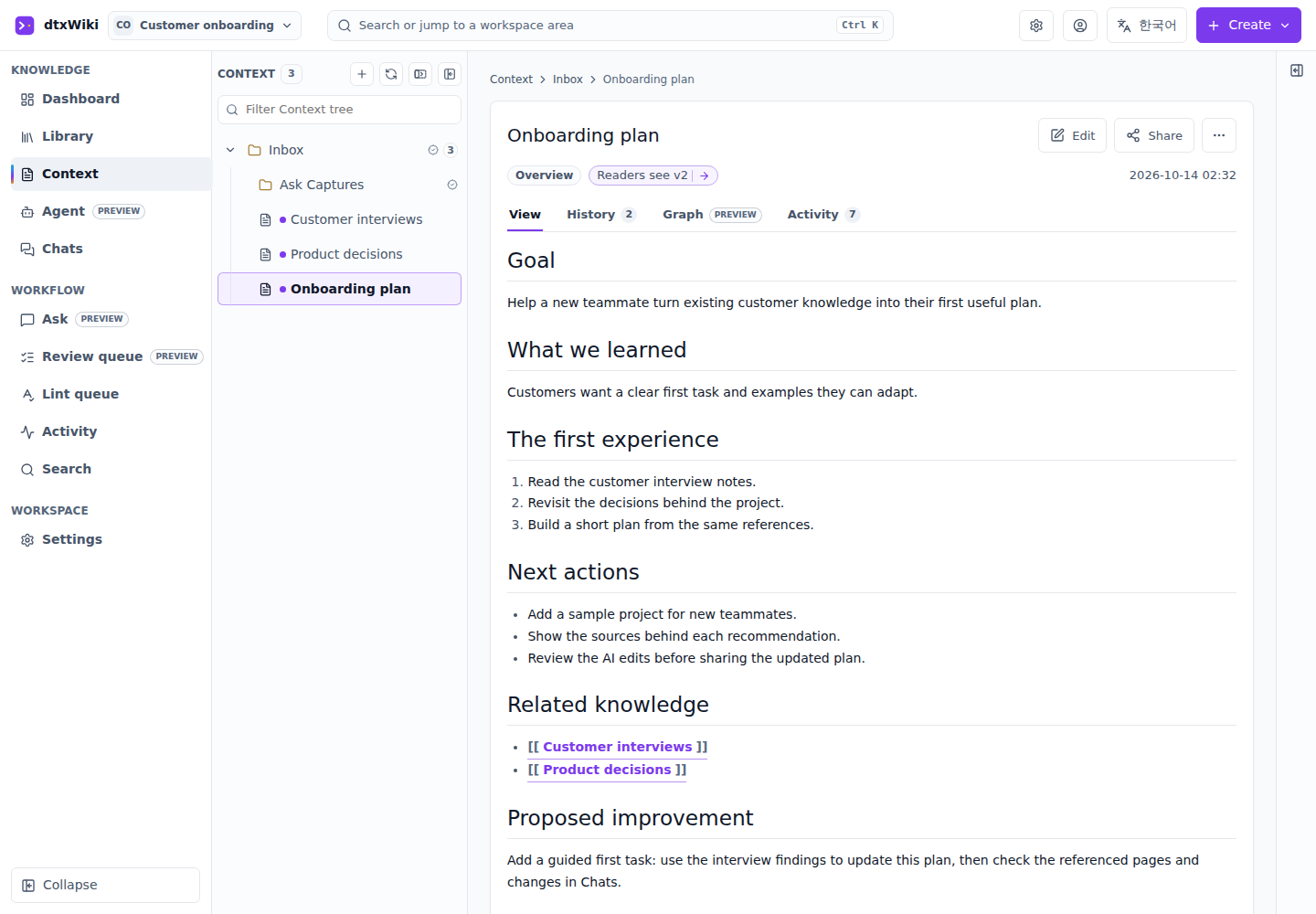
Context preview: an actual dtxWiki screen with sample project content.
Less explaining, more building
- Reuse the background you've already prepared. Keep research, requirements, and earlier decisions available across tasks. Ask your connected AI tool to find the relevant context before helping with the next step.
- Keep the reasoning with the result. Connect a plan to the interviews, notes, and decisions behind it. When you return to a project, you can understand how it got there as well as what needs to happen next.
- See what your AI did. Chats shows the searches, reads, and updates performed through dtxWiki's MCP tools. Inspect each call's inputs, results, and linked materials, and review changes in document history. Chats records tool actions, not full conversations from your AI app.
- Find your place when you return. Mark pages as personal favorites and spot recent content changes and review states in the explorer.
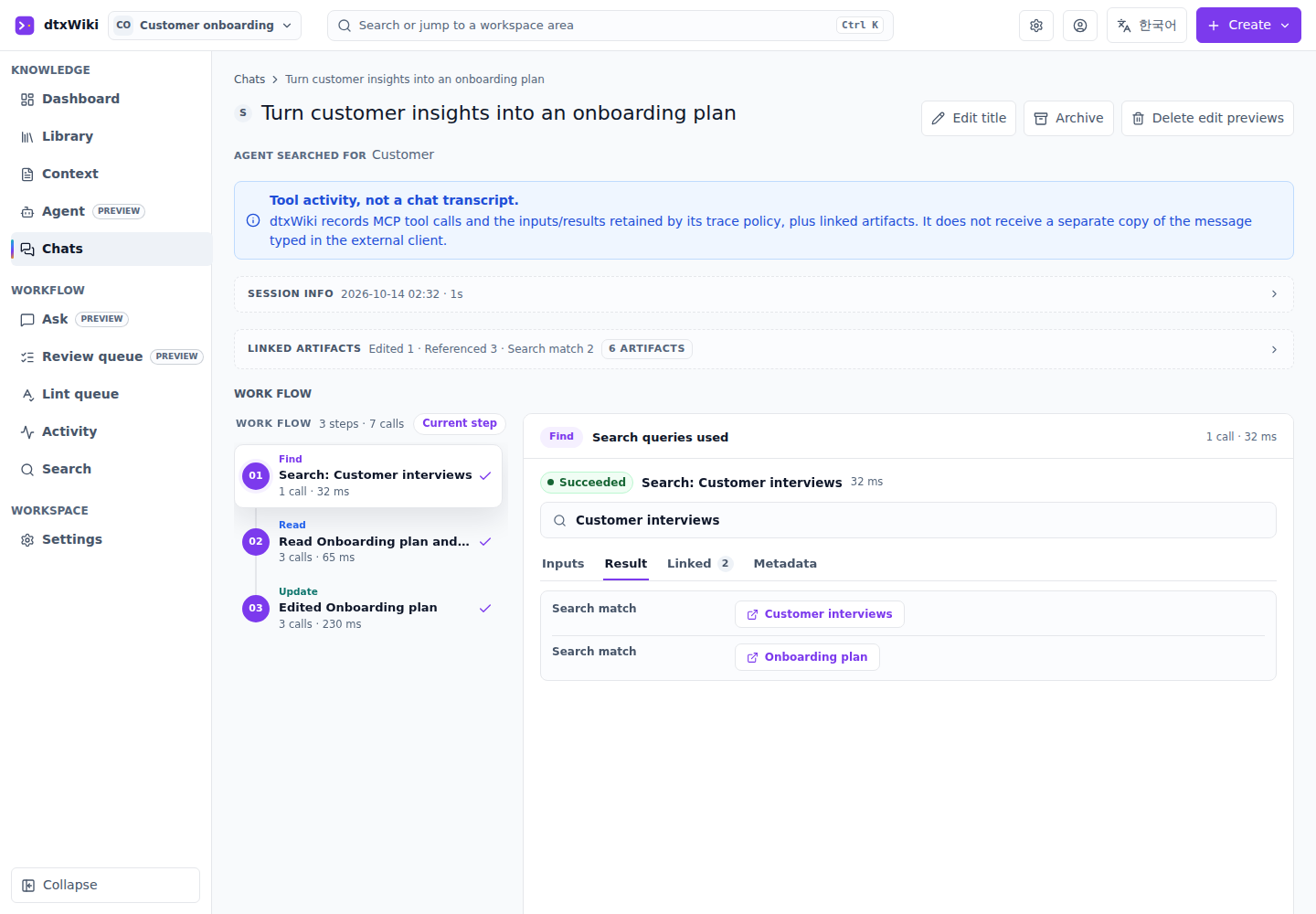
Chats preview: recorded tool activity from a sample MCP session.
Run dtxWiki on your own computer or a server you manage. Share a workspace with teammates and choose what people and connected AI tools can access. You can also write, organize, and search without an AI account or API key.
Get started
This guide is for dtxWiki 0.1.3. Start on your own computer, then follow Access from other devices and Run in the background to share it with others. To register Claude Code or Codex CLI, follow Connect MCP clients. For an existing installation, read Upgrading to 0.1.3 before starting the new server.
1. Install and start the web server
Install uv, then run:
uv tool install --python 3.12 "dtxwiki==0.1.3"
dtxwiki
uv downloads Python 3.12 if needed. If dtxwiki is not found, run
uv tool update-shell, open a new terminal, and run dtxwiki again.
The browser opens http://127.0.0.1:21080/.
If it does not, open that address yourself. It is accessible only from this
computer. Keep the terminal open while using dtxWiki; Ctrl+C stops it.
One command starts the web server and its worker together. File processing
and other queued work run automatically; do not start a separate worker.
Your data is stored in the .dtxwiki folder in your home directory by default.
Use pipx or npm instead of uv
| Method | Requirements | Install and start |
|---|---|---|
| pipx | pipx and Python 3.12 or newer | pipx install dtxwiki==0.1.3, then dtxwiki |
| npm | Node.js 22 or newer, plus uv, or pipx with Python 3.12 or newer | npx @dtxsuite/dtxwiki@0.1.3 |
With npm, replace dtxwiki in foreground CLI commands with
npx @dtxsuite/dtxwiki@0.1.3. The manual background examples below use a direct
uv/pipx installation. See the npm guide
for launcher details.
2. Grant server administrator access
There is no pre-created administrator. A workspace owner is not automatically a
server-admin; Settings > Deployment and User accounts need that separate
permission. Stop the foreground server with Ctrl+C, then run these commands
as the same OS user with the same data settings:
dtxwiki users add you@example.com
dtxwiki admin grant --email you@example.com
dtxwiki admin list
dtxwiki
Replace the email with yours. users add prompts for a password of at least
8 characters. Skip that command if the account already exists. Do not add sudo
to these local commands: it can select another user's data. After restarting,
use http://127.0.0.1:21080/ and refresh the browser
to load the new permissions.
A server-admin manages the instance. Sharing documents still requires adding people to the workspace and assigning their roles.
3. Access from other devices
For a trial on a trusted network, stop the current dtxWiki command. Create an account for each teammate before disabling public sign-up:
dtxwiki users add teammate@example.com
The command asks for a password. Start the server using its reachable IP
address; replace 192.168.1.20 below with this computer's network IP:
export DTXWIKI_SIGNUP_ENABLED=false
export DTXWIKI_PUBLIC_BASE_URL=http://192.168.1.20:21080
export DTXWIKI_ALLOWED_HOSTS=192.168.1.20
dtxwiki serve --host 0.0.0.0 --port 21080 --no-open
In PowerShell:
$env:DTXWIKI_SIGNUP_ENABLED = 'false'
$env:DTXWIKI_PUBLIC_BASE_URL = 'http://192.168.1.20:21080'
$env:DTXWIKI_ALLOWED_HOSTS = '192.168.1.20'
dtxwiki serve --host 0.0.0.0 --port 21080 --no-open
On the other device, open http://192.168.1.20:21080/ and sign in with the
account you created. As the workspace owner, open Settings > Members & access
and add that account with the role it needs. Creating an account or granting
server-admin permission does not automatically share workspace content.
- Allow incoming TCP 21080 in the server's firewall. WSL or a virtual machine may also need port forwarding.
- For access from another network, use a reachable public IP and forward the
router's external port to this server. Set
DTXWIKI_PUBLIC_BASE_URLto the actual browser URL, including the external port, and allow its host inDTXWIKI_ALLOWED_HOSTS. 0.0.0.0is the listening address, not a browser URL. HTTP does not encrypt passwords or content; use it for a temporary trial. For regular internet access, use the HTTPS setup below.
An HTTPS server for shared use
Use an Ubuntu 22.04+ server with sudo, point your domain's DNS to it, and
allow incoming TCP 80 and 443. On the server, download the 0.1.3 installer
and its release wheel, then replace the domain and administrator email:
sudo apt-get update
sudo apt-get install -y curl ca-certificates
curl -fL https://raw.githubusercontent.com/dtxSuite/dtxWiki/v0.1.3/infra/prod/install.sh -o install-dtxwiki.sh
curl -fL https://github.com/dtxSuite/dtxWiki/releases/download/v0.1.3/dtxwiki-0.1.3-py3-none-any.whl -o /tmp/dtxwiki-0.1.3-py3-none-any.whl
chmod 0644 /tmp/dtxwiki-0.1.3-py3-none-any.whl
sudo bash install-dtxwiki.sh \
  --domain wiki.example.com \
  --email admin@example.com \
  --tls acme \
  --wheel /tmp/dtxwiki-0.1.3-py3-none-any.whl
The installer prepares Python, HTTPS, an administrator account, and services
that start after reboot. Sign in at https://wiki.example.com/ with the
one-time temporary password printed by the installer, then change it in
Account > Update password. AI clients use https://wiki.example.com/mcp.
Create team accounts with sudo dtxwiki users add teammate@example.com, then
add them to the workspace in Settings > Members & access.
This installation manages the server and worker as separate systemd services; it configures that mode for you. Do not launch another worker manually. Use the deployment guide for private certificates, an existing proxy, or a package mirror.
4. Run in the background
Local uv/pipx installation: Linux or macOS
Stop the foreground server before starting another instance. Use the same OS
account and data settings. For access from other devices, keep the environment
variables from step 3 and add --host 0.0.0.0 --port 21080 after serve --no-open.
umask 077
DTXWIKI_RUN_DIR="${DTXWIKI_DATA_DIR:-$HOME/.dtxwiki}/run"
mkdir -p "$DTXWIKI_RUN_DIR"
nohup dtxwiki serve --no-open > "$DTXWIKI_RUN_DIR/server.log" 2>&1 < /dev/null &
echo "$!" > "$DTXWIKI_RUN_DIR/server.pid"
You can close the terminal. In a new shell, set DTXWIKI_RUN_DIR again using the
line above, then check the process, readiness, and log:
ps -p "$(cat "$DTXWIKI_RUN_DIR/server.pid")" -o pid,args
curl -fsS http://127.0.0.1:21080/health/ready
tail -f "$DTXWIKI_RUN_DIR/server.log"
Ctrl+C stops following the log. A ready response includes
components.worker=ok. After checking that the saved PID still belongs to your
dtxWiki server, stop it with:
kill -TERM "$(cat "$DTXWIKI_RUN_DIR/server.pid")"
The managed worker stops with the server. Confirm exit before removing the PID
file or restarting. nohup survives terminal closure but does not restart the
app after a crash or reboot; use the HTTPS service installation for that.
Local uv/pipx installation: Windows PowerShell
From a terminal with the same data and network environment settings, run:
Start-Process dtxwiki -ArgumentList 'serve','--no-open'
dtxWiki runs in a separate console window, and its worker starts automatically.
For network access, add '--host','0.0.0.0','--port','21080' to -ArgumentList
and keep the environment variables from step 3. You can close the original
PowerShell window; press Ctrl+C in the server's window to stop both processes.
This does not configure startup after reboot.
HTTPS installation: systemd services
The installer already starts the services and enables startup after reboot. You can close SSH. Run these commands on the server as needed:
sudo systemctl status dtxwiki dtxwiki-worker caddy
sudo journalctl -u dtxwiki -u dtxwiki-worker -f
sudo systemctl restart dtxwiki dtxwiki-worker
sudo systemctl stop dtxwiki dtxwiki-worker
sudo systemctl start dtxwiki dtxwiki-worker
Ctrl+C stops following the journal; it does not stop the services.
5. Connect MCP clients
Keep dtxWiki running and install Claude Code or Codex CLI on the client computer. The examples below connect to its Streamable HTTP endpoint using an access key (personal access token, or PAT).
Run client registration commands on the computer where the AI client runs, not on the dtxWiki server. Choose an endpoint that computer can reach. For LAN or HTTPS server setup, follow Access from other devices.
| Where the client runs | MCP URL |
|---|---|
| Same computer as dtxWiki | http://127.0.0.1:21080/mcp |
| Another computer on the trusted LAN | http://192.168.1.20:21080/mcp |
| Remote/cloud connector | https://wiki.example.com/mcp |
127.0.0.1 always means the client's own computer. The endpoint ends in /mcp;
it is not the browser root URL or /api/v1. Cloud connectors cannot reach your
loopback or private LAN address, and their full OAuth flow is not yet verified
for this release. Start with an access key for Claude Code or Codex CLI.
Create an access key
- Sign in to the target dtxWiki server with the account the client should use. In Settings > MCP access, choose your AI app and Access Key.
- Name the key, choose its permissions, and select at least one workspace it may access. Apply the workspace selection.
- Click Generate access key, then use the generated setup instructions. Keys created on this screen are shown once and expire after 90 days.
| Permission | What it enables |
|---|---|
| Read | Search and read accessible content. |
| Write | Create or edit Context drafts and submit them for review. |
| Run AI | Build Agent input bundles and create Agent drafts. It does not replace Write for Context editing. |
For Context editing, select Write even if Run AI is already enabled. Write and Run AI require an Editor or Owner role in every selected workspace. Viewers should select Read only. Server-admin permission does not replace workspace membership.
The commands below are a manual alternative to the generated setup. In a Bash/zsh terminal on the client computer, set these variables, replacing the URL and key. For PowerShell, use the commands in the expandable section below.
export DTXWIKI_MCP_URL='http://127.0.0.1:21080/mcp'
export DTXWIKI_MCP_PAT='<YOUR_ACCESS_KEY>'
Claude Code
claude mcp add --scope user --transport http dtxwiki "$DTXWIKI_MCP_URL" \
  --header "Authorization: Bearer $DTXWIKI_MCP_PAT"
Restart Claude Code and check /mcp. The authorization header is stored in its
user configuration. To replace an existing registration, remove it with
claude mcp remove --scope user dtxwiki, then add it again with the new key or URL.
Codex CLI
codex mcp add dtxwiki --url "$DTXWIKI_MCP_URL" \
  --bearer-token-env-var DTXWIKI_MCP_PAT
Start Codex from this terminal and check /mcp. Codex stores the environment
variable's name, so DTXWIKI_MCP_PAT must be set each time Codex starts.
A new terminal or desktop launcher does not inherit variables from this shell.
Replace an existing registration with codex mcp remove dtxwiki, then add it again.
PowerShell commands
Set the variables, then run only the registration command for the client you use:
$env:DTXWIKI_MCP_URL = 'http://127.0.0.1:21080/mcp'
$env:DTXWIKI_MCP_PAT = '<YOUR_ACCESS_KEY>'
claude mcp add --scope user --transport http dtxwiki $env:DTXWIKI_MCP_URL --header "Authorization: Bearer $env:DTXWIKI_MCP_PAT"
codex mcp add dtxwiki --url $env:DTXWIKI_MCP_URL --bearer-token-env-var DTXWIKI_MCP_PAT
Launch the client from this PowerShell session. Set the token variable again in a new session before starting Codex.
Verify workspace access
A client reporting a connected server does not prove workspace or write access. Ask the client:
Use dtxWiki to list the workspaces I can access. In
<workspace name>, read the workspace guide, then find and read<page title>.
Replace the placeholders with a workspace and page you can access, then confirm that the guide and page are returned. Editors and Owners can also inspect the calls in Chats in that workspace; Viewers do not have access to Chats. If edits are refused, check the key's Write scope, allowed workspaces, and account role. Context changes are prepared as drafts for review.
You can change an existing key's allowed workspaces in Settings > MCP access without registering the client again. For the permission rules, see MCP workspace access in the deployment guide (Korean). Other clients and OAuth compatibility are covered in Connect an AI app.
If setup gets stuck
| Symptom | Check |
|---|---|
dtxwiki command not found |
Run uv tool update-shell and open a new terminal. |
| Local access works, another device cannot connect | Bind with --host 0.0.0.0; check TCP 21080, router forwarding, and WSL/VM forwarding. |
| Host validation rejects an IP or domain | Set DTXWIKI_PUBLIC_BASE_URL to the browser-visible base URL and add other IPs/names to DTXWIKI_ALLOWED_HOSTS. Do not use /mcp or 0.0.0.0 as the base URL. Restart after changing environment variables. |
admin grant cannot find the account |
Use the same OS user and data directory as the server, and make sure the account already exists. |
| A command says storage is still active | Stop the running dtxWiki instance before maintenance; do not delete lock files to bypass it. |
| MCP returns 401 or the client loses authentication | Check the Bearer key, expiry, and whether the client process has its token environment variable. |
| MCP can read but cannot write, or returns 403 | Check Write scope, allowed workspaces, workspace role, and whether the connection is blocked in MCP access settings. |
| A worker error stops the server | Read server.log or the systemd journal and fix the reported error. Starting another worker alongside the managed runtime will not repair it. |
Upgrading to 0.1.3
For systemd or Docker installations, follow the
maintenance guide
for the deployment-specific update steps. For local installations, read the
release notes, stop
the server and every separately managed worker, then back up the database,
files, and configuration. Install 0.1.3 using your existing installation method
without starting the new server. For an existing uv installation, use
uv tool install --force --python 3.12 "dtxwiki==0.1.3".
Using the server's OS account, environment settings, and database, run the new version's audit before starting it:
dtxwiki inputs audit
The audit changes neither data nor schema. Exit code 0 means no upgrade
blockers; preserved historical findings may remain. 1 means current metadata
violates the new constraints; 2 means the database could not be audited.
Repair the reported values explicitly by UUID with dtxwiki users set-display-name,
dtxwiki users set-email, or dtxwiki inputs repair-metadata, then rerun the
audit until it exits 0. Each command provides --help and --db.
Display names allow 1–32 Unicode code points; email allows at most 254 UTF-8
bytes in total, with at most 64 before @. Existing passwords longer than
128 Unicode code points cannot be used for login or reauthentication. Use
password recovery or administrator recovery to set a new password of 8–128
code points.
If a process manager runs a separate worker, set DTXWIKI_WORKER_MODE=external
before starting the upgraded web server. The systemd updater sets this
automatically; Docker images already default to external mode. Restart MCP
clients after upgrading so they reload the updated tool definitions. Rollback
requires the matching application version and its pre-upgrade database backup.
Further reading
| What you need | Guide |
|---|---|
| SMTP, verification, and password-recovery mail | Email and SMTP |
| Password recovery and workspace access | Accounts and workspace access |
| Backups, updates, and restoring data | Backups and maintenance |
| Startup or connection problems | Troubleshooting |
See the full documentation for more workflows.
Get involved
Share a use case, suggest an improvement, or report a problem on GitHub. For code and documentation contributions, see the contribution guide.
License
dtxWiki is available under your choice of AGPL-3.0-only OR Elastic-2.0. See LICENSE for the terms, third-party notices, and commercial licensing options.
1 maintainer

Metadata
1 maintainer
Release files for dtxwiki 0.1.3
For a detailed explanation of source distributions (sdists) and built distributions (wheels), please see the package formats documentation.
Source distribution (sdist)
| File | Size | Uploaded | Provenance | |
|---|---|---|---|---|
| dtxwiki-0.1.3.tar.gz | 5.3 MB | With provenance | Details |
Built distribution (wheel)
| File | Interpreter | ABI | Platform | Reset |
|---|---|---|---|---|
| dtxwiki-0.1.3-py3-none-any.whl | Python 3 | none | any | Details |
Total release size: 10.9 MB
Release files / dtxwiki-0.1.3.tar.gz
| Download URL | dtxwiki-0.1.3.tar.gz |
|---|---|
| Size | 5.3 MB |
| Tags | Source |
|
SHA-256 checksum How to use checksums |
be42fb0f06e16529ce2bcb94e3b19e19af1503cb88e913f61937ce39712b5b2e
|
|
BLAKE2b-256 checksum How to use checksums |
e7b44a026d9f85438462ad39f59f731a90bfa6329b29ad1f2f36f757201eb546
|
| Upload date | |
|
Uploaded using Trusted Publishing? What is trusted publishing? |
Yes |
| Uploaded via |
twine/7.0.0 CPython/3.13.16
|
Provenance
Provenance describes where a file came from. On PyPI, provenance is shared via attestations, which provide a verifiable record of the build or publishing details. View details, limitations and caveats.


PyPI Publish Attestation
PyPI verified that this artifact, at this checksum, originated from the publisher listed below.
Signed by GitHub Actions, verified by PyPI on Oct 23, 2026.
Transparency logRelease files / dtxwiki-0.1.3-py3-none-any.whl
| Download URL | dtxwiki-0.1.3-py3-none-any.whl |
|---|---|
| Size | 5.6 MB |
| Tags | Python 3 |
|
SHA-256 checksum How to use checksums |
3c3d414266db4231b62d9d562e8444c54c5ca71eb93b8ad58b89677ed9151bce
|
|
BLAKE2b-256 checksum How to use checksums |
66fa4cd5c82b315999bd03839d39da06bb316e79088b37bc80124366e76f111a
|
| Upload date | |
|
Uploaded using Trusted Publishing? What is trusted publishing? |
Yes |
| Uploaded via |
twine/7.0.0 CPython/3.13.16
|
Provenance
Provenance describes where a file came from. On PyPI, provenance is shared via attestations, which provide a verifiable record of the build or publishing details. View details, limitations and caveats.
PyPI Publish Attestation
PyPI verified that this artifact, at this checksum, originated from the publisher listed below.
Signed by GitHub Actions, verified by PyPI on Oct 23, 2026.
Transparency logSecurity for dtxwiki 0.1.3
Provenance
Provenance describes where a file came from. On PyPI, provenance is shared via attestations, which provide a verifiable record of the build or publishing details. View details, limitations and caveats.
Full provenance
All 2 files in this release have been uploaded with provenance metadata.
Attestation for dtxwiki-0.1.3.tar.gz
PyPI Publish Attestation
PyPI verified that this artifact, at this checksum, originated from the publisher listed below.
Signed by GitHub Actions, verified by PyPI on Oct 23, 2026.
Transparency logA note on package security
PyPI is a repository for distributing packages, not a service for auditing them. While third-party security researchers and our staff do their best to detect and remove malicious packages, PyPI cannot guarantee the quality, security or suitability of any given package.
To learn more about protecting yourself from malicious actors, visit our package security documentation.














