
dynimg
A fast library and CLI for rendering HTML/CSS to images. Use from Python, Rust, or the command line. Built on Blitz, a modular Rust rendering engine.
Perfect for generating dynamic images like Open Graph (OG) images, social media cards, email headers, and more.
Example Output
 |
 |
Features
- Python + Rust + CLI: Use from Python, as a Rust library, or command-line tool
- Multiple output formats: PNG, WebP (lossless), and JPEG
- Transparent backgrounds: PNG and WebP support transparency (JPEG uses white)
- High-quality rendering: Configurable scale factor for retina displays
- Fast: Native Rust performance with no browser overhead
- Secure by default: Network and filesystem access disabled unless explicitly enabled
Installation
Python
pip install dynimg
Rust CLI
cargo install dynimg
Rust Library
[dependencies]
dynimg = "0.1"
tokio = { version = "1", features = ["rt-multi-thread", "macros"] }
Library Usage
use dynimg::{render, RenderOptions};

#[tokio::main]
async fn main() -> Result<(), dynimg::Error> {
    let html = r#"
        <html>
        <body style="background: linear-gradient(135deg, #667eea, #764ba2);
                     display: flex; justify-content: center; align-items: center;
                     height: 630px; margin: 0;">
            <h1 style="color: white; font-family: system-ui; font-size: 64px;">
                Hello World
            </h1>
        </body>
        </html>
    "#;

    // Render with default options (1200×auto viewport, 2x scale)
    let image = render(html, RenderOptions::default()).await?;

    // Save as PNG
    image.save_png("output.png")?;

    // Or get raw bytes
    let png_bytes = image.to_png()?;
    let webp_bytes = image.to_webp();
    let jpeg_bytes = image.to_jpeg(90)?;

    Ok(())
}
Configuration
use dynimg::RenderOptions;

// Using builder pattern
let options = RenderOptions::default()
    .width(1200)
    .height(630)
    .scale(2.0)
    .allow_net()
    .assets_dir("./assets")
    .quality(90)            // JPEG quality (default: 90)
    .background("#ffffff")  // Any CSS color (default: transparent)
    .font_file("./fonts/Inter-Regular.ttf");  // Custom font (TTF/OTF/WOFF/WOFF2)

// Or struct initialization
// (None = use the page's meta tag, then the default)
let options = RenderOptions {
    width: Some(1200),
    height: Some(630),
    scale: Some(2.0),
    allow_net: true,
    assets_dir: Some("./assets".into()),
    background: Some("#ffffff".into()),  // None = transparent
    ..Default::default()
};
Options set here take precedence over meta tags in the page, which take precedence over the defaults.
Convenience function
use dynimg::{render_to_file, RenderOptions};

// Render directly to a file (format detected from extension)
render_to_file(html, "output.png", RenderOptions::default()).await?;
CLI Usage
Basic Usage
Render an HTML file to PNG:
dynimg input.html -o output.png
Output Formats
# PNG (lossless, supports transparency)
dynimg input.html -o image.png

# WebP (lossless, supports transparency)
dynimg input.html -o image.webp

# JPEG (lossy, no transparency - uses white background)
dynimg input.html -o image.jpg --quality 90
Transparent Backgrounds
PNG and WebP output supports transparent backgrounds. Simply don't set a background on your HTML body:
<body style="padding: 20px;">
  <div style="background: white; border-radius: 8px; padding: 20px;">
    Content with transparent surrounding area
  </div>
</body>
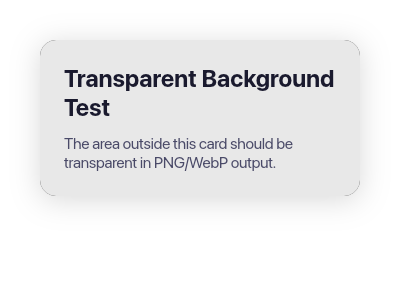
JPEG doesn't support transparency, so it automatically uses a white background.
Image Dimensions
The --width and --height options set the viewport size (CSS layout dimensions). The actual output image is scaled by the --scale factor (default: 2x for high-DPI/retina displays).
Output image size = viewport × scale
# Default: 1200px viewport → 2400px output (at 2x scale)
dynimg input.html -o output.png

# OG image: 1200×630 viewport → 2400×1260 output
dynimg input.html -o output.png --width 1200 --height 630

# 1x scale for exact pixel dimensions (1200×630 output)
dynimg input.html -o output.png --width 1200 --height 630 --scale 1

# 3x scale for extra-high-DPI (3600×1890 output)
dynimg input.html -o output.png --width 1200 --height 630 --scale 3
Your HTML/CSS should use the viewport dimensions (e.g., width: 1200px) - the scale factor handles the high-resolution rendering.
Reading from stdin
echo '<html><body><h1>Hello</h1></body></html>' | dynimg - -o output.png
Loading External Resources
By default, network and filesystem access are disabled for security. Enable them to load images, fonts, and other resources:
# Load images/fonts from URLs
dynimg input.html -o output.png --allow-net

# Load images/fonts from a local assets directory
dynimg input.html -o output.png --assets ./assets

# Allow both
dynimg input.html -o output.png --allow-net --assets ./assets
Custom Fonts
Register font files directly, no @font-face or asset directory needed. The font's family name (read from the file) matches font-family in CSS:
dynimg input.html -o output.png --font Inter-Regular.ttf --font Inter-Bold.ttf
<h1 style="font-family: 'Inter'">Uses the registered font</h1>
Registered fonts take priority over system fonts with the same family name.
Fonts can also be registered under a CSS name with NAME=FILE. A CSS generic name (serif, sans-serif, monospace, cursive, fantasy, system-ui, ui-serif, ui-sans-serif, ui-monospace, ui-rounded, emoji, math, fangsong) maps that generic to the font with priority over the platform mapping — emoji takes priority over the platform emoji font, so emoji render identically on every host (to fully pin emoji, also map the text generics your pages use). Platform fonts are used only as a last resort for glyphs your fonts don't cover. Any other name becomes the font's family name:
dynimg input.html -o output.png \
  --font sans-serif=Inter-Regular.ttf \
  --font emoji=Twemoji.ttf \
  --font brand=FancyDisplay.ttf   # matches font-family: 'brand'
When using --assets, all local paths are resolved relative to the asset directory. Attempts to load files outside this directory will error:
<!-- With --assets ./assets -->
<img src="logo.png">         <!-- loads ./assets/logo.png -->
<img src="img/hero.png">     <!-- loads ./assets/img/hero.png -->
<img src="../secret.png">    <!-- ERROR: outside assets directory -->
For self-contained templates, consider using inline base64 data URIs instead:
<img src="data:image/png;base64,iVBORw0KGgo...">
Minimal containers (Docker)
System font discovery on Linux uses fontconfig when it's installed, but it's optional — dynimg loads it dynamically and degrades gracefully when it's missing. In a minimal container you don't need fontconfig, libexpat, or fc-cache; just pass your fonts directly:
from pathlib import Path

fonts = [str(p) for p in Path("/app/static/fonts").glob("*.ttf")]
options = dynimg.RenderOptions(fonts=fonts)
When no system fonts are discoverable, registered fonts also back generic CSS families (sans-serif, serif, monospace, ...), so unstyled text still renders.
Name mappings pin the generic families and emoji to your fonts, so rendering is identical on macOS, Linux, and in containers — no fontconfig aliasing required:
options = dynimg.RenderOptions(
    fonts=[
        "/app/static/fonts",
        {
            "sans-serif": "/app/static/fonts/Montserrat.ttf",
            "emoji": "/app/static/fonts/TwemojiCOLRv0.ttf",
        },
    ],
)
CLI Reference
dynimg [OPTIONS] <INPUT>

Arguments:
  <INPUT>   HTML file path or '-' for stdin

Options:
  -o, --output <FILE>       Output image path (format detected from extension).
                            '-' writes to stdout. If omitted: stdout when piped,
                            otherwise <INPUT stem>.jpg
  -f, --format <FORMAT>     Format when writing to stdout: png, jpg, webp [default: png]
  -w, --width <PIXELS>      Viewport width in CSS pixels [default: 1200]
  -H, --height <PIXELS>     Viewport height in CSS pixels [default: document height]
  -s, --scale <FACTOR>      Scale multiplier for output (2 = 2x resolution) [default: 2]
  -q, --quality <1-100>     JPEG quality [default: 90]
      --allow-net           Allow network access for loading remote resources
      --assets <DIR>        Asset directory for local resources
      --font <[NAME=]FILE>  Custom font file (TTF/OTF/WOFF/WOFF2),
                            repeatable. NAME= registers under a CSS name:
                            generics (sans-serif, emoji, ...) map that generic,
                            other names become the font-family name
  -v, --verbose             Enable verbose logging on stderr
      --help                Print help
      --version             Print version

Options can also be set via HTML meta tags (see below). CLI flags override meta tags.

Note: Output image dimensions = viewport × scale. A 1200×630 viewport at 2x scale produces a 2400×1260 image.
Python Usage
import dynimg

html = """
<html>
<style>
* {
  margin: 0;
  padding: 0;
  box-sizing: border-box;
}
</style>
<body style="background: linear-gradient(135deg, #667eea, #764ba2);
             display: flex; justify-content: center; align-items: center;
             height: 630px; margin: 0;">
    <h1 style="color: white; font-family: system-ui; font-size: 64px;">
        Hello World
    </h1>
</body>
</html>
"""

# Render with default options
image = dynimg.render(html)

# Save to file
image.save("output.png")

# Or get bytes
png_bytes = image.to_png()
webp_bytes = image.to_webp()
jpeg_bytes = image.to_jpeg(quality=90)
Configuration
import dynimg

options = dynimg.RenderOptions(
    width=1200,          # Viewport width (default: 1200)
    height=630,          # Viewport height (default: auto)
    scale=2.0,           # Output scale factor (default: 2.0)
    allow_net=True,      # Allow network requests (default: False)
    assets_dir="./assets",  # Local assets directory (default: None)
    base_url="https://example.com",  # Base URL for relative URLs (default: None)
    quality=90,          # JPEG quality (default: 90)
    background="#ffffff",  # Any CSS color (default: transparent)
    # Custom fonts: file paths or {css_name: path} mappings (default: None)
    fonts=["./fonts/Inter-Variable.ttf", {"emoji": "./fonts/TwemojiCOLRv0.ttf"}],
)

image = dynimg.render(html, options)
Options set here take precedence over meta tags in the page; options left unset fall back to the meta tag, then the default.
Direct File Output
# Render directly to a file (format detected from extension)
dynimg.render_to_file(html, "output.png")

# With options
dynimg.render_to_file(html, "output.png", options=options)

# JPEG with quality setting
dynimg.render_to_file(html, "output.jpg", quality=90)
Image Properties
image = dynimg.render(html)
print(f"Size: {image.width}x{image.height}")
print(f"JPEG quality: {image.quality}")  # used by to_jpeg()/save_jpeg() by default
print(f"Bytes: {len(image.data)}")
HTML Meta Tags
You can configure rendering options directly in your HTML using meta tags. Options passed explicitly (CLI flags, RenderOptions in Rust or Python) take precedence over meta tags.
<meta name="dynimg:width" content="1200">   <!-- viewport width -->
<meta name="dynimg:height" content="630">   <!-- viewport height -->
<meta name="dynimg:scale" content="2">      <!-- output multiplier -->
<meta name="dynimg:quality" content="90">   <!-- JPEG quality -->
This is useful for templates that should always render at specific dimensions. Remember: the output image size is viewport × scale.
Example Templates
OG Image
View HTML
<!DOCTYPE html>
<html>
<head>
  <meta name="dynimg:width" content="1200">
  <meta name="dynimg:height" content="630">
  <style>
    * { margin: 0; padding: 0; box-sizing: border-box; }
    body { font-family: system-ui, -apple-system, sans-serif; }
    .container {
      width: 1200px;
      height: 630px;
      display: flex;
      flex-direction: column;
      justify-content: center;
      padding: 80px;
      background: linear-gradient(135deg, #667eea 0%, #764ba2 100%);
    }
    h1 { color: white; font-size: 72px; font-weight: 700; line-height: 1.1; margin-bottom: 24px; }
    p { color: rgba(255, 255, 255, 0.85); font-size: 32px; }
    .footer { position: absolute; bottom: 40px; left: 80px; color: rgba(255, 255, 255, 0.6); font-size: 24px; }
  </style>
</head>
<body>
  <div class="container">
    <h1>Your Blog Post Title Here</h1>
    <p>A compelling subtitle that captures attention</p>
    <div class="footer">yoursite.com</div>
  </div>
</body>
</html>
Social Card
View HTML
<!DOCTYPE html>
<html>
<head>
  <meta name="dynimg:width" content="1200">
  <meta name="dynimg:height" content="675">
  <style>
    * { margin: 0; padding: 0; box-sizing: border-box; }
    body { font-family: system-ui, -apple-system, sans-serif; }
    .card {
      width: 1200px;
      height: 675px;
      background: #0f172a;
      display: flex;
      padding: 60px;
    }
    .content { flex: 1; display: flex; flex-direction: column; justify-content: center; }
    .tag {
      display: inline-block;
      background: #3b82f6;
      color: white;
      padding: 8px 16px;
      border-radius: 20px;
      font-size: 18px;
      font-weight: 600;
      margin-bottom: 24px;
      width: fit-content;
    }
    h1 { color: white; font-size: 56px; font-weight: 700; line-height: 1.2; margin-bottom: 20px; }
    p { color: #94a3b8; font-size: 24px; line-height: 1.5; }
    .avatar {
      width: 200px;
      height: 200px;
      background: linear-gradient(135deg, #06b6d4, #3b82f6);
      border-radius: 100px;
      display: flex;
      align-items: center;
      justify-content: center;
      align-self: center;
      margin-left: 60px;
    }
    .avatar-text { color: white; font-size: 72px; font-weight: 700; }
  </style>
</head>
<body>
  <div class="card">
    <div class="content">
      <span class="tag">Tutorial</span>
      <h1>Getting Started with Rust</h1>
      <p>Learn the fundamentals of Rust programming language with practical examples.</p>
    </div>
    <div class="avatar">
      <span class="avatar-text">RS</span>
    </div>
  </div>
</body>
</html>
Supported CSS Features
dynimg uses Blitz for rendering, which supports:
- Flexbox and Grid layouts
- CSS variables
- Media queries
- Complex selectors
- Gradients and shadows
- Web fonts (via
@font-face, requires--allow-netor--assets) - Images (requires
--allow-netor--assets, or use data URIs)
Performance
dynimg is designed for speed: no browser, a native Rust rendering pipeline, and fast image encoding.
In a long-running process (a server or Python worker), the example templates render in 1–4ms each, plus 1–5ms of PNG encoding for a 2400px-wide image (measured on an Apple M5 Max). Pages that fetch remote resources also wait for the network.
The first render in a process also discovers the system's fonts, which takes roughly 10–80ms on the same machine; later renders reuse that list. Fonts installed on the host after the first render are picked up after a restart. Fonts passed through fonts / --font are read on every render and never shared between renders.
The CLI renders once per process, so each invocation pays that startup cost.
Development
Building
# Build CLI
cargo build --release

# Build Python wheel
pip install maturin
maturin build --release --features python

# Install locally for development
maturin develop --features python
Running Tests
cargo test
cargo clippy -- -D warnings
cargo fmt -- --check
Releasing
Releases are automated via a release script and GitHub Actions. To create a new release:
./scripts/release.sh
The script will:
- Verify you're on the main branch with a clean working directory
- Check that you're up to date with the remote
- Bump the patch version in
Cargo.tomlandpyproject.toml - Commit the version changes and create an annotated tag
- Push the commit and tag to origin
This triggers the GitHub Actions release workflow which:
- Builds wheels for Linux (x86_64, aarch64) and macOS (aarch64)
- Creates a GitHub Release with all artifacts
- Publishes to PyPI
License
MIT
AI Warning
This is AI slop, if you want to use it, fork and make it your own!
1 maintainer

Metadata
1 maintainer
Release files for dynimg 0.2.0
For a detailed explanation of source distributions (sdists) and built distributions (wheels), please see the package formats documentation.
Source distribution (sdist)
| File | Size | Uploaded | Provenance | |
|---|---|---|---|---|
| dynimg-0.2.0.tar.gz | 5.1 MB | With provenance | Details |
Built distributions (wheels)
| File | Interpreter | ABI | Platform | Reset |
|---|---|---|---|---|
| dynimg-0.2.0-cp311-abi3-manylinux_2_17_x86_64.manylinux2014_x86_64.whl | CPython 3.11 | abi3 | Linux glibc 2.17+ x86-64 | Details |
| dynimg-0.2.0-cp311-abi3-manylinux_2_17_aarch64.manylinux2014_aarch64.whl | CPython 3.11 | abi3 | Linux glibc 2.17+ ARM64 | Details |
| dynimg-0.2.0-cp311-abi3-macosx_11_0_arm64.whl | CPython 3.11 | abi3 | macOS 11.0+ ARM64 | Details |
Total release size: 34.7 MB
Release files / dynimg-0.2.0.tar.gz
| Download URL | dynimg-0.2.0.tar.gz |
|---|---|
| Size | 5.1 MB |
| Tags | Source |
|
SHA-256 checksum How to use checksums |
893be538f6a409b9d4aea93044806e1eaf4f045427bbccd345b4a9d7e46ec7fe
|
|
BLAKE2b-256 checksum How to use checksums |
0edaf5188a2f75e7dd0e6889a23045ca8bd5a43622818c09b389b0c8b32b1d1e
|
| Upload date | |
|
Uploaded using Trusted Publishing? What is trusted publishing? |
Yes |
| Uploaded via |
twine/7.0.0 CPython/3.13.14
|
Provenance
Provenance describes where a file came from. On PyPI, provenance is shared via attestations, which provide a verifiable record of the build or publishing details. View details, limitations and caveats.


PyPI Publish Attestation
PyPI verified that this artifact, at this checksum, originated from the publisher listed below.
Signed by GitHub Actions, verified by PyPI on Oct 15, 2026.
Transparency logRelease files / dynimg-0.2.0-cp311-abi3-manylinux_2_17_x86_64.manylinux2014_x86_64.whl
| Download URL | dynimg-0.2.0-cp311-abi3-manylinux_2_17_x86_64.manylinux2014_x86_64.whl |
|---|---|
| Size | 10.5 MB |
| Tags | CPython 3.11 Linux glibc 2.17+ x86-64 abi3 |
|
SHA-256 checksum How to use checksums |
c0e77032be829a565f17445c44c7d902d3e9c584bed768776e2a6036ad44488f
|
|
BLAKE2b-256 checksum How to use checksums |
f26252828708f55747ee3f574ee2cff9c463baea4a5b5866fe2a4ce1559a5828
|
| Upload date | |
|
Uploaded using Trusted Publishing? What is trusted publishing? |
Yes |
| Uploaded via |
twine/7.0.0 CPython/3.13.14
|
Provenance
Provenance describes where a file came from. On PyPI, provenance is shared via attestations, which provide a verifiable record of the build or publishing details. View details, limitations and caveats.
PyPI Publish Attestation
PyPI verified that this artifact, at this checksum, originated from the publisher listed below.
Signed by GitHub Actions, verified by PyPI on Oct 15, 2026.
Transparency logRelease files / dynimg-0.2.0-cp311-abi3-manylinux_2_17_aarch64.manylinux2014_aarch64.whl
| Download URL | dynimg-0.2.0-cp311-abi3-manylinux_2_17_aarch64.manylinux2014_aarch64.whl |
|---|---|
| Size | 9.8 MB |
| Tags | CPython 3.11 Linux glibc 2.17+ ARM64 abi3 |
|
SHA-256 checksum How to use checksums |
ded679828900c35c01a18a2aac83718cf0bf7514b8e368e1d44661ad9111b668
|
|
BLAKE2b-256 checksum How to use checksums |
c9bbbc7c228474be8b3f1c68b9cceaa56679e9250e77f8d932f798862a6e2029
|
| Upload date | |
|
Uploaded using Trusted Publishing? What is trusted publishing? |
Yes |
| Uploaded via |
twine/7.0.0 CPython/3.13.14
|
Provenance
Provenance describes where a file came from. On PyPI, provenance is shared via attestations, which provide a verifiable record of the build or publishing details. View details, limitations and caveats.
PyPI Publish Attestation
PyPI verified that this artifact, at this checksum, originated from the publisher listed below.
Signed by GitHub Actions, verified by PyPI on Oct 15, 2026.
Transparency logRelease files / dynimg-0.2.0-cp311-abi3-macosx_11_0_arm64.whl
| Download URL | dynimg-0.2.0-cp311-abi3-macosx_11_0_arm64.whl |
|---|---|
| Size | 9.4 MB |
| Tags | CPython 3.11 abi3 macOS 11.0+ ARM64 |
|
SHA-256 checksum How to use checksums |
23791e42ed8bce82ea579f430cc076cd5854bf0f7ee102f71a79bdd17fd08b62
|
|
BLAKE2b-256 checksum How to use checksums |
439e58ea3cea2747f845e21b34482e0c774f05a1eb90932d5f226c181023f59e
|
| Upload date | |
|
Uploaded using Trusted Publishing? What is trusted publishing? |
Yes |
| Uploaded via |
twine/7.0.0 CPython/3.13.14
|
Provenance
Provenance describes where a file came from. On PyPI, provenance is shared via attestations, which provide a verifiable record of the build or publishing details. View details, limitations and caveats.
PyPI Publish Attestation
PyPI verified that this artifact, at this checksum, originated from the publisher listed below.
Signed by GitHub Actions, verified by PyPI on Oct 15, 2026.
Transparency logSecurity for dynimg 0.2.0
Provenance
Provenance describes where a file came from. On PyPI, provenance is shared via attestations, which provide a verifiable record of the build or publishing details. View details, limitations and caveats.
Full provenance
All 4 files in this release have been uploaded with provenance metadata.
Attestation for dynimg-0.2.0.tar.gz
PyPI Publish Attestation
PyPI verified that this artifact, at this checksum, originated from the publisher listed below.
Signed by GitHub Actions, verified by PyPI on Oct 15, 2026.
Transparency logA note on package security
PyPI is a repository for distributing packages, not a service for auditing them. While third-party security researchers and our staff do their best to detect and remove malicious packages, PyPI cannot guarantee the quality, security or suitability of any given package.
To learn more about protecting yourself from malicious actors, visit our package security documentation.














