
A CLI tool to verify and fix AI/ML environment compatibility (Driver <-> CUDA <-> Wheels) with platform-specific installation guides.
Verified details
These details have been verified by PyPIProject links
GitHub Statistics
Maintainers


Project description

Env-Doctor
The missing link between your GPU and Python AI libraries





"Why does my PyTorch crash with CUDA errors when I just installed it?"
Because your driver supports CUDA 11.8, but
pip install torchgave you CUDA 12.4 wheels.
Env-Doctor diagnoses and fixes the #1 frustration in GPU computing: mismatched CUDA versions between your NVIDIA driver, system toolkit, cuDNN, and Python libraries.
It takes 5 seconds to find out if your environment is broken - and exactly how to fix it.
Doctor "Check" (Diagnosis)
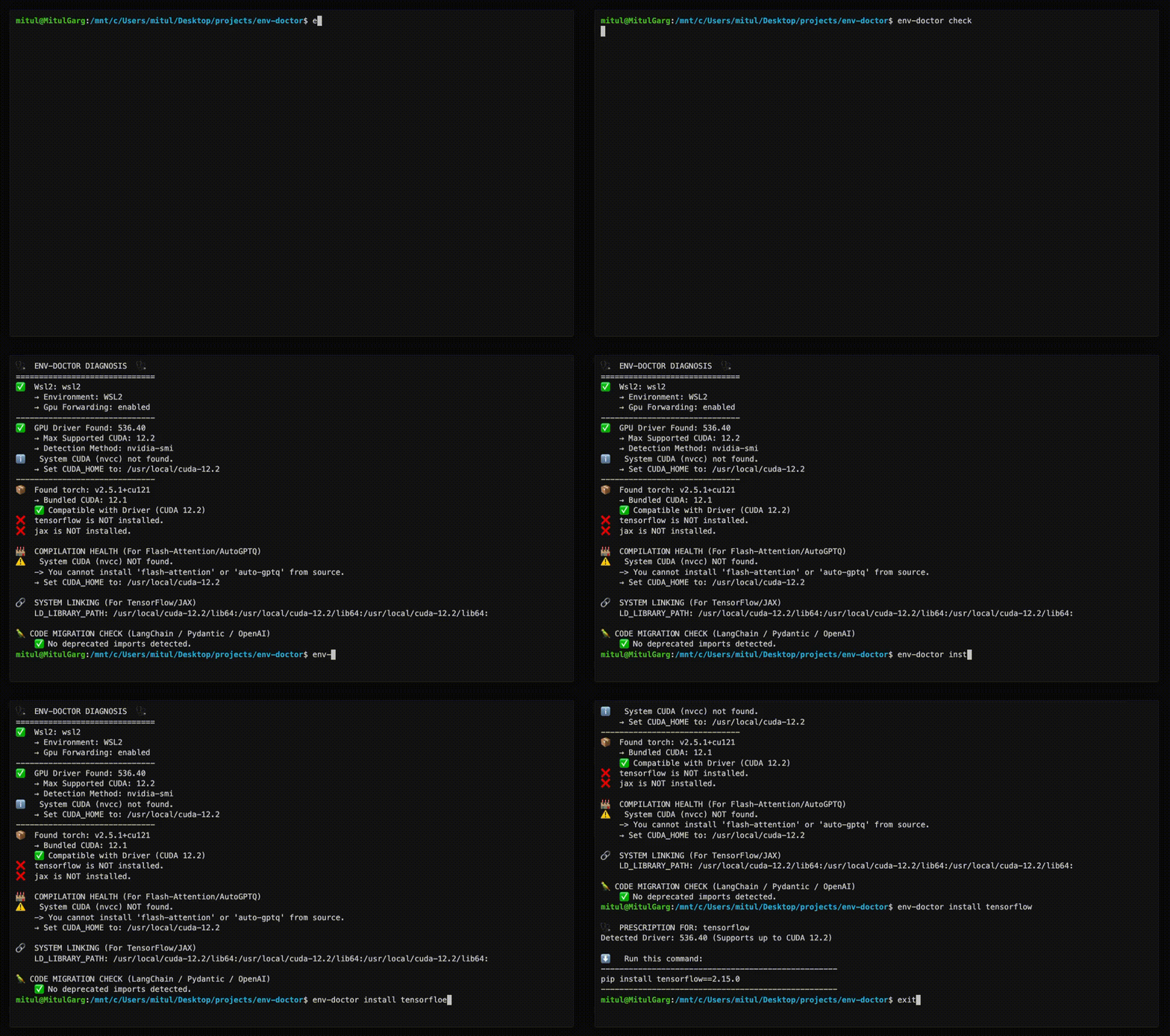
Features
| Feature | What It Does |
|---|---|
| One-Command Diagnosis | Check compatibility: GPU Driver → CUDA Toolkit → cuDNN → PyTorch/TensorFlow/JAX |
| Compute Capability Check | Detect GPU architecture mismatches — catches why torch.cuda.is_available() returns False on new GPUs (e.g. Blackwell) even when driver and CUDA are healthy |
| Python Version Compatibility | Detect Python version conflicts with AI libraries and dependency cascade impacts |
| CUDA Installation Guide | Get platform-specific, copy-paste CUDA installation commands for your system |
| Safe Install Commands | Get the exact pip install command that works with YOUR driver |
| Extension Library Support | Install compilation packages (flash-attn, SageAttention, auto-gptq, apex, xformers) with CUDA version matching |
| AI Model Compatibility | Check if LLMs, Diffusion, or Audio models fit on your GPU before downloading |
| WSL2 GPU Support | Validate GPU forwarding, detect driver conflicts within WSL2 env for Windows users |
| Deep CUDA Analysis | Find multiple installations, PATH issues, environment misconfigurations |
| Container Validation | Catch GPU config errors in Dockerfiles before you build |
| MCP Server | Expose diagnostics to AI assistants (Claude Desktop, Zed) via Model Context Protocol |
| CI/CD Ready | JSON output and proper exit codes for automation |
Installation
pip install env-doctor
MCP Server (AI Assistant Integration)
Env-Doctor includes a built-in Model Context Protocol (MCP) server that exposes diagnostic tools to AI assistants like Claude Code and Claude Desktop.
Quick Setup for Claude Desktop
-
Install env-doctor:
pip install env-doctor
-
Add to Claude Desktop config (
~/Library/Application Support/Claude/claude_desktop_config.json):{ "mcpServers": { "env-doctor": { "command": "env-doctor-mcp" } } }
-
Restart Claude Desktop - the tools will be available automatically.
Available Tools (11 Total)
env_check- Full GPU/CUDA environment diagnosticsenv_check_component- Check specific component (driver, CUDA, cuDNN, etc.)python_compat_check- Check Python version compatibility with installed AI librariescuda_info- Detailed CUDA toolkit informationcudnn_info- Detailed cuDNN library informationcuda_install- Step-by-step CUDA installation instructionsinstall_command- Get safe pip install commands for AI librariesmodel_check- Analyze if AI models fit on your GPUmodel_list- List all available models in databasedockerfile_validate- Validate Dockerfiles for GPU issuesdocker_compose_validate- Validate docker-compose.yml for GPU configuration
Demo — Claude Code using env-doctor MCP tools
Example Usage
Ask your AI assistant:
- "Check my GPU environment"
- "Is my Python version compatible with my installed AI libraries?"
- "How do I install CUDA Toolkit on Ubuntu?"
- "Get me the pip install command for PyTorch"
- "Can I run Llama 3 70B on my GPU?"
- "Validate this Dockerfile for GPU issues"
- "What CUDA version does my PyTorch require?"
- "Show me detailed CUDA toolkit information"
Learn more: MCP Integration Guide
Usage
Diagnose Your Environment
env-doctor check
Example output:
🩺 ENV-DOCTOR DIAGNOSIS
============================================================

🖥️  Environment: Native Linux

🎮 GPU Driver
   ✅ NVIDIA Driver: 535.146.02
   └─ Max CUDA: 12.2

🔧 CUDA Toolkit
   ✅ System CUDA: 12.1.1

📦 Python Libraries
   ✅ torch 2.1.0+cu121

✅ All checks passed!
On new-generation GPUs (e.g. RTX 5070 / Blackwell), env-doctor catches architecture mismatches and distinguishes between two failure modes:
Hard failure — torch.cuda.is_available() returns False:
🎯  COMPUTE CAPABILITY CHECK
    GPU: NVIDIA GeForce RTX 5070 (Compute 12.0, Blackwell, sm_120)
    PyTorch compiled for: sm_50, sm_60, sm_70, sm_80, sm_90, compute_90
    ❌ ARCHITECTURE MISMATCH: Your GPU needs sm_120 but PyTorch 2.5.1 doesn't include it.

    This is likely why torch.cuda.is_available() returns False even though
    your driver and CUDA toolkit are working correctly.

    FIX: Install PyTorch nightly with sm_120 support:
       pip install --pre torch torchvision torchaudio --index-url https://download.pytorch.org/whl/nightly/cu126
Soft failure — torch.cuda.is_available() returns True via NVIDIA's PTX JIT, but complex ops may silently degrade:
🎯  COMPUTE CAPABILITY CHECK
    GPU: NVIDIA GeForce RTX 5070 (Compute 12.0, Blackwell, sm_120)
    PyTorch compiled for: sm_50, sm_60, sm_70, sm_80, sm_90, compute_90
    ⚠️  ARCHITECTURE MISMATCH (Soft): Your GPU needs sm_120 but PyTorch 2.5.1 doesn't include it.

    torch.cuda.is_available() returned True via NVIDIA's driver-level PTX JIT,
    but you may experience degraded performance or failures with complex CUDA ops.

    FIX: Install a newer PyTorch with native sm_120 support for full compatibility:
       pip install --pre torch torchvision torchaudio --index-url https://download.pytorch.org/whl/nightly/cu126
Check Python Version Compatibility
env-doctor python-compat
🐍  PYTHON VERSION COMPATIBILITY CHECK
============================================================
Python Version: 3.13 (3.13.0)
Libraries Checked: 2

❌  2 compatibility issue(s) found:

    tensorflow:
      tensorflow supports Python <=3.12, but you have Python 3.13
      Note: TensorFlow 2.15+ requires Python 3.9-3.12. Python 3.13 not yet supported.

    torch:
      torch supports Python <=3.12, but you have Python 3.13
      Note: PyTorch 2.x supports Python 3.9-3.12. Python 3.13 support experimental.

⚠️   Dependency Cascades:
    tensorflow [high]: TensorFlow's Python ceiling propagates to keras and tensorboard
      Affected: keras, tensorboard, tensorflow-estimator
    torch [high]: PyTorch's Python version constraint affects all torch ecosystem packages
      Affected: torchvision, torchaudio, triton

💡  Consider using Python 3.12 or lower for full compatibility

💡  Cascade: tensorflow constraint also affects: keras, tensorboard, tensorflow-estimator

💡  Cascade: torch constraint also affects: torchvision, torchaudio, triton

============================================================
Get Safe Install Command
env-doctor install torch
⬇️ Run this command to install the SAFE version:
---------------------------------------------------
pip install torch torchvision --index-url https://download.pytorch.org/whl/cu118
---------------------------------------------------
Get CUDA Installation Instructions
env-doctor cuda-install
============================================================
CUDA TOOLKIT INSTALLATION GUIDE
============================================================

Detected Platform:
    Linux (ubuntu 22.04, x86_64)

Driver: 535.146.02 (supports up to CUDA 12.2)
Recommended CUDA Toolkit: 12.1

============================================================
Ubuntu 22.04 (x86_64) - Network Install
============================================================

Installation Steps:
------------------------------------------------------------
    1. wget https://developer.download.nvidia.com/compute/cuda/repos/ubuntu2204/x86_64/cuda-keyring_1.1-1_all.deb
    2. sudo dpkg -i cuda-keyring_1.1-1_all.deb
    3. sudo apt-get update
    4. sudo apt-get -y install cuda-toolkit-12-1

Post-Installation Setup:
------------------------------------------------------------
    export PATH=/usr/local/cuda-12.1/bin${PATH:+:${PATH}}
    export LD_LIBRARY_PATH=/usr/local/cuda-12.1/lib64${LD_LIBRARY_PATH:+:${LD_LIBRARY_PATH}}

    TIP: Add the above exports to ~/.bashrc or ~/.zshrc

Verify Installation:
------------------------------------------------------------
    nvcc --version

Official Download Page:
    https://developer.nvidia.com/cuda-12-1-0-download-archive
Supported Platforms:
- Ubuntu 20.04, 22.04, 24.04
- Debian 11, 12
- RHEL 8, 9 / Rocky Linux / AlmaLinux
- Fedora 39+
- WSL2 (Ubuntu)
- Windows 10/11
- Conda (all platforms)
Install Compilation Packages (Extension Libraries)
For extension libraries like flash-attn, SageAttention, auto-gptq, apex, and xformers that require compilation from source, env-doctor provides special guidance to handle CUDA version mismatches:
env-doctor install flash-attn
Example output (with CUDA mismatch):
🩺  PRESCRIPTION FOR: flash-attn

⚠️   CUDA VERSION MISMATCH DETECTED
     System nvcc: 12.1.1
     PyTorch CUDA: 12.4.1

🔧  flash-attn requires EXACT CUDA version match for compilation.
    You have TWO options to fix this:

============================================================
📦  OPTION 1: Install PyTorch matching your nvcc (12.1)
============================================================

Trade-offs:
  ✅ No system changes needed
  ✅ Faster to implement
  ❌ Older PyTorch version (may lack new features)

Commands:
  # Uninstall current PyTorch
  pip uninstall torch torchvision torchaudio -y

  # Install PyTorch for CUDA 12.1
  pip install torch --index-url https://download.pytorch.org/whl/cu121

  # Install flash-attn
  pip install flash-attn --no-build-isolation

============================================================
⚙️   OPTION 2: Upgrade nvcc to match PyTorch (12.4)
============================================================

Trade-offs:
  ✅ Keep latest PyTorch
  ✅ Better long-term solution
  ❌ Requires system-level changes
  ❌ Verify driver supports CUDA 12.4

Steps:
  1. Check driver compatibility:
     env-doctor check

  2. Download CUDA Toolkit 12.4:
     https://developer.nvidia.com/cuda-12-4-0-download-archive

  3. Install CUDA Toolkit (follow NVIDIA's platform-specific guide)

  4. Verify installation:
     nvcc --version

  5. Install flash-attn:
     pip install flash-attn --no-build-isolation

============================================================
Check Model Compatibility
env-doctor model llama-3-8b
🤖  Checking: LLAMA-3-8B (8.0B params)

🖥️   Your Hardware: RTX 3090 (24GB)

💾  VRAM Requirements:
  ✅  FP16: 19.2GB - fits with 4.8GB free
  ✅  INT4:  4.8GB - fits with 19.2GB free

✅  This model WILL FIT on your GPU!
List all models: env-doctor model --list
Automatic HuggingFace Support (New ✨) If a model isn't found locally, env-doctor automatically checks the HuggingFace Hub, fetches its parameter metadata, and caches it locally for future runs — no manual setup required.
# Fetches from HuggingFace on first run, cached afterward
env-doctor model bert-base-uncased
env-doctor model sentence-transformers/all-MiniLM-L6-v2
Output:
🤖  Checking: BERT-BASE-UNCASED
    (Fetched from HuggingFace API - cached for future use)
    Parameters: 0.11B
    HuggingFace: bert-base-uncased

🖥️   Your Hardware:
    RTX 3090 (24GB VRAM)

💾  VRAM Requirements & Compatibility
  ✅  FP16:  264 MB - Fits easily!

💡  Recommendations:
1. Use fp16 for best quality on your GPU
Validate Dockerfiles
env-doctor dockerfile
🐳  DOCKERFILE VALIDATION

❌  Line 1: CPU-only base image: python:3.10
    Fix: FROM nvidia/cuda:12.1.0-runtime-ubuntu22.04

❌  Line 8: PyTorch missing --index-url
    Fix: pip install torch --index-url https://download.pytorch.org/whl/cu121
More Commands
| Command | Purpose |
|---|---|
env-doctor check |
Full environment diagnosis |
env-doctor python-compat |
Check Python version compatibility with AI libraries |
env-doctor cuda-install |
Step-by-step CUDA Toolkit installation guide |
env-doctor install <lib> |
Safe install command for PyTorch/TensorFlow/JAX, extension libraries (flash-attn, auto-gptq, apex, xformers, SageAttention, etc.) |
env-doctor model <name> |
Check model VRAM requirements |
env-doctor cuda-info |
Detailed CUDA toolkit analysis |
env-doctor cudnn-info |
cuDNN library analysis |
env-doctor dockerfile |
Validate Dockerfile |
env-doctor docker-compose |
Validate docker-compose.yml |
env-doctor scan |
Scan for deprecated imports |
env-doctor debug |
Verbose detector output |
CI/CD Integration
# JSON output for scripting
env-doctor check --json

# CI mode with exit codes (0=pass, 1=warn, 2=error)
env-doctor check --ci
GitHub Actions example:
- run: pip install env-doctor
- run: env-doctor check --ci
Documentation
Full documentation: https://mitulgarg.github.io/env-doctor/
- Getting Started
- Command Reference
- MCP Integration Guide
- WSL2 GPU Guide
- CI/CD Integration
- Architecture
Video Tutorial: Watch Demo on YouTube
Contributing
Contributions welcome! See CONTRIBUTING.md for details.
License
MIT License - see LICENSE
Project details
Verified details
These details have been verified by PyPIProject links
GitHub Statistics
Maintainers
Release history Release notifications | RSS feed


Download files
Download the file for your platform. If you're not sure which to choose, learn more about installing packages.
Source Distribution
Built Distribution
Filter files by name, interpreter, ABI, and platform.
If you're not sure about the file name format, learn more about wheel file names.
Copy a direct link to the current filters
File details
Details for the file env_doctor-0.2.7.tar.gz.
File metadata
- Download URL: env_doctor-0.2.7.tar.gz
- Upload date:
- Size: 93.8 kB
- Tags: Source
- Uploaded using Trusted Publishing? Yes
- Uploaded via: twine/6.1.0 CPython/3.13.7
File hashes
| Algorithm | Hash digest | |
|---|---|---|
| SHA256 |
7149530ae351341dbf8fb87a97fda1ce55dfc2755e20d604c0e072ada53fc23e
|
|
| MD5 |
f2f65056d5b8bddb3534dc47ba661076
|
|
| BLAKE2b-256 |
dd1004e578327d62aa3eb7a5813e52e6ee25bf57016f59c9dd950a4d6261cf18
|
Provenance
The following attestation bundles were made for env_doctor-0.2.7.tar.gz:
Publisher:
publish-pypi.yml on mitulgarg/env-doctor
-
Statement:
-
Statement type:
https://in-toto.io/Statement/v1 -
Predicate type:
https://docs.pypi.org/attestations/publish/v1 -
Subject name:
env_doctor-0.2.7.tar.gz -
Subject digest:
7149530ae351341dbf8fb87a97fda1ce55dfc2755e20d604c0e072ada53fc23e - Sigstore transparency entry: 1097418136
- Sigstore integration time:
-
Permalink:
mitulgarg/env-doctor@dff297358d19adc7f2fb85e2bde5ee06d5deff08 -
Branch / Tag:
refs/tags/v0.2.7 - Owner: https://github.com/mitulgarg
-
Access:
public
-
Token Issuer:
https://token.actions.githubusercontent.com -
Runner Environment:
github-hosted -
Publication workflow:
publish-pypi.yml@dff297358d19adc7f2fb85e2bde5ee06d5deff08 -
Trigger Event:
push
-
Statement type:
File details
Details for the file env_doctor-0.2.7-py3-none-any.whl.
File metadata
- Download URL: env_doctor-0.2.7-py3-none-any.whl
- Upload date:
- Size: 97.1 kB
- Tags: Python 3
- Uploaded using Trusted Publishing? Yes
- Uploaded via: twine/6.1.0 CPython/3.13.7
File hashes
| Algorithm | Hash digest | |
|---|---|---|
| SHA256 |
58ac84effc6841fd80edb01549eeffb8b7b6f559cc2adabd4f504f6dd18ea7a8
|
|
| MD5 |
44a7a25bd1821587d6fd4033d1eb435b
|
|
| BLAKE2b-256 |
af0f7be79ec69dfb2b3bd0cfcfff52fc1cba4e7e72e41ccce7ba42b0cd88e037
|
Provenance
The following attestation bundles were made for env_doctor-0.2.7-py3-none-any.whl:
Publisher:
publish-pypi.yml on mitulgarg/env-doctor
-
Statement:
-
Statement type:
https://in-toto.io/Statement/v1 -
Predicate type:
https://docs.pypi.org/attestations/publish/v1 -
Subject name:
env_doctor-0.2.7-py3-none-any.whl -
Subject digest:
58ac84effc6841fd80edb01549eeffb8b7b6f559cc2adabd4f504f6dd18ea7a8 - Sigstore transparency entry: 1097418139
- Sigstore integration time:
-
Permalink:
mitulgarg/env-doctor@dff297358d19adc7f2fb85e2bde5ee06d5deff08 -
Branch / Tag:
refs/tags/v0.2.7 - Owner: https://github.com/mitulgarg
-
Access:
public
-
Token Issuer:
https://token.actions.githubusercontent.com -
Runner Environment:
github-hosted -
Publication workflow:
publish-pypi.yml@dff297358d19adc7f2fb85e2bde5ee06d5deff08 -
Trigger Event:
push
-
Statement type:






