
Searching remote sensed imagery from various image providers


Project description
eodag-labextension




Searching and browsing remote sensed imagery directly from JupyterLab.
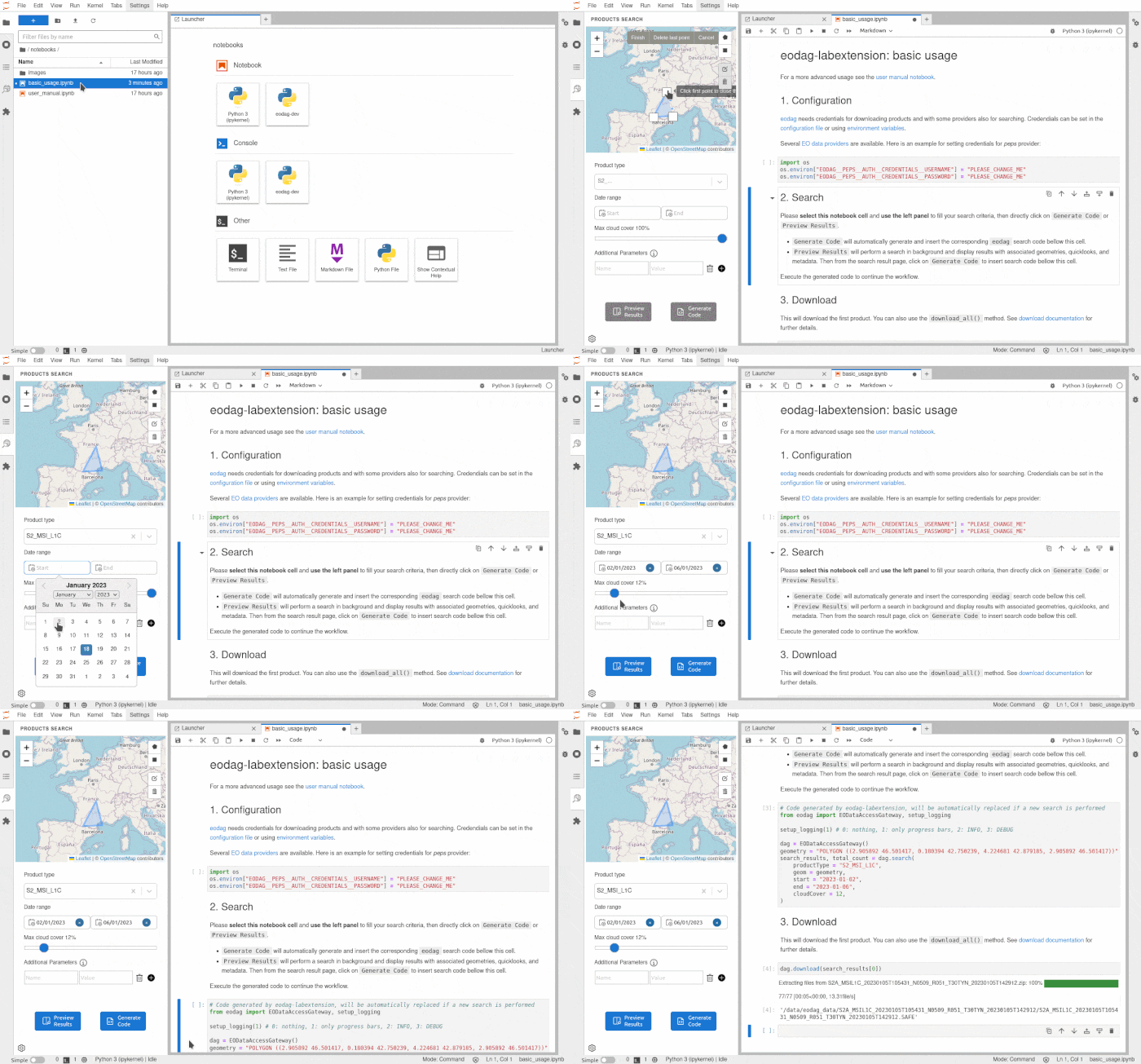
v3.7.0 screencast
This extension is using the eodag library to efficiently search from various image providers. It can transform search results to code cells into the active Python notebook to further process/visualize the dataset.
The extension is composed of a Python package named eodag-labextension, and add a tab into the left panel of Jupyter
Lab. The package consist of a Python Jupyter notebook REST service consumed by the client and served at /eodag/ or
/user/<username>/eodag/ for JupyterHub (a home page is available at that URL).
Requirements
- pip >= 21.0
Compatibility
- newest
eodag-labextensionversions are compatibles with JupyterLab v4 - v4.0.0 is the latest version compatible with JupyterLab v3
- v3.1.3 is the latest version compatible with JupyterLab v2
- v2.1.3 is the latest version compatible with JupyterLab v1
Install
pip install eodag-labextension
You can also uninstall it quite simply.
pip uninstall eodag-labextension
System configuration
EODAG Labextension can be configured using the following environment variables:
EODAG_LABEXTENSION__DEBUG(bool, default:False): whether to print EODAG logging at DEBUG level or not.EODAG_LABEXTENSION__MAP__TILE_URL(str, default:https://a.tile.openstreetmap.org/{z}/{x}/{y}.png): Map tile URL.EODAG_LABEXTENSION__MAP__TILE_ATTRIBUTION(str, default: "© OpenStreetMap contributors"): Map tile attribution.EODAG_LABEXTENSION__MAP__ZOOM_OFFSET(int, default:0): Map zoom offset.
QuickStart
You can use eodag-labextension inside a Jupyter notebook. Start Jupyter lab with jupyter lab, and in Jupyter lab
open a notebook.
Search

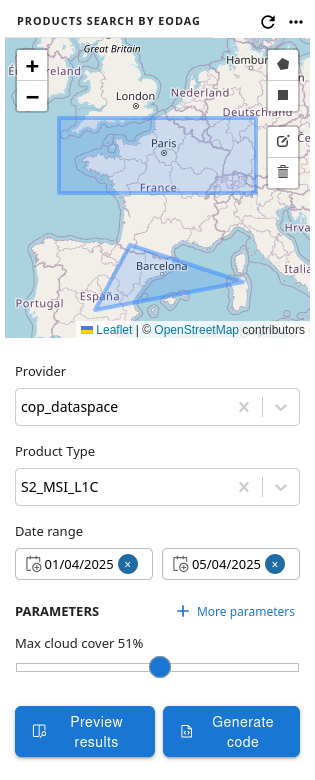
With displayed search form, you can enter search extent and following search criteria:
-
Provider: the provider on which to perform the search. If no provider is selected, search will loop on providers by priority, and return the first non empty results.
-
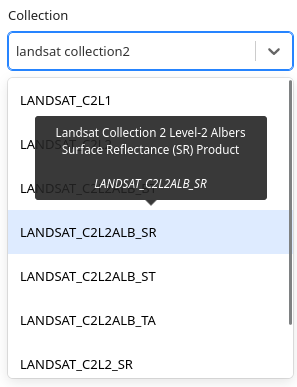
Collection: the searched collection. List filtering is performed using collections description keywords. For each entry of the drop-down list, a tooltip is displayed at hovering time with corresponding title.
-
Date range: minimal and maximal dates of the search temporal window.
-
Parameters: Select a collection to unlock parameters. Click on "More parameters", select desired parameters and set their associated value that should be sent as search criteria.
-
Custom parameters: used to enter key-value pairs criteria for the request that are not available as queryable through "Parameters".
As search geometry you can draw multiple extents, or use none. Each extent can be a rectangle or a free polygon.
Collection is mandatory. Other criteria are optional.
Once search criteria are filled out, click on:
Generate Codeto automatically generate and insert the corresponding eodag search code bellow the active cell.Preview Resultsto perform a search in background, display results, and generate search code in a second step.
Settings


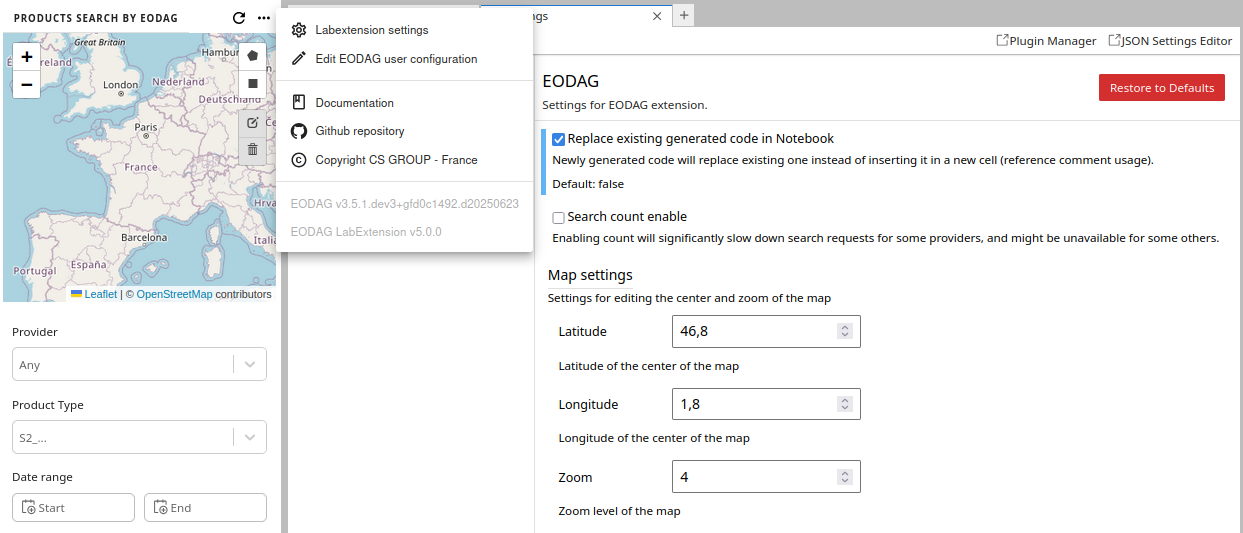
You will be enable to:
-
Configure Labextension through its settings:
- choose whether newly inserted code should replace existing search code or not;
- enable search count, which would significantly slow down search requests for some providers, and might be unavailable for some others;
- configure the default map settings.
-
Edit EODAG user configuration file, to set provider credentials, download directories, or other settings. Default file path is
~/.config/eodag/eodag.yaml. EODAG environment automatically reloads on file save. -
Open Labextension Documentation, Github repository, or CS GROUP page.
-
View EODAG packages versions.
EODAG user settings through environment variables
EODAG environment variable configuration
can be set by storing variables in a .env file in the jupyterlab working directory:
echo "EODAG_CFG_FILE=/path/to/custom.yml" >> .env
Hit the reload .env file.
Results overview

The results overview popup is compopsed of 3 parts:
- a map showing products extent,
- a table listing products,
- a pane containing metadata for currently selected product.
The results table allows you to access product metadata by clicking on the desired product line. The magnifying glass button allows you to zoom in on the product's in the map view. By scrolling down in the list of results, the search is automatically restarted to retrieve the following results.
In the metadata view, clicking on the Quicklook displays it in native resolution. Clicking it again reduces its size again.
Apply to the Jupyter notebook
If the search result is correct, clicking on the "Generate code" button will insert the Python eodag code in a new cell
after the selected cell of the currently open notebook. The popup is automatically closed. From there, it is possible
to work in the notebook on the search results by executing the eodag search.
Here is an example of generated code:
from eodag import EODataAccessGateway, setup_logging

setup_logging(1) # 0: nothing, 1: only progress bars, 2: INFO, 3: DEBUG

dag = EODataAccessGateway()
geometry = "POLYGON ((0.550136 43.005451, 0.550136 44.151469, 2.572104 44.151469, 2.572104 43.005451, 0.550136 43.005451))"
search_results = dag.search(
  provider="cop_dataspace",
  collection="S2_MSI_L1C",
  geom=geometry,
  start="2025-04-01",
  end="2025-04-05",
  cloudCover=51,
)
User manual
Please refer to the user manual notebook for results usage examples.
Contribute
Have you observed a bug while running eodag-labextension?
Do you have a suggestion for a new feature?
Don't hesitate and open an issue or submit a pull request, contributions are most welcome!
For guidance on setting up a development environment and how to make a
contribution to eodag-labextension, see the
contributing guidelines.
Troubleshooting
If you are seeing the frontend extension, but it is not working, check that the server extension is enabled:
jupyter server extension list
If the server extension is installed and enabled, but you are not seeing the frontend extension, check the frontend extension is installed:
jupyter labextension list
To submit an issue, please go to github issues.
License
This software is licensed under Apache License v2.0. See LICENSE file for details.
Copyright 2022 CS GROUP - France All rights reserved
Release history Release notifications | RSS feed


Download files
Download the file for your platform. If you're not sure which to choose, learn more about installing packages.
Source Distribution
Built Distribution
Filter files by name, interpreter, ABI, and platform.
If you're not sure about the file name format, learn more about wheel file names.
Copy a direct link to the current filters
File details
Details for the file eodag_labextension-5.3.0a2.tar.gz.
File metadata
- Download URL: eodag_labextension-5.3.0a2.tar.gz
- Upload date:
- Size: 953.0 kB
- Tags: Source
- Uploaded using Trusted Publishing? No
- Uploaded via: twine/6.1.0 CPython/3.13.7
File hashes
| Algorithm | Hash digest | |
|---|---|---|
| SHA256 |
34e05313414e0d3629e6d1cddc57ac799d3bc23db7b4799374337521e6bf4630
|
|
| MD5 |
5b7addad2e390d26ba9a495626ee7ed5
|
|
| BLAKE2b-256 |
c3c061e970e5265cbccf007b290114415e1c550026db856a851992f0699e1a94
|
File details
Details for the file eodag_labextension-5.3.0a2-py3-none-any.whl.
File metadata
- Download URL: eodag_labextension-5.3.0a2-py3-none-any.whl
- Upload date:
- Size: 1.7 MB
- Tags: Python 3
- Uploaded using Trusted Publishing? No
- Uploaded via: twine/6.1.0 CPython/3.13.7
File hashes
| Algorithm | Hash digest | |
|---|---|---|
| SHA256 |
9b088839ba0196d6cfb94aeef82c0f432c644103ec599932fd400ce07de5c44e
|
|
| MD5 |
7685b22496e7e62802b50e81c9a5cadc
|
|
| BLAKE2b-256 |
92bba1d57b8cbbe23e4dd1486fae61a7e9748cdc65697c1ffb2baac2f24e4d9d
|






