
🤖 Built with Claude. This project was developed heavily with Claude (Anthropic's AI assistant) using Claude Code.
Financial Planner
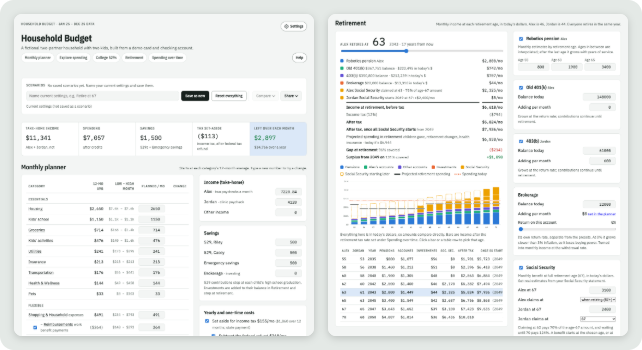
A private, local household budget and long-term planner. Point it at the CSV exports from your bank and credit cards, describe your household (in the app or in YAML), and explore your monthly budget, college savings, retirement and how spending changes over time.
Full documentation: the wiki.
Contents
- Install the Mac app (no code)
- Features
- Privacy first
- Quick start (terminal)
- Your own plan
- Commands
- Development
- License
Install the Mac app (no code)
- Download the app from the Releases page:
FinancialPlanner-macos-arm64.zipfor Apple Silicon (M1 and later) or-x86_64.zipfor Intel. - Unzip it and drag Financial Planner into Applications.
- The first time, right-click the app › Open › Open (it isn't signed by Apple yet).
- The first launch sets itself up (a few minutes, needs the internet), then asks how to start: a new plan, a plan someone shared with you, a folder you already have, or the demo.
The planner opens in your browser.
The menu-bar icon 
| Item | What it does |
|---|---|
| Open Financial Planner | Opens the planner in your browser |
| Change Plan Folder… / New Plan… | Switch to another plan, or start a new one |
| Show Plan Folder | Opens the plan folder in Finder (e.g. to add CSV files) |
| Open Plan File… / Save Plan as File… | Open a plan someone sent you / send yours |
| Check for Updates… | Checks for a newer version; installs it and restarts if you say yes |
| Uninstall… | Removes the app and its downloaded files (your plans are kept) |
| Quit Financial Planner | Stops it |
Closing the browser tab leaves it running in the menu bar; opening the app again reuses it. Quit stops it.
Sharing your plan (e.g. with your partner): menu-bar icon › Save Plan as File… (or
Settings › Share plan) makes one .zip with your settings, CSV data and scenarios. They open it
with menu-bar icon › Open Plan File…, or choose "Open a plan someone shared with me" on their
first launch. The file holds your real transactions, so share it privately (AirDrop, Messages).
To send just a what-if, use Share in the Scenarios bar instead.
More: Desktop App on the wiki.
Features
- Monthly planner: every category at its average; change any number and see what's left over.
- Explore spending: monthly charts, top merchants and every transaction.
- College 529s: a projection for each child against the cost of college.
- Retirement: income at each retirement age from pensions, accounts, investments and Social Security.
- Spending over time: how costs change as children leave home and after retiring.
- Scenarios: save, compare and share what-ifs, or share the whole plan as one file.
- Settings and categorizing in the app: no YAML editing required (but it's there if you want it).
Privacy first
Everything runs on your computer and nothing is uploaded. Your plan folder holds real financial data: keep it out of public repositories and off the internet, and use generic names (Partner A, Child 1). See Privacy and Safety.
Quick start (terminal)
For people comfortable with a terminal (any OS). With Python 3.11+, install from PyPI and open the demo:
pip install financial-planner                      # add [desktop] for the Mac menu-bar app
financial_plan init ~/FinancialPlan-Demo --demo
financial_plan start ~/FinancialPlan-Demo
Your browser opens at http://127.0.0.1:8765 with a fictional demo household.
Or from source with pixi (for development):
git clone https://github.com/brookisme/financial_planner.git
cd financial_planner
pixi run demo
Your own plan
financial_plan init ~/MyFinancialPlan    # create a plan folder (prefix with `pixi run` from source)
financial_plan start ~/MyFinancialPlan   # open it
Put your bank and card CSV exports in ~/MyFinancialPlan/data/, then click the gear (Settings)
at the top right to add your household, connect the CSVs and categorize. On a Mac,
pixi run financial_plan launcher adds a Financial Planner app to Applications (menu-bar icon,
opens in the browser). A no-code download is described in the
Desktop App page.
Step-by-step guide: Quick Start. Want an AI assistant to set it up with you? See LLM_SETUP.md.
Commands
| Command | What it does |
|---|---|
financial_plan init [dir] [--demo] |
Create a plan folder (blank, or a copy of the demo). |
financial_plan start [dir] |
Open the app. |
financial_plan validate [dir] |
Check the config and CSVs. |
financial_plan inspect-csv FILE |
Show a CSV's columns and a suggested source entry. |
financial_plan export [dir] / import FILE |
Share a whole plan (config + data) as one .zip. |
financial_plan categorize [dir] [--unmatched] |
Category averages; rows no rule caught. |
financial_plan uninstall |
Remove the desktop app and its files (plans are kept). |
financial_plan launcher |
Mac: add Financial Planner.app to /Applications. Elsewhere: a desktop shortcut. |
Details: Command Line.
Development
pixi run -e dev test-all     # Python + forecast-math tests
pixi run -e dev web-build    # rebuild the web app
See Development.
License
BSD 3-Clause. Not financial advice: projections are rough and depend on the assumptions you enter.
1 maintainer

Metadata
1 maintainer
Release files for financial-planner 0.1.1
For a detailed explanation of source distributions (sdists) and built distributions (wheels), please see the package formats documentation.
Source distribution (sdist)
| File | Size | Uploaded | Provenance | Actions |
|---|---|---|---|---|
| financial_planner-0.1.1.tar.gz | 397.3 kB | Without provenance | Details for financial_planner-0.1.1.tar.gz |
Built distribution (wheel)
| File | Interpreter | ABI | Platform | Actions Reset |
|---|---|---|---|---|
| financial_planner-0.1.1-py3-none-any.whl | Python 3 | none | any | Details for financial_planner-0.1.1-py3-none-any.whl |
Total release size: 662.8 kB
Release files / financial_planner-0.1.1.tar.gz
| Download URL | financial_planner-0.1.1.tar.gz |
|---|---|
| Size | 397.3 kB |
| Tags | Source |
|
SHA-256 checksum How to use checksums |
3621c60ed02a0c63ce5a6a52e2965a276d01632f4ab8c55ae7a0ea72cb29c60b
|
|
BLAKE2b-256 checksum How to use checksums |
bdf70bfd475ddcd7383d3c68ded0863c6abeb98e0ac80f7a032fd26519472b26
|
| Upload date | |
|
Uploaded using Trusted Publishing? What is trusted publishing? |
No |
| Uploaded via |
twine/7.0.0 CPython/3.13.18
|
Release files / financial_planner-0.1.1-py3-none-any.whl
| Download URL | financial_planner-0.1.1-py3-none-any.whl |
|---|---|
| Size | 265.6 kB |
| Tags | Python 3 |
|
SHA-256 checksum How to use checksums |
e5f5239111efff6d157dd1497cf568f7285dfbdf7c4247c027764be43e44ca81
|
|
BLAKE2b-256 checksum How to use checksums |
3ed9590a94f0929a11b98c9f671091dda175f4e6d6296124061a892b7dca25f9
|
| Upload date | |
|
Uploaded using Trusted Publishing? What is trusted publishing? |
No |
| Uploaded via |
twine/7.0.0 CPython/3.13.18
|
Security for financial-planner 0.1.1
Provenance
Provenance describes where a file came from. On PyPI, provenance is shared via attestations, which provide a verifiable record of the build or publishing details. View details, limitations and caveats.
No provenance found
None of the files in this release were uploaded with provenance metadata.
A note on package security
PyPI is a repository for distributing packages, not a service for auditing them. While third-party security researchers and our staff do their best to detect and remove malicious packages, PyPI cannot guarantee the quality, security or suitability of any given package.
To learn more about protecting yourself from malicious actors, visit our package security documentation.














