
GPU cluster monitoring service

Project description
GPU Monitor
GPU Monitor is a browser-based tool for checking GPU usage across multiple servers. Configure your servers, start the web service, and open the page to see GPU memory usage, utilization, and active compute processes.
Preview
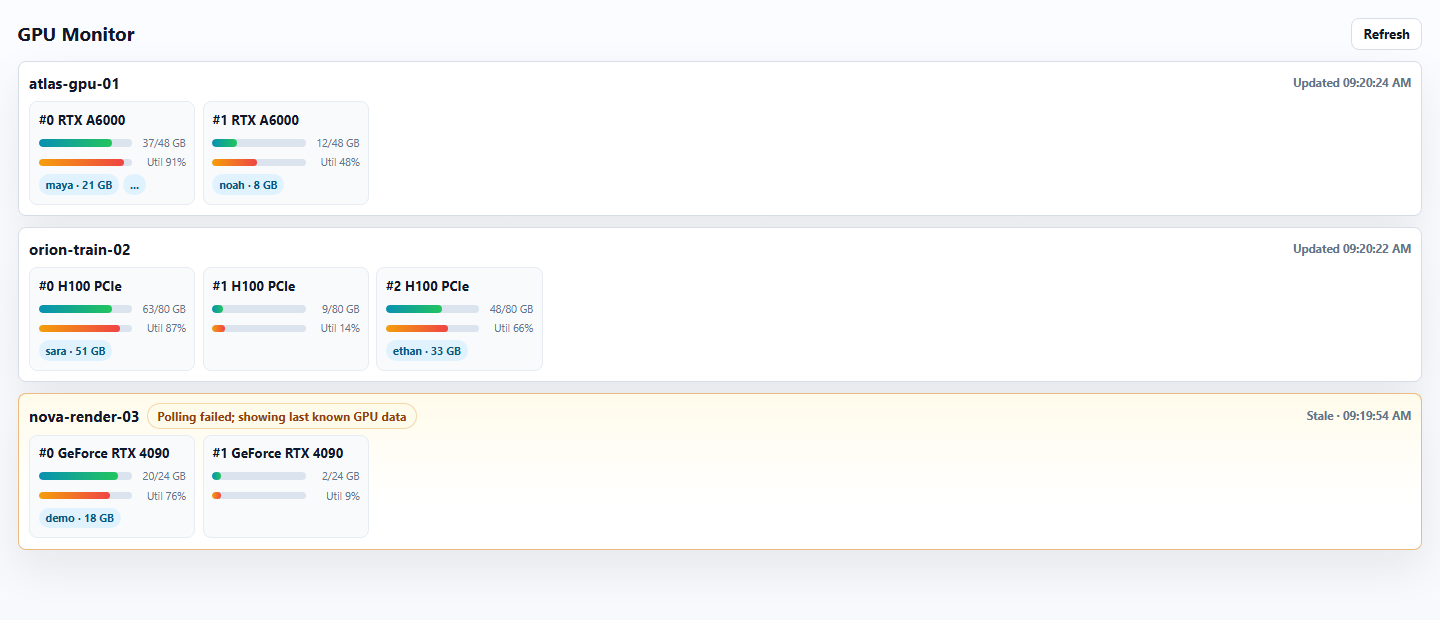
What It Is For
- Check whether GPUs are currently available across multiple servers.
- View GPU memory usage and utilization.
- See which users and processes are using GPUs.
- Keep the last successful data visible when a server is temporarily unreachable.
Requirements
Before using GPU Monitor, make sure you have:
- Python 3.11 or newer installed.
- SSH access from this machine to the servers you want to monitor.
- NVIDIA drivers installed on the target servers.
nvidia-smiavailable on the target servers.
You can verify SSH and GPU access with:
ssh server-a nvidia-smi
Replace server-a with your own SSH host name or server address.
Installation
Install GPU Monitor from PyPI:
python -m pip install gpu-server-monitor
If python is not the command for your Python environment, replace it with the interpreter you normally use.
Server Configuration
Create a configuration file:
gpu-monitor init -c ./servers.toml
Edit servers.toml and add the servers you want to monitor.
The recommended approach is to keep connection details in your normal SSH config file, such as ~/.ssh/config on Linux/macOS or %USERPROFILE%\.ssh\config on Windows:
Host server-a
    HostName 10.0.0.11
    User your_username
    Port 22
    IdentityFile ~/.ssh/id_rsa
Then servers.toml only needs the SSH host name:
poll_interval_seconds = 20

[[servers]]
Host = "server-a"
You can also put connection details directly in servers.toml:
poll_interval_seconds = 20

[[servers]]
Host = "server-b"
HostName = "10.0.0.12"
User = "your_username"
Port = 22
IdentityFile = "~/.ssh/id_rsa"
ConnectTimeout = 5
To monitor more servers, add more [[servers]] blocks.
Running
Run GPU Monitor with:
gpu-monitor run -c ./servers.toml -H 127.0.0.1 -p 8000
Then open this address in your browser:
http://127.0.0.1:8000/
Troubleshooting
No servers appear on the page
Check that the servers.toml passed to -c contains at least one [[servers]] block and that each Host value is spelled correctly.
A server cannot be reached
First test the connection from your terminal:
ssh server-a nvidia-smi
If this command fails, fix the SSH login, key, port, or network issue first.
Configuration changes do not appear
Restart GPU Monitor after editing servers.toml.


Download files
Download the file for your platform. If you're not sure which to choose, learn more about installing packages.
Source Distribution
Built Distribution
Filter files by name, interpreter, ABI, and platform.
If you're not sure about the file name format, learn more about wheel file names.
Copy a direct link to the current filters
File details
Details for the file gpu_server_monitor-0.2.1.tar.gz.
File metadata
- Download URL: gpu_server_monitor-0.2.1.tar.gz
- Upload date:
- Size: 18.6 kB
- Tags: Source
- Uploaded using Trusted Publishing? No
- Uploaded via: twine/6.2.0 CPython/3.12.11
File hashes
| Algorithm | Hash digest | |
|---|---|---|
| SHA256 |
8c37d3003b9358f5c459668795556da15430c321622fd03d740fe011aef9ef7b
|
|
| MD5 |
dc80d01a9546df72efc2fef3c8ef2a72
|
|
| BLAKE2b-256 |
687d4ed9172bae0936ae1bc54f98a2a966177f4436305326d868b355f41ad1eb
|
File details
Details for the file gpu_server_monitor-0.2.1-py3-none-any.whl.
File metadata
- Download URL: gpu_server_monitor-0.2.1-py3-none-any.whl
- Upload date:
- Size: 14.9 kB
- Tags: Python 3
- Uploaded using Trusted Publishing? No
- Uploaded via: twine/6.2.0 CPython/3.12.11
File hashes
| Algorithm | Hash digest | |
|---|---|---|
| SHA256 |
be36982a850c6db4af678266c3348f2ce38e0d0d521d41cf6db879a50adb54ef
|
|
| MD5 |
6945af25683f7d2ba06b85c1870b1a76
|
|
| BLAKE2b-256 |
e4585826633e03aa6ec0fcbc4b5cd7b48648a071af97f9feb362b86c9fd140f8
|






