
Create Braille maps for simple Turtle program output

Project description
Graphics Braille
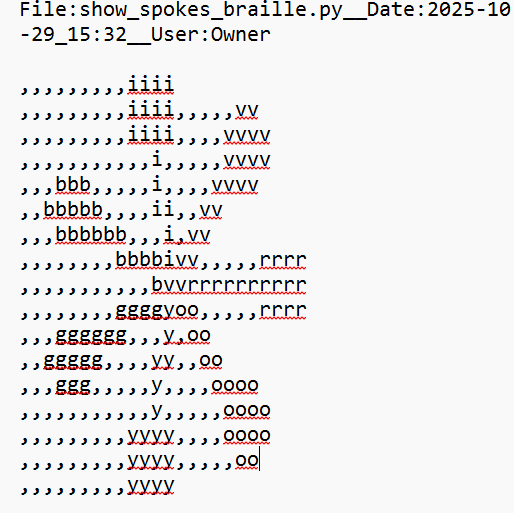
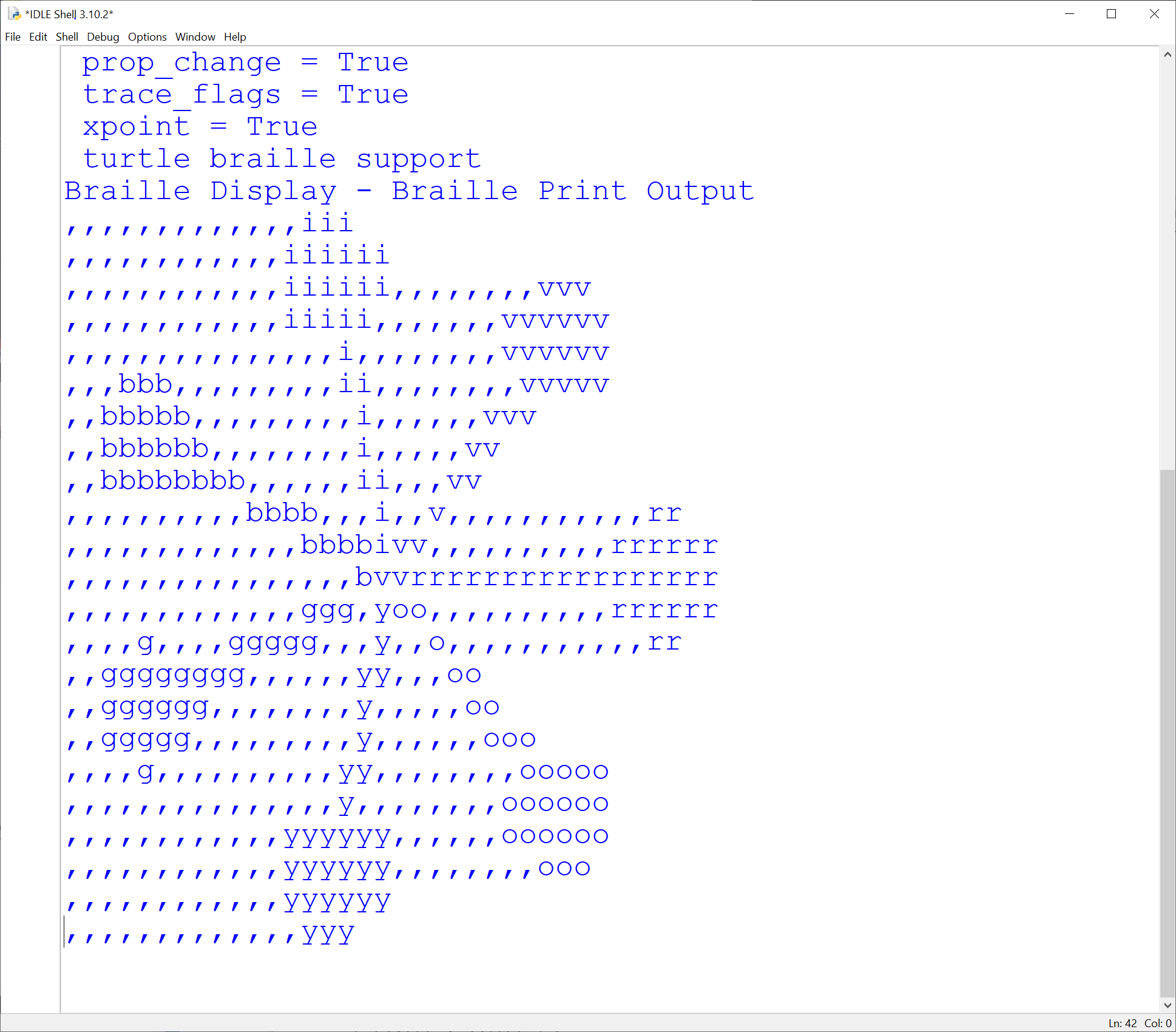
We attempt to enable blind individuals to "visualize" simple graphics produced by simple programs which use Python's turtle module. In our approach we devide the turtle graphics screen into 40 to 40 columns wide by 25 rows deep. We create a "text map" with a character representing the contents of each one column by one row region. For colored regions, we use the first letter of the region's color - r=red, o=orange, y=yellow, g==green, b==blue, i==indigo, v==violet. For other colors we use b (black). In general we use space for an empty region. To avoid possible compression of multiple spaces by Braille printer software, we convert non-trailing spaces into comma(,). In addition to turtle's standard graphics window, the following additions are created:
- A "text map" suitable for a low resolution physical display. The text map is placed in the Windows clip-board, from which it can be "pasted" into compatible applications such as a Braille printing application or a Zoom chat box for remote operation.
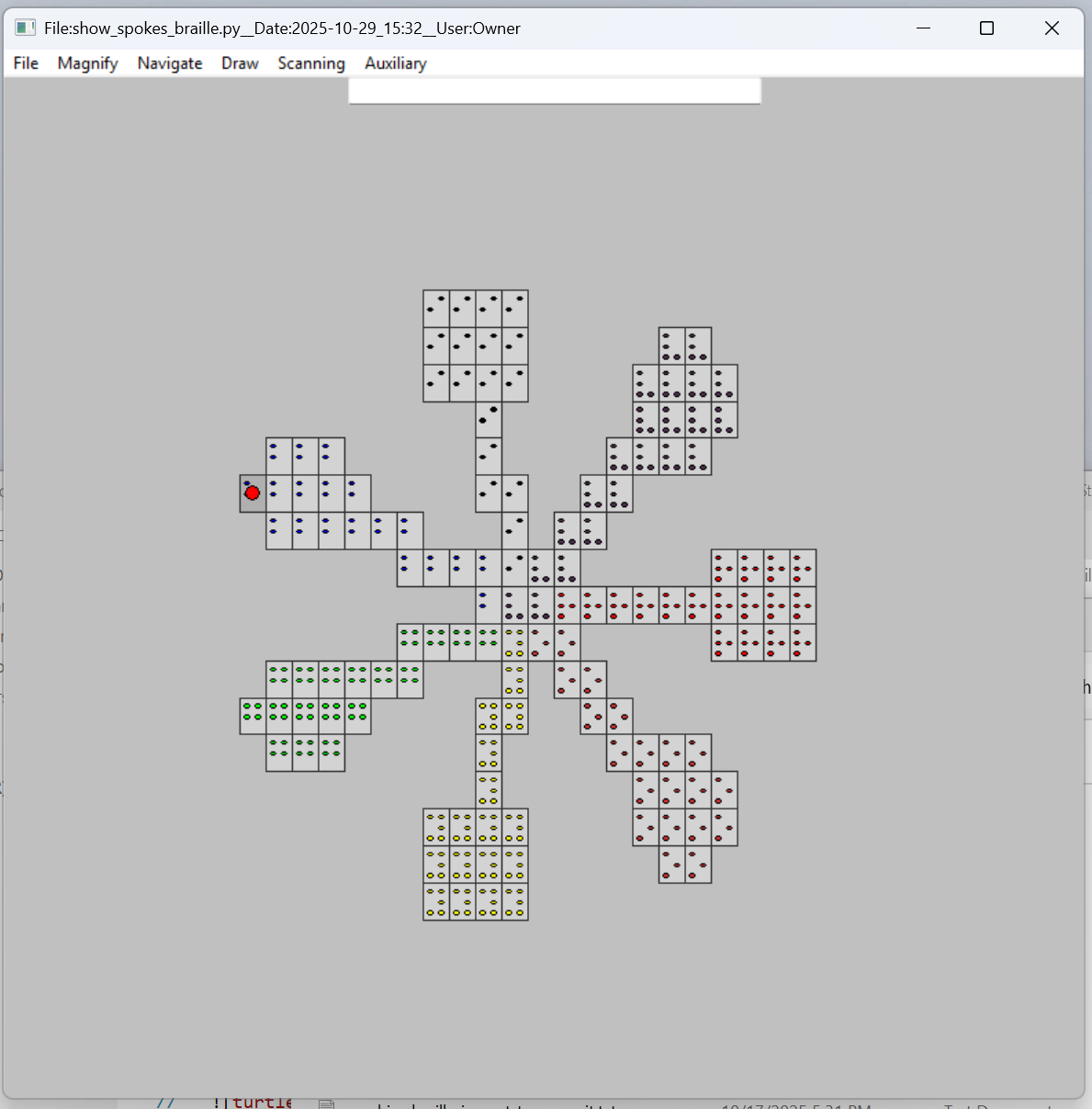
- A audio-draw-window which displays the expected braille - lower resolution(e.g. 40 x 25 braille cell) rendition of the turtle display
- The audio-draw-window supports many keyboard based window commands which provide positioning and reporting. These commands provide audio feedback of the current cursor position and contents. The audio feedback is user controlled with several levels of spoken text or audio tones.
- The audio-draw-window supports the selection of a portion of the displayed area with the creation of a new audio-draw-window, displaying of the selected region in greater detail.
Setup (MS Windows)
- pip install from PyPI
-
TestPyPI
py -m pip install --extra-index-url https://test.pypi.org/simple/ graphics-braille==0.1.29.dev1 -
Standard
py -m pip install graphics-braille -
Simple Testing / Viewing
Terminal Commands:
        gb, gbhelp - List graphics-braille commands
        gbreadme - Display README.md (as seen on PyPI entry)
        gbtest - Do simple program test
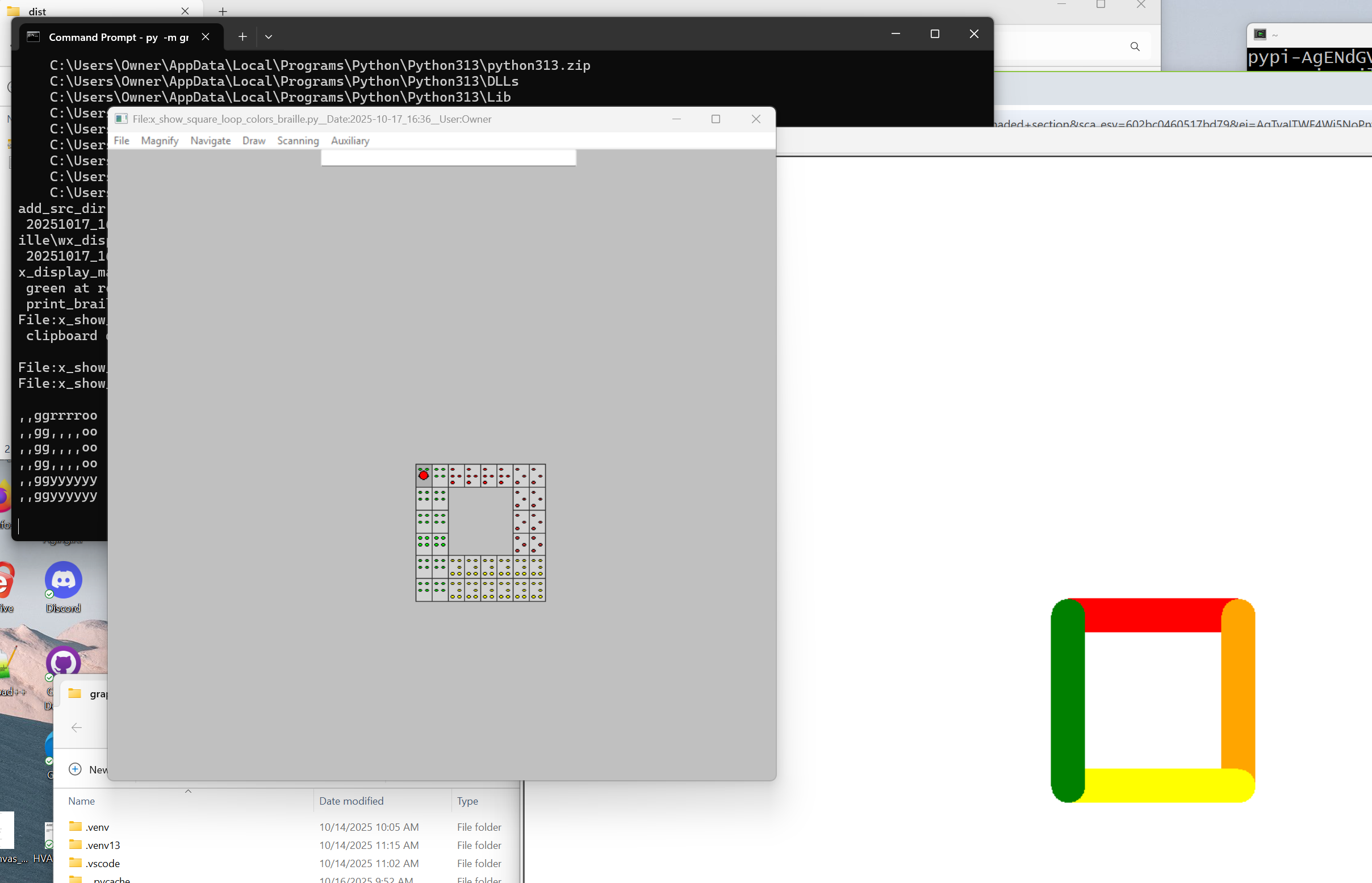
In a handfull of seconds the following view should present on the screen. If audio is working, one should hear something like "green at row 14 column 20".
Simple test (single process, only wxPython exercised)
Useful for debugging
py -m graphics_braille.wx_braille_display
graphics_braille test Screenshot
Mac / Linux
The following tests should work but have not been fully tested.
python3 -m graphics_braille.z_show_square_loop_colors_braille
python3 -m graphics_braille.wx_braille_display
Virtual Environment (venv)
It's optional, but we us it. It's no so hard. As of python3 venv is a standard module and need not be installed. Create the environment, activate the environment, do your stuff, and when done, deactivate the environmet.
Creating virtual environment
python -m venv venv
venv\Scripts\activate
Leaving environment
deactivate
Notable text map modifications
These changes were the results of experiences with and comments from some 8th grade students at the Perkins School for the Blind.
- Non-trailing blanks are replaced with "," characters so as not to be compressed by the braille producing software. The "," characters, while not being "blank" are single dot braille constructs, provide an "empty-like" view.
- Blank area above and to the left is reduced to facilitate viewers finding graphics objects.
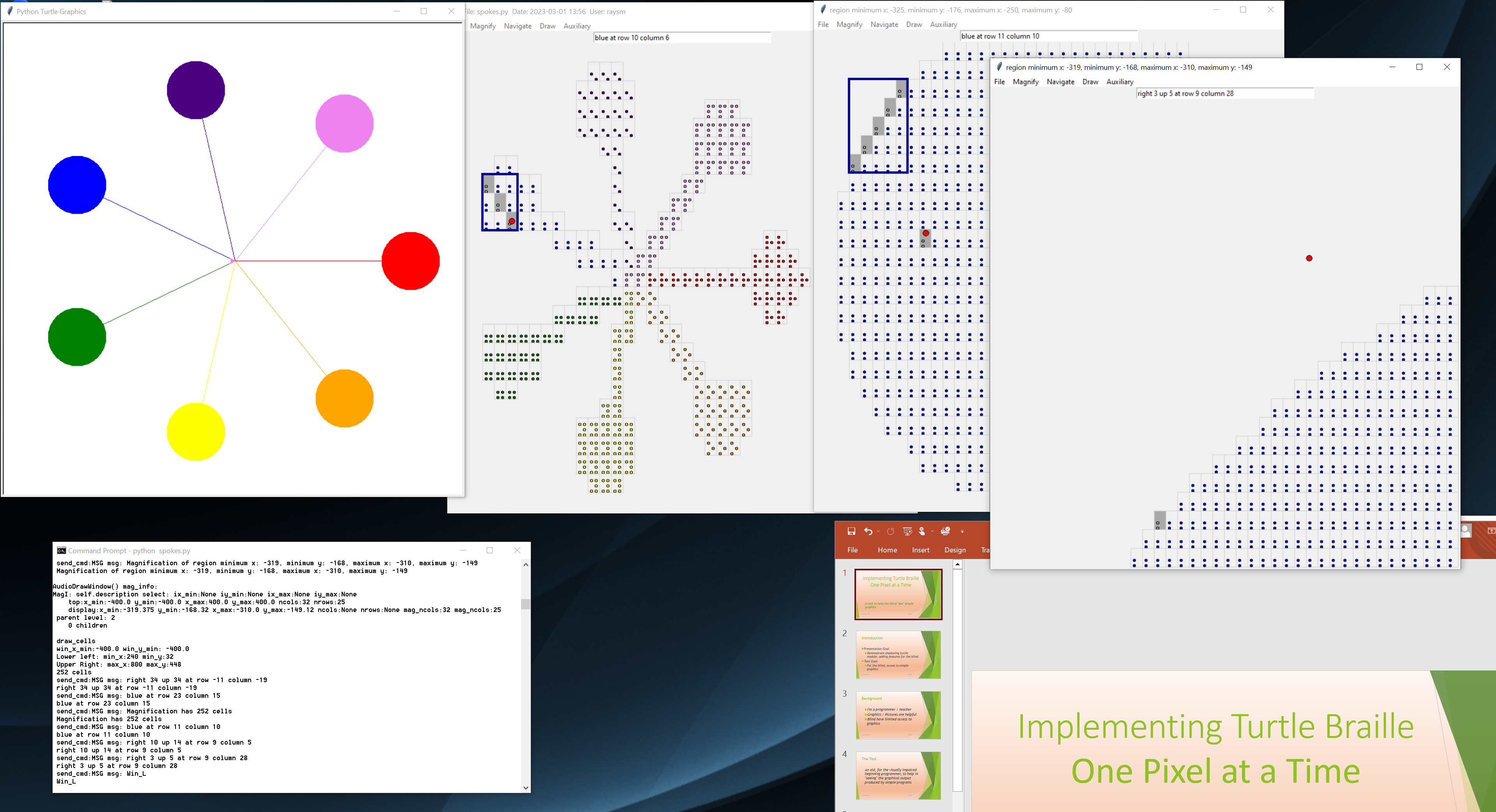
A set of screen shots for a simple program
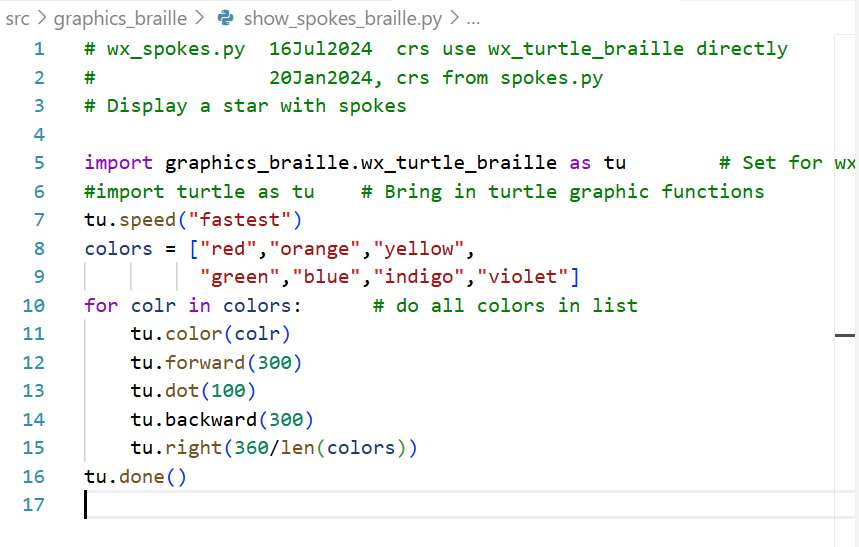
Example User program
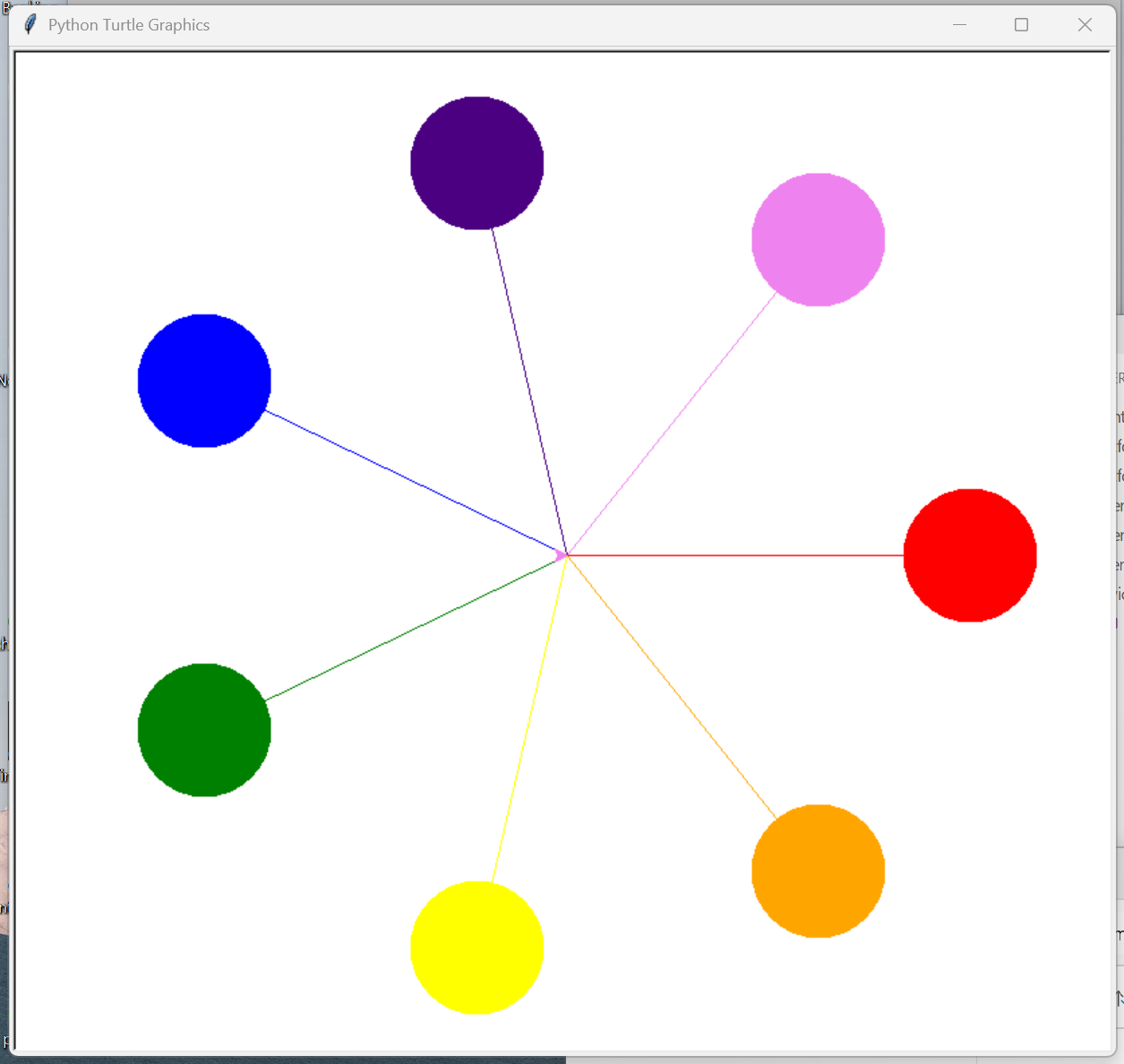
turtle display window
Text map display (in clipboard)
braille display window - with audio feedback
Note that the color of the braille dots is for the implementer's view to empasize the color. Also the rectangles surrounding the dots are to further help the visual image.
Braille Window - audio feedback - An implementation aid, providing the likely braille view
Terminal output (wordy, mostly diagnostic in nature)

Keyboard / Menu commands
Keyboard display/positioning commands
        h - say this help message
        Up - Move up through run of same color/space
        Down - Move down through run of same color/space
        Left - Move left through run of same color/space
        Right - Move right through run of same color/space
        DIGIT - Move one square in direction (from current square):
           7-up left    8-up       9-up right
           4-left       5-mark     6-right
           1-down left  2-down     3-down right
              0-erase
        a - move to first(Left if Horizontal, Top if Vertical)
        b - move to second(Right if Horizontal, Bottom if Vertical)
        c<roygbiv> - set color red, orange, ...
        d - pendown - mark when we move

        g - Go to closest figure
        j - jump up to reduced magnification
        k - jump down to magnified region
        m - mark location
        p - Report/Say current position
        r - Horizontal position stuff to left, to Right
        t - Vertical position stuff to Top, to bottom
        u - penup - move with out marking
        w - write out braille
        x - move to original cell (after a/b Horizontal/Vertical)
        z - clear board
        Escape - flush pending report output
File - Program control - Only Exit is functioning
x - Exit program
Magnify - Magnification Control
        Help - list magnify commands (Alt-m) commands
        h - say this help message
        r - remove position history
        t - expand magnify selected region left/right
        s - select/mark magnify region
        t - expand magnify selected region up/down top/bottom
        v - view region (make new window)
Magnify supports the creation of a new audio-display-window, enlarging the currently selected region of the current audio-display-window. The selected region is the rectangular region encompasing the currently traversed squares.
###Currently options t is not implemented.
Navigate - Navigation commands from Navigate pulldown menu
        Help - list navigate commands (Alt-n) commands
        h - say this help message
        a - Start reporting position
        b - remove
        z - stop reporting position
        e - echo input on
        o - echo off
        v - visible cells
        i - invisible cells
        r - redraw figure
        s - silent speech
        t - talking speech
        l - log speech
        m - show marked(even if invisible)
        n - no log speech
        p - report position
        u - audio beep
        d - no audio beep
         Escape - flush pending report output
Draw - Free drawing control
        Help - list drawing setup commands (Alt-d) commands
        h - say this help message
        d - Start/enable drawing
        s - stop/disable drawing
        Escape - flush pending report output
Scanning - Audio Window Scanning
        Help - list scanning commands (Alt-s) commands
        h - say this help message
        c - combine wave - faster scan
        d - disable combine wave - viewing in window
        k - toggle skip space
        s - Start scanning mode
        t - Stop scanning mode
        n - no_item_wait
        w - wait for items
Auxiliary - internal tracking / debugging
Trace - tracing control
Program text printout - targeted for the brailler machine
Supported turtle commands
Because of our post running, screen scanning technique, we support all turtle commands, not requiring animation. That is, we take a static snapshot at the end of the program.
Our implementation has some harsh compromises:
- Our graphics resolution is currently 40 wide by 25 down for a 800 by 800 screen. Note this is further constrained by the fact that our students' shared braille embosser is set to 30 characters wide.
- Colors are represented by braille for the color's first letter(English)
- No motion - yet
TurtleBraille Support Files
- turtle_braille.py - direct outer interface to global turtle commands, and turtle object level commands
- braille_display.py - implements turtle commands in the braille setting and the creation of display braille window and text printout
- turtle_braille_link.py - simple link to support user level replacement of "from turtle import *" with "from turtle_braille_link import *" lines
TurtleBraille Trace / logging support
- select_trace.py
- crs_funs.py
- select_error.py
- select_report.py
- java_properties.py
resource_lib
Common files / support for other projects
Contains files used to support other projects. Provides logging, tracing, properties support.
Brief listing of document files (Docs directory)
- Program_Logging_Tracing.pptx PowerPoint presentation about Logging/Tracing demonstrating the classes SlTrace and TraceControlWindow
Brief listing of source files (src directory) with purpose.
- arrange_control.py: window sizing/placement support
- java_properties.py: simple properties file support
- logging_absolute_minimum.py: smallest example of logging
- logging_tracing_menu.py: TraceControlWindow class example
- logging_tracing_simplest.py: Simple logging/tracing example
- resource_group.py: support to handle a program's resource groups
- select_control.py class SelectControl
- Base for independent control
- Provides a singleton which is universally accessible
- Facilitates
- setting and retrieving of game controls
- persistent storage of values
- select_dd_choice.py Dropdown choice one of n text strings - not sure
- select_error.py General local, to our program/game, error class
- select_trace.py class SlTrace
- trace/logging package
- derived from smTrace.java (ours)
- properties file support
- select_window.py Program Level Menu control
- tkMath.py Useful window math thanks to: tkMath from recipe-552745-1.py Ronald Longo
- trace_control_window.py class TraceControlWindow
- Window support for SlTrace flag manipulation
- variable_control.py class VariableControlWindow
- Simple Control and Display of program variables
- Adapted from trace_control_window.py/TraceControl
- Essentially presents a scrollable list of variable names and values
- Uses select_control/SelectControl to store and manipulate variable contents
Release history Release notifications | RSS feed


Download files
Download the file for your platform. If you're not sure which to choose, learn more about installing packages.
Source Distribution
Built Distribution
Filter files by name, interpreter, ABI, and platform.
If you're not sure about the file name format, learn more about wheel file names.
Copy a direct link to the current filters
File details
Details for the file graphics_braille-0.1.43.tar.gz.
File metadata
- Download URL: graphics_braille-0.1.43.tar.gz
- Upload date:
- Size: 3.9 MB
- Tags: Source
- Uploaded using Trusted Publishing? No
- Uploaded via: twine/6.2.0 CPython/3.13.9
File hashes
| Algorithm | Hash digest | |
|---|---|---|
| SHA256 |
2979543057ddf24abe00b3920603e7f0aff8b4a91531981b3bc730388ef3f2e0
|
|
| MD5 |
85ad78fc3f7dced58172bc448abeddc3
|
|
| BLAKE2b-256 |
396efb0cdf3d3bd313ee3bd346cc748b6d90c9b1f56813e9cc32e3e3e4bfe389
|
File details
Details for the file graphics_braille-0.1.43-py3-none-any.whl.
File metadata
- Download URL: graphics_braille-0.1.43-py3-none-any.whl
- Upload date:
- Size: 1.4 MB
- Tags: Python 3
- Uploaded using Trusted Publishing? No
- Uploaded via: twine/6.2.0 CPython/3.13.9
File hashes
| Algorithm | Hash digest | |
|---|---|---|
| SHA256 |
c132e8e2f0f32ea80ce5485233312f4eb43fb6131d4c3f11addeb6f1a2c74a8d
|
|
| MD5 |
d465a9c9cc9944a891a91894e71c24b4
|
|
| BLAKE2b-256 |
b258e179a33a244d162cd5ec1381d79a0f3e5554dccdb2059e9ce701d10f8819
|






