

hugo-writer



A local, browser-based writing tool for Hugo sites — in the
spirit of grip: run one command in your site folder and write in the browser.
uvx hugo-writer /path/to/hugo-site
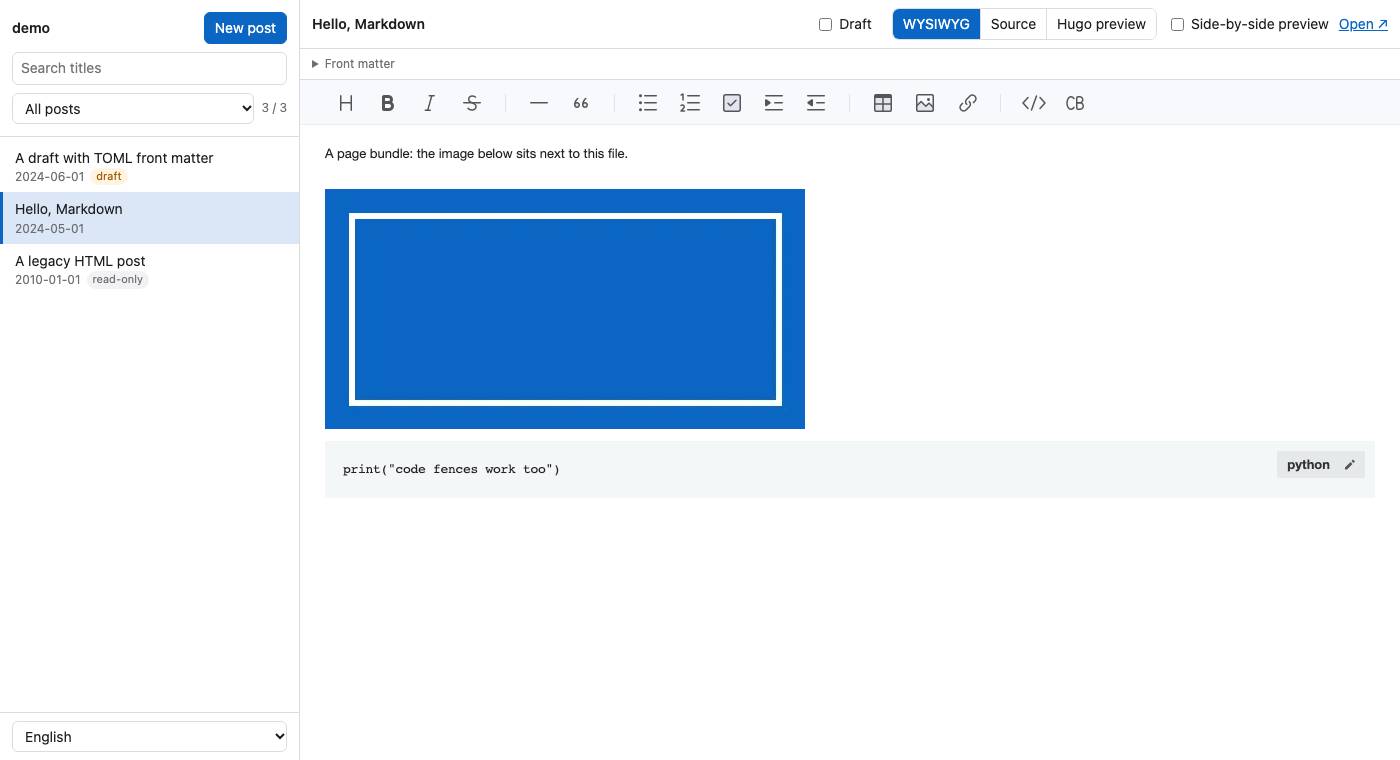
It lists every post of the site, edits Markdown in three views (WYSIWYG, source, and the real Hugo-rendered page), resizes images you drop or paste, and saves straight to your content folder. No server to host, no account, no database — just your files.
Features
| # | Feature | How |
|---|---|---|
| 1 | Post list with search and draft / published filters | hugo list all, so every front matter format (YAML, TOML, JSON) is read by Hugo itself |
| 2 | Three views: WYSIWYG, Source, Hugo preview | TOAST UI Editor (bundled, works offline), a plain source editor, and a private hugo server |
| 3 | Side-by-side preview while you write | the preview reloads on every save |
| 4 | Markdown throughout: code fences, tables, lists, links | posts stay plain .md files |
| 5 | Drafts | new posts start as drafts; one checkbox flips draft in the front matter |
| 5a | Title, URL and featured image above the editor | written to the front matter (YAML, TOML or JSON), the rest of it kept |
| 6 | Drop or paste images (screenshots too) | scaled to 1024 px (or 512 / 256 / 128), re-encoded as WebP, EXIF / GPS removed (and reported), named after the post, saved next to it |
| 7 | Move and align images in the WYSIWYG view | drag an image elsewhere; click it for Left / Center / Right |
| 8 | Image panel per post, and an image library for the whole site | thumbnails, which posts use each image, rename to {slug}-NN, delete what nothing uses |
| 8a | Links that open in a new tab, with rel (nofollow, sponsored, ugc, …) | click a link; written as HTML <a> only when needed |
| 8b | Settings in the UI | image naming, maximum width, format, quality, metadata — saved to .hugo-writer.toml |
| 9 | Autosave, and the open post stays in the address | a second after you stop typing, or ⌘S / Ctrl+S; reloading comes back to the same post |
| 10 | English and Traditional Chinese UI | follows the browser language; switch at the bottom left |
Only Markdown posts are editable. Other content files (HTML, Org, …) are listed and shown read-only, so a migrated archive can sit next to new posts safely. Markdown posts that carry HTML blocks (embeds, tables, scripts) open in the source view, with a note, because a WYSIWYG editor can't keep that HTML intact.
Install
Run it without installing (needs uv):
uvx hugo-writer /path/to/hugo-site
Or install it as a command:
uv tool install hugo-writer
hugo-writer /path/to/hugo-site
Hugo itself must be installed and on your PATH (or pass --hugo /path/to/hugo).
Usage
1. Start the editor
hugo-writer [SITE] [--port 8765] [--hugo hugo] [--no-preview] [--no-browser]
SITE defaults to the current directory. hugo-writer starts a private hugo server
(drafts and future posts included, rendered in memory, on its own port — it does not
interfere with a hugo server you already run), then opens the editor at
http://127.0.0.1:8765/. Both listen on 127.0.0.1 only. Ctrl+C stops both.
| Option | Meaning |
|---|---|
--port |
editor port; the next free one is used if it is taken |
--hugo |
the hugo executable to use |
--no-preview |
don't start hugo server (no Hugo preview view) |
--no-browser |
don't open the browser |
2. Write
- New post asks for a title and a slug and creates a draft page bundle.
- WYSIWYG edits the formatted text; the front matter (YAML, TOML or JSON) sits in a collapsible box above it.
- Source shows the whole file, front matter included.
- Hugo preview shows the page exactly as your theme renders it. Tick Side-by-side preview to keep it next to the WYSIWYG or source view.
- Untick Draft when the post is ready; your next
hugobuild publishes it.
3. Title, URL and featured image
Above the editor: the post's title, its URL (the front matter url; empty means
Hugo's permalinks decide — changing it on a published post asks first, since old links
break) and its featured image: none, one of the post's images, or one you upload just
for that (it is not inserted into the text). By default the first image dropped into a post
without one becomes it.
The featured image goes to the front matter key in featured_field: images by default
(Hugo's own, read by its Open Graph and Twitter templates), cover.image for PaperMod, or
any key / parent.key.
4. Images
Drop or paste an image into either editing view. It is scaled down to
image_max_width, re-encoded (WebP by default), stripped of EXIF, named after the
post, and saved next to it:
content/posts/2026/10/my-slug/index.md
content/posts/2026/10/my-slug/my-slug-01.webp ← 
content/posts/2026/10/my-slug/my-slug-02.webp
The original file name is not used, nor put in the alt text (which starts as the post
title): names like Screenshot 2026-10-17 at 08.58.07.png give away when, and often
what, you captured. Set image_name = "{original}" to keep the original names.
EXIF and XMP are removed too — GPS position, camera and serial number, time taken,
author — and the status line says what a photo carried, e.g. removed: location (GPS),
camera, time taken. Set strip_metadata = false to keep EXIF. Formats stored without
re-encoding are cleaned as well: animated GIF / WebP are saved again frame by frame
without comments or EXIF, and SVGs lose <metadata> and editor data (Inkscape keeps the
absolute path of the file it exported to, e.g. /Users/you/…) — and, since the site serves
them, any <script> or on… attribute. What is in the picture (an e-mail address in a
screenshot, a face) is up to you.
Any image can be renamed from the image panel or the image library: type a name (made
URL-safe, extension kept) or leave it empty for the next {slug}-NN; Tidy names does
that for every image of a post not named after it yet. Every Markdown post linking to the
image — by file name or by its published URL — is updated.
Moving and aligning
In the WYSIWYG view, drag an image to move it: dropped at the start or end of a
paragraph it becomes a paragraph of its own, dropped inside text it goes into the text.
Click an image for Left / Center / Right / Default and a display width, Full size /
Large 512 / Medium 256 / Small 128 (the file stays as it is, so it is sharp on high-density
screens and can go back to full size). Markdown has no syntax for either, so they are kept
in the URL fragment — , ,
 — and the site's CSS does the rest:
img[src*="#left"]   { display: block; margin: 0 auto 0 0; }
img[src*="#center"] { display: block; margin: 0 auto; }
img[src*="#right"]  { display: block; margin: 0 0 0 auto; }
img[src*="#"][src$="w512"] { width: 512px; }
img[src*="#"][src$="w256"] { width: 256px; }
img[src*="#"][src$="w128"] { width: 128px; }
Links: new tab and rel
Click a link in the WYSIWYG view to edit its text and URL (filled in with the current ones),
remove the link (the text stays), or set Open in a new tab and rel (nofollow,
sponsored, ugc, noopener, noreferrer). Markdown links can't hold these, so a link with any
of them is written as HTML, <a href="…" target="_blank" rel="nofollow">…</a>, and goes
back to [text](url) when they are all cleared. The site must let raw HTML through
Markdown ([markup.goldmark.renderer] unsafe = true). hugo-writer keeps these attributes
when you edit around such links (TOAST UI on its own drops them).
The image library
Image library in the sidebar lists every image of the site (page bundles and
static/images/) with the posts that link to it — click one to edit it — and filters
unused images and the ones not named after their post. Deleting an image lists the posts
it would break first.
The image panel, and not publishing unused images
Images (n) in the toolbar lists the post's images with thumbnails, marks the ones the post no longer links to as unused (unsaved edits included), and deletes them one by one or all at once. Hugo publishes every file in a page bundle by default; to publish only the images a post uses, even when one is left behind, add:
[[cascade]]
  [cascade.build]
    publishResources = false
This needs an image render hook, so that Hugo looks the images up as page resources:
useEmbedded = 'fallback' on Hugo 0.148+ (below), or a hook of your own like
the demo site's.
The Images menu in the toolbar picks the width new images are saved at: Original
(image_max_width, 1024 by default), Large 512, Medium 256 or Small 128. Markdown has no
size syntax, so the file itself is that size and shows at that width (a small image looks
softer on high-density screens).
Posts that are not page bundles get static/images/<post path>/ instead.
If your posts use a url that ends in .html (for example /2026/10/my-slug.html),
Hugo publishes the bundle's images under /2026/10/my-slug/. Turn on Hugo's embedded
image render hook (Hugo 0.148+) so  points there:
[markup.goldmark.renderHooks.image]
  useEmbedded = 'fallback'
5. Settings
Optional, in .hugo-writer.toml at the site root:
section = "posts"                      # content/<section>/ for new posts
path = "{year}/{month}/{slug}"         # bundle folder under the section
url = "/{year}/{month}/{slug}.html"    # front matter `url` for new posts; omit to use Hugo's permalinks
image_max_width = 1024
image_format = "webp"                  # or "jpeg", "png"
image_quality = 82
image_name = "{slug}-{n}"              # {slug}, {n} (01, 02, …), {original} (the uploaded file's name)
strip_metadata = true                  # false keeps EXIF (camera, GPS, …) in uploaded images
featured_field = "images"              # front matter key for the featured image, e.g. "cover.image"
featured_default = "first"             # "first": the first dropped image becomes it; "none"
{year}, {month}, {day} and {slug} are filled in when the post is created.
Development
git clone https://github.com/changyy/py-hugo-writer.git
cd py-hugo-writer
uv sync                                    # creates .venv with the dev dependencies
uv run hugo-writer examples/demo-site      # try it on the bundled demo site
uv run pytest
examples/demo-site is a small theme-free Hugo site with a page
bundle, a draft, YAML / TOML / JSON front matter and a read-only HTML post. The tests
copy it to a temporary folder and run against it, so it is never modified.
Tests use whichever Hugo the HUGO variable points to (default: hugo on PATH), which
makes it easy to check other Hugo releases; tests that need Hugo are skipped when it is
missing. CI runs the suite against several Hugo versions.
HUGO=/path/to/hugo-0.148.2/hugo uv run pytest
Project layout
py-hugo-writer/
  pyproject.toml
  README.md               ← you are here
  CHANGELOG.md
  src/hugo_writer/
    cli.py                command line, starts everything
    site.py               the Hugo site: list (via hugo), read, write, create, drafts
    images.py             resize / re-encode / strip EXIF
    preview.py            the private `hugo server`
    server.py             local HTTP server and JSON API
    static/index.html     the editor (single page)
    static/vendor/        TOAST UI Editor 3.2.2
  examples/demo-site/     sample Hugo site for trying it out and for tests
  tests/
Requirements
- Python 3.11+ (uv installs it for you if needed)
- Hugo on
PATH - Pillow ≥ 10 (installed automatically)
License
MIT © Yuan-Yi Chang. Bundles TOAST UI Editor 3.2.2 (MIT © NHN Cloud Corp.) in
src/hugo_writer/static/vendor/.
1 maintainer

Metadata
1 maintainer
Release files for hugo-writer 1.20261017.1114705
For a detailed explanation of source distributions (sdists) and built distributions (wheels), please see the package formats documentation.
Source distribution (sdist)
| File | Size | Uploaded | |
|---|---|---|---|
| hugo_writer-1.20261017.1114705.tar.gz | 781.4 kB | Details |
Built distribution (wheel)
| File | Interpreter | ABI | Platform | Reset |
|---|---|---|---|---|
| hugo_writer-1.20261017.1114705-py3-none-any.whl | Python 3 | none | any | Details |
Total release size: 1.2 MB
Release files / hugo_writer-1.20261017.1114705.tar.gz
| Download URL | hugo_writer-1.20261017.1114705.tar.gz |
|---|---|
| Size | 781.4 kB |
| Tags | Source |
|
SHA-256 checksum How to use checksums |
d13fa16deb4051e8860e5361f1737f3e1a37d62ecc1ae69d1600741a26420cb5
|
|
BLAKE2b-256 checksum How to use checksums |
d2a37ab6177c19e6c74c407925c1dd23c442ba36830a3b376ed8669ddcc0c416
|
| Upload date | |
|
Uploaded using Trusted Publishing? What is trusted publishing? |
Yes |
| Uploaded via |
twine/7.0.0 CPython/3.13.14
|
Provenance
Provenance describes where a file came from. On PyPI, provenance is shared via attestations, which provide a verifiable record of the build or publishing details. View details, limitations and caveats.


PyPI Publish Attestation
PyPI verified that this artifact, at this checksum, originated from the publisher listed below.
Signed by GitHub Actions, verified by PyPI on Oct 17, 2026.
Transparency logRelease files / hugo_writer-1.20261017.1114705-py3-none-any.whl
| Download URL | hugo_writer-1.20261017.1114705-py3-none-any.whl |
|---|---|
| Size | 421.8 kB |
| Tags | Python 3 |
|
SHA-256 checksum How to use checksums |
d14502a914311c0fd9d09374ae848b199ad8ff205d45f0fbec097914d0f95db1
|
|
BLAKE2b-256 checksum How to use checksums |
c61674136665c4a0449811ad3f8b39391e91c115b87919a10102f6c63daffef7
|
| Upload date | |
|
Uploaded using Trusted Publishing? What is trusted publishing? |
Yes |
| Uploaded via |
twine/7.0.0 CPython/3.13.14
|
Provenance
Provenance describes where a file came from. On PyPI, provenance is shared via attestations, which provide a verifiable record of the build or publishing details. View details, limitations and caveats.
PyPI Publish Attestation
PyPI verified that this artifact, at this checksum, originated from the publisher listed below.
Signed by GitHub Actions, verified by PyPI on Oct 17, 2026.
Transparency log













