
MATLAB Integration for Jupyter
Verified details
These details have been verified by PyPIProject links
GitHub Statistics
Maintainers

Project description
MATLAB Integration for Jupyter



Run MATLAB® code in Jupyter® environments such as Jupyter notebooks, JupyterLab, and JupyterHub.
Table of Contents
- MATLAB Integration for Jupyter
Features of MATLAB Integration for Jupyter
You can use this package to run MATLAB code in Jupyter notebooks and JupyterLab.
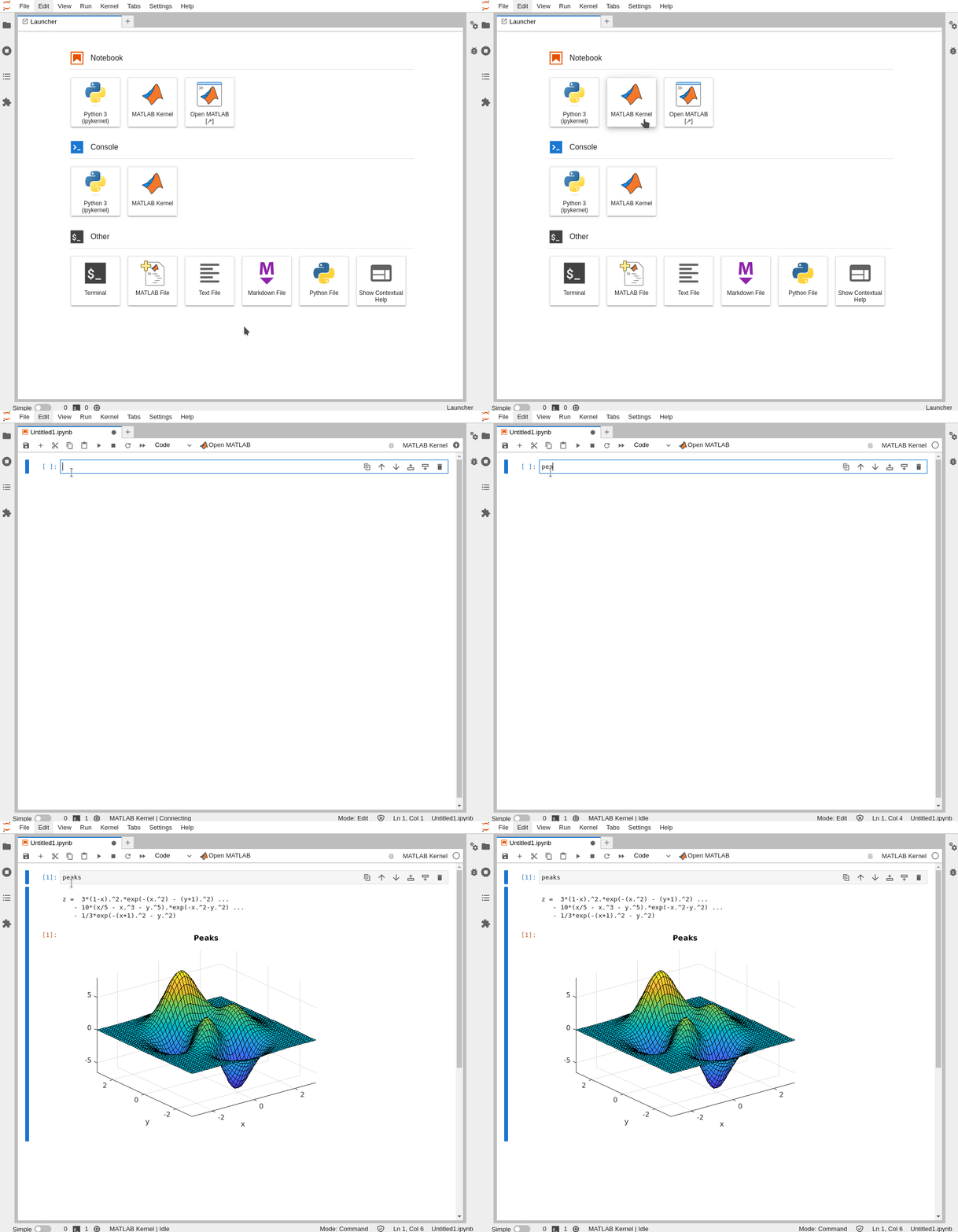
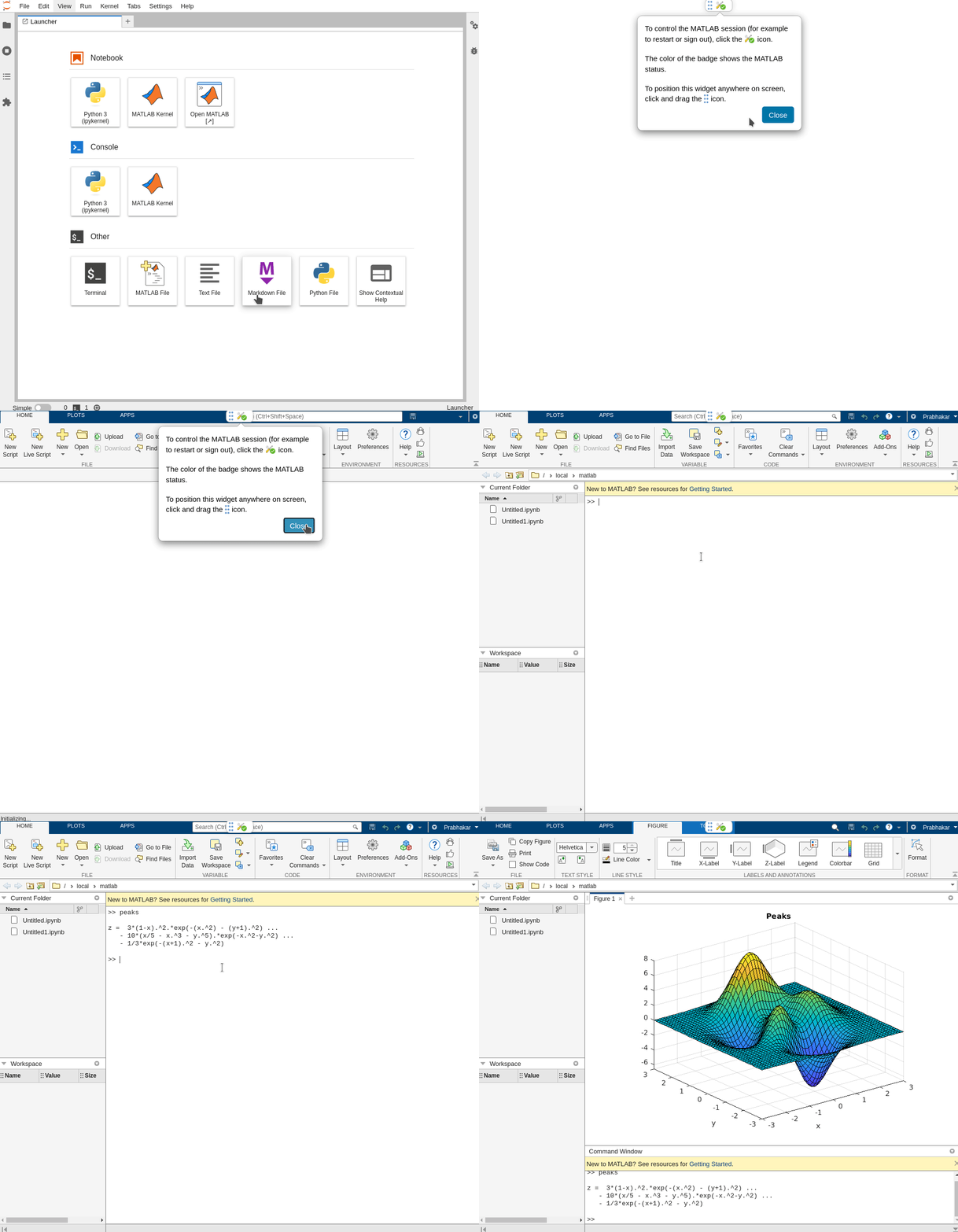
From your Jupyter notebook or JupyterLab, you can also open the MATLAB development environment in your browser to access more MATLAB features.
Requirements
-
Supported operating systems:
- Linux®
- MacOS
- Windows® (supported from v0.6.0).
- Windows Subsystem for Linux (WSL 2) Installation Guide.
-
Python versions: 3.10 | 3.11 | 3.12 | 3.13
-
MATLAB R2020b or later, installed and on the system PATH.
# Confirm MATLAB is on the PATH
which matlab
Note: You only need MATLAB installed if you want to execute MATLAB code. You can open Jupyter notebooks containing MATLAB code without having MATLAB installed.
-
System dependencies required to run MATLAB:
- The MATLAB Dependencies repository contains
base-dependencies.txtfiles that list the libraries required to run each release of MATLAB on a given operating system. To see how to use these files, refer to the Dockerfiles in the same folder.
- The MATLAB Dependencies repository contains
-
Linux based systems also require
X Virtual Frame Buffer (Xvfb), which you can install with:# On a Debian/Ubuntu based system: $ sudo apt install xvfb # On a RHEL based system: $ yum search Xvfb xorg-x11-server-Xvfb.x86_64 : A X Windows System virtual framebuffer X server. $ sudo yum install xorg-x11-server-Xvfb
Install
Install this Python package from the Python Package Index (PyPI) or build it from the source.
Install from PyPI
python -m pip install jupyter-matlab-proxy
install-matlab-kernelspec
For more information on install-matlab-kernelspec, see Jupyter Kernelspec Installation Utility.
Installing this package will not install MATLAB. To execute MATLAB code in Jupyter, you must have MATLAB installed separately.
Build from Source
Alternatively, you can install this package by building it from the source. This requires Node.js® version 18 or higher. To install Node.js, see Node.js Downloads.
git clone https://github.com/mathworks/jupyter-matlab-proxy.git
cd jupyter-matlab-proxy
python -m pip install .
install-matlab-kernelspec
Using VS Code
You can use this package to run MATLAB in Jupyter notebooks using VS Code. For instructions, see Run MATLAB in Jupyter Notebooks Using VS Code.
Using JupyterHub and The Littlest JupyterHub
To use MATLAB with JupyterHub, install the jupyter-matlab-proxy Python package in the Jupyter environment launched by your JupyterHub platform. For example, if your JupyterHub platform launches Docker containers, install this package in the Docker image used to launch those containers, using the instructions for Using MATLAB Integration for Jupyter in a Docker Container.
To use MATLAB with The Littlest JupyterHub (TLJH), see MATLAB Integration for Jupyter on The Littlest JupyterHub. You might use this if you want to set up JupyterHub on a single server for a small number of users, such as students in a class.
Using Simulink
This package lets you use Simulink® programmatically by entering commands in a Jupyter notebook. To view a model or use other Simulink features that require the Simulink UI, you can use a VNC to connect your Jupyter environment to a Linux desktop where you have MATLAB and Simulink installed. For instructions, see MATLAB Jupyter VNC Solution.
Troubleshooting
To troubleshoot package installation issues, see Troubleshooting.
Get Started
This section shows you how to:
Install Jupyter Notebook or JupyterLab:
# For Jupyter Notebook
python -m pip install notebook

# For JupyterLab 4
python -m pip install jupyterlab
Note: you can use this package to execute MATLAB code in both JupyterLab 3 and 4, but syntax highlighting is only supported on JupyterLab 4.
Open your Jupyter environment by starting Jupyter Notebook or JupyterLab.
# For Jupyter Notebook
jupyter notebook

# For JupyterLab
jupyter lab
If you are prompted for a token, click the link shown in your terminal to access your Jupyter environment.
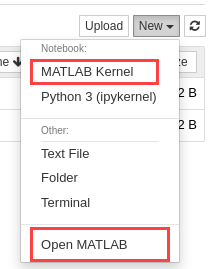
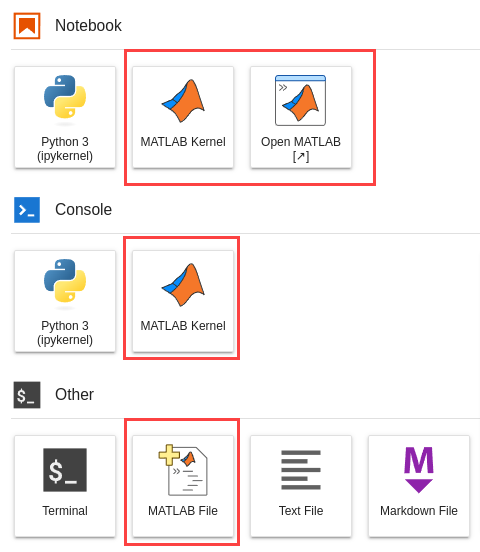
After installing this package, you see new MATLAB options in your Jupyter environments.
| Classic Notebook Interface | JupyterLab |
|---|---|
 |
 |
Run MATLAB Code in a Jupyter Notebook
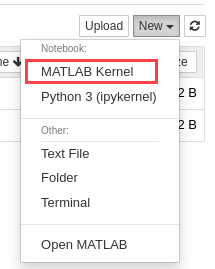
To open a Jupyter notebook where you can run MATLAB code, click MATLAB Kernel in your notebook or JupyterLab.
| Classic Notebook Interface | JupyterLab |
|---|---|
 |
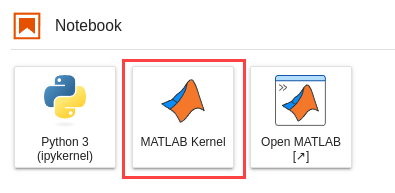 |
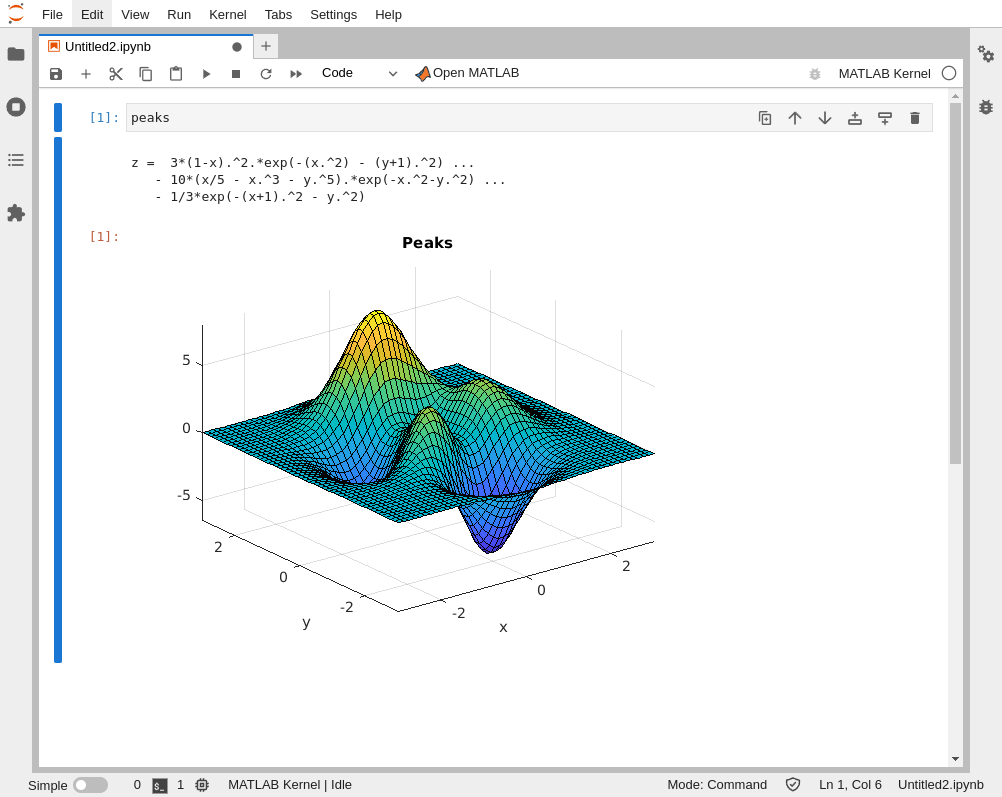
This opens a Jupyter notebook that supports MATLAB.
Notes
-
Licensing: When you execute MATLAB code in a notebook for the first time, enter your MATLAB license information in the dialog box that appears. For details, see Licensing. The MATLAB session can take a few minutes to start.
-
Sharing MATLAB across notebooks: By default, multiple notebooks running on a Jupyter server share the underlying MATLAB process, so executing code in one notebook affects the workspace in others. To use a dedicated MATLAB for your kernel instead, use the magic
%%matlab new_session. For details, see Magic Commands for MATLAB Kernel. To learn more about the kernel architecture, see MATLAB Kernel for Jupyter. -
MATLAB Kernel: The MATLAB kernel supports tab completion and rich outputs:
- Inline static plot images
- LaTeX representation for symbolic expressions
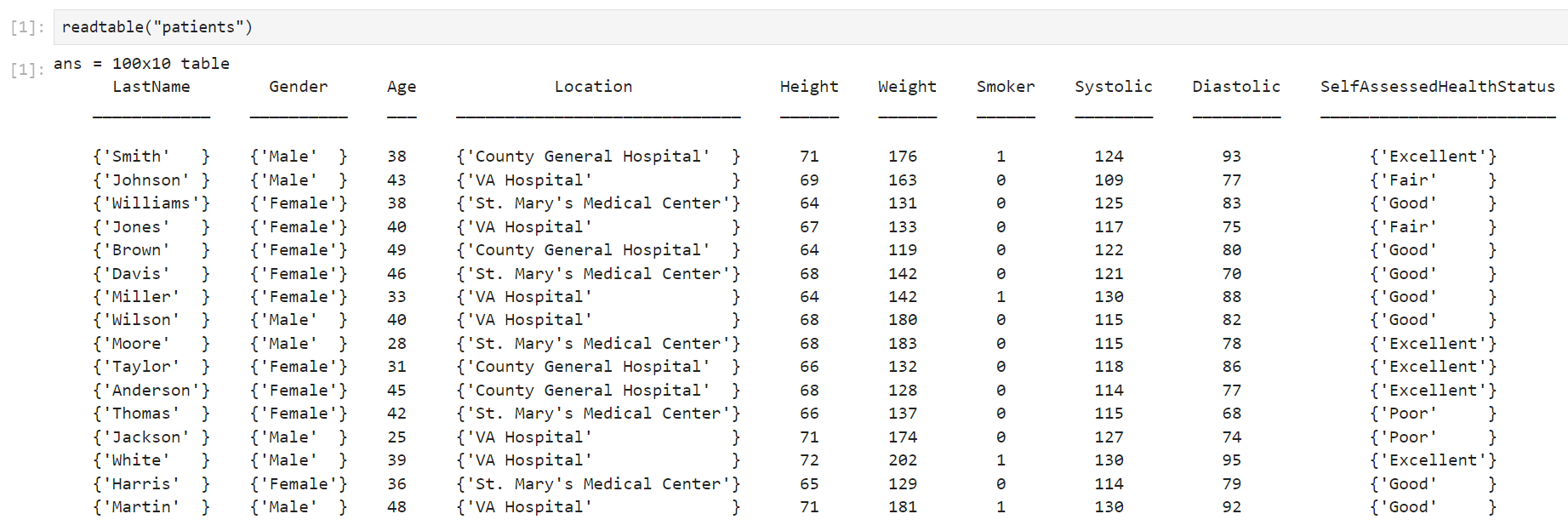
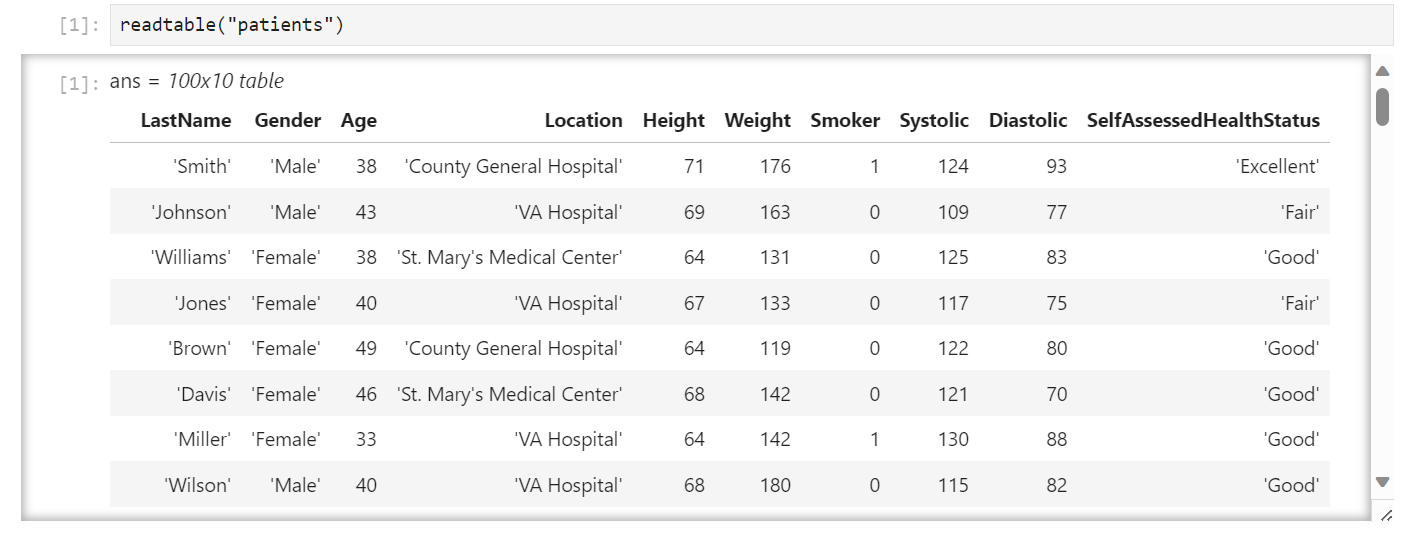
- Tables formatted using HTML instead of ASCII, in MATLAB R2024a and later:
Before R2024a After R2024a
For a technical overview of the MATLAB kernel, see MATLAB Kernel for Jupyter.
-
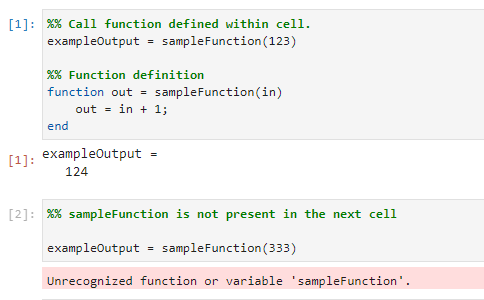
Local functions: With MATLAB R2022b and later, you can define a local function at the end of the cell where you want to call it:
-
Magic Commands: You can use predefined magic commands in a Jupyter notebook with the MATLAB kernel, and you can also implement your own. To see a list of predefined magic commands, run
%%lsmagic. For details about using magic commands, see Magic Commands for MATLAB Kernel.
Open MATLAB in a Browser
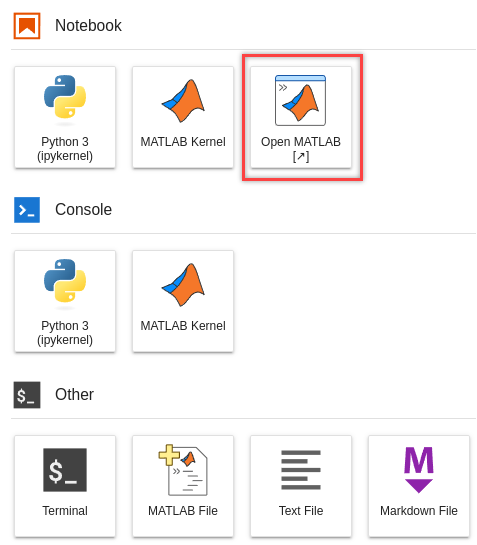
To access more MATLAB features, you can open the MATLAB development environment in your browser. Click the Open MATLAB button in your notebook or JupyterLab.
| Classic Notebook Interface | JupyterLab |
|---|---|
 |
 |
Notebooks in JupyterLab also have a Open MATLAB button on the toolbar:
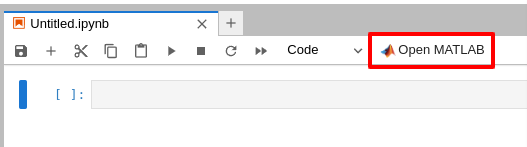
Clicking Open MATLAB opens the MATLAB development environment in a new browser tab.
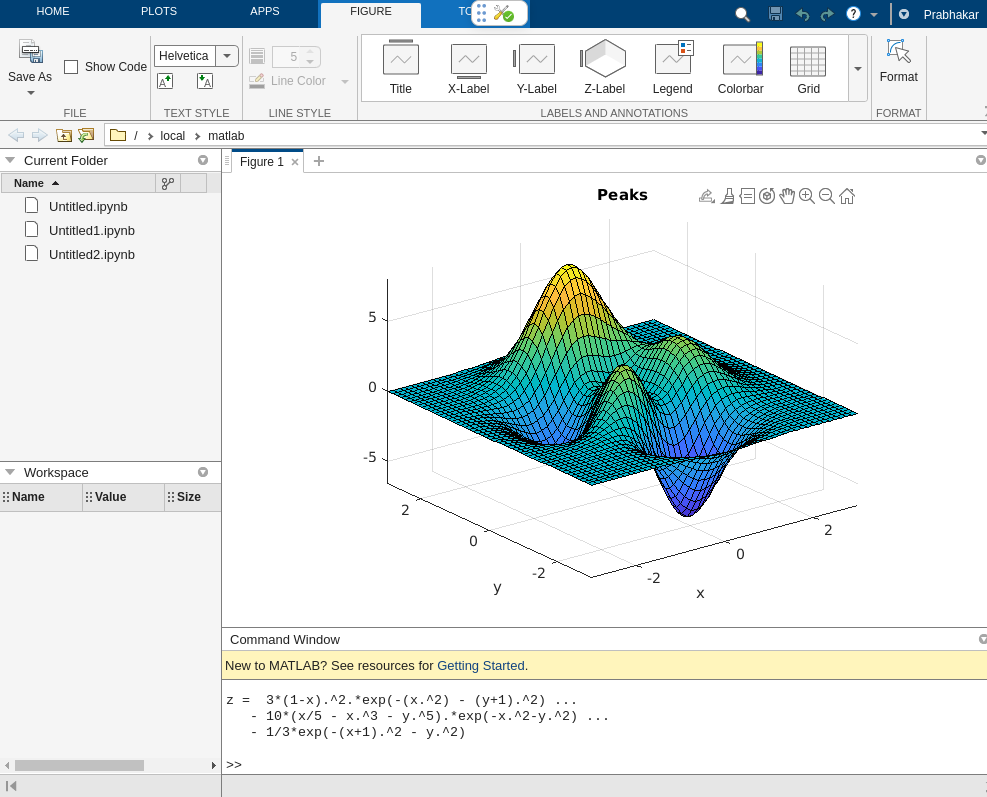
When you use the package for the first time, enter your MATLAB license information in the dialog box that appears. See Licensing for details.
For technical details about this MATLAB development environment, see MATLAB in a Browser.
Edit MATLAB Files in JupyterLab
You can also edit MATLAB .m files in JupyterLab. Click the MATLAB File button.
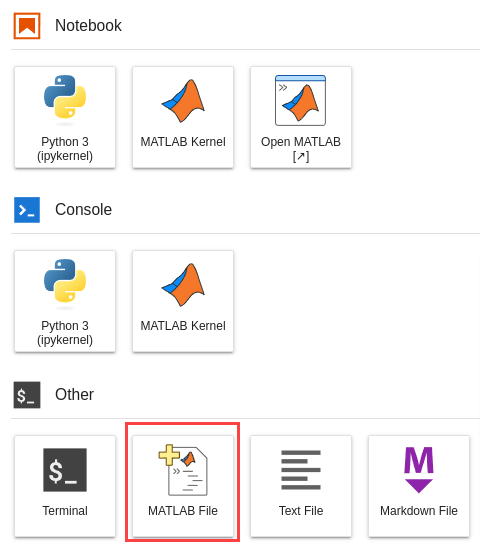
This opens an untitled .m file where you can write MATLAB code with syntax highlighting.
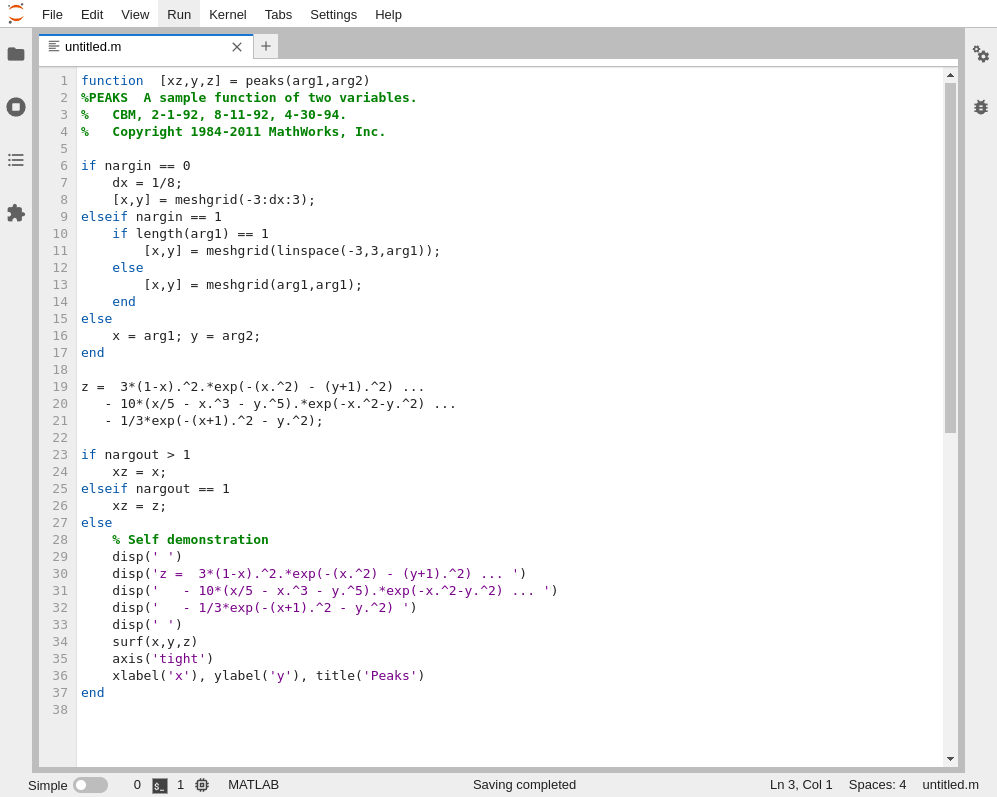
- Currently, this package allows you to edit MATLAB
.mfiles but not to execute them. - To open a new MATLAB
.mfile, you can also use the JupyterLab command palette. PressCTRL+SHIFT+C, then typeNew MATLAB Fileand pressEnter.
Limitations
-
This package has limitations. For example, it does not support certain MATLAB commands. For details, see Limitations.
-
To discuss a technical issue or submit an enhancement request, create a GitHub issue, or send an email to
jupyter-support@mathworks.com.
Copyright 2021-2025 The MathWorks, Inc.
Project details
Verified details
These details have been verified by PyPIProject links
GitHub Statistics
Maintainers
Release history Release notifications | RSS feed


Download files
Download the file for your platform. If you're not sure which to choose, learn more about installing packages.
Source Distribution
Built Distribution
Filter files by name, interpreter, ABI, and platform.
If you're not sure about the file name format, learn more about wheel file names.
Copy a direct link to the current filters
File details
Details for the file jupyter_matlab_proxy-0.18.0.tar.gz.
File metadata
- Download URL: jupyter_matlab_proxy-0.18.0.tar.gz
- Upload date:
- Size: 3.5 MB
- Tags: Source
- Uploaded using Trusted Publishing? Yes
- Uploaded via: twine/6.1.0 CPython/3.13.7
File hashes
| Algorithm | Hash digest | |
|---|---|---|
| SHA256 |
74fd3e7b7243d2ca120ea8f24f63bae785badab7f2654e6f0641933e97d617e4
|
|
| MD5 |
e99c3403ac5654c1be3a7a75a00d8296
|
|
| BLAKE2b-256 |
c77c982a29f87051f82fbe3f5717683653eb723792843449ba5b00445e3df08e
|
Provenance
The following attestation bundles were made for jupyter_matlab_proxy-0.18.0.tar.gz:
Publisher:
publish-jupyter-matlab-proxy.yml on mathworks/jupyter-matlab-proxy
-
Statement:
-
Statement type:
https://in-toto.io/Statement/v1 -
Predicate type:
https://docs.pypi.org/attestations/publish/v1 -
Subject name:
jupyter_matlab_proxy-0.18.0.tar.gz -
Subject digest:
74fd3e7b7243d2ca120ea8f24f63bae785badab7f2654e6f0641933e97d617e4 - Sigstore transparency entry: 760319332
- Sigstore integration time:
-
Permalink:
mathworks/jupyter-matlab-proxy@426901a1e428cb0951814c5ae3bf687f16615dae -
Branch / Tag:
refs/tags/jupyter-matlab-proxy-v0.18.0 - Owner: https://github.com/mathworks
-
Access:
public
-
Token Issuer:
https://token.actions.githubusercontent.com -
Runner Environment:
github-hosted -
Publication workflow:
publish-jupyter-matlab-proxy.yml@426901a1e428cb0951814c5ae3bf687f16615dae -
Trigger Event:
release
-
Statement type:
File details
Details for the file jupyter_matlab_proxy-0.18.0-py3-none-any.whl.
File metadata
- Download URL: jupyter_matlab_proxy-0.18.0-py3-none-any.whl
- Upload date:
- Size: 137.8 kB
- Tags: Python 3
- Uploaded using Trusted Publishing? Yes
- Uploaded via: twine/6.1.0 CPython/3.13.7
File hashes
| Algorithm | Hash digest | |
|---|---|---|
| SHA256 |
6101ea11e3750ece6a9197b976d0fedd2ec28f87aebc691a24da753497cc48ea
|
|
| MD5 |
546853df83a3a1b09c513ef9a4e334f0
|
|
| BLAKE2b-256 |
da24d23d06219bb7a1cc014fc5977f51e47567bb5242912da0dd5650da647738
|
Provenance
The following attestation bundles were made for jupyter_matlab_proxy-0.18.0-py3-none-any.whl:
Publisher:
publish-jupyter-matlab-proxy.yml on mathworks/jupyter-matlab-proxy
-
Statement:
-
Statement type:
https://in-toto.io/Statement/v1 -
Predicate type:
https://docs.pypi.org/attestations/publish/v1 -
Subject name:
jupyter_matlab_proxy-0.18.0-py3-none-any.whl -
Subject digest:
6101ea11e3750ece6a9197b976d0fedd2ec28f87aebc691a24da753497cc48ea - Sigstore transparency entry: 760319335
- Sigstore integration time:
-
Permalink:
mathworks/jupyter-matlab-proxy@426901a1e428cb0951814c5ae3bf687f16615dae -
Branch / Tag:
refs/tags/jupyter-matlab-proxy-v0.18.0 - Owner: https://github.com/mathworks
-
Access:
public
-
Token Issuer:
https://token.actions.githubusercontent.com -
Runner Environment:
github-hosted -
Publication workflow:
publish-jupyter-matlab-proxy.yml@426901a1e428cb0951814c5ae3bf687f16615dae -
Trigger Event:
release
-
Statement type:






