
Jupyter Storage Explorer launcher

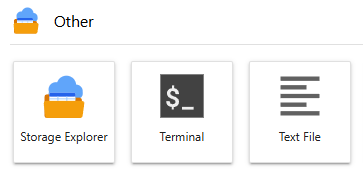
Adds Storage Explorer to JupyterLab's launcher (section Other) and command palette. It opens Jupyter Storage Explorer in its own tab, on the folder JupyterLab's file browser shows.
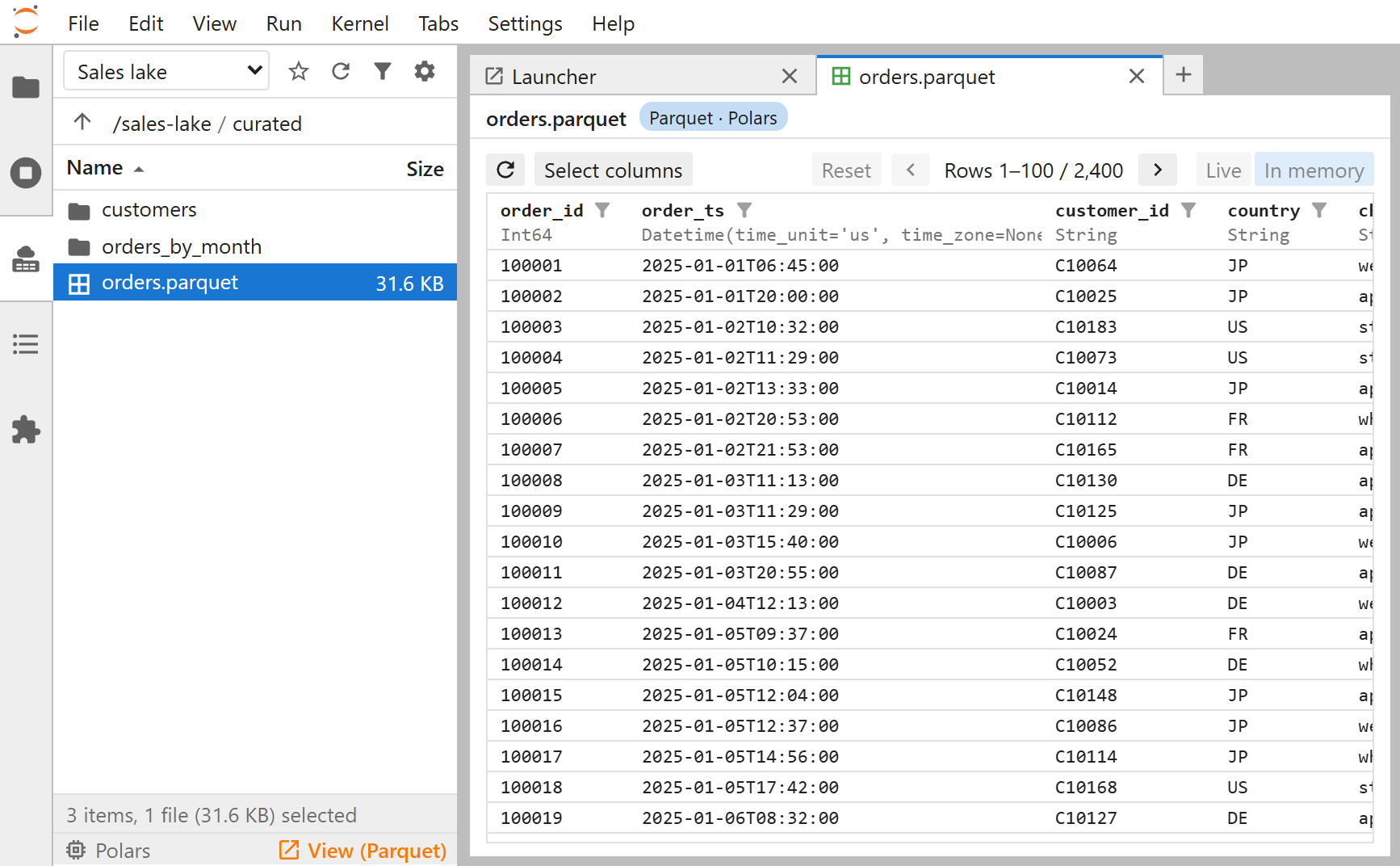
It also adds a side panel, a narrow explorer next to your notebooks:
- Open it with the Storage Explorer icon in the left side bar.
- The same storages as the tab; a folder's list, without the tree or the preview panel.
- Files you view (View, a double-click) open in new tabs.
- The filter button, left of ⚙, shows the filter.
- If it stops responding, see Restart the side panel.
It also integrates every Storage Explorer, in its tab or in a notebook, with JupyterLab:
- Drag and drop: drag files onto JupyterLab's file browser to download them there.
- Open files in a tab: double-click a file to open it in JupyterLab's own editor or viewer; Save writes it back to the storage.
- View in a new tab: open a table in the data browser, or another view (text, an image, ...), in a tab of its own.
Installation
Open a terminal in your JupyterLab and run the following. Then reload the page in your web browser.
pip install "jupyter-storage-explorer-launcher[polars]"
This installs the launcher in the Python environment of the default IPython kernel, which is usually JupyterLab's own. Requires JupyterLab 4.0 or later.
If the default kernel runs in another environment than JupyterLab's, install the launcher in both. JupyterLab loads the extension, and the kernel imports the Python package.
Persist the installation
An installation from a terminal is not kept in some environments:
- JupyterLab in a virtual environment, e.g. a venv or a conda environment: the installation stays in it.
- A Jupyter Docker Stacks image, e.g.
quay.io/jupyter/scipy-notebook: the package is gone once the container is removed. To keep it, install it into the image's Python environment: see the example below. - JupyterHub: a user's server often runs in a container, e.g. a Docker Stacks image as above. Administrators install the launcher in the single-user environment.
For a Docker Stacks image, a Dockerfile like this one builds an image with the launcher:
FROM quay.io/jupyter/scipy-notebook

RUN pip install --no-cache-dir "jupyter-storage-explorer-launcher[polars]" && \
    fix-permissions "${CONDA_DIR}" && \
    fix-permissions "/home/${NB_USER}"
fix-permissions is the images' own script. It keeps the installed files writable by the notebook user.
Extras
The launcher has the same extras as jupyter-storage-explorer
(Installation), of two kinds:
- Full extras, e.g.
[polars]: the plugin and the libraries it uses. - Support-only extras, e.g.
[polars-support]: the plugin alone, using the libraries already installed. Nothing else is installed or upgraded.
Plugins lists the plugins, with their extras and libraries.
Full extras are handy for a quick try. Support-only extras are highly recommended for an IPython kernel whose data access packages are carefully installed and configured (e.g. a shared JupyterHub image): the plugins use what is there and never change it.
pip install "jupyter-storage-explorer-launcher[all-supports]" # every plugin, with the libraries you have
Then read Storages to set up access to your storages, and Using the explorer.
Configuration
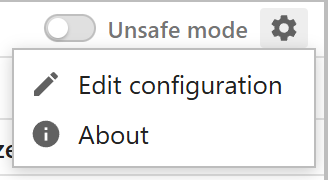
Click the ⚙ button at the right of the tab's toolbar, then Edit configuration.
It opens your settings, a Python file (launcher.py), in JupyterLab's editor; if you have none, it offers to create
one from a template with an example of each setting.
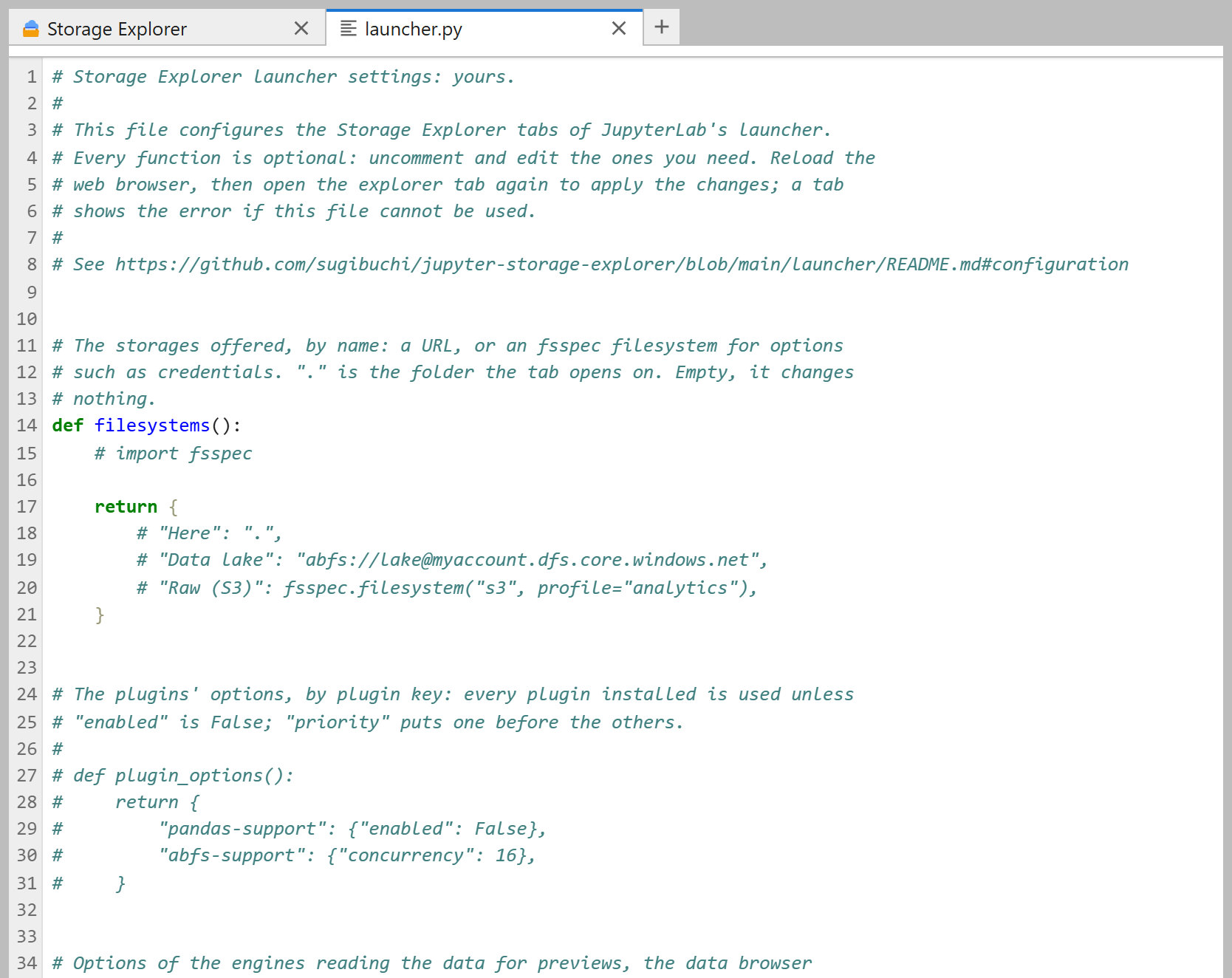
Uncomment and edit the settings you need, then save. Open a new Storage Explorer tab, or reload the page, to apply the changes.
For example, to open each tab on the data lake and the folder it starts on, with a preview at once:
def filesystems():
    return {
        "Here": ".",  # the folder the tab opens on
        "Data lake": "abfs://lake@myaccount.dfs.core.windows.net",
    }


def parameters():
    return {"preview_panel": "open"}
Configuration files describes the settings:
- each function of the file;
common.py, the settings of every explorer, in notebooks too;- the files administrators set up for everyone.
Troubleshooting
Restart the side panel
The side panel runs in a kernel of its own. If the panel stops responding, restart that kernel:
- Open JupyterLab's Running Terminals and Kernels panel in the left side bar.
- Under Kernels, hover over the kernel named Storage Explorer (side panel), followed by its id.
- Click its Shut Down button, a cross at the right.
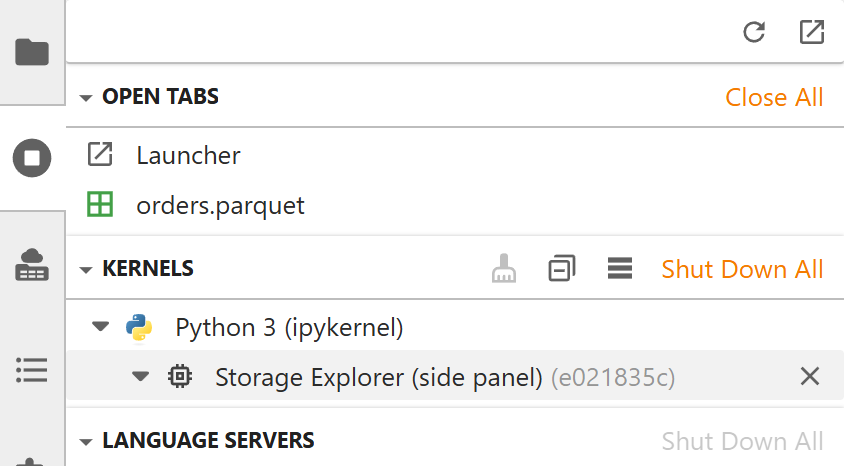
The side panel then starts a new kernel and shows the explorer again.
Reloading the page is not enough when the kernel is stuck: the panel reconnects to the same kernel.
See the logs
The tabs and the side panel log nothing by default. To see what goes wrong in their kernels:
- Click the ⚙ button at the right of the tab's toolbar, then Logging, and choose a level, e.g. INFO. The next tabs keep it.
- Do what went wrong again.
- Choose Open log file in the same menu, in the tab where it went wrong. The tab's file of the day opens in JupyterLab's editor, read-only.
The files are in the storage-explorer/logs folder of Jupyter's configuration directory: see
Logs.
1 maintainer

Metadata
1 maintainer
Release files for jupyter-storage-explorer-launcher 0.30.0
For a detailed explanation of source distributions (sdists) and built distributions (wheels), please see the package formats documentation.
Source distribution (sdist)
| File | Size | Uploaded | Provenance | Actions |
|---|---|---|---|---|
| jupyter_storage_explorer_launcher-0.30.0.tar.gz | 521.9 kB | With provenance | Details for jupyter_storage_explorer_launcher-0.30.0.tar.gz |
Built distribution (wheel)
| File | Interpreter | ABI | Platform | Actions Reset |
|---|---|---|---|---|
| jupyter_storage_explorer_launcher-0.30.0-py3-none-any.whl | Python 3 | none | any | Details for jupyter_storage_explorer_launcher-0.30.0-py3-none-any.whl |
Total release size: 569.0 kB
Release files / jupyter_storage_explorer_launcher-0.30.0.tar.gz
| Download URL | jupyter_storage_explorer_launcher-0.30.0.tar.gz |
|---|---|
| Size | 521.9 kB |
| Tags | Source |
|
SHA-256 checksum How to use checksums |
0235e5f950e38b9f8aeaf26cfa376b9a34fb4d1277331ea7442ec1b73902dc99
|
|
BLAKE2b-256 checksum How to use checksums |
2407a49000cc6d852171414251fa9b2e279920ab285a32bcd470172f0882639e
|
| Upload date | |
|
Uploaded using Trusted Publishing? What is trusted publishing? |
Yes |
| Uploaded via |
twine/7.0.0 CPython/3.13.16
|
Provenance
Provenance describes where a file came from. On PyPI, provenance is shared via attestations, which provide a verifiable record of the build or publishing details. View details, limitations and caveats.


PyPI Publish Attestation
PyPI verified that this artifact, at this checksum, originated from the publisher listed below.
Signed by GitHub Actions, verified by PyPI on Nov 3, 2026.
Transparency logRelease files / jupyter_storage_explorer_launcher-0.30.0-py3-none-any.whl
| Download URL | jupyter_storage_explorer_launcher-0.30.0-py3-none-any.whl |
|---|---|
| Size | 47.1 kB |
| Tags | Python 3 |
|
SHA-256 checksum How to use checksums |
dbea6d3858b91cbab9b92718cb1e2dbbe250318c3fcdab63abe9938f7ff22cd6
|
|
BLAKE2b-256 checksum How to use checksums |
71e73c7ca17e19b8132775777100d7269d5046c92ea8ec25e59dfa484c1f2df7
|
| Upload date | |
|
Uploaded using Trusted Publishing? What is trusted publishing? |
Yes |
| Uploaded via |
twine/7.0.0 CPython/3.13.16
|
Provenance
Provenance describes where a file came from. On PyPI, provenance is shared via attestations, which provide a verifiable record of the build or publishing details. View details, limitations and caveats.
PyPI Publish Attestation
PyPI verified that this artifact, at this checksum, originated from the publisher listed below.
Signed by GitHub Actions, verified by PyPI on Nov 3, 2026.
Transparency logSecurity for jupyter-storage-explorer-launcher 0.30.0
Provenance
Provenance describes where a file came from. On PyPI, provenance is shared via attestations, which provide a verifiable record of the build or publishing details. View details, limitations and caveats.
Full provenance
All 2 files in this release have been uploaded with provenance metadata.
Attestation for jupyter_storage_explorer_launcher-0.30.0.tar.gz
PyPI Publish Attestation
PyPI verified that this artifact, at this checksum, originated from the publisher listed below.
Signed by GitHub Actions, verified by PyPI on Nov 3, 2026.
Transparency logA note on package security
PyPI is a repository for distributing packages, not a service for auditing them. While third-party security researchers and our staff do their best to detect and remove malicious packages, PyPI cannot guarantee the quality, security or suitability of any given package.
To learn more about protecting yourself from malicious actors, visit our package security documentation.














