
Jupyter Storage Explorer
Explore your data lake without leaving Jupyter: built for data professionals



StorageExplorer is a file explorer for cloud storage and data lakes, right inside your Jupyter notebook, in the
spirit of Azure Storage Explorer.
Browse Amazon S3, Azure Data Lake / Blob Storage, Google Cloud Storage, local disks and more; preview Parquet files, Delta Lake tables, CSV, Excel, JSON and other formats; page through, sort and filter tables; get ready-to-run code that loads the data into your notebook; and upload, download, move and edit files without leaving JupyterLab. See Using the explorer for all you can do with it.
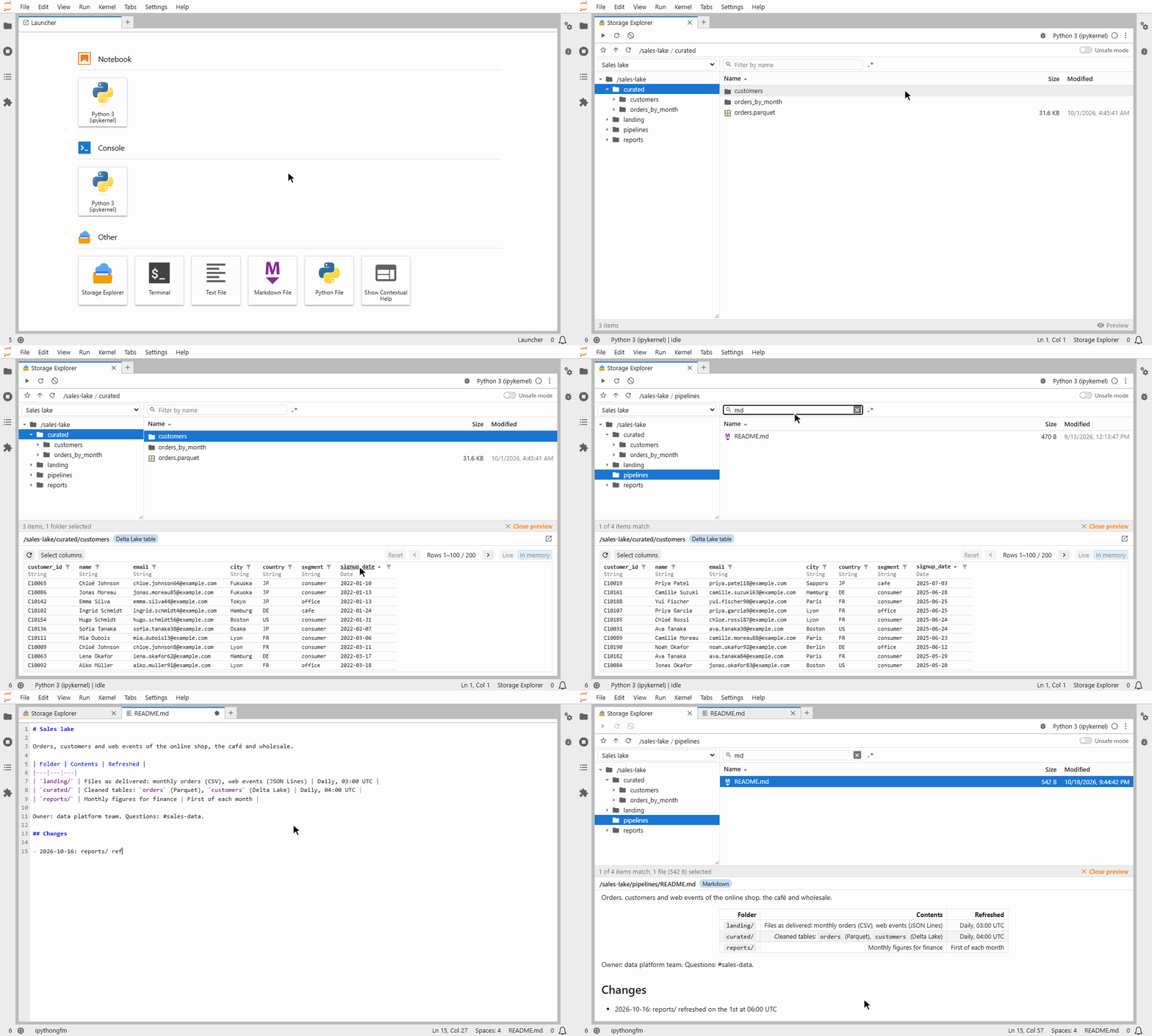
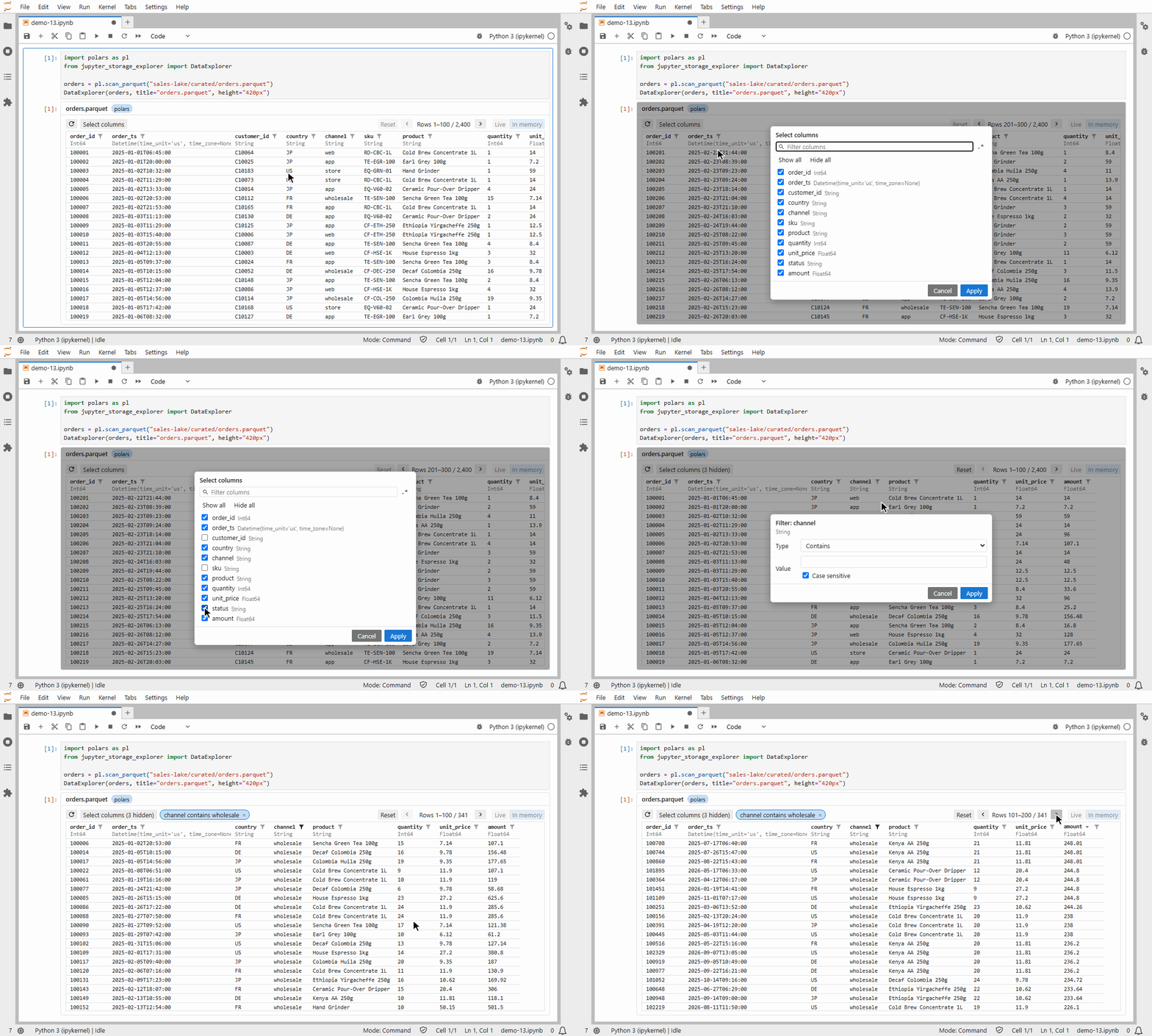
This package also provides the DataExplorer widget, which lets you browse tabular data in your notebook: any
dataframe of pandas, polars, Spark, DuckDB and more. Page through, sort and filter it in the widget, then get the
result back in code. See Using the data browser for all you can do with it.
Highlights
StorageExplorer: any fsspec storage, several in one explorer; copy and paste between storages and notebooks.DataExplorer: page, sort and filter any dataframe; get the result back in code.- Previews of Delta Lake, Parquet, CSV, JSON, Excel, text and images, with code to load them.
- Background file operations with progress and Cancel; folder operations only in Unsafe mode.
- Work in JupyterLab: open storage files in JupyterLab's own editors and viewers, and save them back; query tables in tabs of their own.
- Bookmarks, remembered queries, transfer rules, and a JupyterLab launcher item.
Installation
pip install jupyter-storage-explorer
Install the package for your storage too:
| Storage | Package | Address |
|---|---|---|
| Amazon S3 | s3fs |
s3://bucket/path |
| Azure Data Lake / Blob Storage | adlfs |
abfs://container@account.dfs.core.windows.net/path |
| Google Cloud Storage | gcsfs |
gs://bucket/path |
| Local disk, in-memory | (included) | /path, memory:// |
Previewing and querying data files needs a data library, e.g. pip install polars deltalake; the preview tells you
which.
Quick start
Try it without installing anything: open the demo on Binder, a made-up data lake in a notebook and in the launcher's tab (it may take a minute to start).
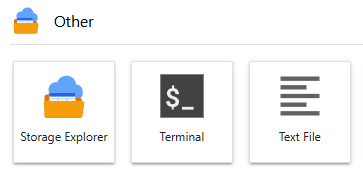
From the JupyterLab launcher
jupyter-storage-explorer-launcher
adds Storage Explorer to JupyterLab's launcher, opening the explorer in its own tab:
pip install jupyter-storage-explorer-launcher
From Python code
from jupyter_storage_explorer import StorageExplorer

StorageExplorer("s3://my-bucket/data")
Options after the address go to the storage package, e.g. profile="analytics". Double-click a file to preview it;
right-click for everything else.
Browse a dataframe and get the rows you filtered back:
import polars as pl
from jupyter_storage_explorer import DataExplorer

explorer = DataExplorer(pl.scan_parquet("s3://my-bucket/lake/sales/*.parquet"))
explorer
explorer.result().collect() # after filtering and sorting in the widget
The notebooks folder has a demo of each widget on sample data.
Documentation
- StorageExplorer: storages, using the explorer, transfer policy, formats, working with it from Python and options.
- DataExplorer: the data
browser,
result(),on_change(),QuerySettingsand options. - The launcher: configuring
its tab with
launcher.pyfiles. - Development: building, releasing, and custom icons.
Requirements
- Python 3.11 or later
- JupyterLab 4.0 or later (other Jupyter frontends show the widgets, without drag and drop from JupyterLab's file browser)
- For querying data: polars (tested with 2.0)
Why Storage Explorer?
Storage Explorer aims to be a data-aware file explorer for large data lakes, made for the daily work of data scientists and engineers. Rather than adding data lake access to JupyterLab's file browser, a narrow sidebar, it is a widget in JupyterLab's main area, in a notebook or a tab of its own, with room for what working with data needs:
- Built for large folders: data lakes often hold thousands of items in one folder (partitions, part files, daily drops). The list is paged, sorted and filtered as you type, regular expressions included; folders of tens of thousands of items are listed by the kernel, a page at a time. Moving, copying, deleting and uploading run in the background, with their progress and Cancel, so the explorer stays usable while thousands of files move.
- Preview as you browse: tree, list and preview side by side. Click through files and see each one at once, without opening and closing tabs.
- Tables, not just files: Delta Lake tables and partitioned Parquet datasets are recognised as tables, not folders. Open them in the data browser to choose among hundreds of columns and filter and sort the data where it lives.
- From browsing to code: copy ready-to-run code to load a file or table with polars, pandas, PySpark and more, or
the URLs of the files you selected, ready for any library. In Python,
folder_urlandselected_urlsgive the folder shown and the files selected. - Part of your notebook: explorers are widgets, placed in your notebook next to your analysis. Your code can
follow what you browse (
on_change(),on_query_change()): a chart of the file you click, redrawn as you filter it in the data browser (query_result()).DataExplorerbrings the same data browser to any dataframe, and gives the rows you filtered back to your code (result()). See Working with the explorer from Python. - Safe by default: in a data lake, a folder is often a whole table. Folders can't be moved, copied, renamed or deleted by a stray drag: that takes Unsafe mode, which turns itself off after one operation. Teams can also restrict where files may go with a transfer policy.
- Runs in your kernel: with your credentials and your libraries, and no server setup.
It complements JupyterLab's file browser rather than replacing it: open files in JupyterLab's own editors, drag them onto its file browser, or query a table in a tab of its own.
1 maintainer

Metadata
1 maintainer
Release files for jupyter-storage-explorer 0.12.1
For a detailed explanation of source distributions (sdists) and built distributions (wheels), please see the package formats documentation.
Source distribution (sdist)
| File | Size | Uploaded | |
|---|---|---|---|
| jupyter_storage_explorer-0.12.1.tar.gz | 1.9 MB | Details |
Built distribution (wheel)
| File | Interpreter | ABI | Platform | Reset |
|---|---|---|---|---|
| jupyter_storage_explorer-0.12.1-py3-none-any.whl | Python 3 | none | any | Details |
Total release size: 2.2 MB
Release files / jupyter_storage_explorer-0.12.1.tar.gz
| Download URL | jupyter_storage_explorer-0.12.1.tar.gz |
|---|---|
| Size | 1.9 MB |
| Tags | Source |
|
SHA-256 checksum How to use checksums |
c5d00dc959a52cddd3f48b09437c36b8681f011d073323feb7756a74f6c0b8c8
|
|
BLAKE2b-256 checksum How to use checksums |
027d9e64a1d1687b49cc2f14b9ed04ac34a27586d72f452f89437d302c42667b
|
| Upload date | |
|
Uploaded using Trusted Publishing? What is trusted publishing? |
Yes |
| Uploaded via |
twine/7.0.0 CPython/3.13.14
|
Provenance
Provenance describes where a file came from. On PyPI, provenance is shared via attestations, which provide a verifiable record of the build or publishing details. View details, limitations and caveats.


PyPI Publish Attestation
PyPI verified that this artifact, at this checksum, originated from the publisher listed below.
Signed by GitHub Actions, verified by PyPI on Oct 18, 2026.
Transparency logRelease files / jupyter_storage_explorer-0.12.1-py3-none-any.whl
| Download URL | jupyter_storage_explorer-0.12.1-py3-none-any.whl |
|---|---|
| Size | 250.8 kB |
| Tags | Python 3 |
|
SHA-256 checksum How to use checksums |
9838eb67fce86d9afb1c5a8706148990c3284d09a293127d64a235ac0e25aa41
|
|
BLAKE2b-256 checksum How to use checksums |
1c571afd9dfb4566f85a04eb2f1cbf1a860b0c0cfb2ce63139074a7ffdf3e183
|
| Upload date | |
|
Uploaded using Trusted Publishing? What is trusted publishing? |
Yes |
| Uploaded via |
twine/7.0.0 CPython/3.13.14
|
Provenance
Provenance describes where a file came from. On PyPI, provenance is shared via attestations, which provide a verifiable record of the build or publishing details. View details, limitations and caveats.
PyPI Publish Attestation
PyPI verified that this artifact, at this checksum, originated from the publisher listed below.
Signed by GitHub Actions, verified by PyPI on Oct 18, 2026.
Transparency log













