












Jupytext
Have you always wished Jupyter notebooks were plain text documents? Wished you could edit them in your favorite IDE? And get clear and meaningful diffs when doing version control? Then, Jupytext may well be the tool you're looking for!
Text Notebooks
A Python notebook encoded in the py:percent format has a .py extension and looks like this:
# %% [markdown]
# This is a markdown cell

# %%
def f(x):
  return 3*x+1
Only the notebook inputs (and optionally, the metadata) are included. Text notebooks are well suited for version control. You can also edit or refactor them in an IDE - the .py notebook above is a regular Python file.
We recommend the percent format for notebooks that mostly contain code. The percent format is available for Julia, Python, R and many other languages.
If your notebook is documentation-oriented, a Markdown-based format (text notebooks with a .md extension) might be more appropriate. Depending on what you plan to do with your notebook, you might prefer the Myst Markdown format, which interoperates very well with Jupyter Book, or Quarto Markdown, or even Pandoc Markdown.
Installation
Install Jupytext in the Python environment that you use for Jupyter. Use either
pip install jupytext
or
conda install jupytext -c conda-forge
Then, restart your JupyterLab server, and make sure Jupytext is activated in Jupyter: .py and .md files have a Notebook icon, and you can open them as Notebooks with a right click in JupyterLab.

Paired Notebooks
Text notebooks with a .py or .md extension are well suited for version control. They can be edited or authored conveniently in an IDE. You can open and run them as notebooks in JupyterLab with a right click. However, the notebook outputs are lost when the notebook is closed, as only the notebook inputs are saved in text notebooks.
A convenient alternative to text notebooks are paired notebooks. These are a set of two files, say .ipynb and .py, that contain the same notebook, but in different formats.
You can edit the .py version of the paired notebook, and get the edits back in Jupyter by selecting reload notebook from disk. The outputs will be reloaded from the .ipynb file, if it exists. The .ipynb version will be updated or recreated the next time you save the notebook in Jupyter.
💡 Tip: You can automate the notebook reloading by installing the Jupyter Collaboration extension.
To pair a notebook in JupyterLab, use the command Pair Notebook with percent Script from the Command Palette:
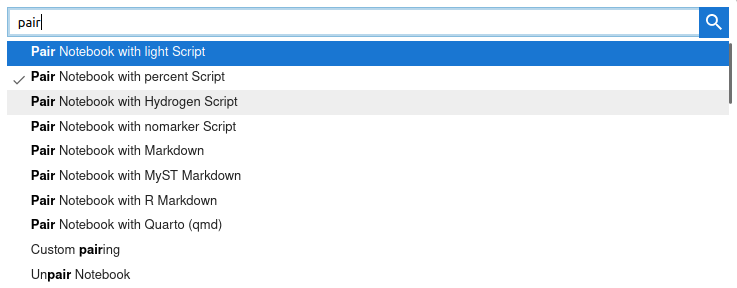
To pair all the notebooks in a certain directory, create a configuration file with this content:
# jupytext.toml at the root of your notebook directory
formats = "ipynb,py:percent"
Command line
Jupytext is also available at the command line. You can
- pair a notebook with
jupytext --set-formats ipynb,py:percent notebook.ipynb - synchronize the paired files with
jupytext --sync notebook.py(the inputs are loaded from the most recent paired file) - convert a notebook in one format to another with
jupytext --to ipynb notebook.py(use-oif you want a specific output file) - pipe a notebook to a linter with e.g.
jupytext --pipe black notebook.ipynb
Sample use cases
Notebooks under version control
This is a quick how-to:
- Open your
.ipynbnotebook in Jupyter and pair it to a.pynotebook, using either the pair command in JupyterLab, or a global configuration file - Save the notebook - this creates a
.pynotebook - Add this
.pynotebook to version control
You might exclude .ipynb files from version control (unless you want to see the outputs versioned!). Jupytext will recreate the .ipynb files locally when the users open and save the .py notebooks.
Collaborating on notebooks with Git
Collaborating on Jupyter notebooks through Git becomes as easy as collaborating on text files.
Assume that you have your .py notebooks under version control (see above). Then,
- Your collaborator pulls the
.pynotebook - They open it as a notebook in Jupyter (right-click in JupyterLab)
- At that stage the notebook has no outputs. They run the notebook and save it. Outputs are regenerated, and a local
.ipynbfile is created - They edit the notebook, and push the updated
notebook.pyfile. The diff is nothing else than a standard diff on a Python script. - You pull the updated
notebook.pyscript, and refresh your browser. The input cells are updated based on the new content ofnotebook.py. The outputs are reloaded from your local.ipynbfile. Finally, the kernel variables are untouched, so you have the option to run only the modified cells to get the new outputs.
Editing or refactoring a notebook in an IDE
Once your notebook is paired with a .py file, you can easily edit or refactor the .py representation of the notebook in an IDE.
Once you are done editing the .py notebook, you will just have to reload the notebook in Jupyter to get the latest edits there.
Note: It is simpler to close the .ipynb notebook in Jupyter when you edit the paired .py file. There is no obligation to do so; however, if you don't, you should be prepared to read carefully the pop-up messages. If Jupyter tries to save the notebook while the paired .py file has also been edited on disk since the last reload, a conflict will be detected and you will be asked to decide which version of the notebook (in memory or on disk) is the appropriate one. Alternatively, the Jupyter Collaboration extension provides an autoreload feature which simplifies this.
More resources
Read more about Jupytext in the documentation.
If you're new to Jupytext, you may want to start with the FAQ or with the Tutorials.
There is also this short introduction to Jupytext: 
Community
Have a question, a bug report, or an idea? Join us on Discord or open an issue or discussion on GitHub.
1 maintainer

Metadata
1 maintainer
Release files for jupytext 1.19.6
For a detailed explanation of source distributions (sdists) and built distributions (wheels), please see the package formats documentation.
Source distribution (sdist)
| File | Size | Uploaded | Provenance | |
|---|---|---|---|---|
| jupytext-1.19.6.tar.gz | 4.6 MB | With provenance | Details |
Built distribution (wheel)
| File | Interpreter | ABI | Platform | Reset |
|---|---|---|---|---|
| jupytext-1.19.6-py3-none-any.whl | Python 3 | none | any | Details |
Total release size: 4.8 MB
Release files / jupytext-1.19.6.tar.gz
| Download URL | jupytext-1.19.6.tar.gz |
|---|---|
| Size | 4.6 MB |
| Tags | Source |
|
SHA-256 checksum How to use checksums |
ba1d143bb3751e054d3164376b148ee8fa74e1a860fc9411e1da93ff588b8a17
|
|
BLAKE2b-256 checksum How to use checksums |
797f5d2cc9618eca61dbc2d76628da3622a311702abd6b15c824bbf2b53e0db6
|
| Upload date | |
|
Uploaded using Trusted Publishing? What is trusted publishing? |
Yes |
| Uploaded via |
twine/7.0.0 CPython/3.13.14
|
Provenance
Provenance describes where a file came from. On PyPI, provenance is shared via attestations, which provide a verifiable record of the build or publishing details. View details, limitations and caveats.


PyPI Publish Attestation
PyPI verified that this artifact, at this checksum, originated from the publisher listed below.
Signed by GitHub Actions, verified by PyPI on Oct 4, 2026.
Transparency logRelease files / jupytext-1.19.6-py3-none-any.whl
| Download URL | jupytext-1.19.6-py3-none-any.whl |
|---|---|
| Size | 230.8 kB |
| Tags | Python 3 |
|
SHA-256 checksum How to use checksums |
eb725d66841f1a91707bdcf4703b194a53151a060ecb3fd31d78139cc9ec090a
|
|
BLAKE2b-256 checksum How to use checksums |
70c3c4eff5bdbe79b688dda8f06f2b66dbcf9a483cf660e5ced0b2dd5c21623d
|
| Upload date | |
|
Uploaded using Trusted Publishing? What is trusted publishing? |
Yes |
| Uploaded via |
twine/7.0.0 CPython/3.13.14
|
Provenance
Provenance describes where a file came from. On PyPI, provenance is shared via attestations, which provide a verifiable record of the build or publishing details. View details, limitations and caveats.
PyPI Publish Attestation
PyPI verified that this artifact, at this checksum, originated from the publisher listed below.
Signed by GitHub Actions, verified by PyPI on Oct 4, 2026.
Transparency logSecurity for jupytext 1.19.6
Provenance
Provenance describes where a file came from. On PyPI, provenance is shared via attestations, which provide a verifiable record of the build or publishing details. View details, limitations and caveats.
Full provenance
All 2 files in this release have been uploaded with provenance metadata.
Attestation for jupytext-1.19.6.tar.gz
PyPI Publish Attestation
PyPI verified that this artifact, at this checksum, originated from the publisher listed below.
Signed by GitHub Actions, verified by PyPI on Oct 4, 2026.
Transparency logA note on package security
PyPI is a repository for distributing packages, not a service for auditing them. While third-party security researchers and our staff do their best to detect and remove malicious packages, PyPI cannot guarantee the quality, security or suitability of any given package.
To learn more about protecting yourself from malicious actors, visit our package security documentation.














