
KaggleRun
Execute Python on Kaggle's FREE GPUs from your terminal. No browser needed.






Quick Start • Features • MCP Server • API • Contributing
What is KaggleRun?
KaggleRun bridges your local terminal to Kaggle's free GPU infrastructure. Perfect for:
- AI Coding Agents - Claude Code, Cursor, Cline can execute GPU code natively
- ML Engineers - Train models without leaving your terminal
- Data Scientists - Run experiments on free T4/P100/H100 GPUs
pip install kagglerun
kagglerun --url "$KAGGLE_URL" "import torch; print(torch.cuda.get_device_name(0))"
# Output: Tesla T4
|
Tesla T4 - Quick Commands 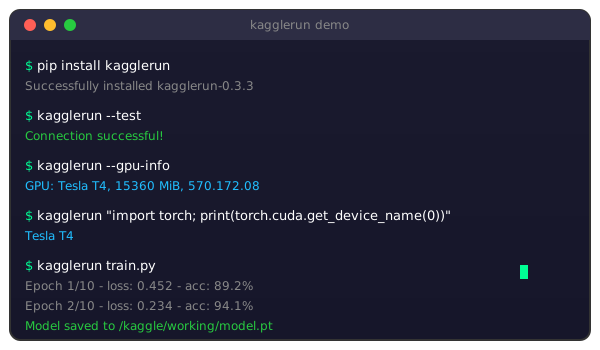
|
H100 80GB - Competition Workflow 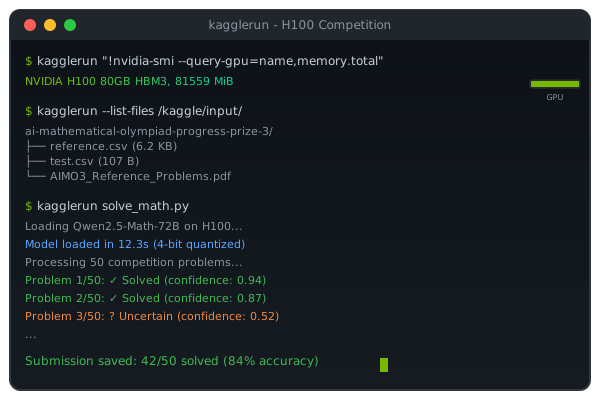
|
Why KaggleRun?
| Feature | KaggleRun | Kaggle Web | Colab | Cloud GPU |
|---|---|---|---|---|
| No browser needed | Yes | No | No | No |
| CLI-native | Yes | No | No | Partial |
| AI agent ready (MCP) | Yes | No | No | No |
| Free GPU access | Yes | Yes | Limited | No |
| Real-time output | Yes | Yes | Yes | Yes |
| Cost | $0 | $0 | $0-10/mo | $$$$ |
Quick Start
Step 1: Get Your Kaggle URL
- Open kaggle.com/code and create/open a notebook
- Enable GPU: Settings > Accelerator > GPU T4 x2 (or P100)
- Click Run menu (top left) > Kaggle Jupyter Server
- Copy the VSCode Compatible URL from the right panel
Step 2: Install
pip install kagglerun
Step 3: Set Environment Variable
Windows (CMD)
:: Temporary (current session only)
set KAGGLE_JUPYTER_URL=https://kkb-production.jupyter-proxy.kaggle.net?token=eyJ...

:: Permanent (persists after restart)
setx KAGGLE_JUPYTER_URL "https://kkb-production.jupyter-proxy.kaggle.net?token=eyJ..."
Note: For
set, do NOT use quotes around the URL. Forsetx, quotes are required.
Windows (PowerShell)
# Temporary (current session only)
$env:KAGGLE_JUPYTER_URL = "https://kkb-production.jupyter-proxy.kaggle.net?token=eyJ..."

# Permanent (user level)
[Environment]::SetEnvironmentVariable("KAGGLE_JUPYTER_URL", "https://kkb-production.jupyter-proxy.kaggle.net?token=eyJ...", "User")
Linux / macOS (Bash/Zsh)
# Temporary (current session only)
export KAGGLE_JUPYTER_URL="https://kkb-production.jupyter-proxy.kaggle.net?token=eyJ..."

# Permanent - add to ~/.bashrc or ~/.zshrc
echo 'export KAGGLE_JUPYTER_URL="https://kkb-production.jupyter-proxy.kaggle.net?token=eyJ..."' >> ~/.bashrc
source ~/.bashrc
Or pass URL directly
# Skip environment variable entirely
kagglerun --url "https://kkb-production.jupyter-proxy.kaggle.net?token=eyJ..." "print('Hello GPU!')"
Step 4: Run!
# Test connection
kagglerun --test

# Check GPU
kagglerun --gpu-info

# Execute code
kagglerun "import torch; print(f'CUDA: {torch.cuda.is_available()}')"

# Run a Python file
kagglerun train.py
Features
CLI Commands
# Execute inline Python code
kagglerun "print('Hello from Kaggle GPU!')"

# Execute a local Python file
kagglerun my_script.py

# GPU and system information
kagglerun --gpu-info
kagglerun --system-info

# File operations
kagglerun --list-files                    # List /kaggle/working/
kagglerun --upload data.csv               # Upload file
kagglerun --download model.pkl -o ./      # Download file
kagglerun --read output.txt               # Read remote file

# Connection
kagglerun --test                          # Test connection
kagglerun --timeout 300 long_script.py    # Custom timeout
Python API
from kagglerun import KaggleExecutor

# Connect to Kaggle
executor = KaggleExecutor("https://your-kaggle-url?token=...")

# Execute code
result = executor.execute("""
import torch
print(f"GPU: {torch.cuda.get_device_name(0)}")
print(f"Memory: {torch.cuda.get_device_properties(0).total_memory / 1e9:.1f} GB")
""")

# File operations
executor.save_text("config.json", '{"epochs": 10}')
executor.upload_file("local_data.csv", "data.csv")
data = executor.download_file("results.csv")

# Get info
executor.get_gpu_info()
executor.get_system_info()
executor.list_files()
MCP Server
KaggleRun includes a Model Context Protocol (MCP) server, enabling AI assistants like Claude to execute code on Kaggle GPUs as a native tool.
Step 1: Install
pip install kagglerun[mcp]
Step 2: Set Environment Variable (Recommended)
Set KAGGLE_JUPYTER_URL as a permanent system variable so all AI tools can use it automatically.
Windows (CMD) - Run as Administrator
:: Set permanently (requires terminal restart)
setx KAGGLE_JUPYTER_URL "https://kkb-production.jupyter-proxy.kaggle.net?token=eyJ..."

:: Also set for current session
set KAGGLE_JUPYTER_URL=https://kkb-production.jupyter-proxy.kaggle.net?token=eyJ...

:: Verify (in NEW terminal)
echo %KAGGLE_JUPYTER_URL%
Note: After
setx, close and reopen your terminal (or restart your IDE/Claude) for changes to take effect.
Windows (PowerShell) - Run as Administrator
# Set permanently (Machine level - all users)
[Environment]::SetEnvironmentVariable("KAGGLE_JUPYTER_URL", "https://kkb-production.jupyter-proxy.kaggle.net?token=eyJ...", "Machine")

# Or User level only
[Environment]::SetEnvironmentVariable("KAGGLE_JUPYTER_URL", "https://kkb-production.jupyter-proxy.kaggle.net?token=eyJ...", "User")

# Also set for current session
$env:KAGGLE_JUPYTER_URL = "https://kkb-production.jupyter-proxy.kaggle.net?token=eyJ..."

# Verify
echo $env:KAGGLE_JUPYTER_URL
Linux / macOS
# Add to ~/.bashrc (Linux) or ~/.zshrc (macOS)
echo 'export KAGGLE_JUPYTER_URL="https://kkb-production.jupyter-proxy.kaggle.net?token=eyJ..."' >> ~/.bashrc

# Reload
source ~/.bashrc

# Verify
echo $KAGGLE_JUPYTER_URL
Step 3: Configure MCP Client
Add KaggleRun to your AI assistant's MCP configuration.
Claude Desktop
Windows
Config file: C:\Users\{username}\AppData\Roaming\Claude\claude_desktop_config.json
{
  "mcpServers": {
    "kagglerun": {
      "command": "python",
      "args": ["-m", "kagglerun.mcp_server"]
    }
  }
}
macOS
Config file: ~/Library/Application Support/Claude/claude_desktop_config.json
{
  "mcpServers": {
    "kagglerun": {
      "command": "python3",
      "args": ["-m", "kagglerun.mcp_server"]
    }
  }
}
Linux
Config file: ~/.config/Claude/claude_desktop_config.json
{
  "mcpServers": {
    "kagglerun": {
      "command": "python3",
      "args": ["-m", "kagglerun.mcp_server"]
    }
  }
}
Claude Code (CLI)
All Platforms
Config file: ~/.claude/mcp_settings.json
| OS | Full Path |
|---|---|
| Windows | C:\Users\{username}\.claude\mcp_settings.json |
| macOS | /Users/{username}/.claude/mcp_settings.json |
| Linux | /home/{username}/.claude/mcp_settings.json |
{
  "mcpServers": {
    "kagglerun": {
      "command": "python",
      "args": ["-m", "kagglerun.mcp_server"]
    }
  }
}
Other MCP-Compatible Tools
| Tool | Config Location |
|---|---|
| Cursor | Settings → MCP → Add Server |
| Cline | .cline/mcp_settings.json |
| Continue | ~/.continue/config.json |
Alternative: Pass URL in Config
If you prefer not to set a system environment variable, include the URL directly in the MCP config:
{
  "mcpServers": {
    "kagglerun": {
      "command": "python",
      "args": ["-m", "kagglerun.mcp_server"],
      "env": {
        "KAGGLE_JUPYTER_URL": "https://kkb-production.jupyter-proxy.kaggle.net?token=eyJ..."
      }
    }
  }
}
Verify MCP Server
Test the server is working:
# Should start without errors (Ctrl+C to exit)
python -m kagglerun.mcp_server
Available Tools
| Tool | Description |
|---|---|
execute_python |
Run Python code on GPU |
get_gpu_info |
Get GPU model, memory, driver |
get_system_info |
Python version, PyTorch, CUDA |
list_files |
Browse /kaggle/working/ |
read_file |
Read remote text files |
save_file |
Save content to files |
download_file |
Download files (base64) |
test_connection |
Verify kernel connectivity |
Example Conversation
You: Train a simple neural network on the Kaggle GPU
Claude: Uses
execute_pythonto run PyTorch training on Kaggle's free GPU
Use Cases
ML Model Training
result = executor.execute("""
import torch
import torch.nn as nn
from torchvision import models

# Load pretrained ResNet50
model = models.resnet50(weights='DEFAULT').cuda()

# Inference test
x = torch.randn(16, 3, 224, 224).cuda()
with torch.amp.autocast('cuda'):
    out = model(x)

print(f"Output: {out.shape}")
print(f"GPU Memory: {torch.cuda.memory_allocated()/1e9:.2f} GB")
""")
LLM Inference
result = executor.execute("""
from transformers import pipeline

generator = pipeline('text-generation', model='gpt2', device=0)
output = generator("The future of AI is", max_length=50)
print(output[0]['generated_text'])
""", timeout=300)
Data Processing
result = executor.execute("""
import pandas as pd
import numpy as np

# Generate large dataset
df = pd.DataFrame(np.random.randn(1_000_000, 50))
print(f"Shape: {df.shape}")
print(f"Memory: {df.memory_usage(deep=True).sum() / 1e6:.1f} MB")

# Save for download
df.to_parquet('/kaggle/working/data.parquet')
""")

# Download result
data = executor.download_file("data.parquet")
API Reference
KaggleExecutor
KaggleExecutor(
    base_url: str,              # Kaggle Jupyter URL
    verbose: bool = True,       # Print status messages
    timeout: int = 120,         # Default timeout (seconds)
    on_output: Callable = None  # Streaming output callback
)
| Method | Description |
|---|---|
execute(code, timeout) |
Execute Python code |
run_file(path, timeout) |
Run local .py file |
upload_file(local, remote) |
Upload to /kaggle/working/ |
download_file(path) |
Download as bytes |
save_text(name, content) |
Save text file |
read_file(path) |
Read text file |
list_files(path) |
List directory |
get_gpu_info() |
GPU information |
get_system_info() |
System information |
test_connection() |
Test connectivity |
interrupt_kernel() |
Stop execution |
Convenience Function
from kagglerun import connect

executor = connect("https://your-url")  # Raises ConnectionError if fails
How It Works
┌─────────────────────┐          ┌─────────────────────┐
│   Your Terminal     │          │   Kaggle Jupyter    │
│   ─────────────     │  REST    │   ──────────────    │
│                     │◄────────►│   Kernel Manager    │
│   kagglerun CLI     │          │                     │
│   Python API        │  WS      │   Python Kernel     │
│   MCP Server        │◄════════►│   GPU: T4/P100/H100 │
│                     │          │                     │
└─────────────────────┘          └─────────────────────┘
      Local Machine                   Kaggle Cloud
- REST API - Kernel lifecycle management
- WebSocket - Real-time code execution & streaming output
- Base64 - Binary file transfers
Limitations
| Limitation | Details |
|---|---|
| Session timeout | ~12 hours of inactivity |
| Token expiration | Get fresh URL when disconnected |
| GPU quota | ~30 hours/week (free accounts) |
| File persistence | Only during active session |
Troubleshooting
"Connection failed"
- Ensure notebook shows "Running" status in Kaggle
- Get a fresh URL (tokens expire)
- Check GPU is enabled in notebook settings
"Kernel is busy"
- KaggleRun auto-interrupts busy kernels
- Use
--timeoutfor long operations - Check if notebook is running other code
"No GPU available"
- Enable GPU: Settings > Accelerator > GPU
- Check quota at kaggle.com/me/quota
Contributing
Contributions welcome! See CONTRIBUTING.md.
git clone https://github.com/Letemoin/kagglerun
cd kagglerun
pip install -e ".[dev]"
pytest tests/ -v
License
MIT License - see LICENSE
Acknowledgments
If KaggleRun helps your workflow, give it a star!

1 maintainer

Metadata
1 maintainer
Release files for kagglerun 0.3.5
For a detailed explanation of source distributions (sdists) and built distributions (wheels), please see the package formats documentation.
Source distribution (sdist)
| File | Size | Uploaded | |
|---|---|---|---|
| kagglerun-0.3.5.tar.gz | 20.9 kB | Details |
Built distribution (wheel)
| File | Interpreter | ABI | Platform | Reset |
|---|---|---|---|---|
| kagglerun-0.3.5-py3-none-any.whl | Python 3 | none | any | Details |
Total release size: 38.3 kB
Release files / kagglerun-0.3.5.tar.gz
| Download URL | kagglerun-0.3.5.tar.gz |
|---|---|
| Size | 20.9 kB |
| Tags | Source |
|
SHA-256 checksum How to use checksums |
c12302fff6d06e87f0418e8d802347ccdc2d1874b2f94534c994d8492d231eec
|
|
BLAKE2b-256 checksum How to use checksums |
b5c5686c51d254720d14c0515c85de6ee300c62e59930c6004b9450e8db3d1d9
|
| Upload date | |
|
Uploaded using Trusted Publishing? What is trusted publishing? |
No |
| Uploaded via |
twine/6.2.0 CPython/3.12.7
|
Release files / kagglerun-0.3.5-py3-none-any.whl
| Download URL | kagglerun-0.3.5-py3-none-any.whl |
|---|---|
| Size | 17.5 kB |
| Tags | Python 3 |
|
SHA-256 checksum How to use checksums |
d8a7139371b058920f38b6a9942911f8988034d454189f6ae8d82c05e06e568f
|
|
BLAKE2b-256 checksum How to use checksums |
e747505fa93f2a9f8270dcfccd4f4d73f19e7d12565eec4b88bf9e639fa92d54
|
| Upload date | |
|
Uploaded using Trusted Publishing? What is trusted publishing? |
No |
| Uploaded via |
twine/6.2.0 CPython/3.12.7
|














